
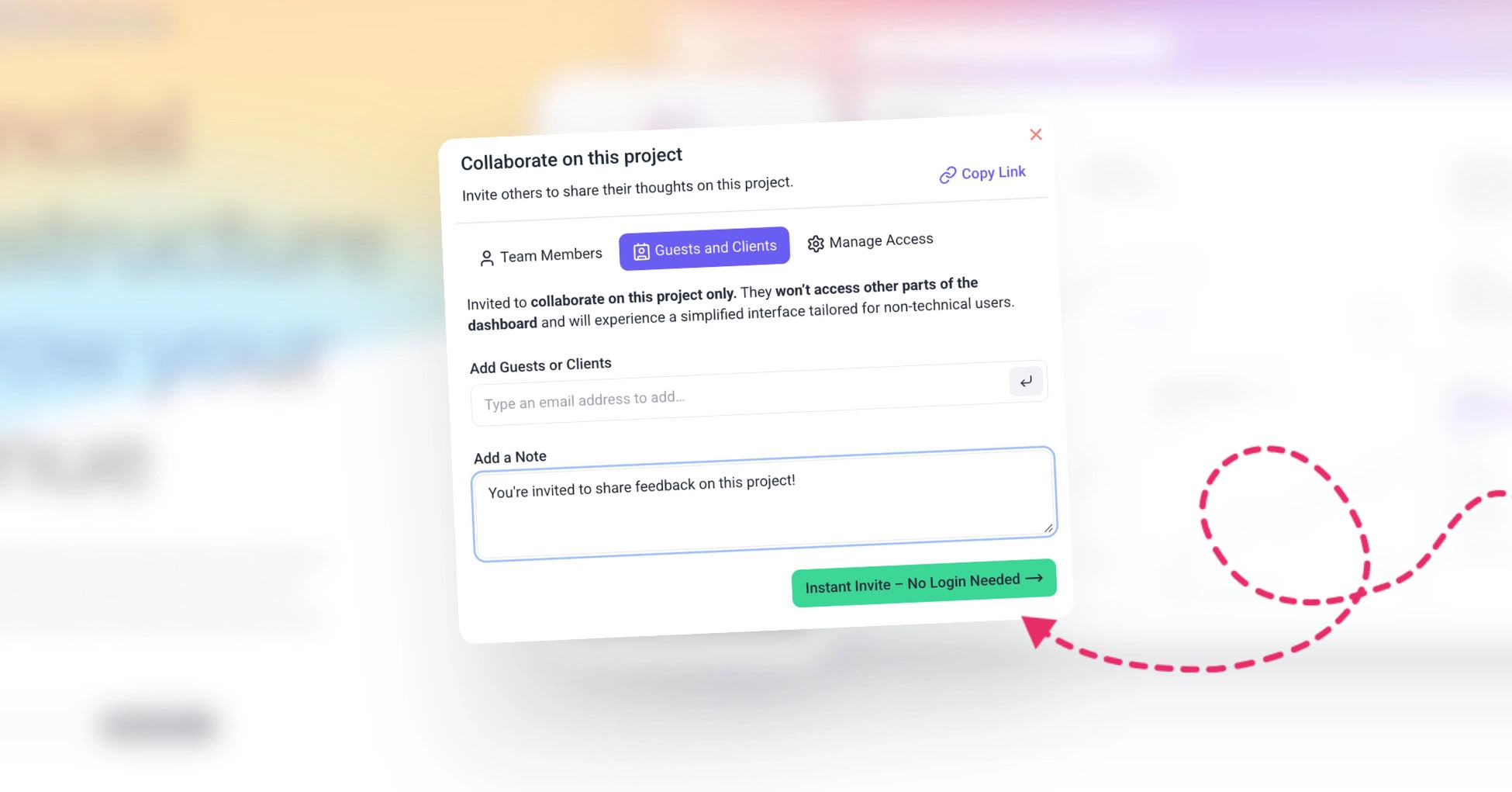
Step-by-Step Guide
1. Invite Clients from the Project Page in the Dashboard
Learn how to invite clients directly from the dashboard, where project management begins.
Instructions:
- Navigate to Your Project Page:
- Log in to your Atarim account and go to the “Projects” screen.
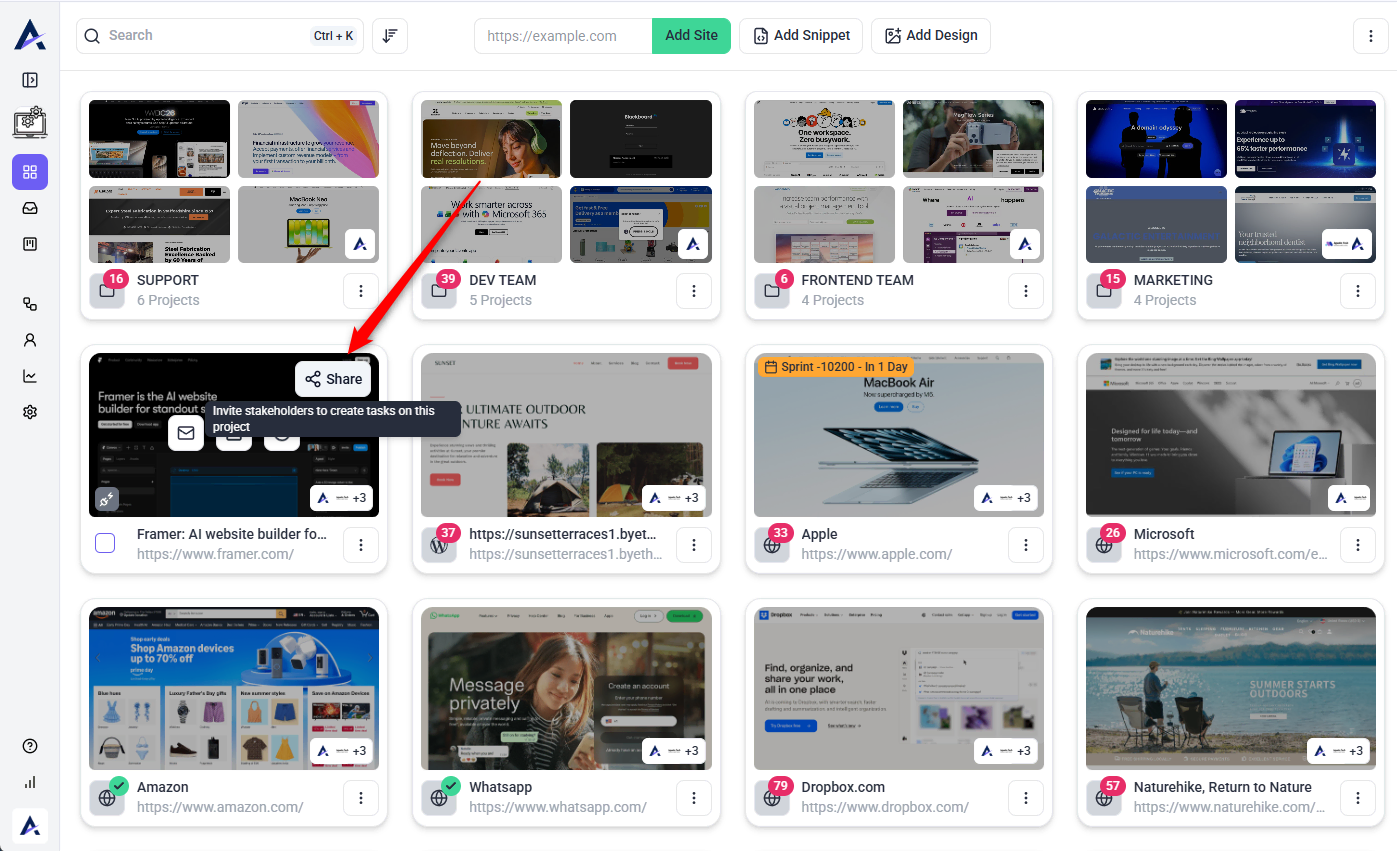
- Hover over the project you wish to share.
- Locate the Share Button:
- Find the Share button on the project block.
- Click to open the client invitation form.
- Fill in Client Details:
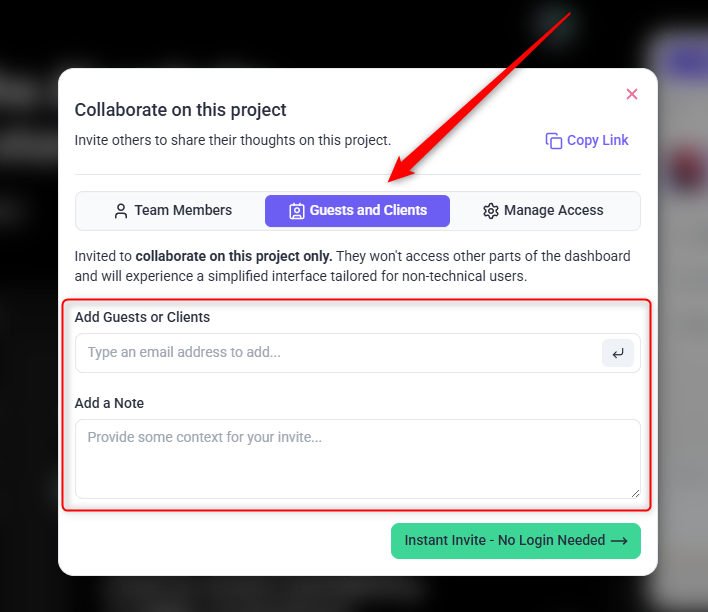
- Enter the client’s Name and Email in the fields provided.
- Select the appropriate role.
- Add multiple clients at once if needed by including more names and emails.
- Send the Invitation:
- Click the Invite button to send email invitations.
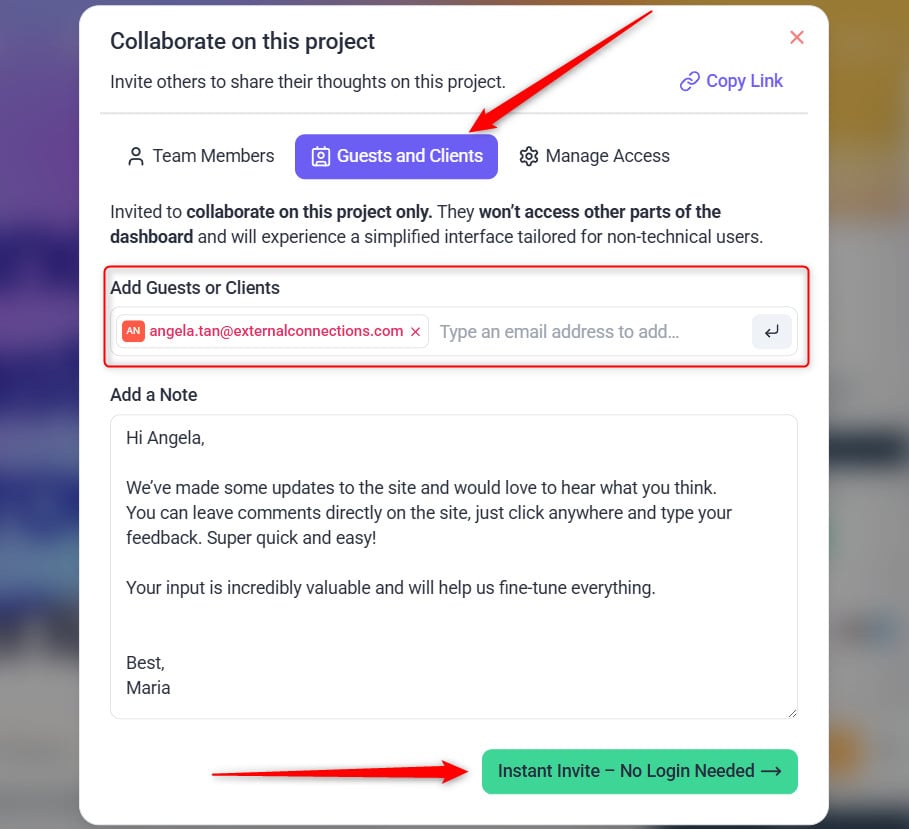
Note: It is advisable to select ‘Guest and Clients’ tab to invite Clients/Stakeholder.
2. Invite Clients from the Frontend Project View
Use this method for a visual, live collaboration setup.
Instructions:
- Open the Frontend View of the Project:
- Navigate to the live view of your project in Atarim.
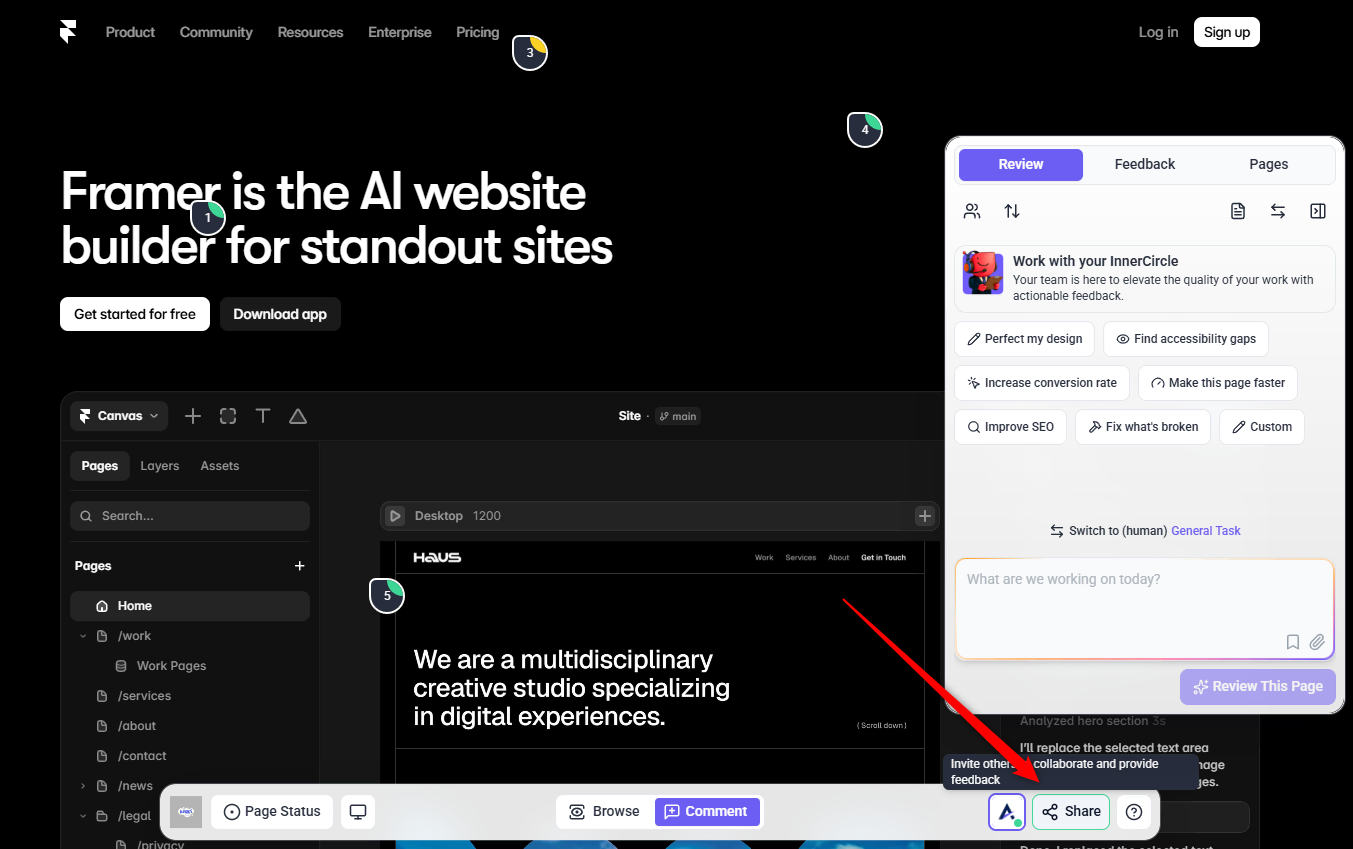
- Locate the Share Button:
- Find the Share button in the bottom bar of the frontend interface.
- Fill in Client Details:
- Input the client’s Name and Email in the fields.
- Send the Invitation:
- Press the Invite button to dispatch invitation along with the email link to your clients.
How Guest Mode Works
When a guest opens the collaboration link:
- They will see the project’s visual collaboration interface.
- They can click anywhere on the design or webpage to leave feedback.
- The first time they comment, they will be asked to enter their name and email address.
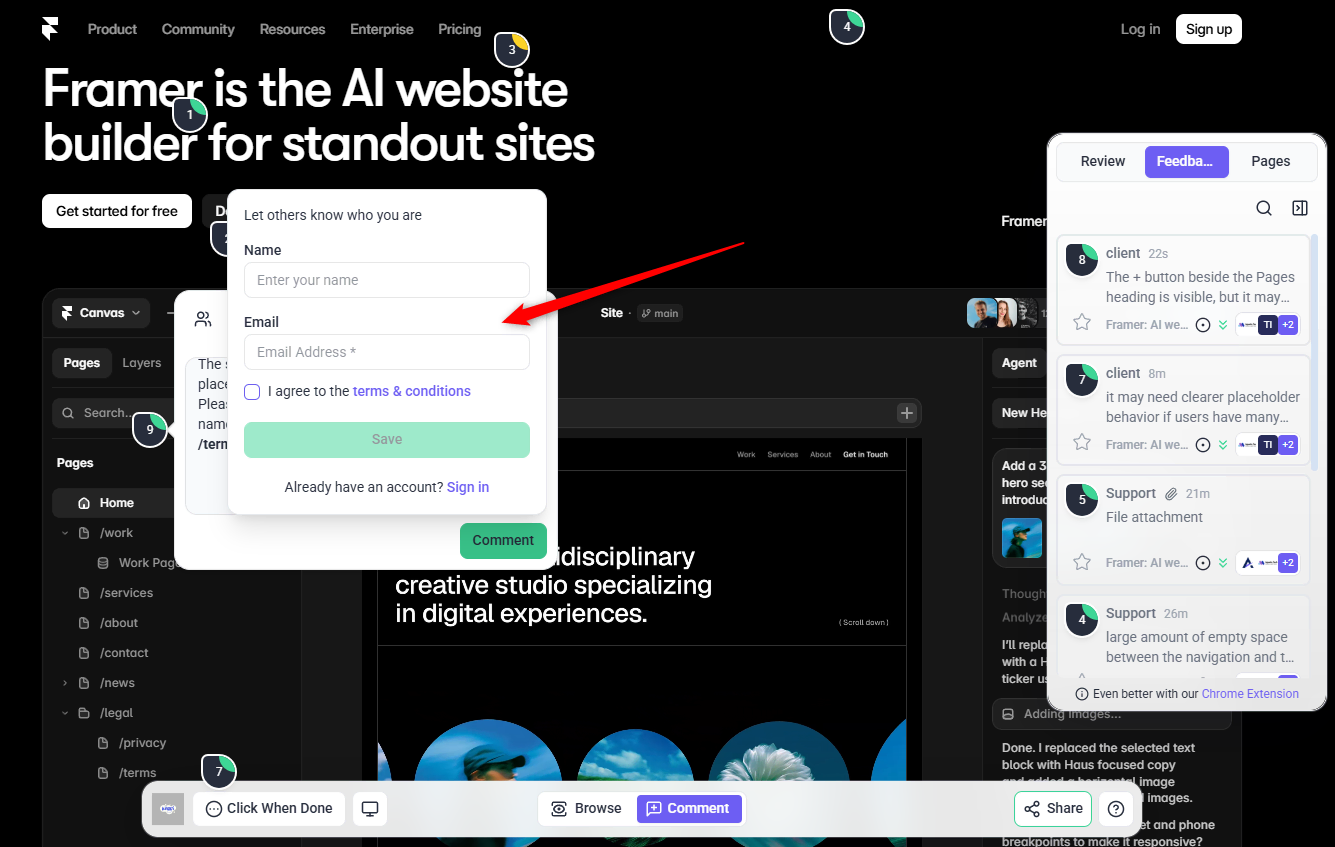
This ensures they receive notifications when replies or updates are made to their feedback.
Note: Guests only need to enter their information once, and their identity will be remembered for 90 days.
FAQs
Yes, simply add all names and emails to the invitation form before sending.
You can resend the invitation or share the unique link generated during the invitation process.
Yes, adjust roles from the People page in the dashboard.
No, clients do not need to log in to leave feedback as they can access projects as Guests. Using a shareable link, they can provide feedback directly without the need for an account.
