
1. Setting the WordPress Account You AutoLogin With
To control which WordPress account is used when opening WordPress from Atarim, first make sure the user is marked as the website builder, then select that user inside the Atarim plugin settings.
Instructions:
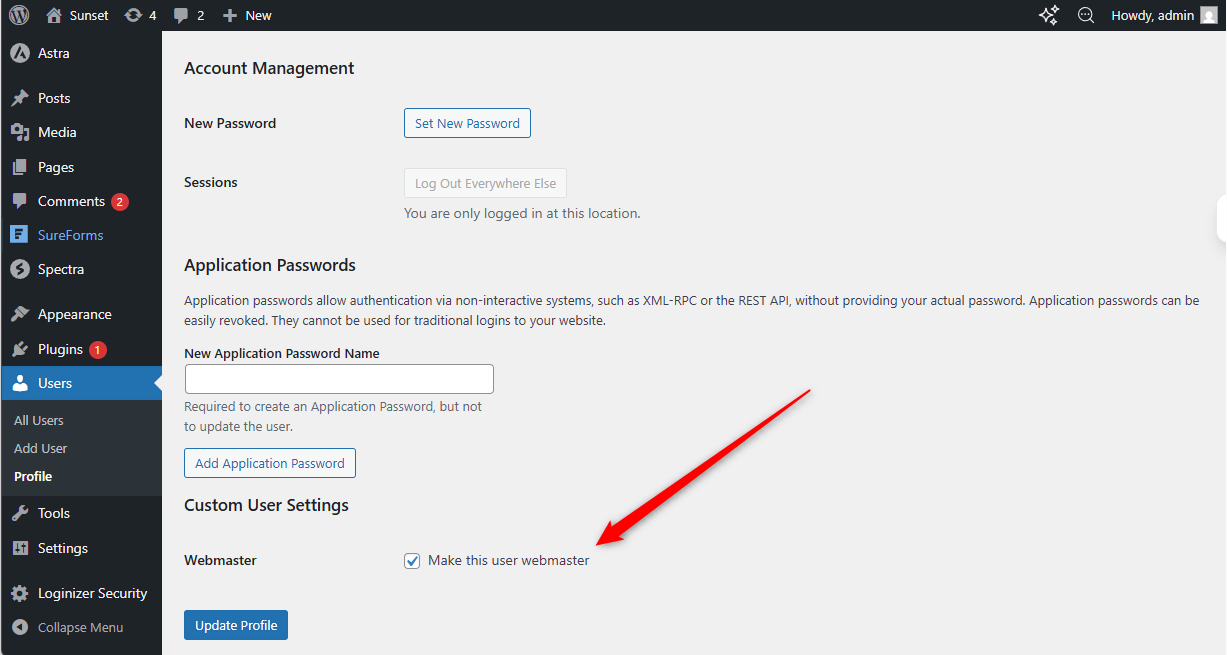
- Log in to your WordPress dashboard.
- Go to Users from the left sidebar.
- Find and open the WordPress user account you want to use for AutoLogin.
- Scroll to Custom User Settings.
- Enable Make this user webmaster.
- Click Update Profile to save the user setting.
- Next, go to Settings → Collaborate in WordPress.
- Open the Atarim plugin settings.
- Find the field labeled 1 Click Login from Atarim As.
- Select the WordPress user account you want Atarim to use for AutoLogin.
- Click Save & Apply.
- Once saved, Atarim will use the selected WordPress account when opening the site through 1 click login.
Note: Once saved, Atarim will use the selected WordPress account when opening the site through 1 click login.
Tip: Ensure that the selected admin account has the appropriate permissions to access all necessary areas of the WordPress backend.
2. Logging In From the Websites Screen
The AutoLogin feature allows you to quickly access your WordPress sites from the main Websites Screen inside your Atarim Dashboard.
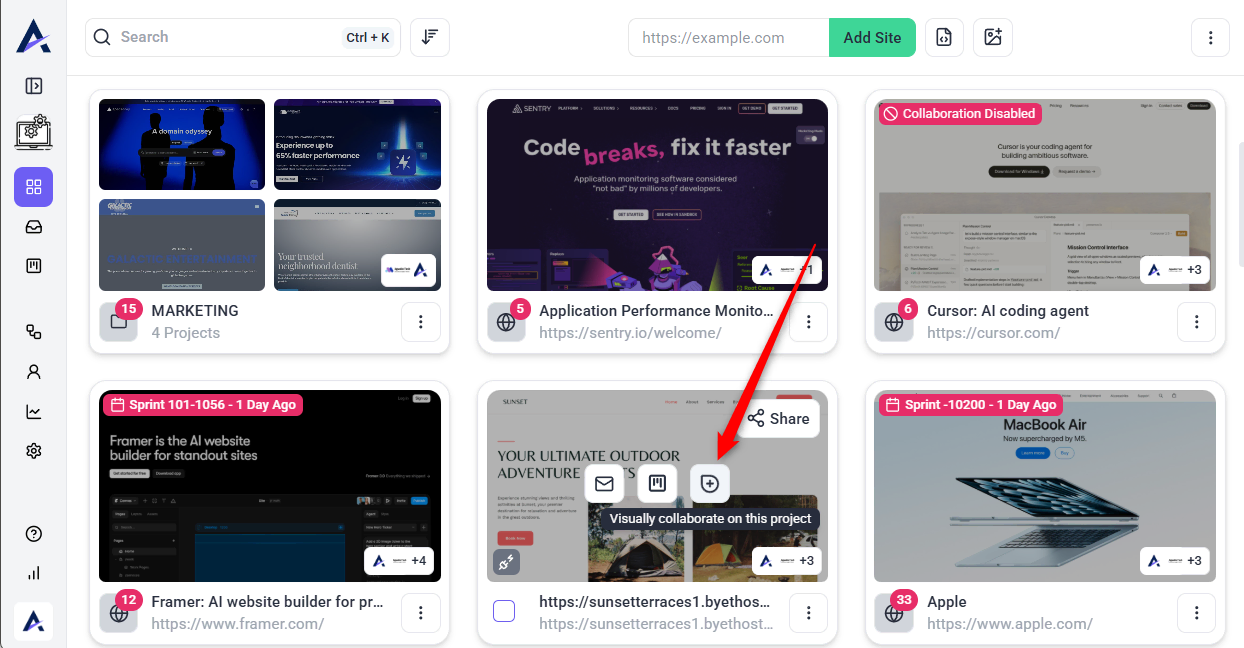
- Go to your Websites screen inside the Atarim Dashboard.
- Locate the website you want to log into.
- Click the Visually collaborate on this project (small plus sign inside a square/card).
- You will be instantly logged into the WordPress dashboard using the default admin account set in the WordPress Plugin.
Recommendation: If you manage multiple websites, use the folders and labels feature in Atarim to organize projects and improve navigation efficiency.
3. Logging In Via Tasks Inside Your Inbox
You can also access WordPress directly from the Inbox, where tasks are listed.
- Open the Inbox inside your Atarim Dashboard.
- Locate a task associated with a WordPress website.
- Click Go To Task in the first column.
- You will be redirected to the corresponding WordPress site, logged in automatically.

Tip: This method is particularly useful when working through assigned tasks, as it allows you to jump directly to the relevant website.
FAQs
Yes, you can change it by navigating to the Permissions tab inside the Atarim WordPress Plugin settings.
Yes, but they will all log in using the same default WordPress account set in the plugin.
It depends. If your WordPress login is protected by additional authentication steps (e.g., 2FA or IP restrictions), AutoLogin may require manual intervention.
