
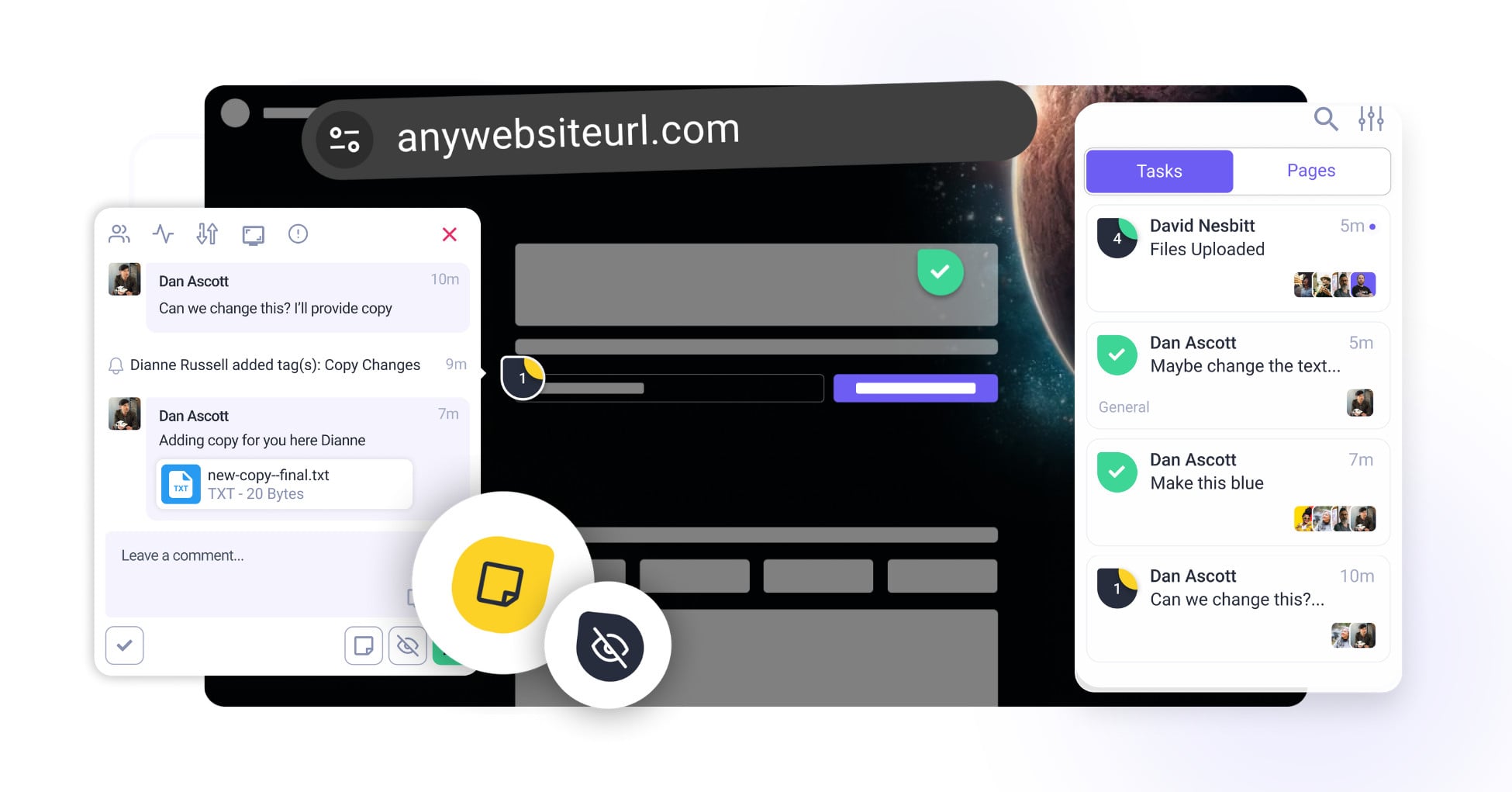
Step-by-Step Guide
1. Marking a Task as Internal (URL)
nternal tasks can be managed from the Collaborate, Inbox, or Boards view. When a task is marked as internal, it remains visible only to your internal team and is hidden from guests and clients.
- Go to Collaborate, Inbox, or Boards.
- Open the project or task list where the task is located.
- Look for the task you want to hide from guests and clients.
- Find the Internal Task icon in the task action area.
- Click the icon to mark the task as internal.
- Once enabled, the task will be hidden from guests and clients.
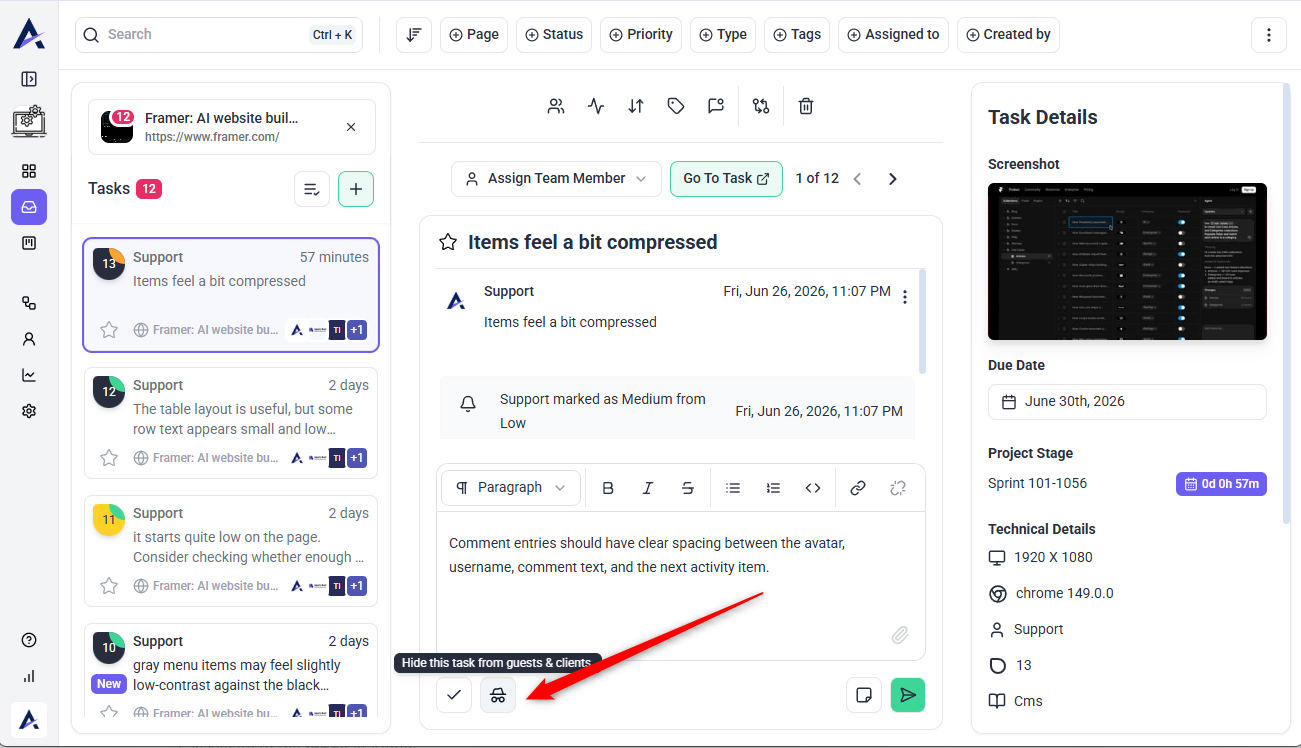
Tip: The icon tooltip may show “Hide this task from guests & clients”. This confirms that clicking it will make the task internal.
2. Marking Tasks as Internal Inside the WordPress Dashboard
For WordPress projects, you can mark tasks as internal directly from the project. Internal tasks are visible only to your team and hidden from guests and clients.
- Access the project.
- Look for the task you want to hide from guests and clients.
- Find the Internal Task icon in the task action area.
- Click the icon to mark the task as internal.
- Once enabled, the task will be hidden from guests and clients.
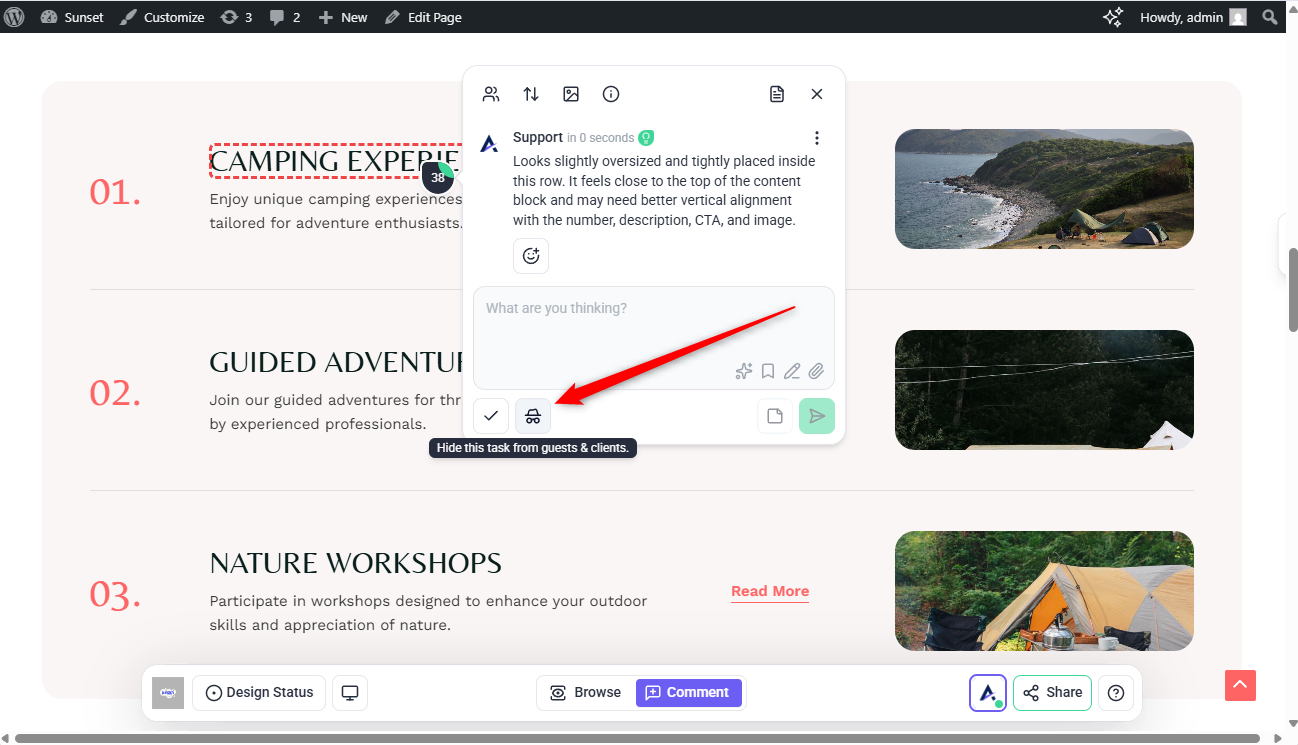
Tip: Use this for internal collaboration, discussions, and technical notes.
Note: The same internal task functionality is available in Boards/Inbox, within the task pop-over.
3. Switching Internal & Normal Tasks in WordPress
If a task is currently marked as internal and now needs to be visible to guests or clients, you can turn off internal mode from the task details.
- Access the project.
- Open the task you want to change.
- Look for the Internal Task icon in the task action area. Icon appears as a small glasses or incognito-style icon.
- When internal mode is enabled, the icon appears active or highlighted, usually with a darker background.
- Click the same Internal Task icon again to disable internal mode.
- Once the icon is no longer active or highlighted, the task is no longer hidden from guests and clients.
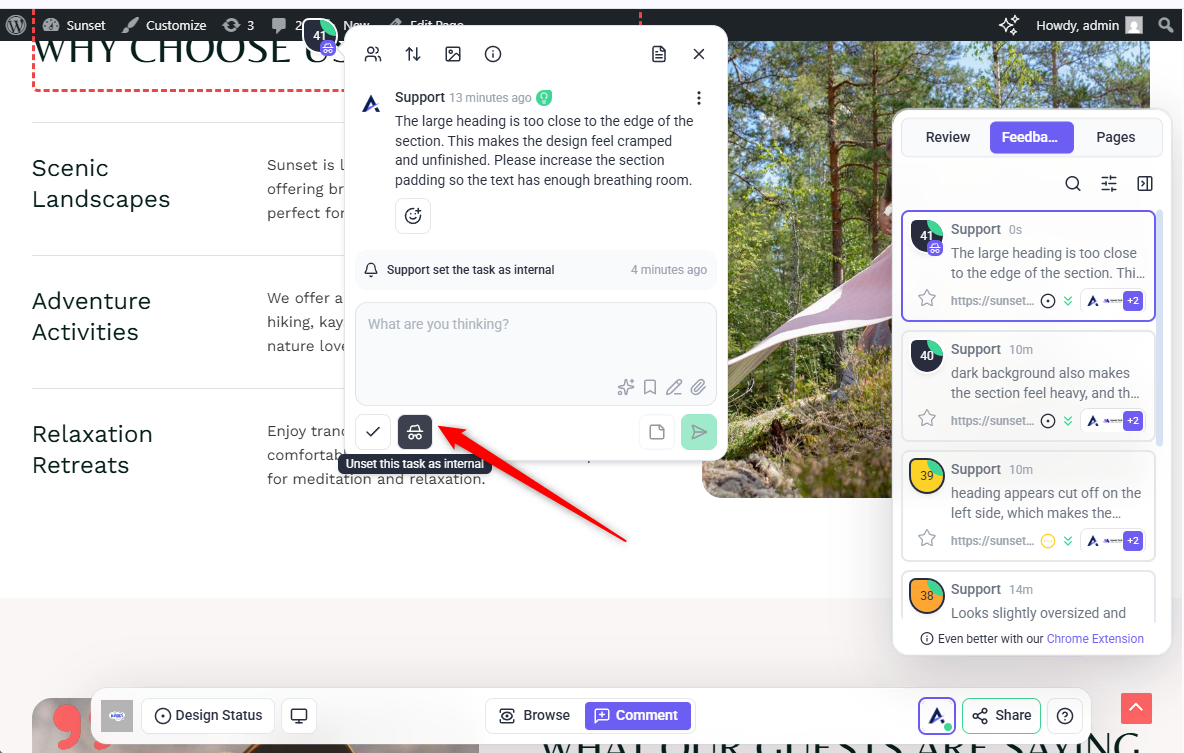
Note: Before switching a task to client-visible, review internal comments and remove anything not meant for clients.
Tip: If clients frequently request task updates, keep them in normal mode unless they contain internal-only discussions.
FAQs
Yes, you can toggle the internal task icon as needed.
Yes, use Inbox and Board filters to show only internal.
No, internal comments remain hidden even if the task is made visible.
