Slack
Get Atarim updates in Slack, and create tasks, change status, comment and tag without leaving it.
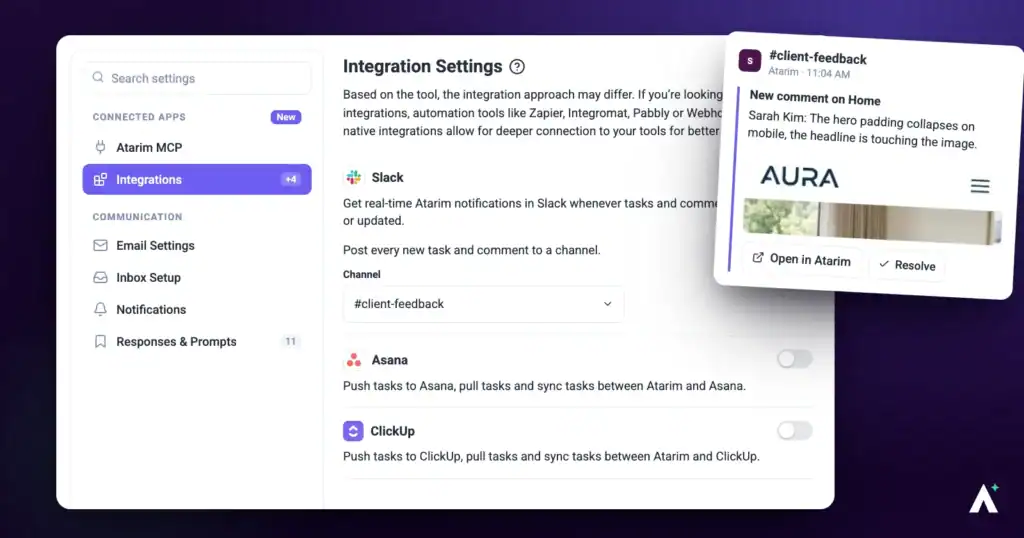
The Slack integration posts Atarim activity into Slack and lets your team act on tasks from there. Setup is short — connect the workspace, pick a channel, then choose which of the nine events you want posted. The judgement is entirely in which events you enable.
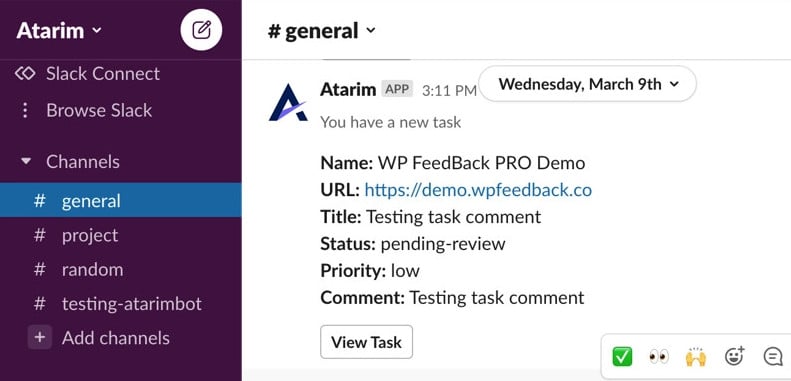
Your team sees new tasks, comments and status changes in Slack without opening the dashboard.
Connect Slack
The channel you choose here is where Atarim posts by default. You can add it to others afterwards.
Instructions:
- In Atarim, go to Settings.
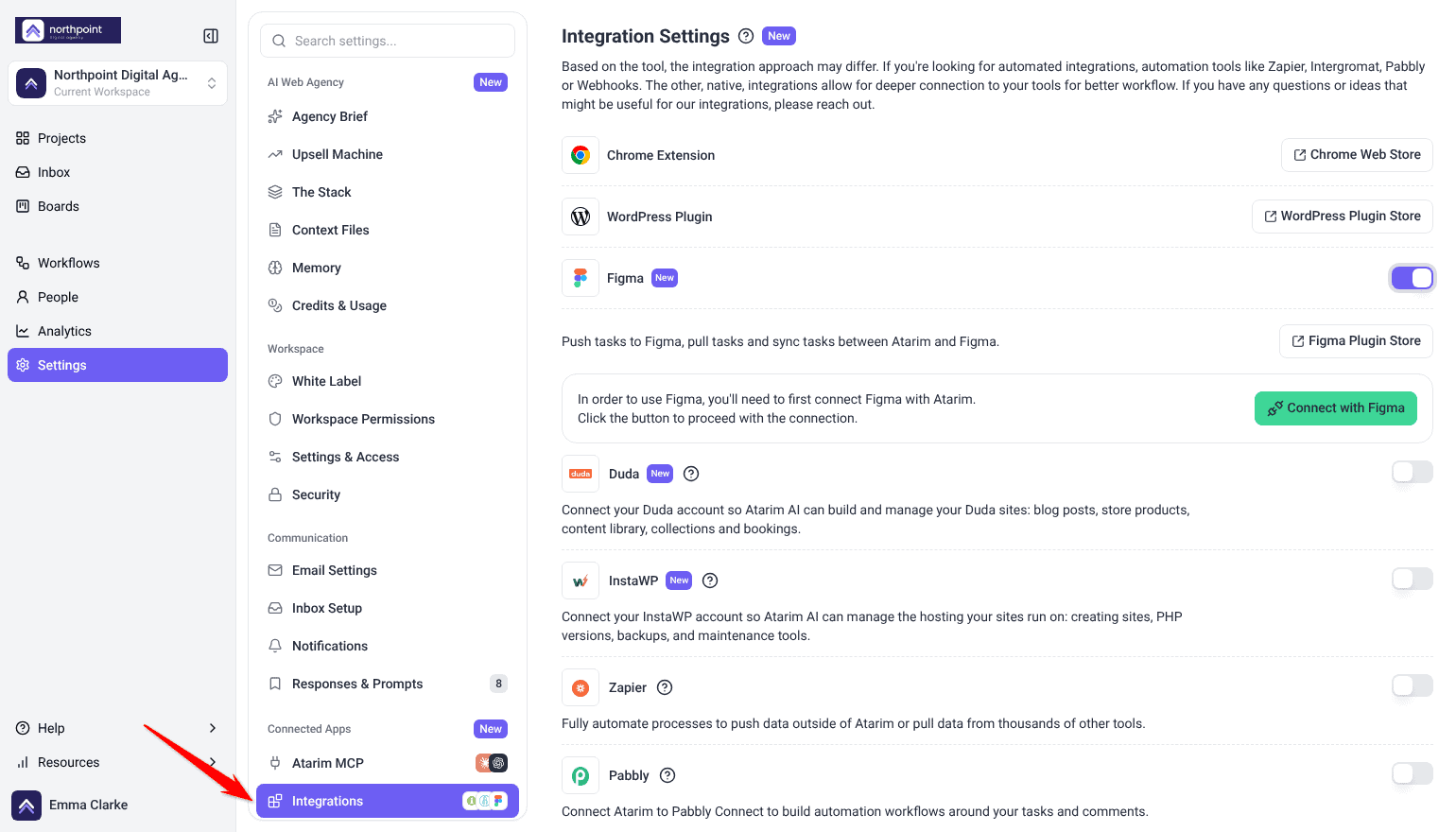
- Under Connected Apps, select Integrations.
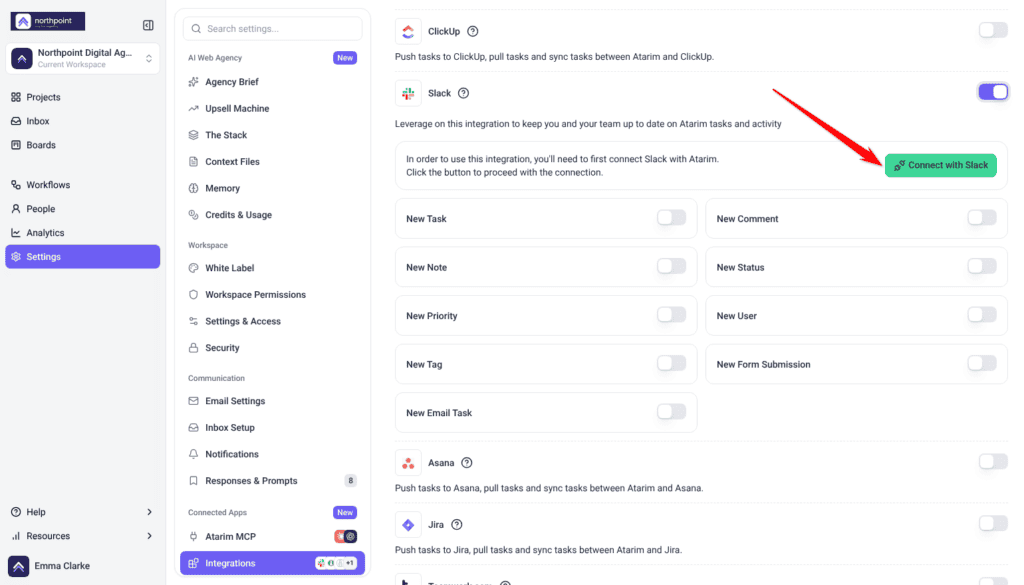
- Find Slack and switch its toggle on. Until it is connected, the panel explains that you need to connect Slack first.
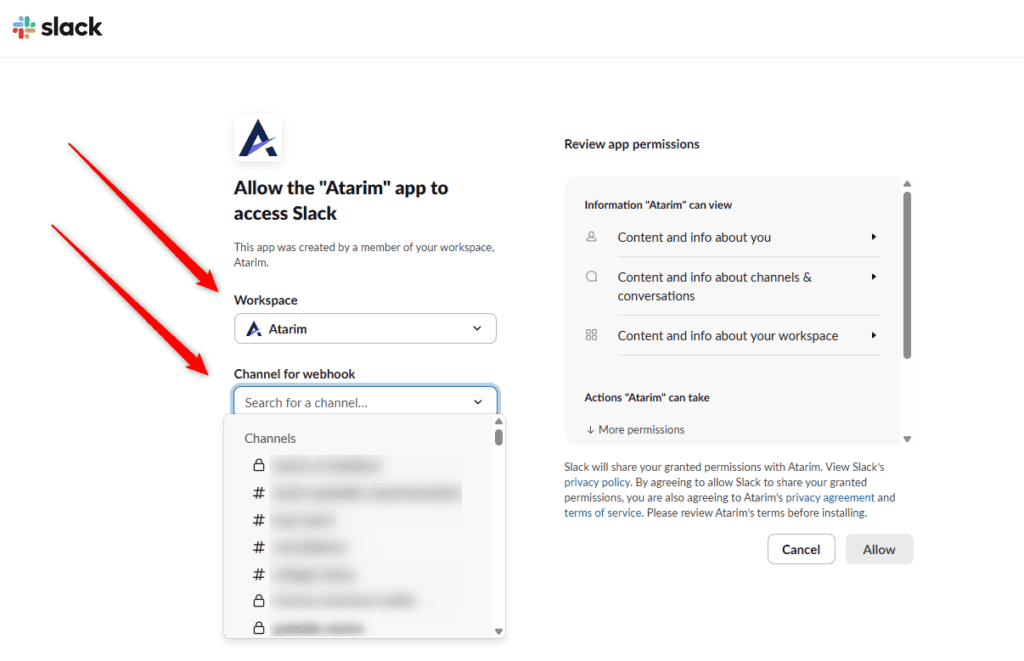
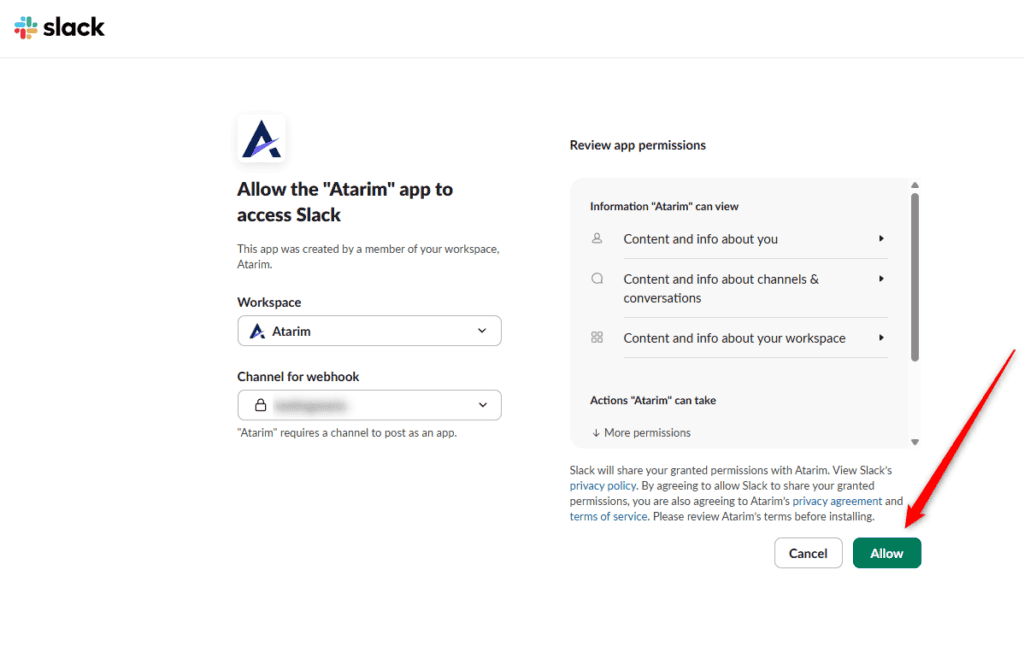
- Select Connect with Slack. If you have connected before, the button reads Manage Connection. Slack opens a page headed Allow the “Atarim” app to access Slack.
- Choose your Workspace from the dropdown.
- Under Channel for webhook, search for and select the channel Atarim should post to. A channel is required — the page states that Atarim needs one to post as an app, so you cannot continue without choosing one.
- Review the permissions listed on the right, then select Allow. You are returned to Atarim and the notification settings become available.
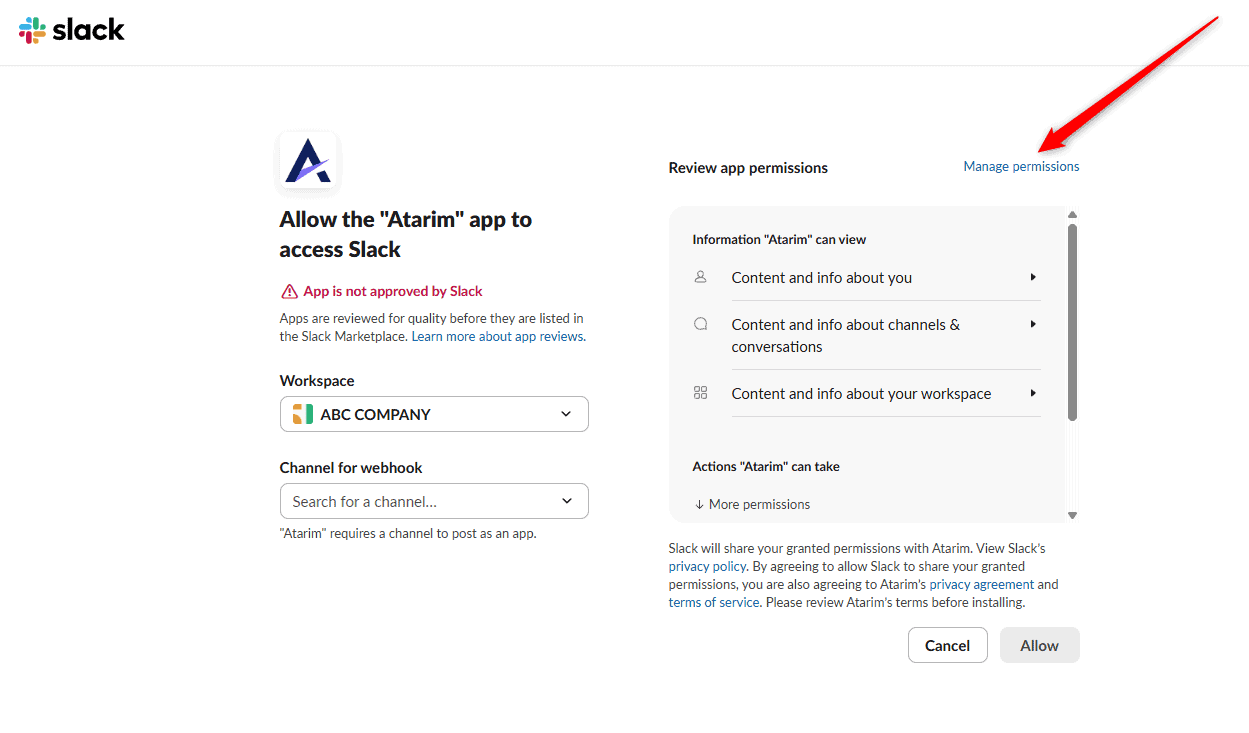
The “Not Approved by Slack” Notice
The authorisation page shows a notice reading App is not approved by Slack, explaining that apps are reviewed for quality before they are listed in the Slack Marketplace.
This is a listing status, not a security warning. It means the Atarim app is not published in Slack’s public Marketplace — not that Slack has found a problem with it. You can continue and select Allow as normal.
If Your Workspace Blocks the Install
Separately from the notice above, some Slack workspaces require every app to be approved by an admin before it can be installed. If that applies, the install stops and an admin needs to clear it.
This is a Slack workspace policy rather than an Atarim fault, and only a Slack admin can clear it.
Instructions:
- In Slack, open Tools & Settings and select Manage Apps.
- Go to App Management Settings and select Edit.
- Either approve Atarim specifically, or turn off Require App Approval.
- Save, then retry the connection from Atarim.
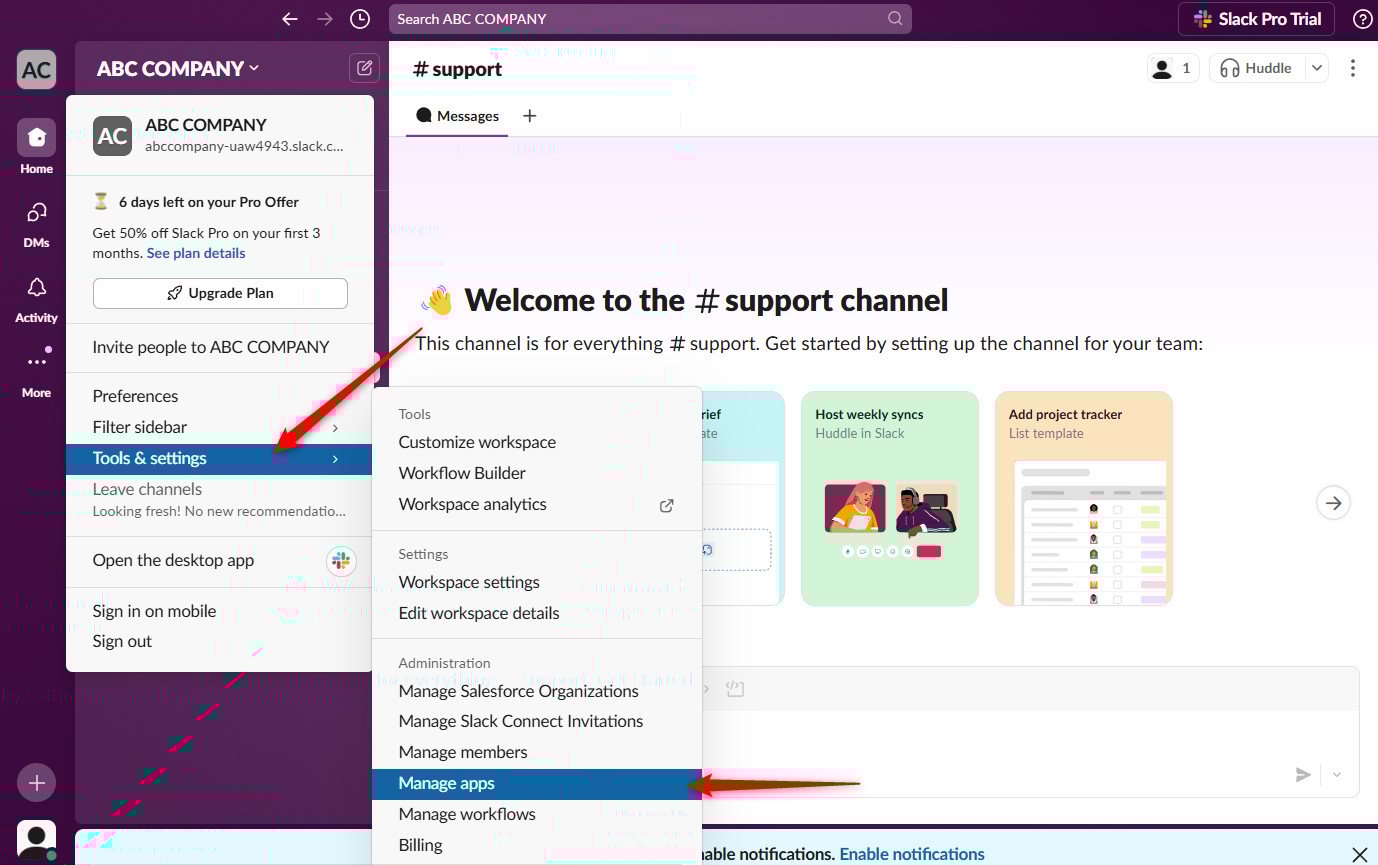
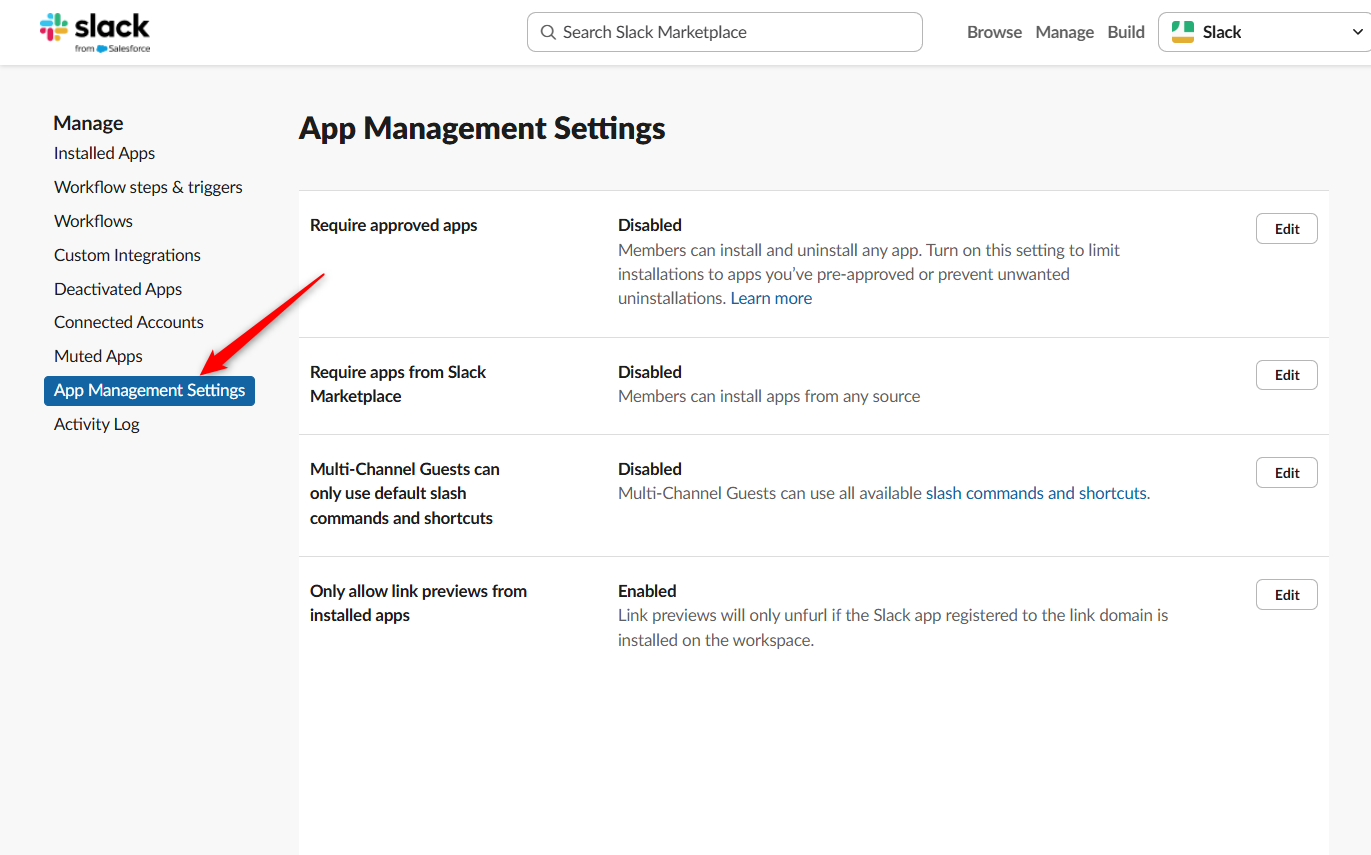
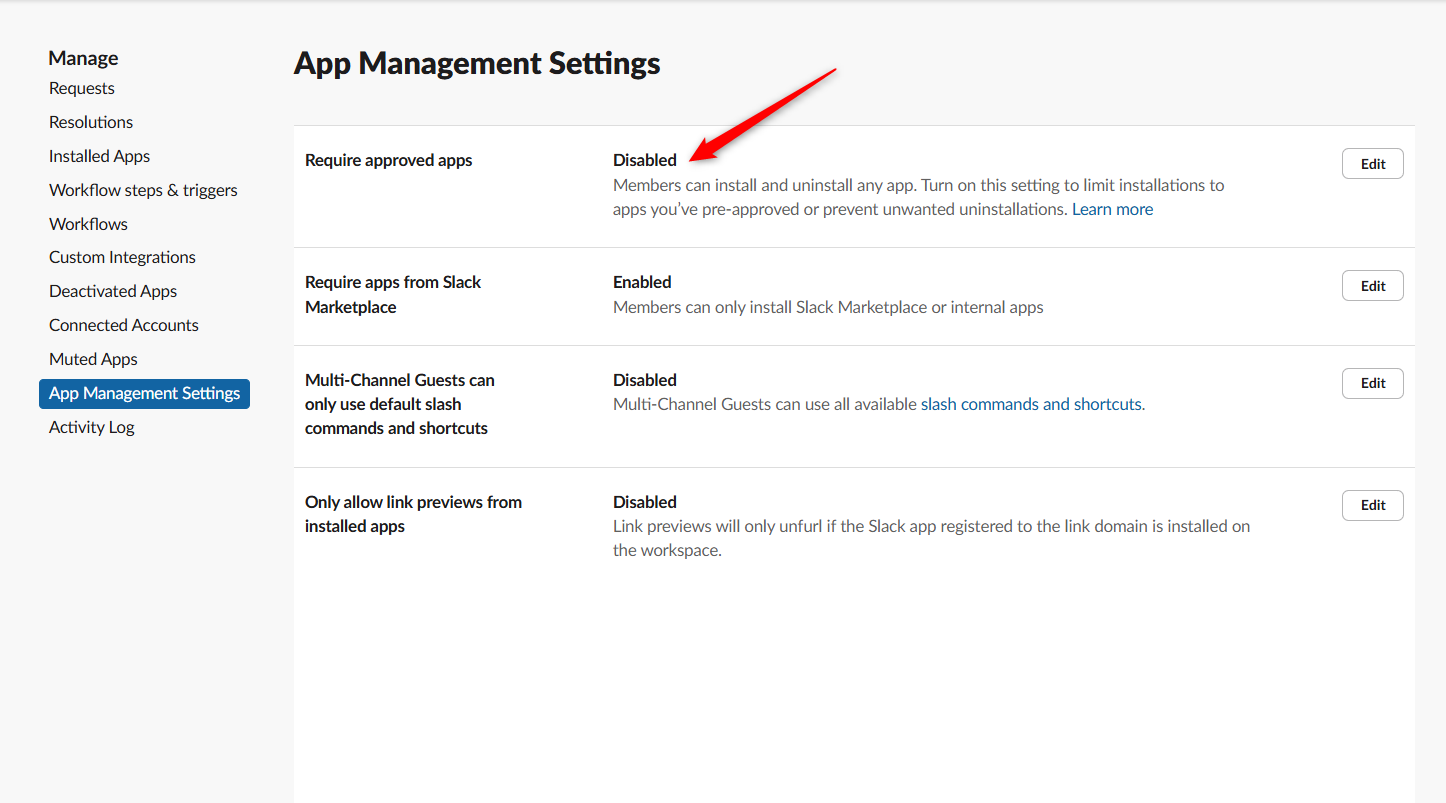
yourworkspacename.slack.com/apps/manage/settings.
Optional: Add Atarim to Other Channels
You do not need this for notifications. The channel you chose during authorisation already receives everything — Atarim posts to it through the connection Slack created at that moment, so task pushes start working immediately with nothing further to set up in Slack.
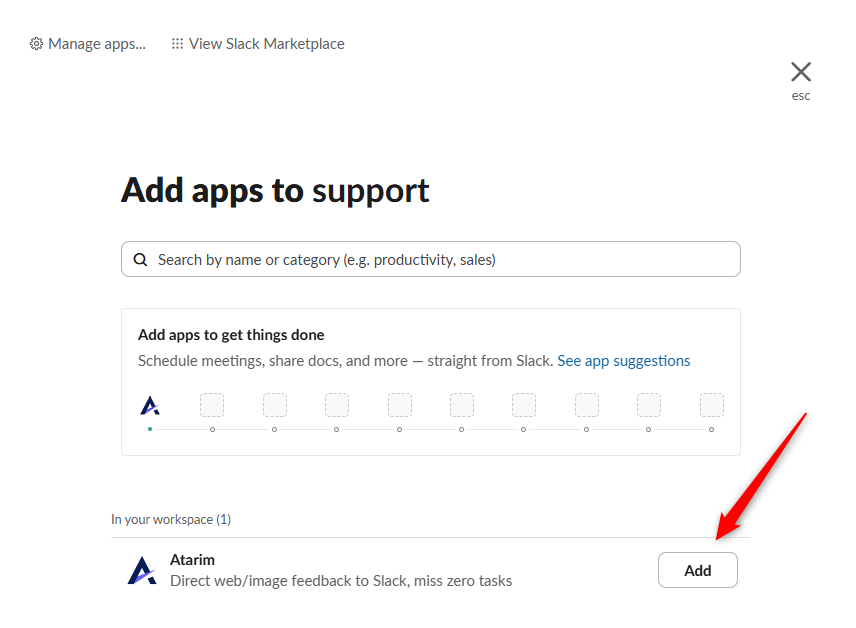
This step is only for running commands from other channels. If your team wants to change statuses or add comments from a channel other than the notification one, add the app there.
Atarim has to be added to a channel before its commands and menus work there.
Instructions:
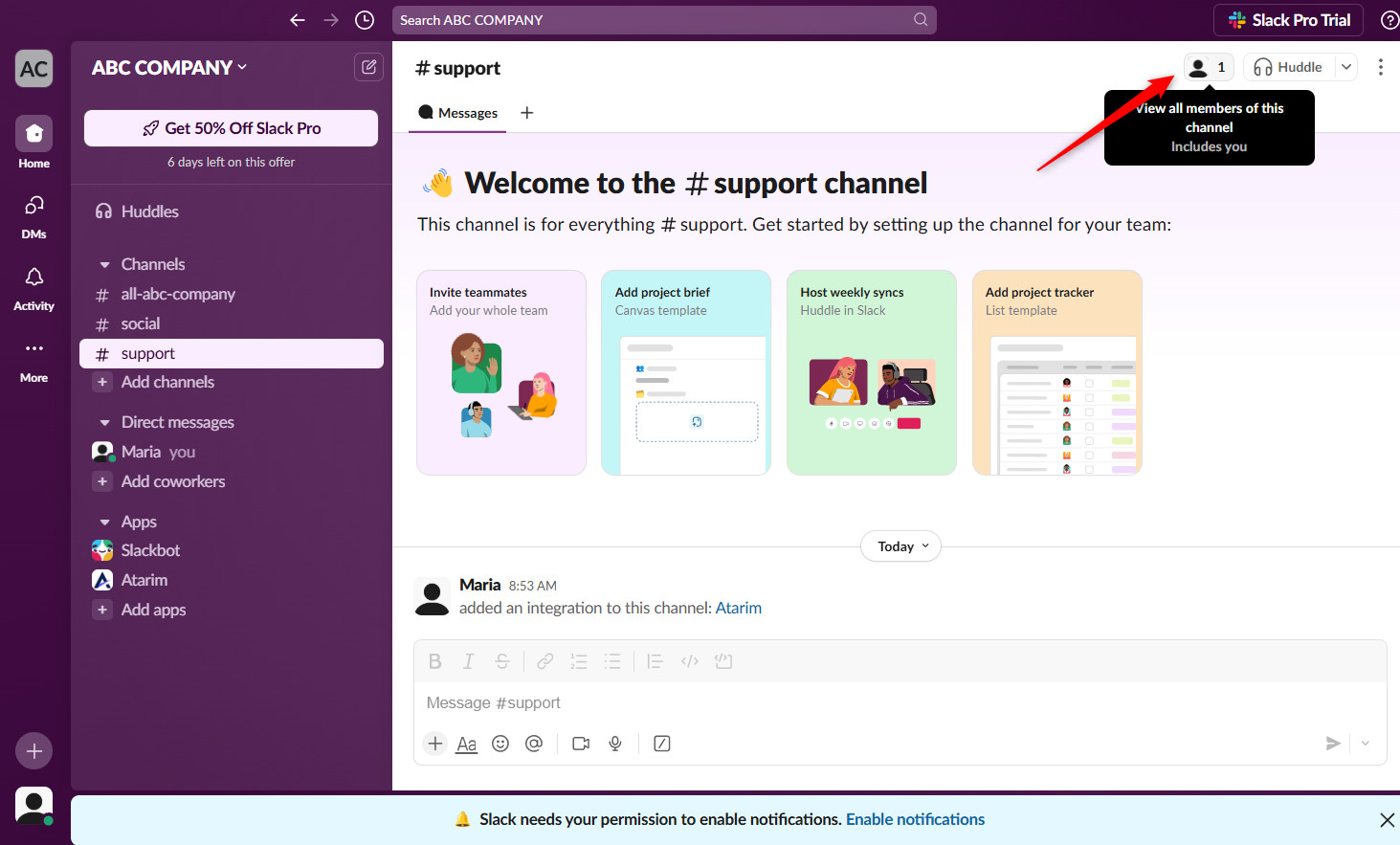
- Open the Slack channel you want.
- Select the user icon in the top right.
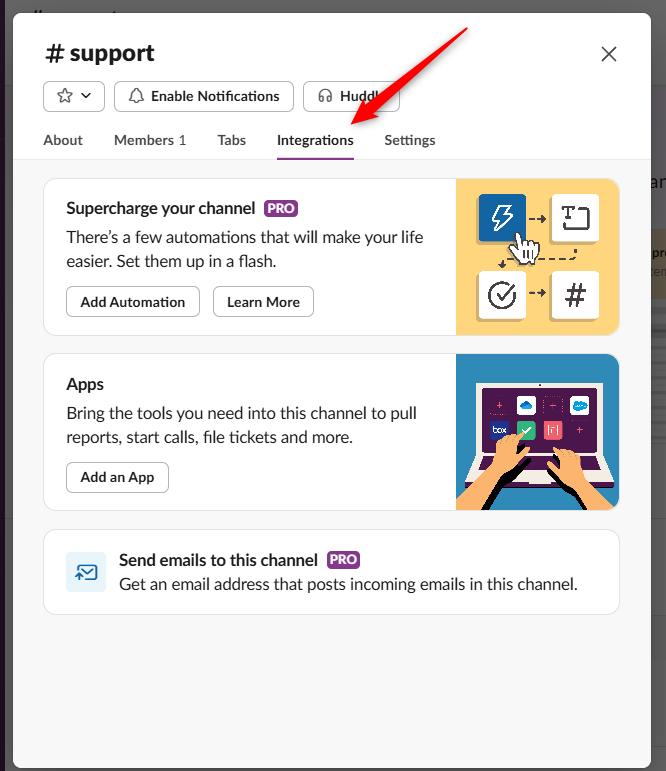
- Select the Integrations tab.
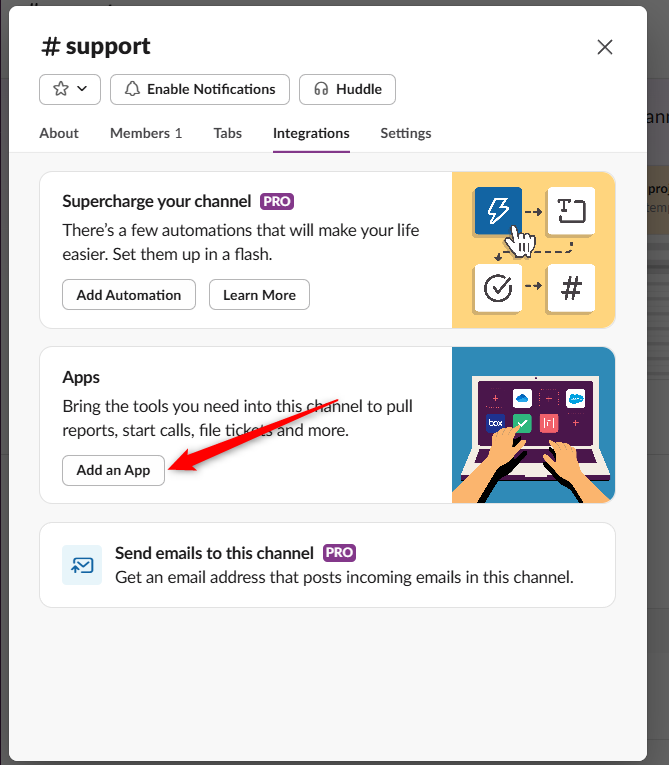
- Select Add an App, search for Atarim, and select Add.
Choose What Gets Posted
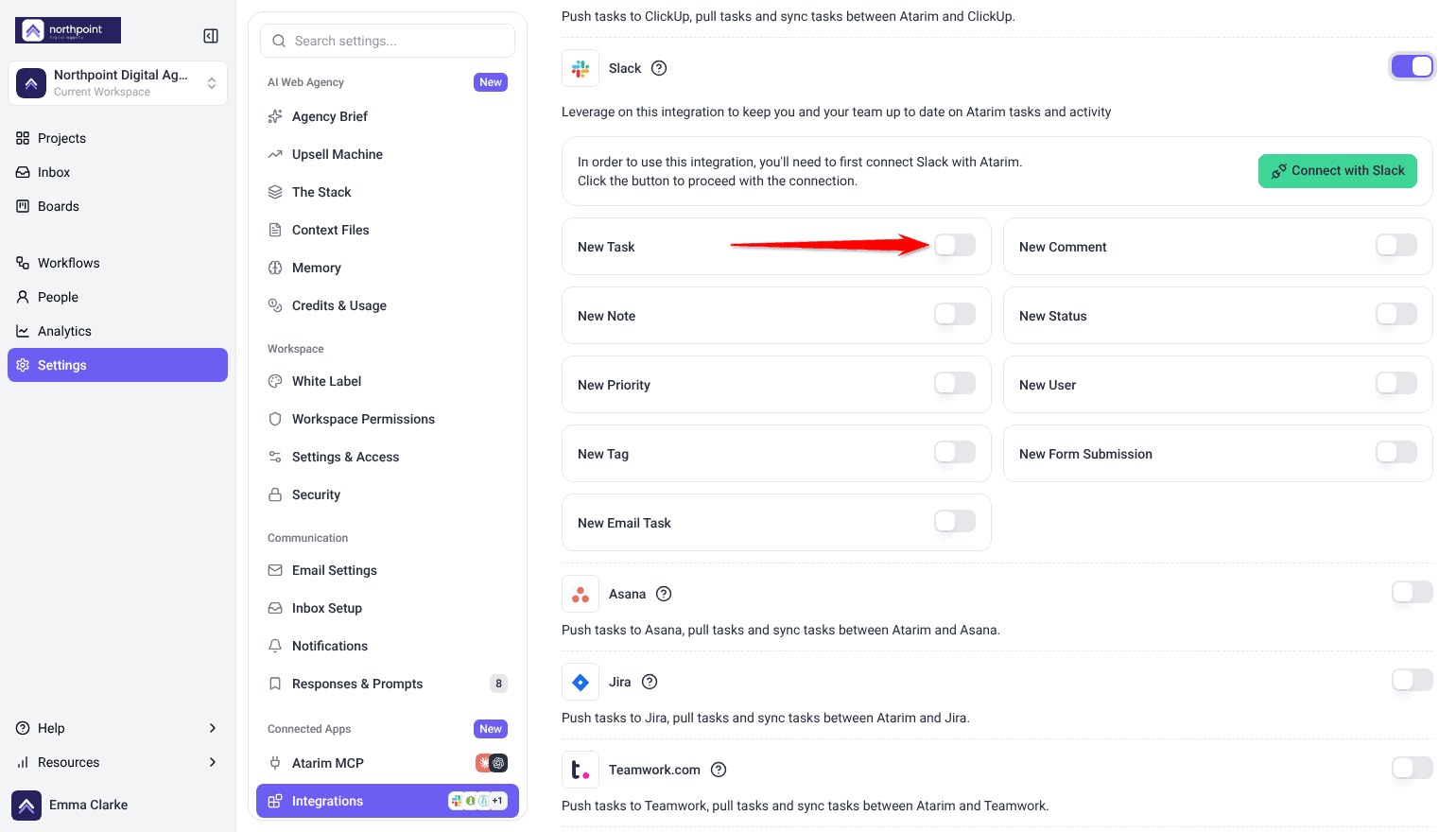
Once connected, nine events can be switched on or off individually.
| Event | Posts when |
|---|---|
| New Task | A task is created. |
| New Comment | Someone comments on a task. |
| New Note | An internal note is added. |
| New Status | A task’s status changes. |
| New Priority | A task’s priority changes. |
| New User | Someone is assigned to a task. |
| New Tag | A tag is applied. |
| New Form Submission | A form is submitted (only for accounts that already have Forms). |
| New Email Task | A task arrives by email. |
Every event is its own switch, so you can quieten a channel without disconnecting the integration.
Instructions:
- In Atarim, go to Settings → Connected Apps → Integrations.
- Find Slack. The event switches sit beneath the connection.
- Switch on the events you want posted, and switch off the ones you do not. Each change saves as you make it — there is no separate save step.


Run Task Actions from Slack
As well as receiving notifications, your team can create tasks and update existing ones without leaving Slack, either from a button menu or with slash commands.
The Action Menu
The menu is the discoverable way in, for when you cannot remember the slash command you want.
Instructions:
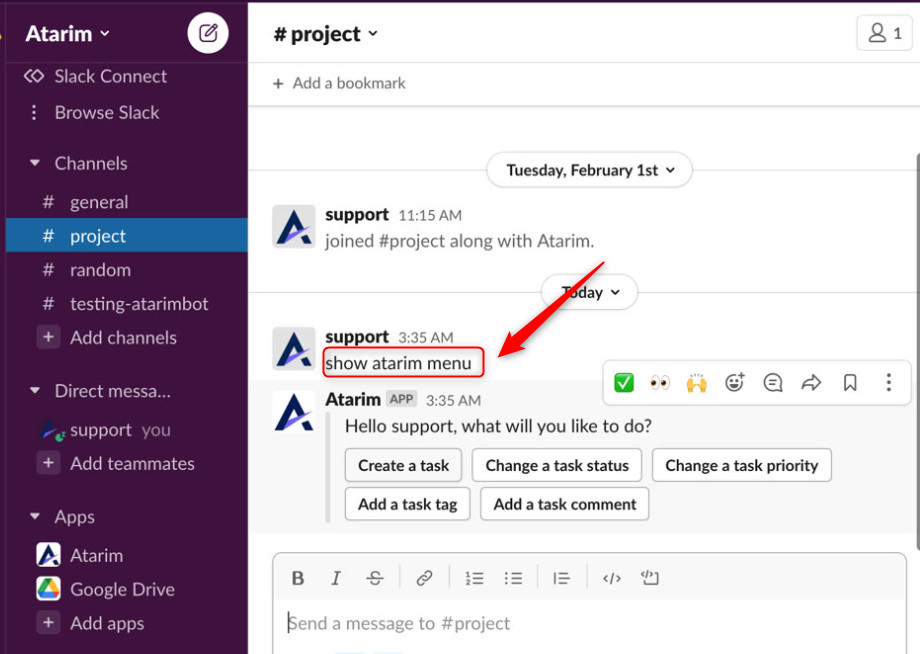
- In a channel where Atarim has been added, type show atarim menu. Atarim replies with a set of buttons.
- If Slack replies that you haven’t connected your Atarim account to Slack yet, select Get Started, complete the connection, then type show atarim menu again.
- Select the action you want.
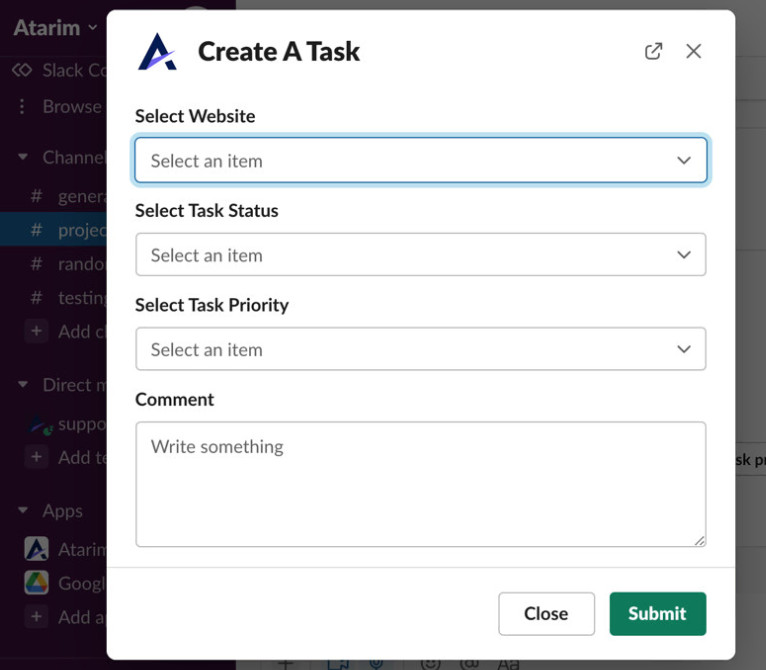
- Choose the website and select Next, then fill in the form and select Submit. A confirmation and a link to the task appear in the channel.
| Menu option | What it does |
|---|---|
| Create Task | Creates a new task. |
| Change Status | Updates an existing task’s status. |
| Change Priority | Updates a task’s priority. |
| Tag Task | Applies a tag to a task. |
| Add Comment | Adds a comment to a task. |
Slash Commands
Slash commands do the same jobs from the message box. Type /ata to see Atarim’s commands suggested as you type.
| Command | What it does |
|---|---|
/atarim_create_task | Opens the Create A Task window for a general task. |
/atarim_change_task_status | Opens the modal for changing a task status. |
/atarim_change_task_priority | Opens the modal for changing a task priority. |
/atarim_change_task_tag | Opens the modal for adding a task tag. |
/atarim_add_task_comment | Opens the modal for creating a task comment. |
/atarim_help | Shows the help text listing all available commands. |
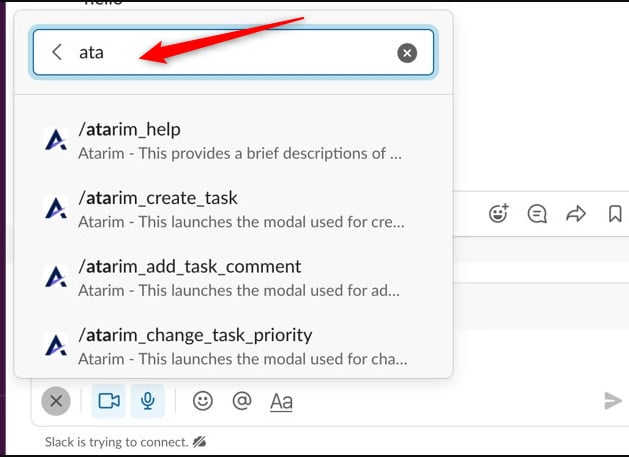
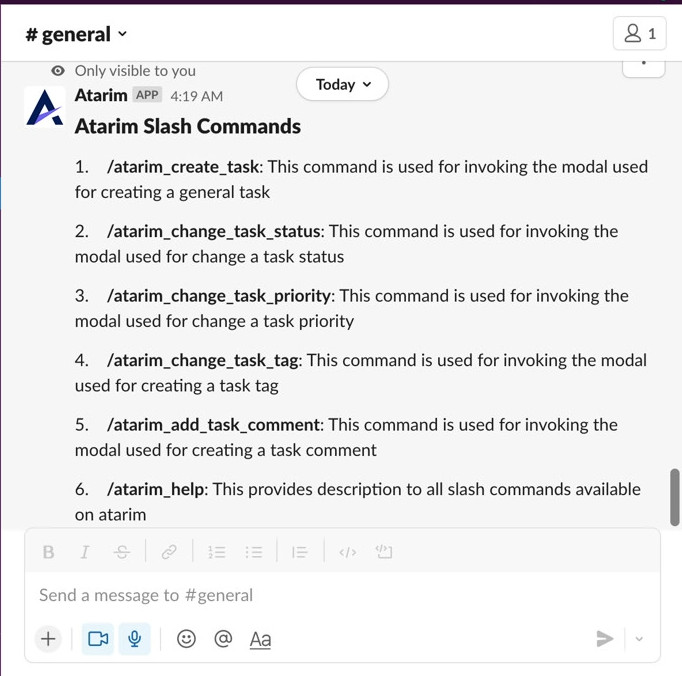
/atarim_help for the current list — it is generated by the app itself, so it is always accurate even if this article ages.
Example: Changing a Task Status
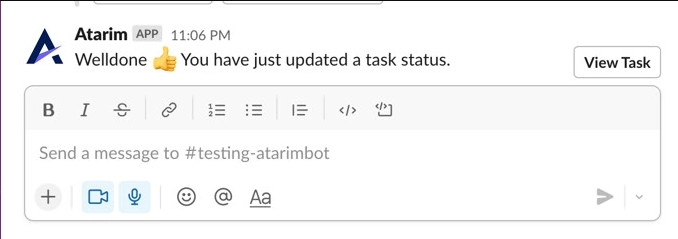
Changes made from Slack are real changes — they land in Atarim the moment you submit.
Instructions:
- Type
/atarim_change_task_statusand press Enter. - Choose the website containing the task, then select Next.
- Select the task and the new status.
- Select Submit. Slack confirms the change, and it appears in your Atarim dashboard at the same time.
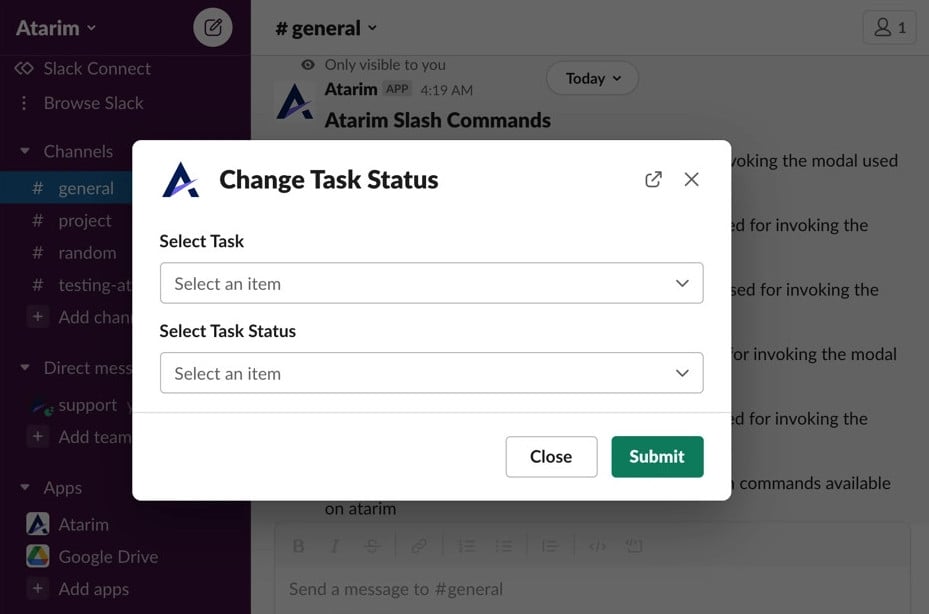
/atarim_help once and pin the reply in your main channel. It saves the team asking, and it is the fastest way to onboard someone who joins later.
Benefits
| Benefit | In practice |
|---|---|
| Activity reaches the team | Updates land where people already are, rather than waiting to be found. |
| Faster pick-up | New client requests get seen in minutes rather than at the next check. |
| Per-event control | Nine switches mean you send what matters and suppress the rest. |
| No manual updates | Nobody has to relay what happened in Atarim. |
| Act without switching tabs | Create tasks, change status and priority, comment and tag from Slack itself. |
| Nothing to build | It is a native connection — no API keys, webhooks or automation platform. |
Example Use Cases
| Situation | What to enable |
|---|---|
| A team that lives in Slack | New Task and New Comment, so requests and replies both surface. |
| Watching for incoming client work | New Task only, for a quiet but useful channel. |
| Coordinating a busy delivery week | Add New Status temporarily, then turn it off again. |
| Tracking who is picking work up | New User, to see assignments as they happen. |
| A channel that includes clients | Leave New Note off — it carries internal content. |
| A tagging convention you are enforcing | New Tag, to spot tags being applied inconsistently. |
FAQs
Do I need an API key?
No. Slack is a native integration — you authorise it through Slack rather than pasting a key.
Which events can be posted?
Nine have their own switch: New Task, New Comment, New Note, New Status, New Priority, New User, New Tag, New Form Submission and New Email Task.
Will internal notes reach Slack?
Yes, if New Note is switched on. Slack does not apply Atarim’s client-visibility rules, so leave it off for channels that are not team-only.
Can I send different events to different channels?
The switches apply to the workspace connection as a whole rather than per project.
What if the connection breaks?
Use the reconnect option in the Slack row of the Integrations panel.
Do I need Slack admin rights?
You need enough permission in Slack to authorise an app. If you cannot, ask a Slack admin to approve it.
Can clients use the Slack integration?
No. Actions require both Slack and Atarim access, so only internal users can use them. Clients work in Atarim directly.
Can I connect more than one Slack channel?
You can add Atarim to as many channels as you like for running commands, but only the channel chosen during setup receives automated notifications.
How do I see the current slash commands?
Type /atarim_help in a channel where Atarim is added. The list comes from the app itself, so it is always current.
How do I quieten a noisy channel?
Turn off New Status and New Priority first. A single task can change both several times a day.
Common issues
- Nothing is posting to Slack — check the connection is still active and at least one event is switched on. You do not need to add Atarim to the channel; notifications use the connection made during authorisation.
- Slack warns the app is not approved — expected. It means Atarim is not listed in the Slack Marketplace, not that anything is wrong. Continue with Allow.
- You cannot get past the authorisation page — a channel is required. Choose one under Channel for webhook.
- The Slack option is locked — your plan does not include native integrations. The lock names the minimum plan required.
- Integrations is not in your settings sidebar — your role does not have access. Ask an Administrator.
- The connection stopped working — use the reconnect option in the Slack row rather than removing the integration.
- The channel is too noisy — turn off New Status and New Priority first, since they generate the most traffic.
- Internal notes appeared in a shared channel — New Note is switched on. Turn it off if the channel is not team-only.
- You cannot authorise the app in Slack — the workspace may require app approval. An admin can approve Atarim specifically, or turn off Require App Approval.
- Slash commands do nothing in a channel — Atarim has not been added to that channel. Add it from the channel’s Integrations tab.
- A command is not recognised — run
/atarim_helpfor the current list. Command names have changed before. - Notifications go to the wrong channel — use Manage Connection in Atarim to change the notification channel.
Conclusion
Slack is one of the simplest integrations to set up — connect, then pick your events.
Start with New Task and New Comment, and be deliberate about New Note, which is the one event that can put internal discussion in front of people who should not see it.
Tips & best practices
- Start with two events and add more only if the channel stays useful.
- Leave New Note off unless the channel is strictly team-only.
- Turn off New Status and New Priority first if things get noisy.
- Use a dedicated channel rather than a busy general one.
- Reconnect rather than reinstall if the connection drops.
- Pin the
/atarim_helpreply so the team has the commands to hand. - Only add Atarim to extra channels if people need to run commands there — notifications need no setup in Slack.
- Set Slack up during onboarding, so new team members adopt it from the start.
- Review your enabled events periodically — needs change between projects.