Using Tags for Task Organization in Atarim
Your own categories for tasks — created as you type, and the thing that makes filtering across projects actually work.
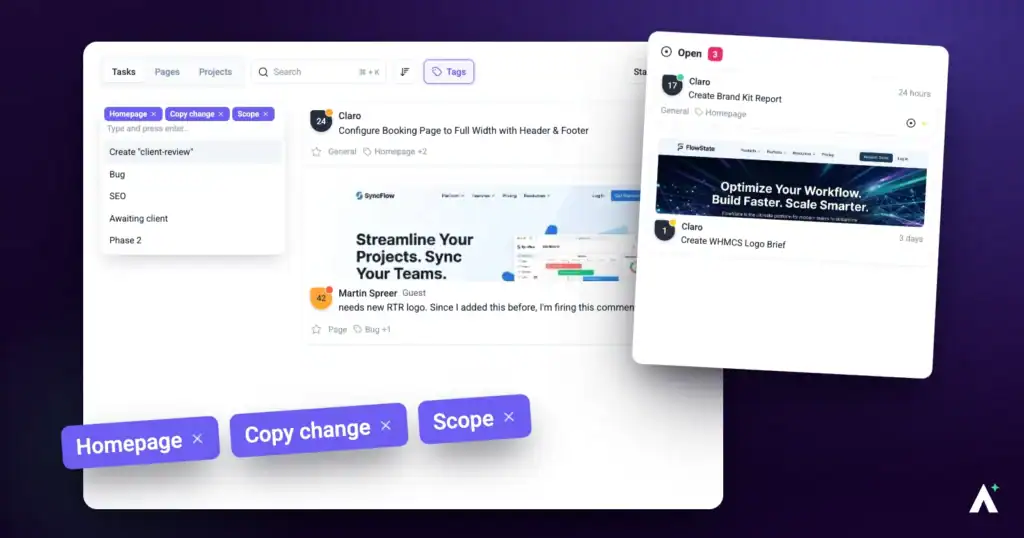
Statuses and priorities are fixed — four each, and you cannot change them. Tags are the opposite: they are yours to define, which makes them the only way to categorise work by something specific to how you actually operate.
They are also the easiest thing in Atarim to make useless, by inventing them faster than you agree on them.
How Tags Differ from Statuses and Priorities
Three ways of categorising a task, doing three different jobs. Knowing which is which stops you reaching for tags to solve something the other two already handle.
| Answers | Values | |
|---|---|---|
| Status | How far along is it? | Four, fixed. |
| Priority | How much does it matter? | Four, fixed. |
| Tags | What kind of thing is it? | Anything you create, as many per task as you like. |
Creating and Applying a Tag
There is no separate screen for making tags. You create them by typing on a task, which is convenient and exactly why they multiply if nobody agrees on them first.
Instructions:
- Open a task from the Inbox, Boards, or Collaborate.
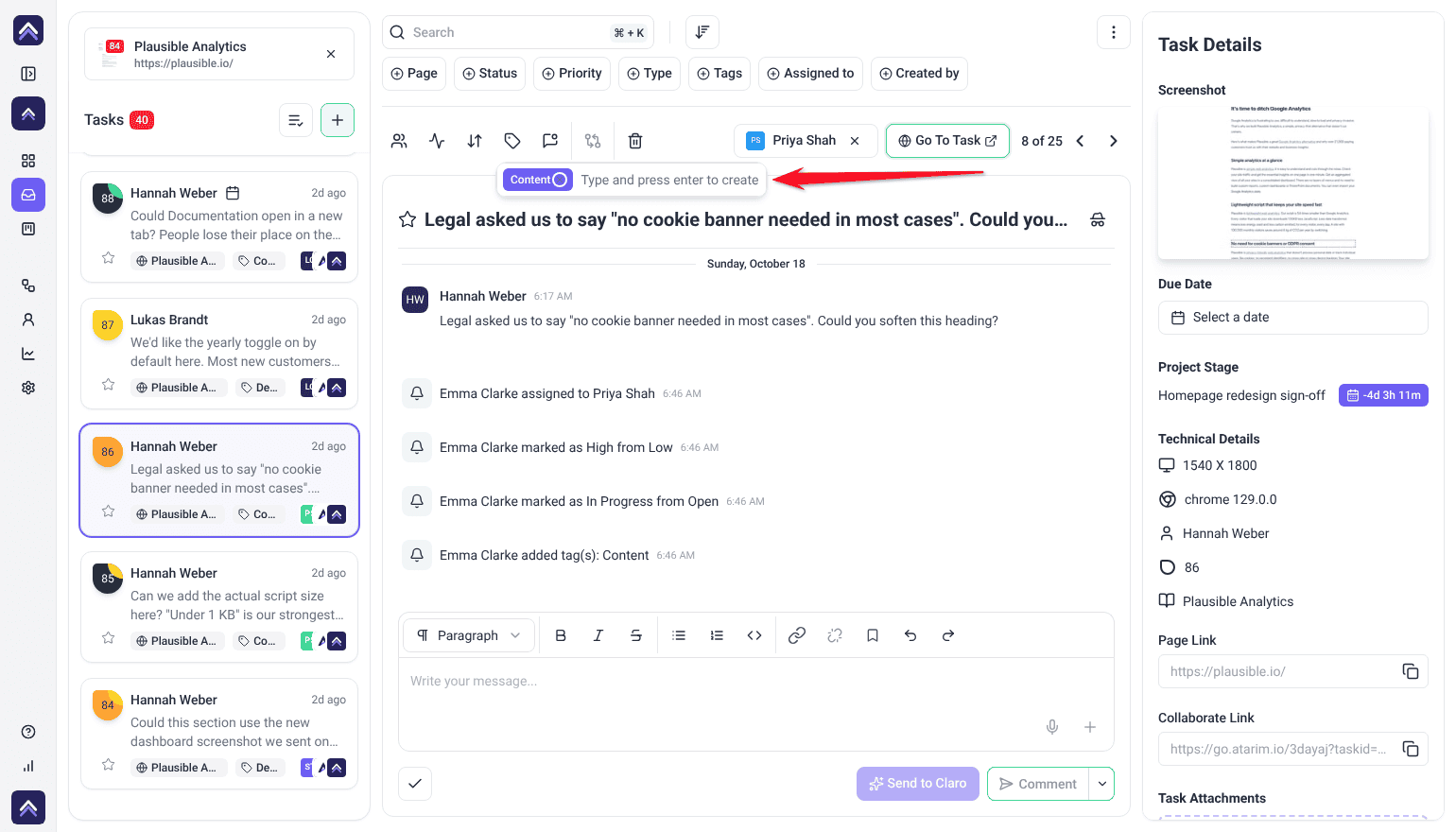
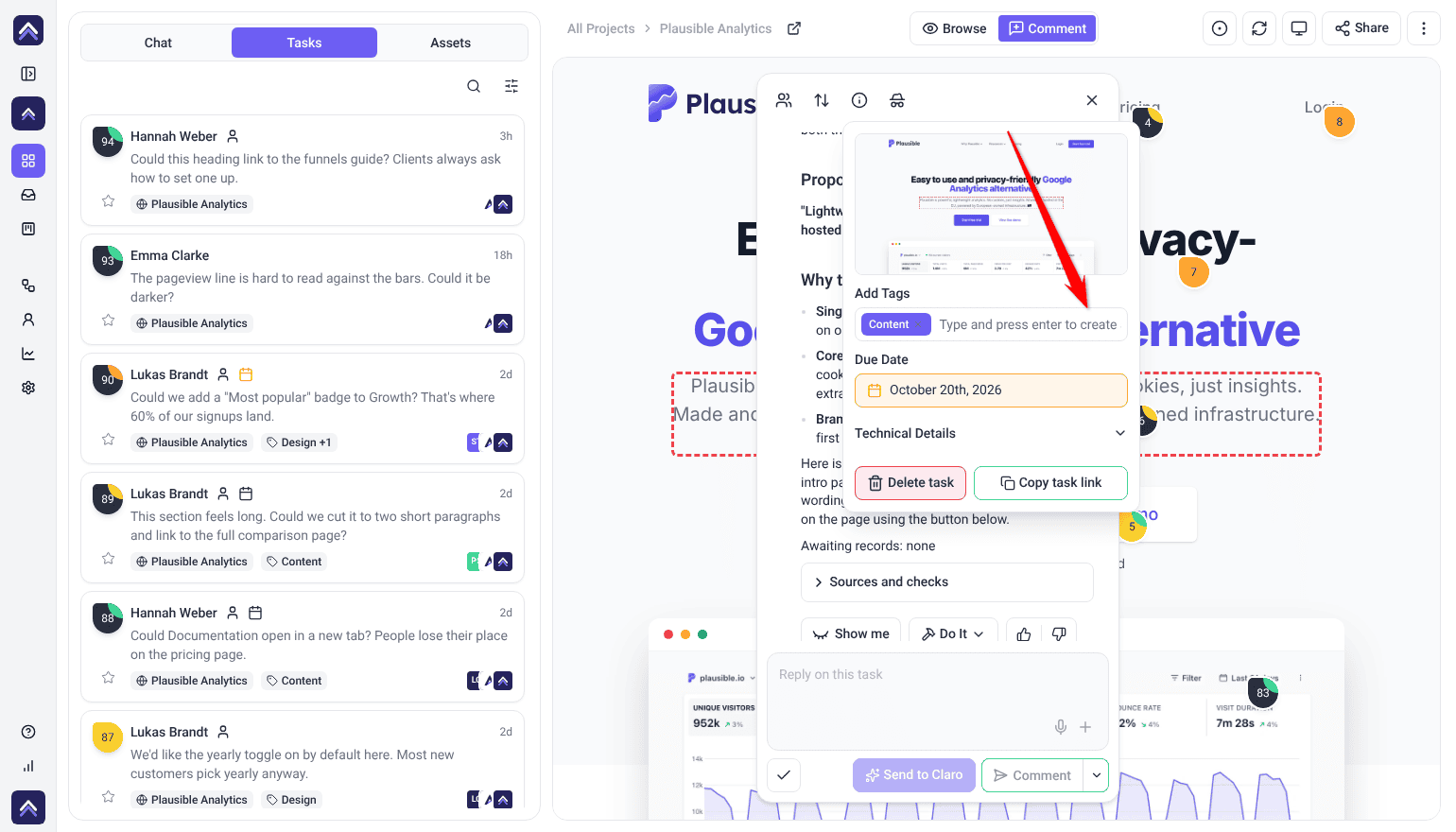
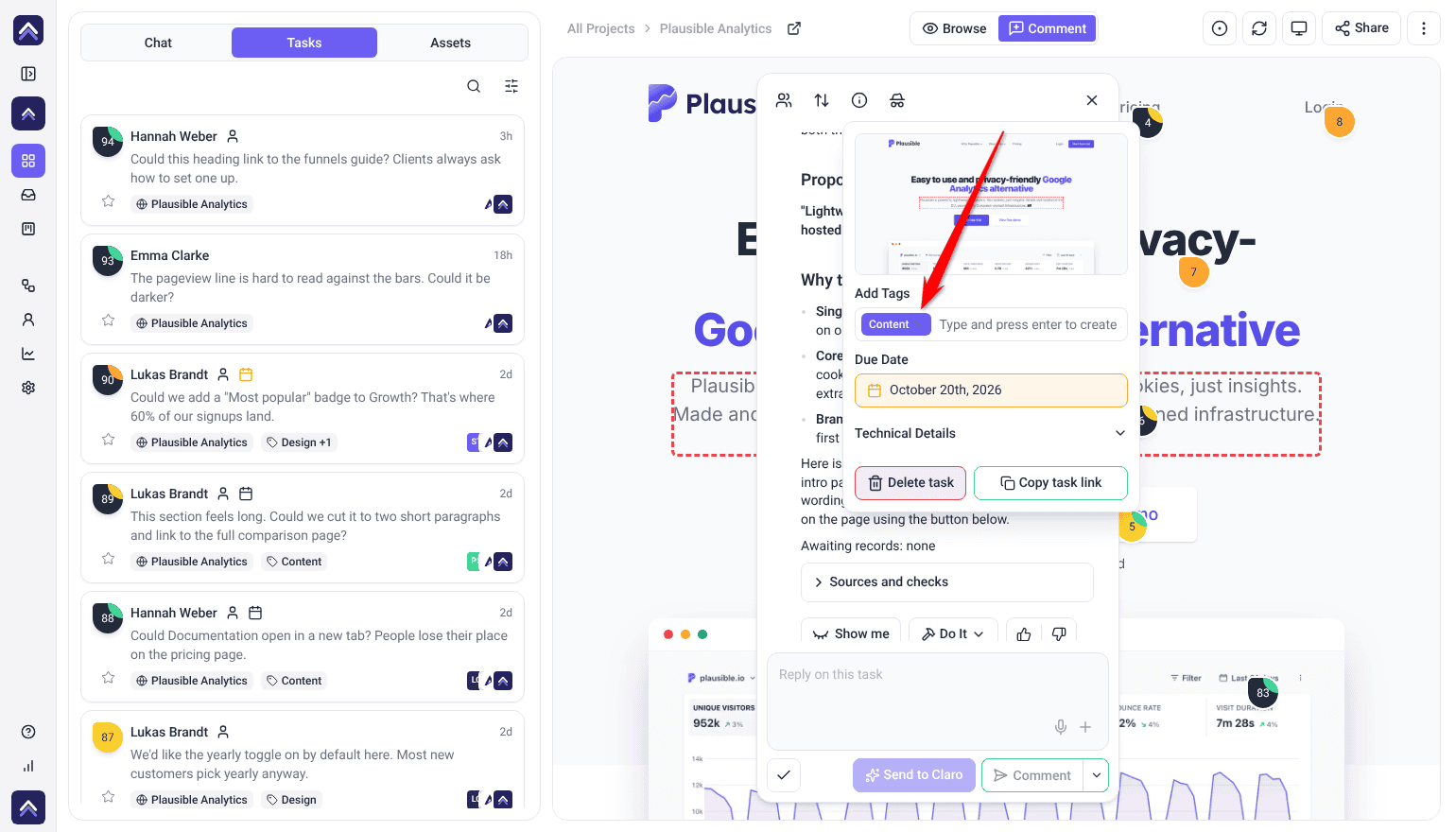
- Find the tags control. In the Inbox and on Boards it is the tag icon in the task toolbar; in Collaborate and on designs, open the task’s Technical Information panel (the info button) and use the Add Tags field, just above Technical Details. The field prompts you to type and press enter to create a new tag.
- Start typing the tag name.
- Select an existing tag, or press Enter to create a new one. A confirmation reads Tags updated successfully. Capitals don’t matter: typing a name that already exists, such as “Bug” when “bug” is in the list, adds the existing tag instead of creating a new one.
- Add as many tags as the task needs.
Tags are a paid feature. If the control is a locked badge rather than a tag field, your plan does not include them yet — the badge names the plan required, and only the workspace owner can change the subscription. If there is no control at all, your role does not carry the task tags permission.
Removing a Tag
Open the task, find the tag, and select the × beside it. It is removed from that task immediately — and only from that task. The tag itself continues to exist for everything else carrying it.
Tagging a Batch of Tasks
Tags are most useful applied consistently across a group, which is faster done in bulk than task by task.
Instructions:
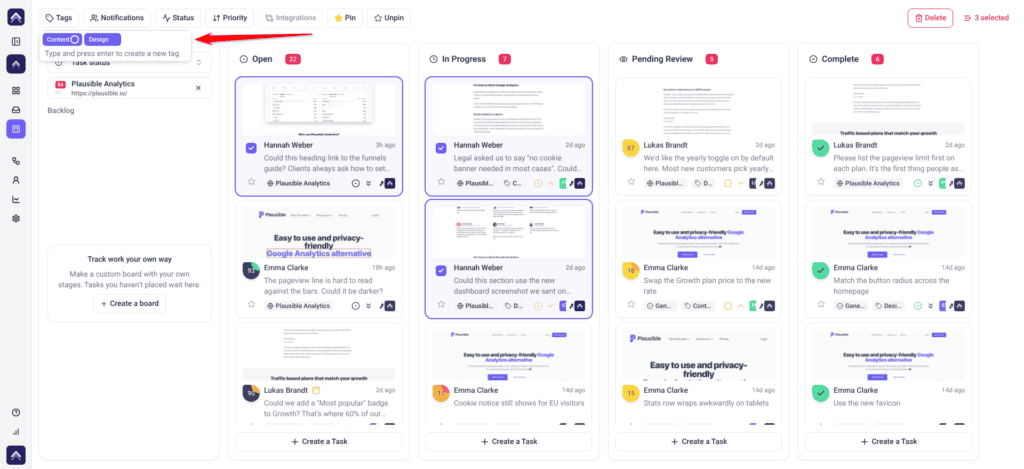
- On Boards, hover a task to reveal its checkbox. In the Inbox, select Select multiple tasks first so the checkboxes appear.
- Tick the tasks you want. In the Inbox you can also use Select all, which takes every task in the list after your filters, so narrowing first keeps it safe.
- Open the Tags control on the bulk toolbar.
- Add or remove tags for the whole selection. An Updating Tags… state appears while it applies.
Filtering by Tag
This is what tags are for. Everything else is preparation.
Instructions:
- Open the Inbox or Boards.
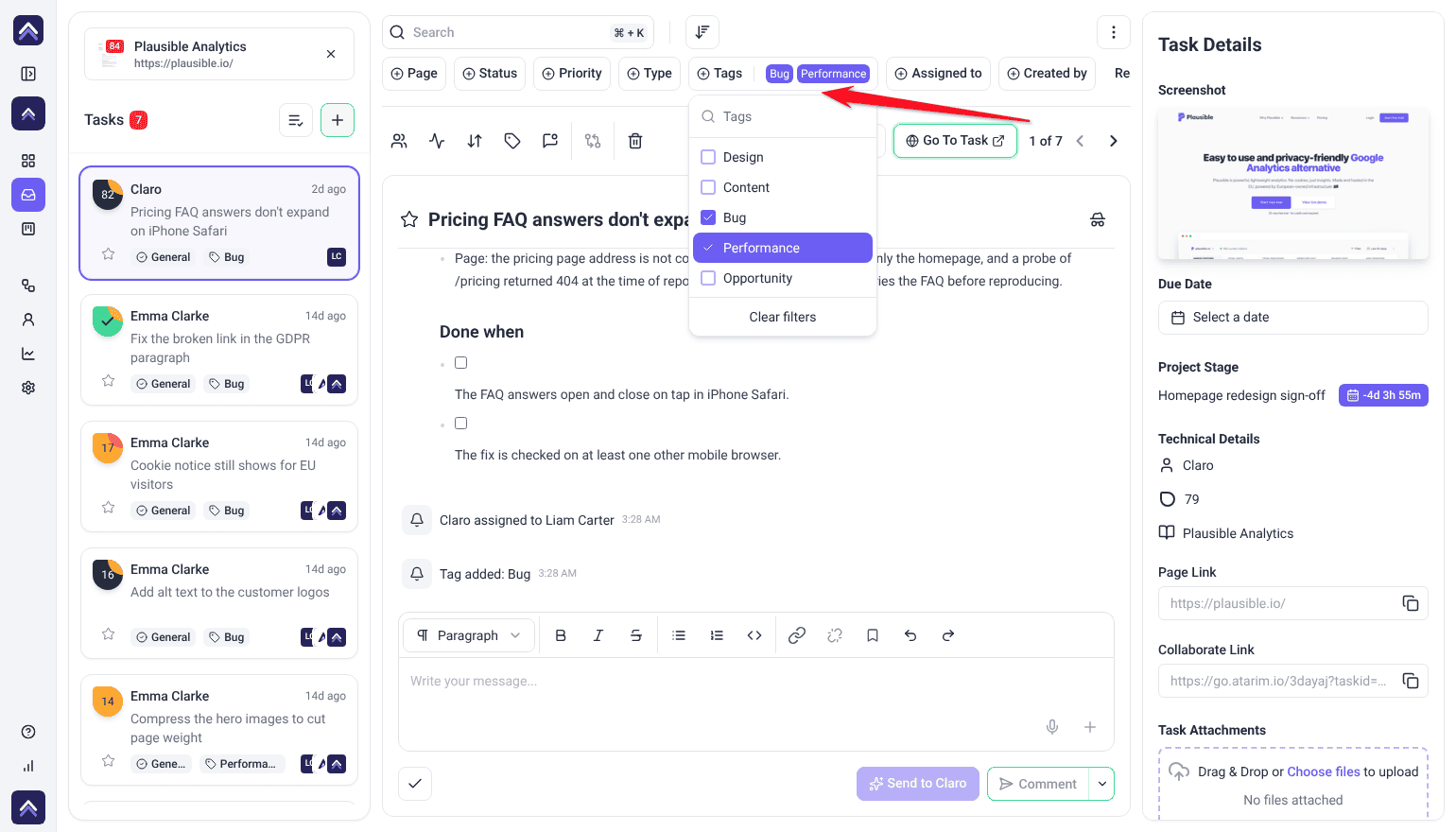
- Open the tag filter. It lists your workspace’s tags, whether you are viewing one project or All Projects.
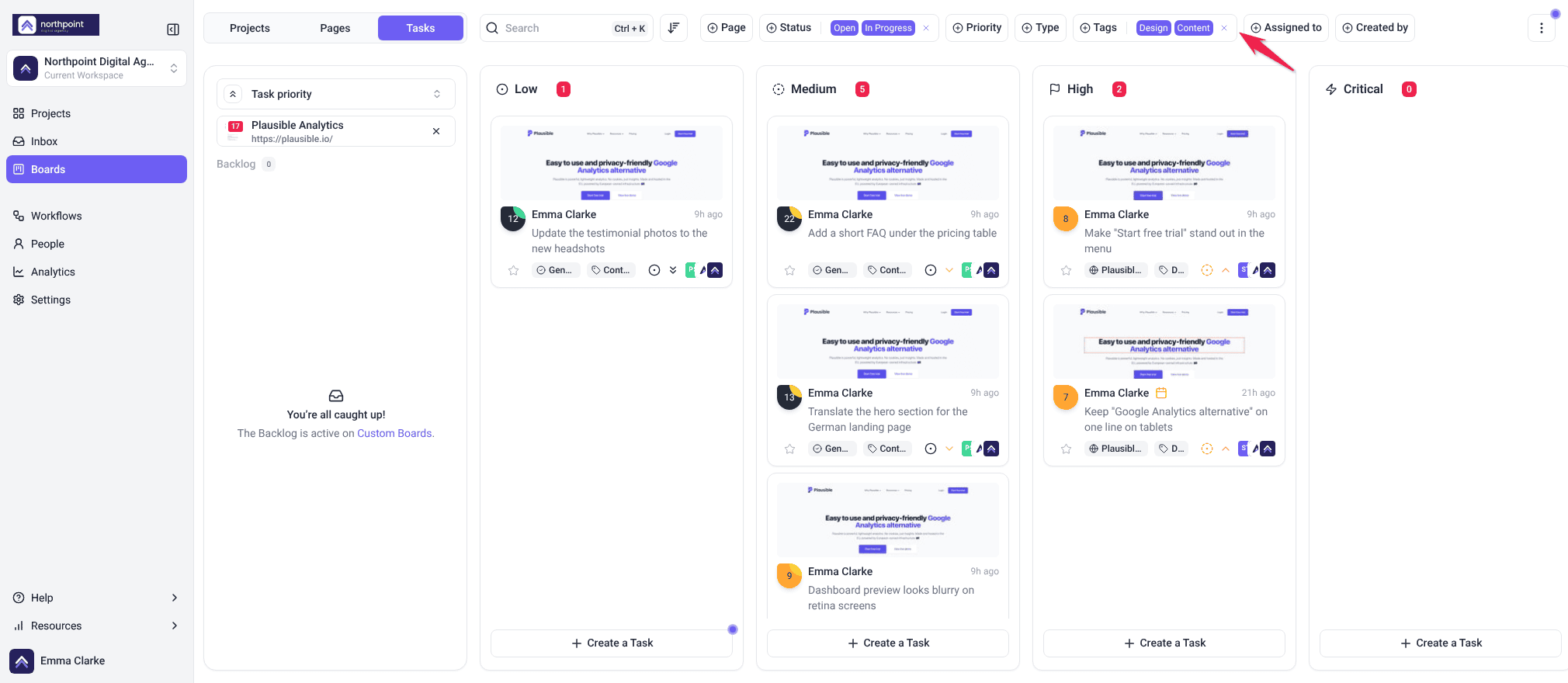
- Select the tags you want to see. The view narrows to matching tasks, and works alongside your other filters.
What to Tag By
The useful test for a tag is whether you would ever want to see all the tasks carrying it. If not, it is a note rather than a category.
| Tag by | Examples | Useful because |
|---|---|---|
| Type of work | Design, Copy, Dev, SEO | Lets each discipline filter to their own queue. |
| Origin | Client feedback, Internal QA, AI review | Separates what a client asked for from what you found. |
| Phase | Pre-launch, Post-launch, Snagging | Groups work by where it sits in delivery. |
| Effort | Quick win, Needs scoping | Helps fill a short gap or plan a sprint. |
| Blocked reason | Waiting on client, Waiting on hosting | Makes a stalled reason filterable rather than buried in comments. |
Automating Tags
Tags are well supported by workflows, in both directions — a tag can trigger an automation, and an automation can apply one.
| What you want | How to build it |
|---|---|
| Act when a tag is applied | Task tag added trigger — for example notify a developer when Dev is tagged. |
| Tag everything from one source | Task added trigger with an Add task tag step. |
| Route work by tag | An If/Else step with the Task tag is set to condition, with assign or notify steps in its If and Else branches. |
| Clear a tag once work moves on | Remove task tag step on a status change. |
| Chase a blocked tag | Tag added, a Delay, then a comment asking for an update. |
Keeping the Tag List Under Control
Tags are created by typing, there is no central place to tidy them, and nothing merges duplicates. That makes discipline at the point of creation the whole game.
| Habit | Why it matters |
|---|---|
| Agree the list first | Five agreed tags beat forty invented ones. Write them down somewhere the team sees. |
| Read the suggestions | The field suggests existing tags. Using one is always better than creating a near-duplicate. |
| Don’t worry about capitals | Typing “Bug” when “bug” exists adds the existing tag, so capitals never split a category. |
| Singular or plural, not both | “bug” and “bugs” will otherwise split the same category in two. |
| Automate the important ones | A workflow applies a tag identically every time; people do not. |
Consistency matters more once several projects are in play, since a tag vocabulary is only useful if it means the same thing everywhere. Explore Managing Multiple Projects Efficiently
Tags across your clients
Tags on your clients’ tasks belong to your agency, so one tag list works across every client. A tag you use for one client is suggested for all the others.
Instructions:
- Add a tag to a client’s task the same way as any other task.
- In the Inbox or on Boards, choose All Projects and filter by that tag to see matching tasks from every client at once.
Your clients only see the tags used on their own tasks, never your full list. Tags that workflows add are filed the same way.
Benefits of Tagging Consistently
| Benefit | In practice |
|---|---|
| Everyone filters to their own work | A designer sees Design, a developer sees Dev, without separate boards. |
| Bulk actions become precise | Filter to a tag, select all visible, and act on a whole category at once. |
| Origin stays visible | Client requests and internal findings remain distinguishable weeks later. |
| Blocked work is findable | A “Waiting on client” tag is filterable; the same information in a comment is not. |
| Automation gets a handle | Workflows can trigger on tags and apply them, so routing follows category. |
Example Use Cases
| Situation | How to use tags |
|---|---|
| A mixed team on one board | Tag by discipline so each person filters to their own queue. |
| Separating client asks from your own QA | Tag one Client feedback and the other Internal QA, ideally by workflow. |
| A snag list before launch | Tag Pre-launch, then filter to it as your checklist. |
| A short gap between meetings | Filter to Quick win and clear a couple. |
| Chasing everything blocked | Filter to Waiting on client — that is your chase list. |
| Closing out a category | Filter to the tag, select all visible, and set them Complete. |
Known Limitations
- Tags are a paid feature. Below the minimum plan the control is replaced by a locked badge that names the plan required, and only the workspace owner can change the subscription.
- Your role can remove it entirely. Without the task tags permission the control does not appear at all, locked or otherwise.
- There is no tag management screen. Tags cannot be renamed or merged centrally.
- Nothing prevents near-duplicates beyond the suggestions shown as you type.
- Tags have no colours — they are text labels only.
- Tags do not carry meaning to Atarim, unlike status and priority which drive reporting.
- Task filtering is plan-dependent in the Inbox and on Boards.
FAQs
How do I create a tag?
Type it into the tags control on any task and press Enter. There is no separate screen for creating them.
Why can I not see the tags control?
Two things can hide it. Tags are a paid feature, so below the minimum plan you get a locked badge in its place that names the plan required, and only the workspace owner can change the subscription. Separately, if your role does not carry the task tags permission the control is not rendered at all — so if there is no badge either, it is your role rather than your plan.
Can I rename or merge tags?
No. There is no tag management screen. To consolidate, filter to one tag, select the tasks, and swap it using the bulk control.
Can a task have several tags?
Yes, as many as you need.
Can I tag several tasks at once?
Yes. Select them and use the Tags control on the bulk toolbar, which adds and removes.
Do tags have colours?
No. They are text labels.
Should I tag by client?
No. Folders already group projects by client. Tag by things that vary within a client’s work.
Can workflows use tags?
Yes, in both directions — a tag being added can trigger a workflow, and a workflow can add or remove tags.
Common issues
- “Failed to update tags” — try again. If it persists, check you still have access to that project.
- “No tags” on a task — none have been applied yet. Use Add Tags.
- You are prompted to create your first tag — nothing exists in this workspace yet. Agree the list with your team before you start typing.
- Two tags mean the same thing — filter to one, select all visible, and use the bulk control to swap it for the other. There is no merge.
- A “Waiting on client” tag is on tasks that are not blocked — nothing removes tags automatically. Add a Remove task tag step to a workflow on status change.
Conclusion
Tags are the only categorisation Atarim leaves entirely to you, which makes them powerful and fragile in the same measure. Agree five, automate the ones that matter, read the suggestions before creating anything new — and the tag filter becomes the fastest way to act on a whole category of work at once.
Tags sit alongside everything else a task carries. Discover How To Manage Tasks In Atarim
Tips & best practices
- Agree a short list before anyone starts tagging. Five used consistently beat forty invented.
- Read the suggestions before pressing Enter — near-duplicates cannot be merged afterwards.
- Pick a singular-or-plural convention, once. Capitals don’t matter, since tags are matched without them.
- Never tag by client. Folders already do that.
- Automate the tags that matter rather than relying on people to remember.
- Pair a tag filter with Select all in the Inbox to act on a whole category in one go.