Tracking Task Progress and Completion
Keep statuses honest, close work properly, and see where things are actually stalling.
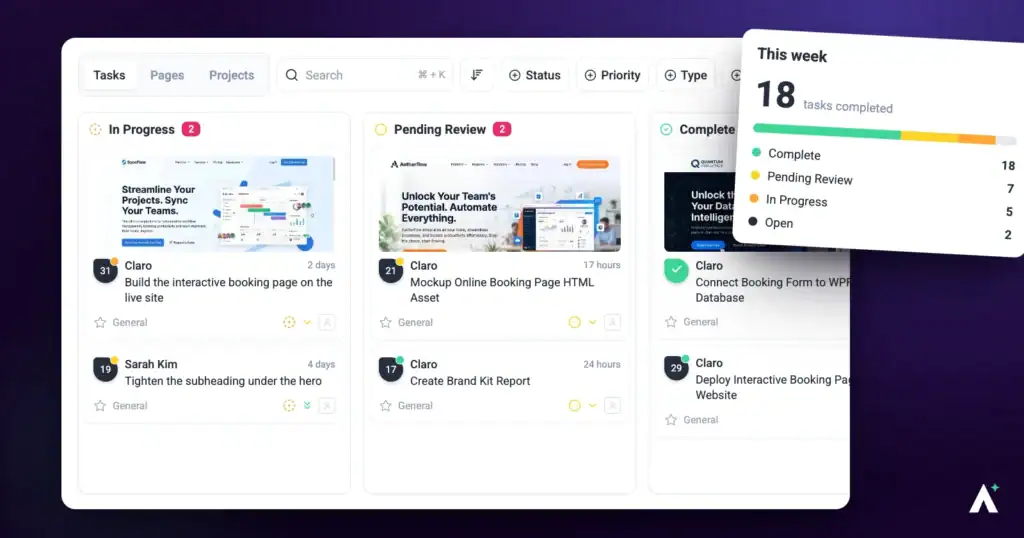
Tracking progress in Atarim rests on one thing: whether statuses mean what they say. A board where half the tasks sit at In Progress because nobody moved them is worse than no board, because it looks like information.
This article covers how to keep them accurate, how to close work properly, and how to spot where progress has quietly stopped.
What Each Status Means
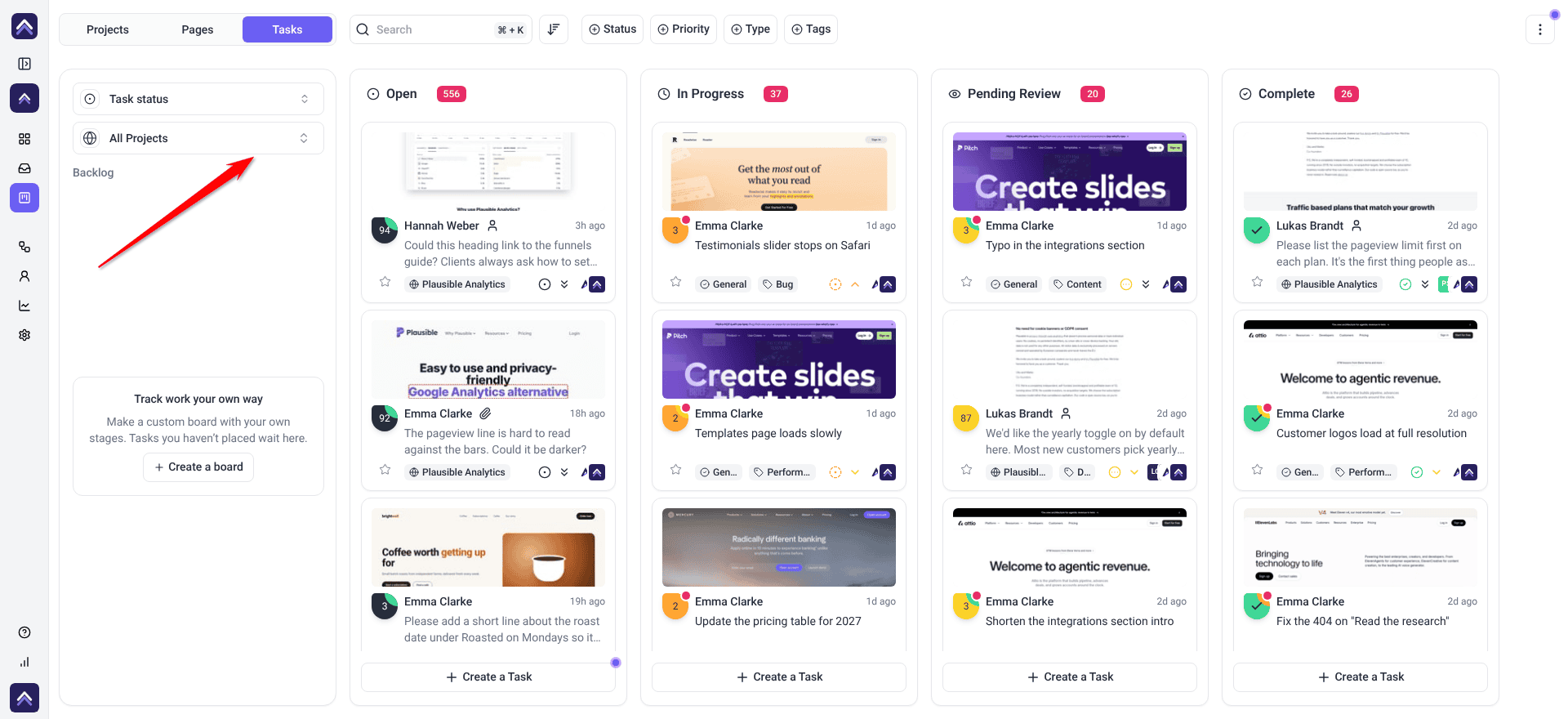
Four statuses, in a fixed order that runs from Open through to Complete — which makes the sequence obvious and discourages treating them as unrelated labels.
| Status | Means | The next move belongs to |
|---|---|---|
| Open | Raised, not started. | Whoever is assigned. |
| In Progress | Someone is actively working on it. | The assignee. |
| Pending Review | Done, waiting on a check or client approval. | Someone else — usually the client. |
| Complete | Finished and agreed. | Nobody. |
Statuses sit alongside priority, which answers a different question about the same task. Explore Setting Due Dates And Prioritizing Tasks
Updating a Task’s Status
Status can be changed from any of the three views, and it saves as soon as you change it.
Instructions:
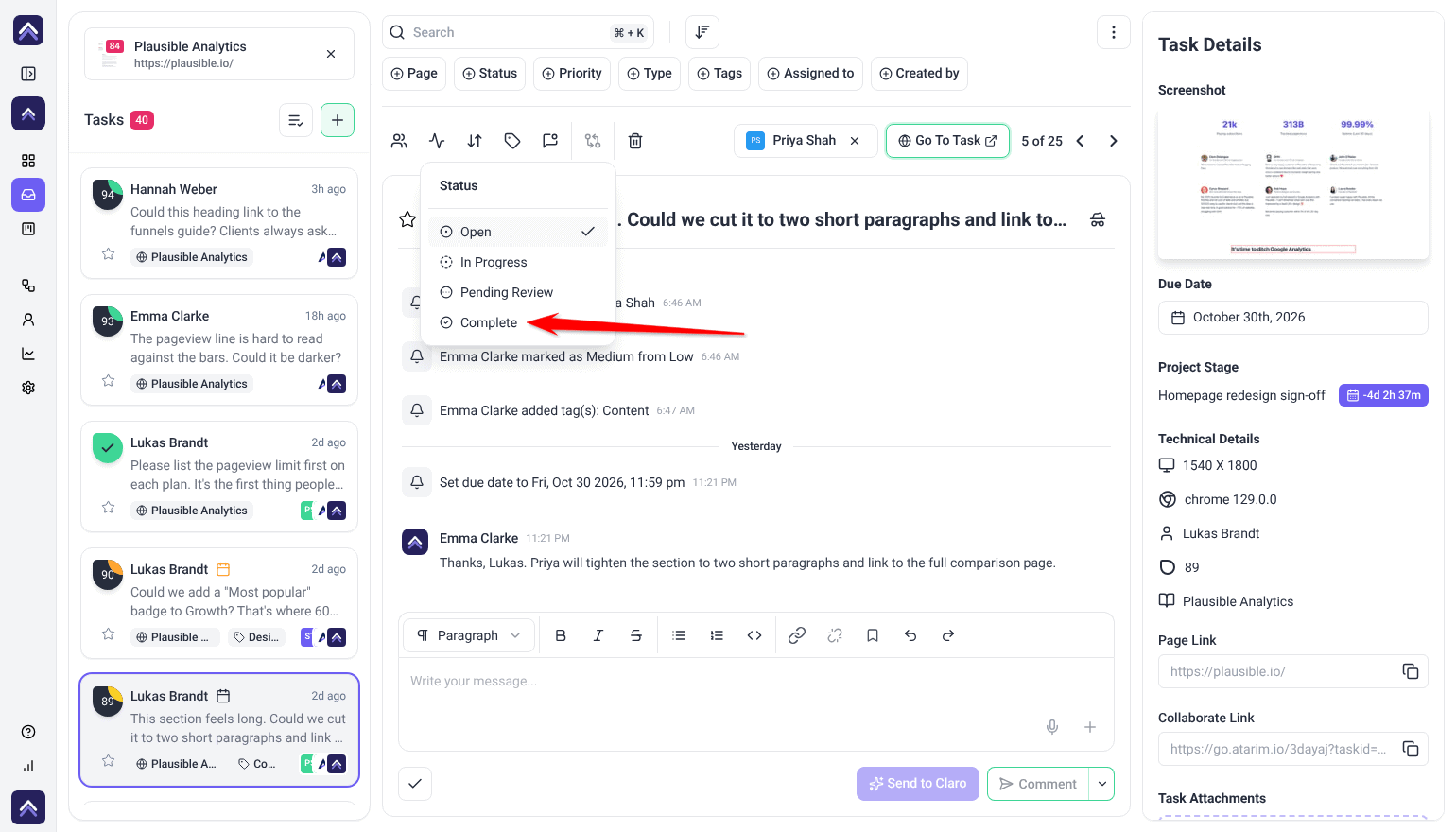
- Open the task in the Inbox, on Boards, or in Collaborate.
- Open the status dropdown and pick the stage the work has reached. The change saves immediately, and everyone with access sees it.
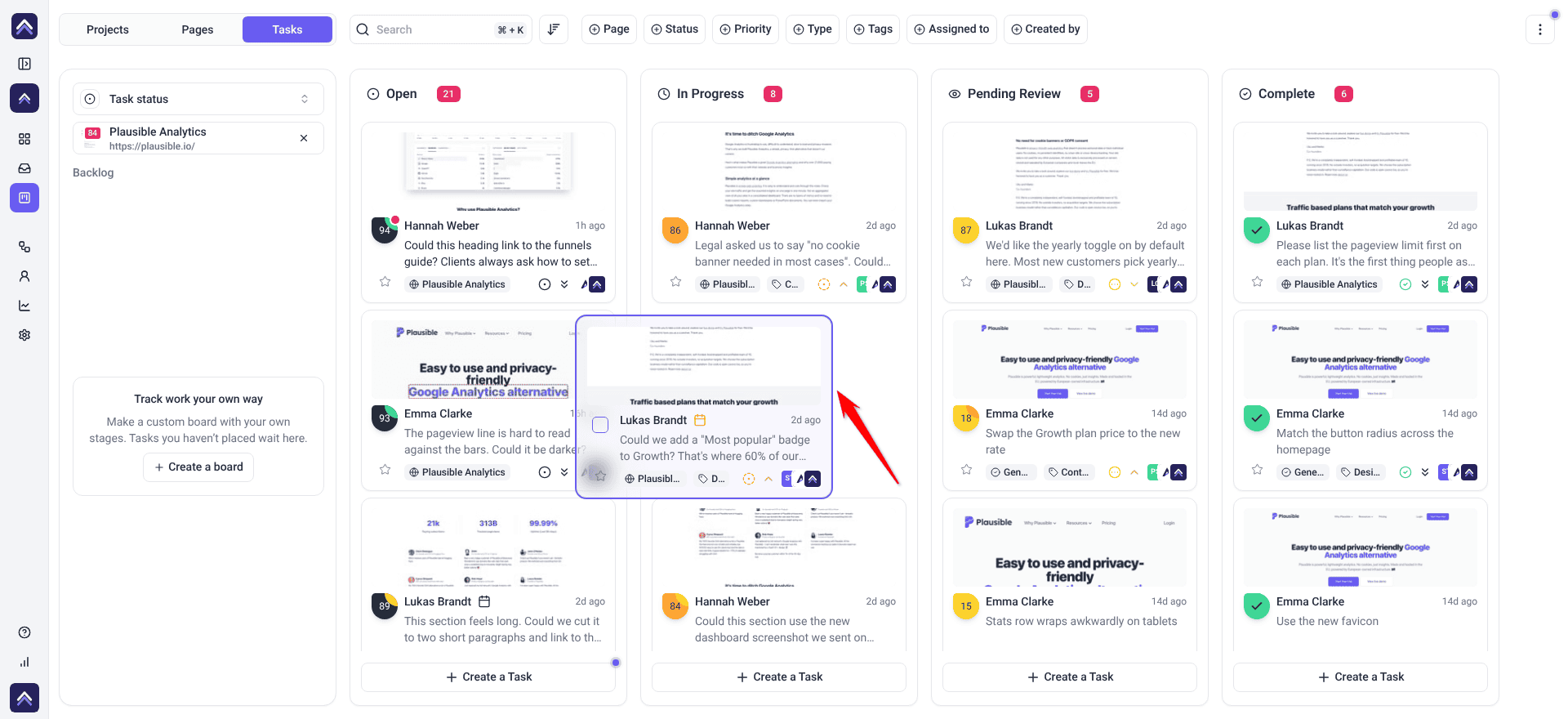
- On Boards, open the Task status board on the Tasks tab and drag the card to another column instead. It saves the status the same way.
Marking Work Complete
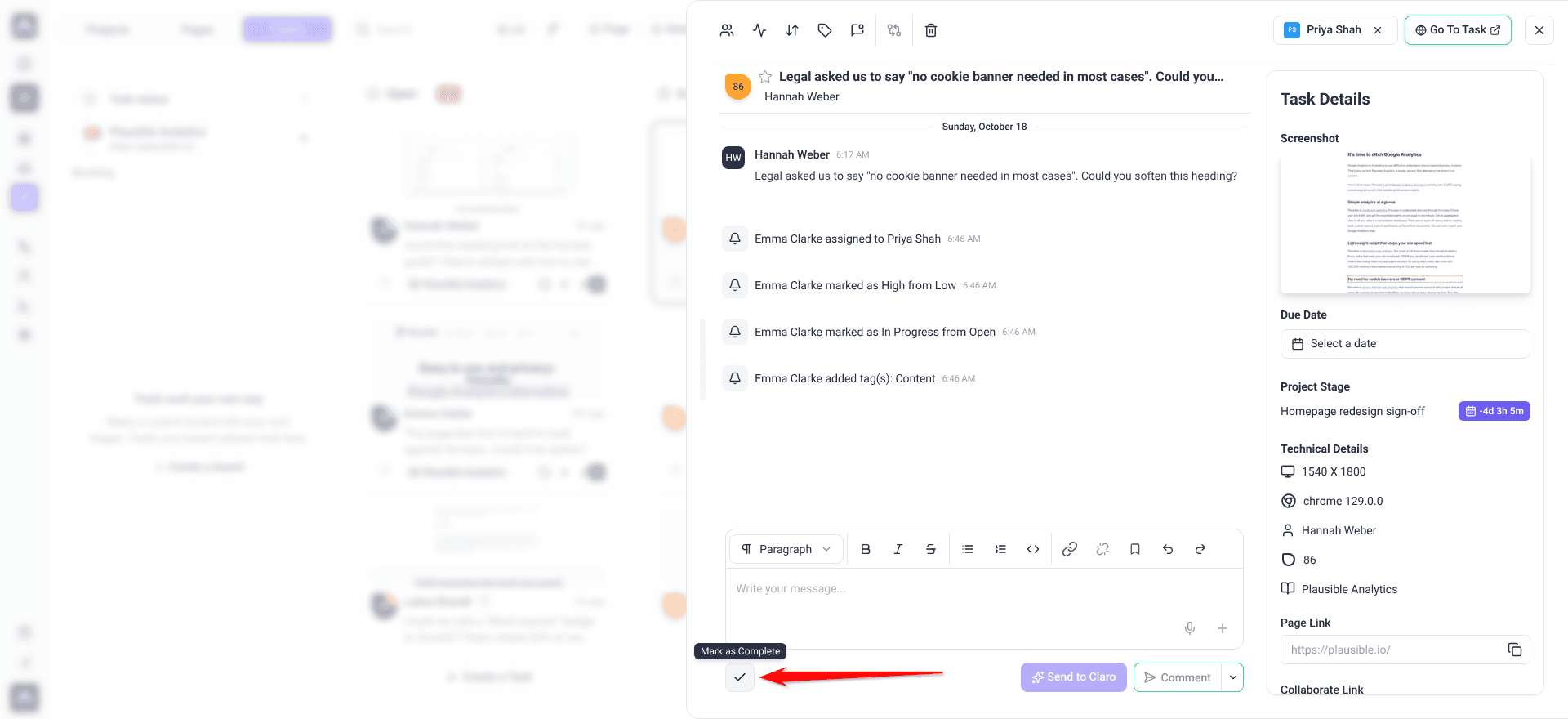
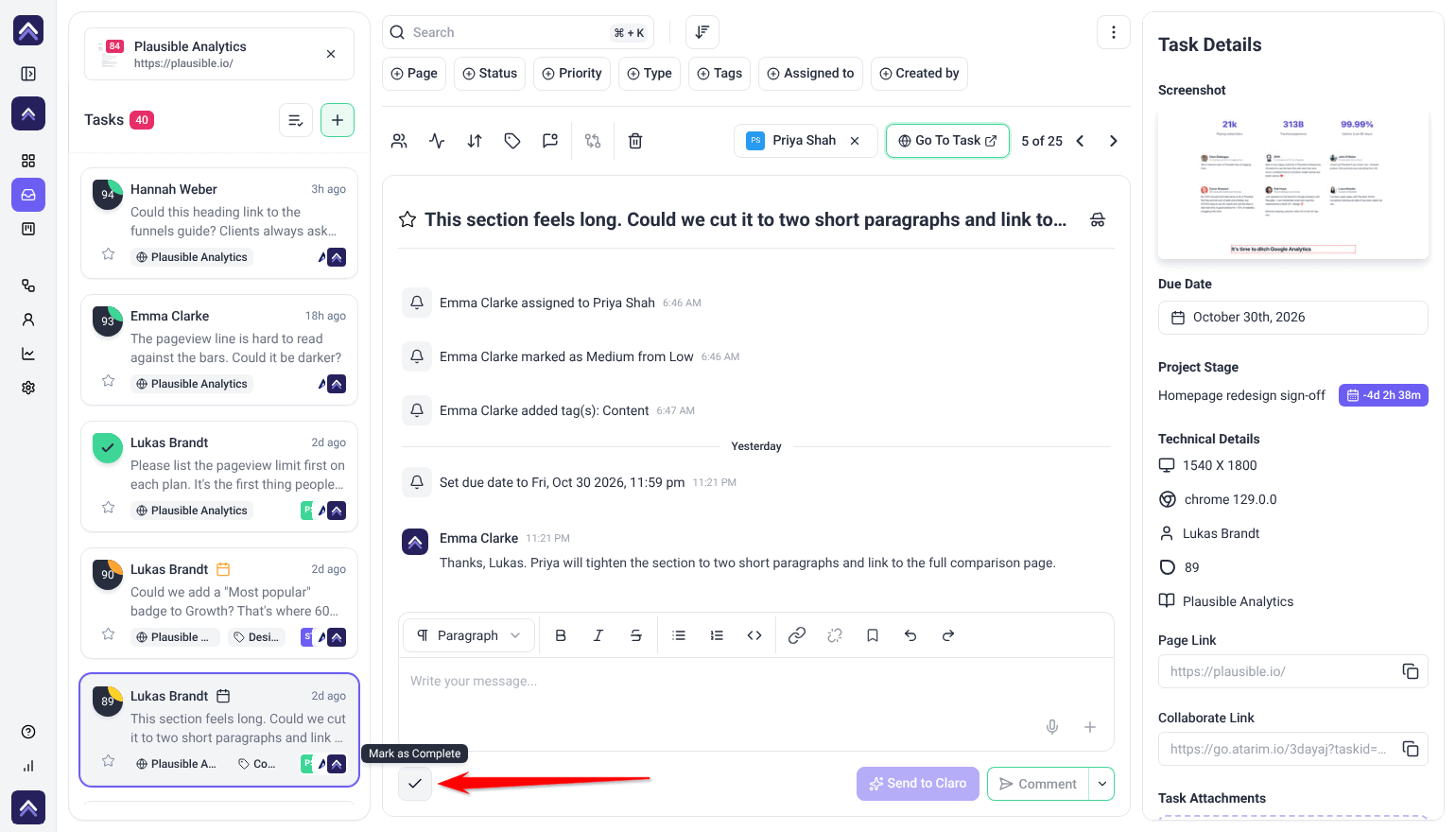
Alongside the status control there is a dedicated control for closing a task, described in the interface as a way to quickly mark this task as complete.
Instructions:
- Open the task.
- Select the complete control. The task moves to Complete straight away.
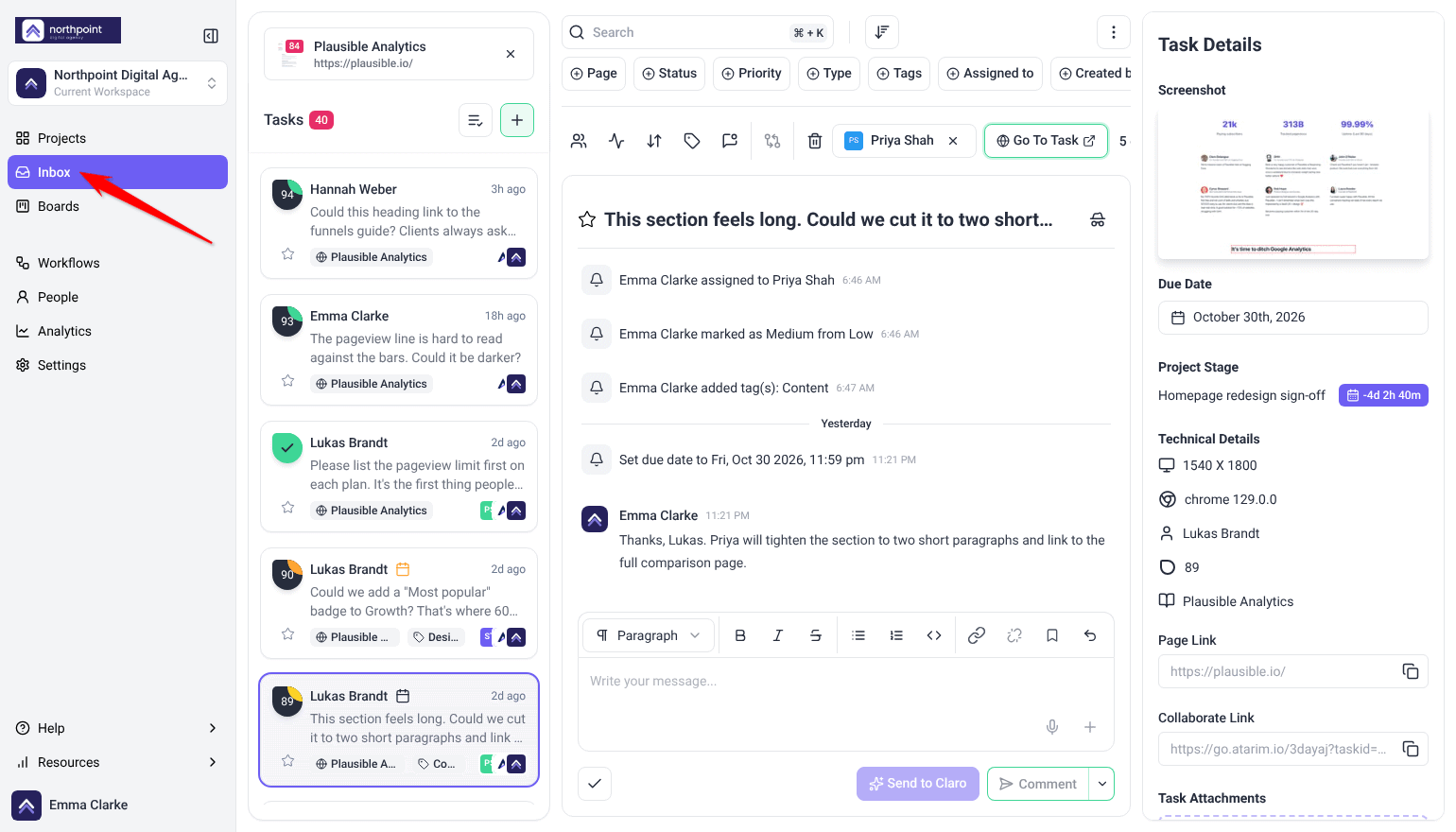
- To reopen it, use the same control again where it offers that. In Collaborate it returns the task to In Progress; from the Graphics and overlay task panels it returns it to Open. The complete button in the Inbox and on Boards is one way only, so reopen from there using the status control instead.
Closing Out a Batch
At the end of a round, updating tasks one by one is the slow way. Selecting a batch first turns it into one action.
Instructions:
- Filter to the tasks you mean — one client, one tag, or one status.
- On Boards, hover a card to reveal its checkbox and tick each task you want. In the Inbox, select Select multiple tasks first, then tick the tasks or use Select all.
- Use the status control on the bulk toolbar. Every selected task moves to that status at once.
Seeing Where Everything Stands
Different views answer different progress questions, and it is worth knowing which to reach for.
| Question | Where to look |
|---|---|
| Where is everything up to right now? | The Task status board on Boards — the whole pipeline at a glance. |
| What is waiting on the client? | Filter to Pending Review. |
| What am I meant to be doing? | In the Inbox, choose the project, filter Assigned to by your name and sort by Priority: High To Low. |
| What changed, and who changed it? | The task’s activity thread, or the Activity Feed. |
| Are we getting faster or slower? | Analytics. |
Checking the History of a Task
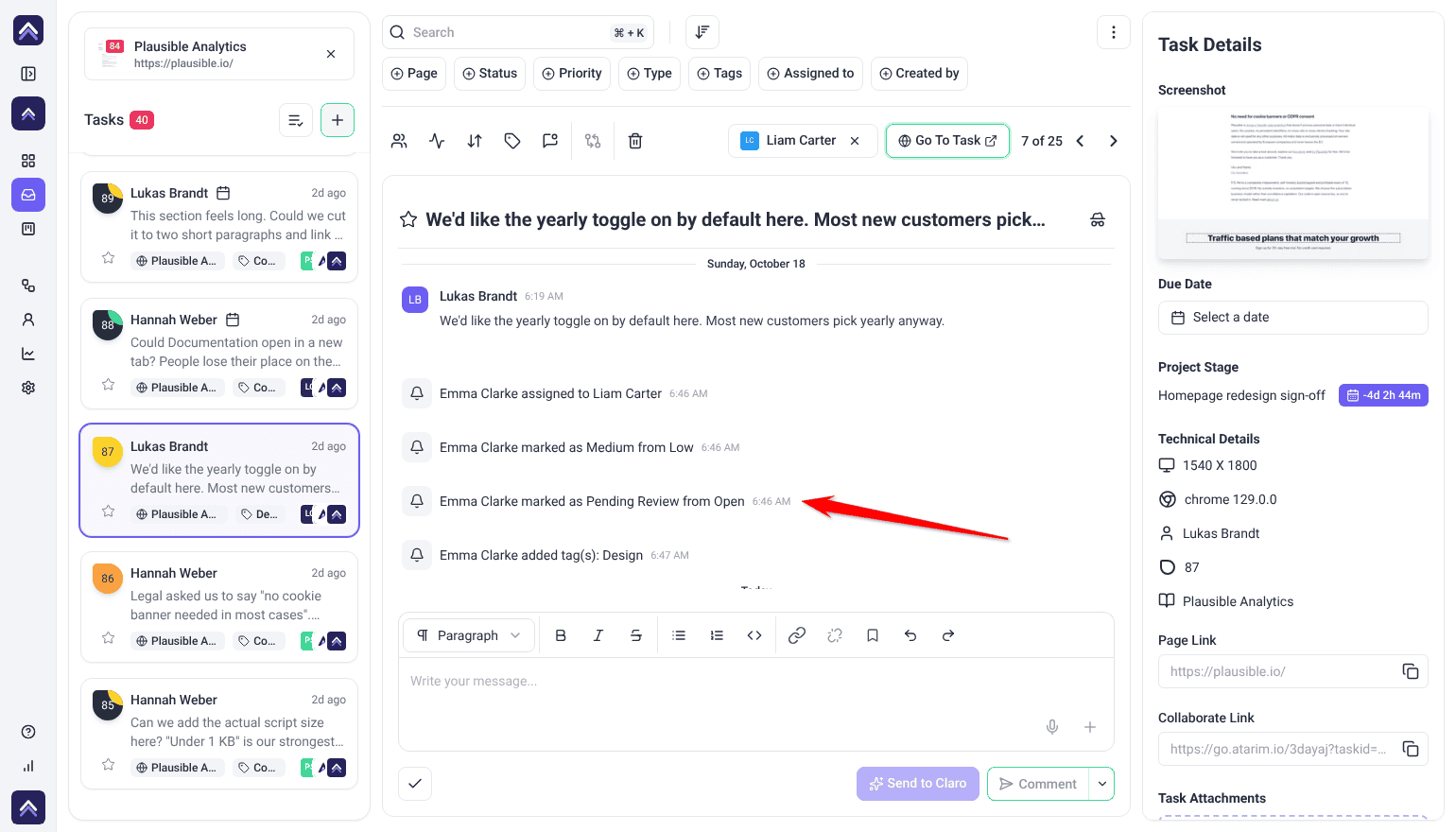
Every status change is recorded, so a task that has bounced between statuses tells its own story.
Instructions:
- Open the task and read its activity thread. Status changes appear alongside comments, in sequence.
- For a wider view, open the Activity Feed under People. It records status and priority changes across the workspace, with who made each one.
Measuring Progress Across Projects
Statuses tell you about one task. Analytics tells you whether the way you work is improving, using metrics built from those same status changes.
| Metric | What it tells you |
|---|---|
| Avg Task Turnaround | How long a task typically takes from raised to complete. |
| Tasks Completed On Time Percentage | Whether your due dates are being met or quietly missed. |
| Task Resolution Velocity | The rate at which work is being closed. |
| Active Task Percentage | How much of your work is genuinely moving rather than sitting. |
| Unresolved Comments | Conversations still open, which often outlast the task itself. |
Automating the Progress Chase
Most status hygiene problems are people forgetting, which makes them a good fit for automation.
| What you want | How to build it |
|---|---|
| Tell the client when work is ready for them | Task status changes trigger, then an If/Else step checking Task status is set to Pending Review, with a notification in its If branch and at least one step in its Else branch. |
| Chase work that has stalled | Status change trigger, a Delay of a few days, then a comment. |
| Notify a lead when something completes | Task completed trigger with a notification or Slack message. |
| Close a loop in an external tool | Task completed trigger with an integration step. |
| Move a task on automatically | A Change task status step in any workflow. |
Progress at Project Level
Task statuses do not roll up into a project status, deliberately. A project can have every task complete and still be mid-delivery, so project-level progress is tracked separately.
- Use project stages for dated checkpoints a client can see. Badges change colour as a stage approaches or passes, and they appear on project cards and in Collaborate.
- Use page approvals to record sign-off page by page. Clients mark pages approved themselves, which is a firmer record than an email.
Benefits of Tracking Properly
| Benefit | In practice |
|---|---|
| The board reflects reality | A glance answers “where are we” without asking anyone. |
| Handovers are explicit | Pending Review says the next move is someone else’s, so nothing waits silently. |
| History survives | Completed tasks keep the client conversation and count toward reporting. |
| Stalls surface early | Active task percentage and turnaround show congestion before a client notices. |
| Chasing is automatic | A workflow follows up on quiet work so nobody has to remember. |
| Progress is reportable | Turnaround and on-time figures give you something to show a client beyond a task list. |
Example Use Cases
| Situation | What to do |
|---|---|
| A daily stand-up | Work down the Task status board, dragging cards as people report. |
| Chasing a client | Filter to Pending Review — that is the list of what you are waiting on. |
| Closing out a finished round | Filter to the client’s tag, select all visible, and set them Complete in one action. |
| A client asking how it is going | Use project stages for the answer, not a task list. |
| Work that keeps stalling | Build the delay-and-chase workflow rather than remembering to follow up. |
| A task reopened three times | Read its history. Repeated reopening is usually an unclear specification. |
Known Limitations
- Four statuses, fixed. They cannot be renamed, added to, or removed.
- Reopening a completed task does not return it to whatever it was before. It goes to In Progress in Collaborate, or to Open from the Graphics and overlay task panels.
- Task statuses do not roll up into a project status. Use project stages for that.
- Status and priority are a paid feature.
- Most Analytics Overview figures use a rolling 30-day window rather than all time.
FAQs
Can I add my own statuses?
No. The four are fixed. For extra stages, build your own board on Boards with its own columns, or use tags.
What is the difference between Pending Review and Complete?
Pending Review means the work is done but someone else has to check or approve it. Complete means that has happened.
Can I reopen a completed task?
Yes. On a website or design, select the complete control again. In the Inbox or on Boards, change the status instead.
Does completing a task notify anyone?
Status changes can trigger notifications and workflows, depending on your setup.
Should I delete finished tasks?
No. Complete them — tasks have no archive, and completed ones keep the conversation and count toward reporting.
Does completing every task complete the project?
No. Project progress is tracked with project stages, separately from task statuses.
How do I see what I am waiting on others for?
Filter to Pending Review. That is the list.
Common issues
- The status control shows a lock — status and priority are not on your plan. The panel names the minimum plan required.
- “Failed to update status” (on a design, “Failed to update task status”) — try again. If it persists, check you still have access to that project.
- Half the board sits at In Progress — a habit rather than a real state. Agree that Pending Review means handed over, and re-triage.
- Dragging changed priority instead of status — you are on the Task priority board. Switch to the Task status board.
- A task taken out of Complete looks wrong — it keeps whichever status you gave it; nothing sets one for you. Choose Pending Review if it is waiting on someone.
- A bulk completion closed too much — Select all in the Inbox follows your filters. Narrow them first.
- Analytics figures look lower than expected — the reporting window is rolling, so older completions fall outside it.
Conclusion
Progress tracking works when statuses are honest and Pending Review is used as a genuine handover. Get that right and the board becomes something you can trust, the client knows when the ball is theirs, and Analytics has real behaviour to report on rather than a record of good intentions.
Priority and deadlines decide what gets picked up first. Discover Setting Due Dates And Prioritizing Tasks
Tips & best practices
- Treat Pending Review as a handover, not a waiting room. It is the only status where the next move is someone else’s.
- Run stand-ups on the board and drag cards as people report, so the record updates as you talk.
- Filter to Pending Review regularly — that is your chase list.
- Complete tasks rather than deleting them. There is no archive for tasks.
- Watch turnaround and on-time percentage together; they diagnose different problems.
- Automate the stall chase rather than relying on anyone remembering.