Introducing the New Atarim WordPress Plugin: Everything You Need to Know
Install it, connect it, and control who collaborates, plus what Atarim's AI can do on your site.
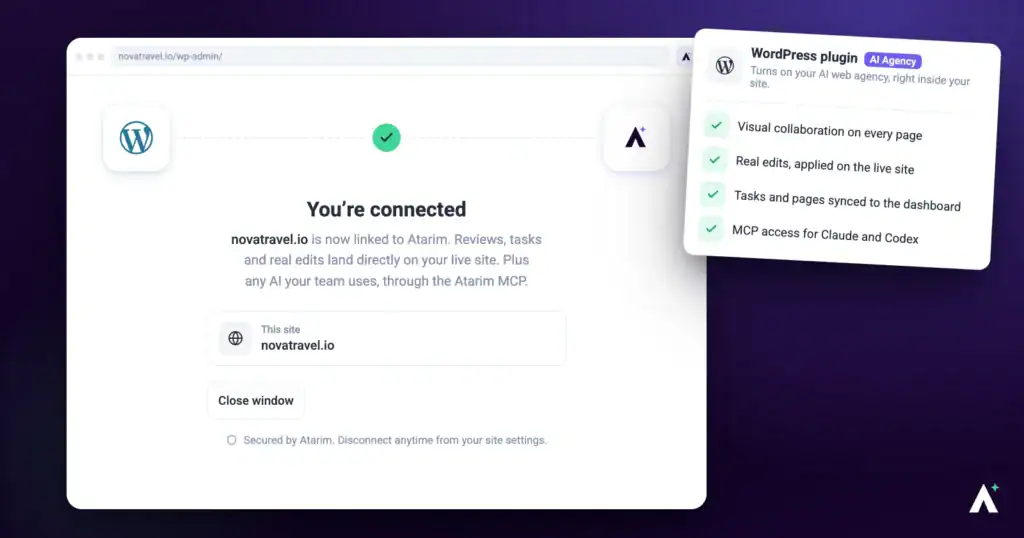
The Atarim WordPress plugin brings visual collaboration onto the site itself, rather than onto a fetched copy of it. That is what makes it the right choice for staging environments and any site that is not publicly reachable — and it gives Atarim’s AI a defined set of actions it can carry out on the site directly, on WordPress 6.9 or later with PHP 8.0 or later.
The plugin is listed in WordPress as Atarim – AI Agency for WordPress: Edit Pages, Fix Code, Update Plugins, SEO & Client Feedback, and the current release is version 5.1.8.
What the Plugin Enables
Installing the plugin changes where collaboration happens. Instead of reviewing a copy of the page, you and your team work on the site itself — which unlocks a set of things a shared link cannot do.
| What you get | Why it matters |
|---|---|
| Works on staging and protected sites | Because collaboration runs on the site, it reaches environments that are not publicly accessible. |
| Visual feedback on live pages | Comments attach to the element they are about, so nobody has to describe where they mean. |
| AI review of any page | Run a review to identify gaps before a client sees the page rather than after. |
| Internal tasks hidden from clients | Work you do not want reviewed sits in the same project without appearing in the client’s view. |
| Private internal notes | Team-only discussion lives on the task, invisible to clients and silent on notifications. |
| Client-friendly feedback | Mark review findings internal and clients see their own thread rather than your quality notes. |
| Clients need no WordPress account | Guest Mode or ?collab=true lets them ask questions in place. |
Install from the WordPress Plugin Repository
The fastest route if you have not downloaded the plugin from your Atarim dashboard.
Instructions:
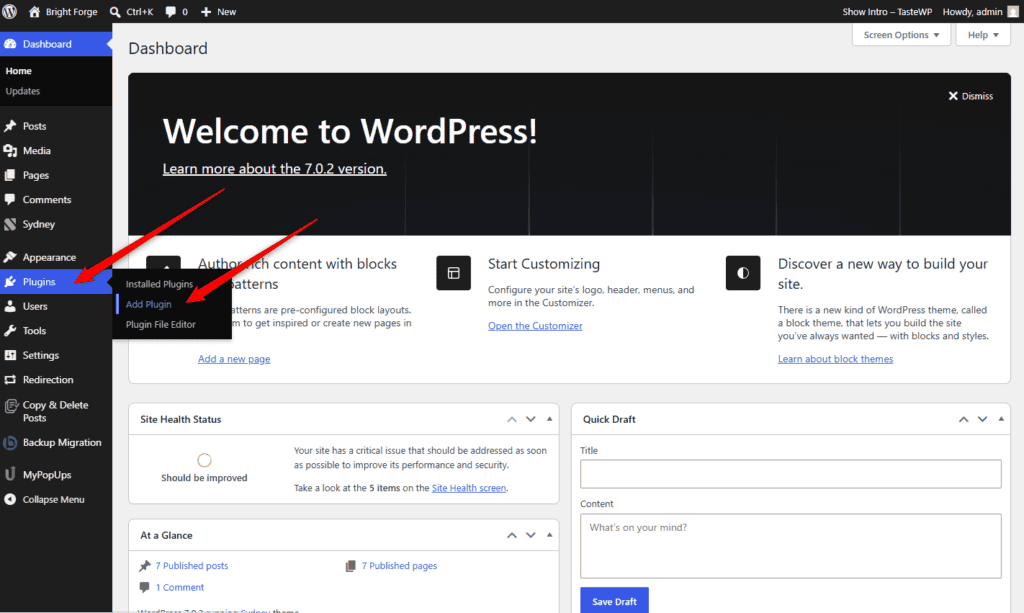
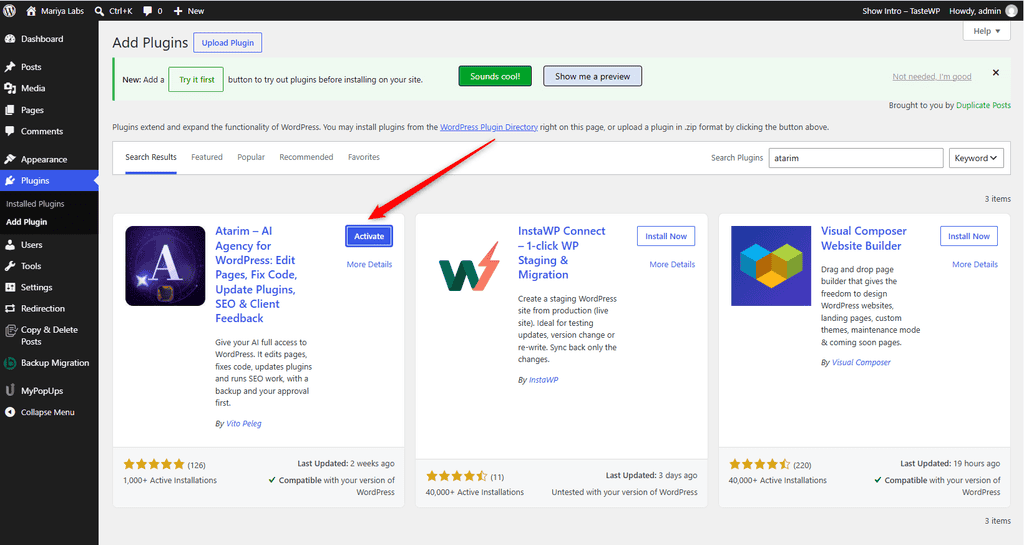
- In your WordPress admin panel, go to Plugins → Add New.
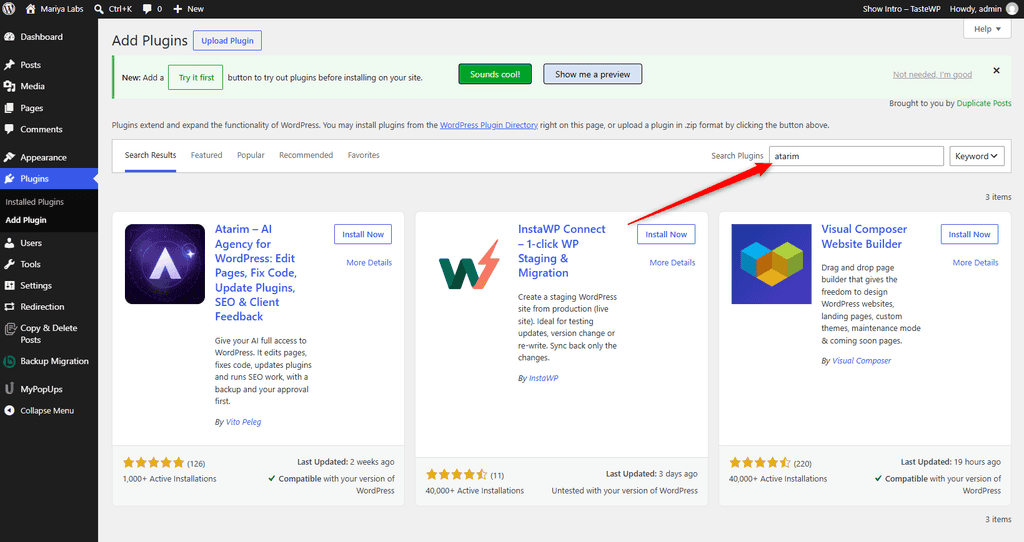
- Search for Atarim.
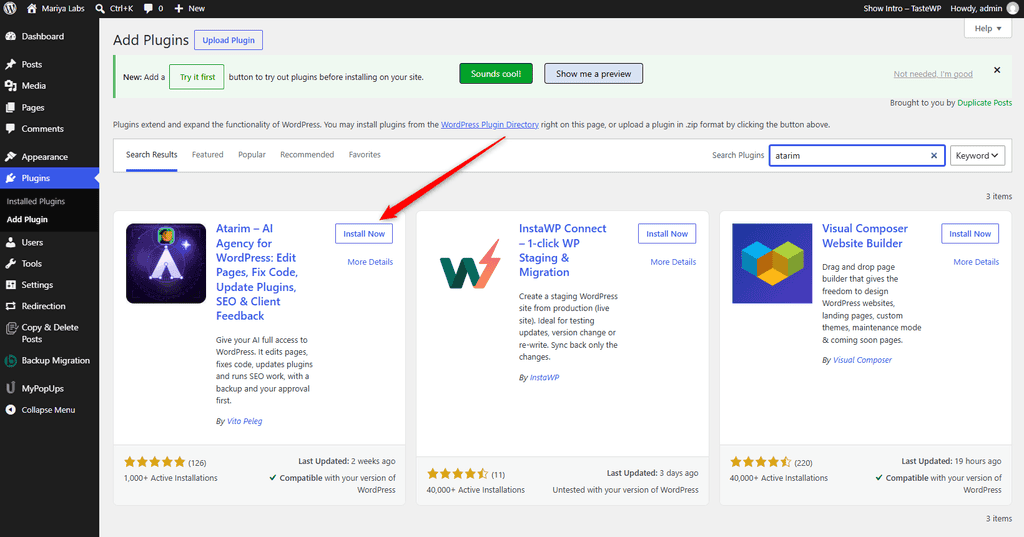
- Select Install Now on the correct plugin. Look for Atarim – AI Agency for WordPress: Edit Pages, Fix Code, Update Plugins, SEO & Client Feedback so you install the right one.
- Activate the plugin when the option appears.
Or Download It from Your Atarim Dashboard
Take this route when the site cannot reach the WordPress repository, or when you want a specific build.
Instructions:
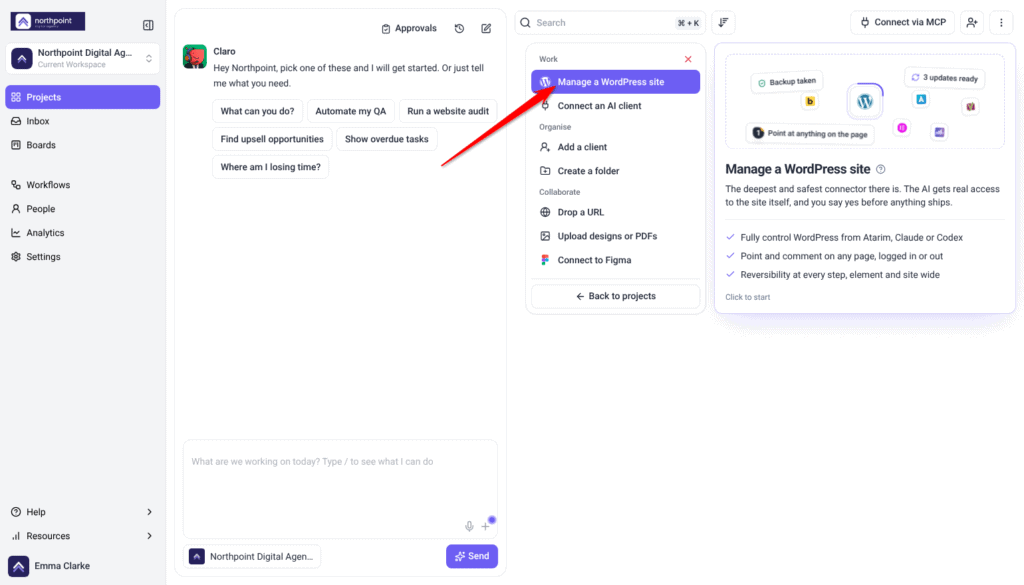
- Log in to your Atarim workspace.
- Go to Projects if you are not already there.
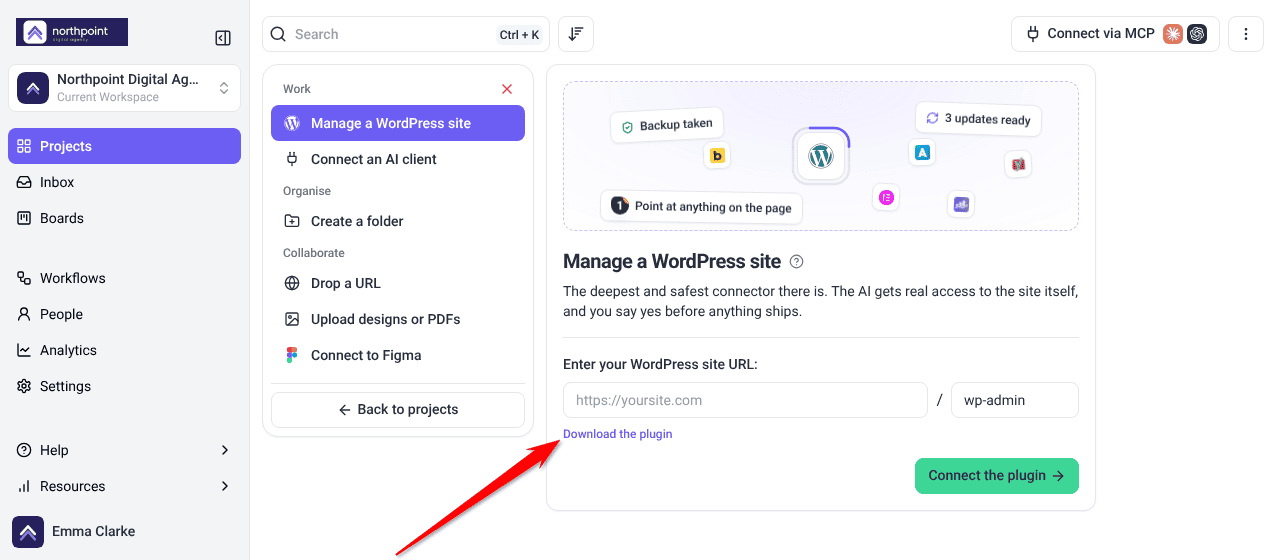
- Select Add new and choose Manage a WordPress site.
- Select Download the plugin. It opens the plugin’s WordPress.org page, where you can download the latest version as a
.zipfile.
Installing the Downloaded File
Uploading a zip is the standard WordPress route, so nothing here is Atarim-specific until activation.
Instructions:
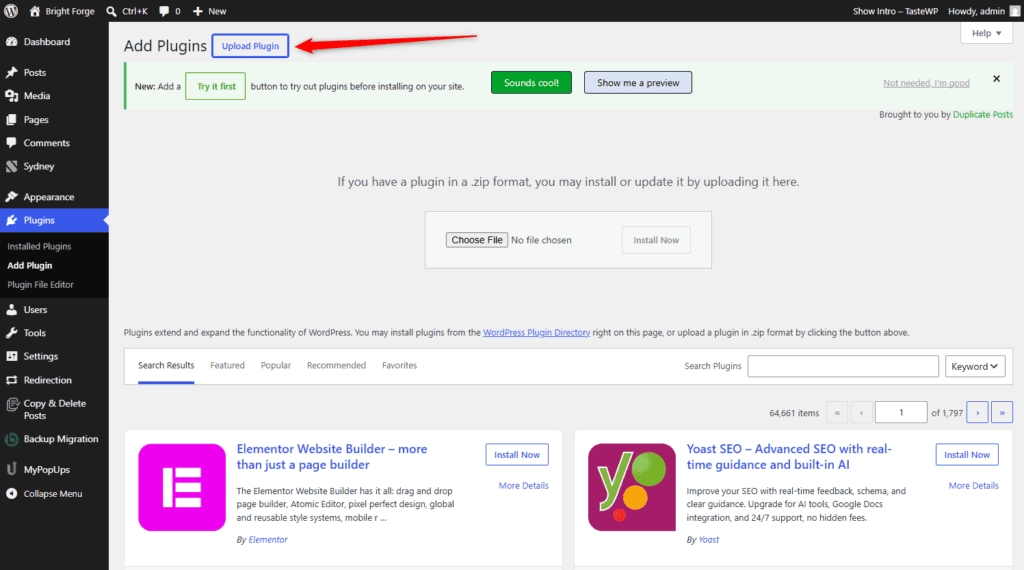
- Go to your WordPress dashboard.
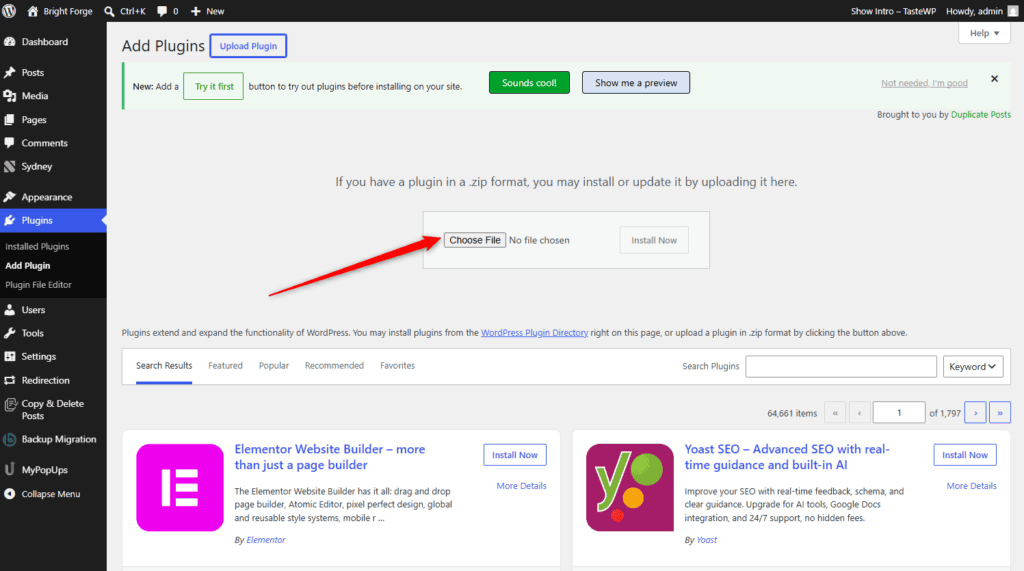
- Navigate to Plugins → Add New Plugin.
- Select Upload Plugin, choose the
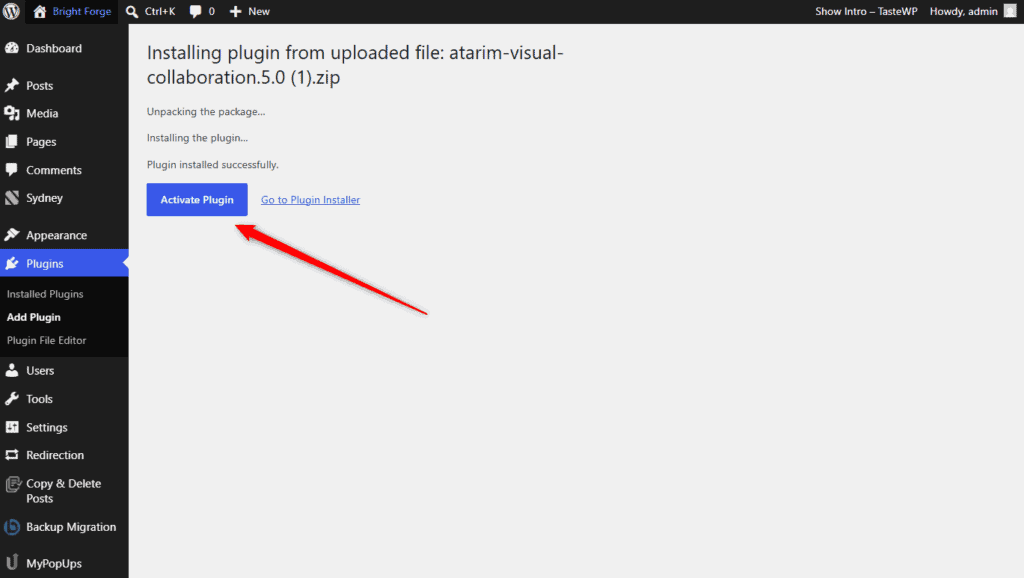
.zipfile, and select Install Now. - Activate the plugin.
Connect the Plugin to Your Atarim Account
Until the plugin is connected, it is installed but inert — the connection is what pairs the site to your workspace.
Instructions:
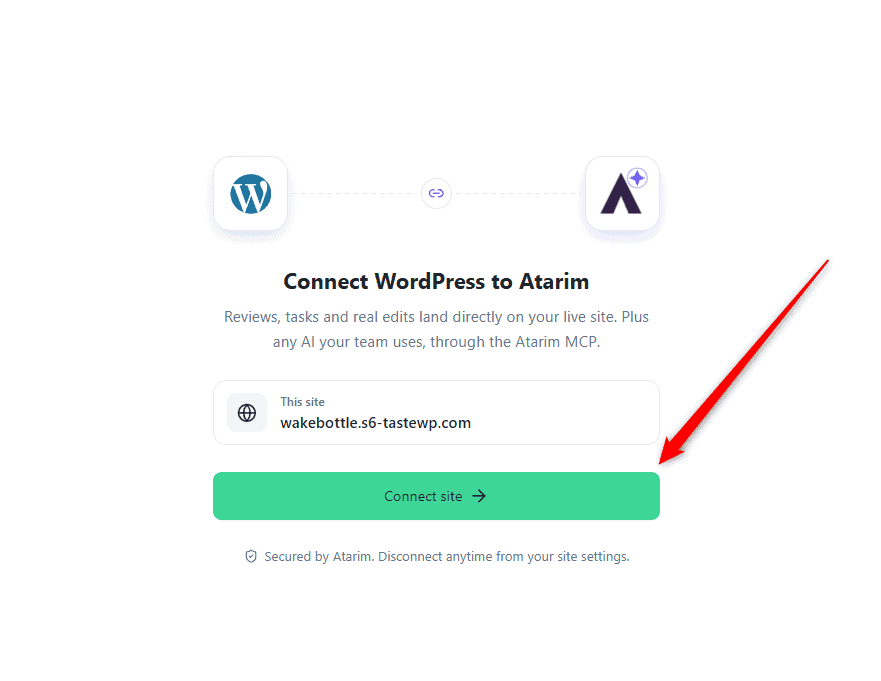
- After activation, WordPress opens Settings → Collaborate. On a site that has never been connected, the Connect WordPress to Atarim screen covers the page.
- Select Connect site (or Connect with Atarim on the settings page). Atarim opens in a new tab.
- Sign in or create a free account.
- If you have more than one workspace, Atarim asks which workspace the site should join. Pick one from Your workspaces, External workspaces or Client workspaces, then select Choose. If you have only one workspace, Atarim uses it.
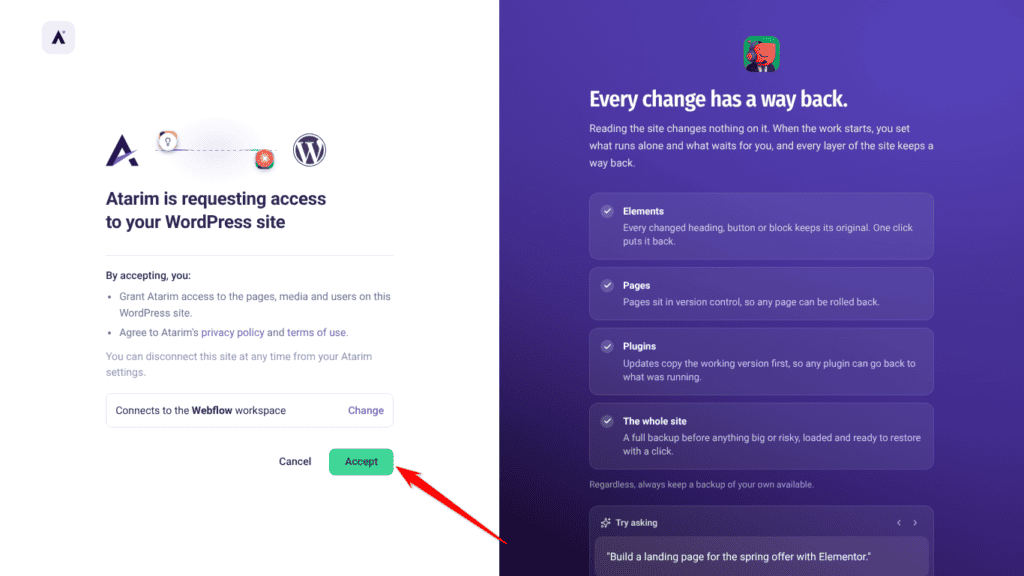
- Check the site address and the workspace shown under Added to workspace on Connect this WordPress site to Atarim?, then select Connect site.
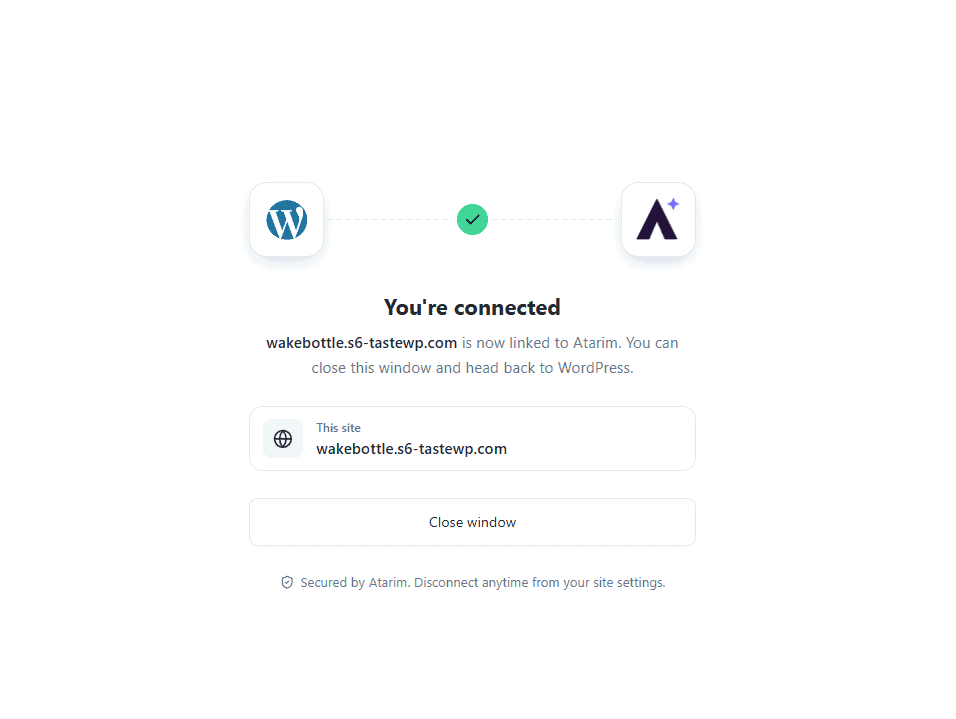
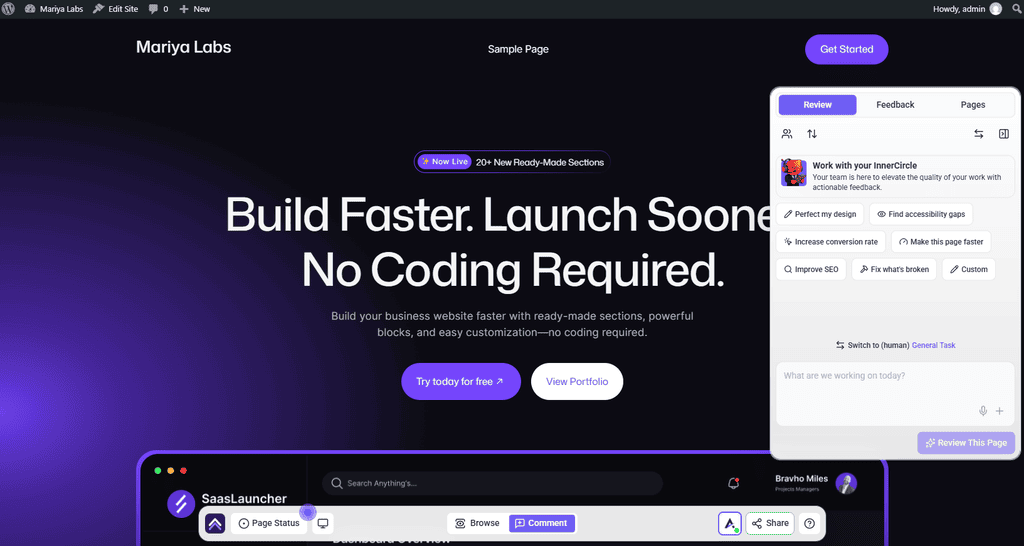
- Back in WordPress, You’re connected appears, then the site’s homepage opens with Atarim loaded on it.
Multisite networks
On a WordPress multisite network, connect each sub-site separately from its own Settings → Collaborate. Each sub-site keeps its own connection and settings. There is no network-wide screen.
The Settings Screen
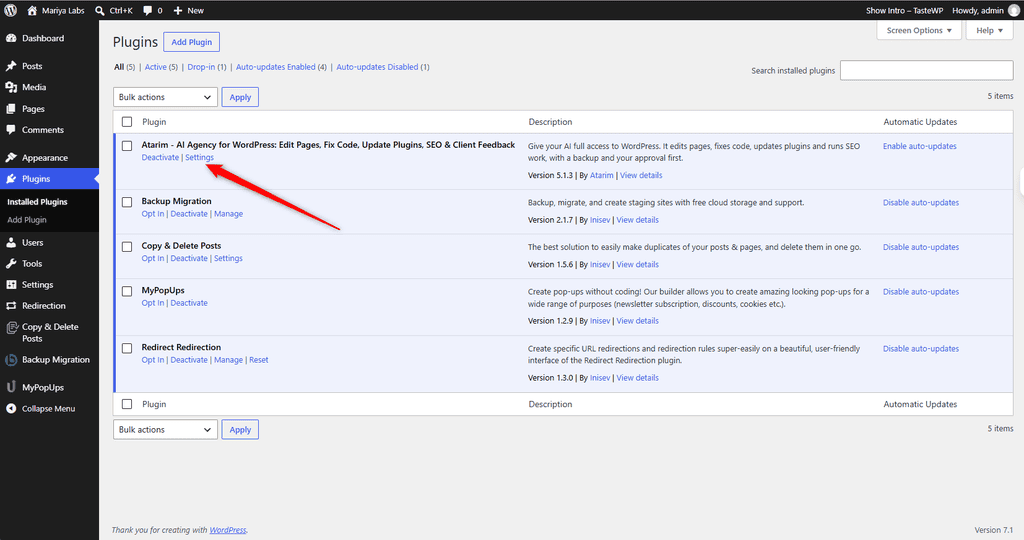
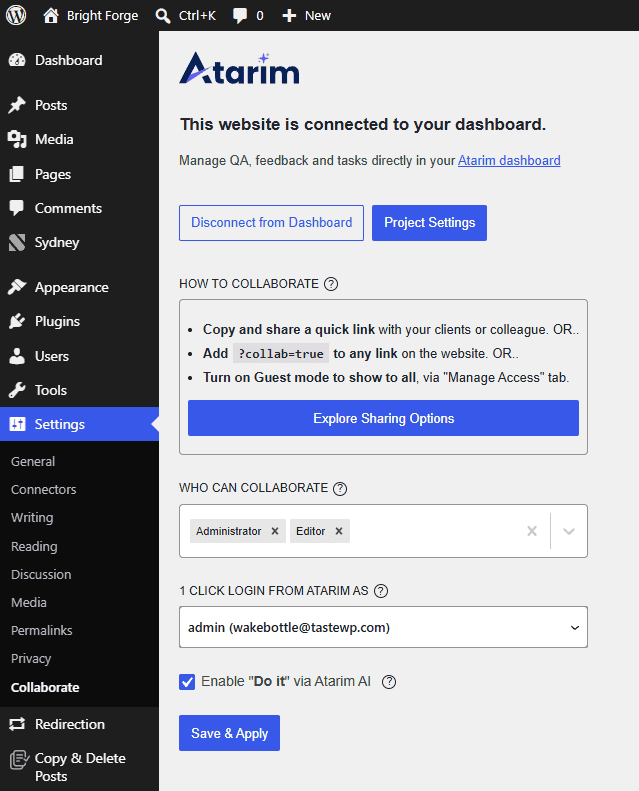
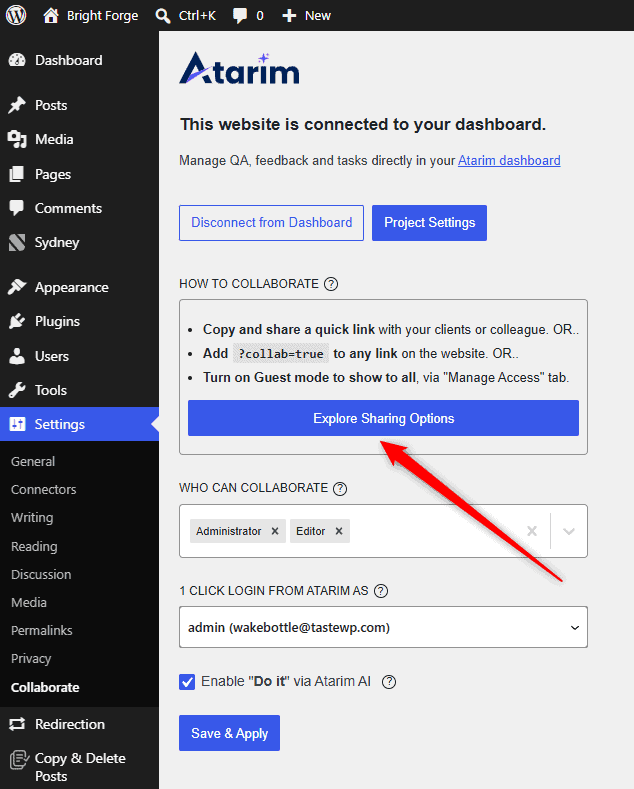
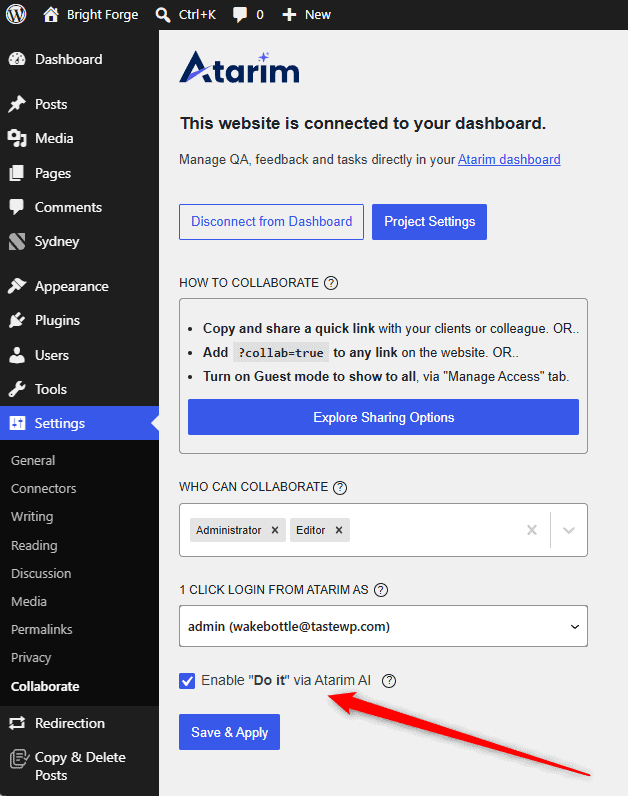
Plugin settings live in WordPress admin under Settings → Collaborate. You can also select Settings under the plugin’s name on the Plugins screen. Only Administrators can open this page.
| Setting | What it does |
|---|---|
| Disconnect from Dashboard | Pauses the connection between this site and your Atarim dashboard. The license and site details are kept, so reconnecting needs no new setup. |
| Project Settings | Opens project-level configuration without leaving WordPress. |
| How to collaborate | Lists the ways in: copy and share a quick link, add ?collab=true to any page address, or turn on Guest Mode in the Manage Access tab of the sharing window. |
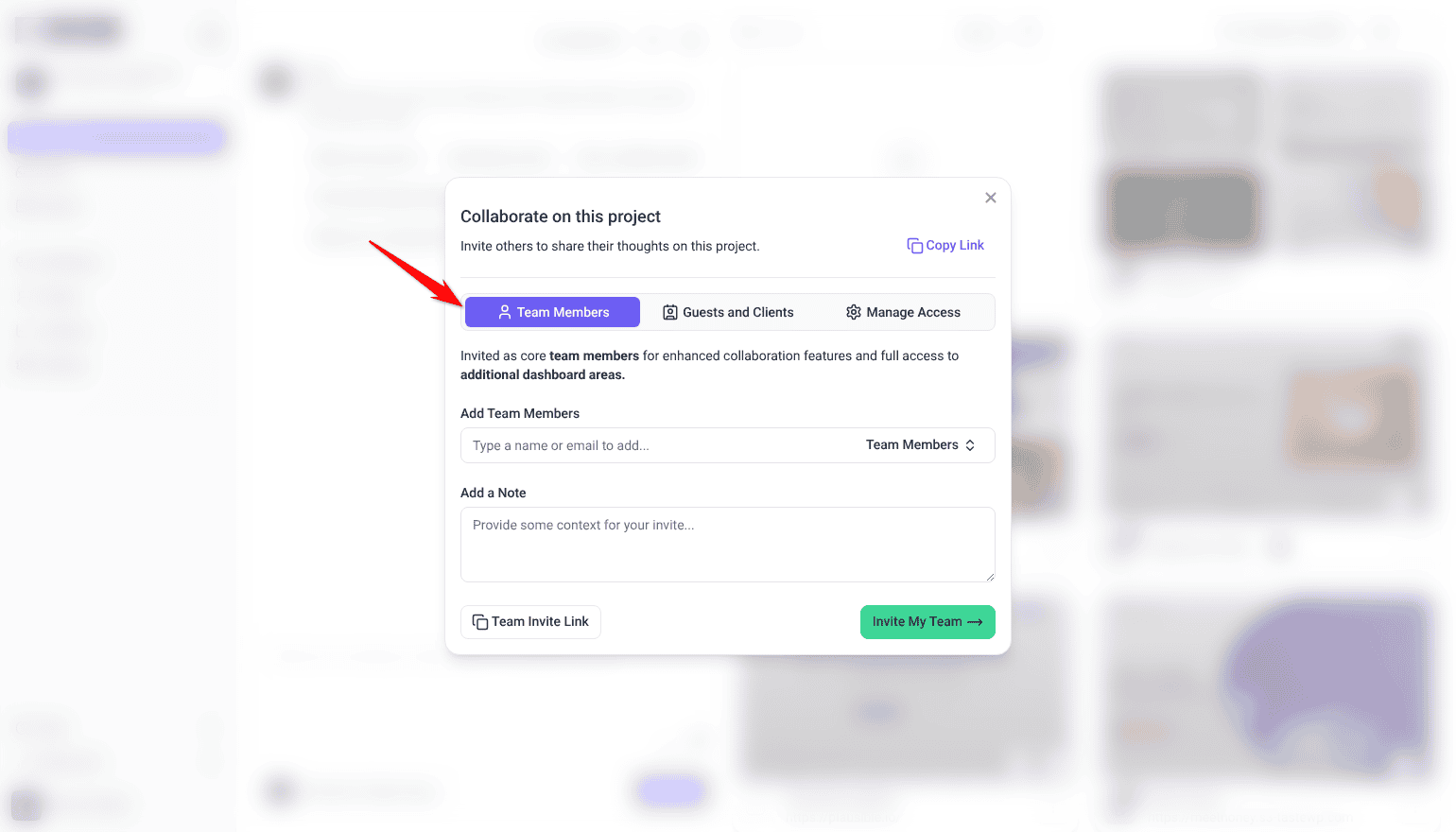
| Explore Sharing Options | Opens the Atarim sharing window: copy the collaboration link, invite clients or team members, and manage access, including Guest Mode. |
| Who can collaborate | Selects which WordPress user roles see the collaboration interface when logged in. Only the selected roles see it unless Guest Mode is on. |
| 1 click login from Atarim as | The WordPress user Atarim signs you in as when you open the site from Atarim. Atarim’s AI also acts on the site as this user. It starts as the Administrator who connected the site. Leave it on — Select a user — to switch one-click login off. The AI then acts as the first Administrator in alphabetical order of username. |
| Enable “Do it” via Atarim AI | Lets Atarim’s AI make changes on this site, from the Do It button and from connected assistants. On by default for new installs. Untick it and select Save & Apply to stop AI changes on the site. |
| Save & Apply | Stores your changes. Nothing takes effect until you select it. |
?collab=true to a URL is the most useful sharing route day to day — it opens collaboration on one specific page without changing any settings or generating a new link. Explore URL Collaboration
Sharing from the Settings Screen
Explore Sharing Options opens the same sharing options you would use in Atarim — copy the collaboration link, invite clients, or add team members — without leaving WordPress.
How WordPress Users Start Collaborating
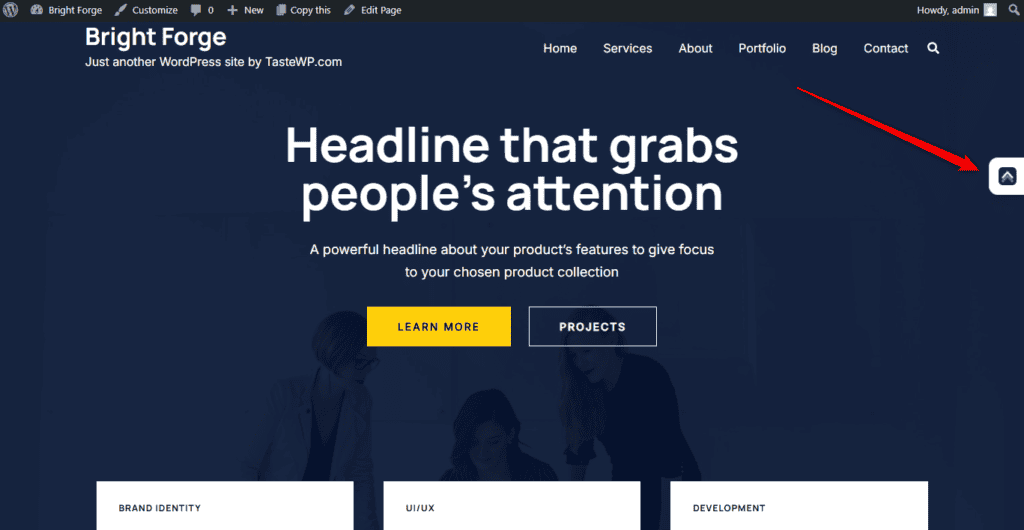
A WordPress user whose role is allowed in the settings, and who has not connected yet, sees a small Atarim launcher icon on the page. Users marked as Webmaster skip this step, and the admin who connected the site is a Webmaster automatically.
- The user selects the launcher icon.
- The Dive Into Real-Time Collaboration window opens.
- They select Connect Your Account to proceed. They are connected to the project and can collaborate immediately, and are added to the project as a collaborator.

Collaborating with Your Team and AI on a Page
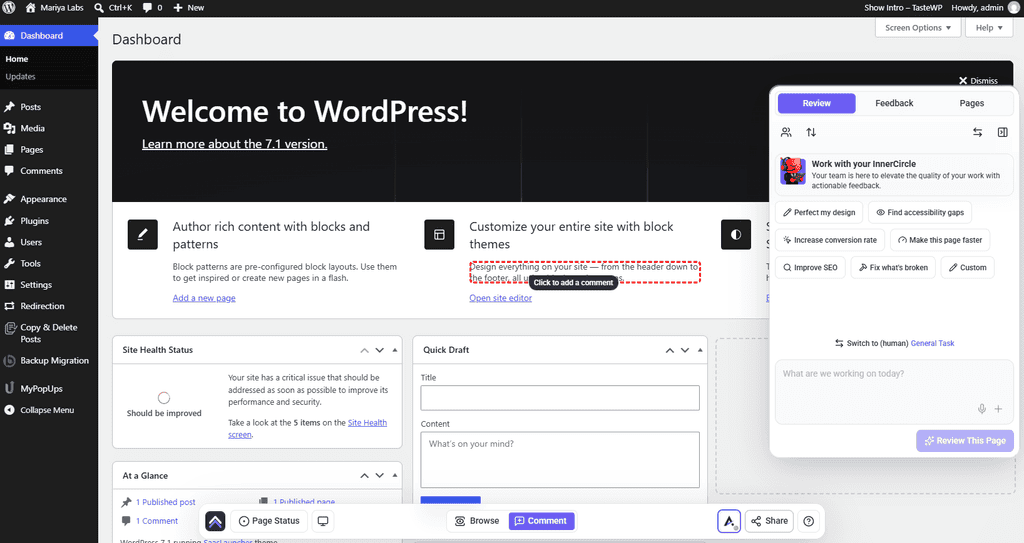
The Review tab of the collaboration sidebar has a Chat for internal team members, so a team can work through a page together and bring AI into the same conversation. From there you can discuss page-level changes, run internal AI reviews, check the page across desktop, tablet and mobile, and leave feedback on a single element or the whole page. AI works with the full page context — layout, spacing, copy, visuals and structure.
Collaborating Inside WP Admin
Collaboration is not limited to front-end pages — it also works on WP Admin screens. That is useful for leaving internal reminders, flagging settings that should not be changed, and coordinating backend implementation work. Feedback left in WP Admin can be marked internal in the same way. Inside WP Admin, Atarim always opens in Browse mode, so switch to Comment to leave feedback.
What “Do It” Can Do on the Site
Two things are easy to confuse here, so it is worth separating them before the capability list.
Show Me
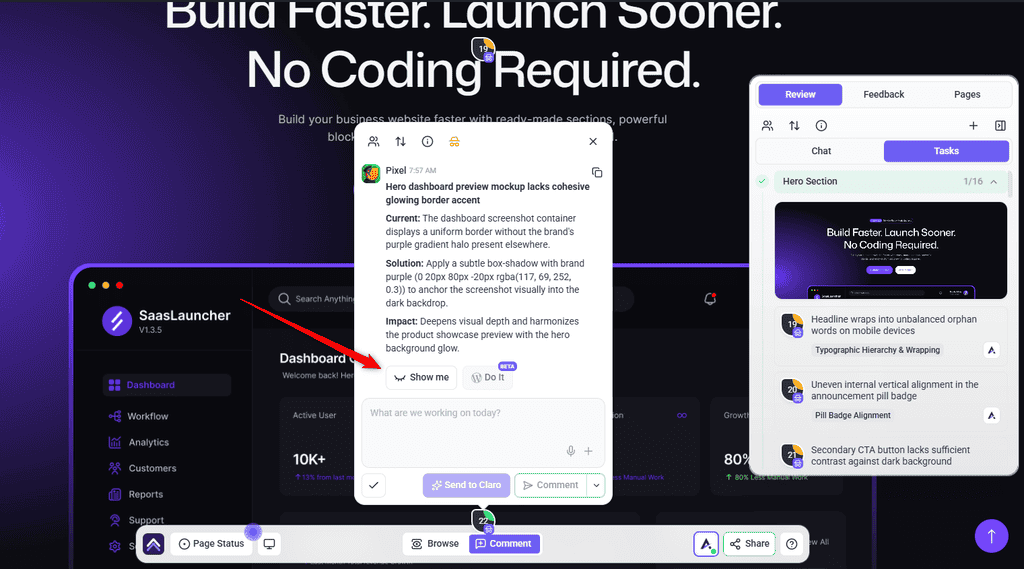
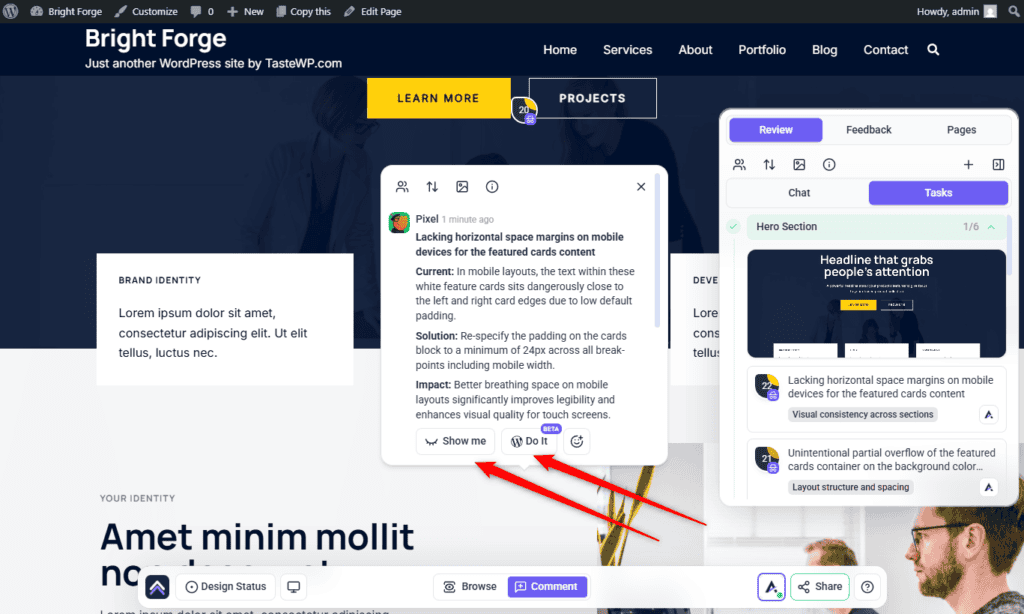
When an AI reply suggests a change to something on the page, it comes with a Show me button. Click it to see the change applied right on the page before anything is saved.
Show Me is only a preview. The change appears in your browser and nothing is saved to your site. If you reload the page, the preview is gone.
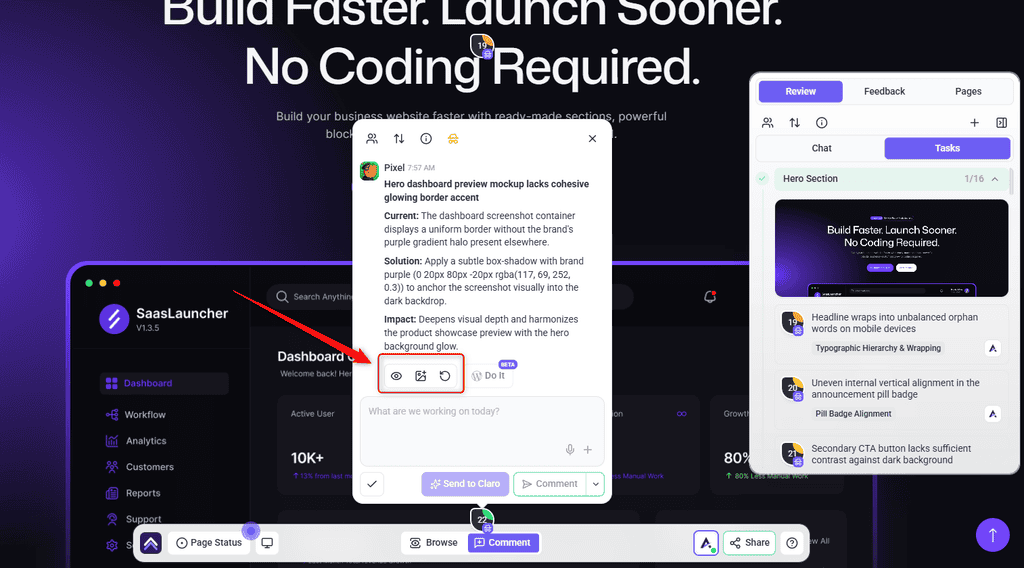
While the preview is showing, you’ll see three icons:
- Eye hides or shows the preview, so you can compare it with the original.
- Image takes a screenshot of the page with the preview and posts it in the task as a new comment. Everyone on the task can see it, which makes it handy for getting a client’s approval before publishing.
- Refresh asks the AI for a new version of the change if you don’t like the first one.
When you’re happy with it, click Do It to apply the exact version you previewed to your WordPress site.
“Do It” makes the change for real. It works through the capabilities below, writing to the actual WordPress site — content, media, themes, settings and the rest.
When you select Do It yourself, the change is applied straight away. When the AI runs a Do It for you from a chat or a task, a change to a published, private or scheduled page waits in the Approval Queue until someone approves it. On a draft it runs straight away.
Applying a change with Do It uses no credits. The AI reply or review that suggested the change is charged as usual. Explore Credits & Usage
If Do It is greyed out, hover over it or select it to see why. The message is one of these:
- Log in to your WordPress to use Do It
- Your WordPress account can’t edit this page
- Do It is turned off in the Atarim plugin settings
- Do It works on individual pages and posts, not on listing pages like the blog or archives
- Update the Atarim plugin to use Do It
- Do It isn’t available on this page
On a project without the plugin, Do It has an arrow instead. It lists WordPress and the platforms marked Coming soon. Choose WordPress to open Connect WordPress to use Do It, where Install Plugin opens the plugin’s install page on your site.
The plugin exposes a defined set of capabilities on the site, grouped by area. Knowing what is in scope tells you what to expect — and what to be careful about.
The specialist asks for the area it needs rather than the site’s whole list, and runs many operations in a single request instead of one call each. On a site with several plugins active that is the difference between fetching hundreds of operations for every task and fetching the handful the job actually uses, which means less waiting for you and fewer credits spent reaching the same result.
| Area | Covers |
|---|---|
| Content | Posts, pages and the content within them. |
| Gutenberg and blocks | Block editing and block navigation. |
| Patterns and templates | Reusable patterns and site templates. |
| Media | The media library. |
| Metadata and taxonomies | Post metadata, categories and tags. |
| Themes, theme files and global styles | Theme-level changes, including site-wide styling. |
| Plugins | Plugin-level operations on the site. Updating a plugin, singly or in bulk, leaves it active. |
| Users | WordPress user accounts. |
| Settings | WordPress site settings. |
| Cache | Clearing caches after a change. After a Do It, that page is cleared in WP Rocket, W3 Total Cache and WP Super Cache. A CDN without a WordPress plugin is not cleared. |
| Core updates | WordPress core version updates, alongside the existing plugin and theme updates, so a full update round runs in one go. |
| Backups | Taking a backup before risky work starts, on sites running JetBackup. To restore a snapshot, contact Atarim support. Whether a fresh backup is worth the wait is judged per change — a recent snapshot often already covers a small edit. |
| Image optimization | Compressing a single image, or running a bulk pass, through the optimizer already installed on the site. Optimole is the exception: it optimizes automatically through its own CDN, so there is nothing to trigger and only its status can be read. |
| Code | Running a PHP snippet when a fix needs code rather than a content change. Administrator only, refused on sites with file editing switched off, and every run is logged. |
| WP-CLI | Large or long-running jobs no other capability covers — a bulk search and replace, a database export, regenerating the media library. Runs in the background where it needs to. Administrator accounts only, refused for anyone else, and every run is recorded in the site’s log. |
| Security scan | Checking the plugins, themes and WordPress core installed on the site against published vulnerability advisories. Read-only. |
| Page builders | Editing pages built with a page builder. Which builders are covered, and how, is set out under Page Builders It Can Edit below. |
Following changes in the Do It Queue
When you select Do It, the button changes to Queued and the change joins the Do It Queue at the bottom of the collaboration sidebar. Changes run one at a time, in the order you selected them, so you can keep working while they apply.
| The queue shows | What it means |
|---|---|
| Waiting… | The change is lined up behind another one. |
| Applying changes… | The change is being written to your site now. |
| Changes applied | Done. The task moves to Pending Review. Select Undo this change (the curved arrow) to put it back. |
| The reason, in red | The change could not be applied. Select Retry to run it again. |
Until a change is applied, Remove from queue (the ×) takes it off the list. Removing a change that is already applying does not stop it.
The queue belongs to the page you are on. Reloading or leaving the page clears it, and changes still waiting will not run, so stay on the page until they show Changes applied.
Asking for a change in a chat
Besides selecting Do It on a suggestion, you can describe a change in your own words and have a specialist make it on the connected site.
Instructions:
- Open the task for the page in the Inbox, type your request and select Send to Claro, or @-mention a specialist. Or ask in workspace chat, where typing / offers Work on a WordPress site and Give a site instruction.
- Say what to change and where, for example “Change the phone number in the footer to 555-0142.”
- Read the reply to see what was changed.
- In workspace chat, when the work includes editing a file such as a theme file, an edit card follows it: Queued, Editing, then Completed, Failed or Cancelled. To stop an edit that hasn’t finished, select Cancel edit on its card.
- If the change needs approval, it waits until someone approves it. See What Waits for Your Approval.
On a site without the Atarim plugin, the specialist gives you advice and assets but cannot change the site.
Page Builders It Can Edit
The plugin writes through the builder your page was actually built with, rather than editing the HTML underneath it. Which builder is in use is worked out per page.
| Builder | What Atarim can do |
|---|---|
| Gutenberg | Full block editing. The default when no other builder is detected on the page. |
| Elementor | Edit individual elements in place. |
| Beaver Builder | Edit individual modules in place with the Do It button. |
| SiteOrigin | Edit individual widgets in place with the Do It button. |
| Bricks, Divi, Breakdance, Mosaic, Etch, WPBakery | Element-level editing through each builder’s own structure when you ask the AI in a chat or task. The Do It button does not support these builders yet. |
| Visual Composer, Brizy | Not edited. Atarim recognizes these and declines rather than writing. |
On a page built with a builder the button does not support, Do It looks the same as anywhere else. It does not check the builder before you select it, so if the change cannot be applied, the reason shows in the Do It Queue.
Elementor edits are checked before they are saved. A value that Elementor’s own rules would reject, such as a heading tag outside h1 to h6, is refused up front and reported with the element and setting that failed, rather than saving quietly and then aborting the whole page the next time somebody presses Publish.
Plugins the AI can work with
When one of these plugins is active on the site, the AI gets matching actions automatically. There is nothing to set up.
| Plugin | What the AI can do |
|---|---|
| WooCommerce | Products, variations, upsells and cross-sells, sale prices, attributes, coupons and store email templates. Orders and sales figures are read-only, and it never changes an order or a payment. |
| Forms: WPForms, Gravity Forms, Fluent Forms, Formidable Forms, Forminator, Ninja Forms, Contact Form 7 | Read forms and entries, find forms that have stopped receiving submissions, export entries and change notification settings. Most can also create and edit forms. |
| Custom fields: ACF, Meta Box, JetEngine, Pods, ACPT, ASE | Read and edit field groups and fields. |
| SEO: Yoast SEO, Rank Math, All in One SEO | Read and edit SEO titles and descriptions. Rank Math and All in One SEO also cover schema. |
Some actions need the plugin’s paid edition. Redirects need Yoast SEO Premium or AIOSEO Pro, and form entries need WPForms Pro rather than WPForms Lite. Contact Form 7 keeps no entries of its own, so those come from the Flamingo plugin. Deleting any of these things waits for your approval.
Undoing a Change
A content change the AI applies can be put back. How that works depends on what was edited.
- For Gutenberg and classic content, the edit is saved as a WordPress revision, and undo restores the revision saved just before the change.
- For Elementor, Beaver Builder and SiteOrigin, Atarim saves the page’s state before each change and keeps the last 10, so undo puts it back.
The control sits on the comment the change came from, so undo is next to the request rather than in a separate history screen.
Image Optimization
Rather than adding another optimizer, Atarim drives whichever one is already installed on the site.
| Optimizer | What Atarim can do with it |
|---|---|
| ShortPixel | Optimize one image, run a bulk pass, check how far it has got. |
| EWWW | Optimize one image, run a bulk pass, check how far it has got. |
| Smush | Optimize one image, run a bulk pass, check how far it has got. |
| reSmush.it | Optimize one image, run a bulk pass, check how far it has got. |
| Optimole | Report its status only. Optimization happens on Optimole’s side rather than through Atarim. |
How the Connection Is Secured
An Administrator makes the connection from the site’s WordPress admin, and it belongs to the site rather than to anyone’s WordPress login, so people can change their WordPress passwords without affecting it.
What Waits for Your Approval
The set of actions is different on every site — only the ones your active plugins support are registered, so a plain WordPress site offers a fraction of what a site running WooCommerce and a page builder does. Whatever the set, each action declares at the point it is registered whether it is destructive, and Atarim reads that declaration back from your site before it runs anything. What follows applies to AI chat and other runs a person starts.
| What the AI asks to do | What happens |
|---|---|
| Read something | Runs. Listing posts, checking which plugins are active, reading a page’s blocks, pulling a report — none of it changes the site. |
| Create or update something not marked destructive | Runs. Drafting a post, uploading a media file, setting a custom field. |
| Edit a page in the block editor or a page builder | Held if the page is published, private or scheduled. On a draft it runs straight away. |
| Activate a theme, update WordPress core, change a user’s role | Runs. These are registered as non-destructive, so they are not held. Worth knowing before you hand core or theme work over. |
| Anything the plugin marks destructive | Held. The request goes to the project’s Approval Queue naming the exact action and the values it would run with. Nothing reaches your site until you approve it. A request nobody decides on within 14 days is declined automatically, and nothing runs. |
| Install or activate a plugin | Held in the same queue, as an install request. |
| Run a WP-CLI command | Held. It is declared destructive whatever the command itself does, so even a read-only listing waits for approval rather than being judged on the command you can see. |
Destructive covers more than deletion. Removing content, terms, menus, media, users or a theme; merging terms; replacing or restoring a theme file; updating, deactivating or deleting a plugin; restoring a revision or a backup; changing global styles, a site template, a navigation menu or a widget area; deleting form entries or a form; removing a product, coupon or product attribute; and deleting a custom field group are all declared destructive, and all of them wait for you. Edits in the block editor or a page builder are judged by the page instead: they wait for you on a published, private or scheduled page, and run straight away on a draft.
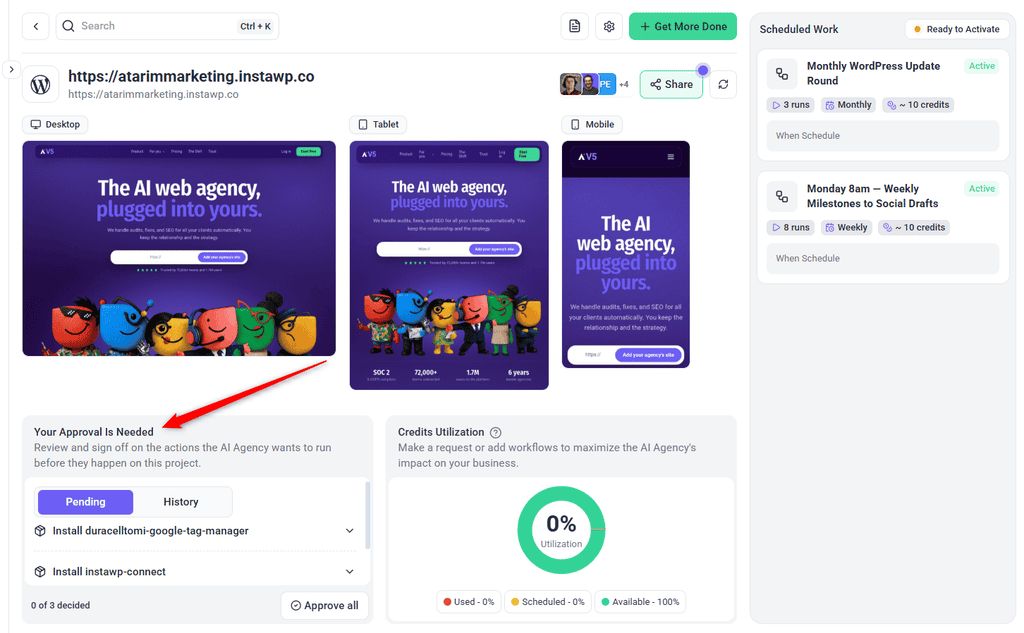
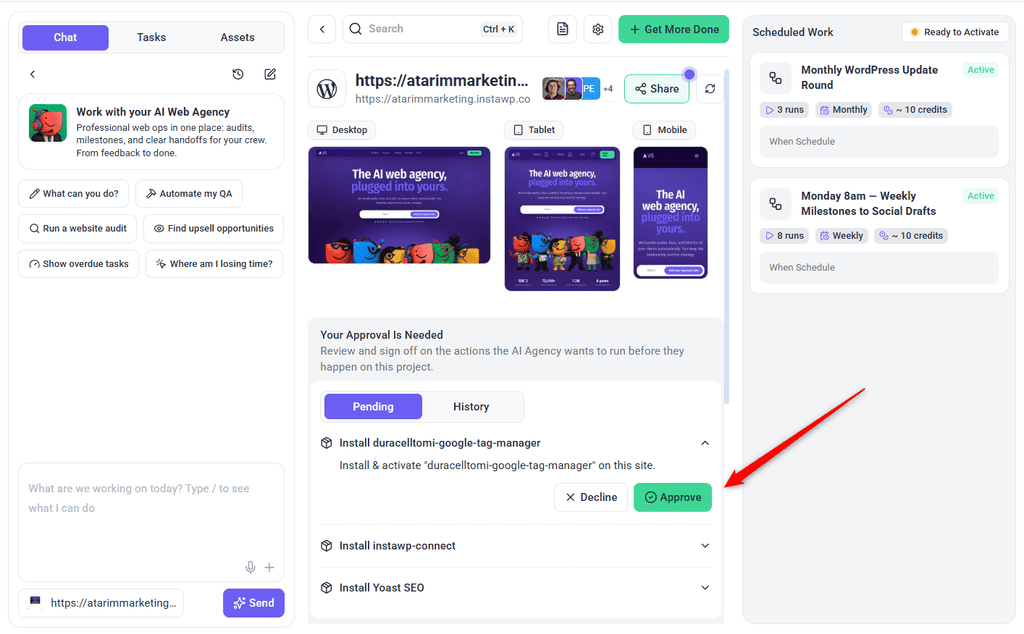
Not everything that changes a site is marked that way, and the exceptions are worth knowing before you hand one over. Activating a theme, updating or reinstalling WordPress core, installing a theme, editing a user or changing their role are all registered as non-destructive, so they run without waiting for you. Running a backup is treated the same way, on the grounds that it adds a snapshot rather than replacing anything — restoring one is held.
Some jobs are too large or too slow for an ordinary page action — replacing a domain across a large database, exporting the database, regenerating a whole media library. For those, Atarim can run a command through WordPress’s own command line on your server. You will not write these yourself: what reaches you is the finished command in the Approval Queue, exactly as it will run, and its output afterwards. Read it the way you would read a command before pasting it into a terminal on a client’s site, because it changes files and database content directly. It is available on administrator accounts only, and every run is recorded in the site’s log.
Security Scan
A connected site can be scanned for known vulnerabilities in the plugins, themes and WordPress core it currently has installed. Where a component matches a published advisory, the scan reports the version sitting on the site alongside the version that fixes the problem — so the question becomes whether to update, rather than whether there is anything to update at all. You can ask for a scan in chat, or from a connected assistant.
Reading is safe: the scan never installs, updates, activates or changes anything, and acting on a finding is an ordinary update that goes through the approval gate like any other. Two results are worth reading properly rather than at a glance. If the site’s installed inventory could not be read, nothing was assessed. And a component reported as untracked was never checked against the advisory data in the first place. Neither of those is a clean bill of health.
Running a scan
Instructions:
- In workspace chat, ask for a scan and say which project, for example “Scan the Bloom Bakery site for known vulnerabilities.” In a project’s own chat, “Scan this site” is enough.
- Read the reply. In a project’s own chat, a scan that runs in the background also shows a scan card, which reads Scanning while it checks what is installed.
- Read the result. On a scan card, Clean means nothing installed matched an advisory. A count such as 2 vulnerable lists each affected item with its severity and either Update to the fixed version or Abandoned, no fix available. Inventory unavailable means nothing was checked, as described above.
- To act on a finding, ask for the update. It waits for your approval like any other plugin update.
- After updating, ask for another scan to confirm, or select Scan again on the scan card.
Backups and Restores
These capabilities only appear on sites running JetBackup for WordPress. Without it there is nothing here — there is no generic backup layer behind them.
| What you can ask for | What happens |
|---|---|
| Take a backup | Queues a run of one of your existing JetBackup jobs and reports progress. Nothing is overwritten, so it runs without approval. |
| Arm a restore point | Prepares a point to roll back to before risky work starts. It is not cover the moment you ask for it: readiness is tracked until the point actually reads as ready, so a point that has only just been requested is not yet protection. A snapshot taken in the last 24 hours is reused rather than run again. |
| List and inspect backups | Read-only — which snapshots exist, when they ran, and their logs. |
| Restore a snapshot | Contact Atarim support to restore a site from a snapshot. |
| Manage jobs, schedules and destinations | Where backups run, when, and where they are stored. Deleting any of these is held for approval. |
A restore is by snapshot, never by upload — you cannot hand it a backup file. Files and the database are handled separately, and each can be restored in full, limited to named folders or tables, or skipped altogether; the default is a full restore of both. Only account backups can be restored, and only WordPress administrators can reach any of this.
Example Use Cases
| Situation | How the plugin helps |
|---|---|
| A staging site behind a password | Collaborate on the site directly, where a shared public link cannot reach. |
| A quality pass before a client review | Run an AI review, then mark the findings internal so the client sees only their own feedback. |
| A client who keeps emailing questions | Give them guest access so questions land on the page they are about. |
| Onboarding a new client to a project | Share the collaboration link from the settings screen without leaving WordPress. |
| A developer joining mid-project | Add their WordPress role to Who can collaborate so they see the interface when logged in. |
| Frequent trips into the dashboard | Open Project Settings from inside WordPress instead. |
| Repeated logins when collaborating | Choose a user under 1 click login from Atarim as so opening the site from Atarim signs you straight in. |
What can stop the AI working on your site
The AI reaches your site through the plugin, from Atarim’s servers rather than your browser. Three things on the site’s side can stop it:
- File editing is switched off in your site’s configuration. The AI cannot run code or create or change theme files. If all file changes are switched off, it also cannot install or update plugins and themes, or update WordPress core.
- A security plugin or firewall blocks Atarim. If Atarim’s requests to the site are blocked, the AI cannot reach it. Explore Whitelisting Atarim
- The AI’s WordPress account lacks the rights. The AI acts as the account chosen under 1 click login from Atarim as, so it can only do what that account can. Explore Autologin
Known Limitations
- PHP 7.4 and WordPress 6.0 are minimums. The AI actions need PHP 8.0 and WordPress 6.9.
- Plugin settings are separate from Atarim settings. The role picker and 1 click login from Atarim as live in WordPress admin.
- Settings need Save & Apply. Nothing takes effect until you select it.
- Consent creates collaborators, not team members. Team membership requires an Atarim invitation.
- AI actions reach beyond content — including themes, plugins, users and settings.
FAQs
What is the plugin called in WordPress?
Atarim – AI Agency for WordPress: Edit Pages, Fix Code, Update Plugins, SEO and Client Feedback. The current release is version 5.1.8.
What are the minimum requirements?
WordPress 6.0 or later and PHP 7.4 or later. The AI “Do It” action layer additionally requires WordPress 6.9 or later and PHP 8.0 or later — the WordPress Abilities API, available in core from 6.9.
Can I collaborate on staging or protected sites?
Yes. Because the plugin runs on the site itself, it works where a publicly reachable link would not.
Can clients leave feedback without a WordPress account?
Yes, with Guest Mode enabled, or by adding ?collab=true to the page URL.
Will tasks created in WordPress appear in the Atarim dashboard?
Yes. The plugin is a way into the same project, so tasks created on the site show up in that project’s views in your dashboard.
Does the plugin replace the Atarim dashboard?
No. It brings collaboration onto the site and puts some project settings within reach, but the dashboard remains where projects, boards and workspace settings live.
Common issues
- The plugin will not install or activate — check the site runs PHP 7.4 or later and WordPress 6.0 or later.
- The AI actions are missing although the plugin works — the site is below WordPress 6.9 or PHP 8.0, or Enable "Do it" via Atarim AI is unticked in Settings → Collaborate. Everything else keeps working.
- No collaboration interface after activation — confirm the site is connected, and that your WordPress role is selected under Who can collaborate.
- A colleague cannot see the launcher — their role is not selected in the settings, or Guest Mode is off and they are not logged in.
- Settings changes had no effect — select Save & Apply. The screen does not autosave.
- Someone joined as a collaborator instead of a team member — invite them to your Atarim account first, using the same email address as their WordPress account.
- 1 click login signs in but nothing works — the chosen account lacks the permissions it needs. Choose an Administrator under 1 click login from Atarim as.
- An AI action changed more than expected — restore from backup and run future actions on staging first.
- The site is behind a firewall and will not connect — whitelist Atarim at the host or WAF level. See the whitelisting guide.
Conclusion
Installation is straightforward: install from the repository or upload the file from your dashboard, connect, then set who can collaborate. The settings worth deliberate thought are the role picker and 1 click login from Atarim as, because both decide who can act on the site.
The plugin also gives Atarim’s AI a defined set of actions it can perform — reaching content, media, themes, plugins, users and settings — on WordPress 6.9 or later with PHP 8.0 or later. Set it up the way you would set up anything with that reach: backup first, staging before production.
Tips & best practices
- Confirm PHP 7.4 or later before installing, and PHP 8.0 or later if you want the AI actions.
- Use matching email addresses in WordPress and Atarim so consent recognizes team members.
- Keep Who can collaborate limited to roles that should have it.
- Pick an Administrator for 1 click login from Atarim as, because the AI acts as that user too.
- Use
?collab=trueto open collaboration on one page without changing settings. - Back up before letting AI actions run on production, and try them on staging.
- Remember to select Save & Apply.