Internal Tasks
Keep working notes, estimates, and internal discussion out of your client’s view — without moving them to another tool.
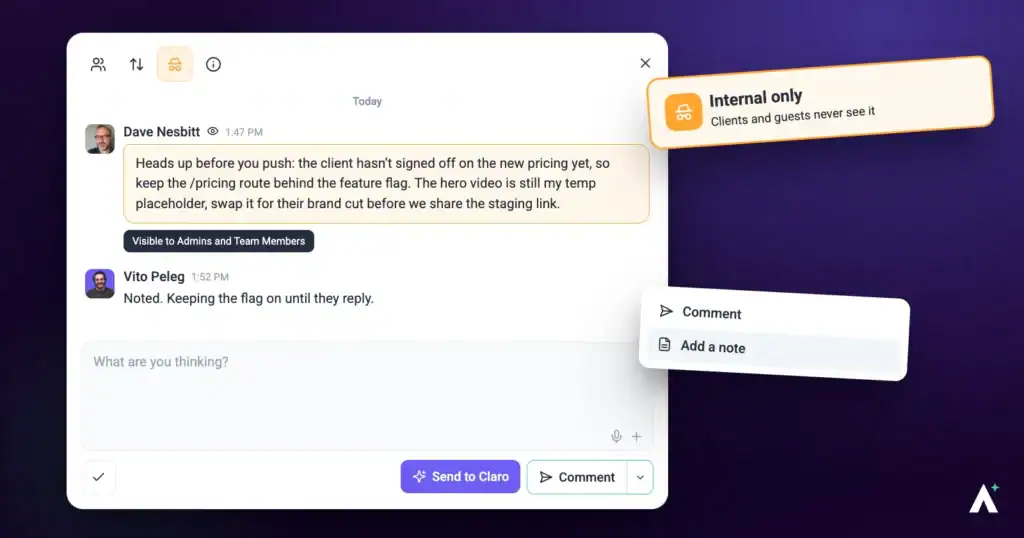
Working in the same project as your client is the point of Atarim — but not everything belongs in front of them. Estimates, blockers, the reason a request is harder than it looks, a reminder to check something before you reply.
There are two ways to keep that out of view, and they solve different problems.
Internal Tasks and Private Notes
The names are similar and the distinction matters, so it is worth getting straight before you use either.
| Internal task | Private note | |
|---|---|---|
| What is hidden | The whole task, including its title and every comment on it. | One comment inside a task that is otherwise visible. |
| Use it for | Work the client should never see — internal QA, estimates, notes to self. | A private aside on a task the client is part of. |
| Atarim describes it as | Marking tasks as internal to keep sensitive or personal information private and organized. | Adding internal-only comments to share thoughts, context, or reminders without cluttering the main thread. |
Who Can See What
Both features draw the same line, and it is drawn by role rather than by project.
| Role | Internal tasks | Private notes |
|---|---|---|
| Administrators | Visible | Visible |
| Team members | Visible | Visible |
| Collaborators | Hidden | Hidden |
| Guests | Hidden | Hidden |
| Clients (Website Owners) | Hidden | Hidden |
Marking a Task as Internal
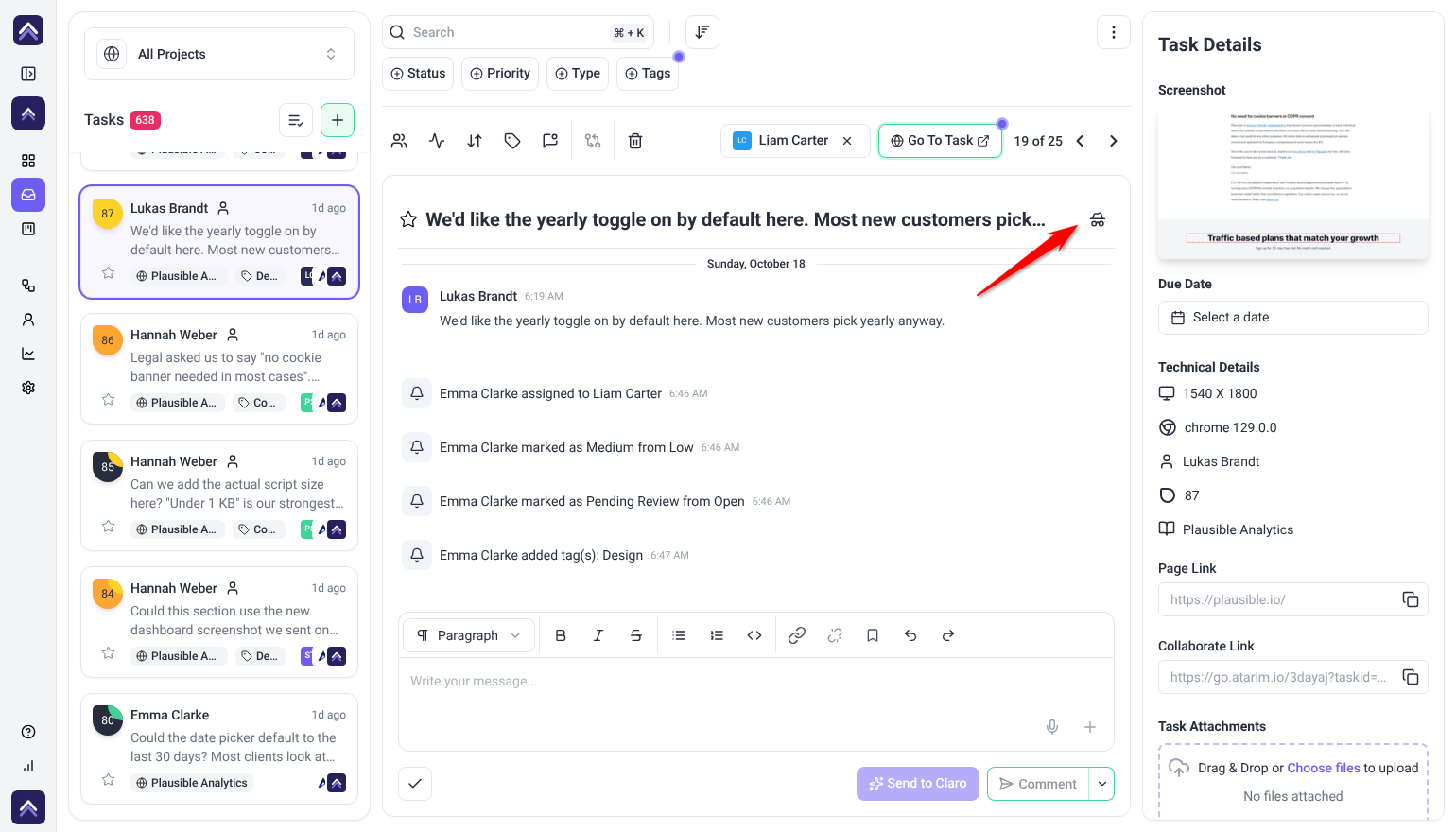
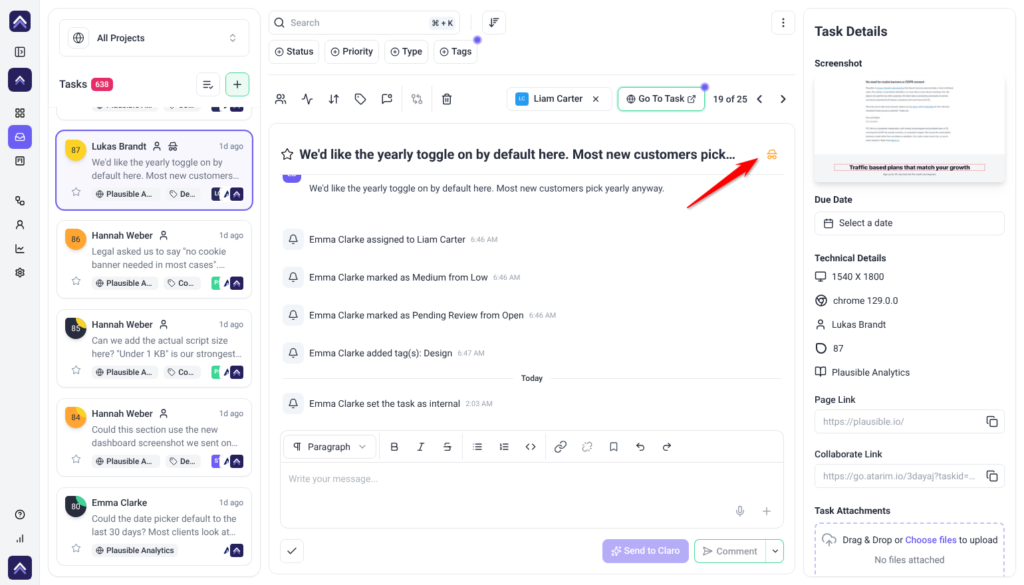
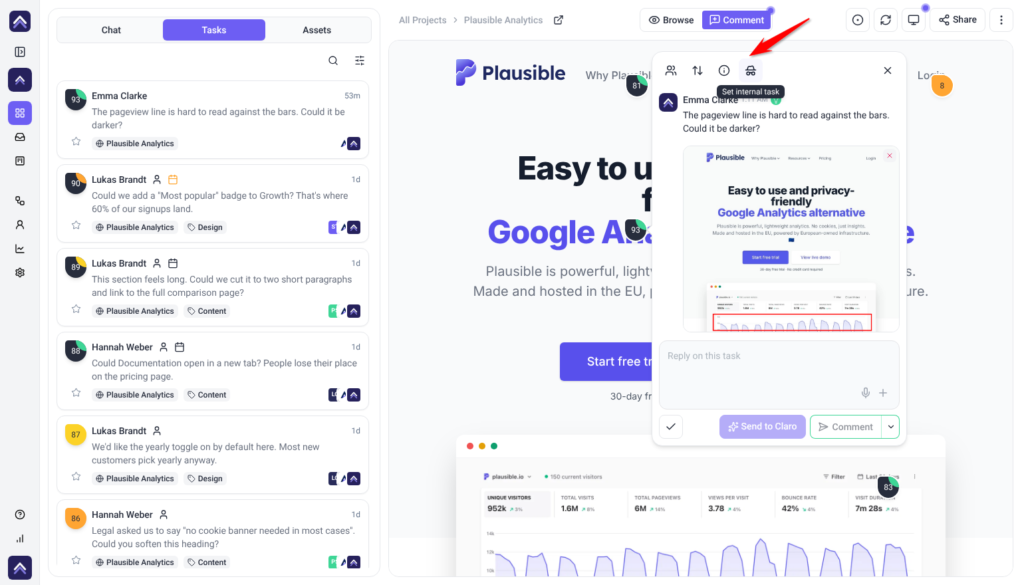
The control is a spy-glasses icon, and it is a toggle — the same icon reverses it. Where it sits, and what its tooltip says, depends on where you are working. A board card carries no internal control, so open the task first.
Instructions:
- Open the task in Collaborate or in the Inbox. You can reach a task from Boards too, but the control is on the open task, not on the card.
- Find the spy-glasses icon. In Collaborate it sits in the task panel’s top toolbar and its tooltip reads Set internal task. In the Inbox it sits in the open task’s header, beside the title, and its tooltip reads Hide this task from guests & clients. On a design project it sits in the task panel, with the same tooltip.
- Select it. The icon turns orange, and the task is hidden from guests, collaborators and clients straight away. On a design project, a message confirms Task made internal.
- To reverse it, select the same icon again. The tooltip reads Unset internal task in Collaborate and the Inbox, and Show this task to guests & clients. on a design.
Adding a Private Note
A note is a comment like any other, except that only your team can read it. It sits in the thread in sequence, so the context around it is preserved.
Instructions:
- Open the task and go to the comment box. The option only appears once the task exists — a task’s first comment cannot be a note.
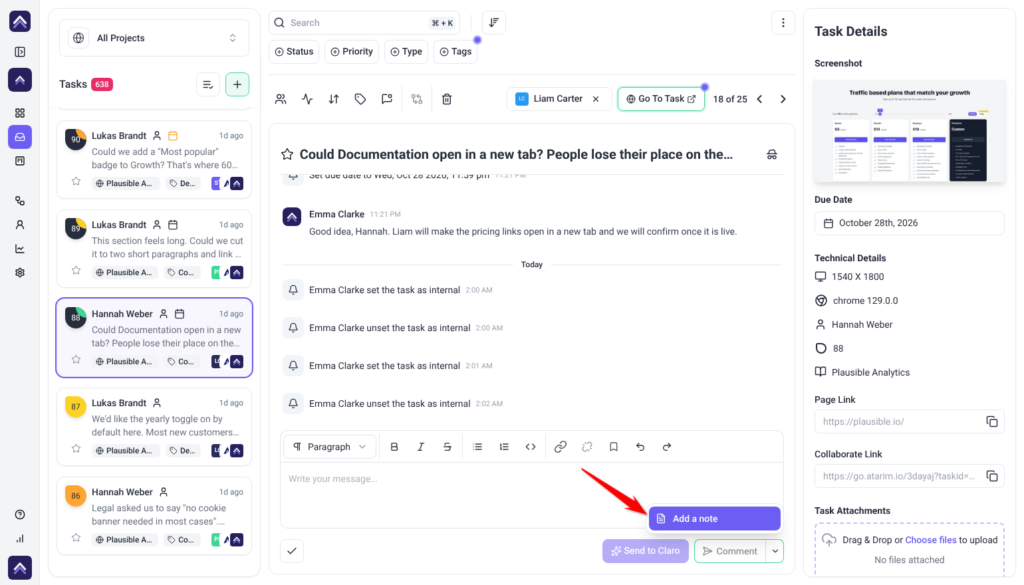
- Open the dropdown on the Comment button and choose Add a note. In the Inbox, its tooltip explains the effect: Add a comment as a note, only Admins and Team Members will be able to see. Only administrators and team members are offered the option at all.
- The button face changes to Add a note. Write the note, then click the button to post it. It appears in the thread for your team, and is absent from the client’s view of the same task.
Finding Internal Tasks
Internal is one of the task types you can filter by, so you can pull up everything internal without hunting through the list.
Instructions:
- Open the Inbox or on Boards.
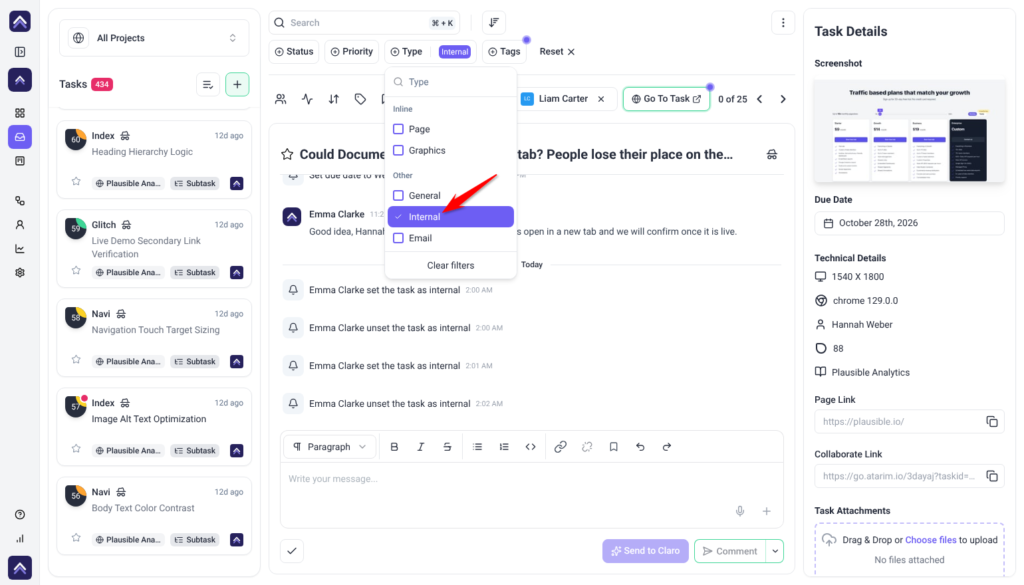
- Open the task type filter. Types are grouped, with Internal listed alongside general and email tasks.
- Select Internal. The view narrows to internal tasks only. Clear the filter to see everything again.
Benefits
| Benefit | In practice |
|---|---|
| One project, not two | Internal work lives beside client work instead of in a separate tool nobody remembers to check. |
| Clients see conclusions, not deliberation | The debate about how to handle a request stays private; the answer is what they read. |
| Context survives handover | Notes stay on the task, so whoever picks it up next inherits the reasoning. |
| Nothing to remember | Visibility is decided by role, so there is no manual step to get wrong per person. |
| Safe to be candid | Teams write what they actually think when they know the client is not reading it. |
Example Use Cases
| Situation | Which to use |
|---|---|
| Internal QA before a client review | Internal tasks — your own findings should not appear in the client’s list of what is outstanding. |
| A request that needs quoting | Private note on the client’s task, recording the estimate and the reasoning before you reply. |
| Explaining a blocker to your team | Private note, so the client sees the delay acknowledged rather than the technical debate behind it. |
| A reminder to check something | Internal task, kept off the client’s board entirely. |
| Scoping an upsell | Private note first. Work out what you are proposing before it becomes a conversation. |
| Recording why a request was declined | Private note, so the reasoning is on record even though only the decision is shared. |
Known Limitations
- Both are paid features. On lower plans the controls show as locked, with messages such as “Internal tasks are locked” and “Notes are locked”.
- Visibility is role-based, not per person. Anyone who is a team member sees everything internal.
- Internal tasks send no notification emails to anyone, your own team included.
- An internal task cannot be partly visible. If you need the client to see part of it, use a normal task with a private note instead.
- Internal tasks are excluded from what guests, collaborators and clients see everywhere, including counts, so their totals will differ from yours.
FAQs
What is the difference between an internal task and a private note?
An internal task hides the whole task. A private note hides one comment inside a task the client can otherwise see.
Who can see internal tasks?
Administrators and team members. Collaborators, guests and clients never see them.
Can I make a task internal after the client has commented on it?
Yes, but it hides the entire thread from them, including their own comments. A private note is usually the better choice in that situation.
Can I reverse it?
Yes. Select the same control again and the task becomes visible.
Do internal tasks appear in reports and boards?
They appear normally for your team. Guests, collaborators and clients do not see them anywhere, including in counts.
Are these available on every plan?
No. Both internal tasks and private notes are paid features, and the controls show as locked otherwise.
Can a task be switched between internal and regular more than once?
Yes, as often as you like. The control is a toggle and there is no limit.
Can I filter for only internal tasks?
Yes. Internal is one of the task types in the Inbox and Boards filters.
Do clients see past comments when a task is switched back to regular?
Ordinary comments, yes — including any written while the task was internal. Private notes stay hidden. Read the thread before making an internal task visible.
Can I mark several tasks internal at once?
No. Open each task and use the internal control.
Can I hide a task from some team members but not others?
No. Visibility is role-based — anyone who is a team member sees all internal content.
Common issues
- “Internal tasks are locked” or “Notes are locked” — the feature is not included on your plan. The prompt names the minimum plan required.
- Your client saw something you meant to keep private — check how they are set up. A team member sees everything internal; collaborators, guests and clients (Website Owners) are excluded.
- A client says a task has disappeared — it has probably been marked internal. Unset it if they were meant to be part of it.
- Your task count differs from your client’s — expected. Internal tasks are filtered out of their view, including their totals.
- “Failed to make task internal” in the Inbox or on a design — try again. If it persists, check your permissions on that project.
- You cannot find the internal control — open the task. It is in the task header in the Inbox and in the task panel’s toolbar in Collaborate. Board cards do not have it.
- A client saw a comment after you unhid a task — ordinary comments become visible when a task stops being internal. Only private notes stay hidden.
Conclusion
Internal tasks and private notes exist so that working in a shared project does not mean working in public. Use notes for the thinking behind a client’s request, internal tasks for work they never raised, and the client sees a clean list of what they asked for and what came of it.
How much a client sees in the first place is set when you invite them. Explore Working With External Collaborators And Clients
Tips & best practices
- Prefer a private note to an internal task when the client raised the work. It keeps one conversation in one place.
- Agree a convention with your team so the same information does not land in two places.
- Record the reasoning, not just the decision. The next person to pick the task up inherits it.
- Check whether someone is a collaborator or a team member before relying on internal visibility.
- Think twice before making an existing client task internal — it hides their own comments from them too.
- Use internal tasks for your own QA pass so the client’s list stays a list of their requests.
- Filter by Internal before a client call to check nothing is hidden or exposed by mistake.