Catch Bugs Before Users Do with Glitch
Finds what's broken on a page — links, images and forms — then fixes it, on your say-so.
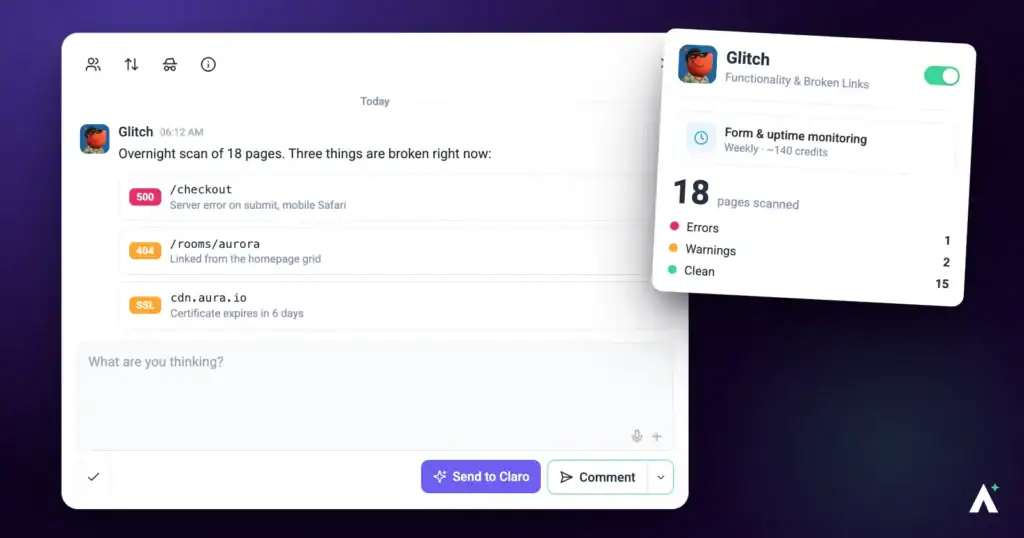
Some things break quietly. A link that stopped resolving when a page was renamed, an image that never loads on mobile, a form field that isn't built the way it looks. Nobody notices until a client does. Glitch is the specialist who goes looking for them — and, unusually among the InnerCircle, he'll repair what he finds if you ask him to.
What Glitch can do for you
- In a page review, check each section of the page for links that go nowhere or to the wrong place, images and files that don’t load, forms that aren’t built properly, controls that look clickable but aren’t, and layout that breaks. Each fault comes back as a task with Current, Solution and Impact.
- In a task, answer when you select Send to Claro on something broken: what is wrong, and the fix he proposes.
- From workspace chat, take bug work that Claro assigns to him across your sites, and report back on the task.
- On a WordPress site connected through the Atarim plugin, apply a fix with Do It.
Glitch Personality Snapshot
In the app he’s simply Functionality, and he’s the one member of the team who treats a page as something to be caught out. Where Pixel is looking at how a page reads visually and Lexi at how it reads as language, Glitch is hunting. Watch the sidebar while a check runs and he announces himself doing exactly that — Glitch here, looking for bugs — then narrates the sweep as he goes.
That energy stops at the point of writing something down. His findings are deliberately flat: the specific thing that’s wrong, the evidence for it, and what it costs the page rather than why it’s interesting to him. He won’t pad a list to look thorough, and he won’t reach into another specialist’s territory to do it — a genuinely clean page gets a short report, and that’s the intended outcome, not a failed check.
The same restraint runs through how he repairs things. He fixes the fault and stops. When a proper repair would mean touching more than the broken part, he’ll tell you rather than decide for you.
How it actually works
Glitch works two ways, and the difference between them is the most important thing on this page.
| Mode | What Glitch does | Does anything change? |
|---|---|---|
| Checking | Inspects the page and reports what he can see. | No. A check writes nothing, ever. |
| Fixing | Repairs a specific fault you’ve asked him to repair. | Yes — scoped to the fault, and only when you ask. |
What you can check
A check isn’t limited to one page.
| Target | When to use it |
|---|---|
| A single page | Before a handover, or when something specific has been reported. |
| A whole site | Post-launch sweeps, taking on a site you didn’t build, or a periodic pass over a client on a care plan. |
What Glitch looks for
Glitch reads the page as your visitors see it, section by section at the width you’re viewing it, and compares full-page screenshots at desktop, tablet and mobile widths.
| What he checks | What that catches |
|---|---|
| Links | Addresses that go nowhere, usually left behind when a page was renamed or removed. |
| Assets | Images, files and references that don’t load. |
| Form structure | Fields and forms that aren’t built properly — visible faults in how the form is put together. |
| Buttons and controls | Things that look interactive but aren’t wired up to anything. |
| Layout breakage | Elements collapsing or disappearing at a breakpoint, content pushed off-screen, overflow that hides something. |
| Broken states | Buttons stuck looking inactive, a form with no success or error message, a component that never resolves. |
| Page structure | Markup that’s gone wrong in a way you can see on the page. |
| Friction | Patterns that get in a visitor’s way or stop them finishing what they came to do. |
| Drift since launch | Things that have quietly degraded on a site nobody has looked at in a while. |
What Glitch doesn’t do
This matters as much as the list above, because it’s what’s still on you.
| He doesn’t | What that means for you |
|---|---|
| Fill in or submit forms | He sees how a form is built and flags faults in it. He can’t tell you whether it actually sends an email when someone hits submit. Test that yourself. |
| Watch the page live | He reads the page as it was captured, not the page as it runs. Errors that only fire when someone clicks, types or submits won’t show up. Ask for a live browser check in chat when you need one. |
| Test what happens server-side | Anything behind the page — logic, integrations, delivery — is outside what a check can observe. |
| Guess | If he can’t see evidence of a problem, he won’t invent one. A short list of real faults is the point. |
| Stray into other specialists’ work | Design is Pixel’s, copy is Lexi’s, accessibility is Navi’s, SEO is Index’s. |
Running a check
Glitch reads what the browser captured rather than the live page, so a check finds visible faults rather than ones that only appear when someone clicks.
Checking a single page
Instructions:
- Open the page from Projects, then open the Review tab in the sidebar.
- Choose the preset that matches your goal for the page — each one carries its own set of specialists — or switch to Custom to write your own prompt and pick the specialists yourself. Only Fix what’s broken brings Glitch in automatically. A preset fills in the description and replaces anything already typed there.
- Add a short description of what you’re checking, so the specialists know what matters to you on this particular page.
- Select Review This Page. Claro posts a Strategic Overview first. Select Start Review under Ready to include the InnerCircle? to bring the specialists in. The rest runs in the background, so you don’t need to keep the tab open.


Checking a whole site
Instructions:
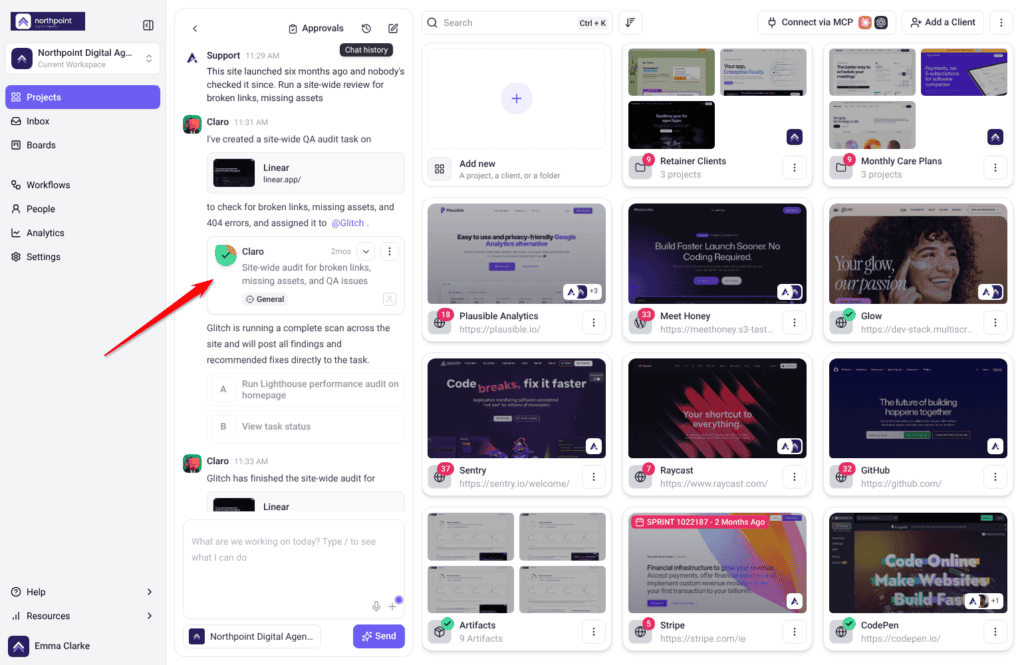
- Open the chat. On Projects, select Manage on the project’s card; the chat on its dashboard works on that project. From workspace chat on Projects, drag the project’s card onto the chat instead.
- Ask for the check directly, for example “Run a site-wide review for broken links and missing assets.”
- Claro sets the work up and hands it to Glitch, usually as a task assigned to him that shows in its reply. Glitch posts what he finds to that task, and Claro tells you in the chat when he has finished.
What comes back
Each fault arrives as its own task, grouped by section of the page and marked with the device it was spotted on — so you can see at a glance that the form only breaks on phones. Every task says what’s wrong and points at the exact element.


The check also closes with a plain summary of what was found, written in language you can pass on to a client.
Choosing what gets fixed
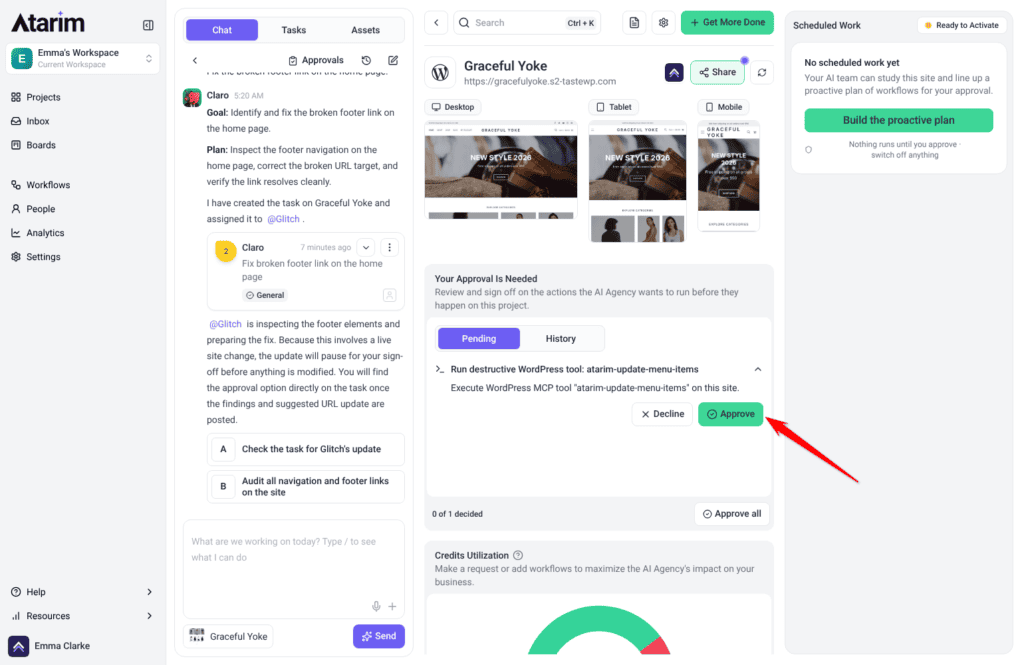
Nothing is repaired until you ask. When you’re ready, tell Atarim to work through the findings — and be specific about scope. “Just the critical ones.” “Only the mobile problems.” That instruction is read before anything is touched.
Instructions:
- Ask for the fixes you want, scoping them however you like.
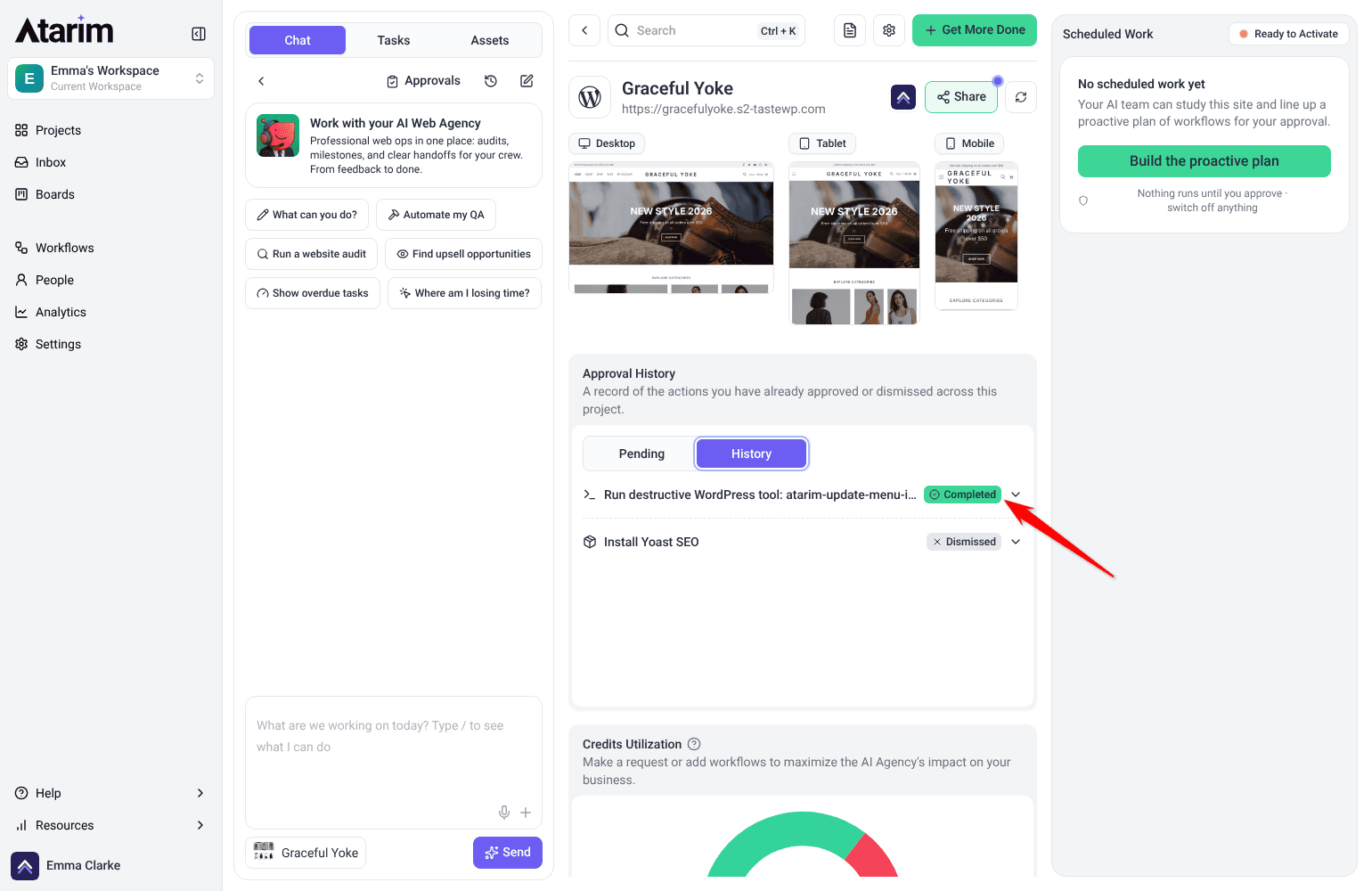
- Approve the changes that need your sign-off. On a published, private or scheduled page, a fix the AI applies waits for you; on a draft it runs straight away. Anything waiting for approval stays there until you decide, or for 14 days, after which it is declined automatically. It never applies itself.
- Each fix is applied, then checked against the page again to confirm it actually took effect.
- You get one summary at the end covering what was fixed and what wasn’t. Anything unverified is reported as unconfirmed, not as done.
What comes with each finding
Alongside the description of what’s wrong, every finding carries the context a developer would otherwise have to go and gather.
| Captured | Why it matters |
|---|---|
| Screenshot | Shows the page as it was when the fault was found. |
| Element location | Identifies the exact element, not the general area of the page. |
| Screen size and browser | Explains faults that only appear on certain setups. |
| Status, priority and tags | Lets the finding move through your process like any other task. |
| The thread | Replies and decisions stay attached to the finding itself. |
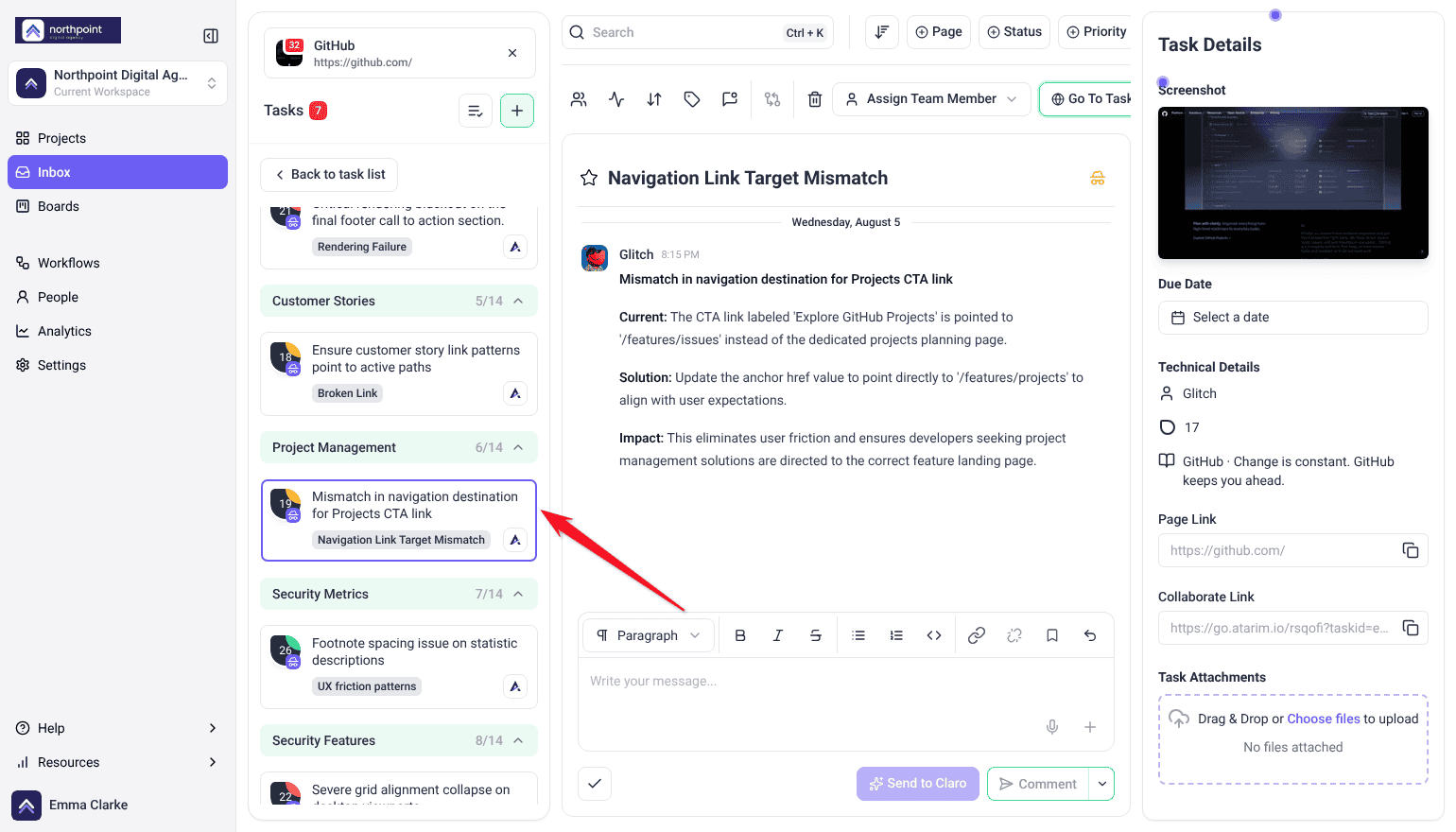
A worked example
What Glitch finds: a link in the footer pointing at a page that was renamed three months ago.
What the fix is: the address is corrected. Nothing else.
The link element isn’t rebuilt, its container isn’t touched, and the footer isn’t regenerated. That restraint is deliberate: the smaller the change, the less there is to go wrong on a page you didn’t build recently and can’t fully remember. Where a proper repair genuinely would need more than the broken part, he says so and leaves the decision with you rather than making it.
How Glitch treats your site
This is the part clients ask about, and the part worth being able to answer confidently.
| Rule | What it means in practice |
|---|---|
| Fix the fault, not its surroundings | A broken link means the address gets corrected. He won’t rebuild the button, or the section it sits in. |
| Big fixes get raised, not made | If a proper repair would mean changing more than the broken part, he stops and suggests it instead of doing it. |
| Your live page stays up | He won’t unpublish it, rename it, change its address, or bin it to make room for a new version. |
| Rebuilds happen on a draft | Where something genuinely needs rebuilding, it’s built as a draft, checked, and swapped in once — only when you say so. |
| Three tries, then he asks | If a fix keeps failing he tells you, and asks whether you want it undone or left as is. |
| No silent reversals | He won’t quietly undo his own work and leave you wondering what changed. |
Errors that leave nothing on screen
A check reads the page as it looks on screen and tests the links in each section, so a broken link is caught even when nothing on screen shows it. A JavaScript error that leaves nothing visible on the page won’t show up, and neither will deep logic faults, anything that only fires on a specific user journey, or server-side problems. Test those by hand.
Where Glitch works
Most people meet Glitch in a page check and assume that’s all he is. He turns up in three more places, and behaves differently in each.
| Where | What he does | How it starts |
|---|---|---|
| Page checks | Inspects the page and reports faults. Changes nothing. | Choose a preset, or pick him with Custom. |
| On the page | Answers questions about a specific element, and can apply the change there and then. | Click an element and ask. |
| In a task | Works inside a single task — investigating, fixing, and commenting the result. | Claro routes the work to him, or you ask in the task. |
| Workspace chat | Picks up bug work across all your projects and sites, with Claro coordinating. | Ask Claro; it routes anything broken to Glitch. |
On the page
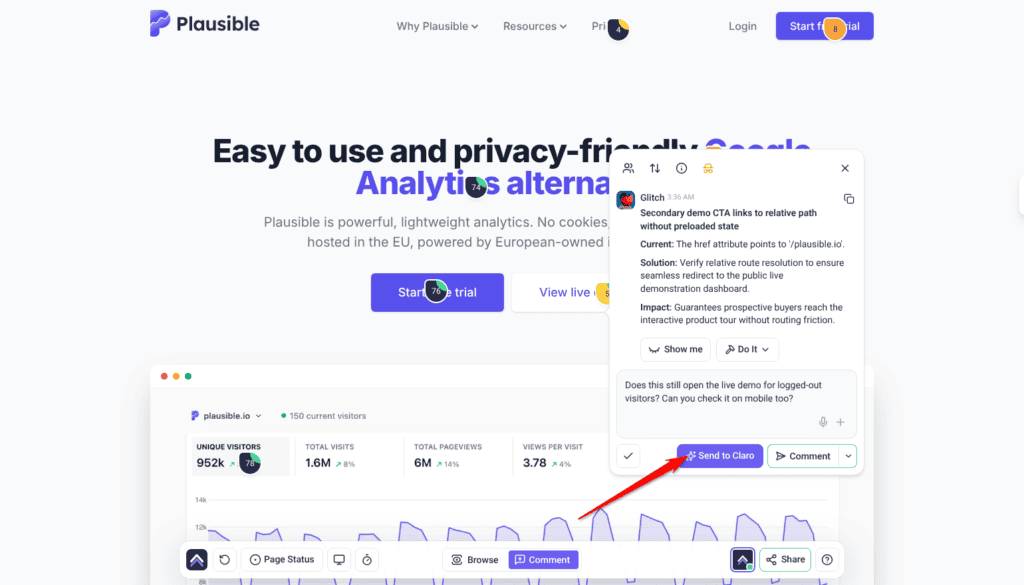
Click an element on a page and ask Glitch about it, and he answers about that element specifically. Where he proposes a change, you get Show me and Do It buttons beneath it.
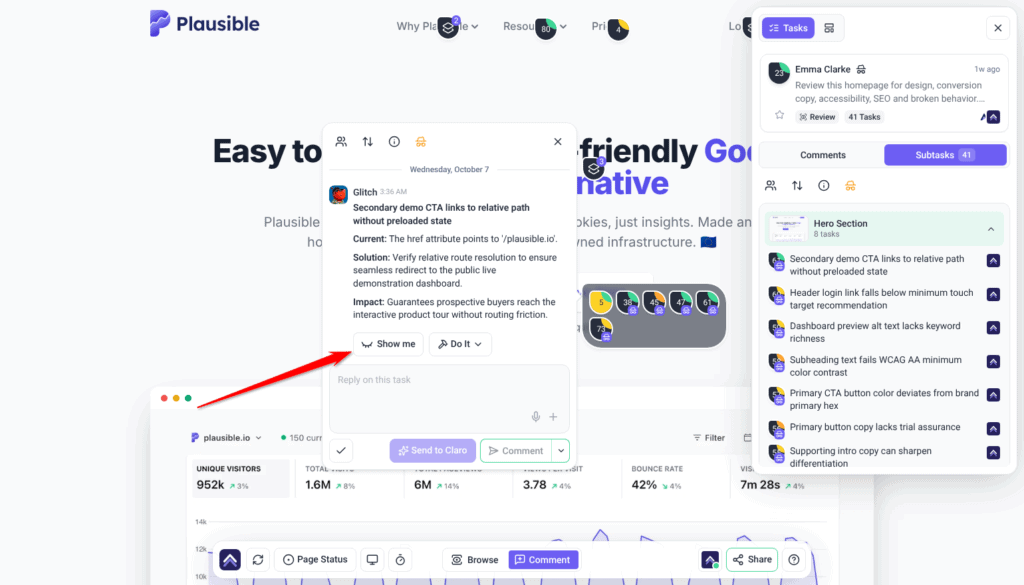
Show me puts the change on the page in front of you. You can toggle it off and back on to compare against the original, regenerate it if it isn’t what you meant, and take a screenshot of the result straight into the thread as a comment.
Do It applies the change — it queues and runs in the background rather than making you wait — and an Undo control then appears on that same comment if you want it back. Once it has applied, the task moves to Pending Review.
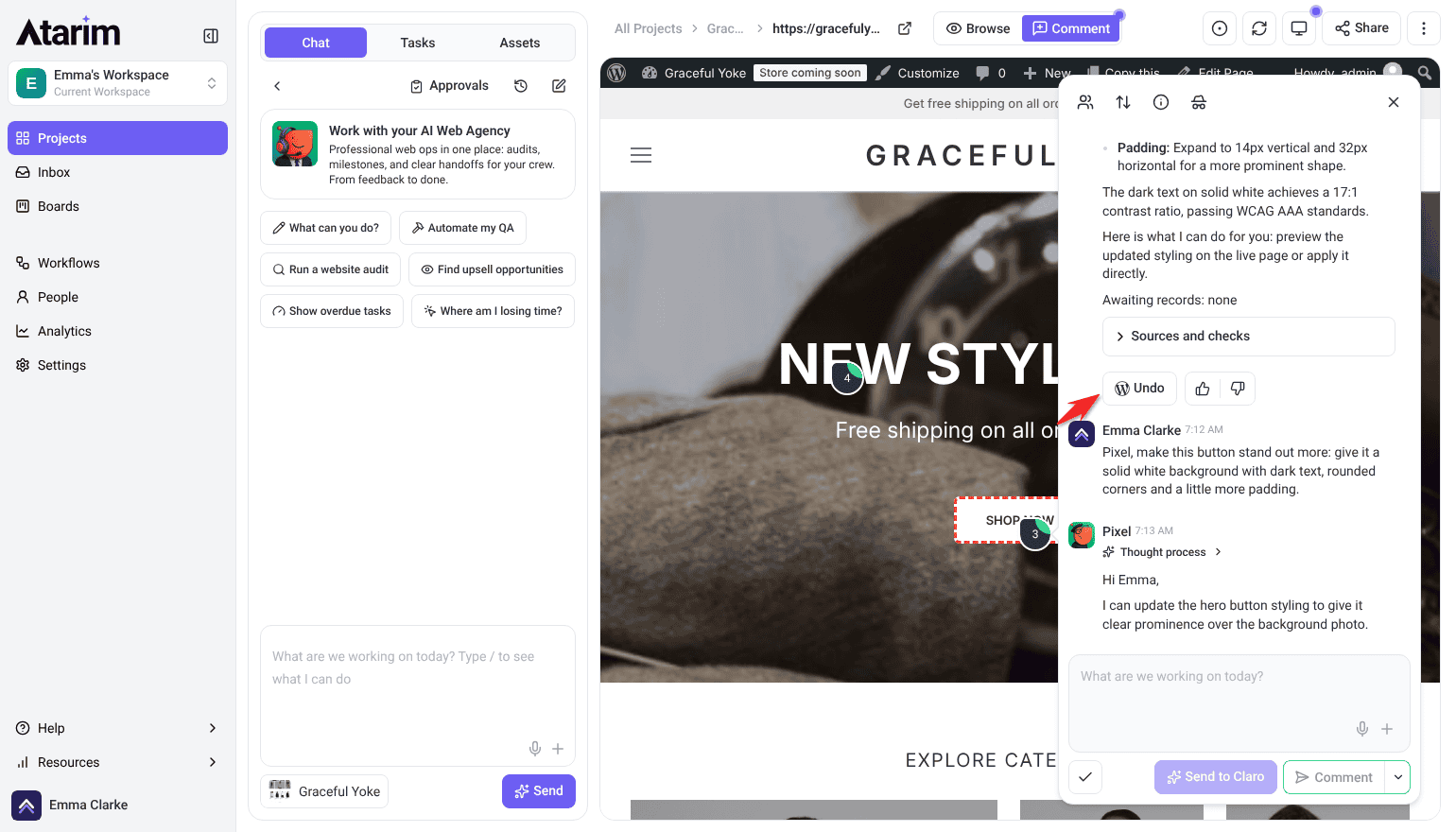
In a task
Glitch also works inside individual tasks. Claro assigns bug work to him, he investigates and fixes it, and the result lands as a comment on that task. You don’t have to be there while it happens — Claro carries the outcome back to you.
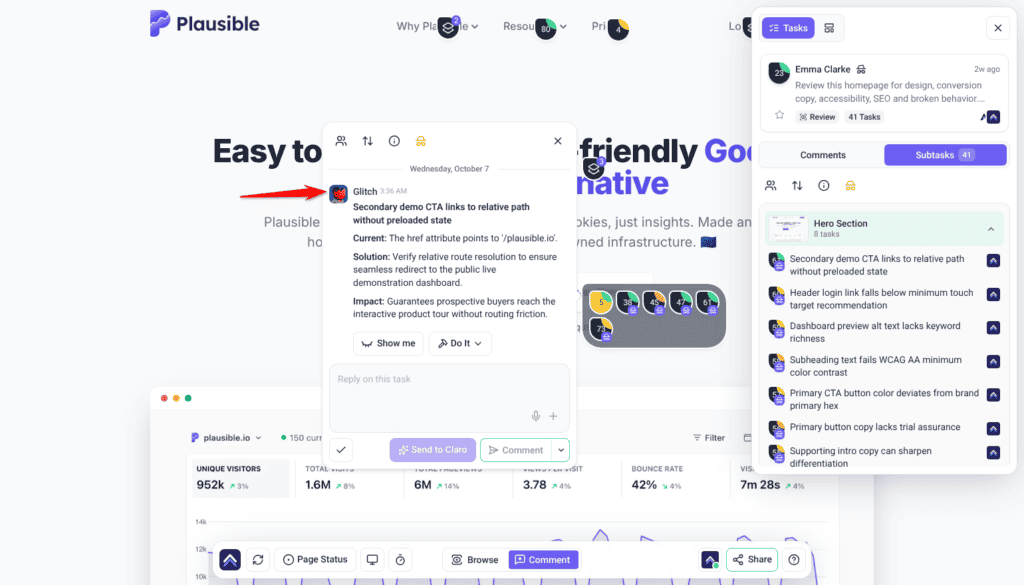
Working with a reply
Every AI answer carries a few controls beneath it. Alongside Show me and Do It you can copy the response, and mark it a good or bad response with the thumbs — that rating goes back to us and is how the specialists get better at the work you actually do.
The composer underneath has a Send to Claro button beside a Comment / Add a note split button.
Comment posts normally.
Send to Claro brings the AI in, and whichever specialist the work belongs to is the one who answers.
Add a note posts internally — only Admins and Team Members can see it.
To hide the whole task from guests and clients, select the internal icon at the top of the task (its tooltip reads Set internal task). Select it again to undo.
White-label behaviour
Working with the other specialists
Some faults you might expect from Glitch belong to someone else. Knowing the split saves you re-running checks looking for something he was never going to find.
| Specialist | Handles |
|---|---|
| Pixel | Spacing, alignment, and anything that simply looks wrong. |
| Navi | Missing alt text, keyboard navigation, contrast. |
| Lexi | Wording, tone, and calls to action. |
| Index | Page titles, descriptions, heading order, and search structure. |
| Claro | Turning vague feedback into clear work, and directing the rest. |
Frequently asked questions
Does Glitch find JavaScript errors?
Not as a separate check. A review reads the page as it looks on screen, so a JavaScript error that leaves nothing visible on the page won’t show up. Test those by hand.
Does he test whether my form actually works?
No. He checks how the form is built and flags faults in it. He doesn’t fill it in, submit it, or check whether the email arrives.
Will he change my site while checking it?
No. Checking never changes anything. Fixing is a separate thing you ask for, and changes needing sign-off wait for your approval.
Do I have to select Glitch every time?
Not if you use Fix what’s broken, the one preset that brings him in automatically. For any other review, choose Custom and switch him on.
What happens if a fix breaks something?
Every fix is checked afterwards, and anything unverified is reported as unconfirmed rather than done. After three failed attempts he stops and asks whether to undo it, rather than reversing his own work.
Will he ever take my page offline to fix it?
No. He won’t unpublish, rename, re-address or delete a live page. Rebuilds are staged as a draft and swapped in once, on your explicit approval.
Why did he only fix part of the problem?
Fixes are deliberately scoped to the fault itself. Where a proper repair would mean changing more than the broken element, he raises it as a recommendation rather than making a sweeping change on his own.
Can I use him on a site that isn’t WordPress?
You can check any page. Applying fixes needs the Atarim WordPress plugin on WordPress 6.9 or later.
Does Glitch only work in page checks?
No. He also answers on the page itself, works inside individual tasks, and picks up bug work across your projects from workspace chat. Only the page check is read-only — in the other places he can apply changes.
Why didn’t my change save?
Do It saves a change only on a WordPress site connected through the Atarim plugin. Show me is a preview rather than a save, so its change disappears when you refresh.
Can I undo a fix later?
Yes, while the saved original still exists — a copy is kept before the change is applied, and undoing restores it. Each change affects one element, so there’s a single thing to put back. You’ll be told plainly if a change can’t be reversed.
What information comes with a finding?
A screenshot, the element it relates to, the screen size and browser it appeared on, and a status, priority and tags. Replies stay attached to the finding itself.
Can I check a whole site rather than one page?
Yes. Review This Page checks the page you have open. For a whole site, ask Claro in workspace chat, as described under Checking a whole site.
Can I send the findings to my client?
Every check ends with a plain summary you can pass on, and the whole review can be downloaded as an AI Review Cycle PDF from the review task in the Inbox. A report of the review is also saved to Artifacts, where you can choose Share with client. Individual findings are tasks, so they can also be assigned or copied into another tracker.
Which findings should I fix first?
Work in priority order. Critical (red) and high (orange) affect conversions and clarity, so start there; medium (yellow) covers usability and hierarchy; and low (green) is cosmetic.
Does he replace a QA pass before launch?
No. He covers what’s visible on the page. Interaction testing, form delivery and anything that only fails on a specific user journey are still yours to check.
Common issues
- Glitch didn't take part in the check — the preset you chose probably didn't include him. Choose Fix what's broken, or choose Custom and switch him on.
- He missed a bug you know about — if finding it needs clicking or submitting, or it's a script error that leaves nothing visible on the page, it's outside what a check can see. Test it by hand.
- A form is broken but nothing was flagged — he checks how forms are built, not whether they send. Submit it yourself to test delivery.
- A fix won't apply — check the site is on WordPress 6.9 or later, and that nothing is sitting waiting for your approval.
- He flagged something already fixed — run the check again. Findings reflect the page as it was when it ran.
- Nothing changed after a check — expected. Checks never change anything. Ask for the fixes separately.
- You only checked one page and wanted the site — ask Claro in workspace chat to check the whole site; Review This Page covers only the page you have open.
- Undo isn't available on a change — the saved original is no longer there. Restore from a backup instead, either the whole site or just part of it.
- A change vanished when you refreshed — that was a Show me preview, which is never saved. Use Do It on a WordPress site connected through the plugin to keep a change.
- A fix is marked unconfirmed — he couldn't verify it worked, so he's told you rather than claiming success. Check that one by hand.
Conclusion
Glitch covers the faults that are visible on a page and easy to miss — dead links, missing assets, forms and controls that aren't built the way they look. He finds them on the page at the width you're viewing it and in full-page screenshots at desktop, tablet and mobile widths, and repairs them when you ask, without touching anything you didn't ask about.
What he doesn't cover is worth holding onto: interactions, form delivery, and anything that only goes wrong once someone starts using the page are still a manual job. Used with that in mind, he removes the tedious half of a QA pass and leaves you the half that needs judgement. And he isn't confined to checks — you can point at a broken element on any page and have him fix it there. Explore How to Run an AI-Powered Page Review.
Tips & best practices
- Don't read a short report as a shallow one — he won't invent findings to fill space.
- Run him once the page is close to finished, not while it's still being built.
- Ask for fixes in batches so you can actually read the approvals.
- Put a check on a schedule for every site you look after — drift is what he's good at catching.
- Test the journeys that matter by hand.
- Submit your own forms to test delivery, especially on anything that takes payment.
- Tag his findings so they're easy to pull up during release tracking.
- Run him alongside the other specialists rather than on his own.
- Use Show me on the page when a client needs to see the fix before agreeing to it.
- Connect the plugin before a working session, so changes save instead of vanishing on refresh.
- Re-run a check after fixing things by hand, to confirm what's left.
- Undo promptly if a change is wrong — it relies on the saved original being there.
- Pass the check summary on to clients on care plans — it shows the work that would otherwise be invisible.
- Keep your own off-site backups regardless of the protections built in.