Image Based Collaboration
Collect feedback on designs, mockups, and artwork the same way you do on a live site — pinned to the exact spot, tracked as tasks.
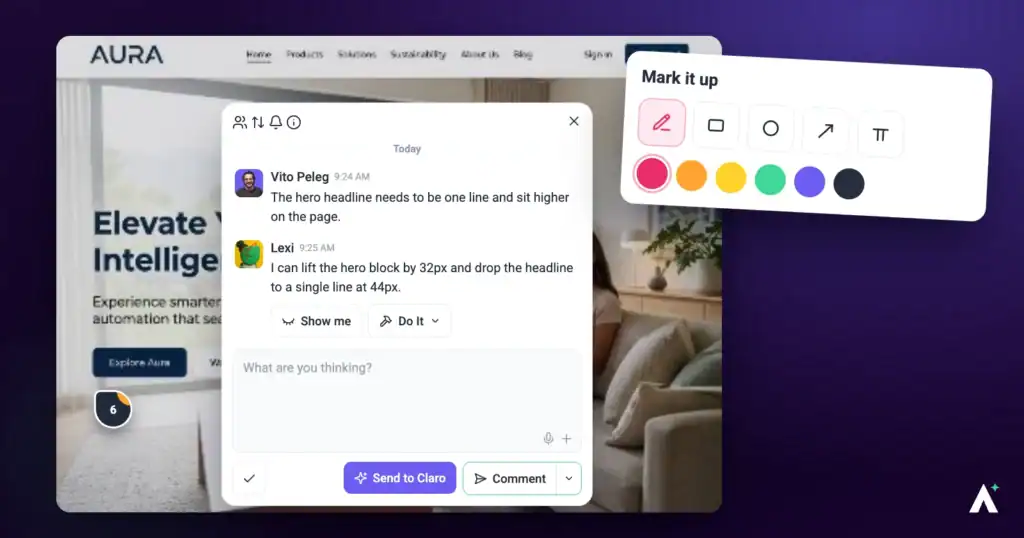
Not every project is a live website. Image based collaboration lets you upload designs — or pull them straight from Figma — and gather feedback on them exactly as you would on a site: select the spot, leave a comment, get a task.
It is the same review loop your clients already know, applied to work that has not been built yet.
What You Can Upload
The formats go well beyond flat images, which is what makes this useful for print and technical work as well as screen design. Atarim accepts images, PDFs, AutoCAD drawings and Adobe design files, and you can add up to 20 designs in one upload. Each design must be under 20 MB.
| Format | Typically used for |
|---|---|
| JPG, PNG, GIF | Exported mockups, screenshots, and flat artwork. |
| Print work, multi-page documents, and client-ready presentations. | |
| PSD | Photoshop files, without needing the client to own Photoshop. |
| AI, EPS | Illustrator artwork — logos, brand marks, vector illustration. |
| DWG, DXF | CAD drawings, for architectural and technical review. |
Creating a Design Project
There are three routes. Which you use depends on where the design currently lives and how often it changes.
| Method | Use when | Starts from |
|---|---|---|
| Upload designs or PDFs | The files are on your machine, or exported from wherever you designed them. | Atarim |
| Connect to Figma | The design lives in Figma and you would rather not export anything. | Atarim |
| The Atarim Figma plugin | You work in Figma daily and want to push designs and revisions out without leaving it. | Figma |
Uploading Files
The quickest route when you already have the files to hand.
Instructions:
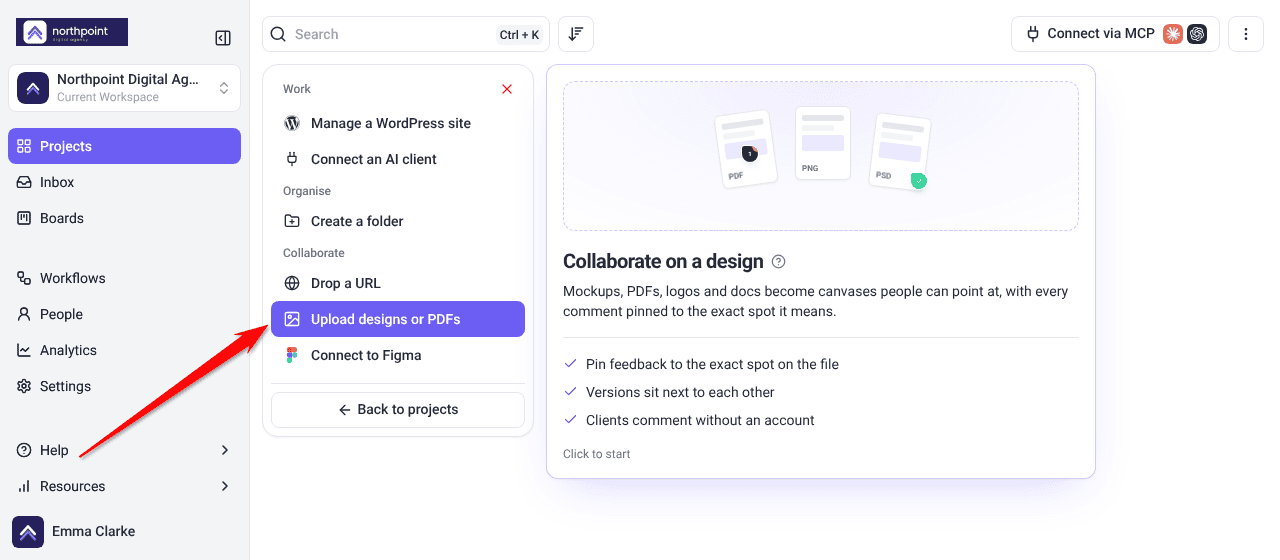
- On the Projects screen, select Add new and choose Upload designs or PDFs.
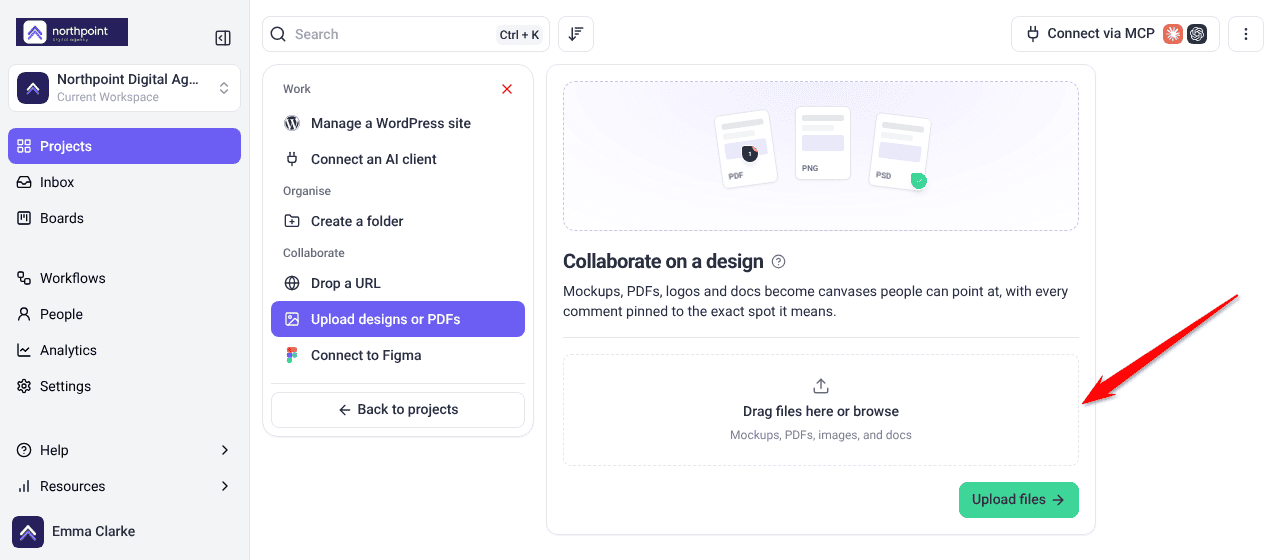
- Drag your files onto the drop zone, or select browse.
- Add more than one file if the review covers several designs. If you confirm without adding anything, Atarim asks you to upload at least one design.
- Select Upload files. The project opens straight away while the files finish uploading.
Importing from Figma
Use this when the design already lives in Figma and you would rather review the source than an export.
Instructions:
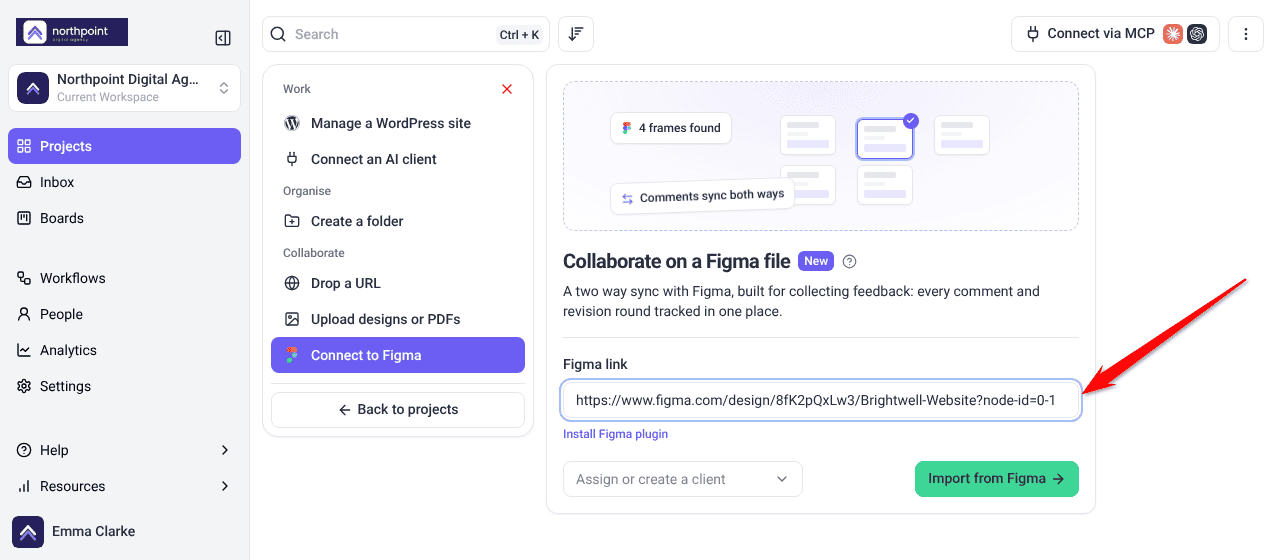
- On the Projects screen, select Add new and choose Connect to Figma.
- Paste the Figma design URL, copied from the frame you want reviewed, into Figma link.
- Select Import from Figma. A message reads Design project created from Figma. If the link isn’t a Figma design link, Atarim shows an error instead of creating the project.
Using the Atarim Figma Plugin
The first two routes pull a design into Atarim. The plugin works the other way — it puts Atarim inside Figma, so designers push work out from where they already are. Installed in Figma, it can:
- Create a project in Atarim from your Figma file.
- Add a design to an existing Atarim project.
- Push a new version when you revise, without exporting or re-uploading anything.
- Bring Figma comments across, so existing discussion is not stranded in Figma.
| Figma URL import | Figma plugin | |
|---|---|---|
| You start in | Atarim | Figma |
| Setup needed | None | Install the plugin and connect the workspace |
| Adding a revision | Import again, or upload a new version | Push a new version from Figma |
| Existing Figma comments | Brought across as tasks | Can be brought across |
| Best for | A one-off review | Designs that keep changing |
Organizing Your Designs
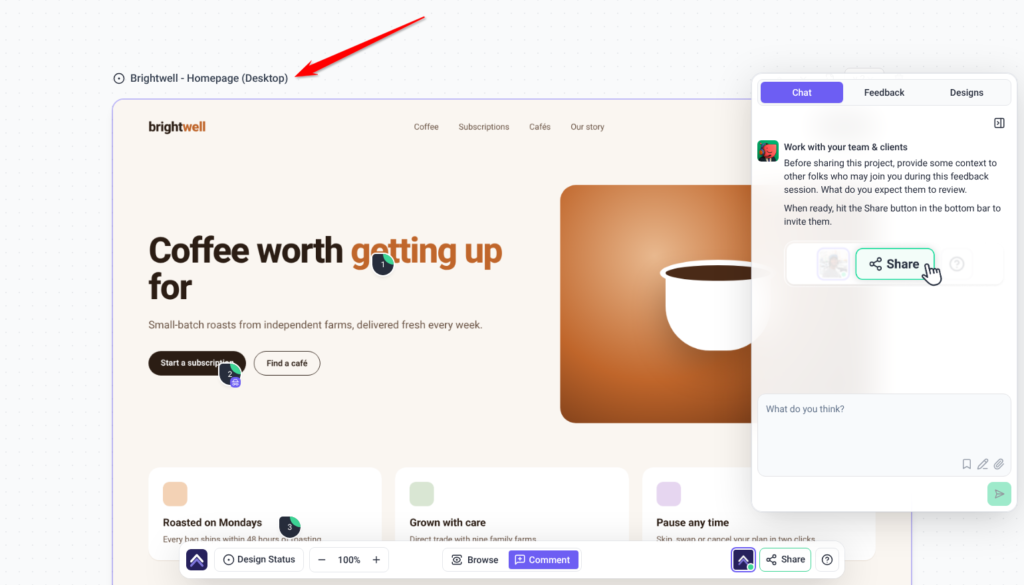
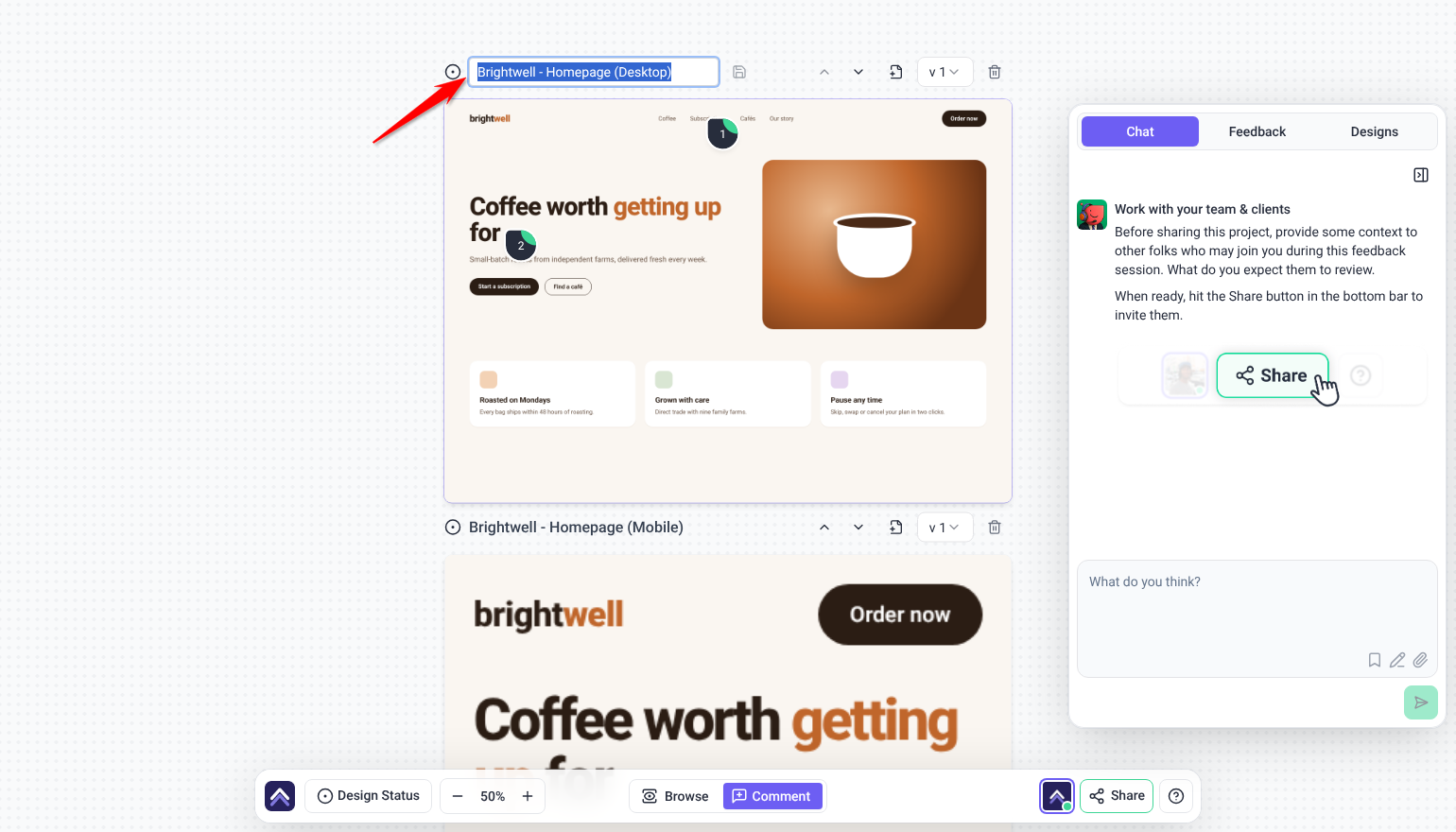
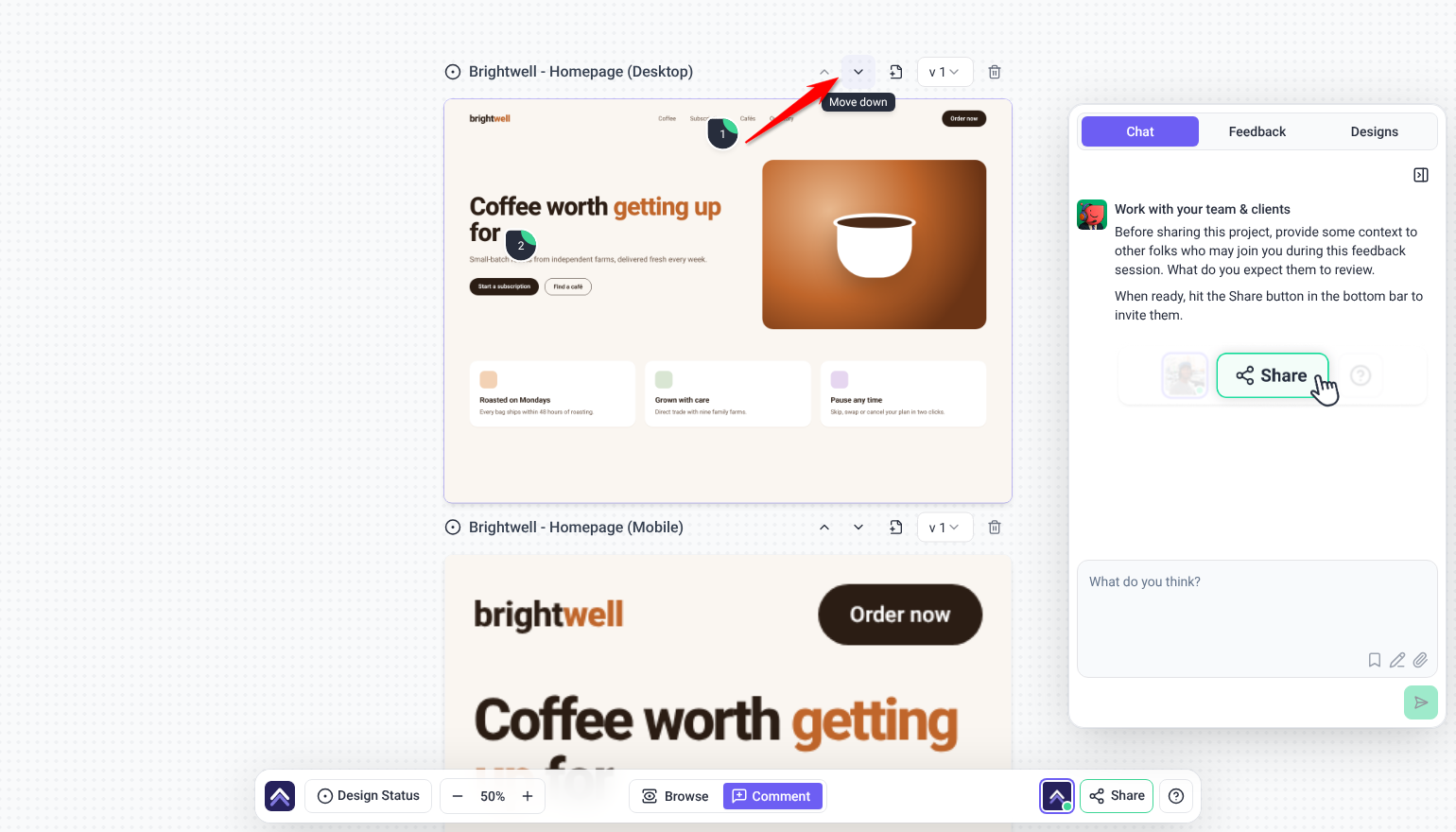
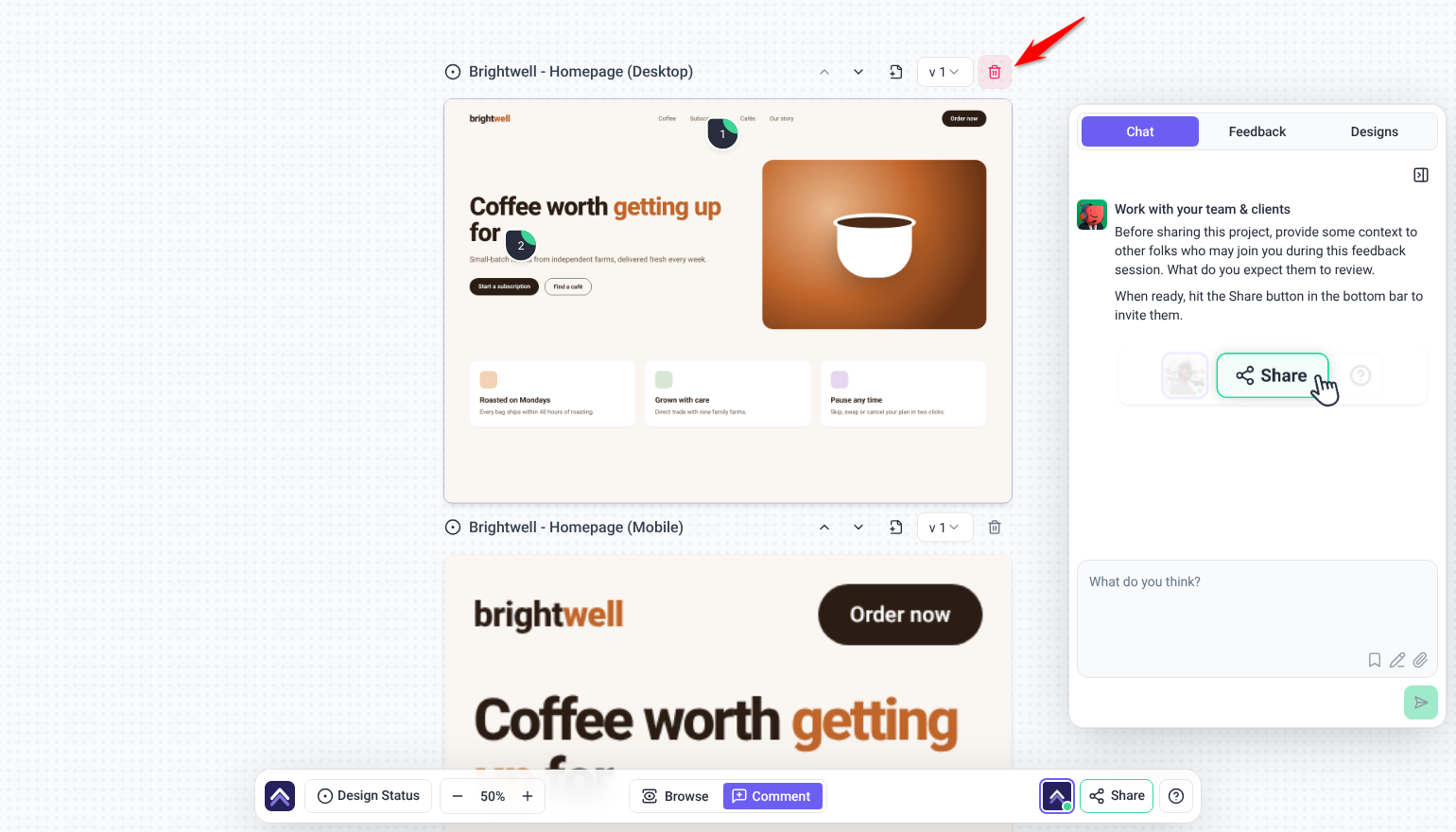
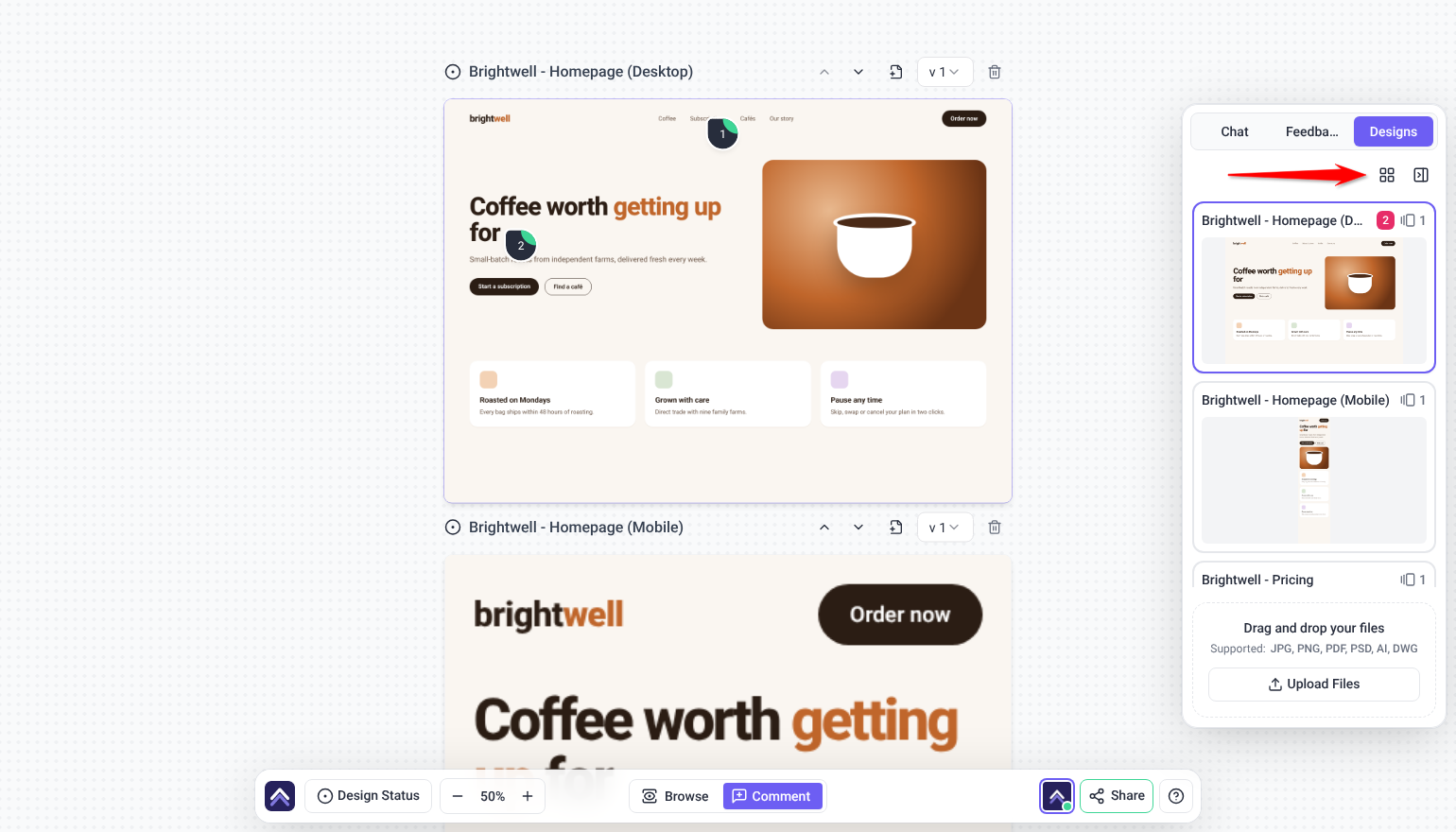
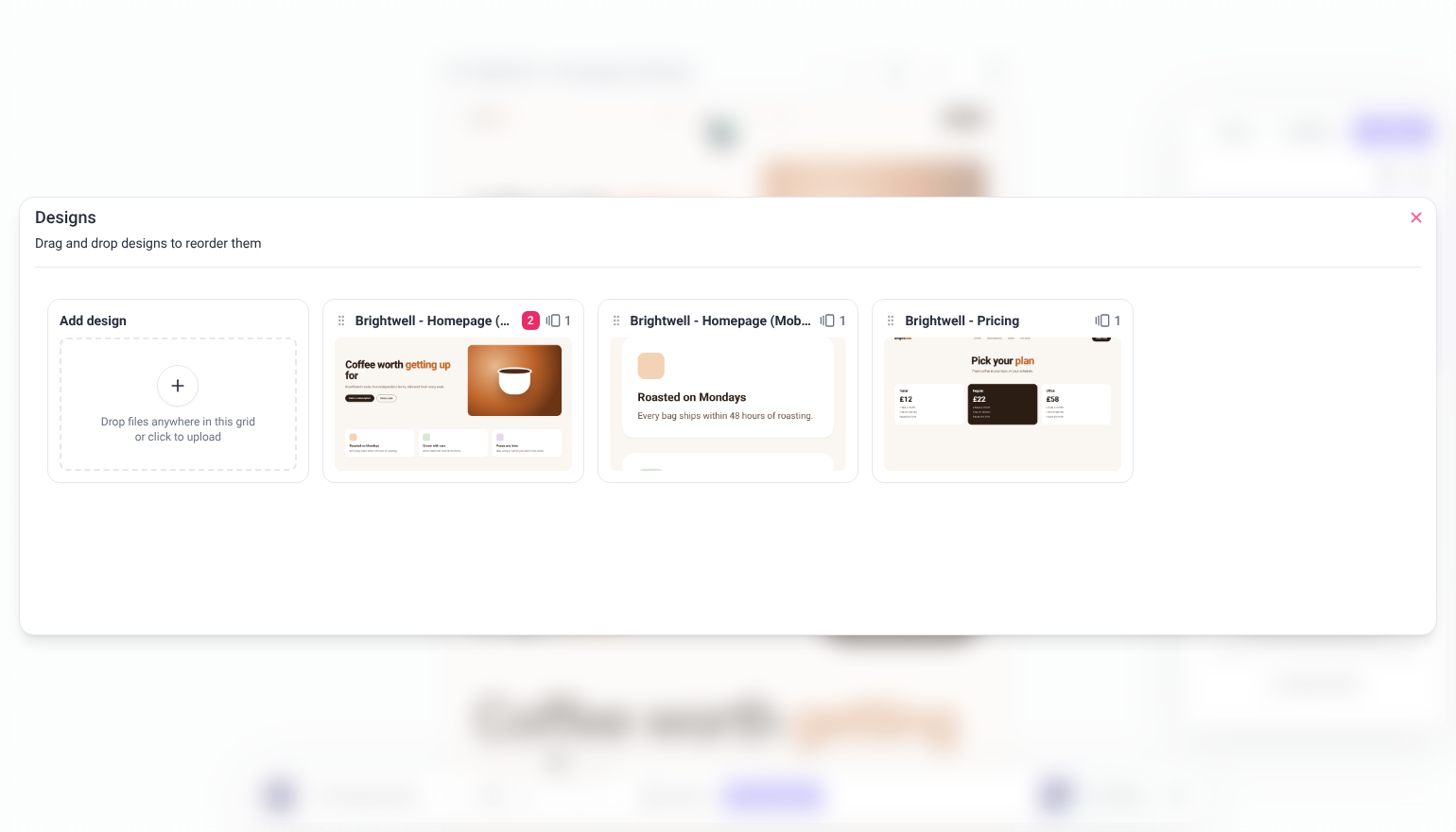
Inside a design project you can rename, reorder, and delete individual designs, and add further versions of each.
Reviewing a Design
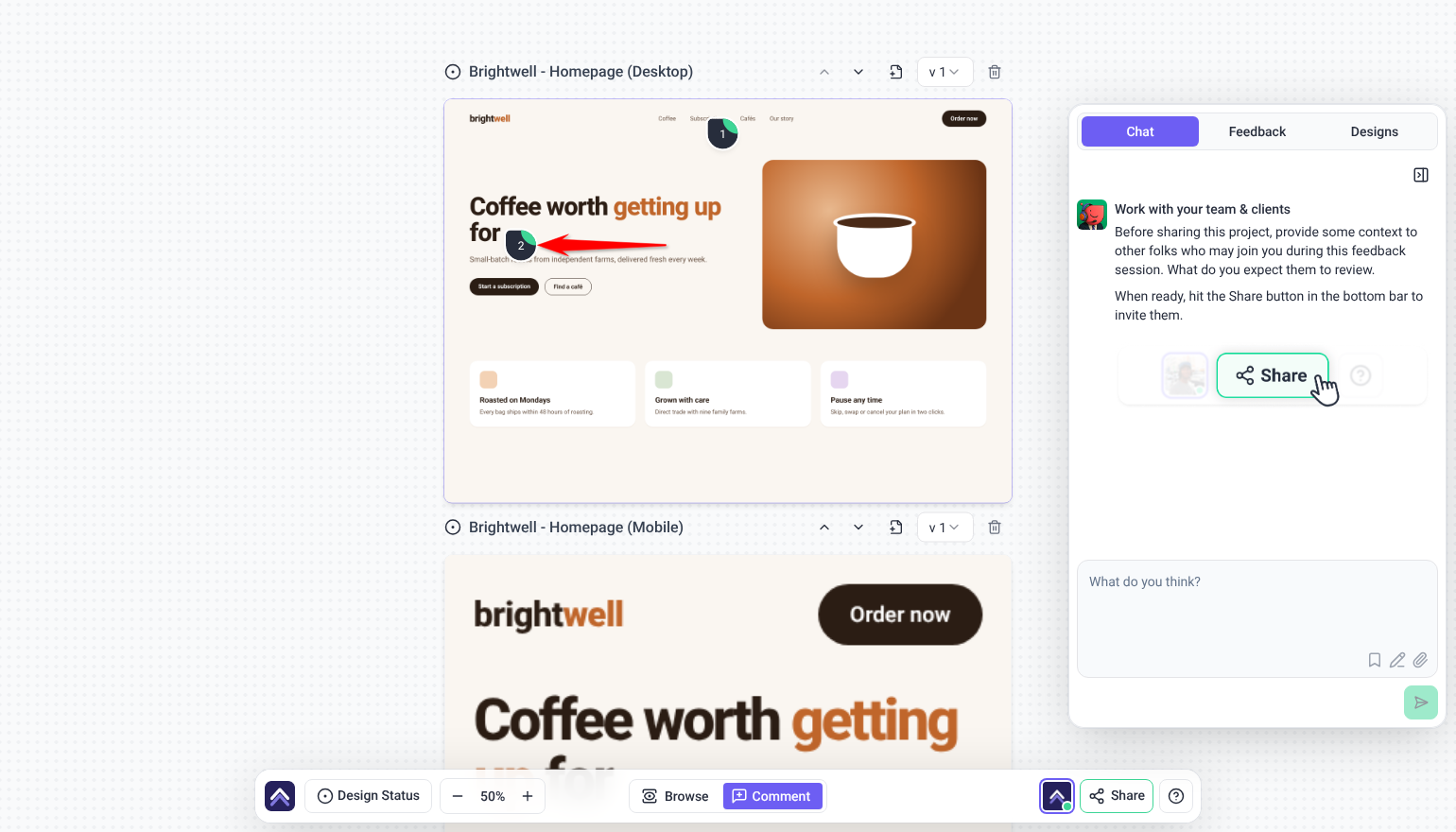
Opening a design project puts the artwork on a canvas with your feedback pinned directly onto it. The interaction is deliberately the same as reviewing a website.
Instructions:
- Open the design project from the Projects screen. The design loads on a canvas, with any existing tasks shown as numbered pins.
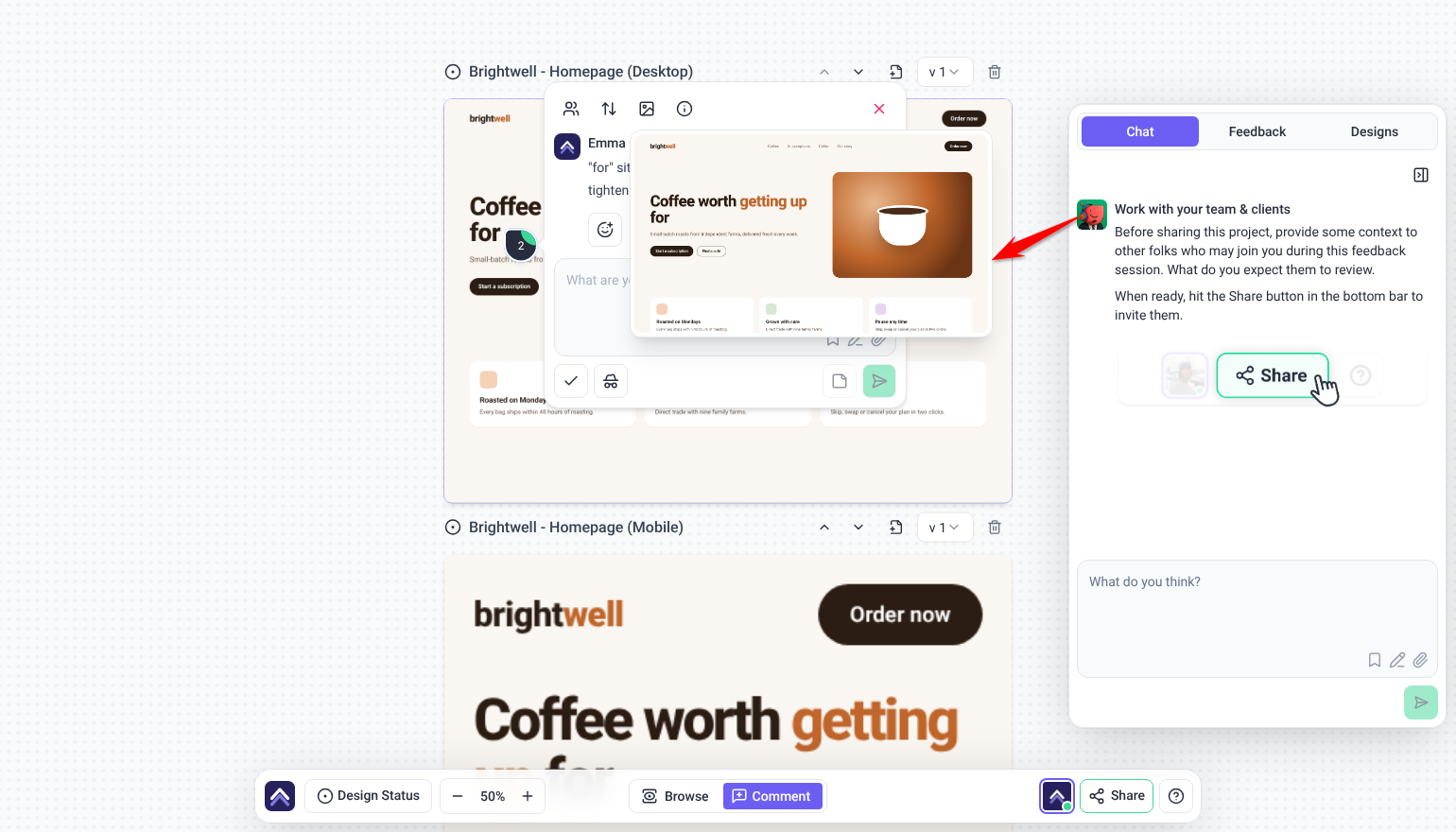
- Select the point on the design your feedback is about. A pin is placed and a task panel opens beside it.
- Write your comment and submit it. A task is created, anchored to that exact point on the design.
- Select an existing pin to read or reply to its thread.
Reviewing a Design with AI
The AI team can review an uploaded design, not only a built page. Rather than starting from the design canvas, ask Claro in workspace chat — name the design and what you’re weighing up, and Claro sets the review going and brings the findings back. Uploaded designs, including frames pushed from Figma, can all be reviewed this way. Design projects have no review button of their own, so chat is where a design review starts. Learn More About Pixel, the Design Specialist
What a Design Task Holds
Design tasks carry the same detail as website tasks, so work moves through your board without a separate process.
| Field | Notes |
|---|---|
| Status | Open, In Progress, Pending Review, or Complete. |
| Priority | Low through Critical. |
| Tags | Type and press Enter to create a new tag. |
| Due Date | Set or cleared on the task. |
| Assignees and notifications | Who is working on it, and who hears about it. |
| Technical details | The task ID, who created it, the design name, and a single dimensions value labeled Image dimensions. That value records the screen resolution of the reviewer who left the feedback, not the pixel size of the design. |
| Copy task link | A direct link to that task, for sharing outside Atarim. |
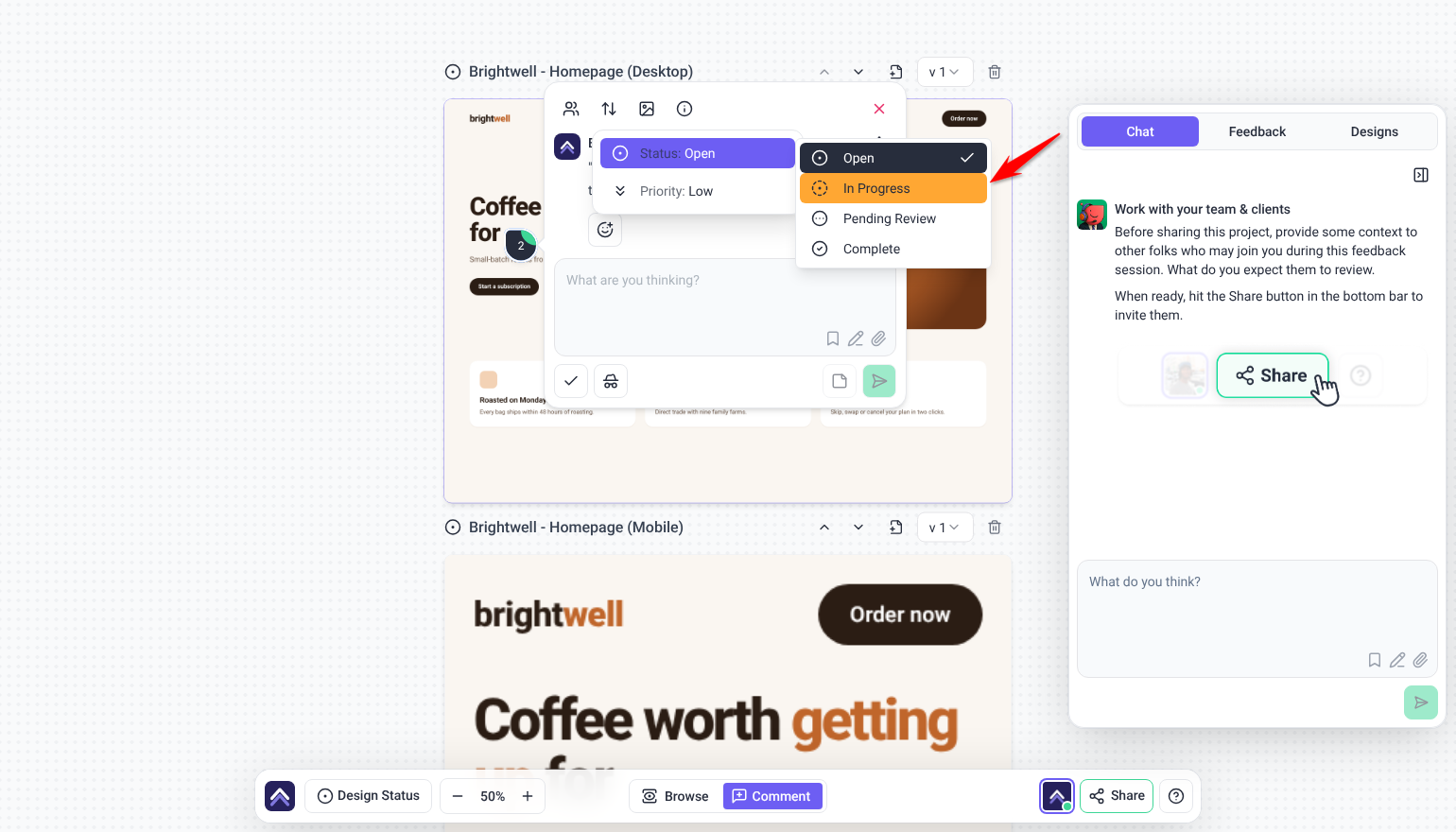
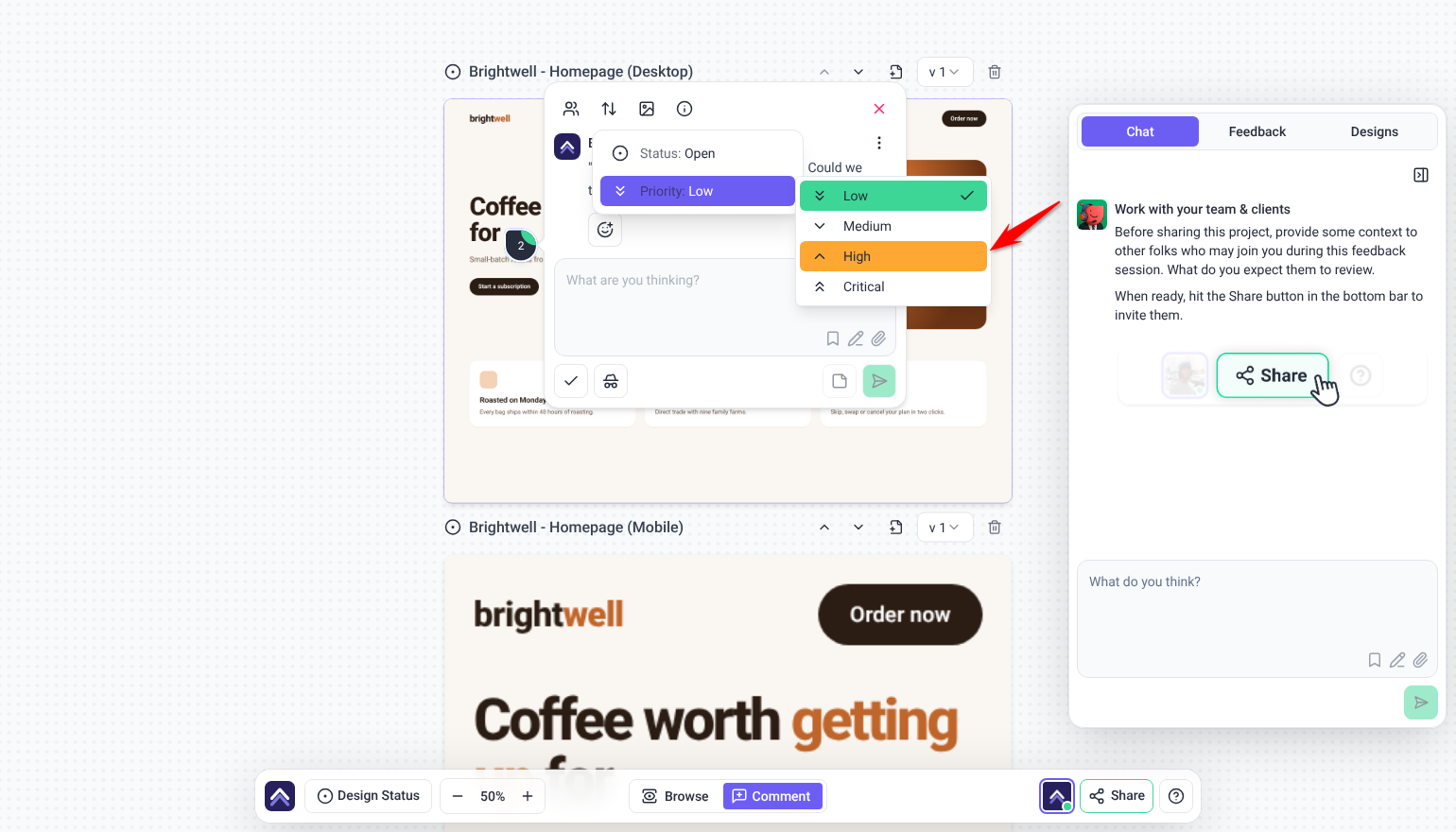
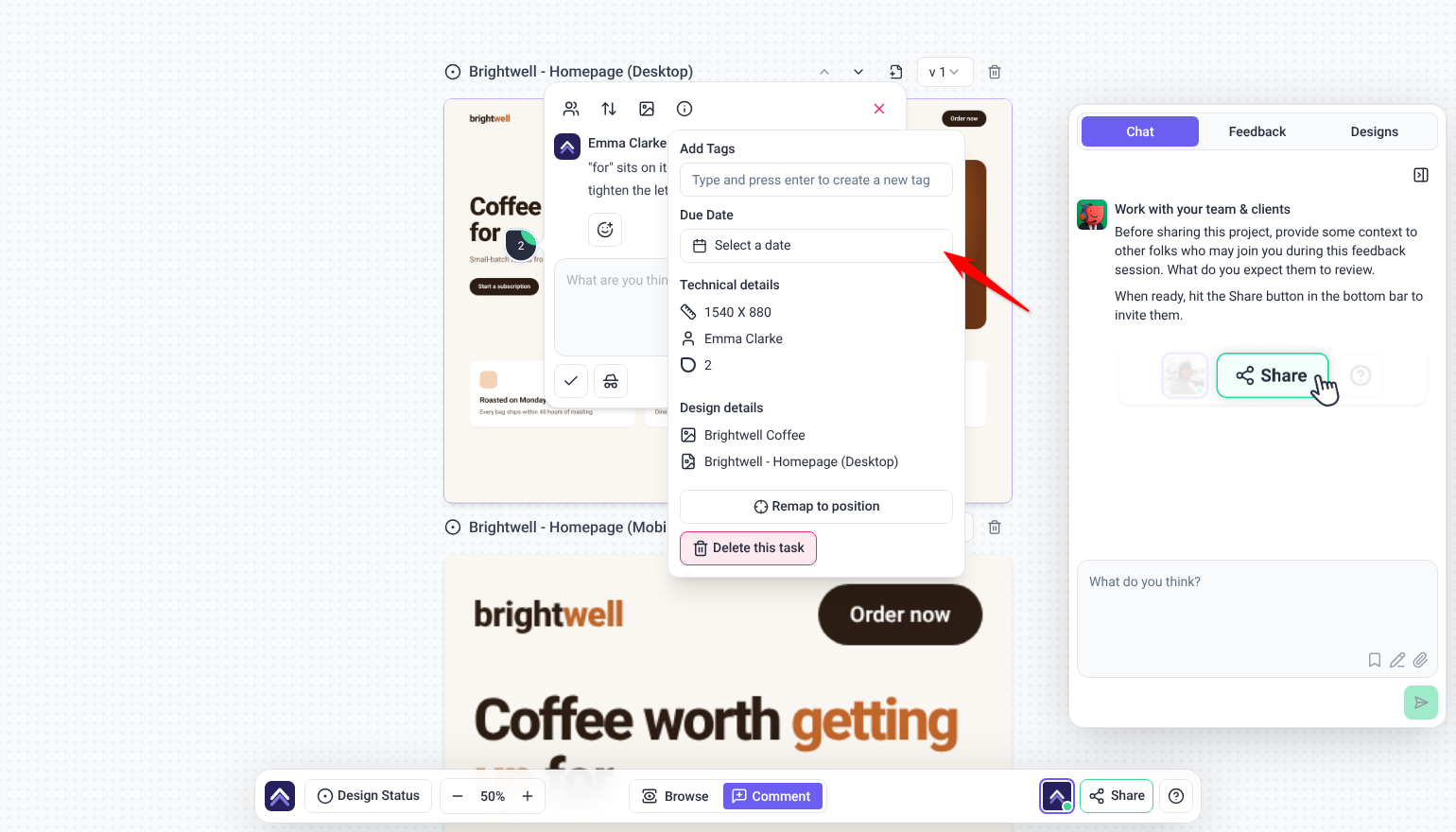
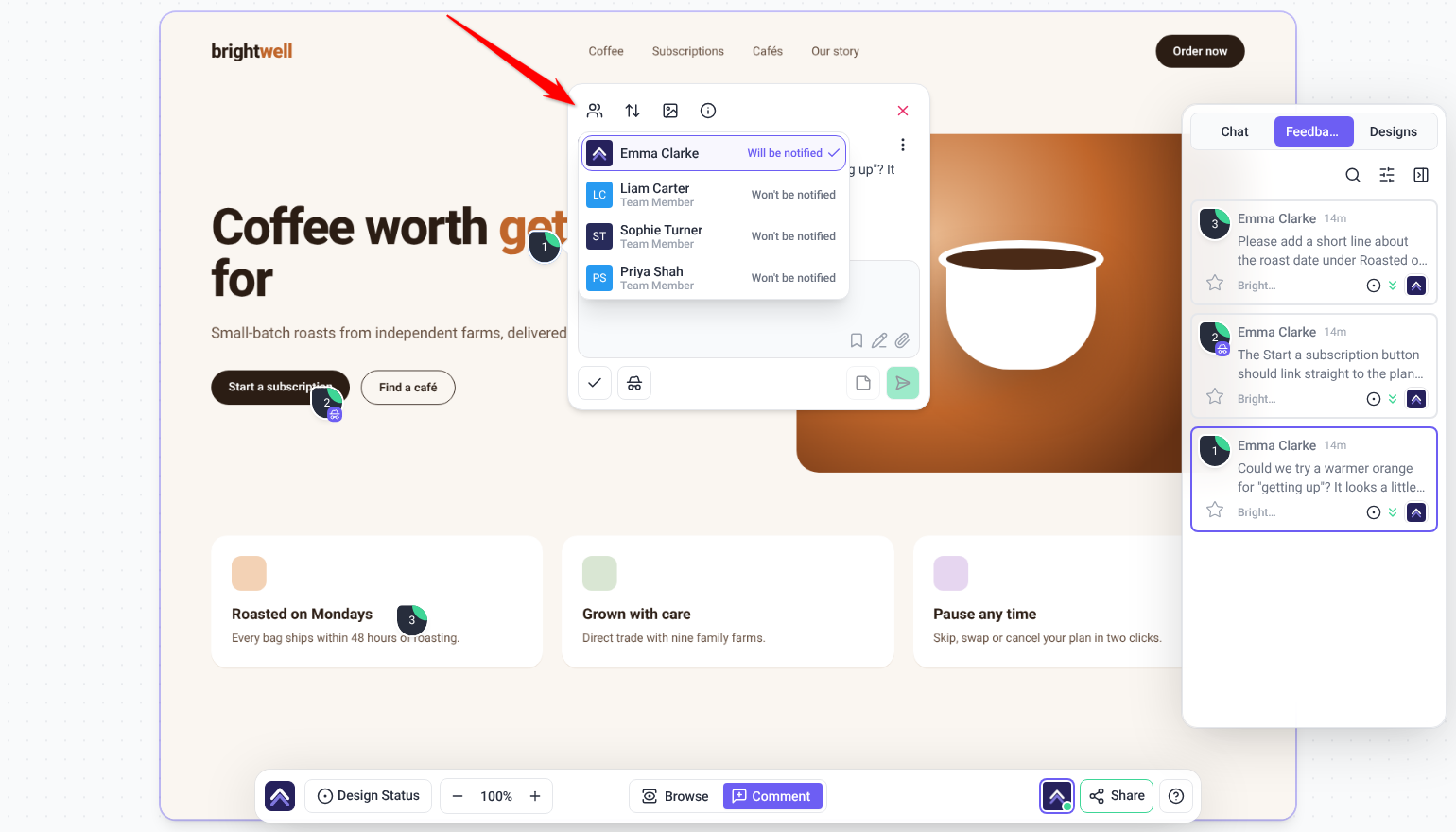
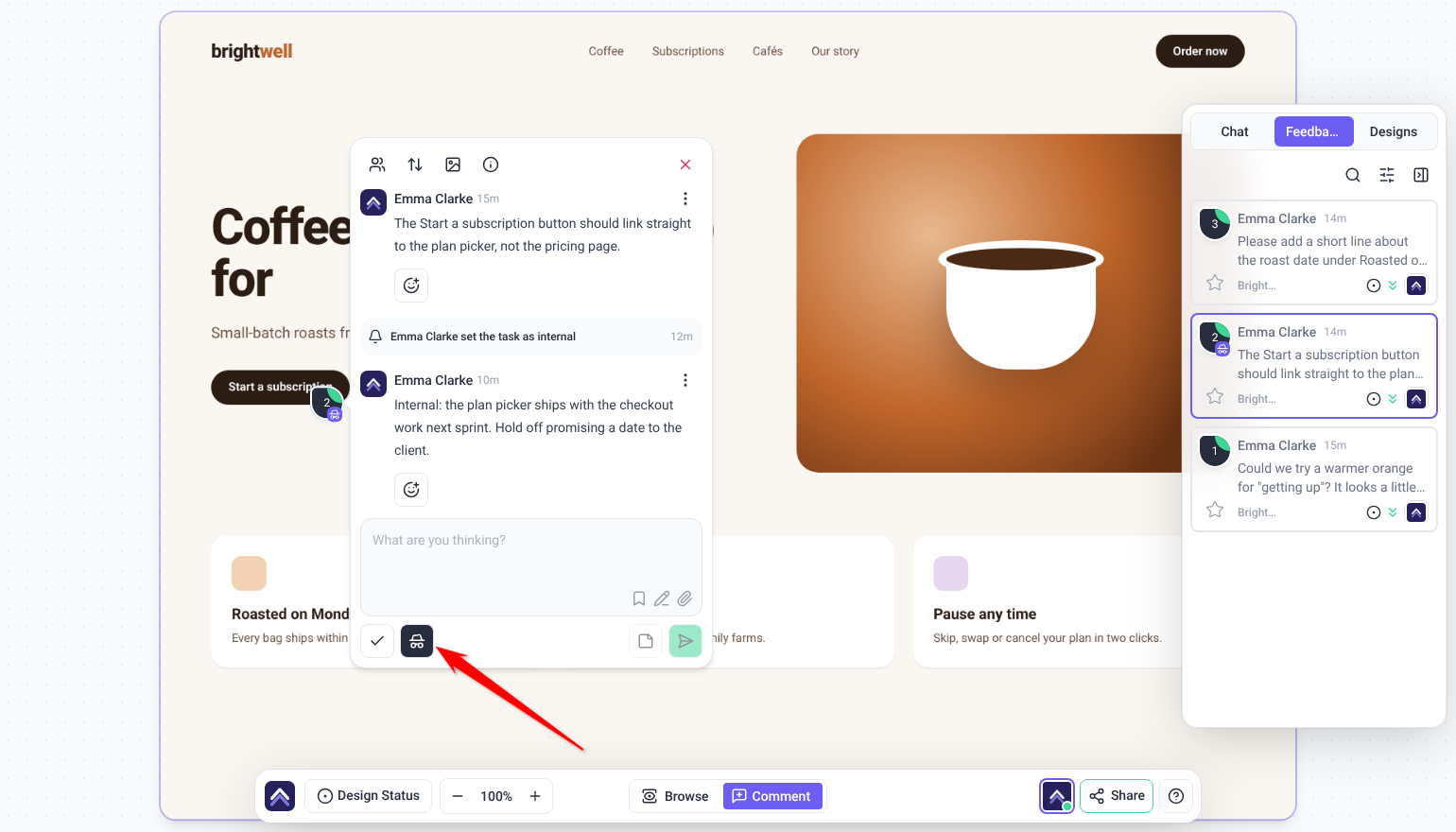
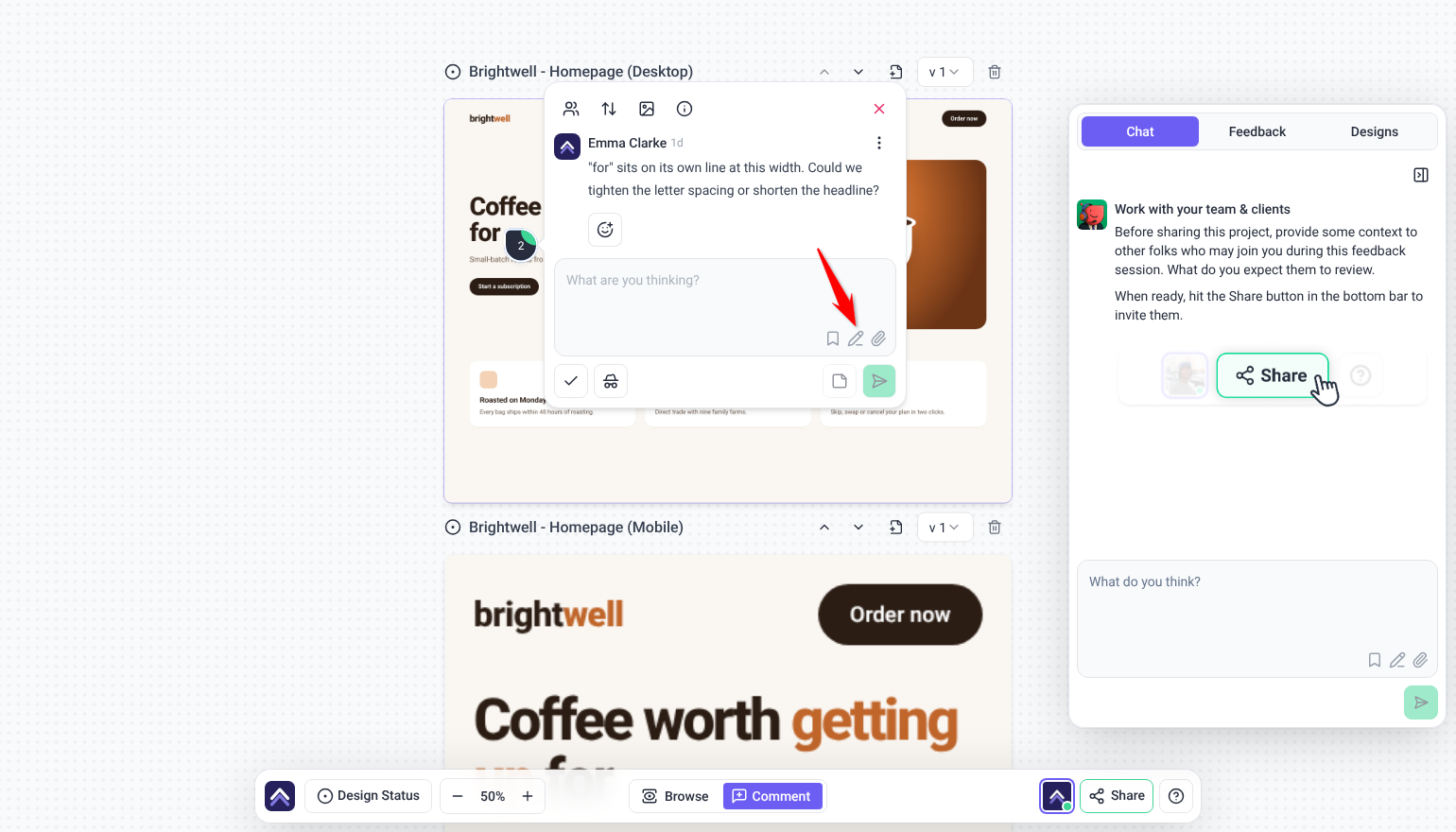
Internal notes, attachments, canned responses, and image annotations are available on design tasks too, each subject to your plan. Learn More About Internal Tasks
Working with Versions
This is the part that makes design review workable over time. A design is not one file — it is a sequence of revisions, and Atarim keeps them together rather than as separate projects.
Instructions:
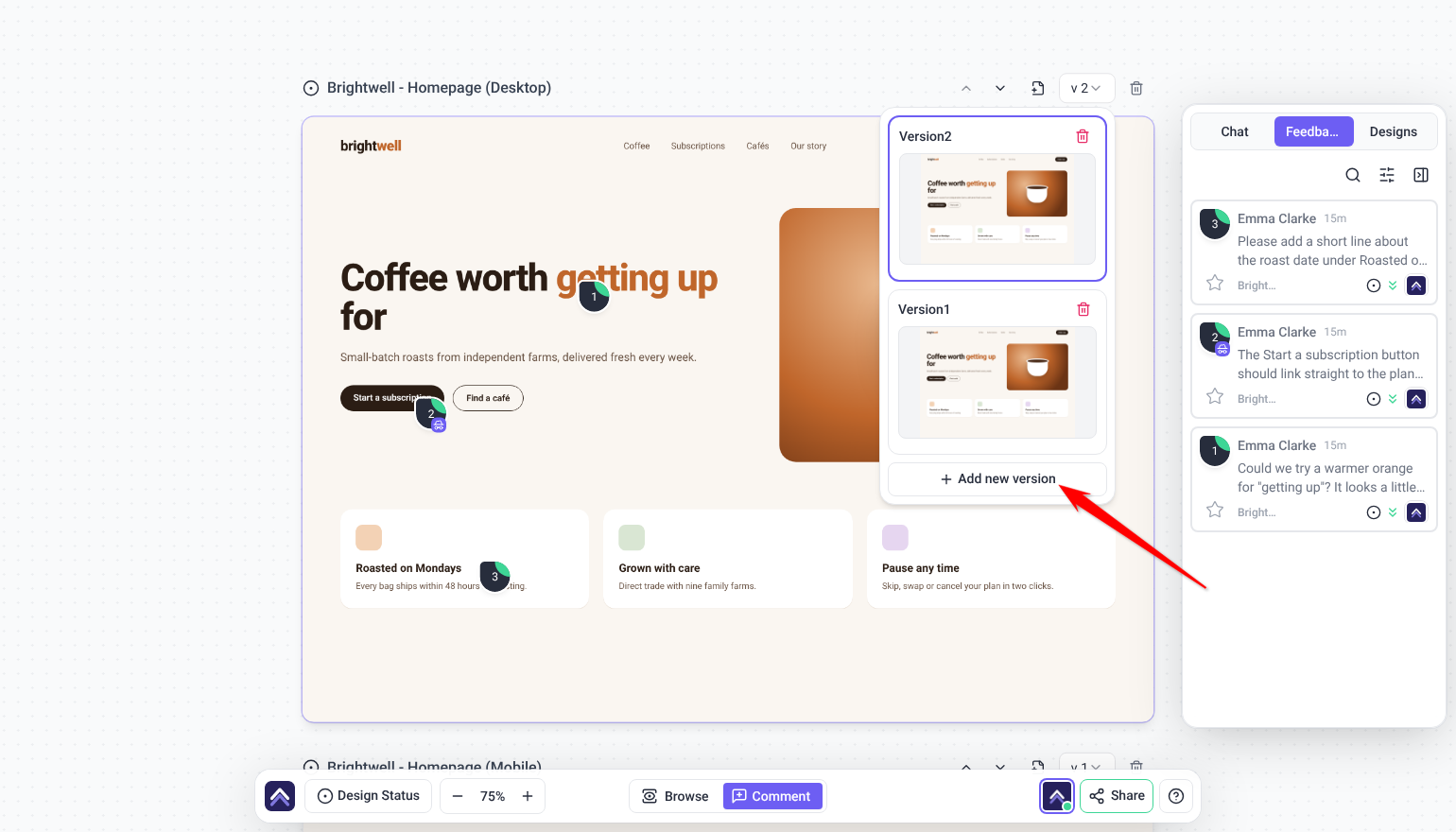
- Open the design and find the version selector. It lists the versions of that design, most recent first.
- Select Add new version and upload the revision. The new version joins the design’s history rather than replacing it.
- Switch between versions using the selector. You can look back at what a design used to be, alongside the feedback that changed it.
Page Status and Approval
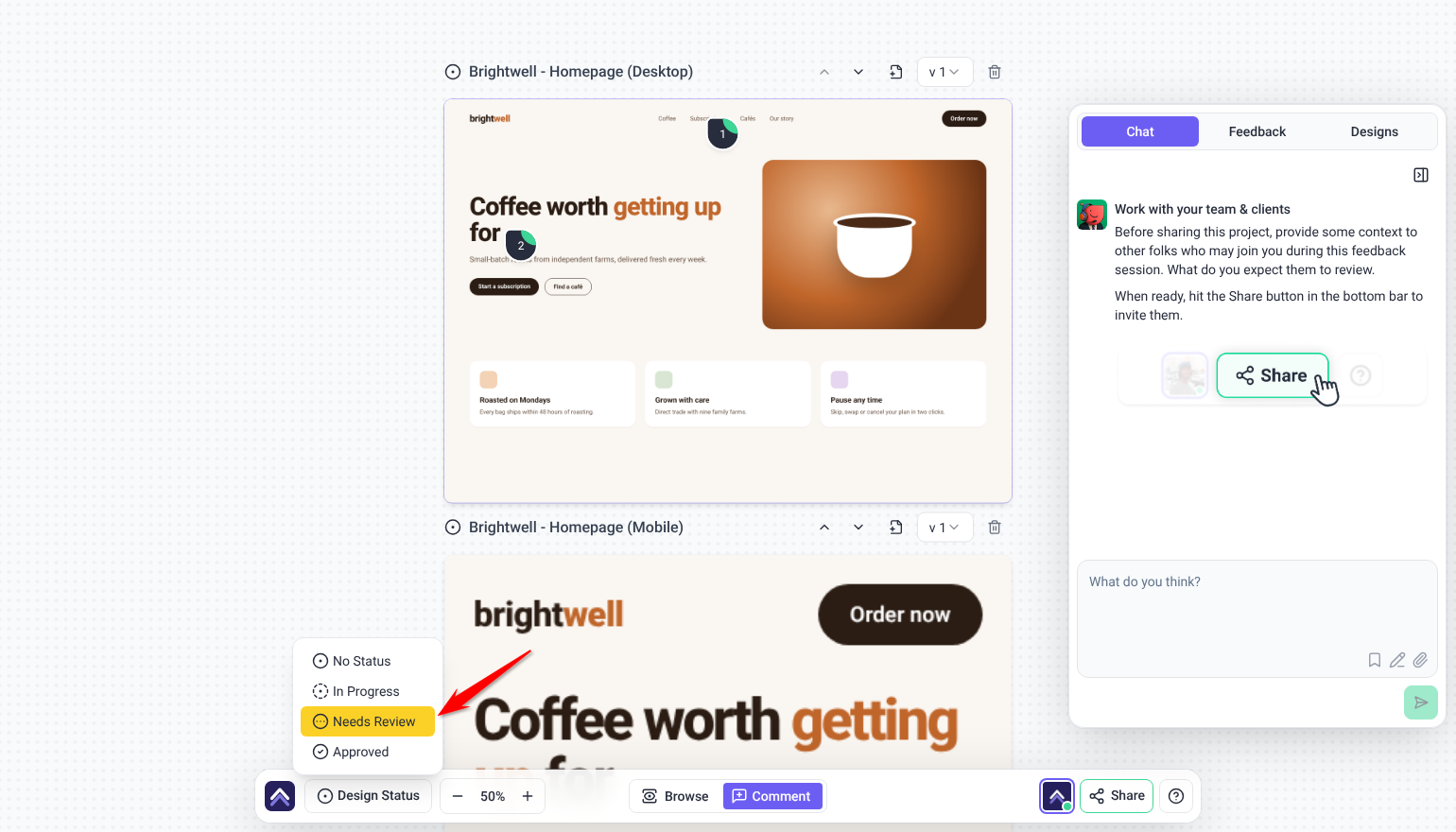
Every design in a project carries its own status, not just the project as a whole. Internal users set No Status, In Progress, Needs Review or Approved from Design Status. Clients and guests see a shorter version of the same control.
Instructions:
- The designer sets the design to In Progress while working on it.
- Once it is ready for feedback, they set it to Needs Review.
- After revisions are complete, it is marked Approved.
The Chat Panel
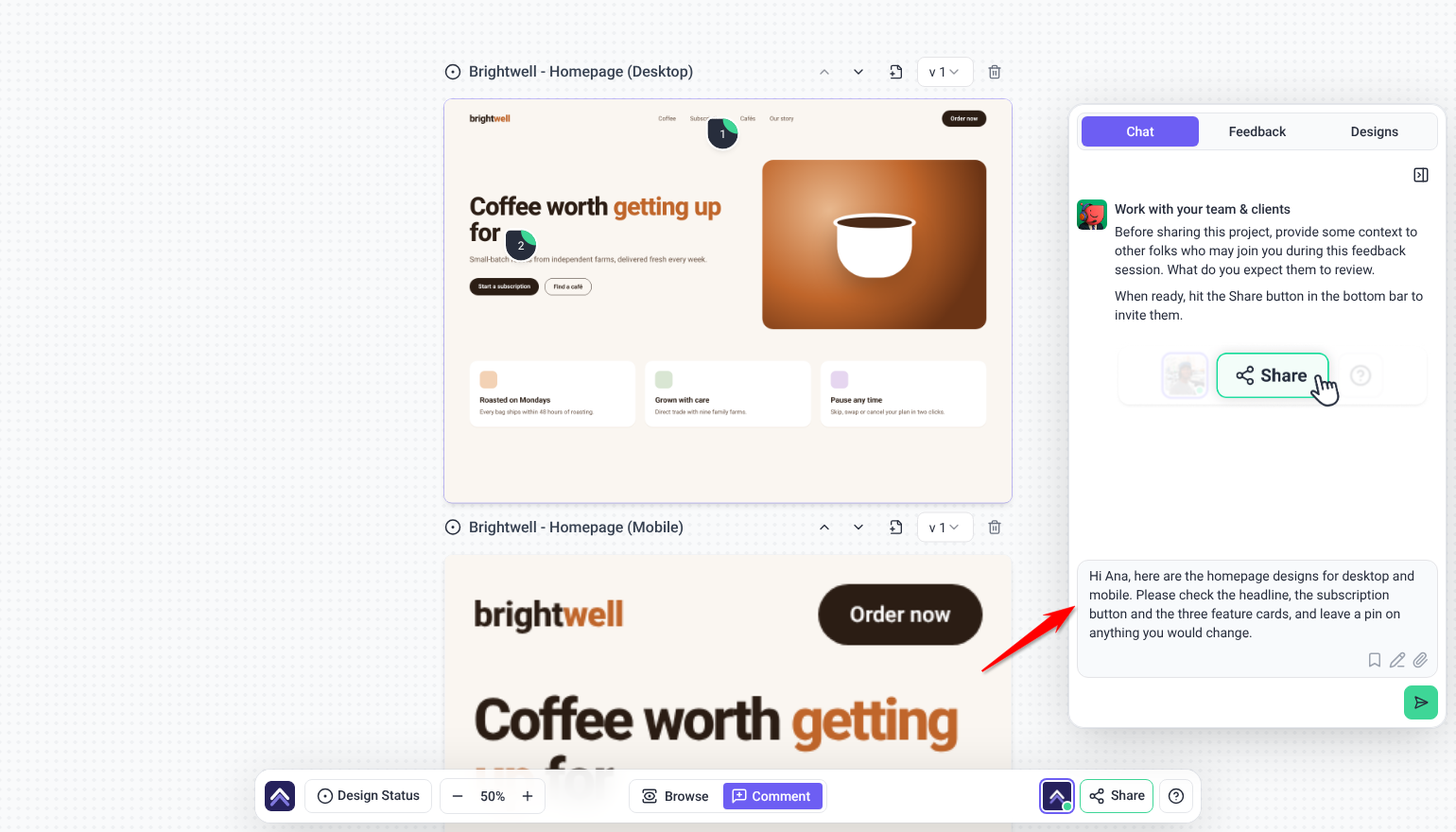
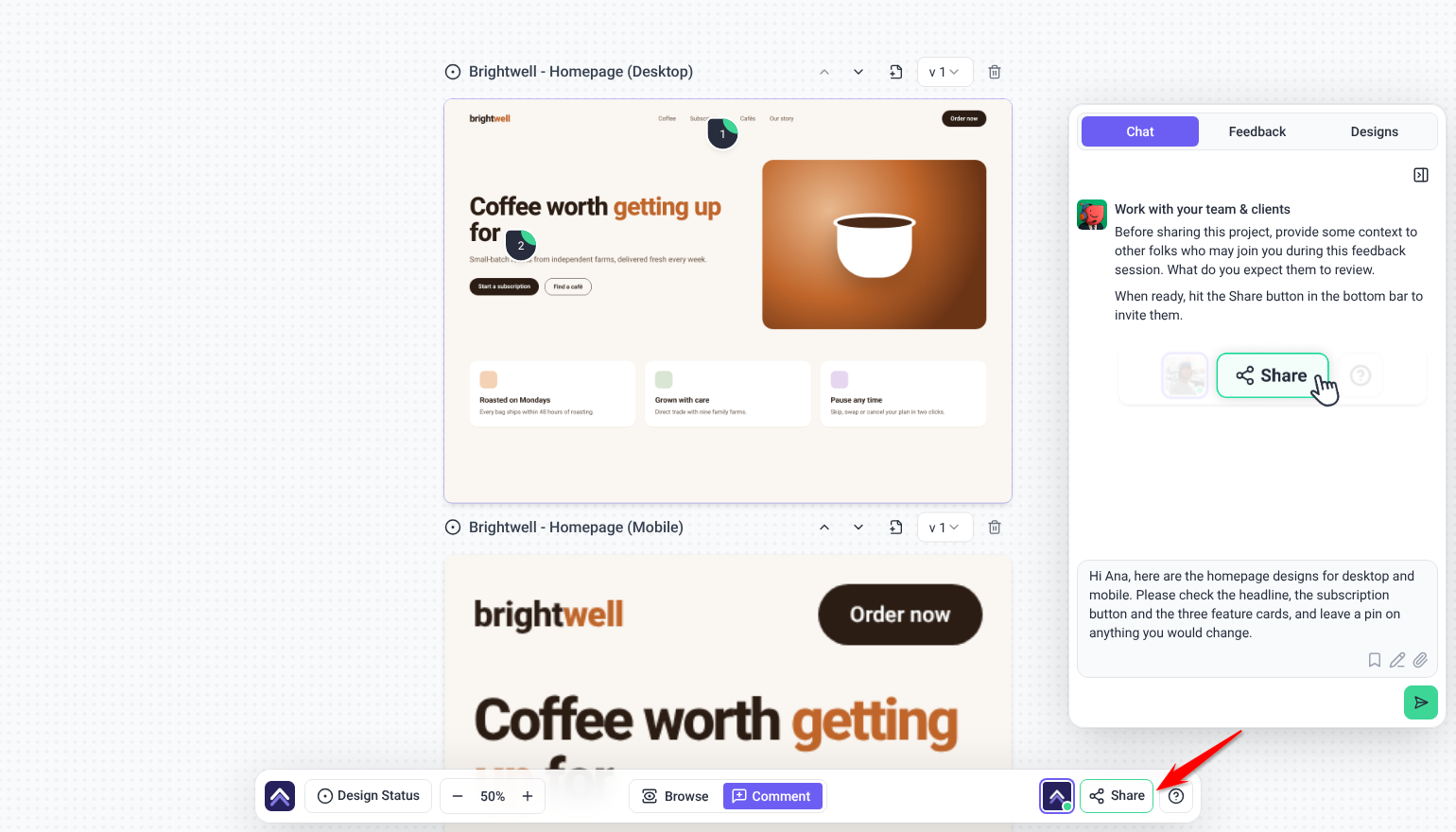
The Chat panel is the main communication area for a design review. It holds the high-level discussion, shows guests the latest non-internal message, and is where you set out what kind of feedback you are asking for.
Benefits of Reviewing Designs in Atarim
| Benefit | In practice |
|---|---|
| Clients need no design software | PSD, AI, and DWG files are reviewed in the browser, so nobody asks you to export a flat version. |
| Feedback is pinned, not described | “Move this 10px left” lands on the actual element rather than in an email. |
| Revisions stay together | Versions live inside the design, so the history of a piece of work is in one place. |
| One process for everything | Design feedback becomes tasks on the same boards as website work — no second system to check. |
| Clients already know how | It is the same click-and-comment interaction they use on a live site. |
Example Use Cases
| Situation | How to set it up |
|---|---|
| Logo and brand review | Upload the AI file. The client comments directly on the mark without owning Illustrator, and each revision goes in as a new version. |
| UI designs before build | Import from Figma so you review the source. Feedback becomes tasks your developers pick up alongside site work. |
| A design system iterating constantly | Install the Figma plugin so each revision is pushed as a new version from inside Figma, with no export step. |
| Print artwork sign-off | Upload the PDF and let the client pin corrections to the exact line — far safer than a marked-up printout. |
| Architectural or technical drawings | Upload the DWG for review in the browser, with comments anchored to the part of the drawing in question. |
| A design iterating over weeks | Keep one design project and add versions. The progression and the feedback that drove it stay together. |
Known Limitations
- The last version of a design cannot be deleted.
- Deleting a version or a design cannot be undone.
- Creating and deleting versions are permission-based, so not every role can do it.
- Several task features are plan-gated — annotations, attachments, notes, internal tasks, and canned responses among them.
- Figma import needs the design URL including its node reference, not a link to the file root.
- Design projects need a browser window at least 1024 pixels wide. Narrower windows show Screen size too small.
FAQs
What file types can I upload?
Images, PDFs, AutoCAD drawings and Adobe design files: PDF, JPG, PNG, GIF, PSD, AI, EPS, DWG and DXF. That covers working files as well as flat exports, and you can add up to 20 designs in one upload. Each design must be under 20 MB.
Does my client need Photoshop or Illustrator?
No. They review the file in the browser, which is the main reason to upload the source rather than an export.
Can I bring designs in from Figma?
Yes. Select Add new, choose Connect to Figma, paste the Figma design URL into Figma link, and select Import from Figma.
How is this different from the Figma plugin?
Importing pulls a Figma design into Atarim and starts from Atarim. The plugin starts from Figma, letting designers create projects, add designs, push new versions, and bring existing Figma comments across without leaving Figma.
Should I use the URL import or the plugin?
Use the URL import for a one-off review. Install the plugin if designs revise regularly — pushing a new version from Figma is far quicker than exporting and uploading each time.
Can I upload a revised design without losing the old one?
Yes — add it as a new version. Versions live inside the design, so the history stays intact.
Can I delete a version?
Yes, if your role allows it, but the last remaining version cannot be deleted and the action cannot be undone.
Do design tasks work like website tasks?
Yes. Same statuses, priorities, tags, due dates, assignees, and boards.
Can clients review designs the same way they review sites?
Yes, and it is the same interaction — select the spot, leave a comment.
Common issues
- “Please upload at least one design.” — no file was added. Drop a file onto the zone before confirming.
- “Please enter a valid Figma URL.” — the link is not a Figma design URL. Copy it again from the frame you want reviewed.
- “Failed to import from Figma. Please try again.” — the import did not complete. Check the link is still valid and the file reachable, then retry.
- A task feature shows as locked — that feature is not included on your plan. The prompt names what is needed.
- You cannot add a version — your role does not allow it. An administrator can change that.
- You cannot delete a version — either your role does not allow it, or it is the only version. The last one cannot be removed.
- The design is missing from Projects — check the workspace, then clear filters. Design projects are also findable with the Image-Based Projects filter.
- Fine detail is hard to judge — zoom in, or select the zoom level and type an exact value.
Conclusion
Image based collaboration closes the gap between design and build. Feedback on a mockup is gathered the same way as feedback on a live page, lands on the same boards, and follows the design through its versions — so nothing is lost between the artwork being approved and the work being done.
The review tools themselves are shared with website projects. Explore The Visual Collaboration Tools
Tips & best practices
- Upload the working file rather than an export. Clients review PSD, AI, and DWG in the browser with nothing installed.
- Add versions instead of new projects, so the history and its feedback stay together.
- Copy the Figma link from the frame you want reviewed, not the file root.
- Install the Figma plugin if designs revise often — pushing a version from Figma beats exporting and uploading every time.
- Zoom in for fine detail, and use Fit to Page to see the whole design again.
- Tag design tasks consistently with your website work so one board covers everything.
- Remember the last version cannot be deleted, and that no deletion here can be undone.