Working with External Collaborators and Clients in Atarim
Bring clients, freelancers, and vendors into a project to give feedback — without handing over your dashboard.
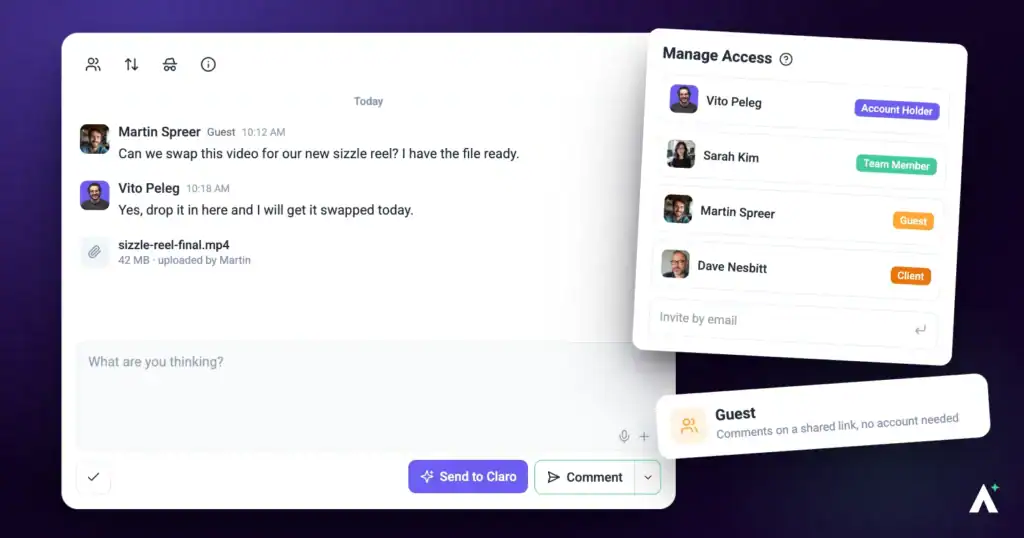
Atarim is built so external people can give feedback without learning a project management tool and without you giving away access to anything else. A client opens a link, selects the thing they want changed, and types a sentence. That becomes a task on your board.
The whole thing is controlled from one place — the Share modal on a project — and this article covers the choices it gives you.
Bringing a client in for the very first time has its own walkthrough. Discover How To Invite Clients To Collaborate
Team Member, Collaborator, or Guest?
Three levels of involvement, and picking the right one is most of the decision. The differences are about how much of Atarim someone needs to see.
| Type | Who they are | What they get |
|---|---|---|
| Team Member | Someone who works for you. | Dashboard access and a seat on your plan. |
| Collaborator | A client or stakeholder you invite by name. | Access to the projects you share with them, to review and comment. |
| Guest | Anyone who opens the link when Guest Mode is on. | The ability to leave feedback on that project without an invitation or an account, after giving their name and email. |
The Share Modal
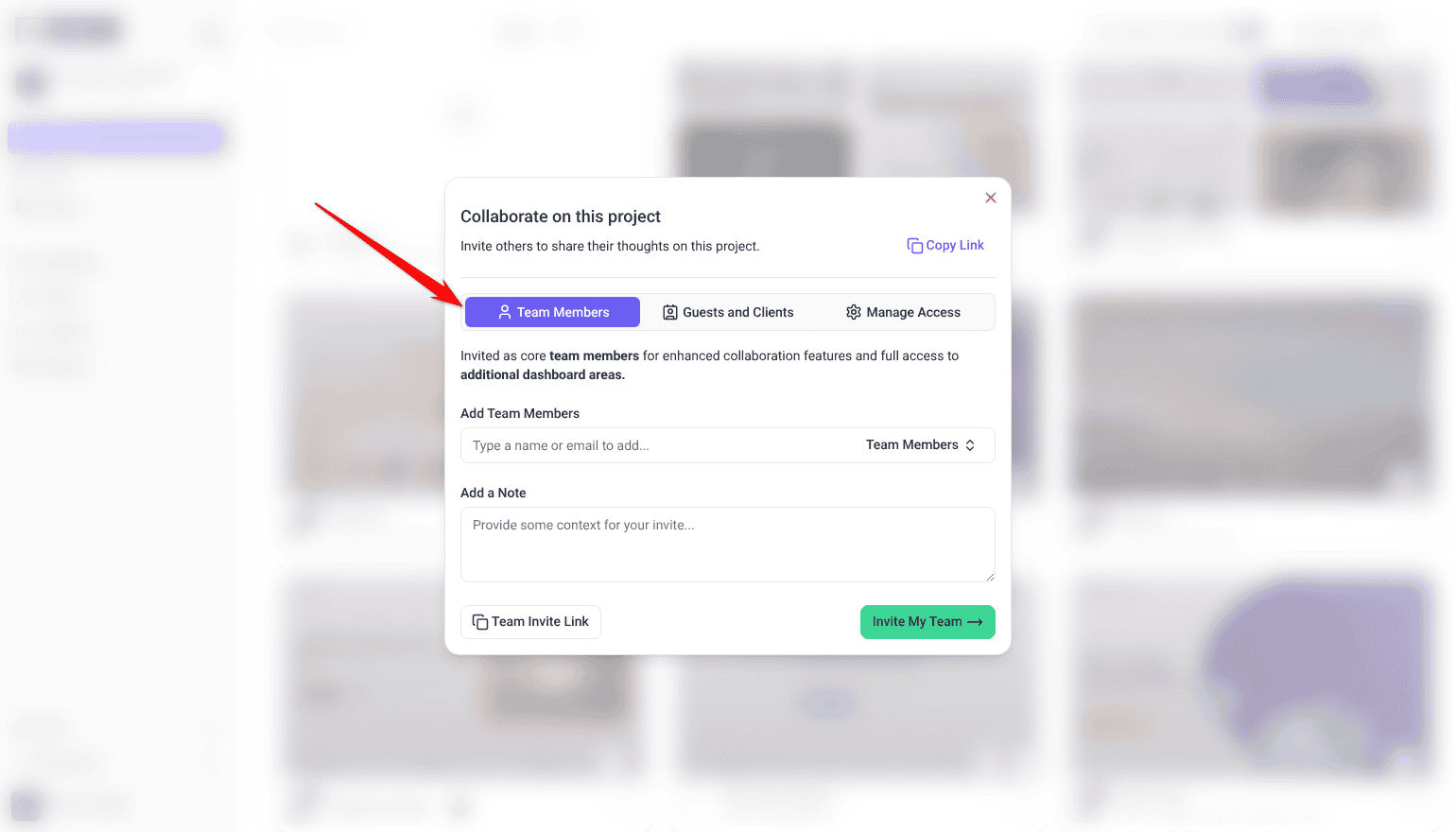
Everything about external access is in one place, headed Collaborate on this project with the line “Invite others to share their thoughts on this project.”
| Tab | What it is for |
|---|---|
| Team Members | Adding your own people to the project. Team seats and roles are managed separately. Learn More About Managing Team Members |
| Guests and Clients | Inviting external people by email. |
| Manage Access | Who can view the project, Guest Mode, and everyone who currently has access. Only administrators see this tab. |
Opening it takes two steps, and there are two places to start from depending on where you already are.
Instructions:
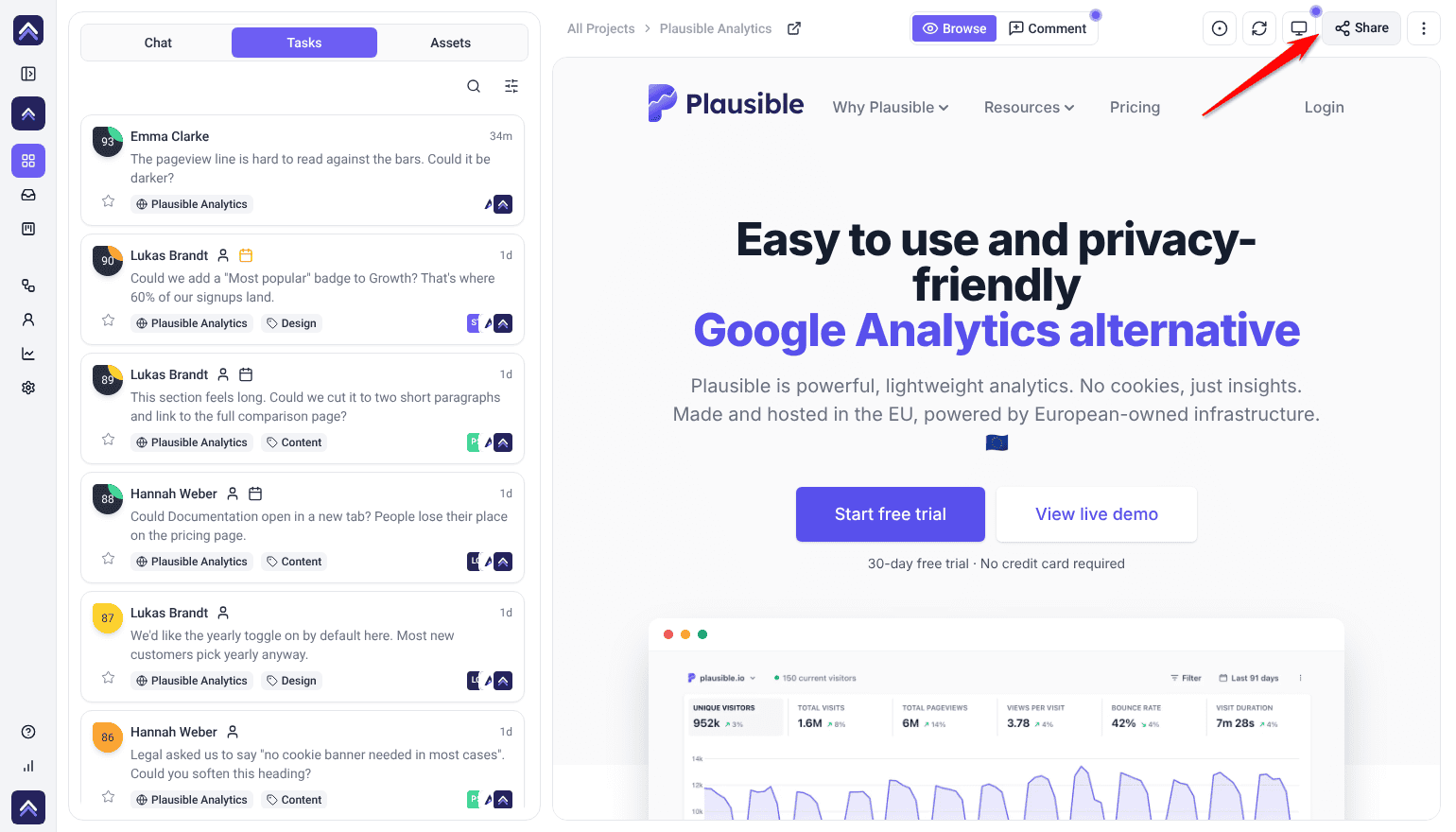
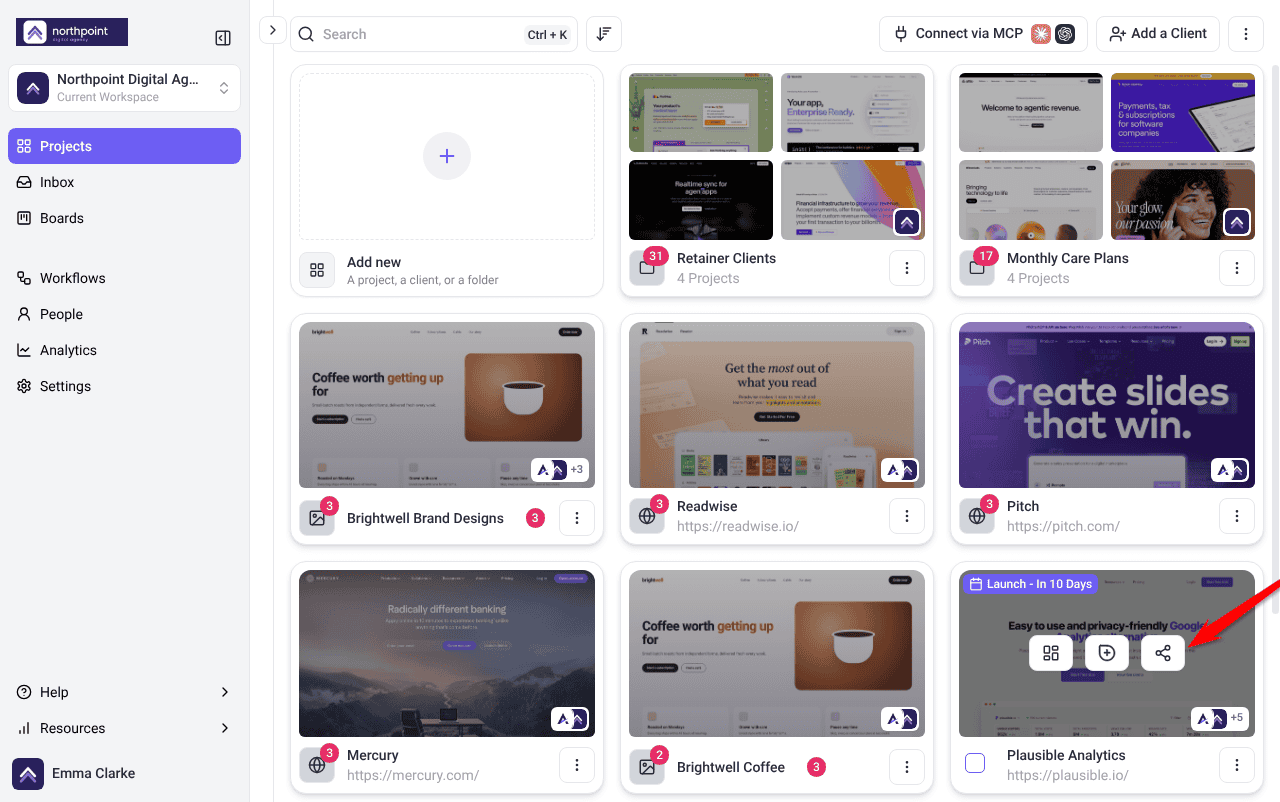
- Open the project and select Share. You can do this from the project card on the Projects screen, or from the Share control in the Collaborate toolbar — its tooltip reads Invite others to collaborate and provide feedback.
- Choose the tab that matches what you are doing.
Inviting a Client by Name
This is the route to use when you know who you are inviting. They get their own invitation, and you can see and revoke their access later.
Instructions:
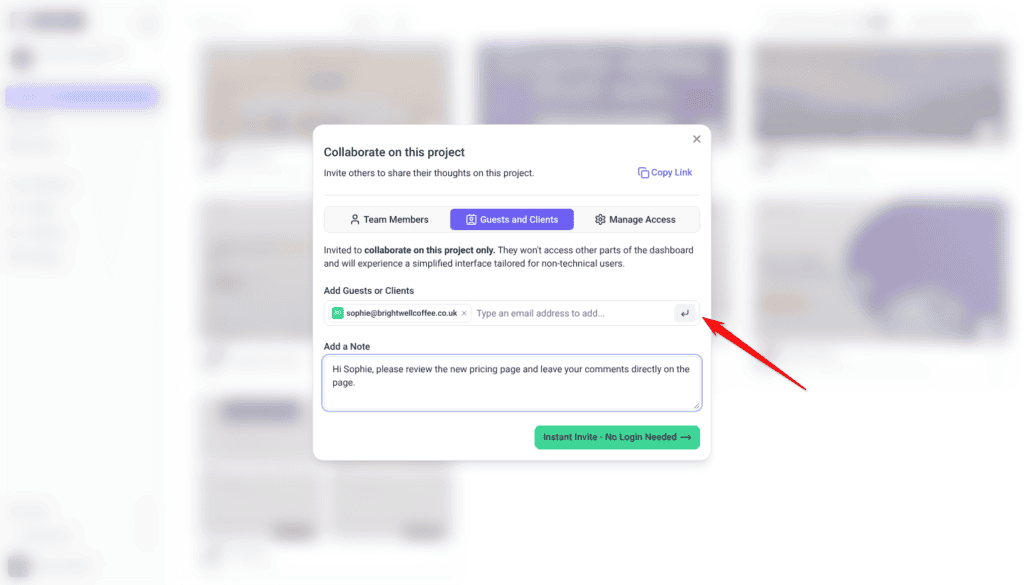
- Open Share on the project and go to Guests and Clients.
- Under Add Guests or Clients, type an email address and press Enter. Repeat to invite several people in one go.
- Use Add a Note to explain why you are inviting them. This note goes out with the invitation, and it is the difference between a client who knows what to do and one who opens the link and closes it again.
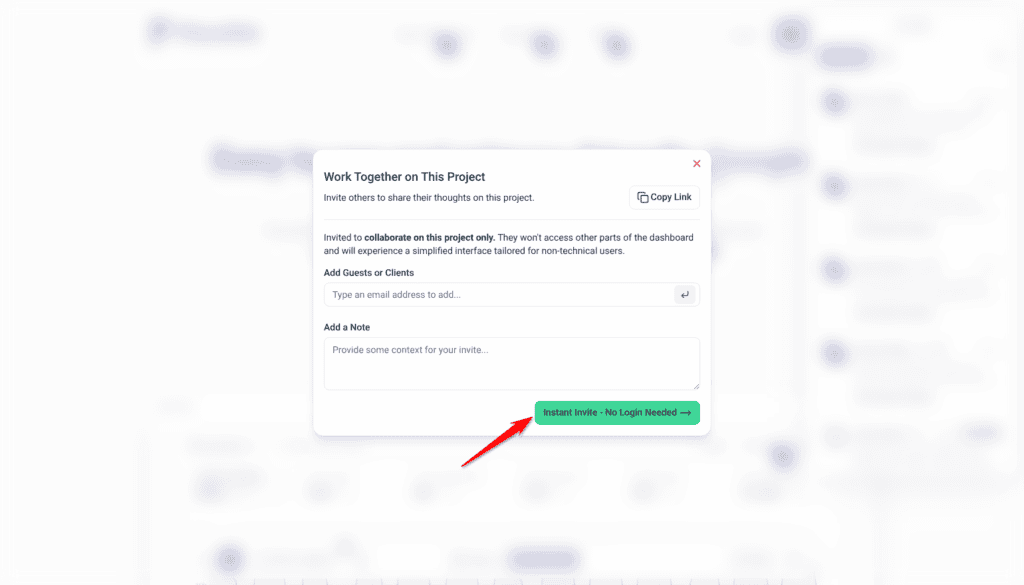
- Select Instant Invite – No Login Needed. Until they accept, they are listed as Pending.
- If the invitation goes astray, open Manage Access, find the person under People with Access, and select Resend the invitation via email on their row. Check the address first.
Sharing a Link Instead
Sometimes an invitation is more ceremony than the situation needs. The share modal also gives you a link you can paste into an email or a chat.
Instructions:
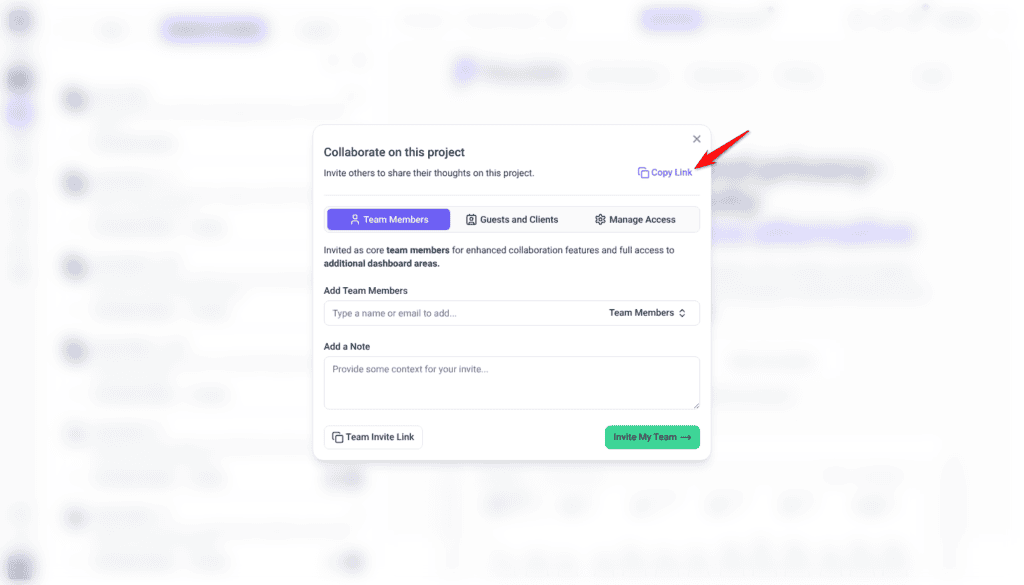
- Open Share on the project.
- Select Copy Link, described in the modal as copying a quick link to this project.
- Paste it wherever your client already talks to you.
Controlling Who Can View the Project
The Manage Access tab holds the setting that governs everything else. It asks “Who can view this?” and offers two levels.
| Access level | Means | Use when |
|---|---|---|
| Anyone with the link | Anyone holding the URL can view the project. | Wide review rounds where chasing individual invitations is not worth it. |
| Only people with access | Only invited people can open the project. This is the option the sharing panel offers; some older copy calls it restricted access. | Client work, anything under NDA, or a site that is not public yet. |
Access level governs everyone who reaches the project, including people who arrive by link rather than by invitation.
Instructions:
- Open Share and go to Manage Access.
- Under General Access, open the access selector. The current level is shown with a padlock for restricted, or an open padlock for anyone with the link.
- Choose the level you want. A confirmation reads Project access level updated.
Guest Mode
Guest Mode removes the invitation step entirely. Anyone who opens the project can leave feedback, and Atarim describes what it does plainly: it launches Atarim in Comment Mode for guests by default.
That last part matters more than it sounds. The most common thing that confuses a first-time reviewer is landing in Browse mode and wondering why clicking does nothing. Guest Mode removes that step.
Instructions:
- Open Share and go to Manage Access.
- Switch on Enable Guest Mode. A confirmation reads Guest Mode enabled; switching it off confirms Guest Mode disabled.
- Share the project link. Anyone opening it arrives ready to comment, with no account and no invitation.
What External People Can and Cannot Do
Clients and collaborators get a deliberately reduced version of Collaborate — enough to give good feedback, not enough to change anything.
| They can | They cannot |
|---|---|
| Select an element and leave a comment, which becomes a task. | See your other projects or clients. |
| Reply in the conversation on a task. | Reach your dashboard settings or billing. |
| Approve a page with Click to approve. | Sign in to your WordPress site through auto-login. |
| Review at desktop, tablet, or mobile widths, where your plan includes it. | See internal tasks or internal notes. |
How clients leave feedback, and what the tools look like from their side, is covered separately. Explore The Visual Collaboration Tools
When a Collaborator Opens a Dashboard Page
Collaborators work inside the projects you share with them. If a collaborator signs in to Atarim and opens a page meant for account holders, such as People, they see Oh Wait! You Don’t Have Access To This Page instead.
From there they can select Upgrade my Account for Free. That turns their login into a free Atarim account with a dashboard of their own, and the projects they collaborate on are added to it. It needs no credit card. On your projects they stay a collaborator, so it doesn’t give them access to your workspace or use one of your seats.
Managing Who Has Access
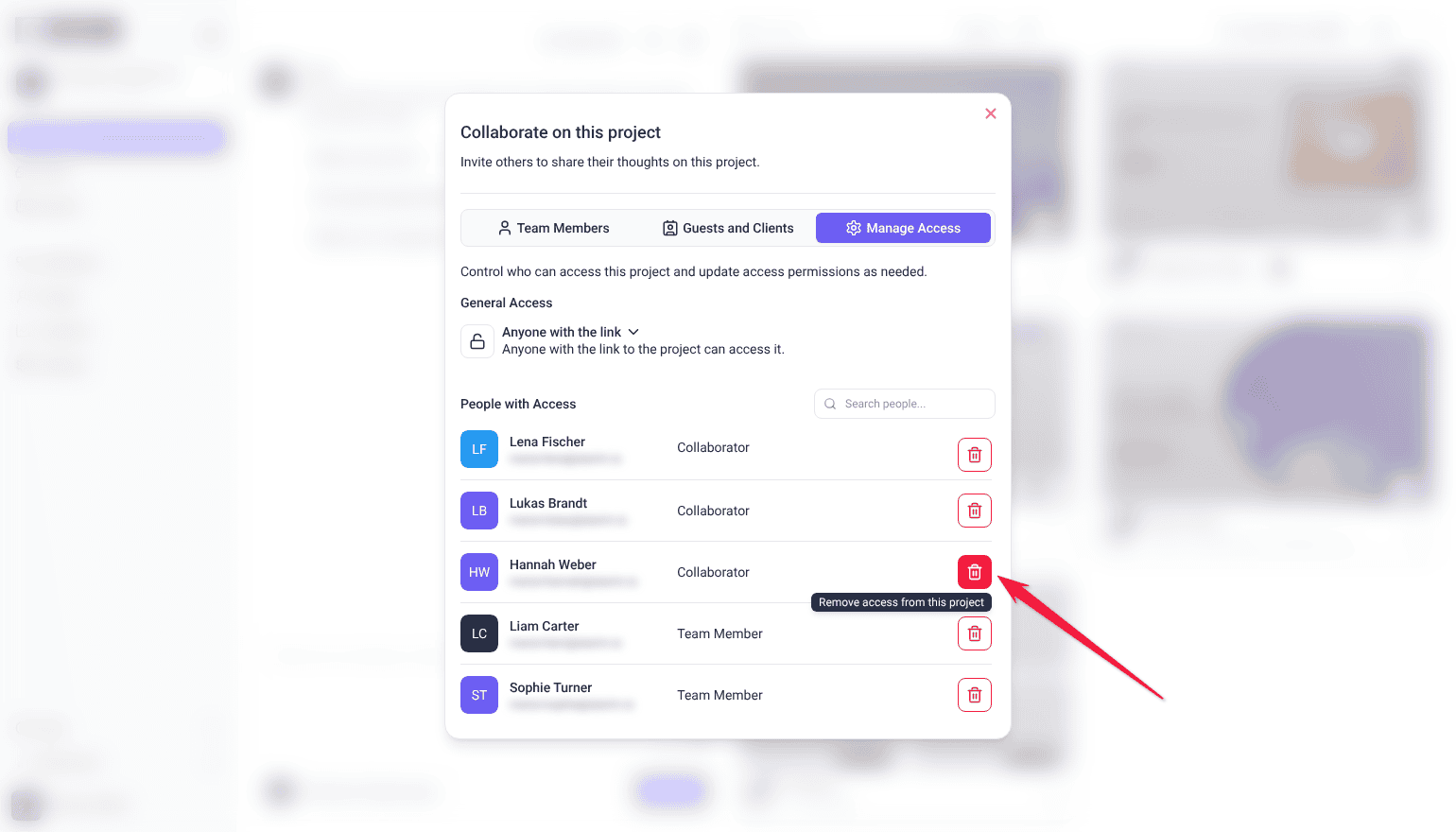
The People with Access list on the Manage Access tab shows everyone who can currently reach the project, with a Search people… box for longer lists.
Instructions:
- Open Share and go to Manage Access.
- Find the person under People with Access.
- Select Remove access from this project on their row. A Revoke Access confirmation opens, warning that this removes them from all tasks and activities within the project, and that the action cannot be undone.
- Confirm with Revoke Access. They can no longer open the project.
Running the Feedback Loop
Getting people in is the easy part. Keeping the loop tight is what actually shortens a project.
Instructions:
- Set the page to Needs Review before you share, so the client knows it is their turn. Discover Page Approvals
- Send the link with one sentence about what you want reviewed.
- Watch feedback arrive as tasks in your Inbox or Boards. Each carries a screenshot, the element, the page, and the screen size it was left at.
- Reply in the task to clarify anything ambiguous. The conversation stays on the task, so context is not scattered across email.
- Work through the tasks, then set the page back to Needs Review for the next round — or wait for the client to mark it approved.

Benefits of Collaborating This Way
| Benefit | In practice |
|---|---|
| No tool for your client to learn | They open a link and select the thing they want changed. No account to create, no dashboard to navigate, nothing to train them on. |
| Feedback arrives as work | Every comment is already a task with a screenshot, the element, the page, and the screen size attached — so nothing needs transcribing from an email. |
| One conversation per item | Replies stay on the task rather than scattering across email threads, so context survives the project. |
| Access you control | Clients reach only the projects you share, and access can be revoked in seconds without touching their feedback. |
| Faster sign-off | Clients approve pages themselves rather than sending an email saying “looks good to me” about an unspecified page. |
Example Use Cases
| Situation | How to set it up |
|---|---|
| A client reviewing a new build | Invite them by name as a collaborator, set the pages to Needs Review, and send a note explaining what you want looked at. Their feedback lands as tasks and they can approve pages as they go. |
| A launch review with a whole stakeholder group | Switch on Guest Mode, share the link once, and let everyone comment without invitations. Switch it off when the window closes. |
| A freelancer joining for one project | Invite them to that project only. When the work ends, revoke access from People with Access — their contributions stay on record. |
| Work under NDA | Set General Access to Only people with access so only invited people can open it, and leave Guest Mode off. |
| A client who ignores emailed invitations | Select Copy Link and paste the link into whatever channel they actually read. |
Known Limitations
- Restricted access is a paid feature. On lower plans, projects cannot be locked to invited people only.
- Guest Mode and restricted access are mutually exclusive. Turning one on switches the other off.
- Guests self-identify rather than being verified. They give a name and email, but nothing checks that either is genuine.
- Sharing is per project. There is no control that shares one project with a client and several others at the same time. Inviting someone as a client is a different mechanism: it creates a client workspace and moves the projects you pick into it, which needs the client-creation permission and draws on credits.
- Collaborators cannot be given dashboard access without being converted into a team member, which uses a seat.
FAQs
Do clients need an Atarim account?
Not with Guest Mode on. They open the link, give their name and email so their feedback is attributed, and comment. Invited collaborators get their own persistent access instead.
Can a client see my other projects?
No. External access is scoped to the projects you share with them.
What is the difference between a collaborator and a team member?
A team member works for you, gets dashboard access, and uses a seat on your plan. A collaborator is external and only reaches the projects you share.
Can I stop someone accessing a project?
Yes. Use Remove access from this project on their row under People with Access. It removes them from every task and activity in that project and cannot be undone, though their existing feedback remains on record.
Why did Guest Mode turn off by itself?
Because you restricted the project’s access level. Restricted access and Guest Mode cannot both be on.
Can clients approve pages?
Yes. Clients see Click to approve, which opens to This page is approved. Guests can also choose I’m done reviewing.
Can clients see our internal discussion?
No. Internal tasks and internal notes are visible to your team only.
How do I give a client access to several projects?
Share each one. Access is granted per project rather than across your workspace.
Common issues
- Your client cannot open the link — check General Access. If the project is restricted, they need an invitation, or switch on Guest Mode.
- Guest Mode switched itself off — you restricted the project’s access level. The two cannot both be on.
- The access selector opens an upgrade panel — restricting projects is not included on your plan. The panel names the minimum plan required.
- Your client says clicking does nothing — they are in Browse mode. Ask them to switch to Comment, or enable Guest Mode, which starts them in Comment mode.
- An invitation never arrived — check the address, then resend it from People with Access on the Manage Access tab. Ask them to look in spam.
- Someone still shows as Pending — they have not accepted yet. Use Resend the invitation via email on their row, or copy the invitation link and send it another way.
- You need to remove someone quickly — revoke their access from People with Access. Their feedback stays.
- A client can see more than you expected — check whether they were added as a team member rather than a collaborator.
Conclusion
The point of external collaboration in Atarim is that your client does not have to learn anything. Pick the right level of access, send a link, and their feedback arrives as work with the context already attached — no email threads, no screenshots pasted into documents, no guessing which button they meant.
Bringing a client in for the first time has its own guide. Learn More About Inviting Clients To Collaborate
Tips & best practices
- Invite named clients as collaborators; save Guest Mode for wider rounds where chasing invitations is not worth it.
- Turn Guest Mode on for the review window and off afterwards. Otherwise the link stays open indefinitely.
- Set the page to Needs Review before you share, so it is obvious whose turn it is.
- Send one sentence with the link explaining what you want reviewed and by when.
- Review People with Access at the end of every project. Old access accumulates quietly.
- Keep working discussion in internal notes so clients see conclusions rather than deliberation.