Autologin
Open a connected WordPress site from Atarim already signed in — no shared passwords, no credentials typed, no hunting for the right login.
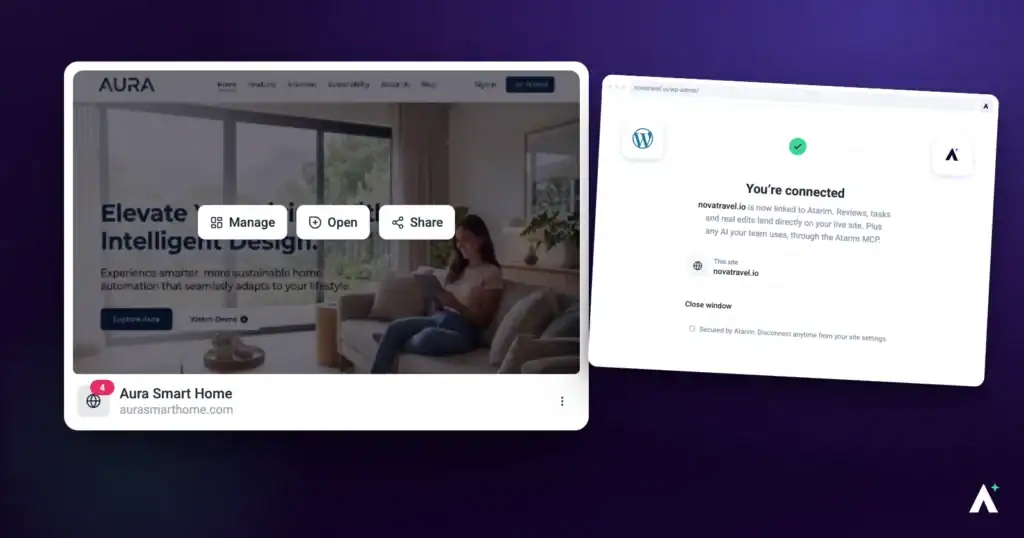
Auto-login lets your team open a connected WordPress site from Atarim and arrive already signed in. The plugin puts the benefit plainly: no more sharing passwords within the team, and one click to log in and land on any task across your fleet of websites.
It is the difference between “here’s the staging login, the password’s in the shared doc” and simply opening the project.
How it works
The mechanism is worth understanding, because it explains the one thing that surprises people: everyone arrives as the same WordPress user.
| Step | What happens |
|---|---|
| 1. A user is nominated | The plugin settings hold one existing WordPress account for auto-login to use. Whoever connected the site is set as this account initially. |
| 2. You open the site from Atarim | Atarim generates a single-use token and includes it in the link it opens. |
| 3. The plugin verifies the token | It calls Atarim to confirm the token is genuine before doing anything at all. |
| 4. You are signed in | If the token checks out, the plugin signs the browser in as the nominated account. |
| 5. The link is cleaned | The token is stripped from the address and the page reloads without it, so nothing sensitive is left in the URL or your history. |
Turning auto-login on
Auto-login is configured on the WordPress site itself, not from the Atarim dashboard. There is one step that matters: selecting the account in the plugin settings. You will need WordPress administrator access.
The webmaster checkbox (not required for auto-login)
This checkbox does not affect auto-login. It controls whether someone sees the collaboration interface without being asked to consent first — the account that connected the site is ticked automatically. Auto-login works from the plugin setting below whether or not an account is ticked here.
Instructions:
- Log in to the WordPress site and go to Users in the left sidebar.
- Open the account you want to mark.
- Scroll to Custom User Settings. This section is only visible to WordPress administrators.
- Tick Make this user webmaster under the Webmaster heading.
- Select Update Profile.

Selecting the account in the plugin
This is the setting auto-login actually reads when it signs someone in.
Instructions:
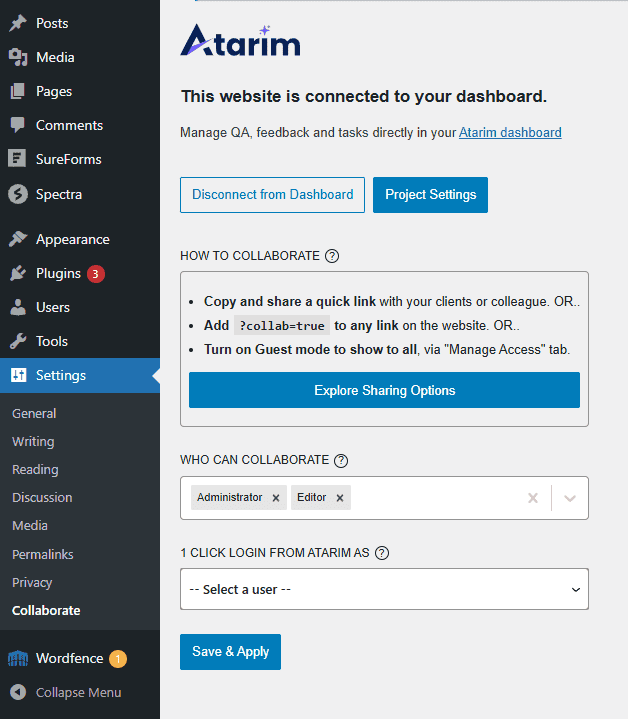
- In WordPress, go to Settings → Collaborate to open the Atarim plugin settings. These settings appear once the site is connected to Atarim.
- Find the field labelled 1 click login from Atarim as. Its tooltip explains the purpose: no more sharing passwords within the team, and one click to log in and reach any task across your sites.
- Open the selector, which reads — Select a user — until you choose. It lists accounts by name and email — but only those holding a role listed under Who can collaborate in the same settings screen, which is administrators and editors by default.
- Choose the account your team should arrive as.
- There is no separate on/off switch — selecting an account is what enables auto-login.
- Select Save & Apply. Atarim will now use that account whenever someone opens the site through one-click login.
Two ways in
There is no separate auto-login button to find. Once it is switched on, it applies whenever you open the site from Atarim — and there are two routes, depending on whether you are starting from a project or from a task.
From the Projects screen
Use this when you want to work on a site generally rather than on one specific piece of feedback.
Instructions:
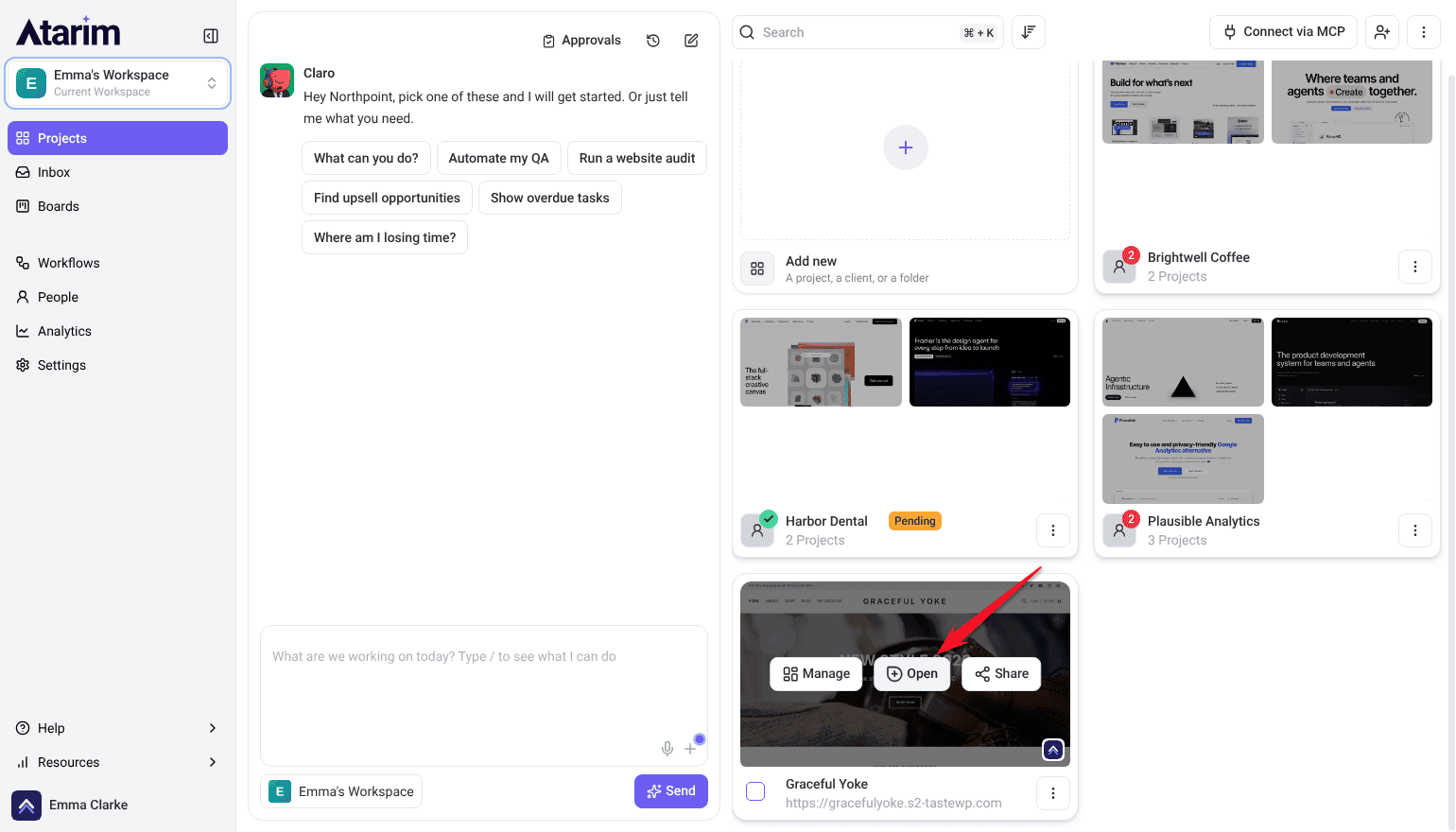
- Go to Projects in the Atarim dashboard and find the connected site.
- Hover its card and select Open. The site opens inside Atarim, and you’re signed in to WordPress there.
- To work in a full tab, select Open site at the top. Its tooltip reads Opens the live site in a new tab, logged in automatically. The WordPress admin bar confirms you’re signed in.
- Work as normal, including moving into the WordPress admin area.
From a task in your Inbox
This is the more useful route day to day. It takes you to the exact page the feedback was left on, signed in and ready to fix it.
Instructions:
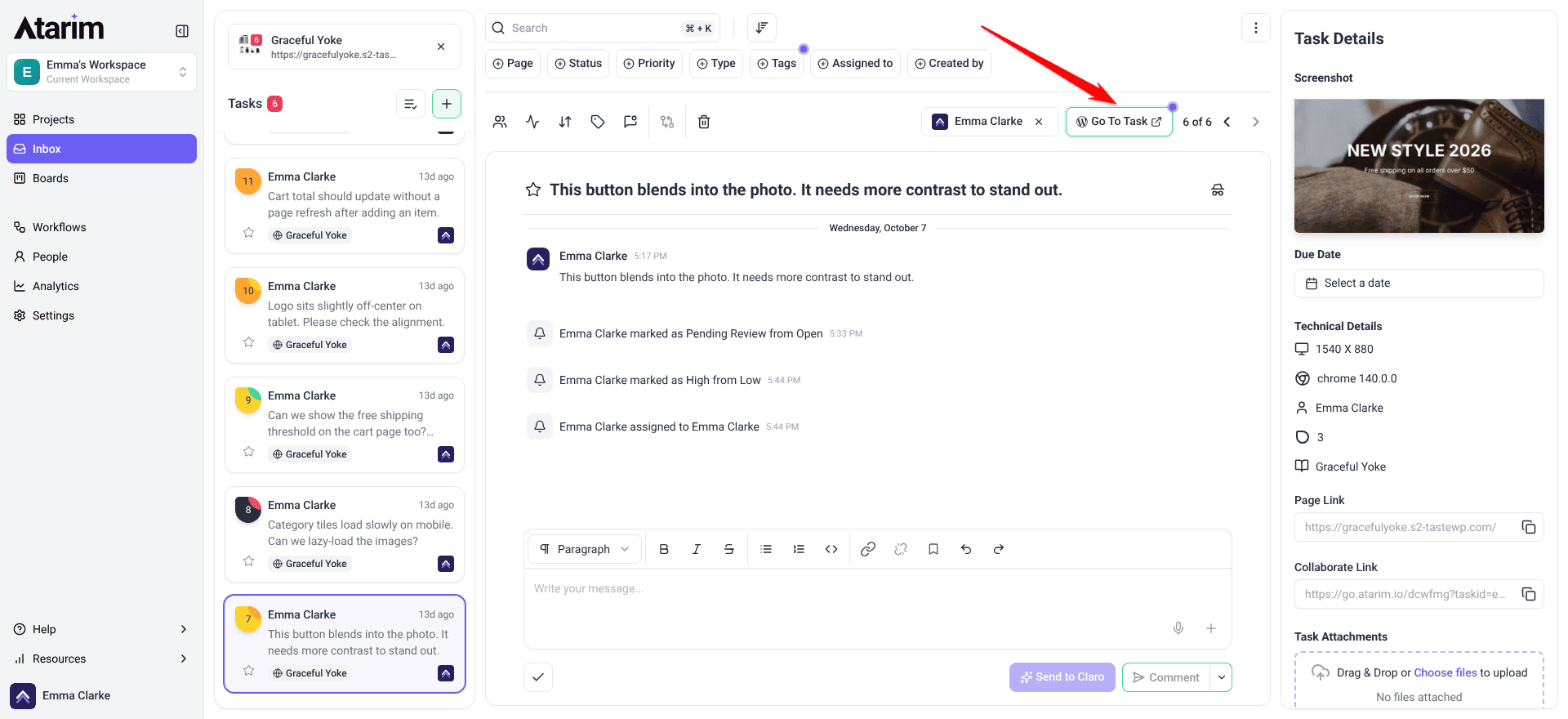
- Open Inbox and find a task on a connected WordPress site.
- Select Go To Task.
- Atarim opens the site at the page the task belongs to, with the task in view and you already signed in.
Who gets signed in
Not everyone who opens a project receives the token, and that distinction is the point of the feature.
| Who | What happens |
|---|---|
| Owners and Administrators | Signed in as the nominated account. |
| Team Members, Collaborators and clients | Open the site as normal, without being signed in to WordPress. They never gain access to your WordPress admin this way. |
| Anyone already signed in | Keeps their existing session. Auto-login does not override it. |
Known limitations
Where auto-login stops:
- WordPress plugin sites only. Projects added by URL cannot use auto-login.
- One account per site. Everyone arrives as the same nominated user, so WordPress cannot tell your team members apart.
- It is set up per site. There is no way to enable it across your whole fleet at once.
- It requires WordPress administrator access on the site to configure.
- The selectable accounts follow the Who can collaborate roles, which default to administrators and editors.
- Site security tools can block it, since it signs the browser in through WordPress itself.
- It stops working if the nominated account is removed or disabled in WordPress.
FAQs
Does Atarim store my WordPress password?
No. Auto-login does not use a password at all. Atarim issues a token, the plugin verifies it, and the plugin then signs the browser in on the site’s own terms.
Can clients get into my WordPress admin this way?
No. Collaborators do not receive the auto-login token. They open the site for review exactly as any visitor would.
Can each team member sign in as themselves?
No. Auto-login uses one nominated WordPress account, so everyone it signs in arrives as that user.
Does it work on sites added by URL?
No. It needs the WordPress plugin, since something has to be running on the site to sign you in.
What if I am already logged in to the site?
Your existing session is kept. Auto-login will not replace it.
How do I turn it off?
There is no separate on or off switch. Auto-login is active whenever an account is selected under 1 click login from Atarim as, so to turn it off set that selector back to the blank “Select a user” option and choose Save and Apply. This does not stop the AI, which then acts as the first Administrator in alphabetical order of username.
Can I change the account auto-login uses?
Yes. Select the new account under 1 click login from Atarim as in the plugin settings and choose Save and Apply. The account only needs a role listed under Who can collaborate — it does not need the webmaster checkbox.
Why is the account I want not in the dropdown?
The list is drawn from whichever roles are set under Who can collaborate in the same plugin settings screen — administrators and editors by default. Add the role there and the account becomes selectable.
Does it work on sites with extra security in place?
Security plugins, firewalls, or login restrictions on the site can interfere, since auto-login signs the browser in through WordPress itself. If it fails on a hardened site, check whether anything is restricting programmatic logins or filtering the query string.
Which account should I nominate?
A dedicated account created for the purpose, carrying only the capabilities your team needs. That keeps the WordPress audit trail meaningful and gives you a single thing to disable if you need to revoke access.
Common issues
- You arrive at the site not signed in. Check two things in the plugin: the site is still connected, and a user is selected under 1 click login from Atarim as and saved with Save & Apply.
- The setting is missing from the plugin. Update the Atarim plugin to its current version, and confirm you are a WordPress administrator on that site.
- It works for you but not a colleague. Check their role in Atarim. Only Owners and Administrators are signed in; Team Members, Collaborators and clients are not, by design.
- It stopped working suddenly. Confirm the nominated WordPress account still exists and is still active. Removing or disabling it stops auto-login.
- You are signed in as the wrong person. You are seeing the account nominated in the plugin settings. Change it there if it is not the one you want.
- It signed you in when you did not want it to. Sign in to the site yourself first — an existing session is always left alone.
- You are signed in but hit permission errors. The nominated account does not have the WordPress capabilities the work needs. Choose a higher-privileged account, or raise that account’s role.
- The account you want is not in the dropdown. The list follows the Who can collaborate roles, which default to administrators and editors. Add the role there, or use an account that already holds one.
- An account disappeared from the dropdown. Its role was probably removed from Who can collaborate. Check that setting before assuming the account changed.
- You aren’t signed in inside Atarim. Your host may not allow the site to show inside Atarim, so you see a copy. Select Open site to work in a signed-in tab.
- It fails on a site with security plugins. Firewalls and login-hardening plugins can block it. Check whether anything is restricting programmatic logins or stripping query parameters.
- The address looks unusual for a moment. Expected. The token is stripped from the URL immediately after use and the page reloads clean.
Conclusion
Auto-login removes a small daily friction that adds up quickly across a fleet of sites, and it removes a genuinely bad habit with it — passwords sitting in shared documents. Set it up per site, nominate a purpose-made account rather than a person’s own, and opening a client’s site stops being a two-minute detour.
Auto-login is one of several things the WordPress plugin unlocks.
Discover What Connecting Your Site Enables
Tips & best practices
- Create a dedicated WordPress account for auto-login rather than nominating someone’s personal login. It keeps the audit trail honest.
- Give that account the least access your team and the AI can work with. Too little and AI changes on the site will fail.
- Set it up when you first connect a site, not when someone asks for the password.
- Revoking access is a single change — disable the account in WordPress, or clear the account in the plugin settings.
- Use Go To Task from the Inbox rather than opening the site first — it saves the login and the hunt for the right page.
- If a site is handed back to a client, turn auto-login off before handover.