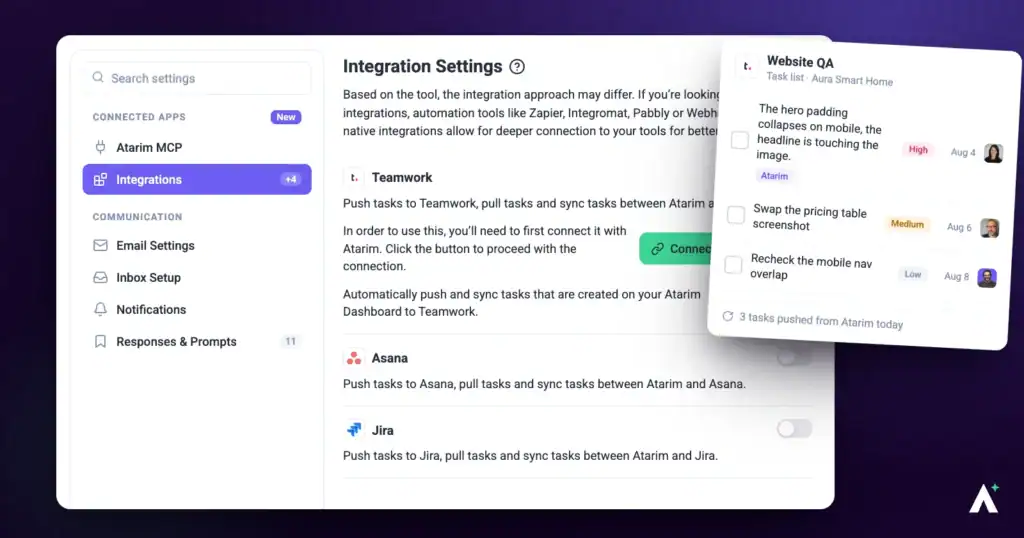
In this article, you'll learn how to connect Teamwork to your Atarim workspace so tasks stay in sync across both platforms — keeping your team aligned without jumping between tools.
Step-by-Step Guide
1. Connecting Your Teamwork Account
The first step is enabling the Teamwork integration within your Atarim settings.
If prompted, log in to Teamwork with your credentials and select Allow to grant Atarim access.
You’ll be redirected back to Atarim with a confirmation that Teamwork is connected.
Enable Teamwork Integration
Setup Connection
Log in with your correct Teamwork account .
Click Allow on the confirmation screen.
Teamwork is a plan feature
Where your plan does not include native integrations the option is locked and names the minimum plan required, and only the workspace owner can change the subscription. If Integrations is not in your sidebar at all, your role does not have access to it. Learn More About User Roles And Permissions
2. Automatically Pushing Tasks to Teamwork
Set up automatic task syncing so every Atarim task is pushed to a designated Teamwork project and task list.
Instructions:
In the same Teamwork Integration settings, switch on Automatic Task Pushing.
Select the Teamwork Project and Task List where Atarim tasks should be created.
Select Save to confirm.
Enable automatic task sync
Selecting correct Project and task name
Click on Save
Note
Authorization is secure and only allows Atarim to perform actions related to project and task creation. You can revoke access at any time from your Teamwork settings.
3. Configure Workflow Automations
Enhance efficiency by automating task management between Atarim and Teamwork:
Instructions:
Open Workflows in the Atarim Dashboard. It has three tabs — Templates, Manage and Runs.
On the Templates tab, open a template you like and select Use This Template. To start from nothing instead, select Create New, or Create a Blank Workflow from inside a template’s preview. All three open the workflow canvas.
Set a trigger such as a task being created or updated in Atarim, then add the Teamwork action so matching tasks are pushed to the mapped Teamwork project.
Save the workflow. Creating one needs the workflow-creation permission, so if the buttons are not available to you, check your role.
Setting up Custom Automation
Setup Trigger and Action
Tip
Only map projects that are actively being worked on to reduce noise and ensure clean task routing.
4. Testing the Integration
Verify the setup by creating a task in Atarim and checking its sync to Teamwork.
Instructions:
Create a task in Atarim for one of your projects.
Open the Teamwork project and task list you configured.
Confirm the task appears with the correct details.
Leaving feedback
Task synced with Teamwork
Tip
Use this test to validate that task syncing works as expected, and troubleshoot any issues promptly.
FAQs
What happens if I disable the Teamwork integration after setup?
Disabling the integration will stop the sync between Atarim and Teamwork. Tasks already created in Teamwork will remain, but no new tasks or updates from Atarim will be pushed moving forward.
Who can manage the integration in my workspace?
Only Admins and Workspace Owners can enable or disable the Teamwork integration and manage project mappings in Atarim. Standard users can still work with tasks, but cannot access integration settings.
Conclusion
Syncing tasks from Atarim to Teamwork automatically cuts double entry, speeds up delivery, and keeps both platforms aligned.
Tips & best practices
Start small: begin with one or two project mappings to test your setup.
Notify your team: let others know where to create and manage tasks after the integration.
Monitor the sync: check both platforms during the first week to confirm data stays consistent.
To provide the best experiences, we use technologies like cookies to store and/or access device information. Consenting to these technologies will allow us to process data such as browsing behavior or unique IDs on this site. Not consenting or withdrawing consent, may adversely affect certain features and functions.
Functional
Always active
The technical storage or access is strictly necessary for the legitimate purpose of enabling the use of a specific service explicitly requested by the subscriber or user, or for the sole purpose of carrying out the transmission of a communication over an electronic communications network.
Preferences
The technical storage or access is necessary for the legitimate purpose of storing preferences that are not requested by the subscriber or user.
Statistics
The technical storage or access that is used exclusively for statistical purposes.The technical storage or access that is used exclusively for anonymous statistical purposes. Without a subpoena, voluntary compliance on the part of your Internet Service Provider, or additional records from a third party, information stored or retrieved for this purpose alone cannot usually be used to identify you.
Marketing
The technical storage or access is required to create user profiles to send advertising, or to track the user on a website or across several websites for similar marketing purposes.