Email Signature
One signature, appended to every email your workspace sends - and the two things that have to be true before it is worth writing.
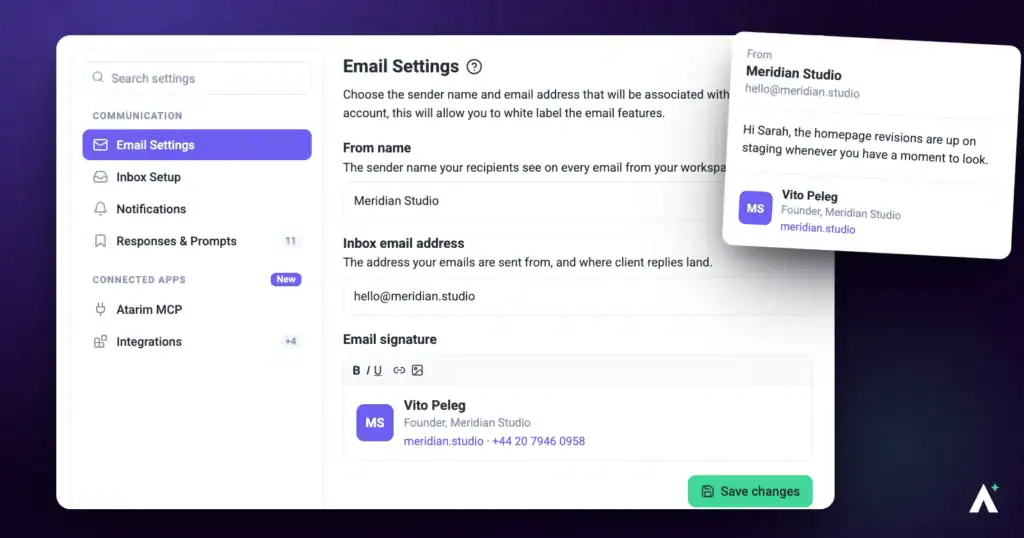
An email signature is the block that appears at the bottom of your outgoing email — your name, role, company, contact details, and whatever else you want every recipient to have. In Atarim it is set once for the workspace and appended automatically, so nobody on your team has to remember to paste it.
Two things are worth knowing before you write it. It is one signature for the whole workspace rather than one each, and it only carries your agency’s sending identity once your mailbox is verified. Both are covered below.
Where to Find It
The signature lives in the Email Settings panel, alongside the sender name and address it will appear beneath.
| Step | What you will see |
|---|---|
| From the main dashboard, select Settings | The settings sidebar, grouped by area. |
| Open the Communication group | Email Settings, Inbox Setup, Notifications, and Responses & Prompts. |
| Select Email Settings | From Name, Inbox Email Address, and the Email Signature editor. |
Writing Your Signature
One signature covers the whole workspace rather than each person, and it only appears on mail sent from Atarim.
Instructions:
- From the main dashboard, select Settings.
- In the Communication group, select Email Settings.
- Find the Email Signature section. The in-product description confirms what it does — a signature that gets appended to the bottom of every email you send from your workspace.
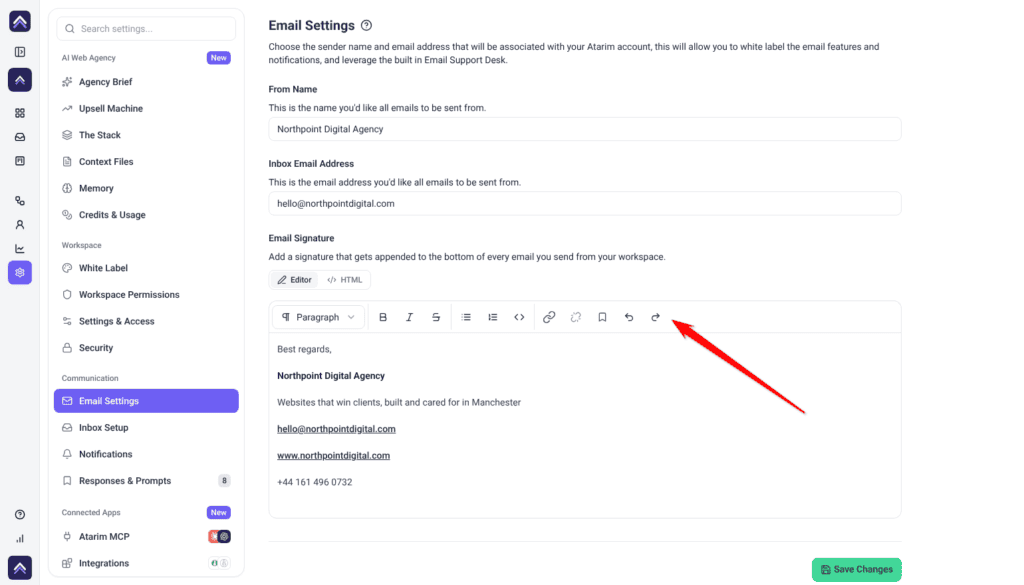
- Write your signature in the editor. Its placeholder reads Write your email signature…, and it is a rich text field, so you format as you type rather than writing markup. To paste a signature you already have as code, select HTML above the field instead. A preview, How a reply will look, shows the result.
- Select Save Changes. The signature is stored for the workspace and applied to subsequent outgoing email.
What Formatting Is Available
The editor offers a specific set of controls. Knowing what is there saves you designing a signature that cannot be built.
| Available | Use it for |
|---|---|
| Bold | Your name or company name. |
| Italic | A role, tagline, or motto. |
| Strikethrough | Rarely useful in a signature, but available. |
| Headings (three levels) | A name line that needs to stand out. |
| Bulleted and numbered lists | Laying out contact details tidily. |
| Links | Your website, booking page, or social profiles. |
| Code block | Occasionally useful for technical teams. |
| Undo and redo | Backing out of a formatting change. |
Two Things That Have to Be True First
A signature can be saved and still not do what you want. Both of these catch people out.
Your plan has to include it. The signature is a plan feature. Where it is not included, the editor is read-only and selecting it opens an upgrade card naming the minimum plan required. Only the workspace owner can change the subscription.
Your mailbox has to be verified. The signature is appended regardless, but until your DNS records verify, your replies go from Atarim’s sending address, with your address as the reply address. A polished signature under an unfamiliar sender name is worse than no signature at all, because the mismatch is what makes recipients suspicious.
One Signature Per Workspace
This is the detail most agencies need to plan around. The signature belongs to the workspace, not to the individual — the product describes it as appearing on every email you send from your workspace. There is no per-user signature, so a five-person team sending from one shared inbox address all sign off identically.
Benefits of Setting It Once
| Benefit | In practice |
|---|---|
| Consistency without effort | Nobody has to remember to paste anything, and nobody’s version drifts. |
| Contact details always present | Clients can reach you without digging back through a thread. |
| Reinforces the sending identity | Paired with a verified mailbox, the whole email reads as yours. |
| One place to update | A phone number change is a single edit, not a message to the team. |
Known Limitations
- One signature per workspace. There is no per-user signature and no way to switch between several.
- Switching an HTML signature to the editor removes tables, layout and inline styles.
- No text alignment control in the editor. Centered and right-aligned layouts need HTML.
- No image toolbar button. Images go in by paste or drag.
- It is a plan feature. The editor is read-only where the plan does not include it.
- It does not fix the sender. Verification, not the signature, determines the address email arrives from.
FAQs
Can each team member have their own signature?
No. There is one signature per workspace, applied to email sent from it. Separate workspaces each carry their own email settings if you genuinely need different sign-offs.
Can I paste in an HTML signature I already have?
Yes. Select HTML above the signature field and paste the code. Keep it in HTML, because switching it to the editor removes tables, layout and inline styles.
Can I add a clickable logo?
You can add an image by pasting or dragging it in, and you can add links. Combining the two into a linked image is not something the toolbar offers directly. In an HTML signature, you can wrap the image in a link.
Will the signature appear on notification emails too?
No. It’s added to email you send from the Inbox, such as new messages and replies. Task notification emails don’t include it.
Why does my email still come from an Atarim address?
Because your DNS records have not verified yet. Open Send from your domain in Inbox Setup and select Check again. The signature and the sending address are separate settings.
Does the signature save automatically?
No. Select Save Changes in Email Settings.
Can I centre my signature?
Not in the editor, which has no alignment controls. You can center it in an HTML signature.
Common issues
- The editor will not accept typing — the signature is not included on your plan, so the field is read-only. Select it to see the minimum plan required.
- Email Settings is not in the sidebar — your role does not have permission to view it. Ask an Administrator.
- You want to paste an HTML signature — select HTML above the signature field and paste the code.
- You cannot center or right-align text — the editor has no alignment controls. Use a left-aligned layout, or write the signature in HTML.
- The signature looks right but the sender is wrong — your DNS records have not verified yet, so replies go from Atarim’s sending address. Finish Send from your domain in Inbox Setup.
- A logo looks oversized in the sent email — resize it in the editor after placing it, and keep the file small.
- Changes did not take effect — confirm you selected Save Changes. The signature editor does not autosave.
- A teammate wants their own signature — not currently possible. The signature is workspace-wide.
Conclusion
The signature itself takes five minutes: open Email Settings, write it in the editor, save. The judgement is in what you put there — because it is one signature for the whole workspace, write it in the agency’s voice rather than any individual’s.
And verify your mailbox first. A good signature under the wrong sender name does not build credibility, it costs it. Discover Best Practices For Client Communication
Tips & best practices
- Verify your mailbox before writing the signature — it decides who the email appears to be from.
- Write it in the agency’s voice, since everyone in the workspace shares it.
- Keep it short. Four or five lines is plenty.
- Plan for a left-aligned layout in the editor, or use HTML if your signature needs more.
- Keep images small and resize them in the editor after placing them.
- Send yourself a test email and check it on a phone as well as a desktop client.
- Remember to select Save Changes — the editor does not autosave.