Familiarity with Atarim’s task creation and dashboard interface
Tools & resources needed
A Basecamp account with access to projects
An active Atarim account on a plan that includes deep native integrations. If yours does not, the Basecamp toggle shows a lock naming the plan you would need.
Admin-level permissions to manage integrations and workflows
Managing work across multiple platforms can lead to missed tasks and duplicated efforts. With Atarim’s Basecamp integration, you can connect both tools to create a unified task management experience. Basecamp is a deep native integration, so if it is not included on your plan the toggle shows a lock naming the plan you would need.
In this guide, you'll learn how to:
Connect your Basecamp account to Atarim
Automatically sync tasks from Atarim to Basecamp
Use Workflows to automate your task syncing
Test your integration by creating a live task
Step-by-Step Guide
1. Connecting Your Basecamp Account
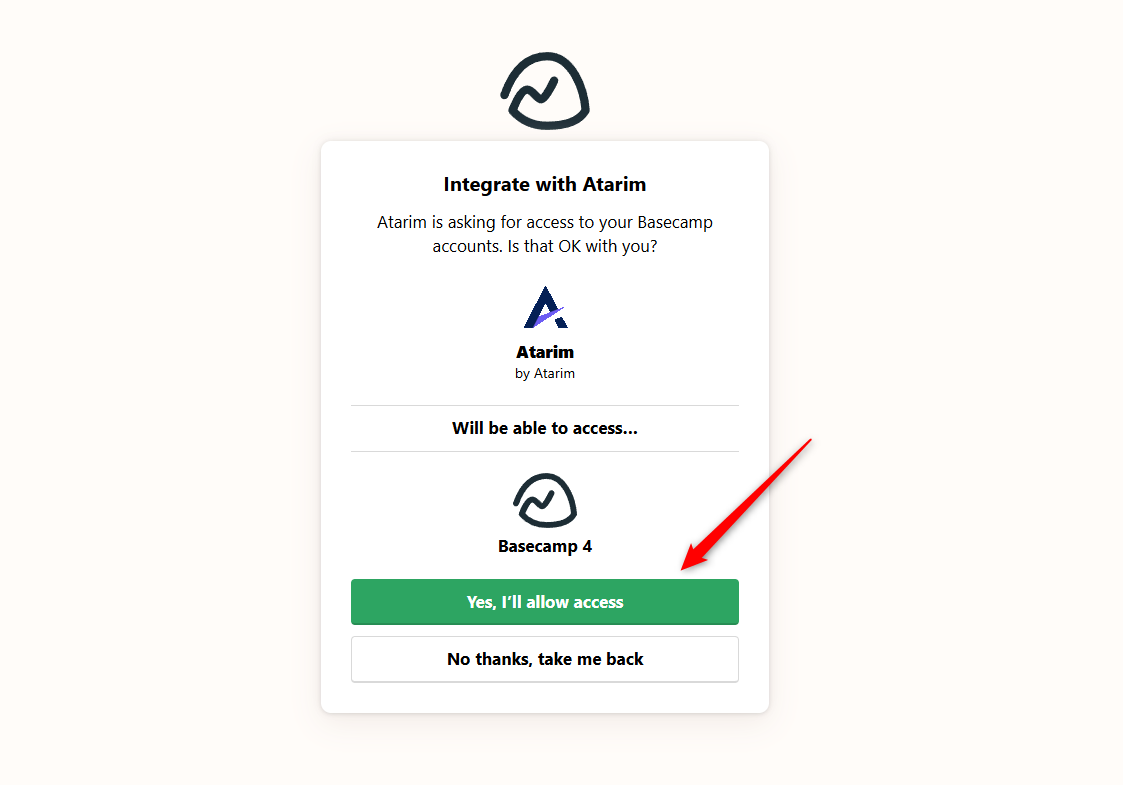
To start using the integration, you’ll first need to authorize your Basecamp account within Atarim.
If you’re not logged into Basecamp, you’ll be prompted to sign in before the confirmation screen appears.
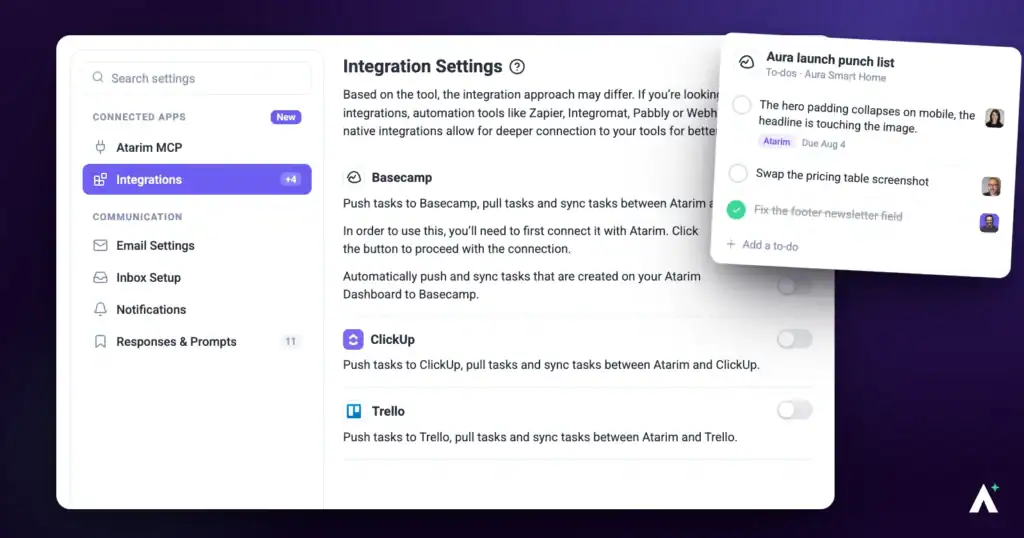
Basecamp is a plan feature
Where your plan does not include native integrations the option is locked and names the minimum plan required, and only the workspace owner can change the subscription. If Integrations is not in your sidebar at all, your role does not have access to it. Learn More About User Roles And Permissions
2. Automatically Pushing All Tasks to Basecamp
Enable full automation to ensure all tasks created in Atarim sync directly into a Basecamp Project and To-do List of your choice.
Instructions:
Return to Settings → Connected Apps → Integrations in Atarim.
Under the Basecamp section, toggle Auto-Push Tasks to Basecamp ON.
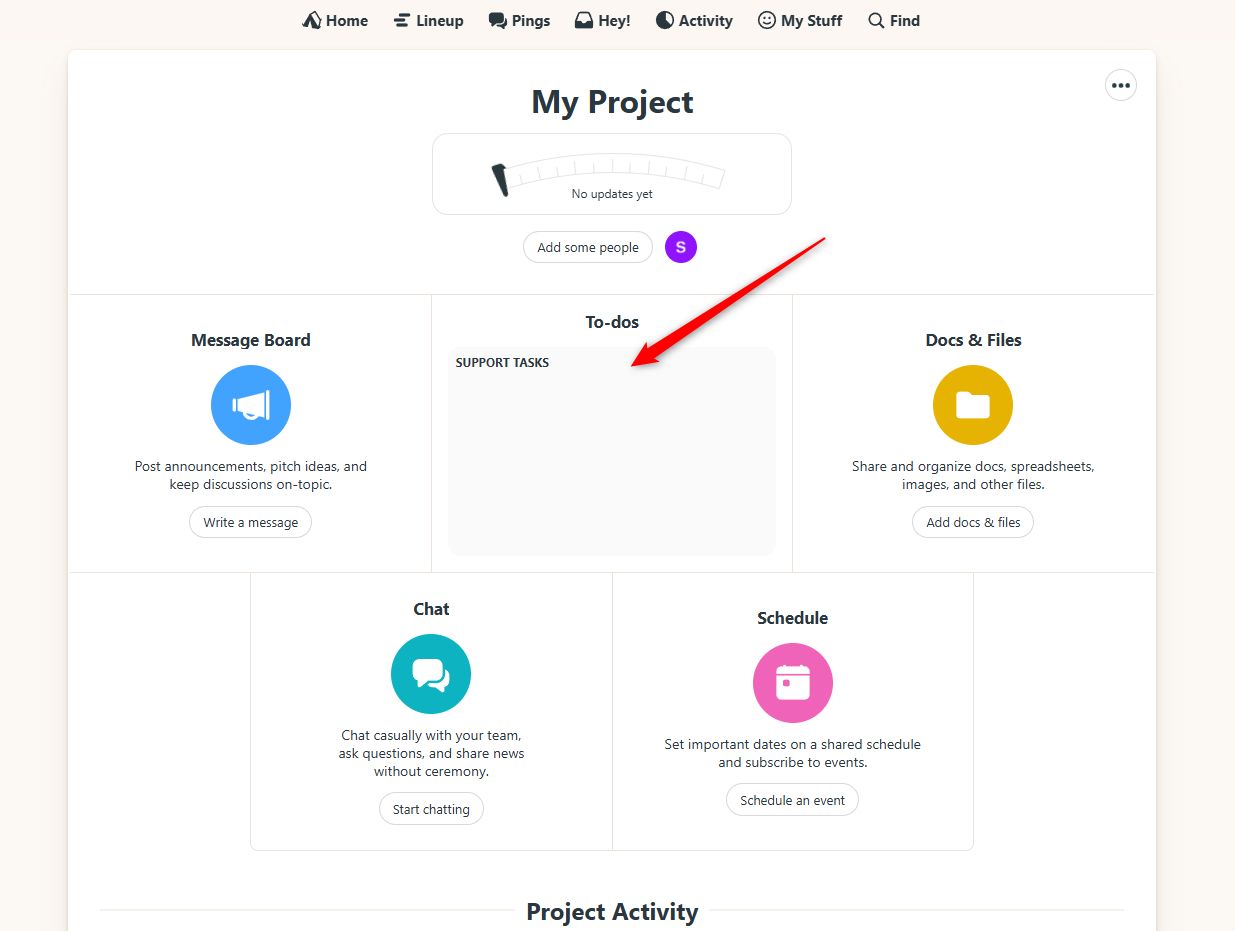
Select the default Project and To-do List to receive new tasks.
Click Save.
Enable Auto-Push to Basecamp
Set Default Destination for Atarim Tasks in Basecamp
Inside Basecamp
Tip
Use this for high-priority or client-visible items to ensure full traceability across teams.
3. Automating with Workflows
You can further customize and automate your sync process using Atarim’s Workflows feature.
Instructions:
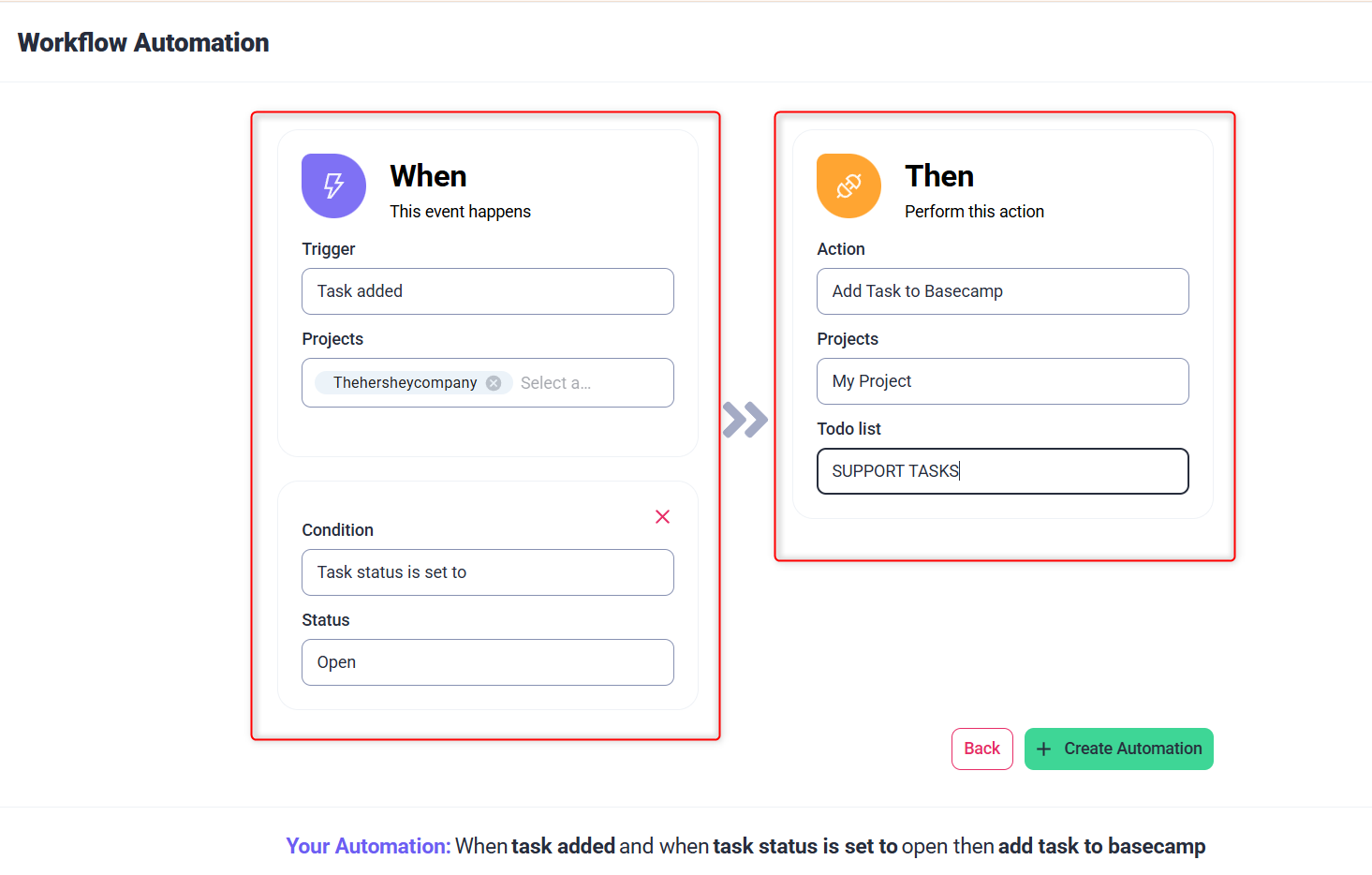
Go to the Workflows section from the main navigation.
Select Create New — the button sits on both the Templates and Manage tabs. Opening a template and choosing Create a Blank Workflow gets you to the same empty canvas.
Set the trigger to Task added.
Add the action Add Task to Basecamp.
Save your workflow, then attach it to a project and activate it — saving alone does not start it.
Custom Workflow in Atarim
Tip
Workflows let you control what gets pushed to Basecamp and when—great for multi-stage processes like design feedback or QA testing.
4. Creating a Task (Let’s See It in Action)
Once everything is connected and automation or workflows are configured, it’s time to test it all by creating a task.
Instructions:
Navigate to one of your websites or visual collaboration assets inside Atarim.
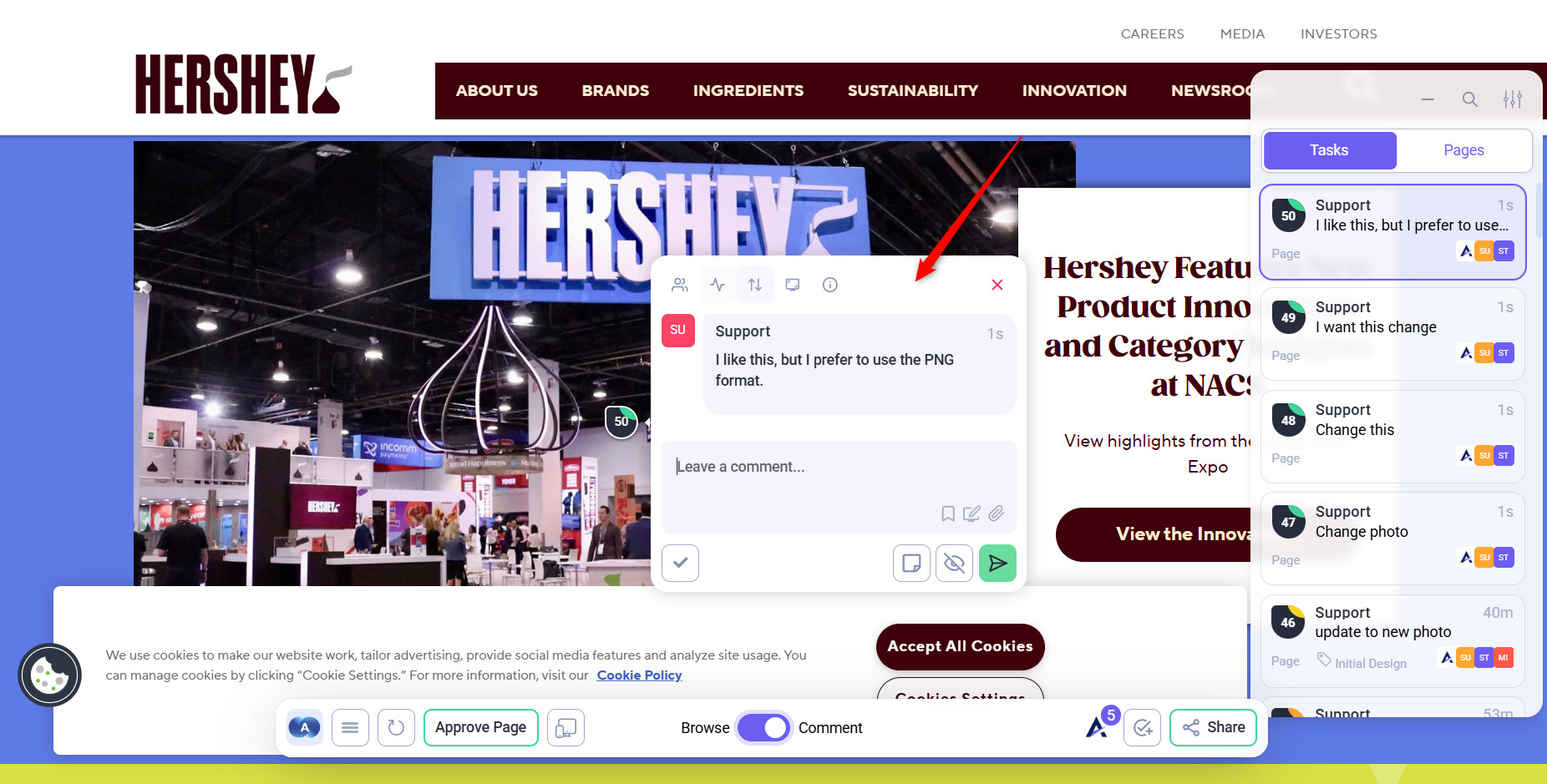
Create a new task using your usual process—clicking on an element, leaving a comment, or adding a general task from the sidebar.
Change your task details like title, status, or tags.
Click Send or Submit Task.
Task Creation
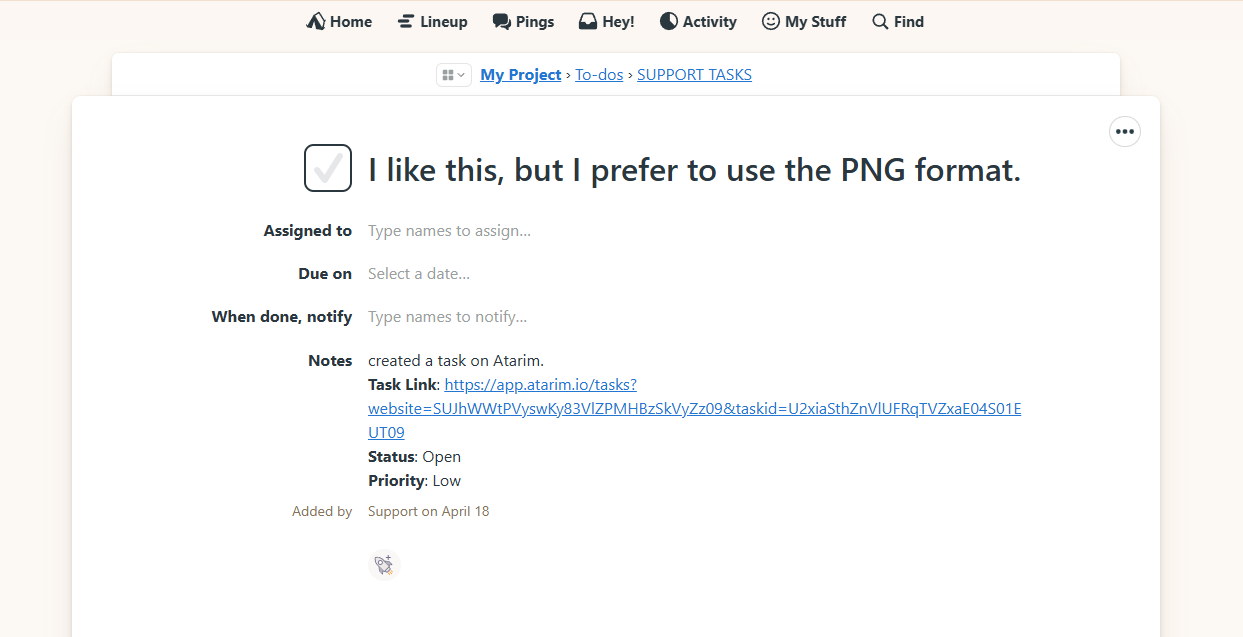
Basecamp View
Tip
This is a great way to validate that your automation is working correctly. If it doesn’t show up in Basecamp, double-check your integration and workflow settings.
FAQs
Can I choose which tasks get pushed to Basecamp?
Yes, use custom workflows to control exactly which tasks are synced based on triggers and filters
Does this integration sync tasks in both directions?
No, syncing is one-way from Atarim to Basecamp. You can import the tasks instead.
Can I push updated tasks to Basecamp automatically?
Yes, but there is no Task updated trigger. Pick the trigger that matches the edit you care about: Task status changes, Task priority changes, Task comment added or Task tag added. Each fires its own workflow, so you can push different edits to different places.
Conclusion
By connecting Basecamp to Atarim and using automation features like auto-push and workflows, you eliminate the need for manual task entry, improve visibility across platforms, and keep your entire team moving in sync.
Tips & best practices
Auto-push for speed, workflows for control: Use auto-push for general tasks, and workflows to control what gets synced and when.
Keep your teams aligned by standardizing which types of tasks go to Basecamp—especially when collaborating with external teams.
Use internal tasks in Atarim when you don’t want certain tasks (like QA or design iterations) visible in Basecamp.
To provide the best experiences, we use technologies like cookies to store and/or access device information. Consenting to these technologies will allow us to process data such as browsing behavior or unique IDs on this site. Not consenting or withdrawing consent, may adversely affect certain features and functions.
Functional
Always active
The technical storage or access is strictly necessary for the legitimate purpose of enabling the use of a specific service explicitly requested by the subscriber or user, or for the sole purpose of carrying out the transmission of a communication over an electronic communications network.
Preferences
The technical storage or access is necessary for the legitimate purpose of storing preferences that are not requested by the subscriber or user.
Statistics
The technical storage or access that is used exclusively for statistical purposes.The technical storage or access that is used exclusively for anonymous statistical purposes. Without a subpoena, voluntary compliance on the part of your Internet Service Provider, or additional records from a third party, information stored or retrieved for this purpose alone cannot usually be used to identify you.
Marketing
The technical storage or access is required to create user profiles to send advertising, or to track the user on a website or across several websites for similar marketing purposes.