How to Set Up and Customize Projects in Atarim
Name it, brand it, file it, and decide who can leave feedback — everything a project carries beyond its URL.
A project starts as a URL and a screenshot. Everything else — what it is called, which folder it sits in, whose branding a client sees, whether feedback is even switched on — is set afterwards, in one panel.
Spending two minutes there when you create a project saves considerably more later.
Opening a Project’s Settings
Settings are per project and reached from the project’s own actions menu.
Instructions:
- Go to Projects and find the project.
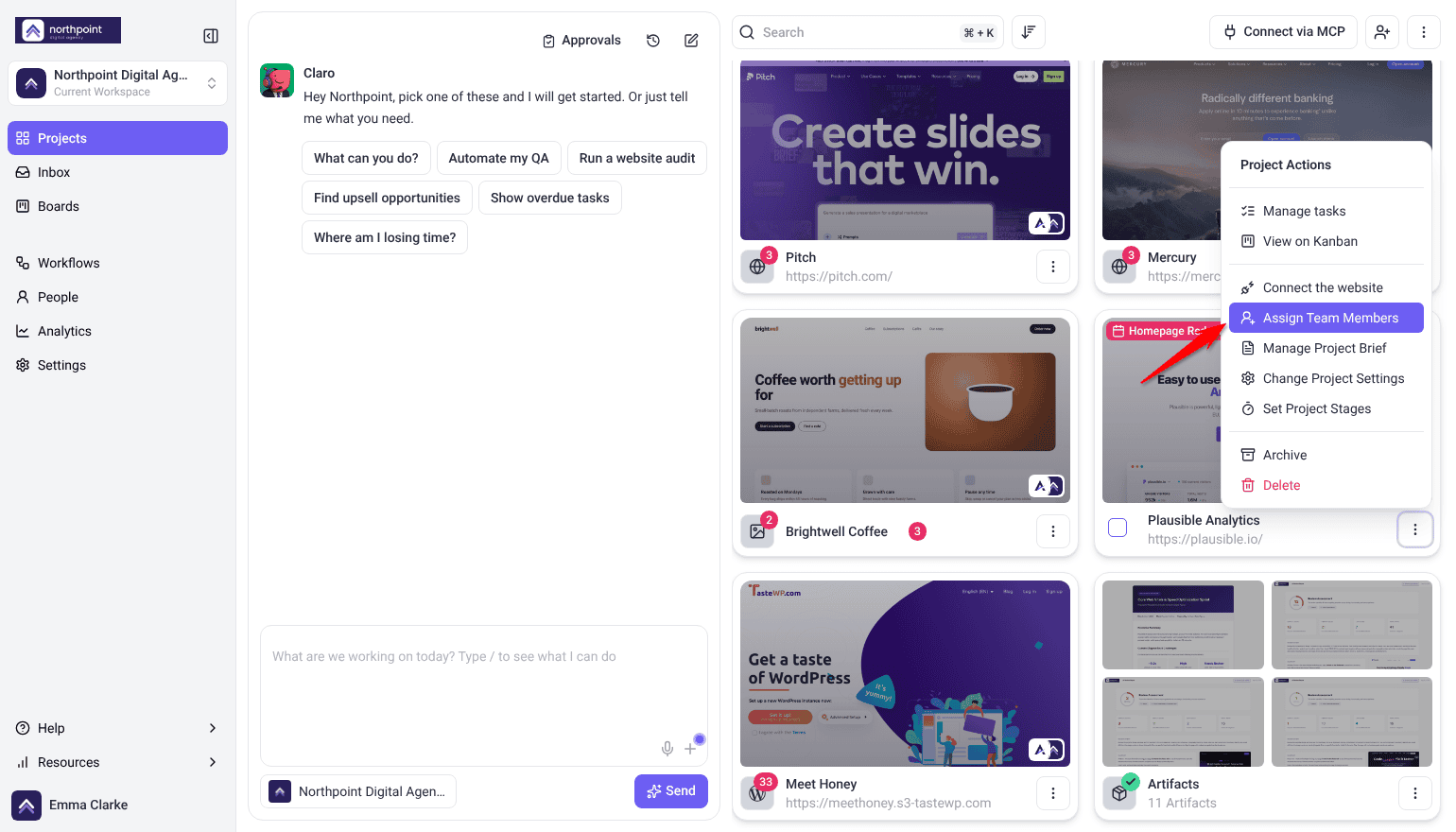
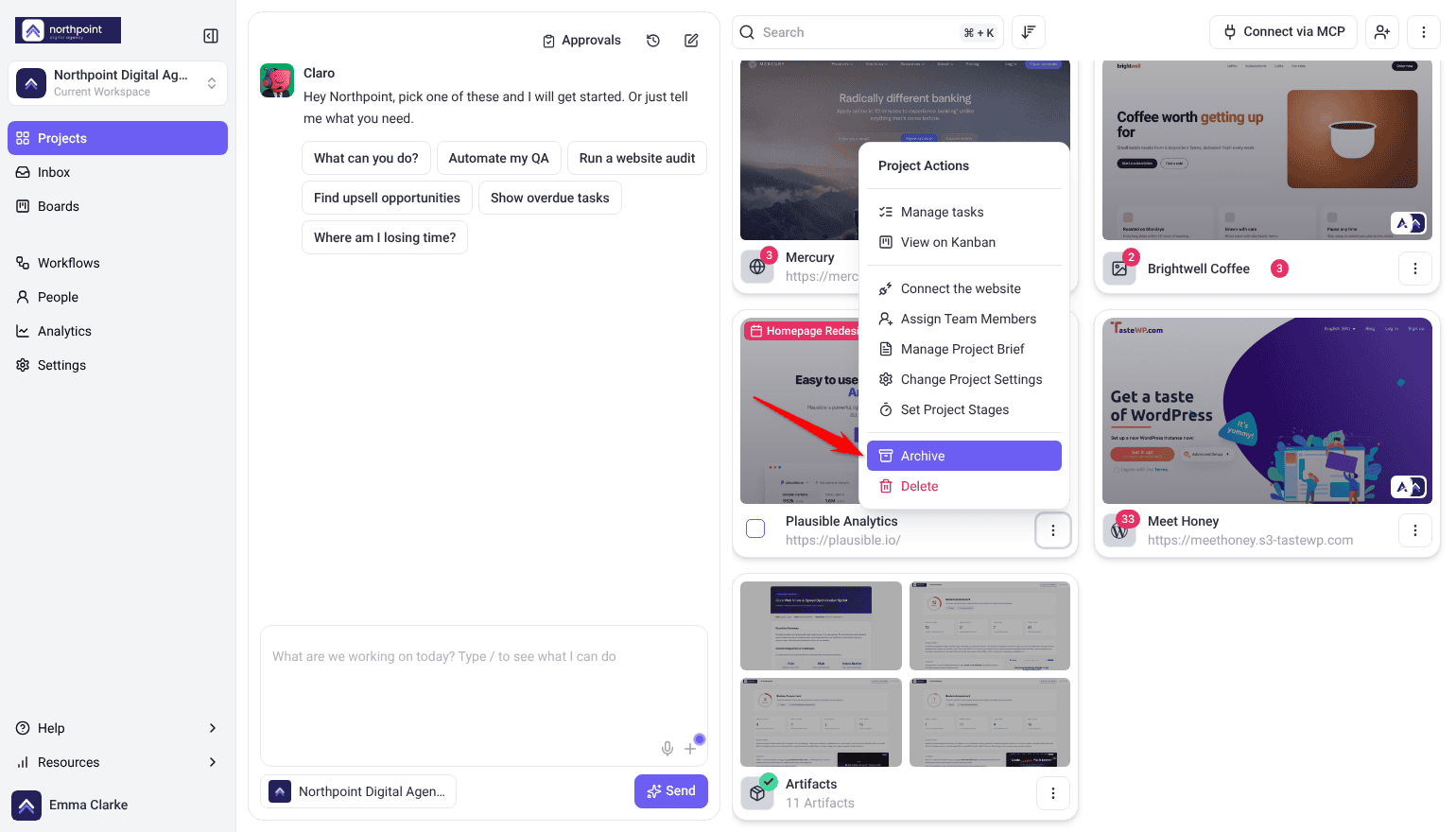
- Open its Project Actions menu.
- Select Change Project Settings. A panel opens headed Project Settings. This is a paid feature, so on lower plans an upgrade panel opens instead.
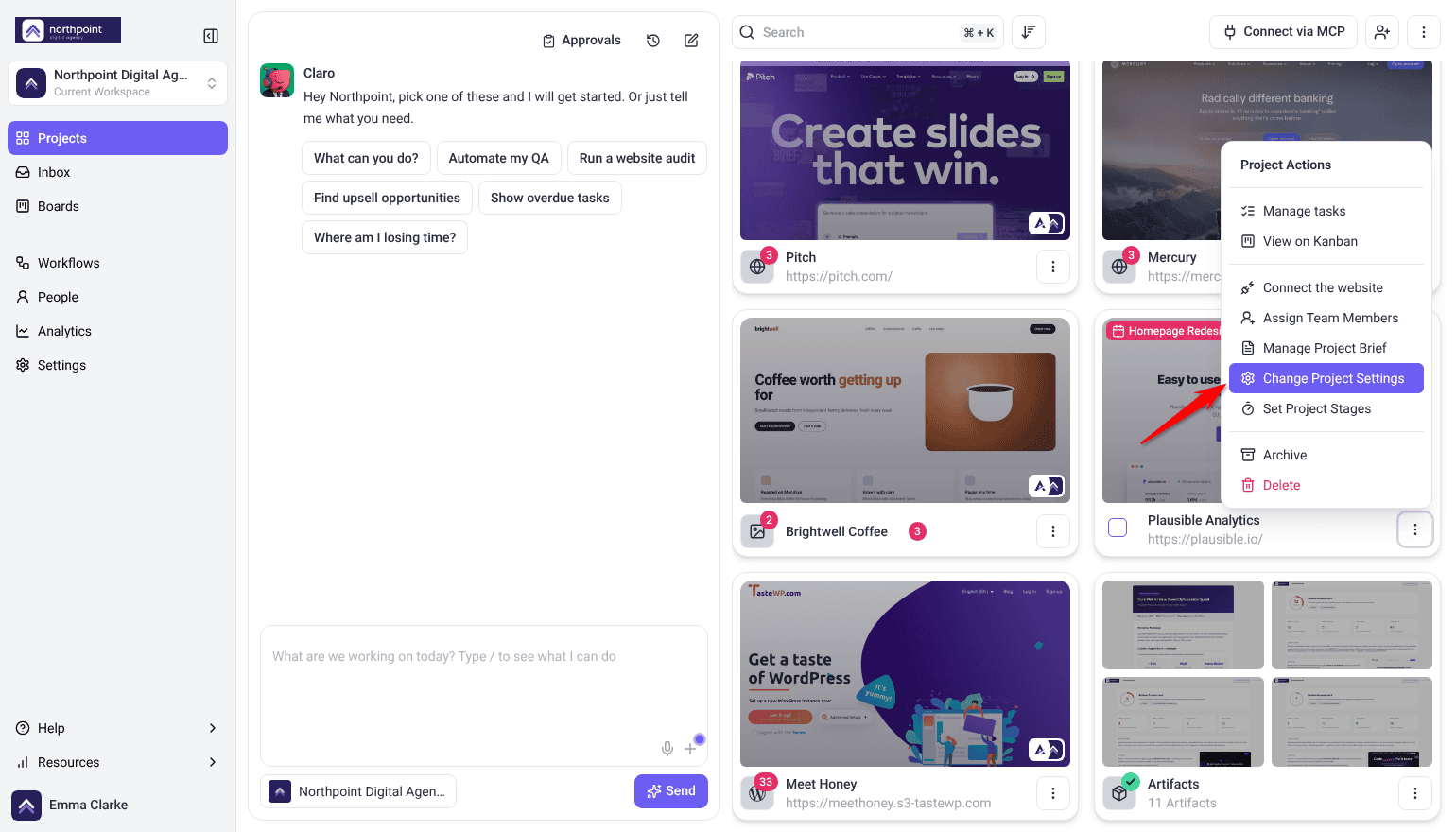
The rest of the Project Actions menu — assigning people, stages, archiving, and deleting — is covered in the Projects screen guide. Explore The Projects Screen Overview
The Core Settings
These are the main fields. A few only appear on certain kinds of project.
| Setting | What it does |
|---|---|
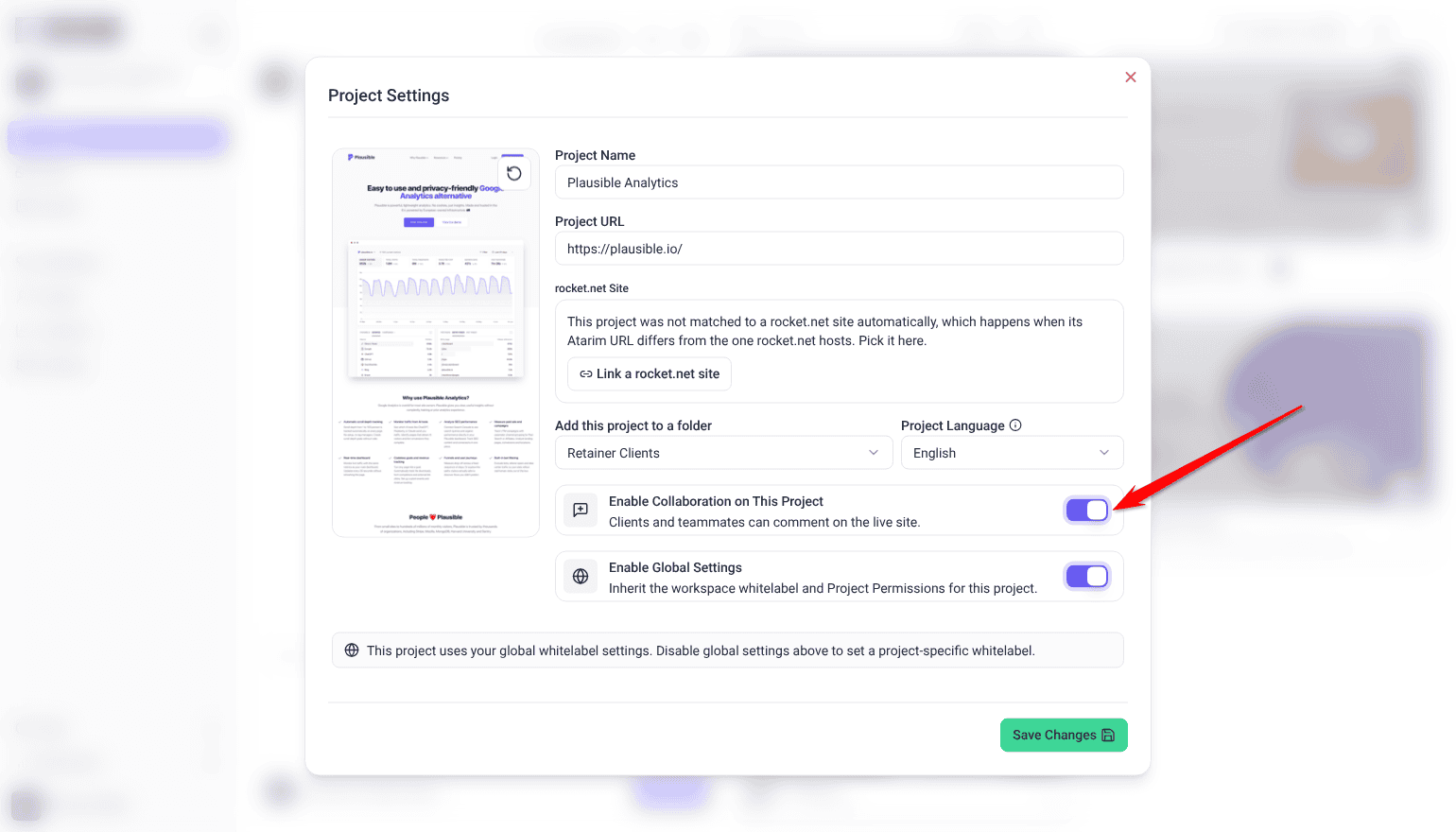
| Project Name | What the project is called throughout Atarim. Defaults to something taken from the site, which is rarely what you want. |
| Project URL | The address the project points at. Shown on URL-based projects, not on WordPress sites or designs. |
| Add this project to a folder | Which folder the project belongs to, chosen from your existing folders. |
| Project Language | The language of the Atarim interface on this project. It does not change your website’s content. |
| Project image | The thumbnail on the project card. Website projects have a control to regenerate it. |
| Enable Collaboration on This Project | Whether feedback can be left at all. |
- Change the fields you need.
- Select Save Changes.
Choosing a folder here does the same as dragging the project’s card onto that folder, and folders carry their own team access. Learn More About Adding And Managing Folders
Refreshing the Project Thumbnail
The card image is captured when the project is created, so a redesigned site keeps showing its old appearance until you refresh it.
Instructions:
- Open Project Settings.
- Select the sync control on the project image. Its tooltip explains the purpose — regenerate the website thumbnail to reflect the latest changes.
- Wait for the capture to finish. The card updates to show the site as it is now.
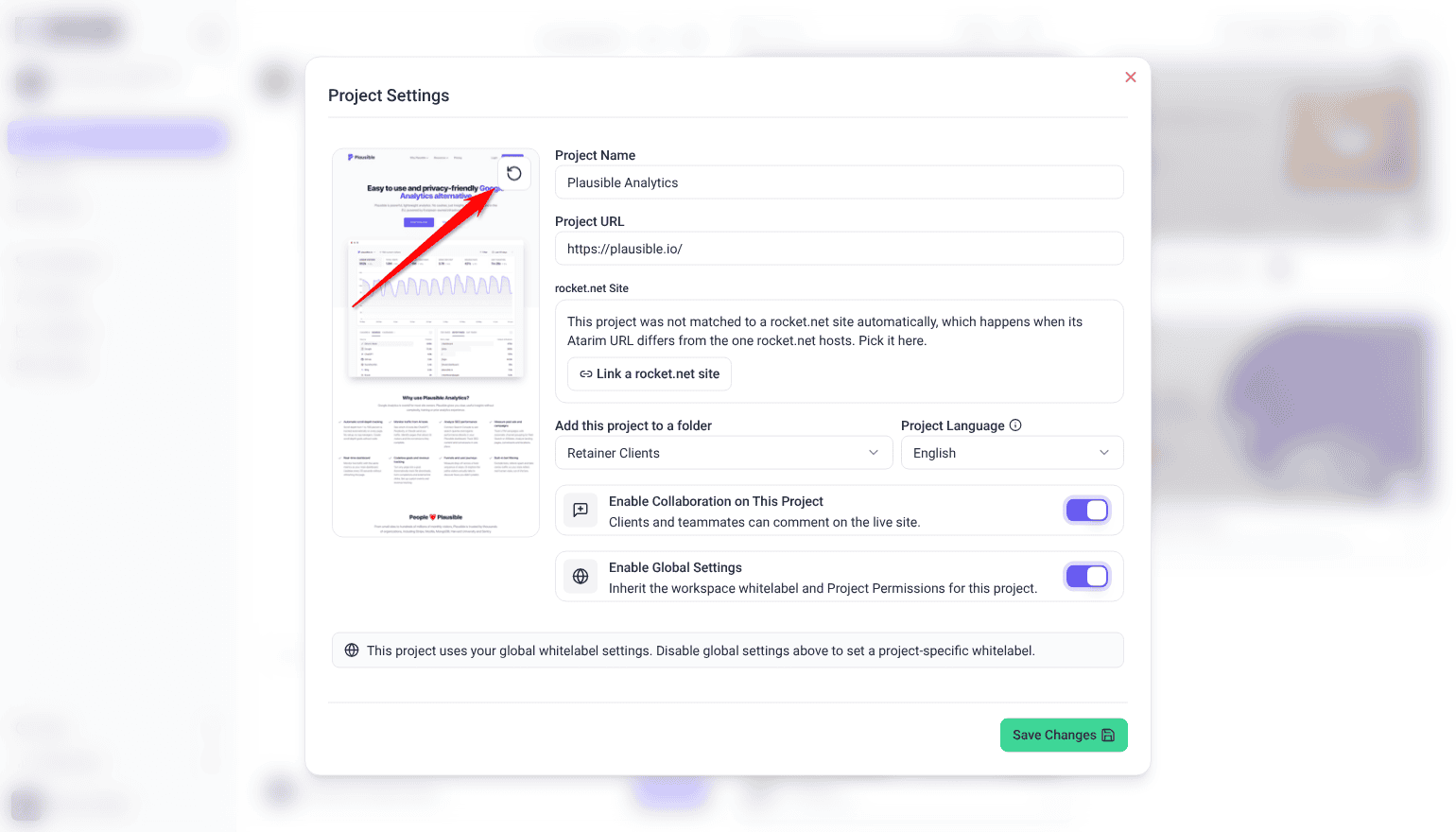
The thumbnail is what you scan the Projects screen by, alongside the project name and its badges. Explore What A Project Card Shows
Setting the Language
Language is set per project rather than per person, so it follows the audience reviewing the work rather than whoever set it up.
Instructions:
- Open Project Settings and find Project Language.
- Choose the language this project’s reviewers should see.
- Save. The collaboration interface appears in that language for this project.
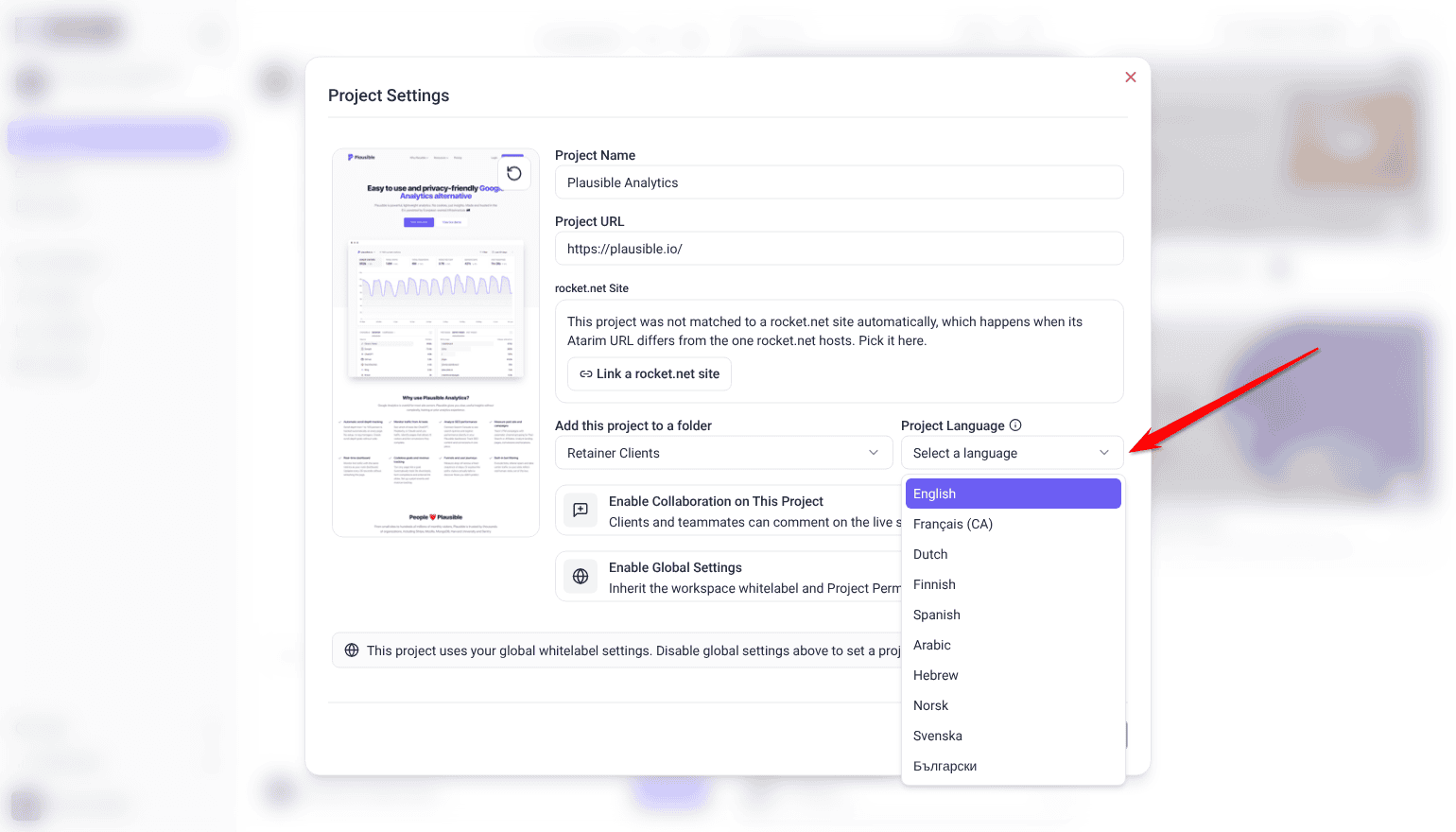
It changes the Atarim interface on this project, not your website’s content. Ten languages are available: English, French (Canada), Dutch, Finnish, Spanish, Arabic, Hebrew, Norwegian, Swedish and Bulgarian.
Turning Collaboration On and Off
Collaboration can be disabled per project. It is the switch that decides whether anyone can leave feedback at all.
Instructions:
- Open Project Settings.
- Use Enable Collaboration on This Project. Switched off, the project card shows Collaboration Disabled. Reviewers can still open the site and see existing tasks, but they can’t add tasks or change existing ones.
- Save.
This is different from controlling who can reach a project, which is set with access levels and invitations. Learn More About Controlling Who Can View A Project
White Labelling a Project
This is the part agencies care about most. A project can carry your branding rather than Atarim’s, so a client reviewing their site sees your agency instead of a tool they have never heard of.
| Setting | What it changes |
|---|---|
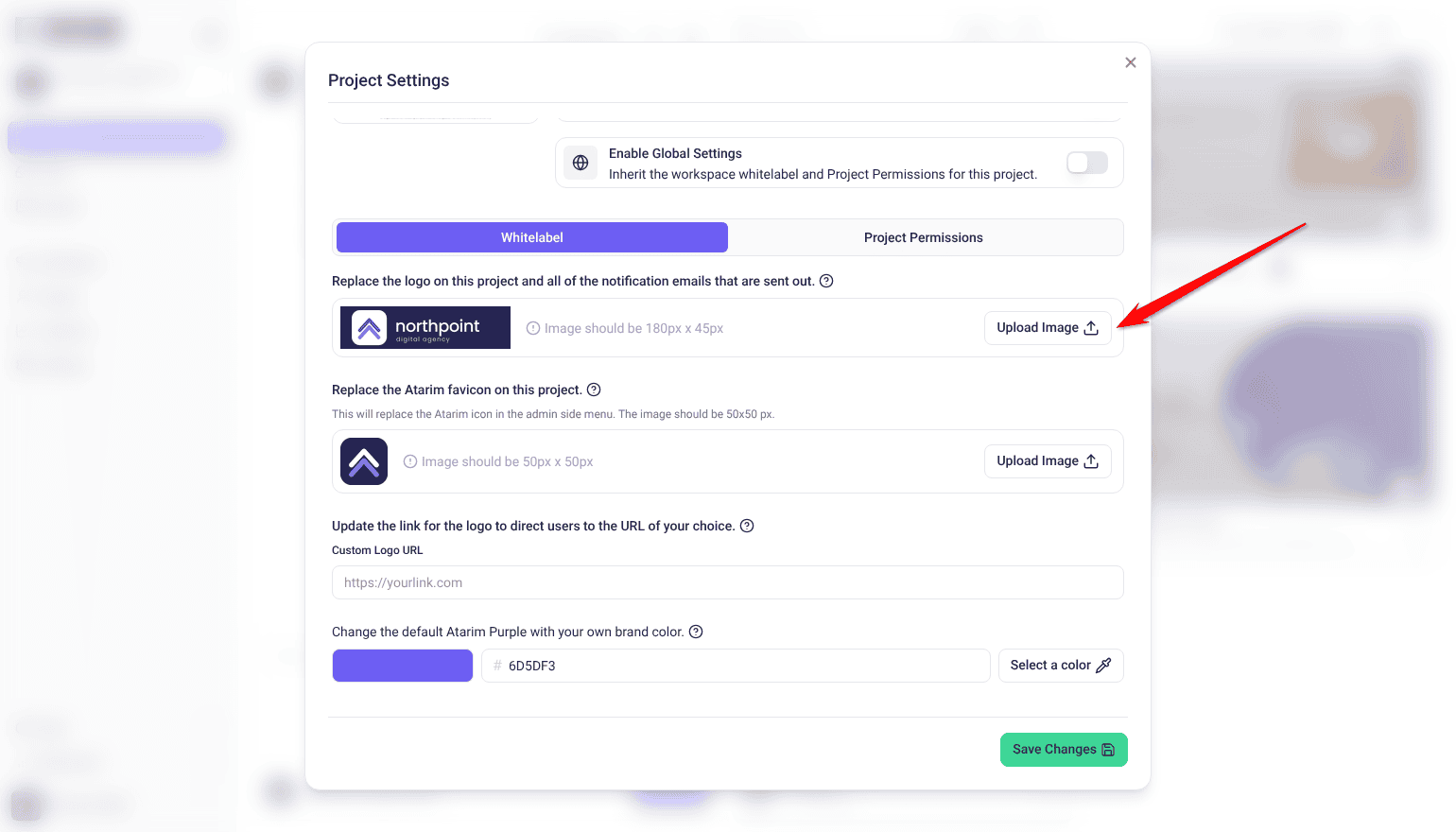
| Logo (Upload Image) | The logo on this project and on its notification emails. Uploaded as a file, 180 x 45 px. |
| Custom Logo URL | Where clicking your logo takes the viewer. Not the image itself. |
| Favicon (Upload Image) | Replaces the Atarim icon in the admin side menu. Uploaded as a file — 50 x 50 px. |
| Color | Your brand color in place of the default Atarim purple. Type a hex code, or use Select a color. |
Per-project white labelling overrides the workspace default for this one client, which is the whole point of setting it here.
Instructions:
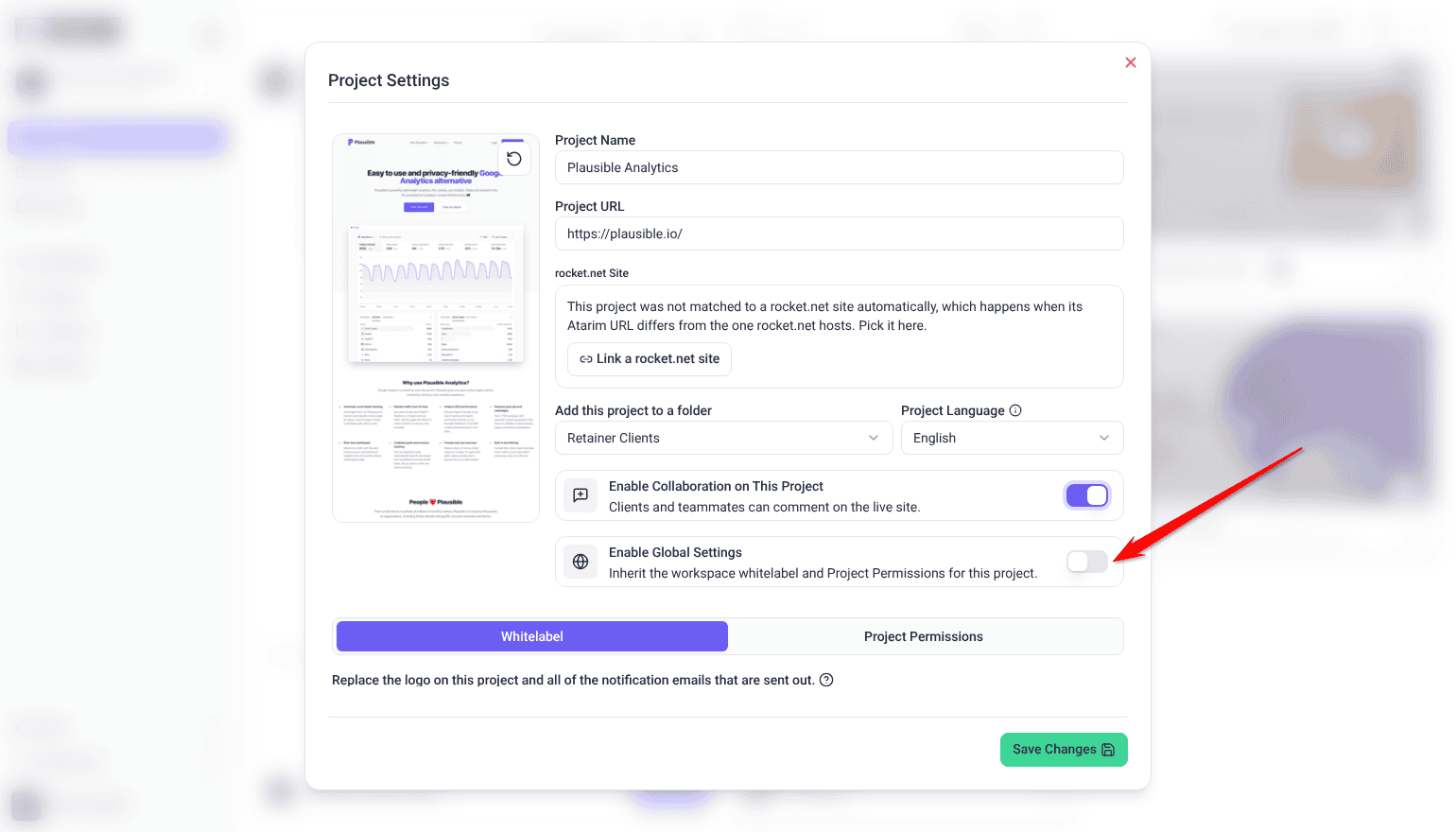
- Open Project Settings and switch off Enable Global Settings. The white label settings appear on the Whitelabel tab.
- Select Upload Image beside the logo preview and choose your logo file. It should be 180 x 45 px.
- Select Upload Image in the favicon card below and choose your favicon. It should be 50 x 50 px.
- Optionally set Custom Logo URL — this is where clicking the logo takes the viewer, not the image source.
- Pick your brand color. Type its hex code, or use Select a color.
- Save.
Branding can also be set once for a whole workspace rather than project by project, along with removing mentions of Atarim entirely. Discover Workspace White Label Settings
Global Settings and Per-Project Overrides
Setting the same branding on every project would be tedious, so settings can be inherited from your workspace instead.
| Enable Global Settings | What happens |
|---|---|
| On | The project uses your workspace-wide settings. Change them centrally and every project following them updates. |
| Off | The project keeps its own settings, independent of the workspace. |
Leave global settings on for most projects and switch them off only where a client needs different treatment.
Instructions:
- Open Project Settings.
- Use Enable Global Settings to follow your workspace defaults, or switch it off to customize this project alone.
- Save.
The workspace settings a project inherits, your white label and your workspace permissions, are set in Settings, not on any single project. Learn More About Managing Your Account Settings
Project permissions
Switching Enable Global Settings off also lets a project have its own permissions. Project Settings then shows two tabs: Whitelabel and Project Permissions.
Project Permissions switches features on or off for each user type on this project only. It has the same options as Settings → Workspace Permissions and shows Using workspace defaults until you change one. Each checkbox saves as you select it. Learn More About Roles And Permissions
The project brief is separate
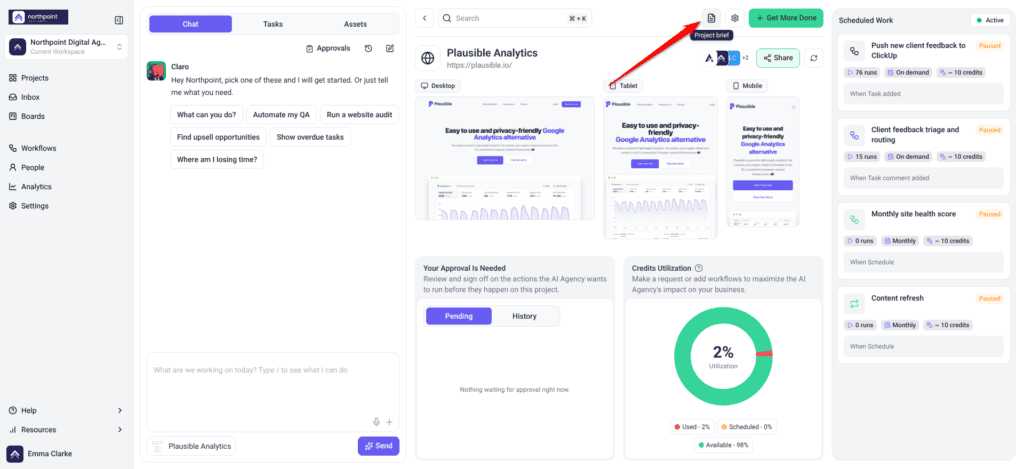
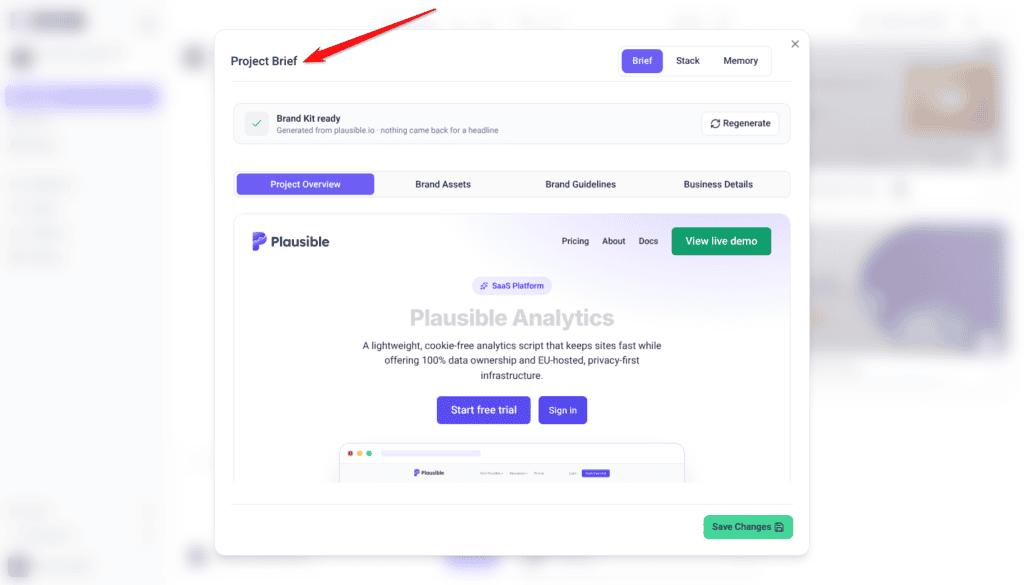
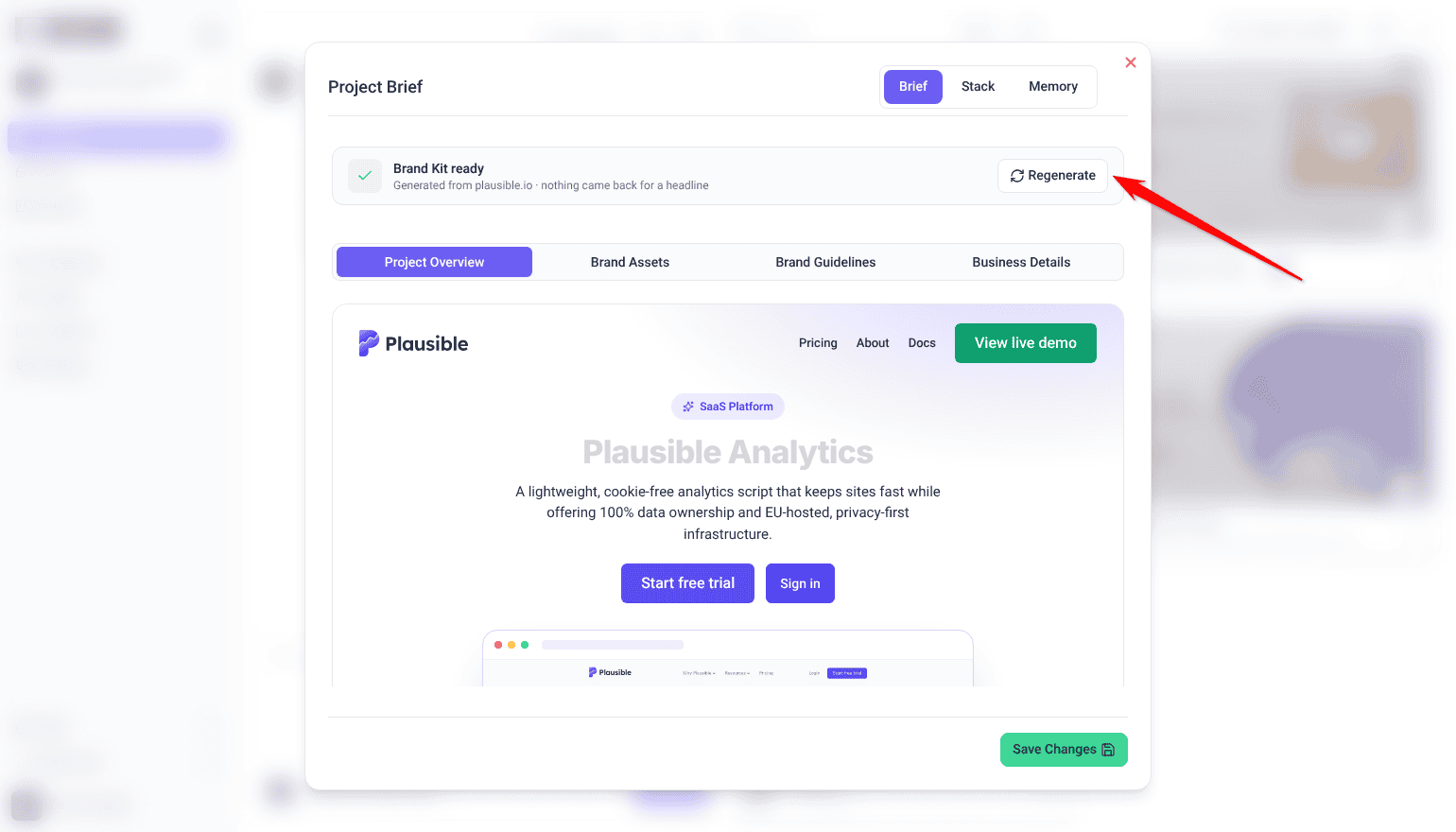
Worth knowing, because it is easy to look for in the wrong place. The Project Brief is not part of Project Settings — it has its own panel, opened from its own control.
A brief describes what the project is and who it is for, which is what gives Atarim’s AI context when it reviews the site or generates content for it.
Instructions:
- On the Projects screen, open the project’s Project Actions menu and select Manage Project Brief. The brief opens in its own panel, with Brief and Memory tabs. Owners and Administrators also see a Stack tab.
- Inside a project, you can also select the project icon in the bottom bar (its tooltip reads Open quick actions), then Project Brief. If that item is missing, your role does not have the Project Brief permission.
- Write the brief, or select Generate Brief to have Atarim draft one from the project’s URL. Generating uses credits; editing by hand does not.
- Select Save Changes.
Linking a Figma File
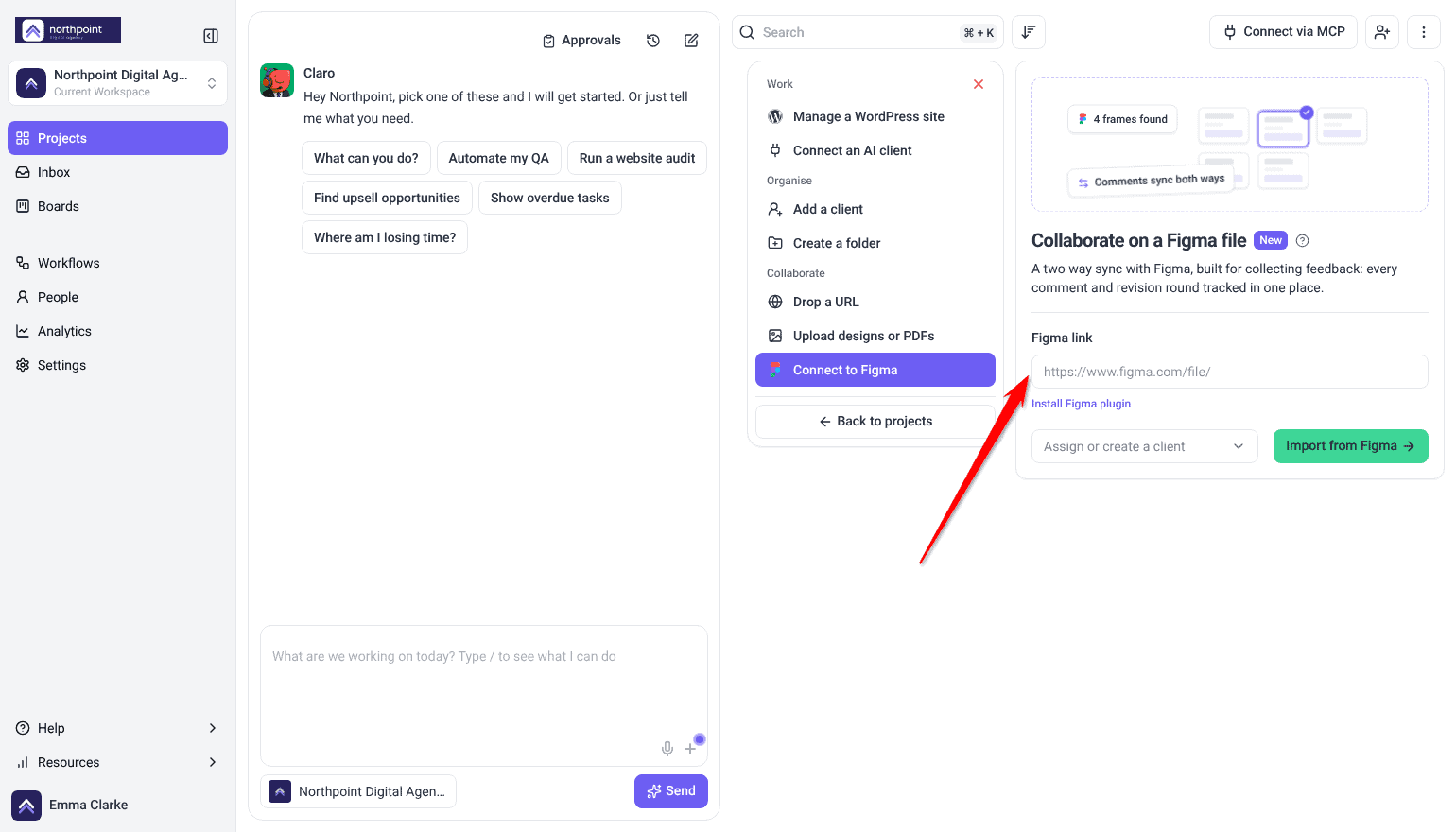
A design project imported from Figma keeps the link to its Figma file, so the design source is one click away.
Instructions:
- Open Project Settings on a design project you imported from Figma.
- Find Figma URL. It shows the link to the file and can’t be edited.
- Select Open in Figma to go straight to the file. Website projects don’t have this field.
Giving People Access to the Project
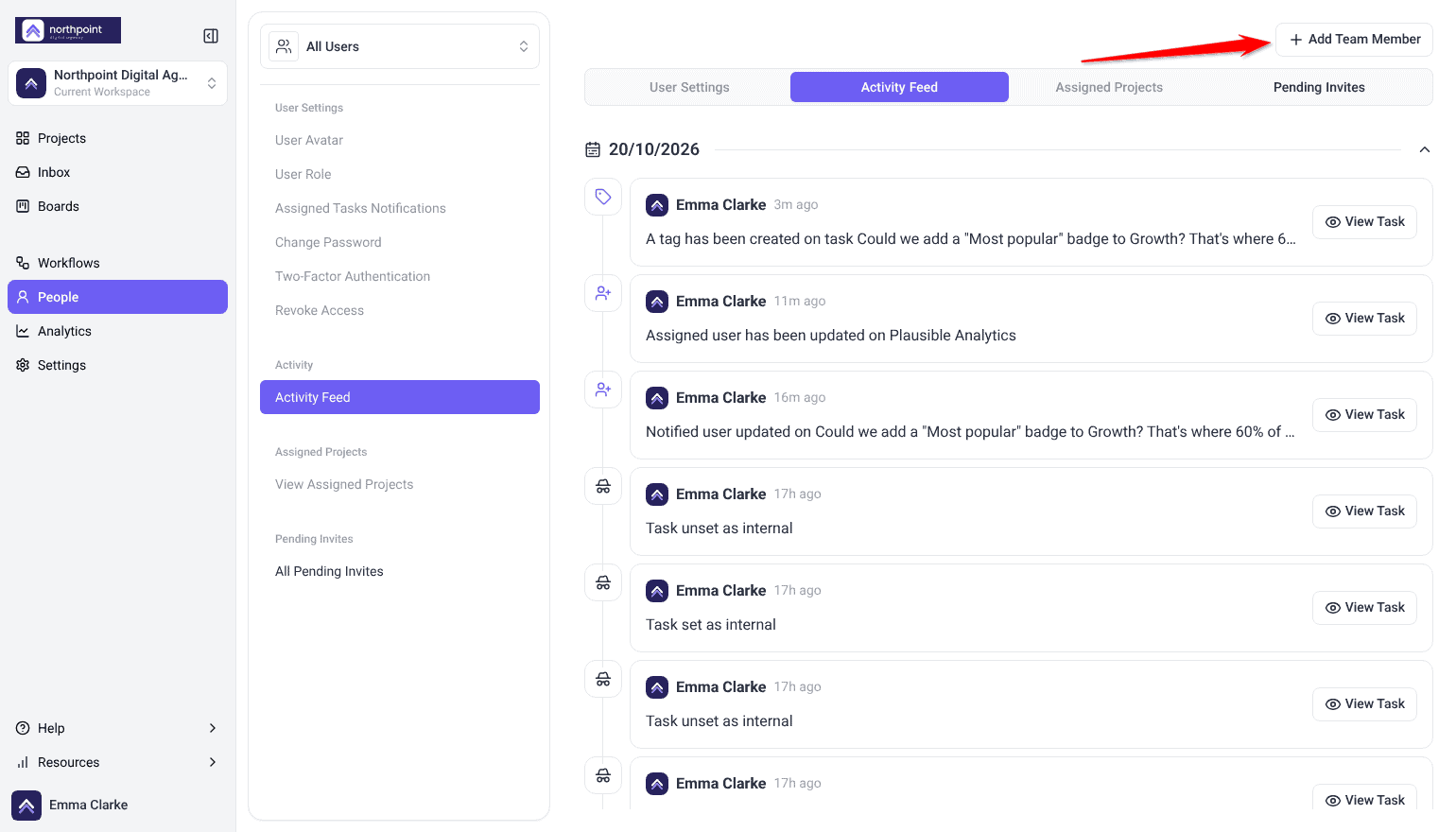
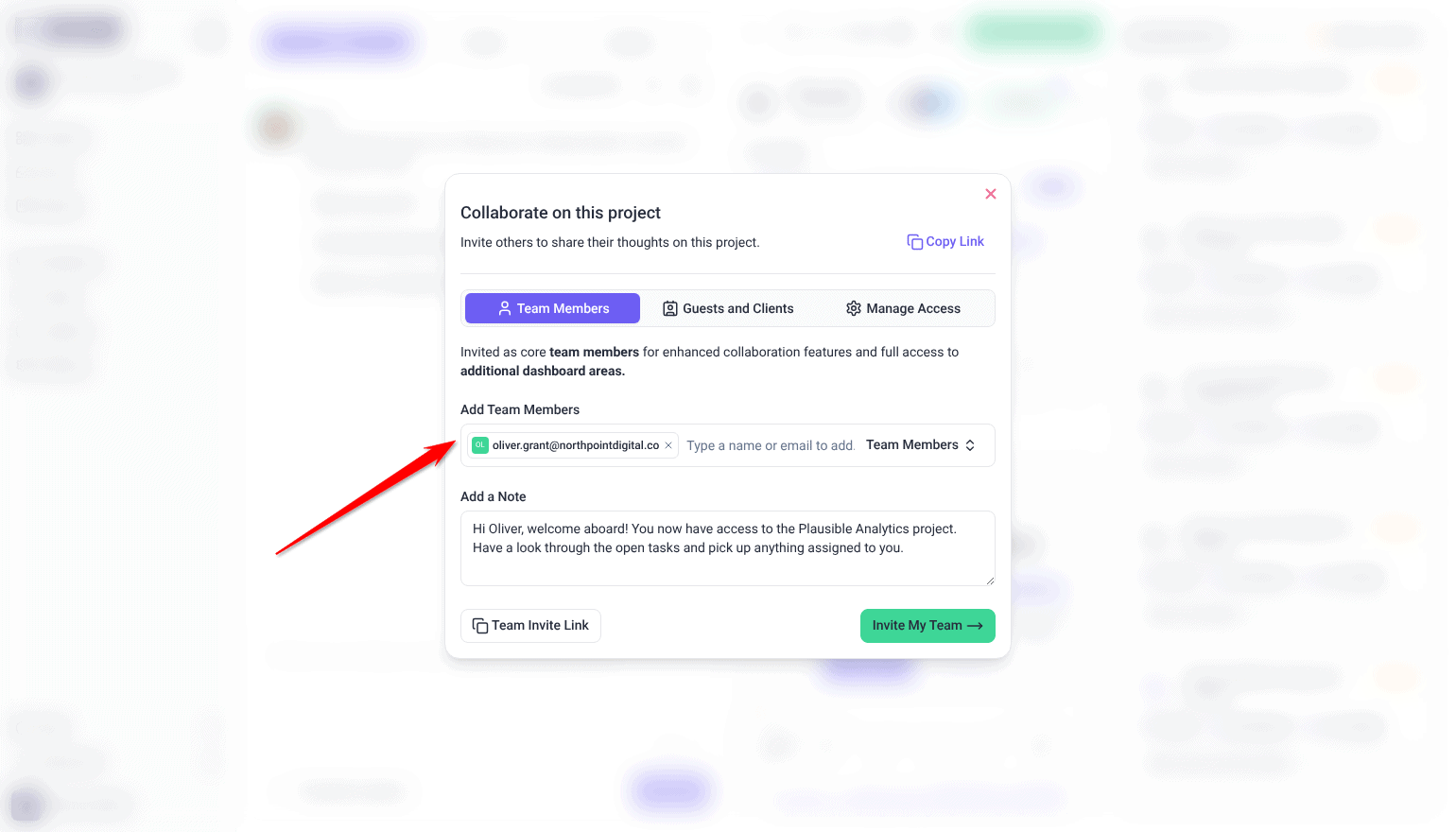
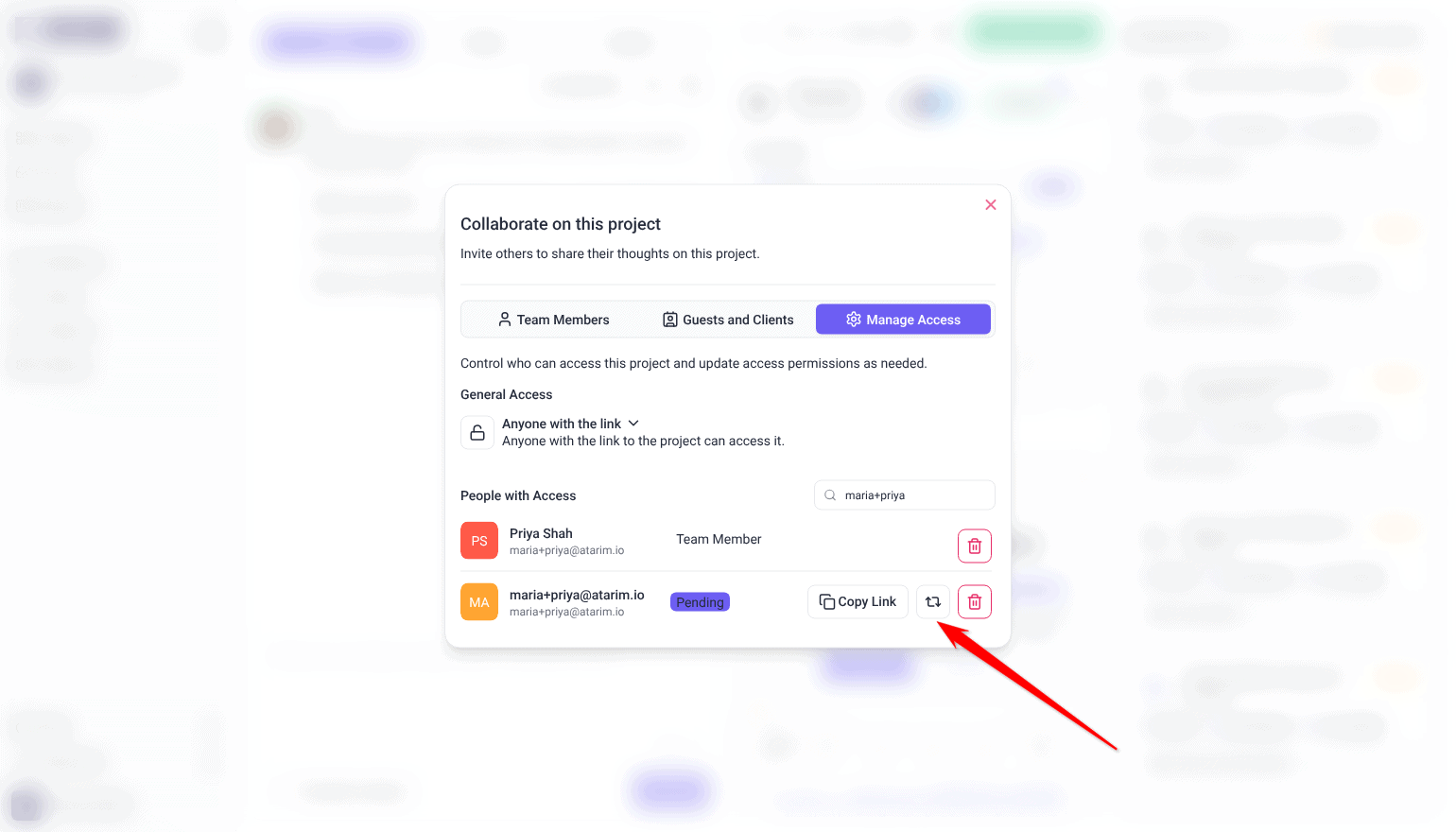
Access is separate from settings. People can be added from the People screen, from the project’s share panel, or by assigning them to the project directly. Assignment is covered in full separately. Discover Assigning Projects And Tasks
Filing the Project in a Folder
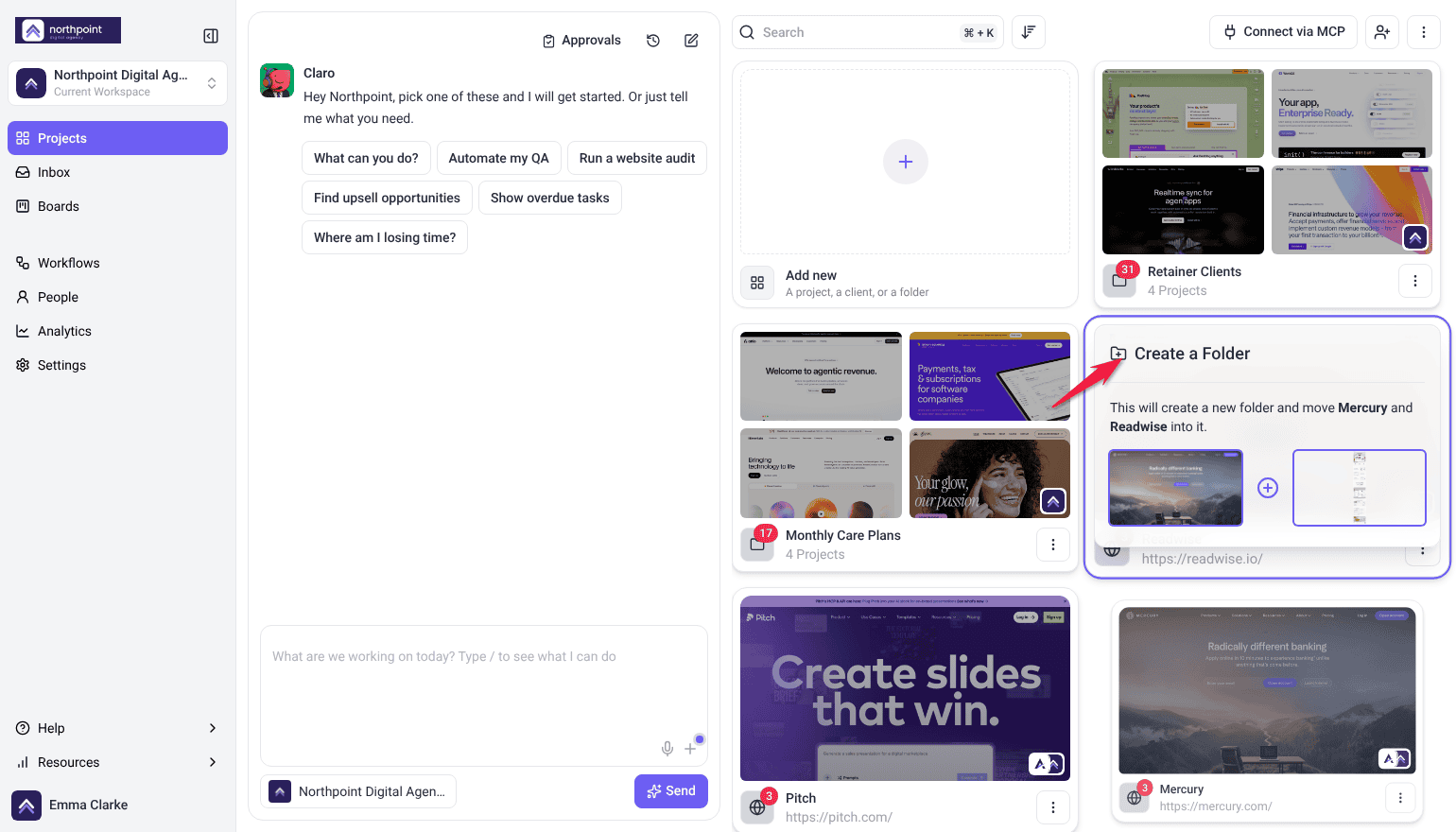
To file a project into an existing folder, drag its card onto the folder. Dragging one project card onto another opens the Create a New Folder form with both projects already added, so you can name the folder and assign team members. Only Administrators can create a folder this way. Learn More About Adding And Managing Folders
Archiving or Deleting the Project
Both sit in the same Project Actions menu as the settings. Archiving keeps everything and can be reversed; deleting is permanent. Read Before You Delete
Benefits of Setting Projects Up Properly
| Benefit | In practice |
|---|---|
| A scannable Projects screen | Named projects with current thumbnails beat a list of default titles and stale screenshots. |
| Clients see your brand | White labelling changes how the whole review feels, for the cost of one setting. |
| Reviewers work in their own language | Set per project, so it matches the audience rather than the person who set it up. |
| Consistency without repetition | Global settings apply your branding everywhere, with overrides where a project needs something different. |
| Better AI output | A project brief gives reviews the context to be specific rather than generic. |
| The design source is findable | A design imported from Figma keeps a link to its source, which answers a question that otherwise needs archaeology. |
Example Use Cases
| Situation | What to set |
|---|---|
| A new client project | Rename it, file it in the client’s folder, and confirm the language matches the reviewers. |
| Work delivered under your agency’s name | White label with your logo, favicon, and color — or leave global settings on if that is already your default. |
| Reselling under a client’s brand | Switch global settings off for that project and apply their branding instead of yours. |
| A site that has just launched | Refresh the thumbnail so the card stops showing the old design. |
| A project going quiet but staying visible | Disable collaboration rather than revoking access — your team keeps the work, nobody can add to it. |
| Before running AI reviews | Generate and edit the project brief, so the AI knows what the site is for. |
Known Limitations
- Settings are per project. Bulk-applying branding means using global settings rather than editing each one.
- Language is per project, not per person, so a shared project shows one language to everyone.
- Project settings are permission-based, so the option may not appear for every role.
- The thumbnail does not refresh itself when the site changes.
FAQs
Can I rename a project after creating it?
Yes, at any time, in Project Settings. It is worth doing as you create each one.
Can I upload a logo instead of linking to one?
Yes. Both the logo and the favicon are uploaded with Upload Image. The separate Custom Logo URL field is not the image source — it sets where clicking the logo takes the viewer.
What is the difference between global and per-project settings?
Global settings apply your workspace defaults to the project. Switching them off lets that project carry its own branding.
Why is my project thumbnail out of date?
It is captured when the project is created. Use the sync control in Project Settings to regenerate it.
What happens if I disable collaboration?
Nobody can leave feedback on that project, and reviewers see that collaboration is disabled. Existing tasks are unaffected.
What is the project brief for?
It gives Atarim’s AI context about the site, so reviews and generated content are specific rather than generic. It can be generated and then edited.
Can I link the Figma file a site was built from?
Not on a website project. A design project imported from Figma shows its Figma URL in Project Settings, with an Open in Figma button.
Common issues
- “Collaboration is disabled for this site” — switch Enable Collaboration on This Project back on in Project Settings.
- Your logo does not appear — check Enable Global Settings is off for this project, and that the image was uploaded with Upload Image at 180 x 45 px.
- The thumbnail shows an old design — use the sync control on the project image to regenerate it.
- Branding changes did not apply — check whether Enable Global Settings is on. The project may be following workspace settings rather than its own.
- Change Project Settings is missing — your role does not include it. Team Members don’t have it by default, and it isn’t set in Settings → Workspace Permissions, so ask an administrator about your role.
- The client sees the wrong language — language is set per project. Change it in Project Settings rather than in their account.
- No folder appears in the selector — you have not created any folders yet.
Conclusion
Two minutes per project — a proper name, the right folder, your branding, the reviewer’s language — is the difference between a Projects screen you can work from and one you fight. Set your defaults globally, override only where a client needs their own, and everything after that takes care of itself.
Which folder a project belongs to is worth deciding at the same time. Explore Adding And Managing Folders
Tips & best practices
- Rename every project as you create it. Default titles taken from a site are rarely useful.
- Set branding once globally, then override only the projects that need a client’s brand instead of yours.
- Choose the language from the client’s perspective, not your team’s.
- Refresh the thumbnail after a launch so the card matches reality.
- Generate the project brief and then edit it — that is what makes AI reviews specific.