Visual Collaboration Tools Overview
Discover how Atarim’s visual collaboration tools simplify feedback and accelerate project workflows.

Atarim’s visual collaboration tools let teams and clients give feedback directly on live websites and designs. They remove the long email threads and the miscommunication that comes with them, by tying every comment to the exact thing it is about.
This article covers the core tools, how they fit together, and where to read more on each.
Collaborate puts a review layer over the real site — the toolbar below, the sidebar to the side.
First, the Two Modes
Collaborate has two modes and a single toggle between them. Everything else makes sense once you know this, and it is the one thing that confuses first-time reviewers.
| Mode | Clicking the page | Use it to |
|---|---|---|
| Comment | Selects the element and starts a task on it. | Leave feedback. |
| Browse | Behaves like a normal website — links work, forms submit. | Navigate to the page you want to review. |
Step-by-Step Guide
1. Visual Commenting
The core of the product. Select any element on a live website or design and leave a comment, and Atarim creates a task pinned to that element — so the whole team can see exactly what was meant.
Instructions:
- On the Projects screen, select Open on the project’s card. The site loads with the Atarim toolbar along the bottom.
- Use Browse mode to reach the page you want to review, then switch to Comment. Hovering now highlights elements and shows Click to add a comment.
- Select the element your feedback is about. A comment box opens, already pinned to that element.
- Type your comment and send it. A task is created and tracked automatically, recording the page, the element, the screen size, and the browser it was left with.
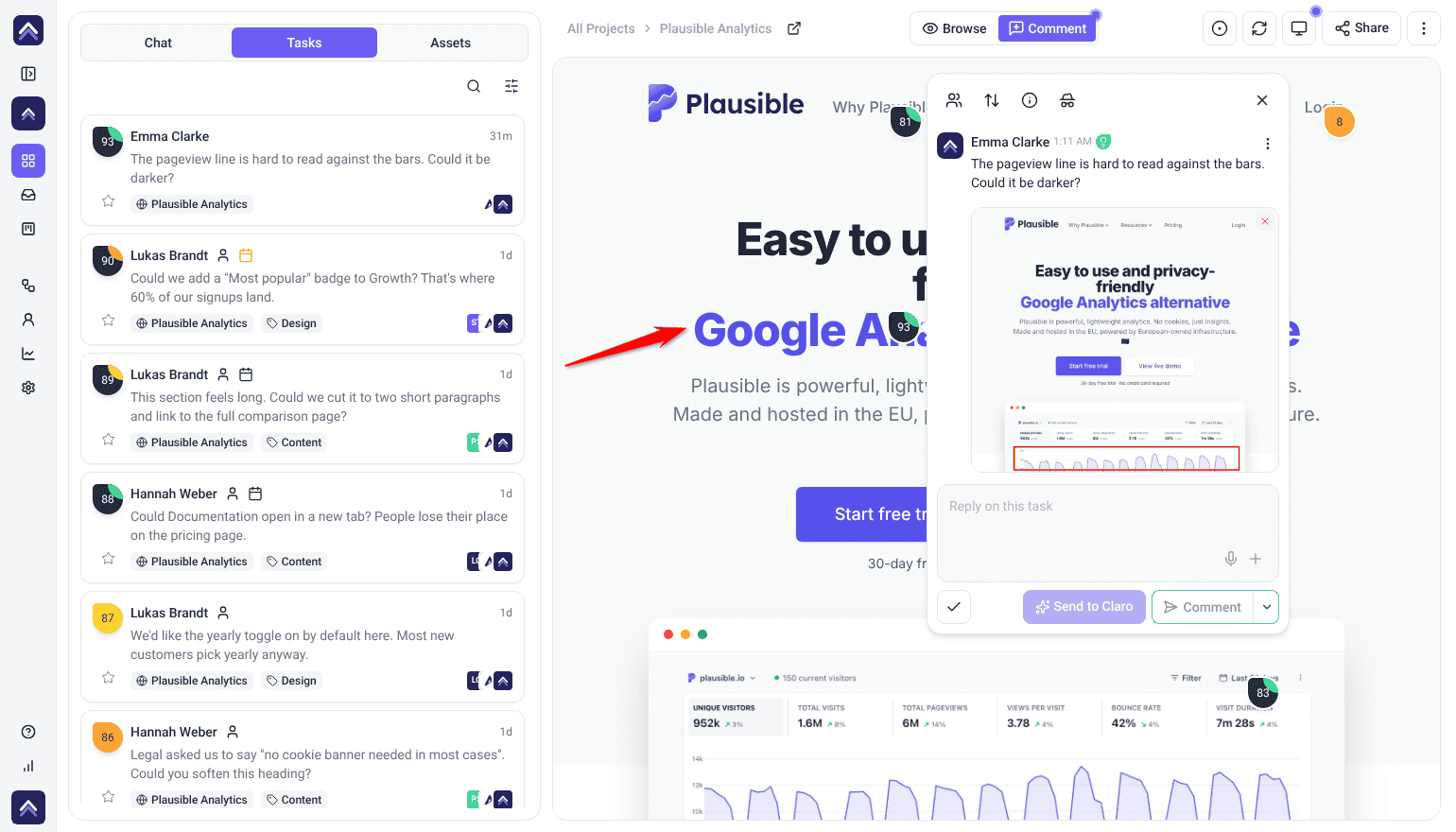
For feedback about the page as a whole rather than one element, select Task at the top of the sidebar. It adds a task for the whole page rather than one spot.
2. Screenshots and Annotation
Every comment captures a screenshot of the page as it looked at that moment. When the feedback is spatial — alignment, spacing, “move this above that” — you can draw on that screenshot before sending it.
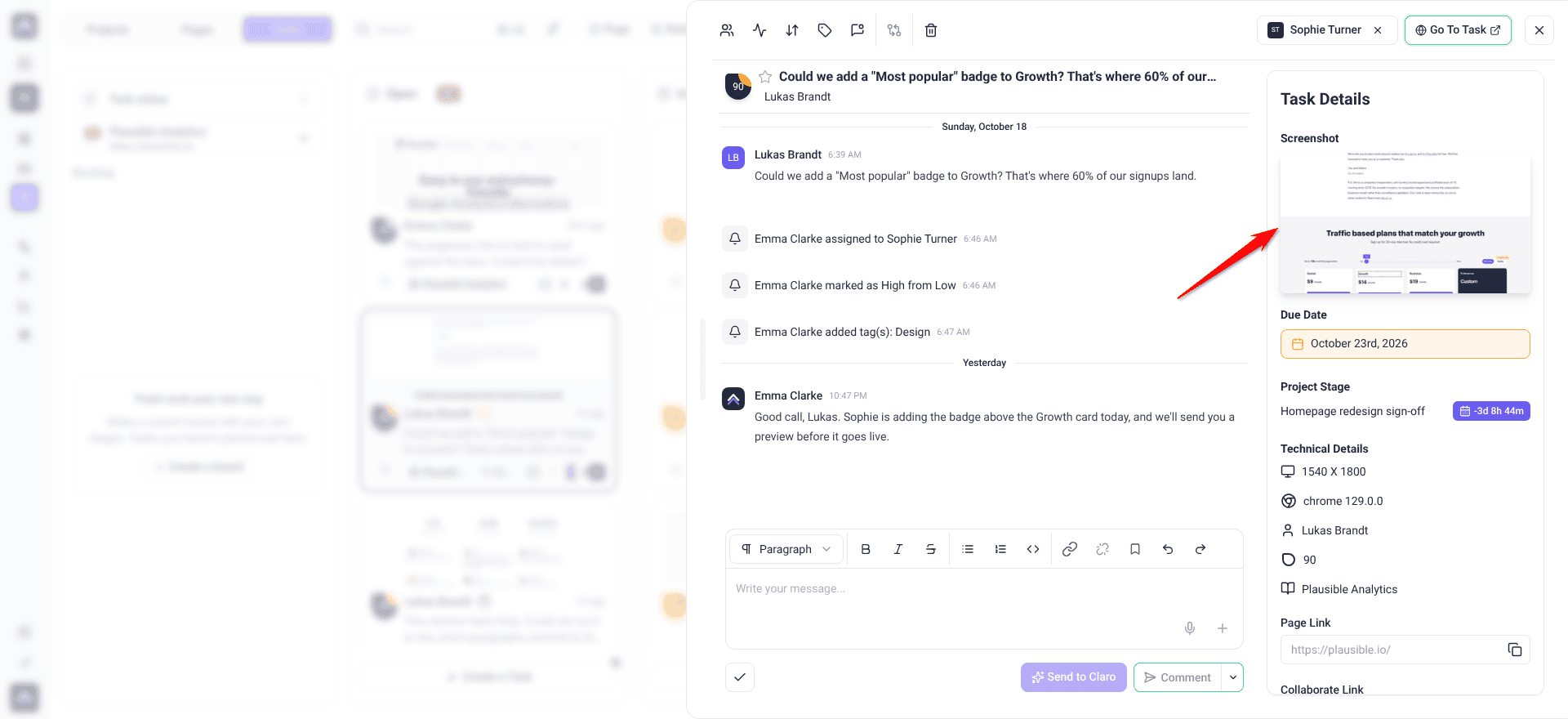
Annotations are drawn on a captured screenshot rather than the live page, so the mark-up stays accurate even after the site changes.
Instructions:
- In the comment box, select the + button — its label is More composer actions — and choose Annotate screenshot. The editor opens with the screenshot loaded.
- Choose a tool — pen, arrow, rectangle, circle, or text.
- Pick a color and stroke size, then draw on the screenshot. Annotations start red; change the color if red already appears in the design.
- Select Save. The annotation attaches to your comment as a reference image, and posts when you send the comment.
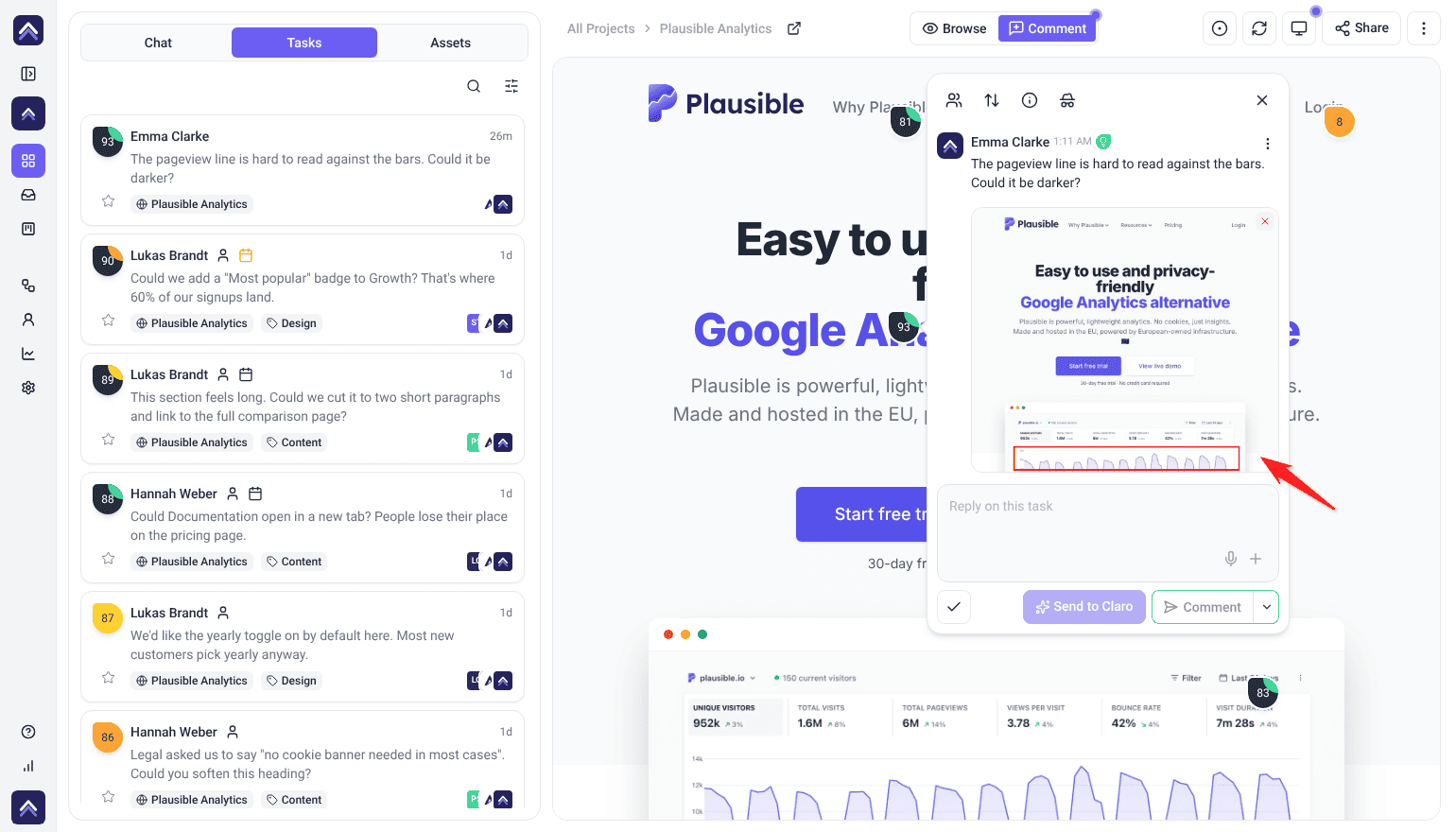
You can also attach files to a comment — mockups, documents, assets — and dictate feedback using voice input rather than typing it. Annotation and file attachments are covered in full separately. Learn More About The Annotation Tools
How the screenshot is taken
Where the screenshot comes from decides how exact it is:
- With the Atarim Chrome extension, it is taken from your own tab, exactly as you see it.
- In Chrome or Edge without the extension, Atarim can capture your tab too, once you allow it (see below).
- Otherwise, Atarim takes the screenshot itself from the page’s address. It shows the page as Atarim loads it, so anything that only appears after you sign in, scroll or click can look different from what you saw.
Sharing your tab for exact screenshots
In Chrome or Edge without the extension, Atarim asks once per visit whether to Share exactly what you see. Everyone then sees the task’s screenshot exactly as you did, people and AI alike.
Instructions:
- Pin your first task to an element on the page and send it. The Share exactly what you see window opens.
- Select Most accurate. Your browser then asks which screen to share: pick this tab and confirm.
- To keep the usual screenshots instead, select Less accurate.
One share covers every task for the rest of the visit, and leaving Collaborate stops it. Nothing is recorded, and you can stop sharing at any time from your browser. Tick Don’t show this again to keep your choice in this browser.
If nothing happens on the page for two minutes, Still working on this page? appears with a 20-second countdown. Select Keep capturing to carry on, or Switch off to stop sharing.
3. Task Management Integration
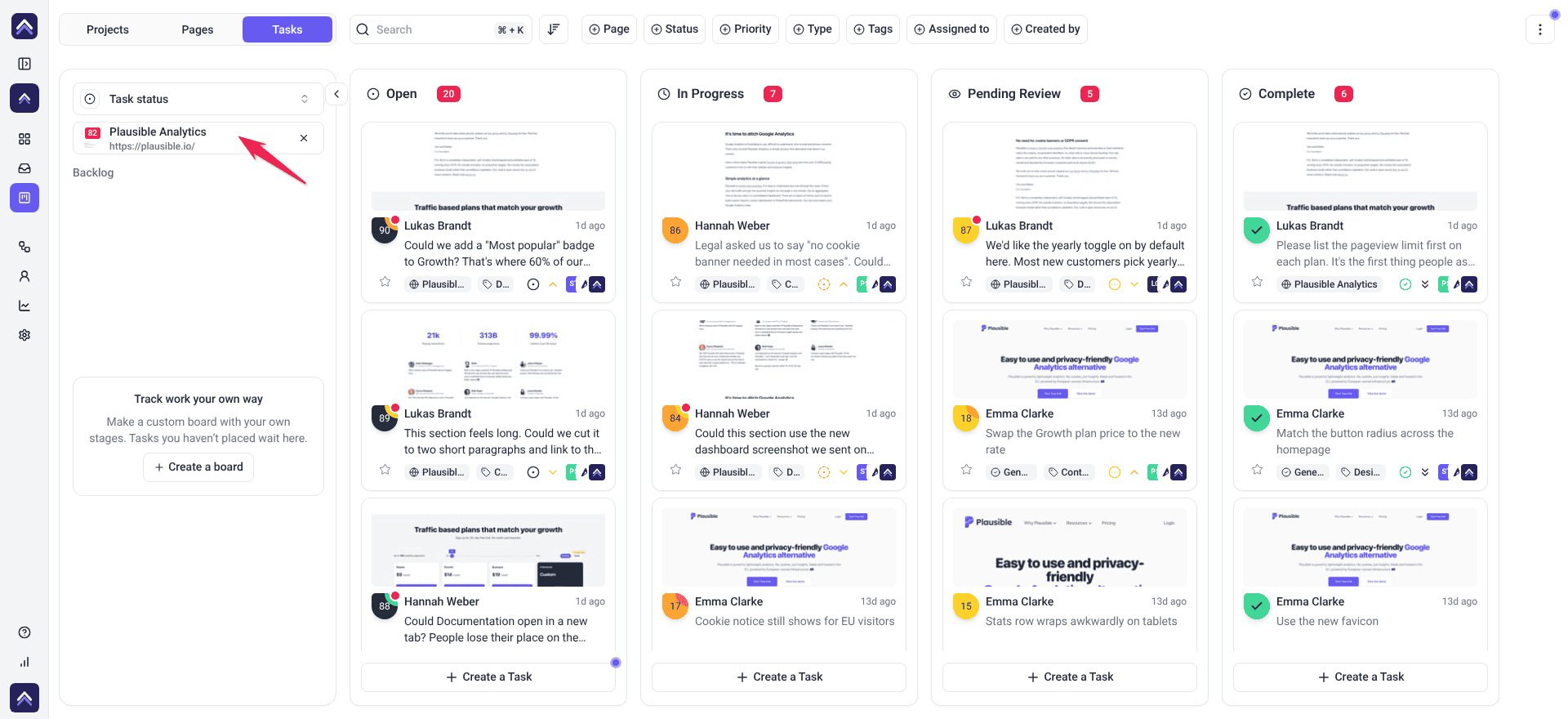
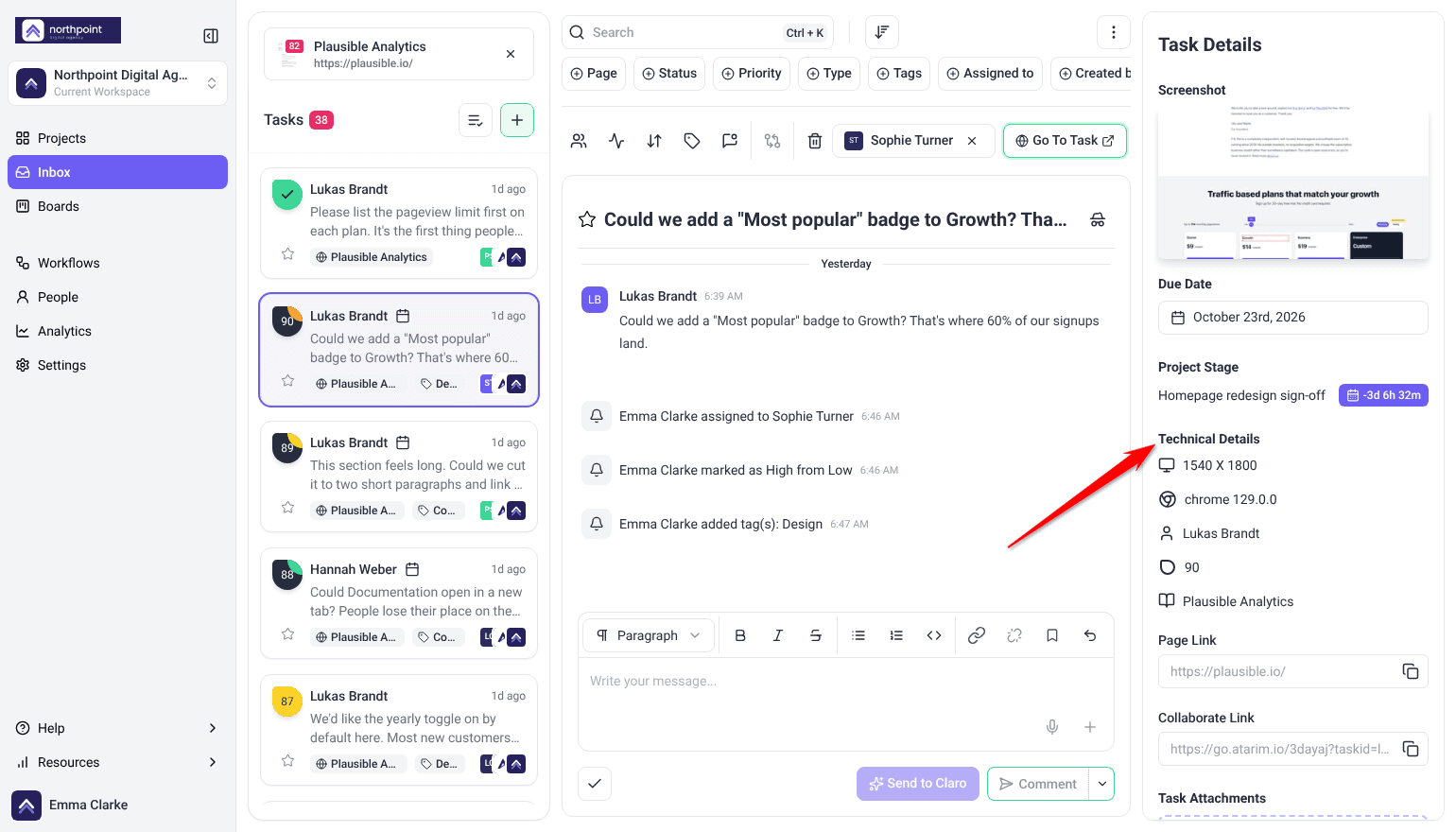
Every visual comment becomes a task in your dashboard immediately. There is no import step and no separate feedback list to reconcile — the comment is the task.
Instructions:
- Go to Inbox or Boards in your dashboard. Tasks created through Collaborate are identifiable by their screenshots and page URLs.
- Assign a team member, set a priority, and set a status.
- Work through them as you would any other task. Use Go To Task to jump straight back to the page the feedback was left on.
The Rest of the Toolbar
Beyond commenting, the bar along the bottom holds the controls for the page you are on. Which appear depends on your role and your plan.
| Control | What it does |
|---|---|
| Quick actions | The logo at the left end of the bar. Opens a menu for getting around Atarim. See The Quick Actions Menu below. |
| Refresh | Reloads the page to pick up recent changes. Its tooltip reads Refresh the current page to sync changes. Clients don’t see it. |
| Page Status | Sets this page to No Status, In Progress, Needs Review or Approved. Clients see Click to approve instead. |
| Device menu | Renders the page at tablet or mobile width. Discover Responsive Testing |
| Project stages | Shows the project’s milestones and deadlines without leaving the page. |
| Collaborators | Shows who is on the page right now, with Cursors are visible or Cursors are hidden to show or hide everyone’s cursors. Shown in Comment mode, not to clients. |
| Share | Invites others to collaborate and provide feedback. |
| Help | Opens a short video, the ways to leave feedback, and links to live chat (Talk to a human) and the help center (Visit the help center). |
The Quick Actions Menu
The logo at the left end of the bottom bar opens a menu for moving around Atarim without leaving the page you’re on. Hover it to see Open quick actions.
Instructions:
- Select the logo at the left end of the bottom bar.
- To go elsewhere, select Project Overview for this project’s dashboard, All Projects for all your projects, or Open in Inbox or Open in Boards to see this project’s tasks there.
- To stay here, select Project Settings (administrators) or Project Brief to change this project. When you review on the site itself, Select Project switches to another project.
- Use Language to change the language of the Atarim controls, or Theme to switch between Light and Dark.
- Select Log Out to sign out.
If your White Label settings include a logo link, External Link at the top of the menu opens it. What the menu shows depends on your role and plan. Language needs a plan that includes language settings; if yours doesn’t, the menu names the plan you need.
The Sidebar
Where the toolbar is about the page, the sidebar is about the work. Two buttons sit at the top, with two tabs below them.
| Part | What it holds |
|---|---|
| Review | A button at the top. Claro checks the page for design, copy and bugs and lists what it finds. Your team sees it; clients don’t. |
| Task | A button at the top. Adds a task for the whole page, not pinned to one spot. |
| Tasks | Every task on this project, so you can work through what has been raised without leaving the site. |
| Pages | Every page in the project, each with its status badge and open task count. |
Adding and removing pages
The Pages tab is also where you add a page to the project for review, or take one out.
Instructions:
- In Browse mode, go to the page you want to add, then open the Pages tab.
- Select Add this page. The button is grayed out if the page is already on the project.
- To remove a page, select the bin icon on its card, then Delete Page to confirm. The bin icon isn’t shown on a project’s last page, or if your role can’t delete pages.
Benefits of Using Visual Collaboration Tools
| Benefit | In practice |
|---|---|
| Streamlined feedback | Reviewers leave feedback directly on what they see, so there is no screen share and no call to arrange. |
| Clearer communication | Non-technical stakeholders point and click. The ambiguity of “the button near the top” disappears. |
| Nothing gets lost | Every comment is a task with an owner and a status, so feedback cannot sit unread in an inbox. |
| Faster delivery | Feedback lands in the workflow already carrying its context, so work starts instead of stalling on clarification. |
Use Cases
| Situation | How it is used |
|---|---|
| Design review and feedback | Design teams collect precise client feedback on websites, wireframes, and mockups — pinned to the element rather than described. |
| Website testing and QA | QA engineers raise bugs directly on the page. The task records the element, screen size, and browser, so developers can reproduce it without a conversation. |
| Client collaboration | Clients suggest changes, ask questions, and approve pages without learning a project management tool. |
FAQs
How do I start using the visual collaboration tools?
Add a project with Add new, then select Open on its card on the Projects screen. Switch to Comment mode and select any element to leave your first piece of feedback.
Can clients use Atarim without training?
Yes. The interface is built for technical and non-technical people alike. One sentence about Browse and Comment mode is usually all the briefing anyone needs.
Does Collaborate change my live website?
No. It adds a review layer for people reviewing through Atarim. Your visitors see the site exactly as normal.
Can I track what happens after feedback is given?
Yes. Every comment becomes a task with a status and an owner, and the activity record shows what changed and when.
Does Atarim integrate with other tools?
Yes — Slack, Jira, Asana, Trello, ClickUp, Monday, Basecamp, and Teamwork, with workflows able to push tasks automatically. There is also a generic webhook step for anything else.
Are there analytics on all this feedback?
Yes. Analytics reports on turnaround, feedback cycles, and where work is stalling.
What is the difference between a general task and a pinned comment?
A pinned comment attaches to a specific element. A general task is linked to the page as a whole, for feedback that is not about one thing. Start one with Task at the top of the sidebar.
Can two people review at the same time?
Yes. The collaborators control shows who is online, and you can show or hide everyone’s cursors.
Common issues
- Clicking navigates instead of commenting — you are in Browse mode. Switch to Comment.
- You cannot navigate the site — the opposite problem. You are in Comment mode; switch to Browse.
- “Collaboration is disabled for this site” — feedback has been switched off for that project. An administrator can re-enable it in the project’s settings.
- A control shows a lock — that tool is not included on your plan. Selecting it names the minimum plan required.
- Your client sees fewer controls than you — expected. Clients get a reduced toolbar focused on giving feedback.
- Other people’s cursors are distracting — use the collaborators control to hide cursors, your own included.
Conclusion
Atarim’s visual collaboration tools work because feedback is given in the place it is about. A click becomes a task, a task carries its own context, and the round of emails explaining which button was meant never happens.
Learn the Browse and Comment toggle and everything else follows. The usual next step is bringing a client in. Learn More About Inviting Clients To Collaborate
Tips & best practices
- Push tasks where your team already works. Workflows can send visual feedback straight into Slack, Jira, or your board.
- Use Analytics to spot where feedback cycles are stalling.