Reducing Feedback Cycles with Visual Collaboration
Most delay isn’t people being slow — it’s feedback nobody can act on without asking a question first.
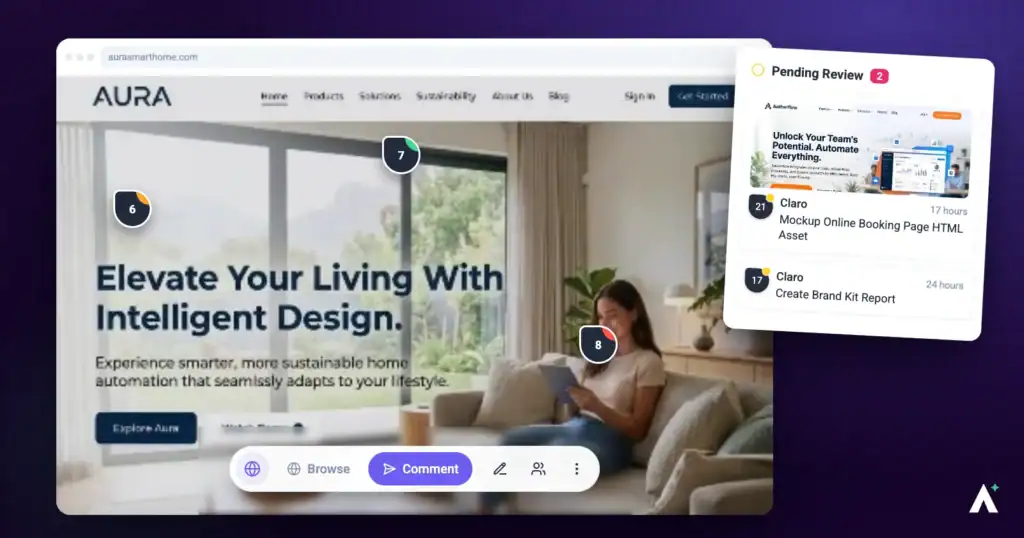
Feedback cycles stretch for one reason more than any other: a comment arrives that nobody can act on without asking what it meant. Visual collaboration removes that round trip by attaching feedback to the thing it’s about, along with the context a developer would otherwise have to request.
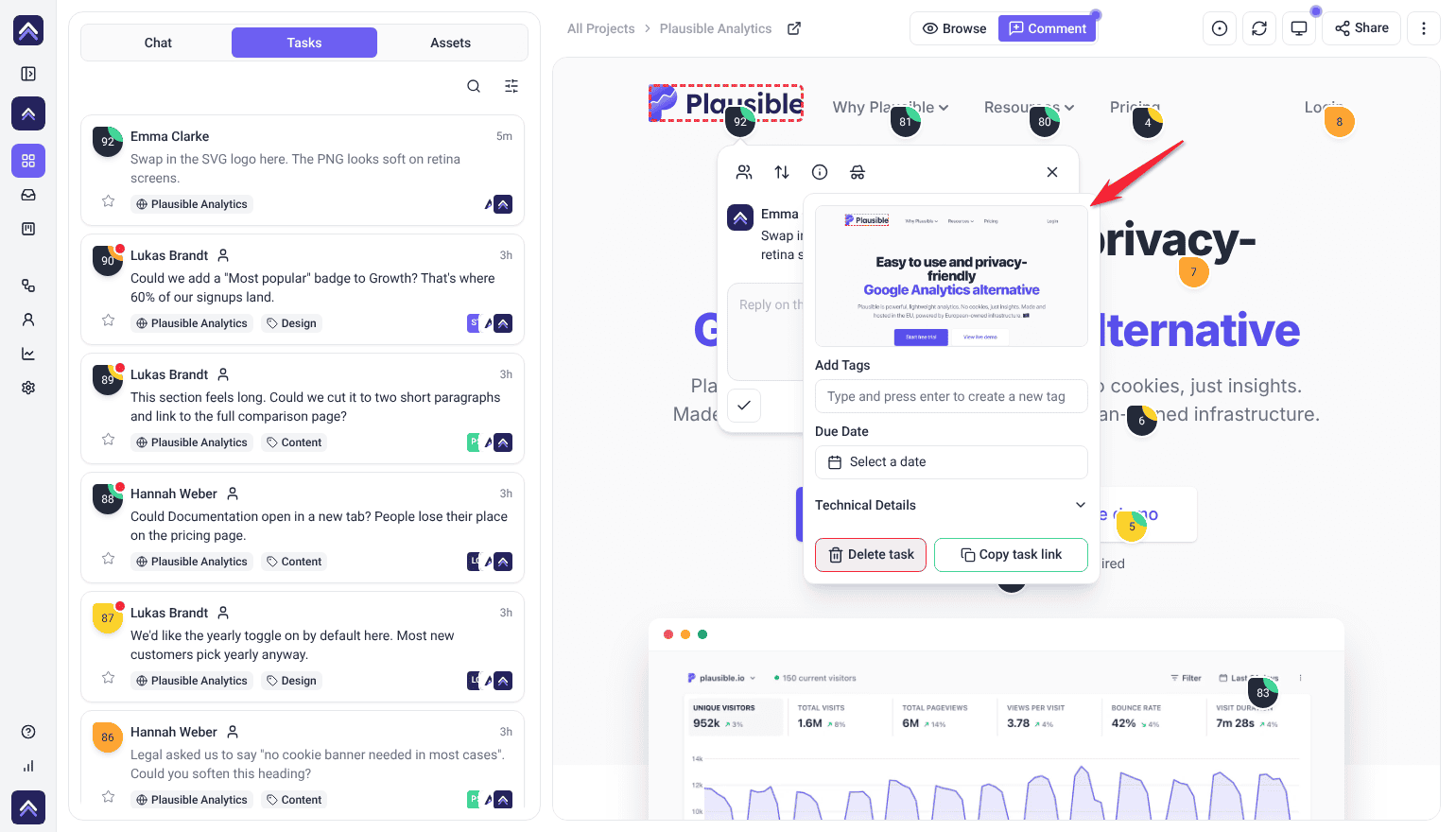
A pinned comment removes the round trip that a description creates.
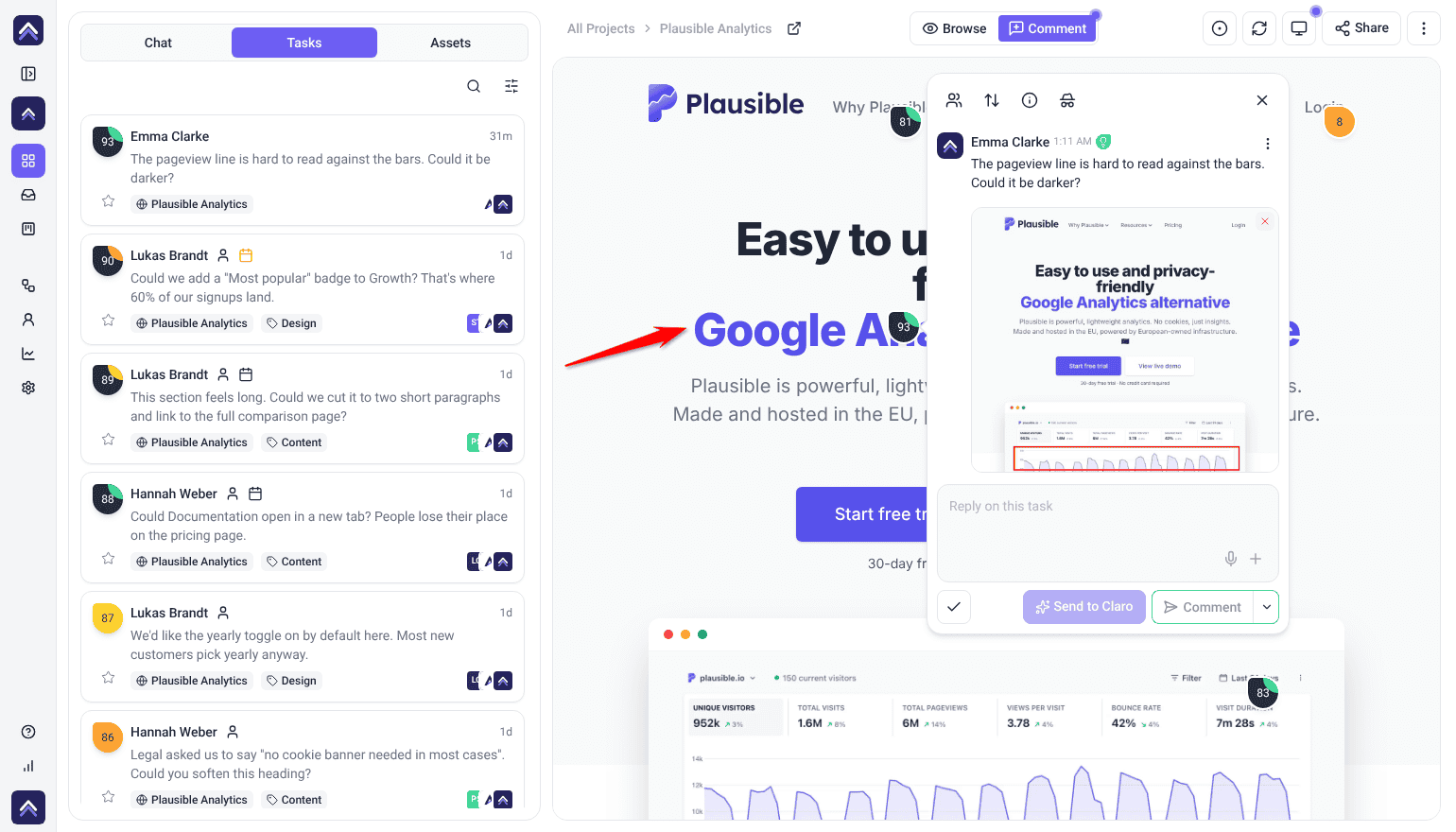
1. Comment Directly on the Page
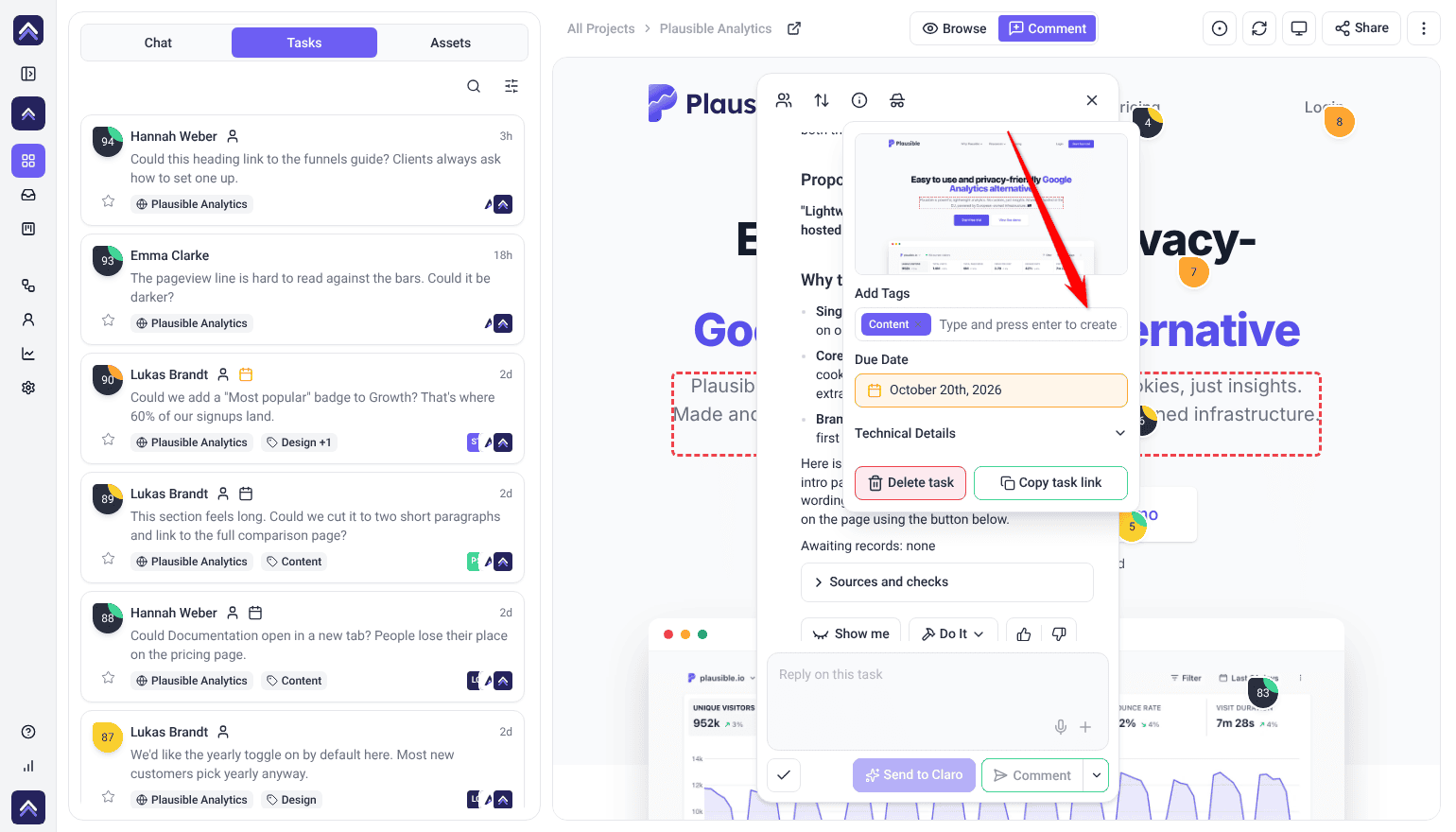
Comment mode is the switch that turns clicking into feedback rather than navigation.
Instructions:
- Open the project or design in Atarim.
- Select Comment mode. Without it, selecting the page navigates rather than leaving feedback.
- Select the element that needs attention.
- Leave your comment or question.
2. Keep Everything in One Place
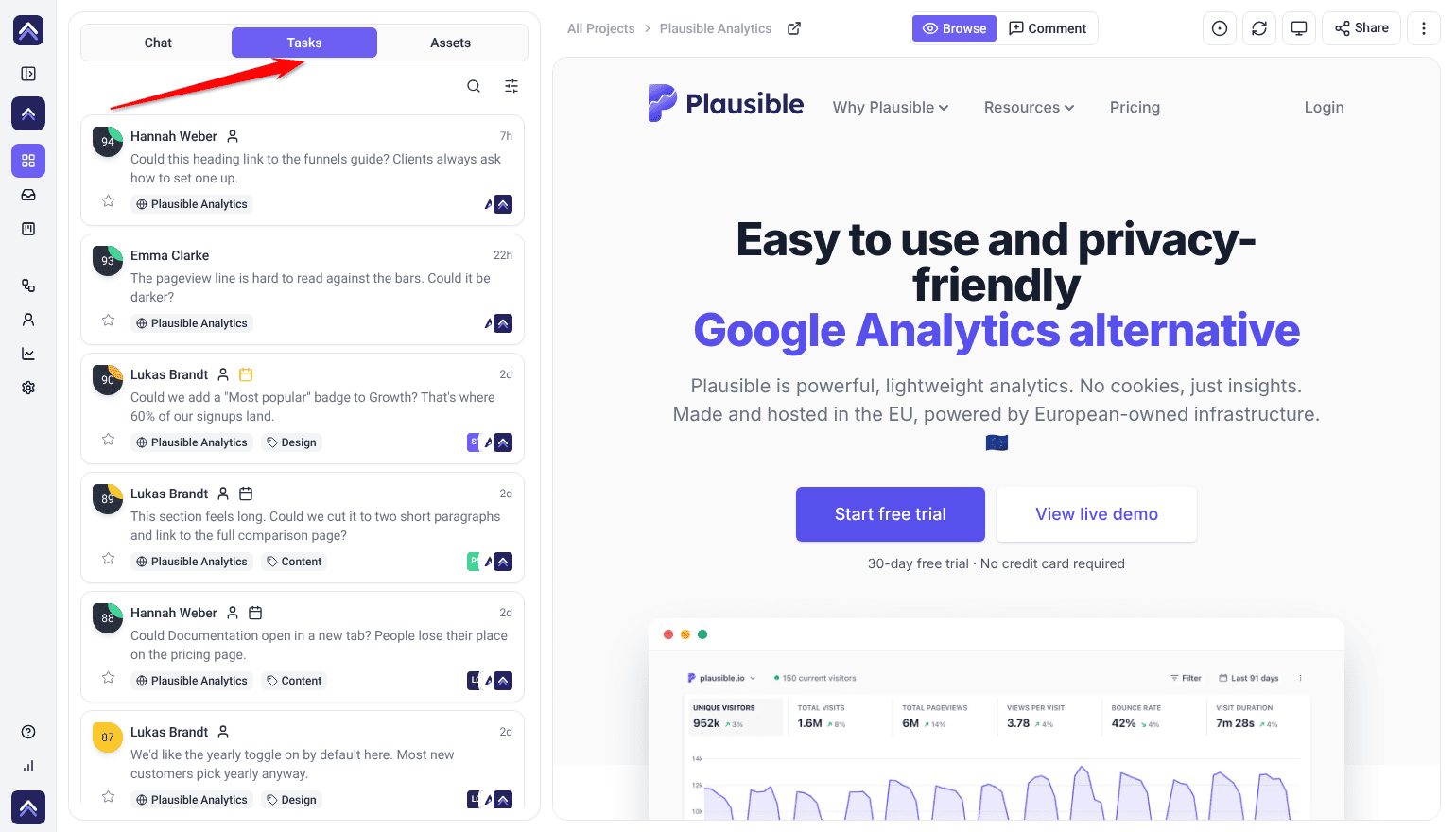
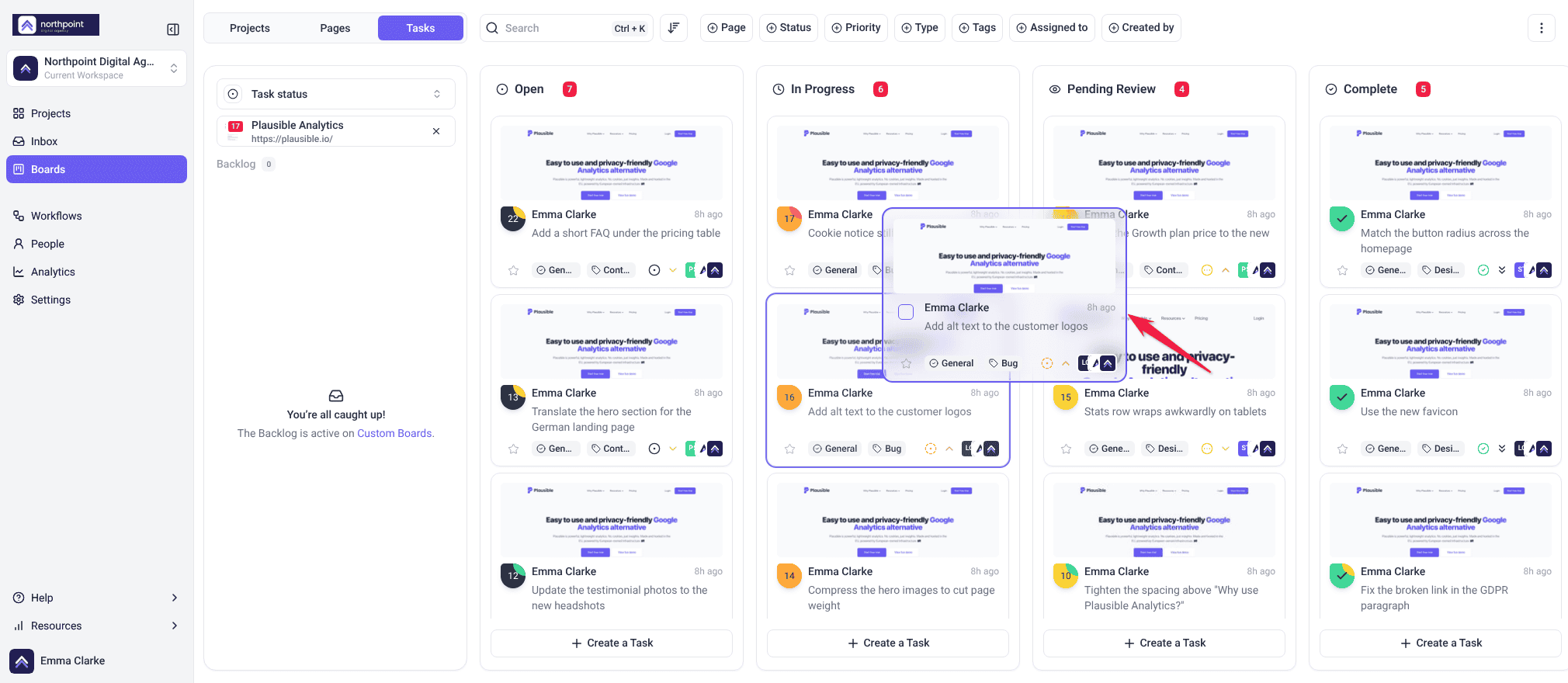
Scattered feedback is what makes a second round necessary, so keep all of it in one view.
Instructions:
- Open the Tasks tab in the sidebar to see all tasks together.
- Use the filter menu to show only tasks assigned to you, or sort them by priority or status.
3. Let Context Be Captured for You
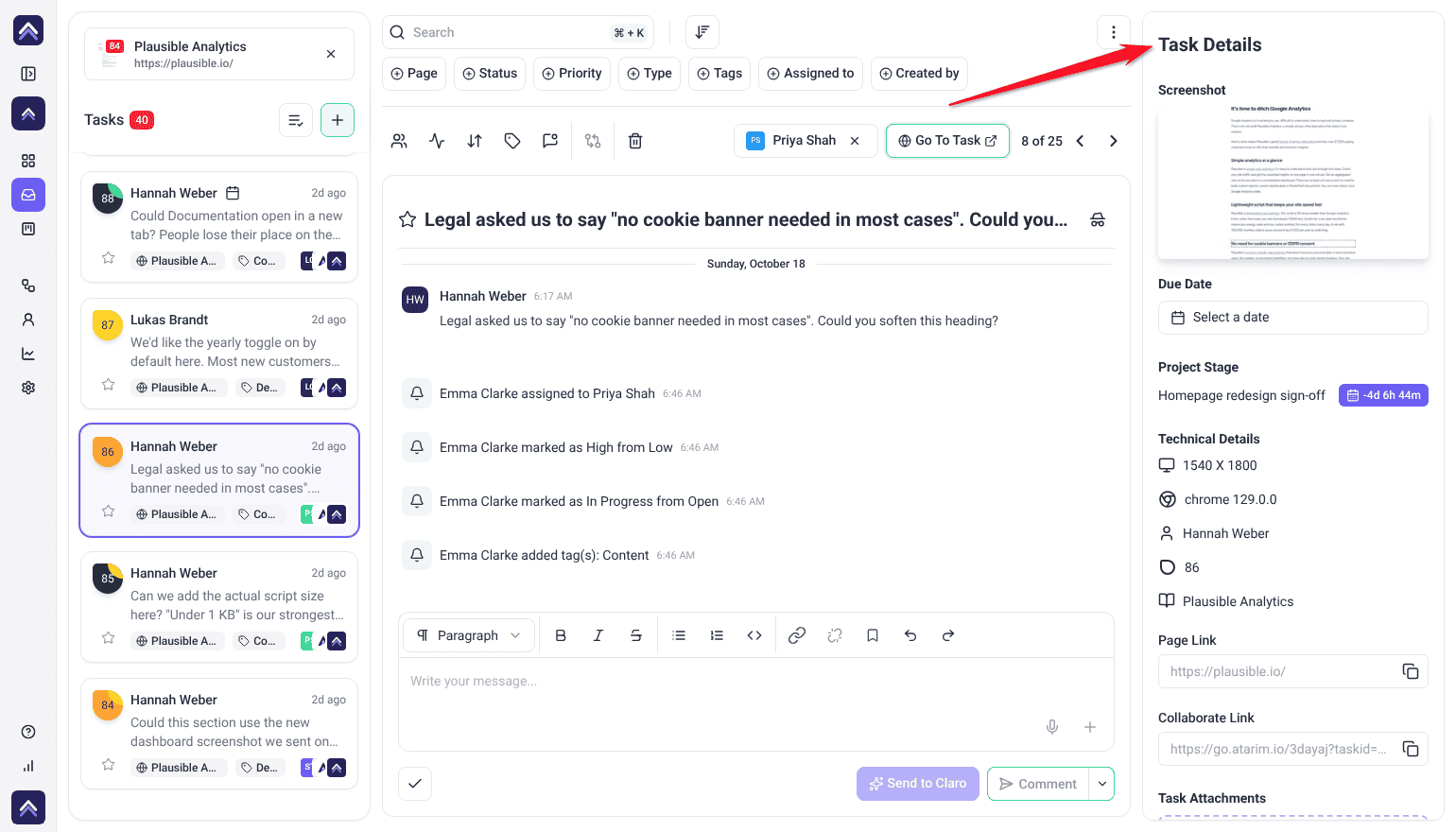
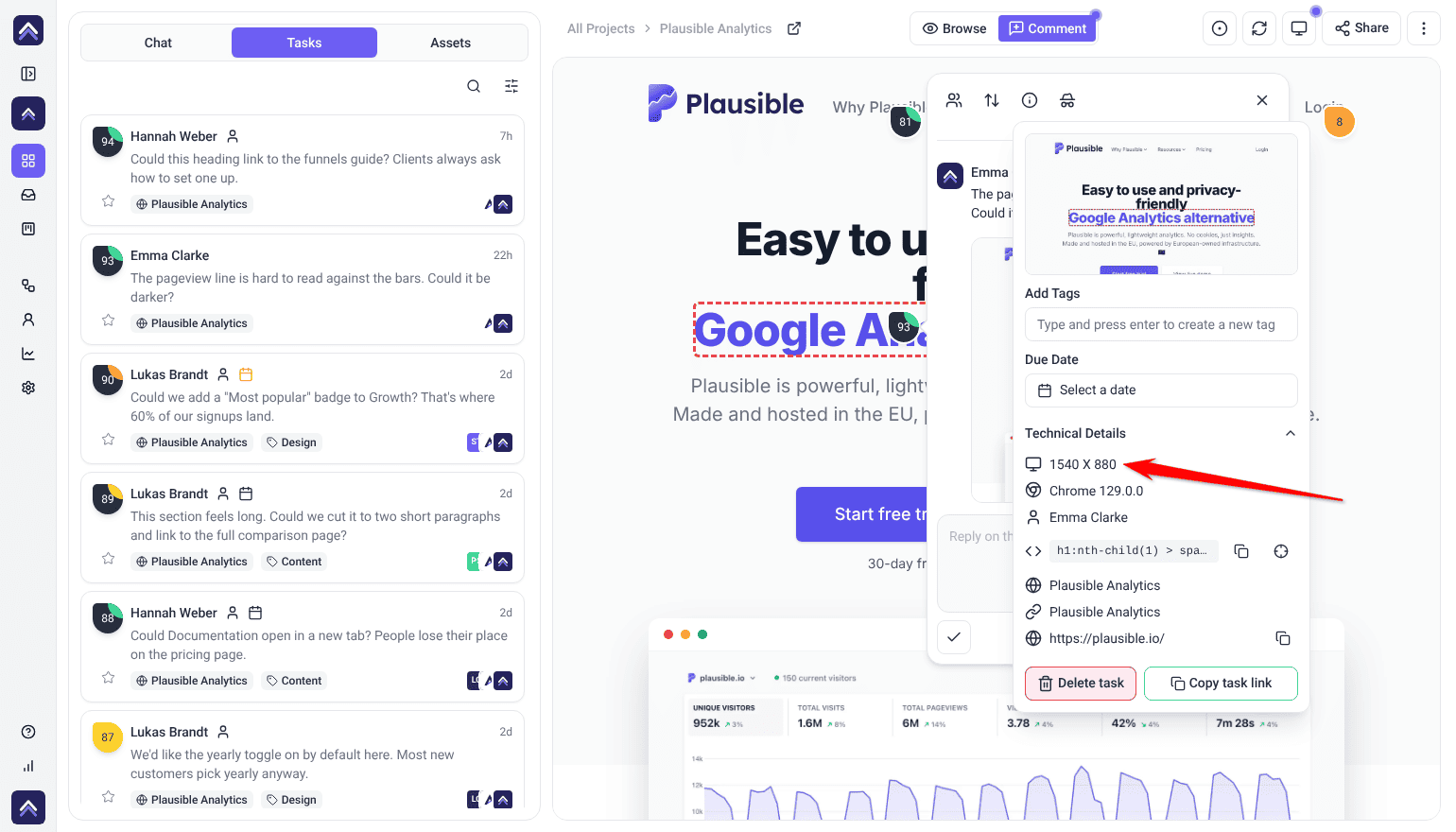
Every comment arrives with the detail a developer would otherwise have to ask for.
| Captured automatically | The question it prevents |
|---|---|
| Screenshot | “Can you show me what you’re seeing?” |
| Page URL | “Which page was this on?” |
| Browser | “What browser are you using?” |
| Screen size | “What size is your screen?” |
4. Keep Everyone Able to See Progress
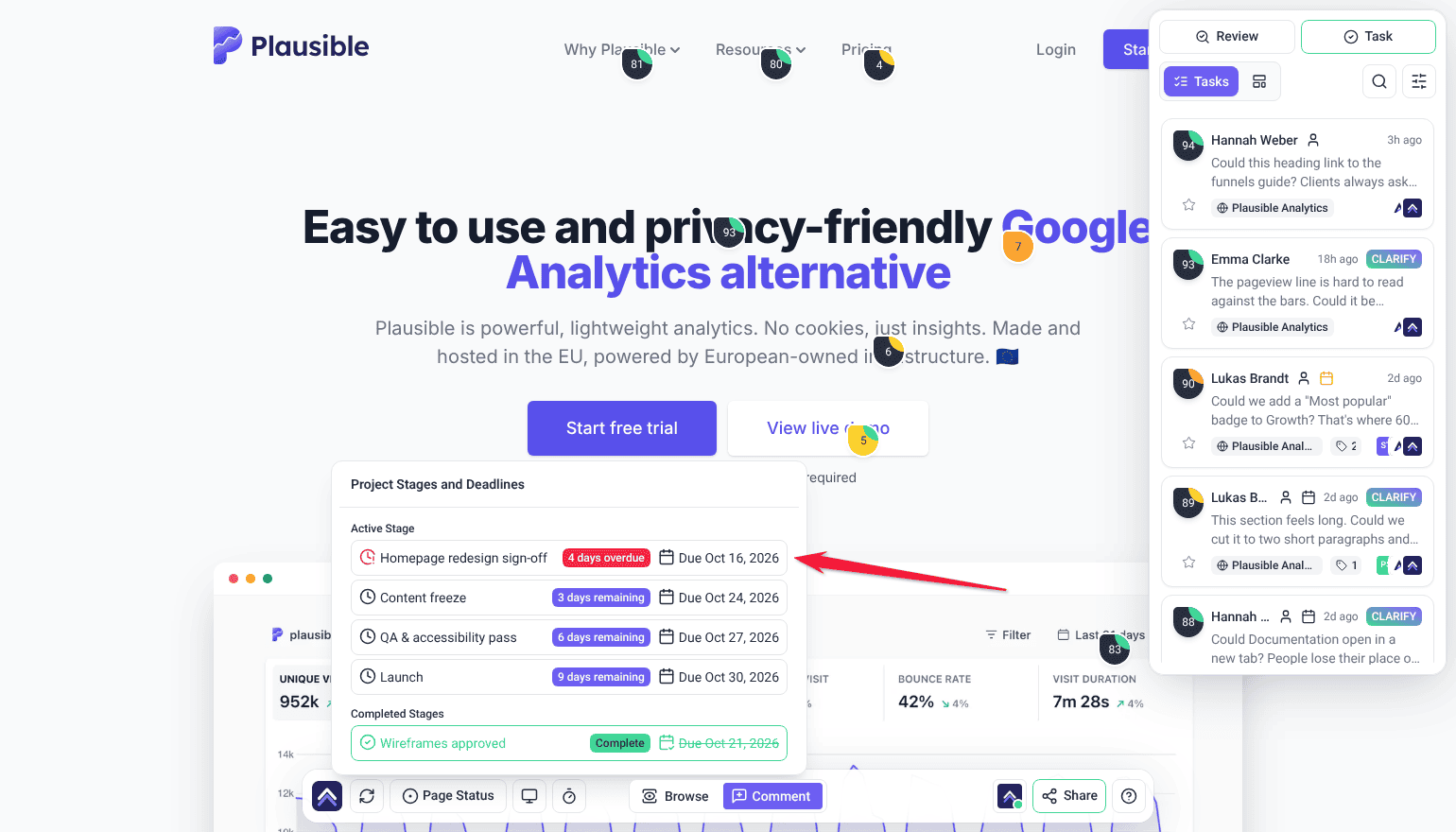
- Set project stages from the project’s ⋮ menu › Set Project Stages on the Projects screen, and use them as accountability checkpoints.
- Share tasks and updates with the stakeholders who need them.
5. Use the Chrome Extension Where Links Can’t Reach
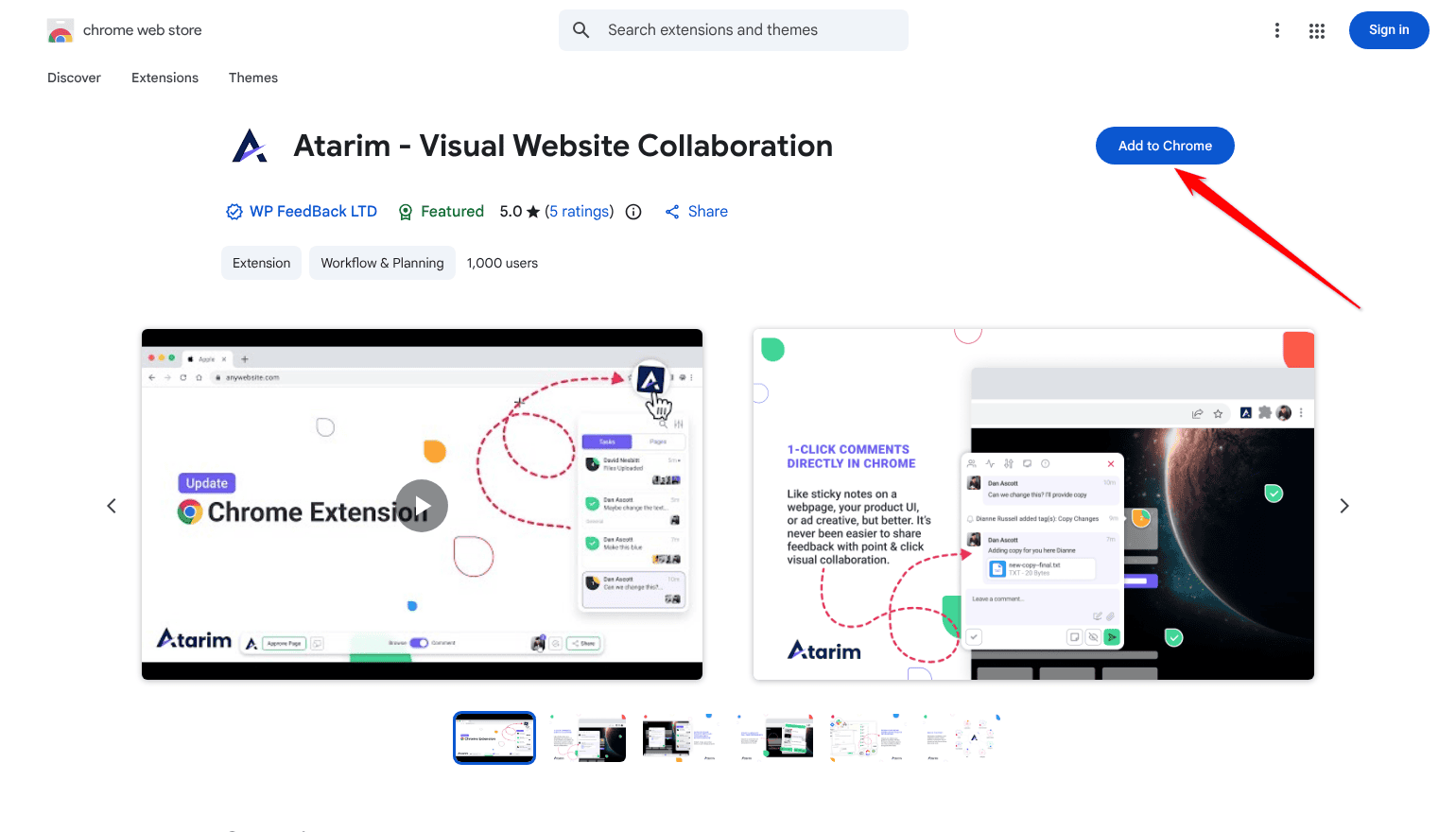
The extension covers sites you cannot load into Atarim directly, such as anything sitting behind a login.
Instructions:
- Install the extension and sign in.
- Open any live website and leave feedback without switching platforms.
6. Prioritise What Arrives
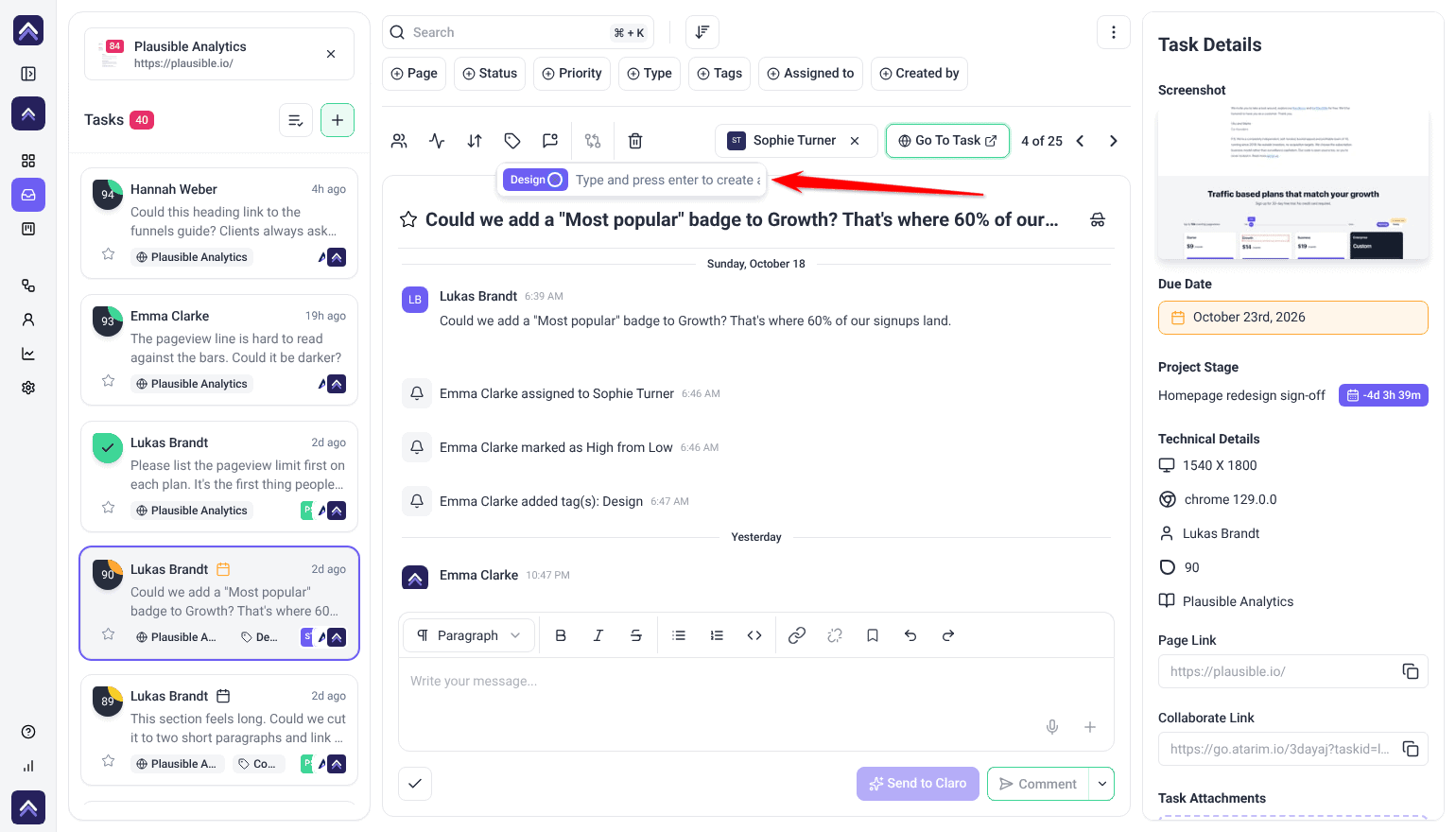
Priority and status are what stop a long list of comments turning into an undifferentiated backlog.
Instructions:
- Set each task’s priority — Low, Medium, High or Critical.
- Add tags for anything priority doesn’t capture, such as the component or the team involved.
- Keep statuses current: Open, In Progress, Pending Review, Complete.
FAQs
Can I use Atarim without the Chrome extension?
Yes. The WordPress plugin or one-click URL collaboration both work without it. The extension helps for sites a link can’t reach.
How does Atarim prevent duplicate feedback?
Feedback is centralized in tasks, so people can see what’s already been raised before adding more.
Why can’t a reviewer leave feedback?
Comment mode isn’t active. In Browse mode, clicking the page navigates instead.
What gets captured with each comment?
A screenshot, the page URL, the browser and the screen size.
Do clients need the extension?
No. It’s for your team — clients collaborate through a shared link.
Common issues
- A client says clicking does nothing — Comment mode isn’t on. Ask them to select it first.
- Screenshots don’t show on tasks — seeing them is a permission. Check View Auto Screenshot on tasks in Settings › Workspace Permissions or the project’s Project Permissions.
- Feedback is still vague — walk the client through leaving one comment on a call. Faster than another written explanation.
- The same issue is reported twice — keep discussion inside the task it relates to, so people see what’s already raised.
- A site won’t load for feedback — use the Chrome extension, or check whether a firewall is blocking Atarim.
- Clients ask where things stand — share project stages, and tell them directly when a stage changes.
Conclusion
Shorter feedback cycles come from removing round trips, not from chasing people. A comment pinned to an element with its context attached can usually be acted on immediately.
The one thing worth saying explicitly when onboarding anyone new is that Comment mode has to be on. It’s the difference between a reviewer who uses the tool and one who reverts to email. Discover Tips For Faster Feedback Loops
Tips & best practices
- Tell new reviewers about Comment mode before their first session.
- Encourage visual feedback rather than email descriptions.
- Check the captured context before asking for clarification.
- Keep statuses current so the board reflects reality.
- Keep discussion inside the task it relates to.
- Use tags for what priority and status can’t express.