Atarim for Clients and Stakeholders: How to Provide Clear Feedback
Point at the thing you mean, say what you want changed, and let the screenshot do the explaining.

Most feedback gets lost in translation, not in transit. “The button looks off” arrives in an email, three days later somebody asks which button, and a week disappears. Atarim removes that gap by letting you attach your comment to the exact thing you are looking at — no account, no project tool to learn, and no describing where something sits on the page. This guide covers what collaborators and guests see. If your agency set you up with your own client workspace, your screens may look different.
You click the thing you are talking about. Atarim records where you clicked and what the page looked like at the time.
Opening the Project
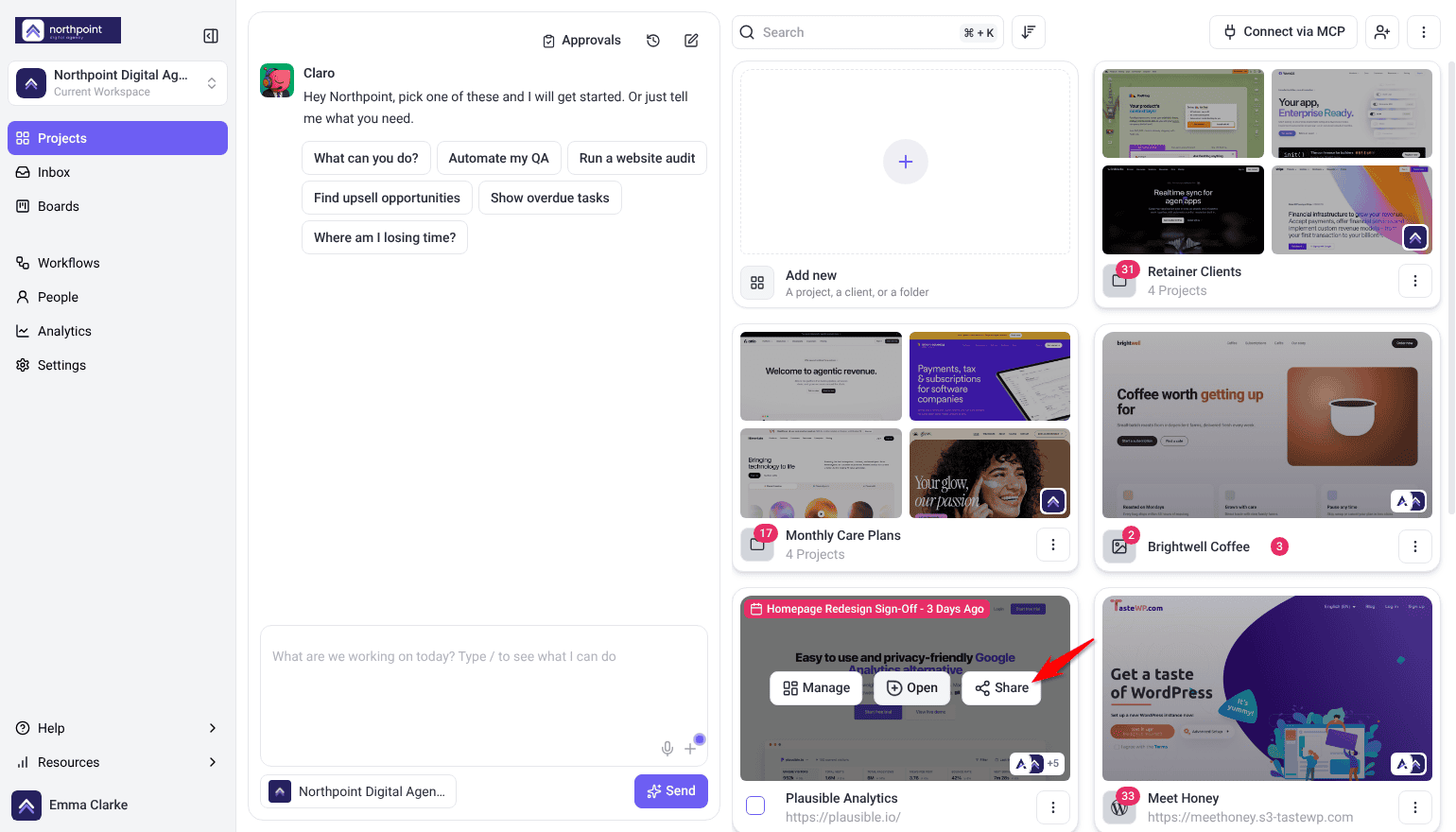
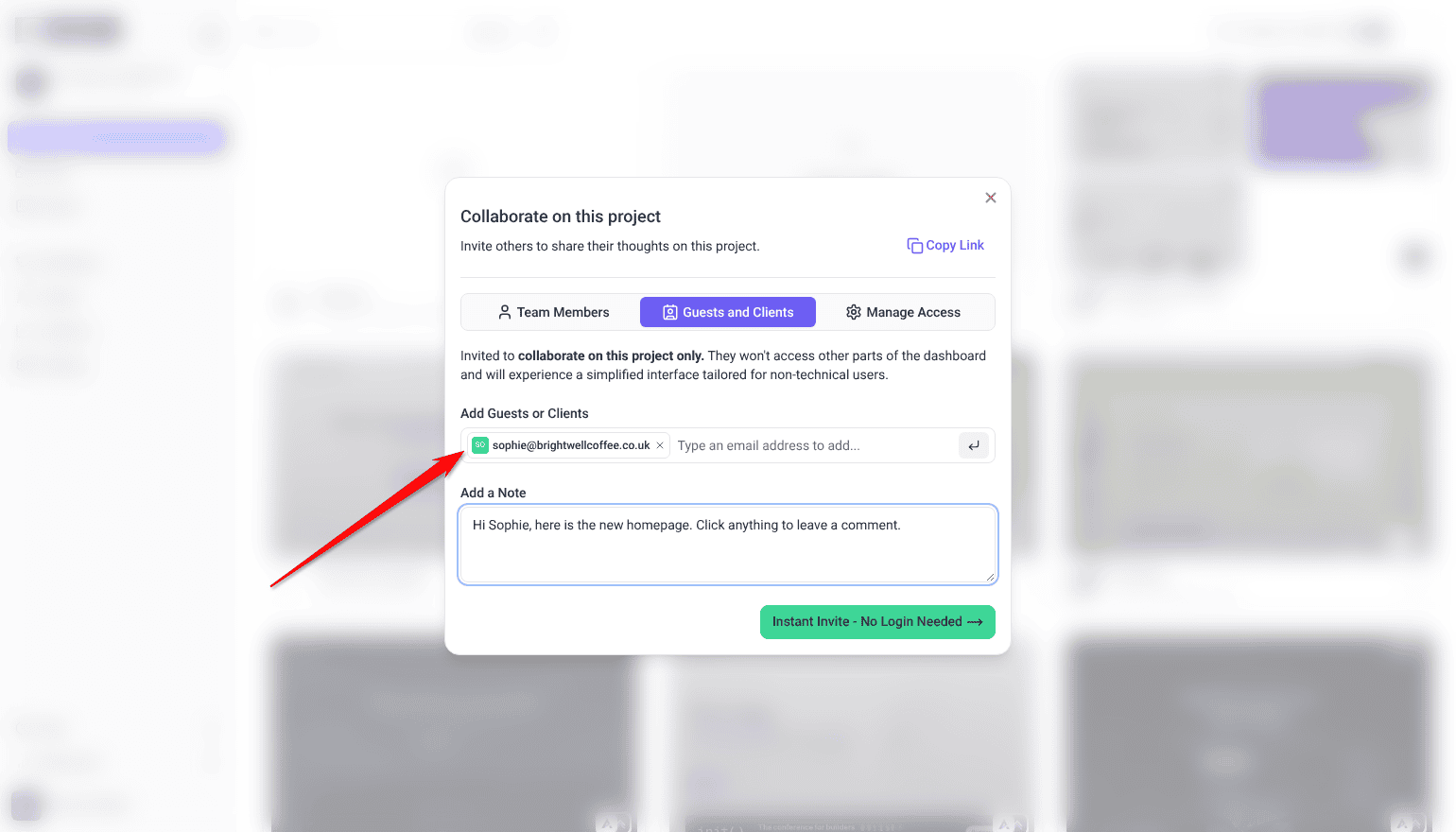
Your team sends you a link. What happens when you open it depends on how they set the project up.
| How you were invited | What you see |
|---|---|
| A guest invite sent to your email | The link identifies you automatically, so you can comment without filling anything in. |
| A shared project link | The project opens directly when your team has set it to Anyone with the link. Otherwise, ask them for an invitation. You are asked for your name and email before your first comment is saved. |
| A collaborator invitation | You set a password once, then sign in normally and receive notifications about the work. |
If you are not signed in, Atarim asks who you are before your first comment goes anywhere. A short form appears, headed Let others know who you are, with fields for your name and email address and a checkbox agreeing to the terms and conditions. Fill it in and select Save.
That is all that is required — no password, no account. Your name and email are used to attribute your comments so your team knows who left them. If you do already have an Atarim account, the same panel offers Sign in instead.


Browse Mode and Comment Mode
The bar along the bottom of the screen carries a switch between two modes. Knowing which one you are in explains almost every moment of early confusion.
| Mode | What it is for | What clicking does |
|---|---|---|
| Browse | Moving around the site as a normal visitor. | Follows links and uses the page as usual. |
| Comment | Leaving feedback. | Drops a marker on whatever you clicked and opens a comment box. |

Leaving Feedback on a Page
Clicking the element is what attaches your comment to it, so where you click matters as much as what you write.
Instructions:
- Make sure you are in Comment mode.
- Click the element you want to talk about — a button, a heading, an image, a block of text. A numbered marker appears and a comment box opens, prompting What are you thinking?
- Type your feedback.
- Select Comment to post it. Atarim captures a screenshot of the page as it looked when you commented, so the team can see what you saw. In Chrome, Edge and other Chromium-based browsers, a card titled Share exactly what you see may then appear: select Most accurate and pick this tab in your browser’s sharing window for a screenshot that matches your screen exactly, or Less accurate to skip it.

You do not have to describe the location, the screen size, or the browser. That context is recorded with the task automatically — the screenshot is described in-product as a snapshot of what was seen when the task was made.
Drawing on the Screenshot
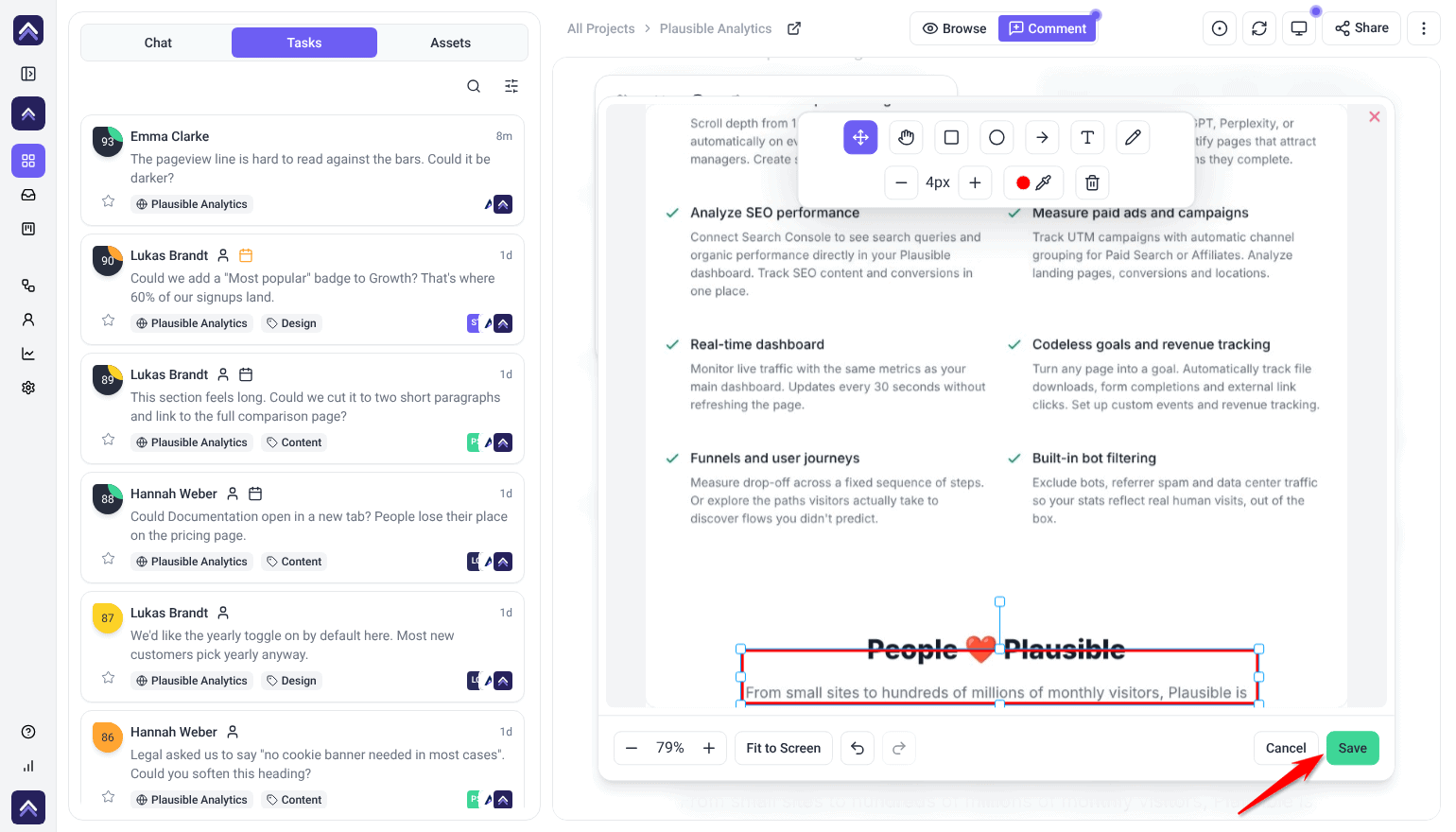
When words are doing too much work, draw instead. The comment box can capture a screenshot for you to draw on and attach to your comment.
Instructions:
- In the comment box, select + and choose Annotate screenshot. A window of the same name opens. If you are commenting as a guest, you are asked to sign up first.
- Pick a tool and mark up the image.
- Adjust as needed using Undo, Redo, or Fit to Screen.
- Select Save to attach the annotated image to your comment, or Cancel to discard it.

| Tool | Use it to |
|---|---|
| Arrow | Point at one specific thing. |
| Rectangle | Box off a region you are describing. |
| Circle | Ring something without hiding it. |
| Pen | Draw freehand. |
| Text | Add a label directly on the image. Double-click to edit it. |
| Move/Select | Reposition or resize something you have already drawn. |
| Pan | Move around a tall screenshot. Hold the space bar as a shortcut. |
Attaching Files to Your Feedback
Brand guidelines, a reference screenshot, a PDF of approved copy — anything that saves an explanation can be attached to the comment itself.
Instructions:
- In the comment box, select + and choose Attach a file. On a design, select the attachment icon (Attach an item) instead.
- Choose your file, or drag it onto the task panel. The drop area confirms with Drop your item here.
- Post the comment as normal.

Individual files are limited to 20 MB, and everything attached to one comment must come to under 40 MB in total. If a file is too large, unsupported, or a duplicate, Atarim says so rather than failing silently. Commenting as a guest, you can attach images, PDFs, Word and Excel files, and zip files.
Giving Your Overall Impression of a Page
Some points are not about a particular button. “The whole page feels cramped”, or “I’m not sure who this is aimed at”, belong to the page as a whole rather than to a spot on it.
That kind of feedback goes in a task for the whole page. Depending on how you were invited, it may open by asking What’s your first impression? Either way, the order that works is the same: tell them what you think of the page as a whole first, then click individual parts of the page to comment on specific elements. The Review button at the top of the sidebar, if you see one, starts a Claro page review instead.
- At the top of the sidebar, select Task.
- Write your overall reaction in the comment box and post it. It is recorded against the page rather than pinned to an element.
- Then click individual parts of the page for anything specific.

Giving Feedback on Designs and Images
Not every review is a live website. If your team has shared mockups, logos, or other images, they appear under Designs in the sidebar, and you comment on them the same way — click the part of the image you mean, and type.
Where several versions of a design exist, you can compare them, so feedback stays attached to the version it was about rather than drifting onto the next one.
Reviewing on Phone and Tablet Layouts
A layout that works on a laptop can break on a phone, and that is usually where clients spot problems first. The bottom bar carries a device menu for previewing the design at various screen sizes, offering Desktop, Tablet, and Mobile.
The task records your own screen size and browser, not the view you picked, so say which view you mean in your comment, for example “only on mobile”.
Following What Happens to Your Feedback
Every comment you leave becomes a task in the sidebar, and each task carries a status you can read at a glance.
| Status | What it means for you |
|---|---|
| Open | Received, not started yet. |
| In Progress | Someone is working on it now. |
| Pending Review | Done, and waiting for you to look. This is your cue. |
| Complete | Finished and closed. |
Tasks also carry a priority — Low, Medium, High, or Critical — which helps the team sequence work when you have left a lot at once.
If your team’s plan includes it, you can edit a comment after posting it, and delete one you no longer want. Deleting asks you to confirm and warns that it cannot be undone. You can also react to a comment rather than replying, which is a quick way to acknowledge something without adding to the thread.
Where Atarim’s AI Helps You
Atarim has an AI team, and two parts of it are pointed at you rather than at your agency. Neither one writes your feedback for you — they help you say what you already mean more precisely.
Claro Checks Whether Your Comment Is Clear
Claro reads your comment for how actionable it is as you post it. If it reads clearly, that is the end of it — the comment is marked as clear and nobody is interrupted. If it is ambiguous, Claro follows up with you directly rather than sending your agency away to guess.
- Post your comment as normal. Claro assesses it in the background — you may briefly see Claro is checking.
- If Claro has suggestions, they appear on your own comment. They are specific alternatives, not a request to rewrite the whole thing.
- Select Preview Change to see a suggestion applied to the page before committing to it. The preview is marked Only visible to you, and Revert undoes it.
- Accept a suggestion, or dismiss them all if your original wording was right. Dismissed ones are recorded as reviewed and dismissed, so your agency knows you considered them.


AI Chat Inside a Task
AI chat is on by default for clients (Website Owners) and off by default for Collaborators, and your team can switch it on or off for each role. Guests can’t use it. Where it is on, the comment box has a Send to Claro button beside Comment. Select it and the specialist best suited to your question replies in the task thread. It is useful when you know something is wrong but cannot articulate what — describe the problem loosely and work towards a specific request before your agency ever sees it.
Working a rough idea into a clear request is what this is for. Explore Collaborating With AI Inside The Strategic Overview
What the InnerCircle Is, and Why You Will Not See It
The InnerCircle is Atarim’s wider AI review team — specialists covering design, user experience, SEO, copy, and functionality — which your agency can run across a page to surface issues before you review it.
That review is a team tool, not a client one. By default, client accounts do not see the page review control or the AI-generated task markers it produces. If your agency mentions an AI review of a page, this is what they mean, and the results reach you as ordinary tasks.
If you are curious what your agency sees when they run one, the process is documented. Read How To Run An AI-Powered Page Review
Seeing Where the Project Has Got To
If your team uses project stages, you can see the schedule rather than asking for it. In Comment mode, the bottom bar has a menu headed Project Stages and Deadlines, showing the Active Stage, any Completed Stages, and the due date for what is in flight. It shows to client accounts and your team, not to guests or collaborators.

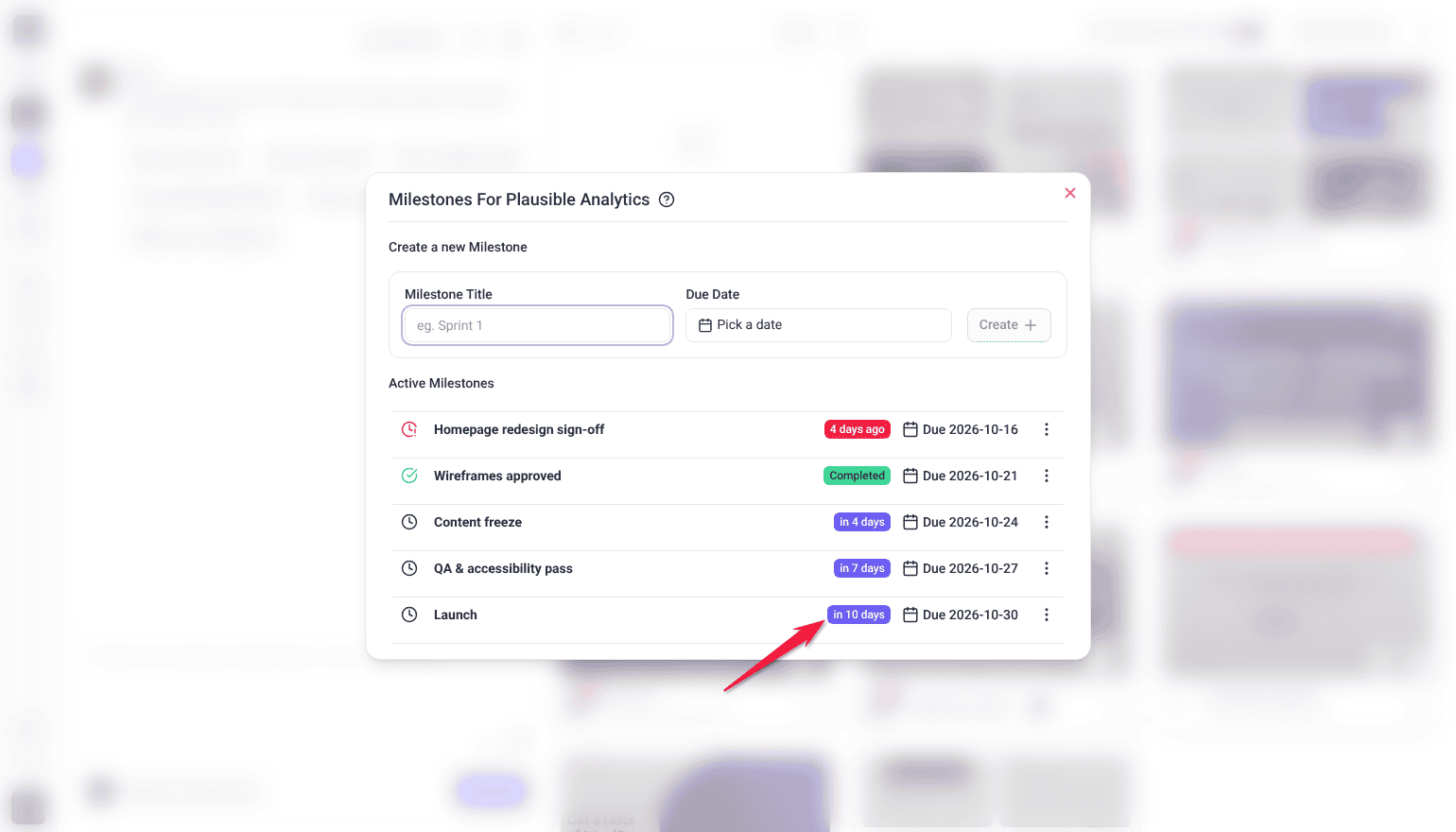
Timings are shown in plain terms — how long remains, or how far past due something is — so you can judge whether your feedback is arriving in time to be useful.
Approving a Page
Where your team has enabled it, pages carry an approval status, and an approved page is labeled clearly so everyone can see it has been signed off. This replaces the “yes, that’s fine” email that nobody can find three weeks later.

When a page is ready, use the page status button in the bottom bar. As a guest, select I’m done reviewing when you have finished, or This page is approved to sign the page off. If you were invited as a collaborator, switch to Comment mode and select This page is approved. With a client account, switch to Comment mode and select Approved. If you do not see the button, ask your team.
Sign-off has a workflow behind it that your team may be relying on. Read The Client Approval Workflow
What You Will Not See
Your team can mark comments and tasks as internal. These are described in the interface as visible to administrators and team members only, and they do not appear for you.
This is deliberate and it works in your favor: it lets your team have their working conversation — estimates, technical debate, who is picking something up — without it landing in your review. What you see is what concerns you.
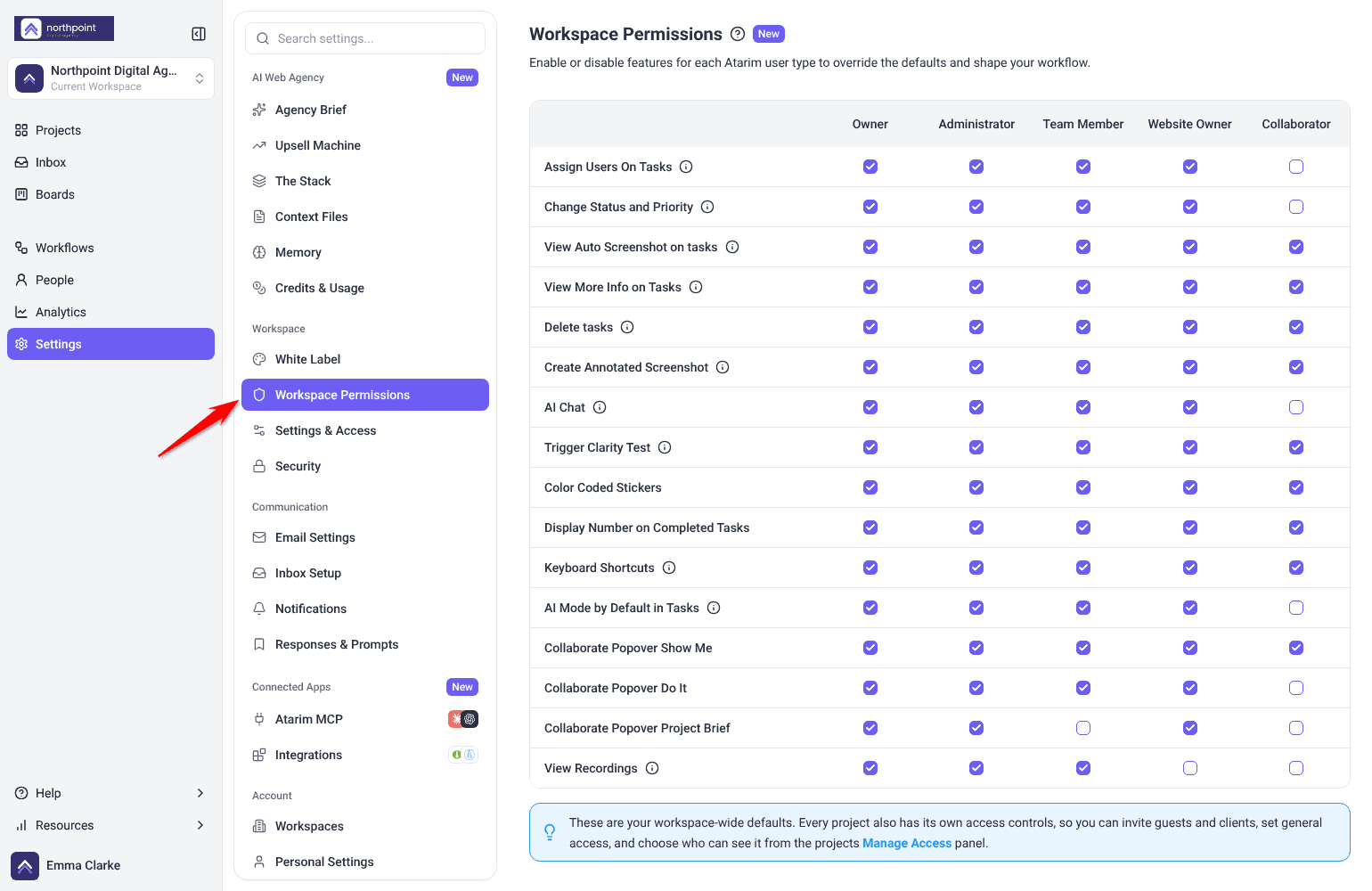
By default, a client account also has a simplified interface: filters, team member lists, and internal task controls are hidden rather than shown and disabled. If you need something you cannot find, it is worth asking rather than assuming it does not exist.
Internal tasks are a paid feature your team may or may not be using. See Internal Tasks
Working in Your Own Language
The collaboration interface can be shown in a number of languages, set from the quick actions menu in the bottom bar. If English is not your first language, switching before you start is worth the ten seconds — clearer feedback comes from a reviewer who is comfortable.

Choosing a language here changes it for you only, in this browser. If the option is locked, ask your team. Learn More About Best Practices For Client Communication
Writing Feedback Your Team Can Act On
The tools handle where. You still handle what. A few habits separate feedback that gets actioned from feedback that generates three follow-up questions.
| Instead of | Write | Why it lands better |
|---|---|---|
| “Make this bigger” | “This heading should be larger than the paragraph under it so it reads as a title” | Describes the outcome, so the team can achieve it their way. |
| “I don’t like the color” | “This green isn’t in our brand palette — guidelines attached” | Replaces taste with a rule anyone can apply. |
| “This is broken” | “Selecting this on mobile does nothing” | Says what you did and what happened. |
| “Fix the header, add testimonials, and the form’s wrong” | Three separate comments | Each becomes its own task and can be closed independently. |
| “Move it up a bit” | “This should sit above the pricing table” | Removes the guesswork about how far. |
| “As discussed” | The actual decision, written out | Your comment outlives everyone’s memory of the call. |
Faster feedback loops come from clearer feedback, not from more of it. Explore Tips For Faster Feedback Loops
Example Use Cases
| Situation | What to do |
|---|---|
| First look at a new homepage | Review in Desktop, then Mobile. Comment on elements as you go rather than writing everything up afterwards. |
| The wrong brand color throughout | One general task for the page, with your brand guidelines attached, rather than a comment on every element. |
| A layout problem that is hard to describe | Annotate the screenshot with a rectangle and one sentence. |
| Something that only breaks on a phone | Switch to Mobile first, then comment, and say that it only happens on mobile. |
| Reviewing several logo drafts | Comment on each design in the Designs sidebar so feedback stays tied to the right version. |
| Checking whether your notes were done | Look for tasks marked Pending Review — those are waiting on you. |
Known Limitations
- Guests are not notified. Commenting without signing in means no emails about replies or completed work, so you need to revisit the link.
- Comments can be switched off. If your team disables collaboration for a project, you can still read existing tasks but cannot add new ones.
- Some controls depend on your team’s plan. Attachments, screenshot annotation, the device preview, internal tasks, page approvals, editing or deleting comments, and language settings are all features their subscription may or may not include.
- Client accounts see a simplified interface by default. Filters and team lists are hidden rather than disabled.
- Individual attachments are capped at 20 MB, with a 40 MB total per comment. Larger files need to be shared another way.
- AI page reviews are a team feature. The InnerCircle review control and its AI-generated task markers are not shown to client accounts by default.
- Guests may not be able to answer Claro. Without an account, a clarification request on your comment can be left unresolved.
- Annotation applies to the screenshot, not the live page. Your drawing is attached to the comment as an image; it does not alter the site.
FAQs
Do I need an account to leave feedback?
No, as long as your team has opened the project to anyone with the link. You are asked for your name and email so comments can be attributed, but no password or account is required.
Where do I leave feedback about the page as a whole?
Select Task at the top of the sidebar. It starts a task for the whole page rather than one spot on it.
Will the team know which comments are mine?
Yes. The name and email you enter are used to attribute your comments, and guest comments are labeled as such.
Can I edit a comment after posting it?
Yes, if your team’s plan includes it, and you can delete one too. Deleting asks you to confirm and cannot be undone.
Do I have to explain where on the page I mean?
No. Clicking the element records the position, and a screenshot of the page as you saw it is captured with the task.
How do I know my feedback was actioned?
Watch the task status. Pending Review means the work is done and waiting for you to check it.
Can I comment on a phone or tablet layout?
Yes, where your team’s plan includes it. Switch the device preview in the bottom bar first, and say in your comment which view you mean.
Can I attach my brand guidelines?
Yes, provided attachments are enabled on your team’s plan. The limit is 20 MB per file, and 40 MB for everything on one comment.
Can I see the team’s internal discussion?
No. Internal notes and tasks are visible to administrators and team members only.
Why is Atarim suggesting changes to my comment?
That is Claro checking how clear your feedback is. You can preview a suggestion, accept it, or dismiss it — your original wording stands if you want it to.
Does the AI rewrite my feedback without asking?
No. Suggestions are shown to you and applied only if you accept them. Previews are visible to you alone.
Can I see the project deadlines?
Yes, with a client account, where your team has set up project stages. Switch to Comment mode and open Project Stages and Deadlines in the bottom bar. Guests and collaborators don’t see it.
Can I use Atarim in a language other than English?
Yes. Choose Language in the quick actions menu in the bottom bar. It changes the language for you only. If the option is locked, ask your team.
Common issues
- Clicking a link leaves a comment instead of opening the page — you are in Comment mode. Switch to Browse, navigate, then switch back.
- You cannot find where to leave general feedback — select Task at the top of the sidebar, not a button in the bottom bar.
- “Comments disabled” — your team has turned collaboration off for this project. You can still view existing tasks.
- Your comment box will not submit — empty comments cannot be posted.
- A warning about a missing attachment — your comment mentions a file you did not attach. Add it, or select submit again to post anyway.
- Your file was rejected — check the size, 20 MB per file and 40 MB for one comment in total, and that the type is supported.
- You lost a comment you were writing — a task is only saved once you post the first comment. Choose Keep Editing rather than Discard Task.
- The page will not load — usually the site’s own security settings. Report it to your team, or see Troubleshooting Websites That Aren’t Loading.
- You cannot see the approval control — if you are signed in, switch to Comment mode. The button is hidden while browsing. If it is still missing, ask your team.
- Claro flagged your comment and you cannot respond — this can happen when commenting as a guest. Sign in if you have an account, or ask your team to relay it.
- You are not getting any email updates — you are commenting as a guest rather than a signed-in user. Use Sign in if you have an account, or ask your team for a collaborator invitation.
Conclusion
Click the thing, say what you want to happen, and leave one point per comment. That is the whole method. The screenshot, the position, the device, and the page are all recorded for you, which means the effort you save on describing things can go into being clear about what you actually want.
Reviewing visually rather than by email is what removes the back-and-forth. Explore Reducing Feedback Cycles With Visual Collaboration
Tips & best practices
- Give your overall impression first, then comment on specific elements.
- One point per comment. Three requests in one comment reliably get one answer.
- Describe the outcome you want, not just what is wrong.
- Review in Mobile before you sign anything off.
- Annotate when a sentence is doing too much work — an arrow is faster to read.
- Attach the reference rather than describing it.
- Give feedback during the stage it relates to, not after it closes.
- Sign in rather than commenting as a guest on any project running longer than a week — that is what gets you notified of replies.
- Check for Pending Review tasks regularly — those are waiting on you.