The Stack: Mapping Your Preferred Plugin to Each Functional Category
Reference data that tells Atarim's workflows and AI which plugin actually handles SEO, security, backups, and more on your sites — configuring it never installs anything.
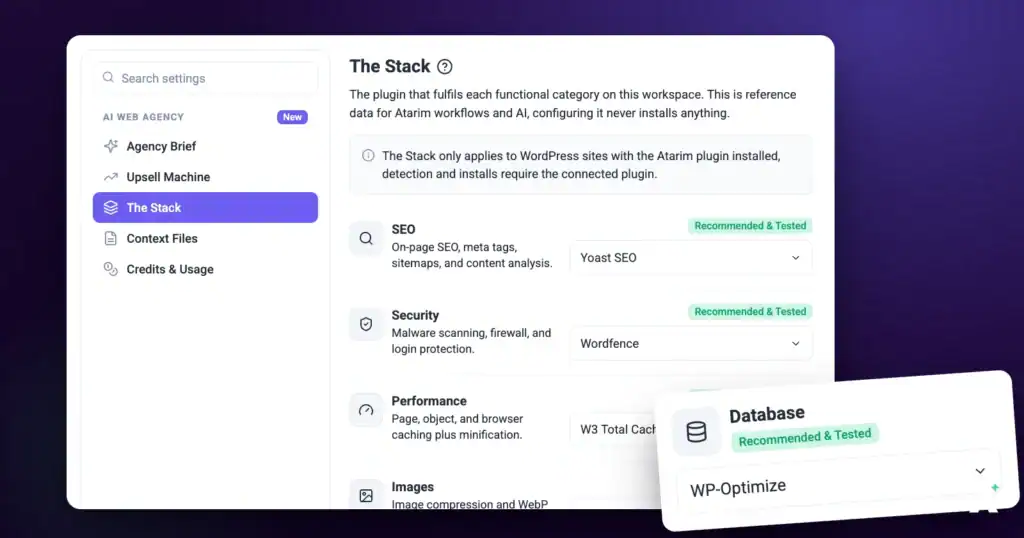
The Stack is a mapping between a functional category — SEO, Security, Backups, and so on — and the specific plugin you actually use for it. Workflows and AI read this mapping so their guidance, detection, and recommended actions reference your real tools rather than a generic default. It's reference data: selecting a plugin here tells Atarim which tool to reference, and it never installs, activates, or changes anything on a site.
What It’s For, and Why It’s Worth Filling In
Atarim’s workflows and AI agents constantly need to answer one question: which tool does this job on this site? A caching step needs to know your caching plugin. A security scan needs to know your firewall. Without an answer they either guess at whatever is most common, or give advice too generic to act on.
Advice that names your actual tools
With The Stack filled in, a recommendation about caching names the caching plugin you actually run, and a backup step checks the backup tool you actually use. The difference between “consider enabling page caching” and a specific instruction for your specific plugin is the difference between a suggestion and something your team can execute.
One setup, every site
Set it once at workspace level and every project inherits it. You only revisit it when a particular client site genuinely differs, or when you standardise on a new tool across the board.
Detection that sees behind the login
On sites with the Atarim plugin connected, a scan reads the authenticated plugin inventory rather than guessing from the public-facing page. That’s what lets it confirm admin-only categories like security, backups, and caching, which never appear in a front-end scan.
Completely safe to configure
Nothing on this screen touches a live site. Installation is a separate, later, explicitly approved action — so you can map all fifteen categories, change your mind, and change them back without any risk to a client’s site.
Step-by-Step Guide
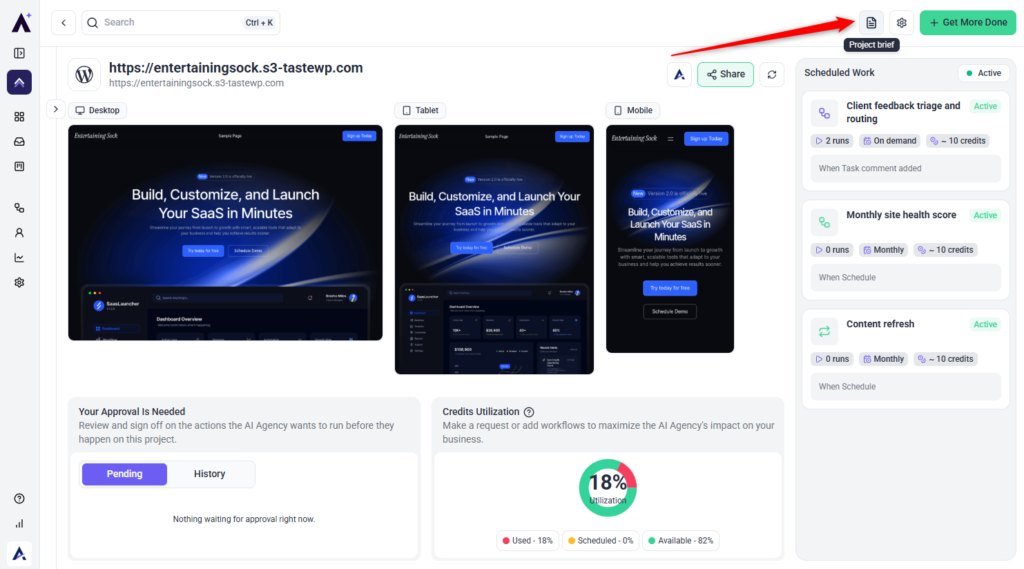
Opening The Stack
The Stack is where the AI learns which plugin does which job on your sites, so the badges matter as much as the names.
Instructions:
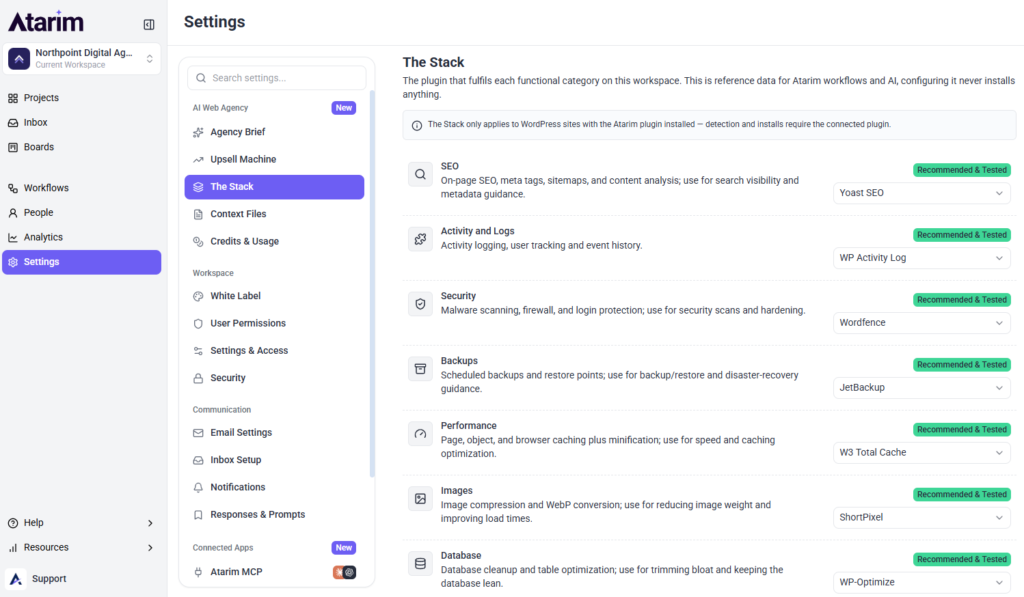
Every Category, With the Plugin That Fulfils It
A notice at the top of the screen states the scope plainly: The Stack only applies to WordPress sites with the Atarim plugin installed, because detection and installs require the connected plugin. You can still set the mapping without it — what you lose is confirmation of what’s actually running.
What The Stack Covers
A fixed list of fifteen functional categories. Each has a one-line description of what it’s for, a plugin, and a badge showing where that plugin came from.
| Category | What it covers | Atarim default |
|---|---|---|
| SEO | On-page SEO, meta tags, sitemaps, and content analysis | Yoast SEO |
| Activity and Logs | Activity logging, user tracking and event history | WP Activity Log |
| Security | Malware scanning, firewall, and login protection | Wordfence |
| Backups | Scheduled backups and restore points | JetBackup |
| Performance | Page, object, and browser caching plus minification | W3 Total Cache |
| Images | Image compression and WebP conversion | ShortPixel |
| Database | Database cleanup and table optimisation | WP-Optimize |
| Analytics | Google Analytics integration and reporting | MonsterInsights |
| Forms | Contact and lead-capture forms | WPForms |
| Email marketing automation and CRM | FluentCRM | |
| Uptime | Uptime monitoring and site stats | Jetpack |
| Heatmaps | Session recordings and heatmaps | Microsoft Clarity |
| eCommerce | Store, products, cart, and checkout | WooCommerce |
| Redirects | 301/302 redirects and 404 tracking | Redirection |
| Page Builder | Detection only, no default is set | Gutenberg assumed |
Reading the Badges
Each category carries a badge telling you where its current plugin came from. This matters because an inherited default and a confirmed installation look identical otherwise.
| Badge | What it means |
|---|---|
| Installed on site | Confirmed present by a scan of the connected site |
| Workspace default | Inherited from this workspace’s setting |
| Agency default | Inherited from an agency-level setting |
| Recommended & Tested | Atarim’s own recommendation for that category |
| Atarim default | Atarim’s pick where it isn’t flagged as a tested recommendation |
| Custom | Someone picked this plugin manually |
| Not configured | No plugin is set for this category |
Setting the Plugin for a Category
Three sources feed the picker — Atarim's curated list, the full WordPress directory, and whatever was detected on the site itself.
Instructions:
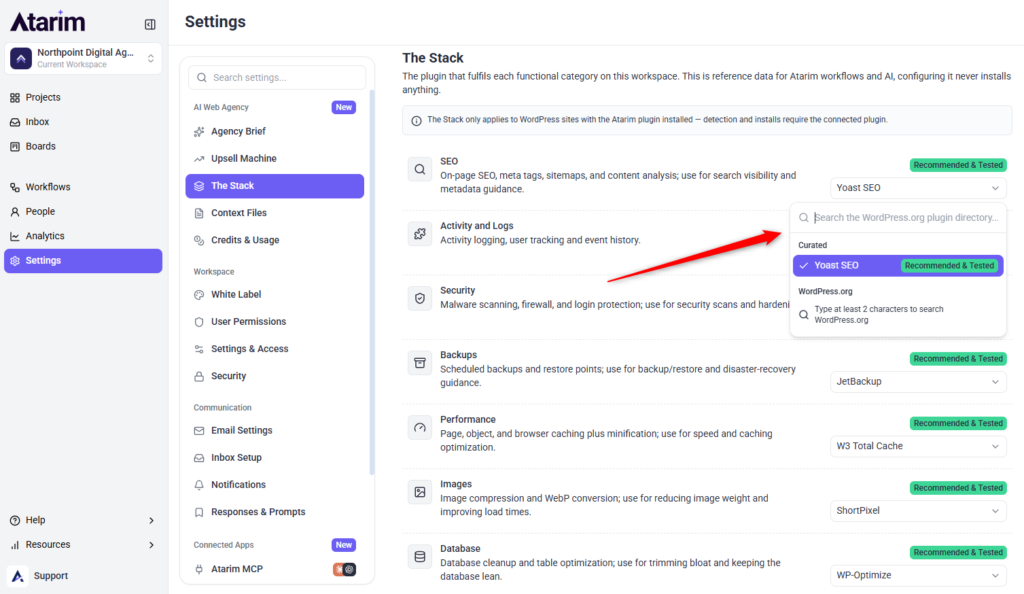
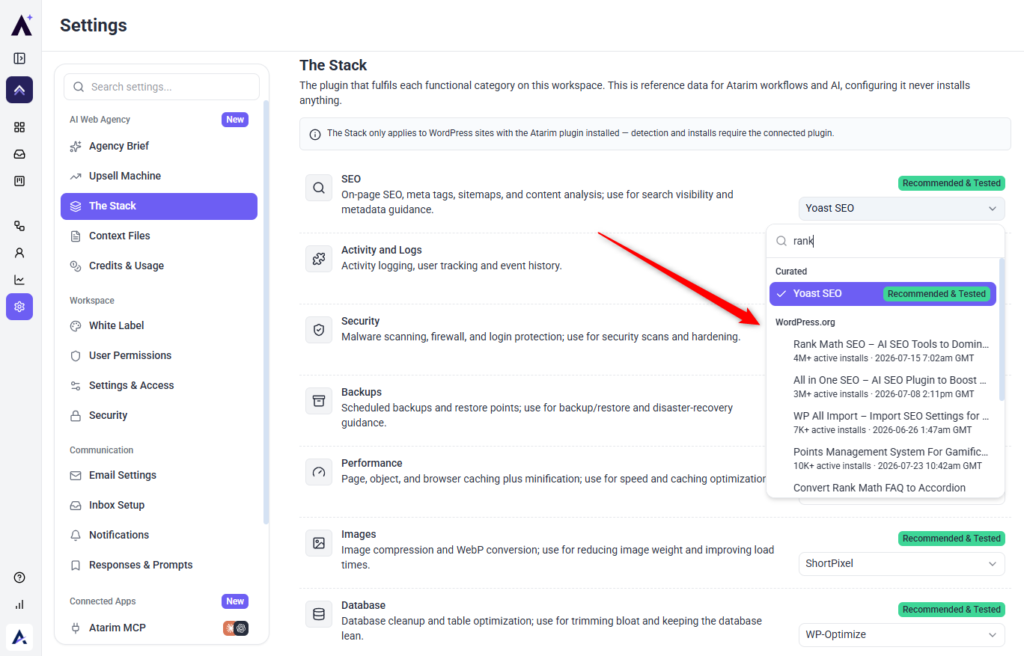
Telling the AI How You Use a Plugin
Each row carries a short description of what that plugin is for. Atarim pre-fills it from the recommended plugin, and you can rewrite it — worth doing when you’ve picked a tool Atarim has no description for, or when your team uses a plugin in a particular way.
Instructions:
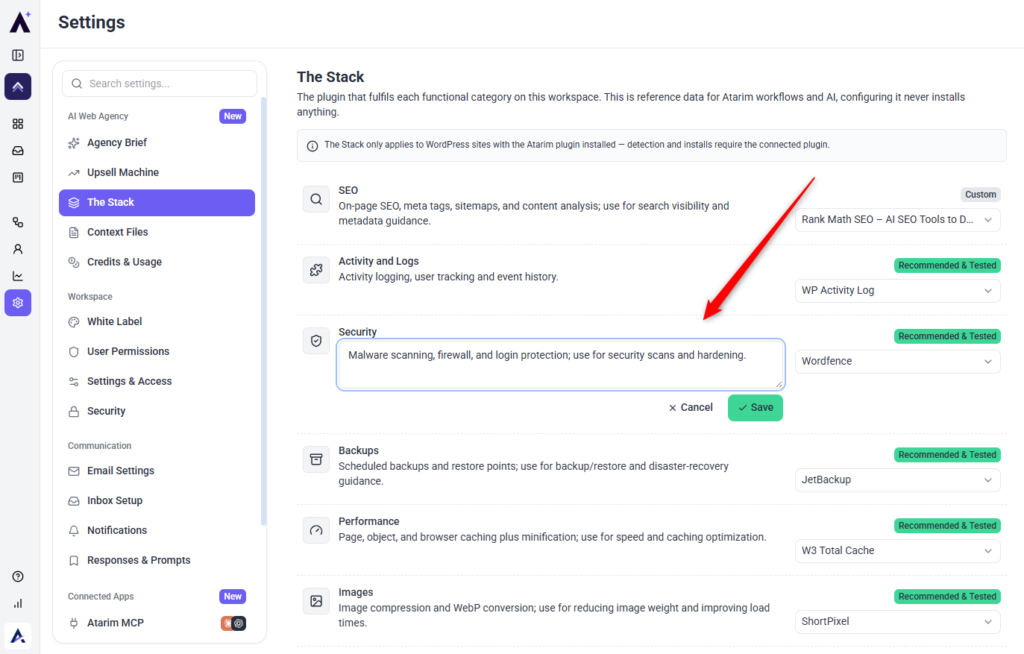
This line is what the AI reads to understand the tool’s role on your sites, so a sentence about how your team uses it is more valuable than a generic product description.
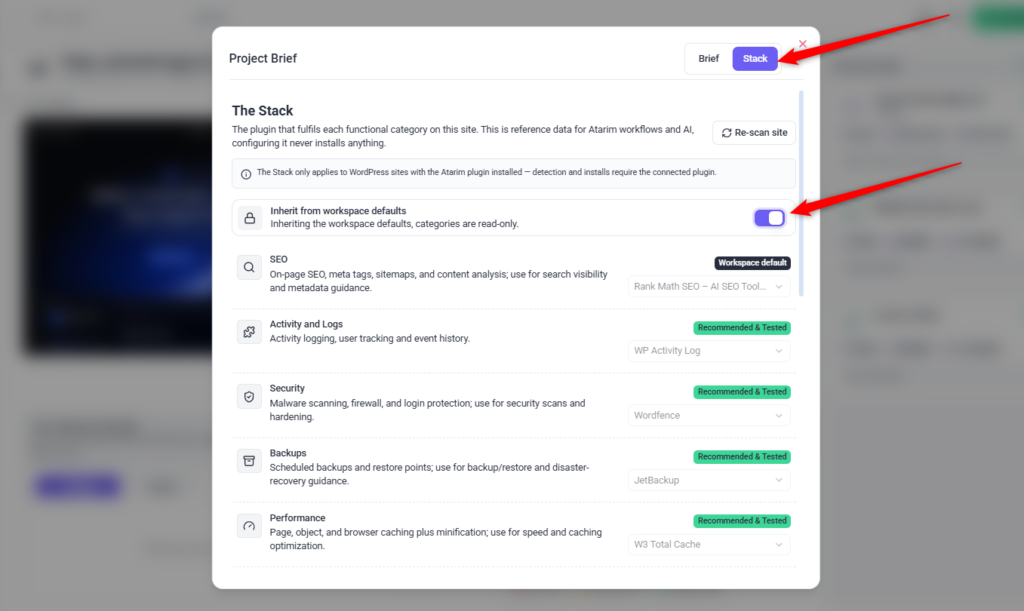
Overriding the Mapping for a Single Site
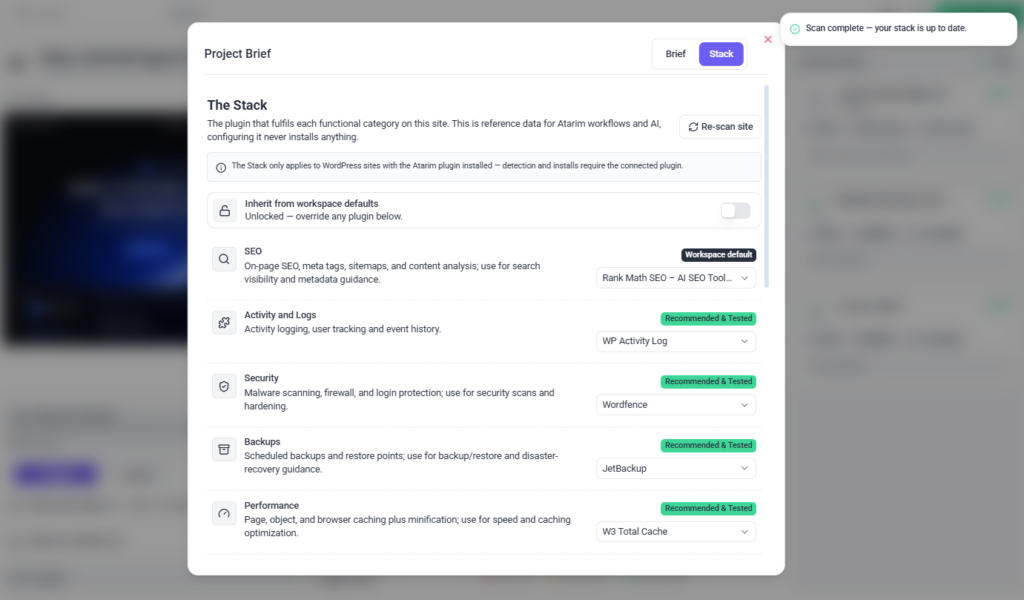
The Stack also appears on each project, so one site can differ from the rest without you rebuilding all fifteen categories.
Instructions:
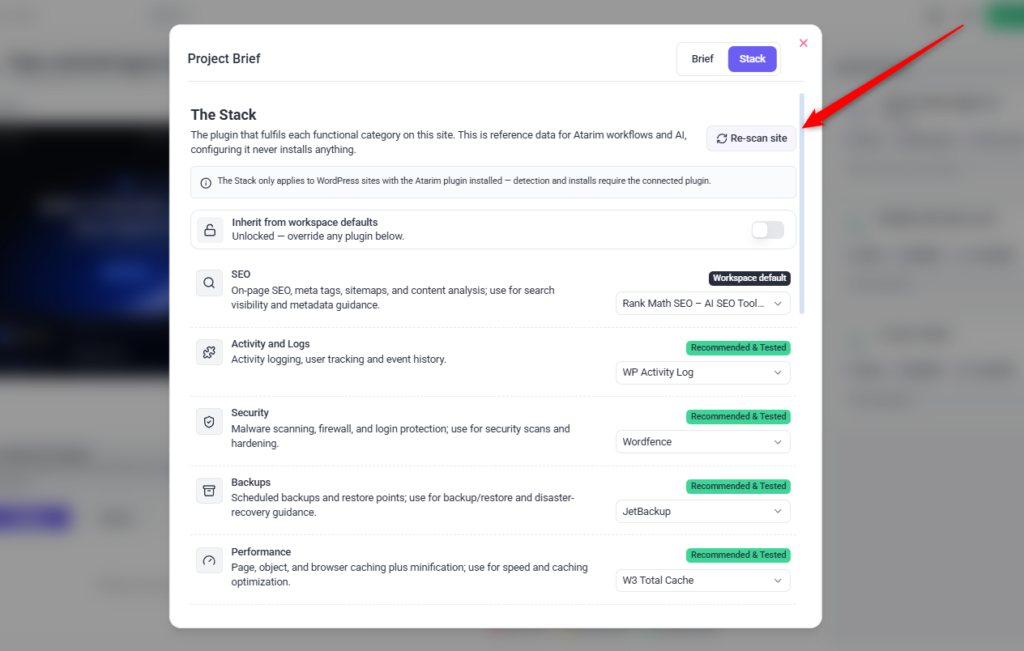
Scanning a Site to Confirm What’s Installed
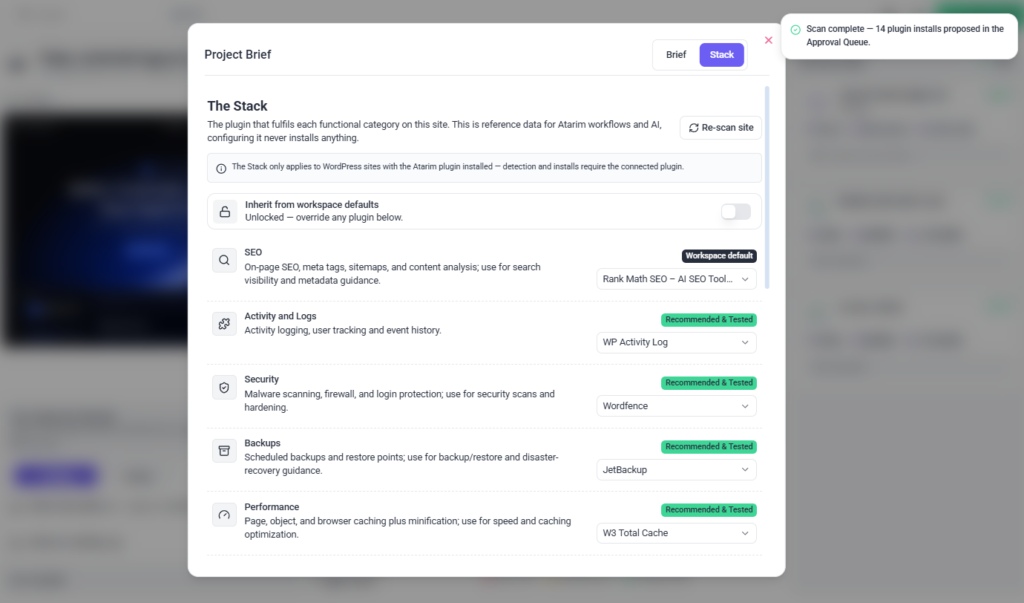
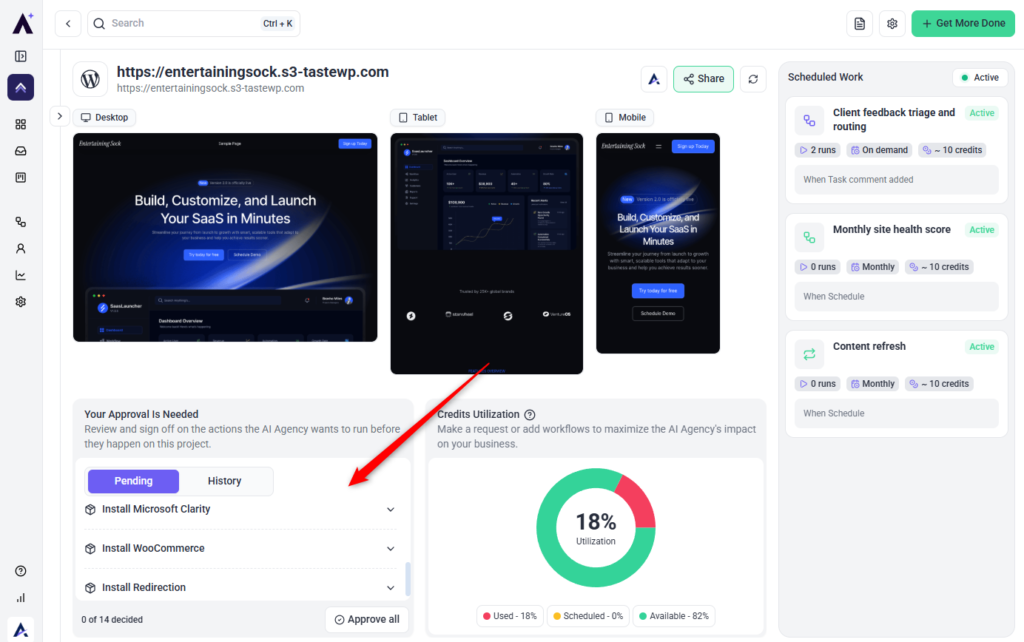
A scan replaces assumption with fact, marking the rows Atarim can actually see installed on the site.
Instructions:
Understanding Detection-Only Categories
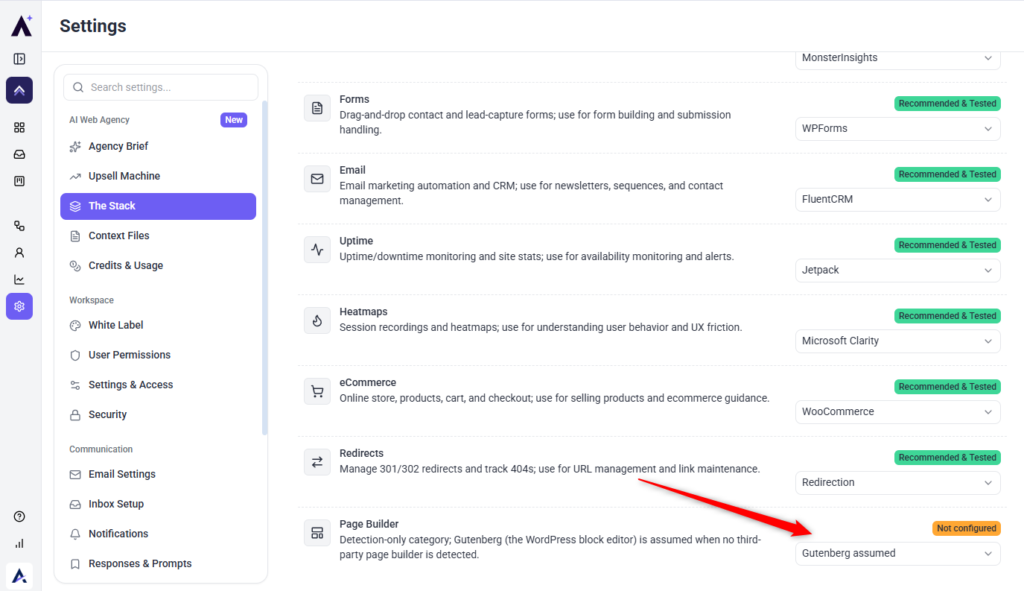
Page Builder behaves differently from the other thirteen. It’s detection-only, with no Atarim default — Gutenberg, the WordPress block editor, is assumed until a third-party builder is detected on a connected site. Because no plugin is set, the row shows Not configured rather than a green Recommended & Tested badge.
This is deliberate. Page builders are visible in a site’s own content rather than chosen by an agency as a standard, so Atarim detects rather than recommends
When a Default Needs Setup Outside Atarim
Setting a category’s plugin tells Atarim which tool owns that job, and Atarim can install and activate it for you — both held for your approval. A few plugins then need a step Atarim cannot take on your behalf.
Uptime is the one to watch. Jetpack, the default for that category, does nothing until a WordPress.com account has been connected to the site. That connection is a sign-in in your own browser, so only the account holder can complete it, and until it is done no Jetpack feature works — downtime monitoring included. Having the plugin installed is not the same as being monitored.
How Workflows Use The Stack
This is where the mapping earns its keep. Workflow steps that operate on a functional area declare which category they belong to, and the workflow runner resolves that category through The Stack immediately before the step runs.
The step gets your plugin, not a guess
A caching step in a monthly maintenance workflow resolves the performance category and receives your caching plugin. A backup-and-restore step resolves backups and receives yours. The same workflow template therefore behaves correctly across clients running different tools, without you maintaining a separate copy per client.
Every resolution is recorded
The plugin resolved for each step is written into the workflow’s run trace, so when you open a run you can see which tool the step actually used. If a step behaved unexpectedly, the trace shows whether it resolved the plugin you meant.
Resolution never means installation
Resolving tooling and installing tooling are deliberately separate. A workflow that resolves a category and finds nothing installed requests approval rather than installing inline.
Runs without a specific site
A workflow run that isn’t scoped to one concrete site — an All Projects run with no task site, for example — has nothing to resolve against, and steps simply run without Stack context.
What Happens When a Plugin Is Missing
Configuring The Stack never installs anything. Installation only happens later, at work-execution time — when a workflow or AI chat is doing something that genuinely needs a category’s tooling and finds it missing. Even then, nothing installs on its own:
Requests are de-duplicated per site and plugin, so a workflow that hits the same missing plugin repeatedly won’t fill your queue with copies.
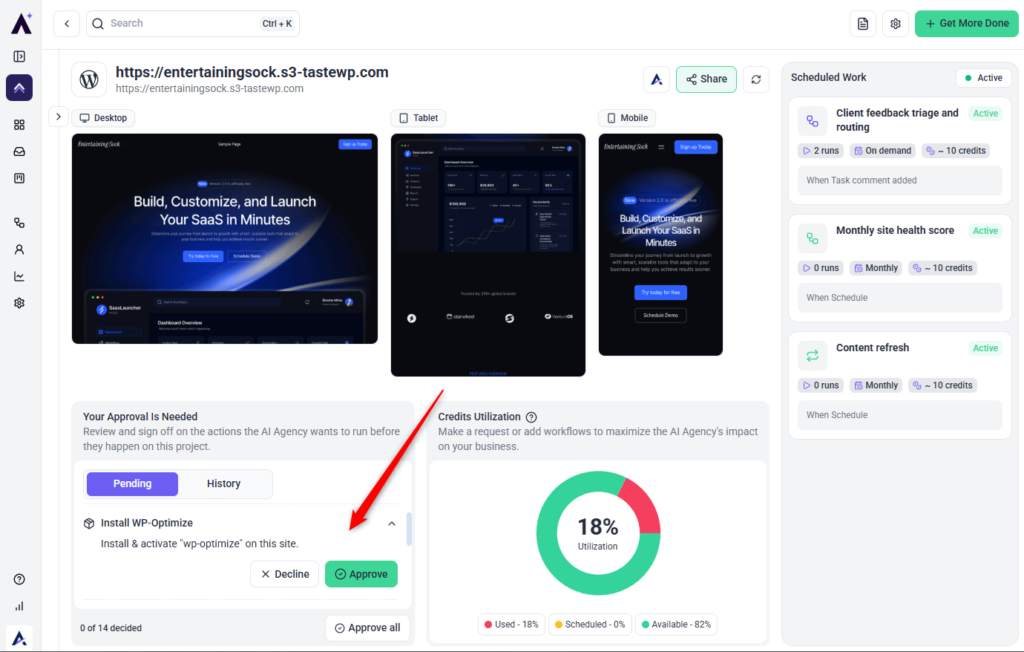
Approving an Install
Configuring The Stack never installs anything, and neither does scanning. Installs are proposed, then wait for a person:
FAQs
Does changing a selection here install the new plugin?
No. The Stack is reference data only. Installing a plugin is a separate, explicit action that requires approval on the connected WordPress site.
What if I use a plugin that’s not in the curated list?
Search the WordPress directory from the same picker and choose whichever plugin your stack actually uses. It’s worth editing the description afterwards so the AI knows what you use it for.
Why does scanning propose so many installs?
A scan confirms what’s present and proposes an install for every category whose plugin isn’t. On a fresh site that means one request per category. They sit in the Approval Queue until you decide, and declining is as valid as approving.
Why does Page Builder show “Not configured” instead of a green badge?
It’s detection-only, so it has no Atarim default to carry a Recommended & Tested status. The picker reads Gutenberg assumed until a third-party builder is detected on a connected site.
Do I have to set The Stack for every project?
No. Set it once per workspace and every project inherits it. Override individual categories on a project only where that site genuinely differs.
Who can edit The Stack?
The Account Holder and Administrators. It isn’t shown to Team Members or Collaborators.
Does The Stack work on sites without the Atarim plugin?
You can still set the mapping, and workflows will read it. What you lose is detection — Atarim can’t confirm what’s actually installed without the connected plugin.
Can an AI agent install a plugin without asking me?
No. Every install is queued in the project’s Approval Queue and waits for a person to sign off, including installs initiated from chat.
Do I need to press Save?
Not for the plugin picker — choosing a plugin saves the row immediately. The description editor is the exception: it has its own Save and Cancel buttons.
How do I know which plugin a workflow step actually used?
Open the workflow’s run and check the trace. The plugin resolved for each step is recorded there, so you can confirm the step used the tool you intended.
Conclusion
The Stack is a small, one-time setup step with outsized payoff. Once it accurately reflects your real plugin choices, every workflow and AI recommendation that touches SEO, security, backups, or the other categories references the tool you actually use rather than a generic guess — and one workflow template works across clients running entirely different tooling.
It's also one of the safest screens in Atarim to experiment with: nothing you do here changes a site, and the only thing that ever touches a live install is an approval you grant yourself.
Tips & best practices
- Fill in The Stack once per workspace — it applies across every connected WordPress site, and projects inherit it automatically.
- Revisit it whenever you standardise on a new plugin for a category; a stale entry produces confidently wrong AI guidance rather than an obvious error.
- Rewrite the description when you pick a non-curated plugin — that line is what the AI reads to understand how you use it.
- Re-scan a site after connecting the Atarim plugin, then work through the Approval Queue rather than leaving it full.
- Only override at project level where a site genuinely differs; leaving categories inherited means one workspace change updates them all.