GitHub
Connect GitHub once, link each project to the repositories it is built from, and let Atarim read the code and propose changes as pull requests.
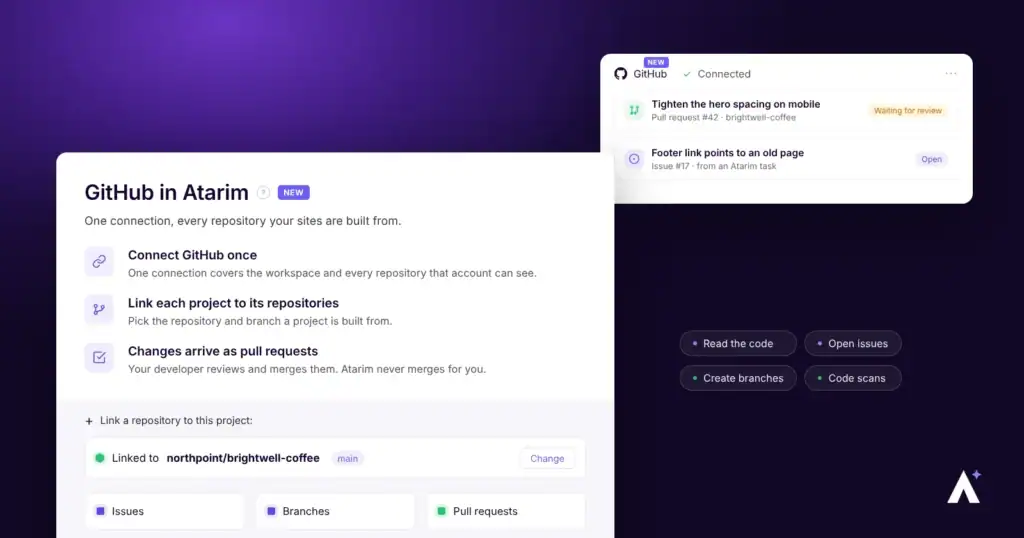
The GitHub integration gives Atarim’s AI the code behind your sites. You connect a GitHub account to the workspace once, then link each project to one or more repositories. After that you can ask in chat for code to be read, explained or changed, and changes arrive as pull requests your developer reviews.
Connect GitHub
One connection covers the whole Atarim workspace. Atarim works through the GitHub account you approve with, so it can see every repository that account can see. If you use more than one Atarim workspace, connect GitHub in each one.
Instructions:
- Open Settings > Integrations, under Connected Apps.
- Find the GitHub card and switch it on.
- Select Connect with GitHub. You leave Atarim for GitHub.
- Sign in to GitHub if prompted, and authorize the connection.
- GitHub sends you back to Integrations. The card now reads GitHub is connected to this workspace.
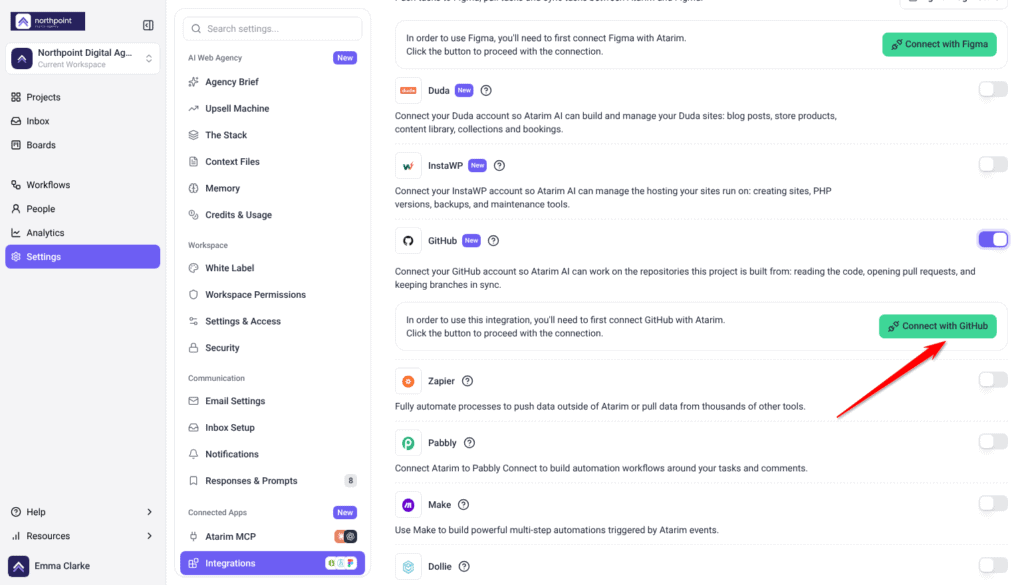
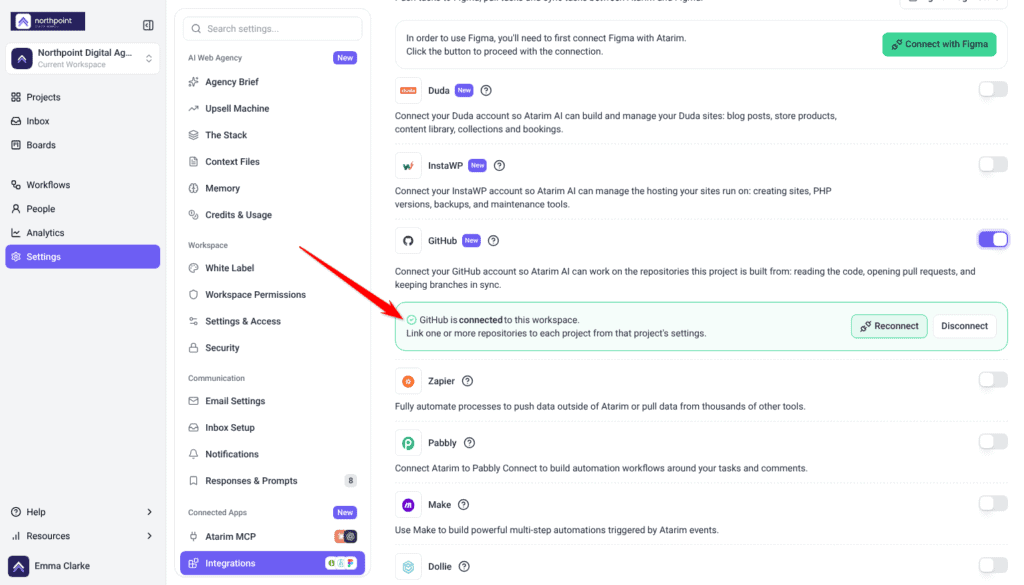
Reconnect and Disconnect sit on the same card afterwards. You can also connect GitHub while you add a site: in Add new, Manage a custom site has a Connect GitHub button under Connect the repo. Connect it there before you type the site’s address, because you leave the page and come back.
Link Repositories to a Project
Connecting the account is not enough on its own. Atarim only changes code in repositories that are linked to a project, and a project can link more than one, for example a frontend and a backend.
Instructions:
- Open the project’s Project Actions menu and select Change Project Settings.
- Under GitHub Repositories, select Link a repository.
- Under Repository, search for the repository and pick it. Private repositories show a lock.
- Under Branch, pick the branch. The repository’s default branch is picked for you and tagged default.
- Optional: type a Label, such as frontend. It shows next to the repository’s name.
- Select Link. Link any other repository the same way, then select Done.
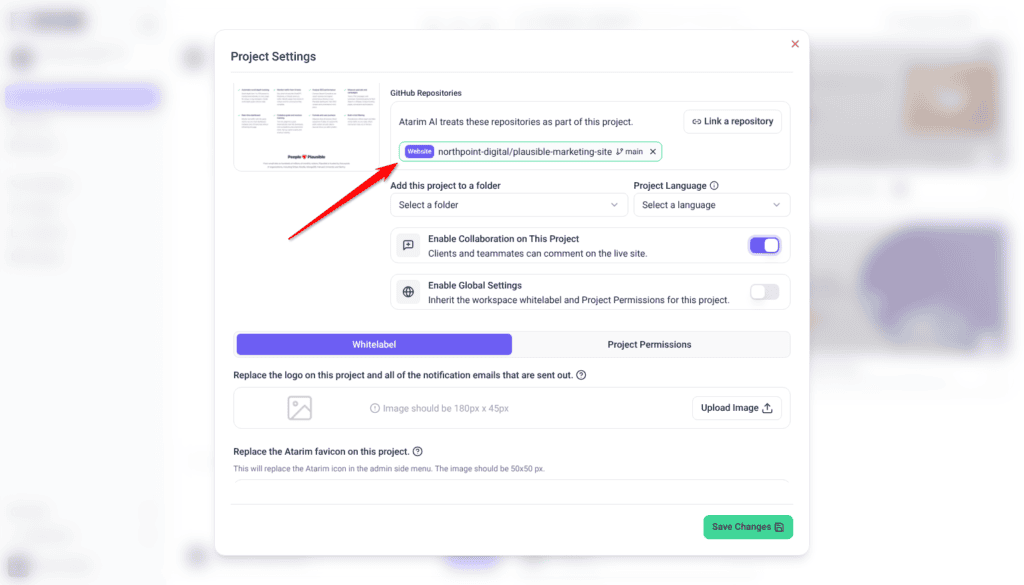
Linked repositories show with their label and branch, and the section reads Atarim AI treats these repositories as part of this project. Select the × next to a repository to unlink it.
To use a branch you will create later, type its name under Branch and select Use “name” anyway. For a new site, Manage a custom site in Add new lets you pick the repository and branch while you create the project. You can also ask the AI in chat to link a repository.
What Atarim Can Do With a Linked Repository
Ask in chat, the same way you ask for anything else. Atarim reads code in any repository the connected GitHub account can see, but it only writes to repositories linked to a project in this workspace.
| Area | What the AI can do |
|---|---|
| Code | Read files, search the code, list branches and compare commits. |
| Branches and files | Create a branch, change a file and delete a branch. |
| Pull requests | Open, update and review pull requests. It never merges one: merging stays with a person in GitHub. |
| Issues | Open and update issues, add labels, and comment on issues and pull requests. |
| Security and quality | Read code scanning and Dependabot alerts, security advisories and code quality findings, and run an AI code scan. |
| History | Read commits, releases, collaborators and invitations. |
What Needs Your Approval
Small changes run straight away. Bigger ones wait: Atarim asks you in the chat with two choices, and the request also waits in the Approval Queue. Nothing changes until someone approves it.
| Change | What happens |
|---|---|
| Open or update an issue, add a label, comment | Runs straight away. |
| Create a branch | Runs straight away. |
| Run an AI code scan | Runs straight away. |
| Link or unlink a repository from chat | Runs straight away. |
| Open or update a pull request | Waits for approval. |
| Change a file in the repository | Waits for approval. |
| Review a pull request | Waits for approval. |
| Delete a branch | Waits for approval. |
Setup at a Glance
| Step | Where it happens | What it needs |
|---|---|---|
| Switch GitHub on | Atarim → Integrations | Permission to manage integrations. |
| Authorize Atarim | GitHub | A GitHub account that can see your repositories. |
| Link a repository | Project Settings → GitHub Repositories | GitHub connected and switched on. |
| Pick the branch | Project Settings | A repository picked. The default branch is preselected. |
| Ask for work | Chat | A linked repository for any change. |
FAQs
Do I need to connect GitHub for every project?
No. One connection covers the whole workspace. What you do per project is link the repositories it is built from.
Can Atarim merge a pull request?
No. Atarim opens, updates and reviews pull requests, but merging is always left to a person in GitHub.
Can Atarim change a repository I have not linked?
No. It can read any repository the connected GitHub account can see, but changes only run on repositories linked to a project in this workspace.
Does linking change anything in GitHub?
No. Linking only records which repositories and branch belong to the project. Nothing is written to GitHub until you ask for something.
What happens if I disconnect GitHub?
Atarim can no longer reach your repositories. Project links are kept, so reconnecting puts things back without linking every project again.
Can a project use more than one repository?
Yes. Link each one from Project Settings, and give them labels such as frontend and backend so they are easy to tell apart.
Common issues
- GitHub Repositories is not in Project Settings — the GitHub switch is off. Turn it on in Settings > Integrations. Design projects do not have the section.
- A repository is not in the picker — the connected GitHub account cannot see it. Give that account access in GitHub, or reconnect with an account that has it.
- Atarim says a repository is not linked — it can read the repository but not change it. Link it to the project in Project Settings.
- A code change has not happened yet — it is waiting for approval. Approve it in the chat or in the Approval Queue.
- A workflow step that changes GitHub fails — workflows cannot make GitHub changes. Ask in chat instead.
Conclusion
Connect GitHub once per workspace, then link each project to the repositories and branch it is built from. Atarim reads freely, makes small changes on its own and brings pull requests and file changes to you first.
Linking is the step worth slowing down for, because every change Atarim makes depends on it. Explore creating a custom site project with a repository.
Tips & best practices
- Connect with a shared or admin GitHub account, not a personal one.
- Link only the repositories a project is actually built from.
- Label repositories when a project has more than one.
- Pick the branch your team merges into, not a feature branch.
- Ask for code changes in chat, not in a workflow.
- Review and merge Atarim’s pull requests in GitHub like any other.