Monday.com
Push tasks to monday.com, pull tasks back, and keep the two in sync — with the connection configured inside Atarim.
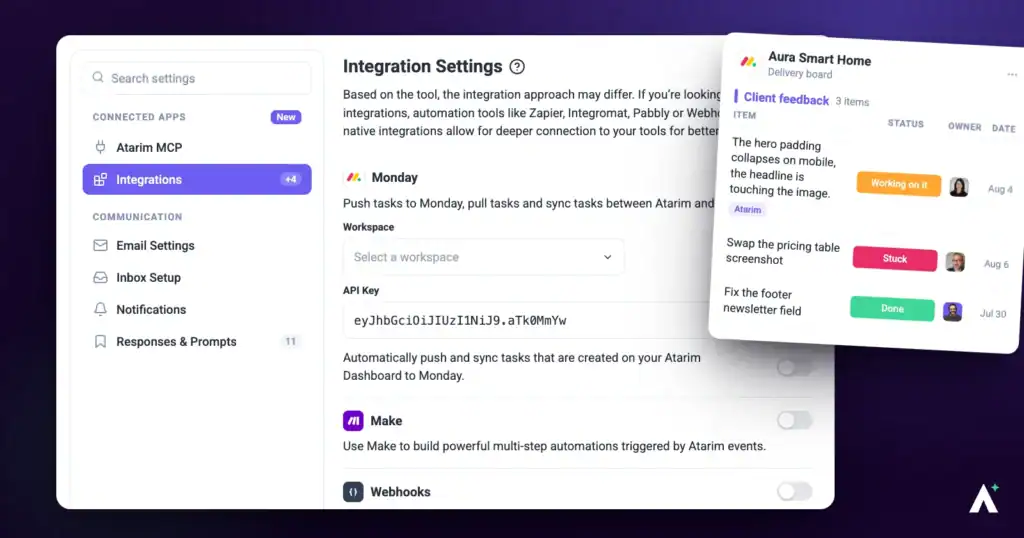
The monday.com integration is configured inside Atarim rather than from the other side — you take an API key from monday.com and paste it in, then choose where synced tasks should land. Once connected, client feedback captured visually in Atarim arrives in the board your team already plans from.
Unlike most integrations, monday.com is configured inside Atarim rather than from the other side.
The monday.com integration lets you push tasks from Atarim into monday.com, pull tasks back, and keep the two in sync. Client feedback captured visually in Atarim lands in the board your team already plans from.
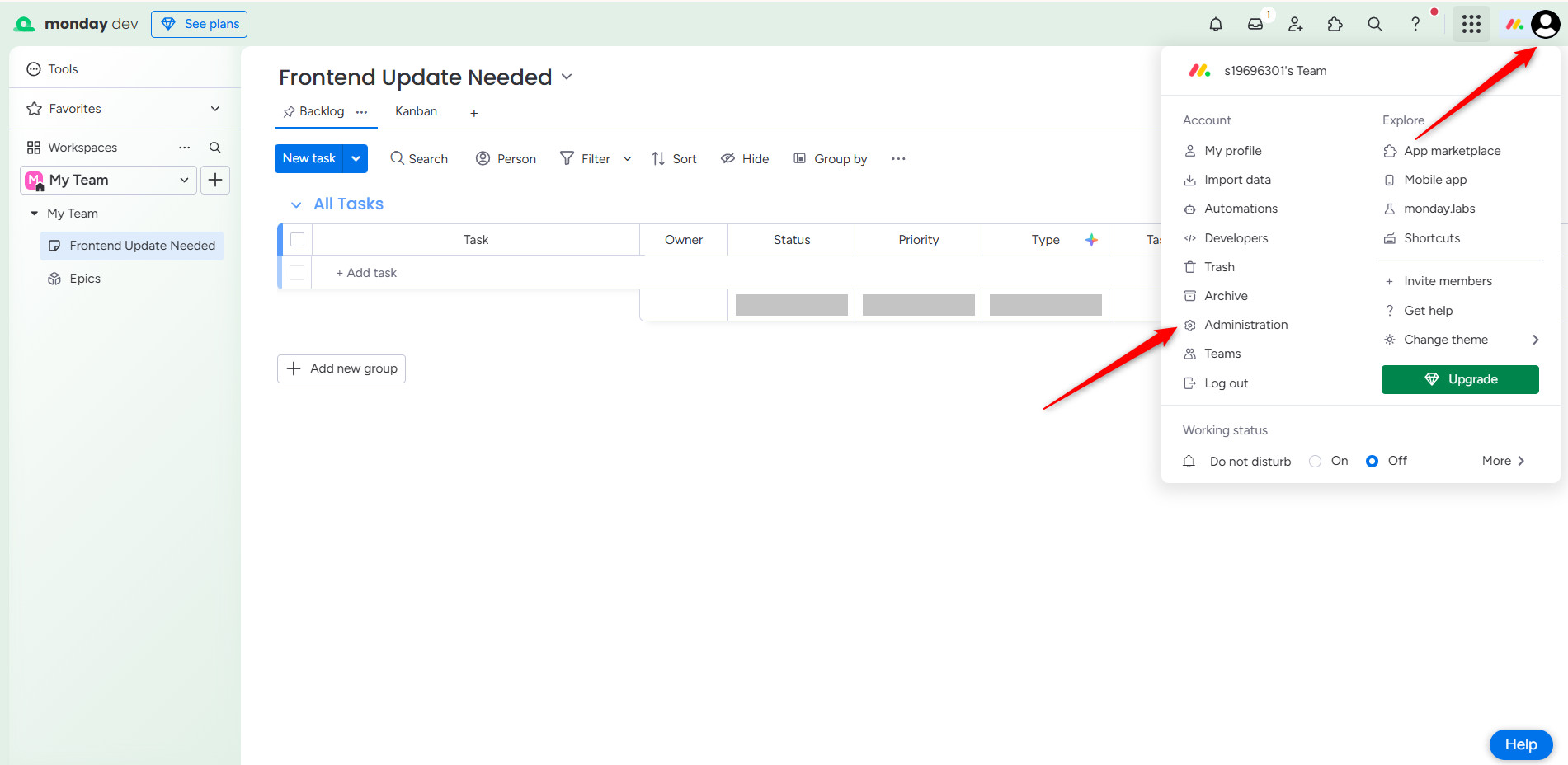
Prepare monday.com First
Set up the destination before you connect, because Atarim asks you to choose a workspace during setup.
Instructions:


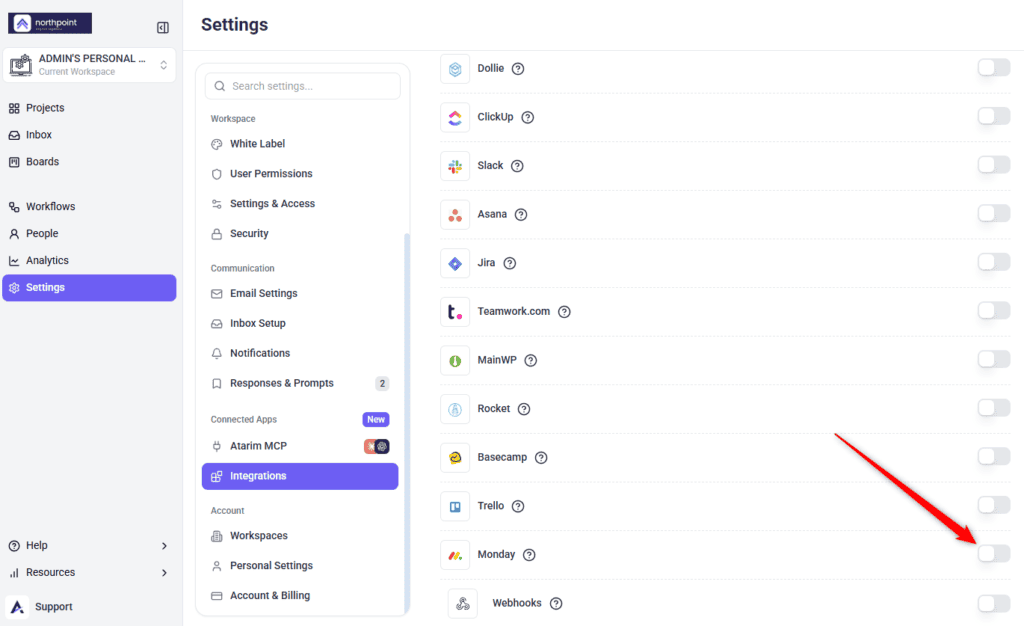
Enable and Connect the Integration
Unlike the other integrations, monday.com is configured entirely inside Atarim rather than from the other side.
Instructions:
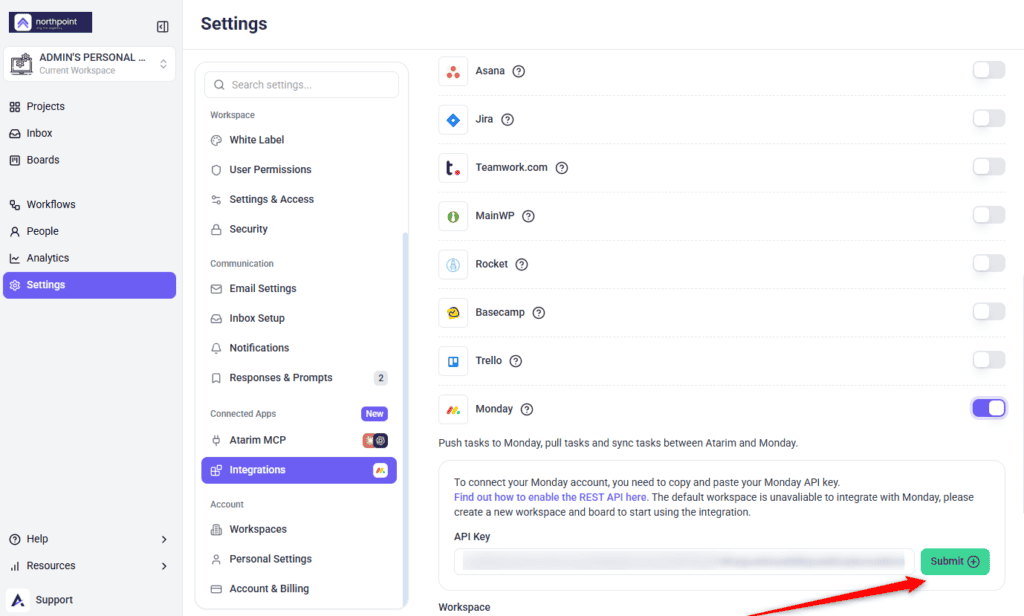
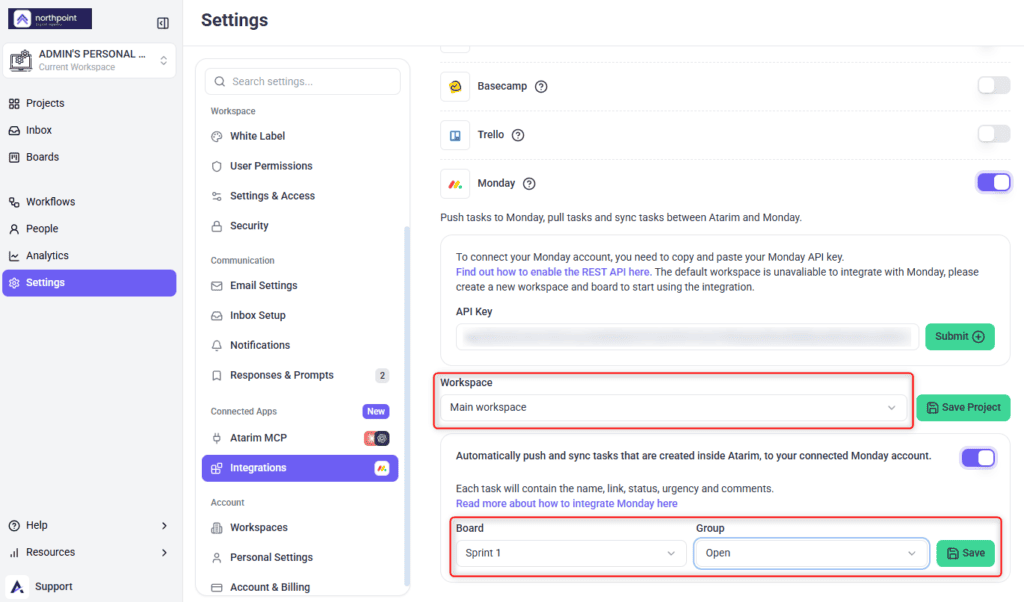
Turn On Automatic Syncing
Alongside the workspace setting there is an option to automatically push and sync tasks created inside Atarim to your connected monday.com account.
| Step | Where it happens | What it needs |
|---|---|---|
| Create workspace and board | monday.com | Permission to create them. |
| Get the API key | monday.com admin | Admin access. |
| Enable the integration | Atarim → Integrations | A plan that includes it, and permission to manage integrations. |
| Paste and submit the key | Atarim | The key from the previous step. |
| Choose the workspace | Atarim | A valid key, so the list can load. |
| Save Project | Atarim | A workspace selected. |
| Enable automatic syncing | Atarim | The connection saved and verified. |
| Choose Board and Group | Atarim | A board and group already existing in that workspace. |
| Save the changes | Atarim | Board and group selected. |
Benefits
| Benefit | In practice |
|---|---|
| Feedback reaches your planning board | Client requests arrive where the work is actually scheduled. |
| Sync works both ways | Tasks can move from Atarim to monday.com and back, rather than one direction only. |
| No manual copying | With automatic syncing on, nobody transcribes requests between systems. |
| Configured in one place | The workspace mapping lives in Atarim, so there is a single place to check it. |
| Clients stay in Atarim | They never need a monday.com seat to have their feedback tracked. |
Example Use Cases
| Situation | How to set it up |
|---|---|
| Your team plans sprints in monday.com | Sync into a dedicated board so client requests enter the backlog automatically. |
| Clients give feedback visually | Let them work in Atarim while the work items appear in monday.com. |
| Two systems drifting apart | Enable automatic syncing so neither becomes stale. |
| Separating client work from internal work | Point the sync at its own workspace rather than a shared one. |
| Reporting from monday.com | Sync feedback in so client requests are included in existing reports. |
Known Limitations
FAQs
Which API key does this integration use?
Your monday.com key, pasted into Atarim. This is the reverse of integrations like Make, where you copy an Atarim key out.
Where do I find my monday.com API key?
In your monday.com admin area, under Connections then API. Atarim links directly to monday.com’s own guide from the integration.
Do I need to create anything in monday.com first?
Yes. Create a workspace and board before connecting, since Atarim asks you to choose a workspace during setup.
Does sync work in both directions?
Yes. Tasks can be pushed to monday.com, pulled back, and kept in sync.
Why is the Workspace dropdown disabled?
Because no workspaces have loaded. That almost always means the API key was not accepted.
Do clients need a monday.com account?
No. Clients work in Atarim; syncing happens between your two accounts.
How do I check the integration is working?
Create a task in Atarim and confirm it appears in the monday.com board and group you selected. If it does not, check that automatic syncing is on and that the board and group were saved.
Where exactly do synced tasks land?
In the Board and Group you select after enabling automatic syncing. The workspace on its own is not specific enough — both need choosing and saving.
Can I change the workspace later?
Yes. Choose a different one and select Save Project again.
Common issues
- The Workspace selector is greyed out — no workspaces loaded, which means the API key was not accepted. Re-check and resubmit it.
- The Monday toggle is locked — your plan does not include native integrations. The lock names the minimum plan required.
- Integrations is not in your settings sidebar — your role does not have access. Ask an Administrator.
- Your workspace is not in the list — create it in monday.com first, then resubmit the key so the list refreshes.
- Tasks are not reaching monday.com — confirm you selected Save Project, that automatic syncing is on, and that a Board and Group are selected and saved.
- Tasks landed in the wrong place — the saved workspace is not the one you intended. Change it and save again.
- The connection stopped working — the monday.com API key may have been regenerated. Submit the current one.
Conclusion
Setup runs in two halves. In monday.com, create the workspace and board and get your API key. In Atarim, enable the integration, paste the key, choose the workspace and save.
The order matters more here than in most integrations, because the workspace list cannot populate until the key is accepted — and automatic syncing is best left until you have confirmed the destination is right.
Tips & best practices
- Create a dedicated workspace and board rather than syncing into a busy one.
- Get the monday.com API key before you start in Atarim.
- Wait for the Workspace list to populate before assuming something failed.
- Confirm the destination before switching automatic syncing on.
- Select Save Project after choosing a workspace — the choice is not stored until you do.
- Create the board and group before you connect, so they are selectable during setup.
- Resubmit the key if you regenerate it in monday.com.
- Set up automation rules in monday.com to assign incoming Atarim tasks to the right people automatically.
- Check periodically that tasks are still syncing accurately, rather than assuming a working setup stays working.
- Keep task statuses current in monday.com so both platforms tell the same story.