Pabbly
Push and pull data between Atarim and thousands of other apps, using Pabbly Connect workflows.
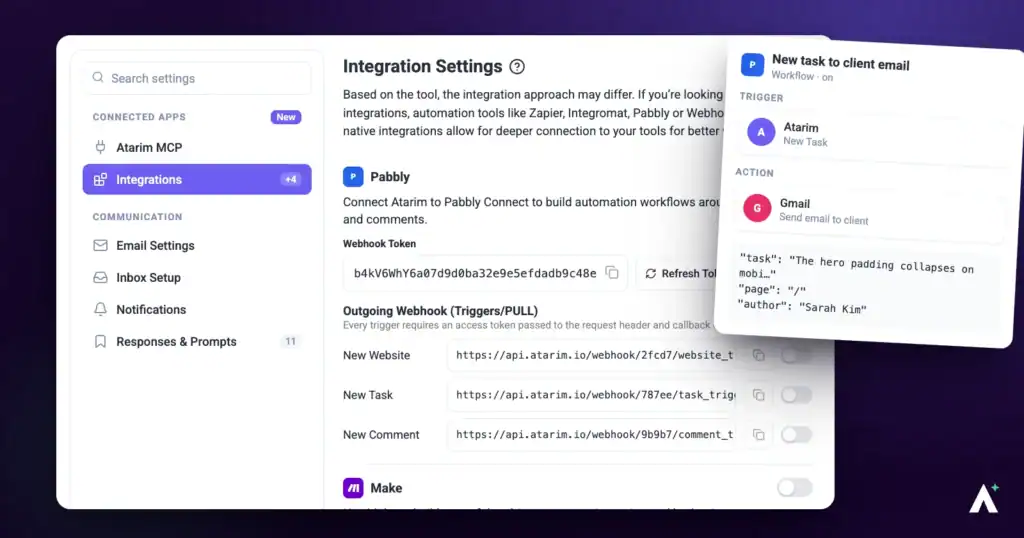
Pabbly Connect is an automation platform that links Atarim to over 6,000 other apps. Setup has two halves that are easy to confuse — an API key so Pabbly can read your Atarim account, and a webhook URL so Atarim knows where to send new tasks. Both are required.
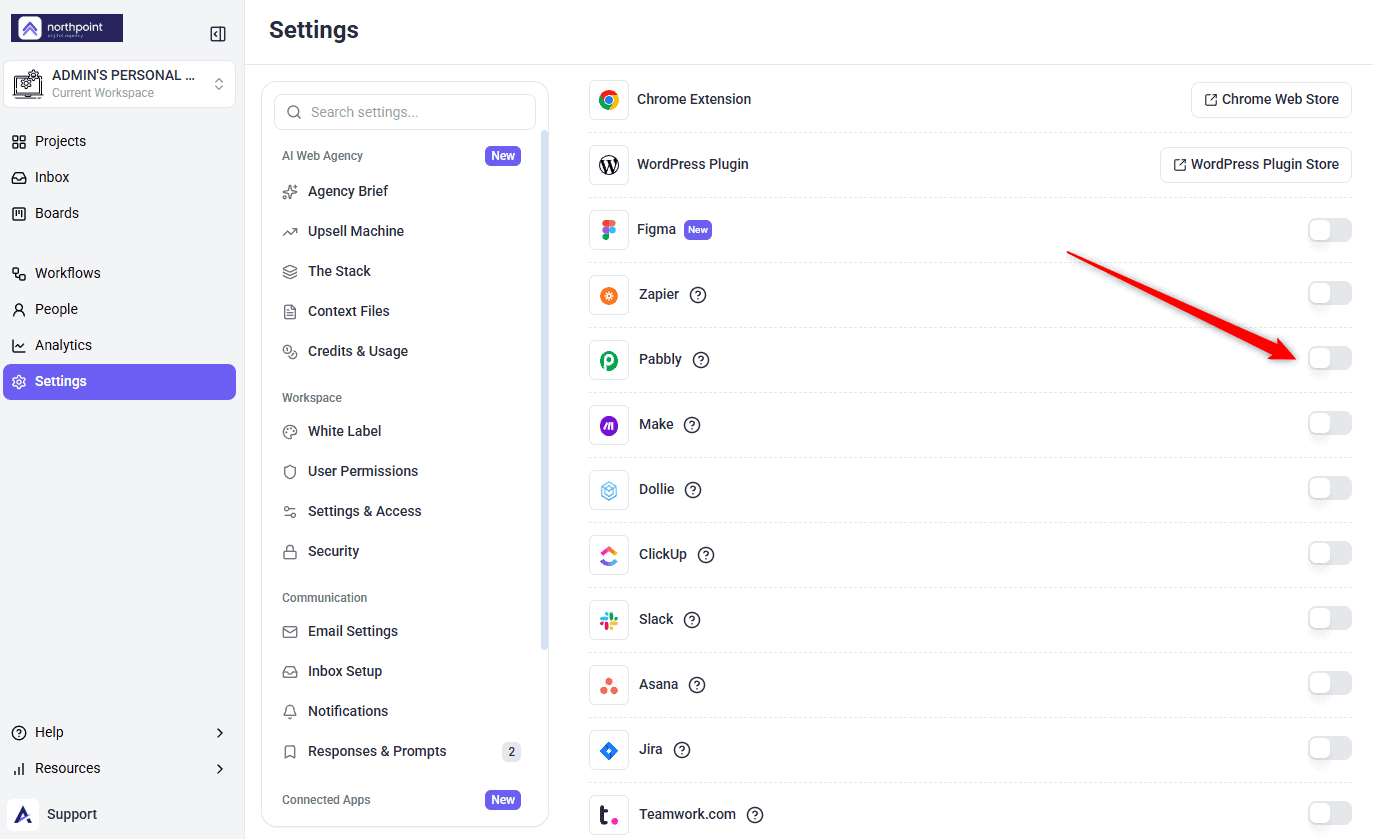
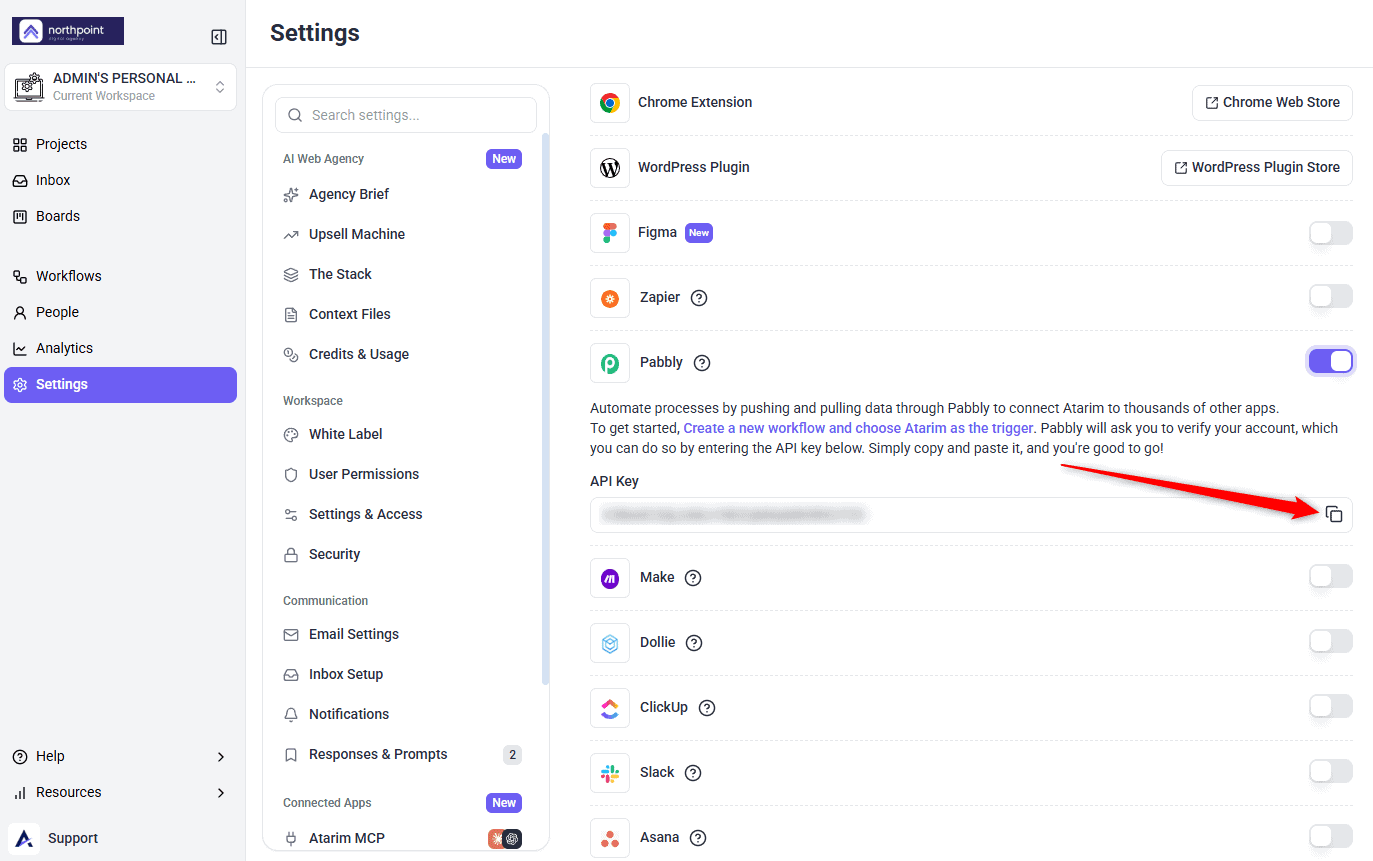
Enabling Pabbly reveals the API key you will use to verify your account on the Pabbly side.
Pabbly Connect is an automation platform that links Atarim to over 6,000 other apps. As the integration puts it in Atarim, it lets you automate processes by pushing and pulling data through Pabbly, connecting Atarim to thousands of other apps.
Enable Pabbly and Copy Your API Key
The API key is what authorises Pabbly to act on your account, so treat it like a password.
Instructions:
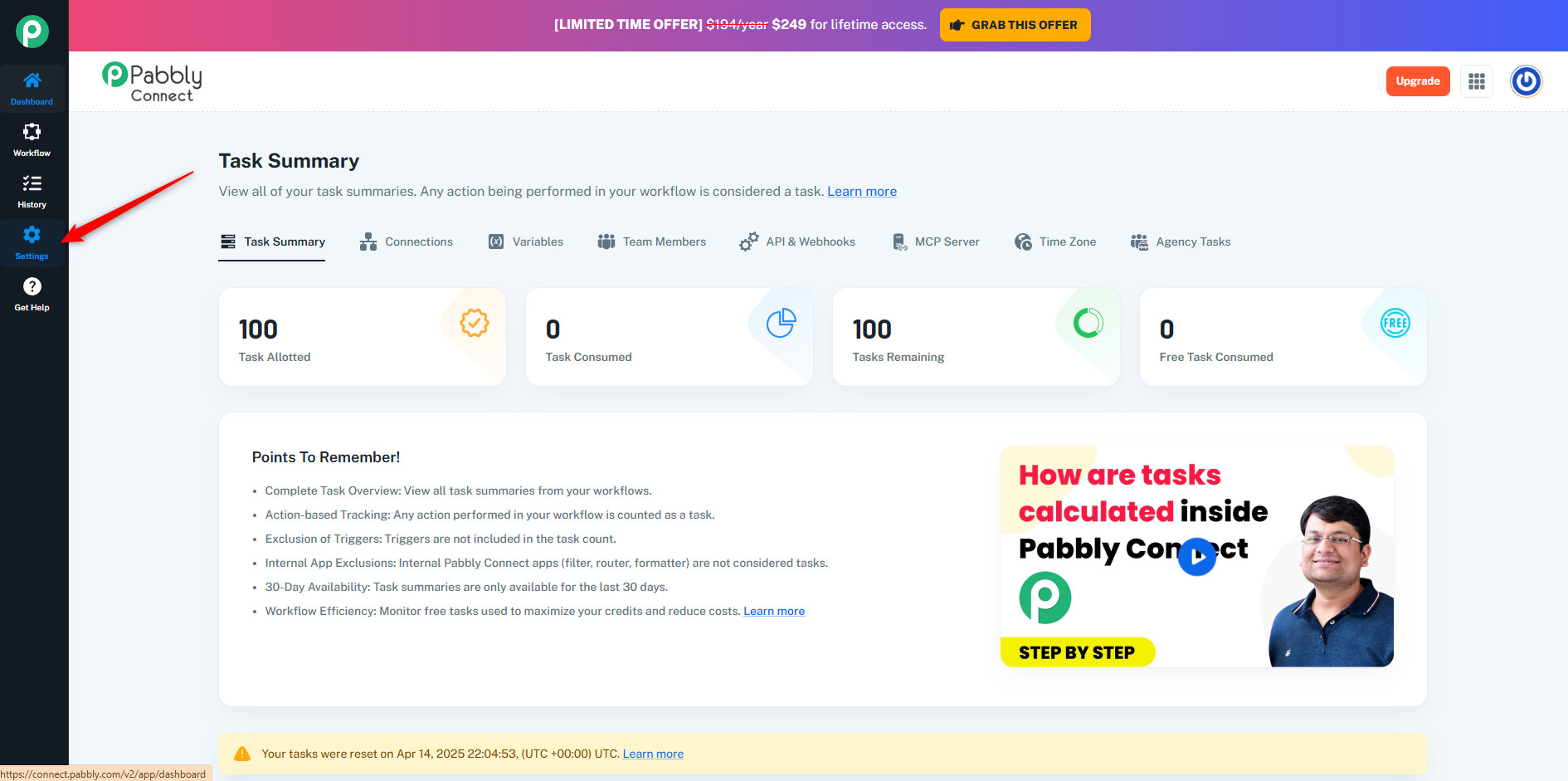
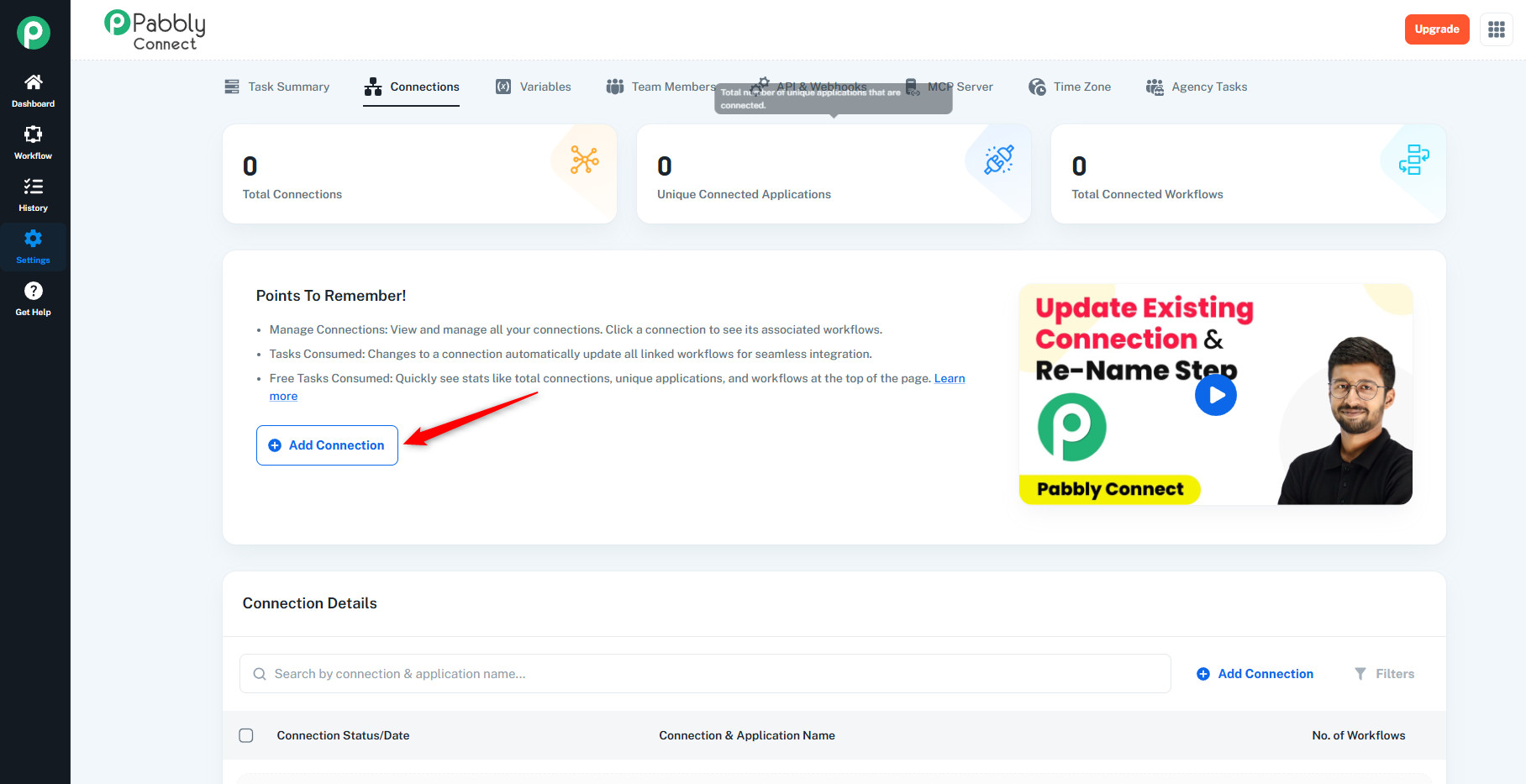
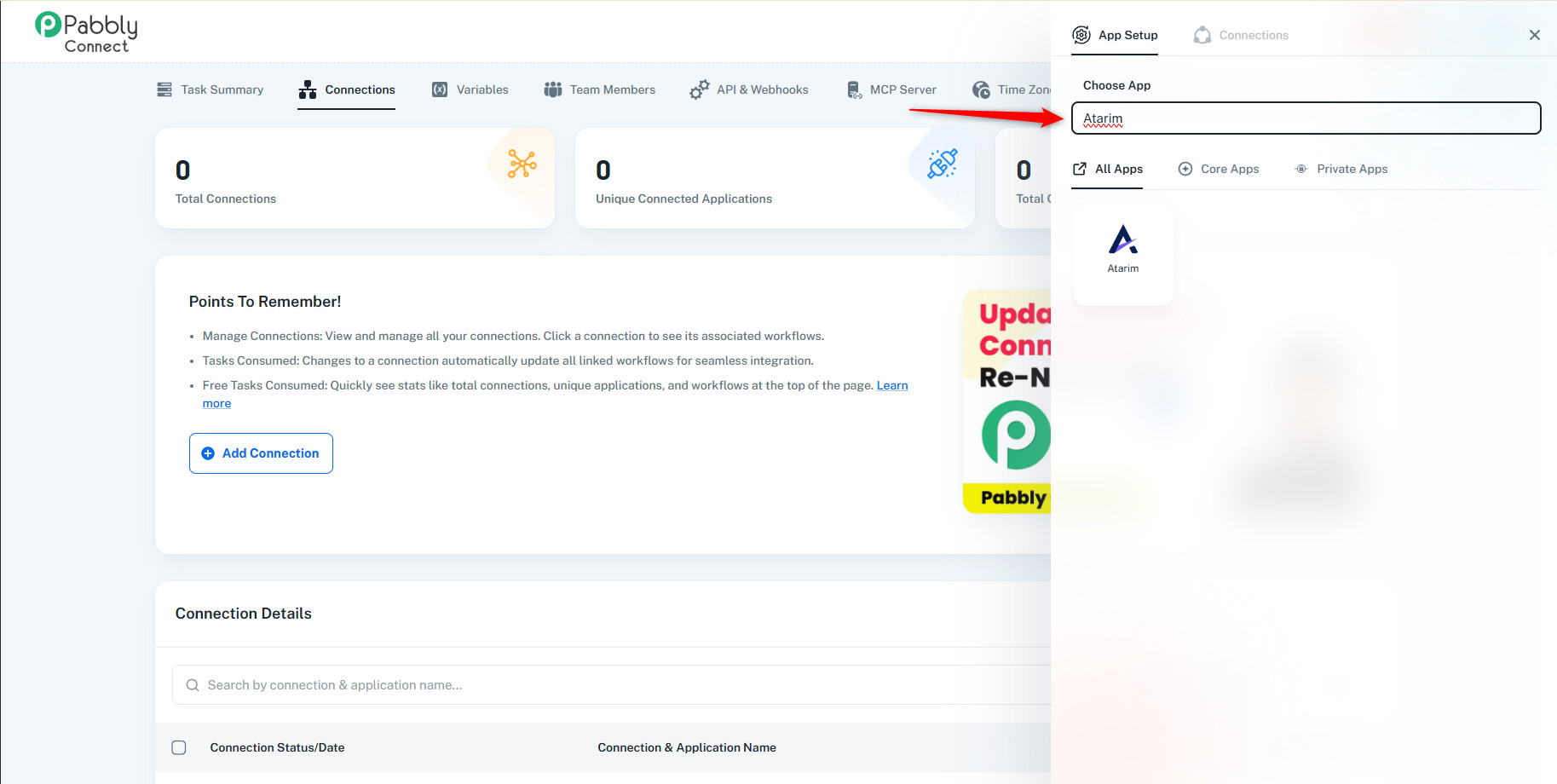
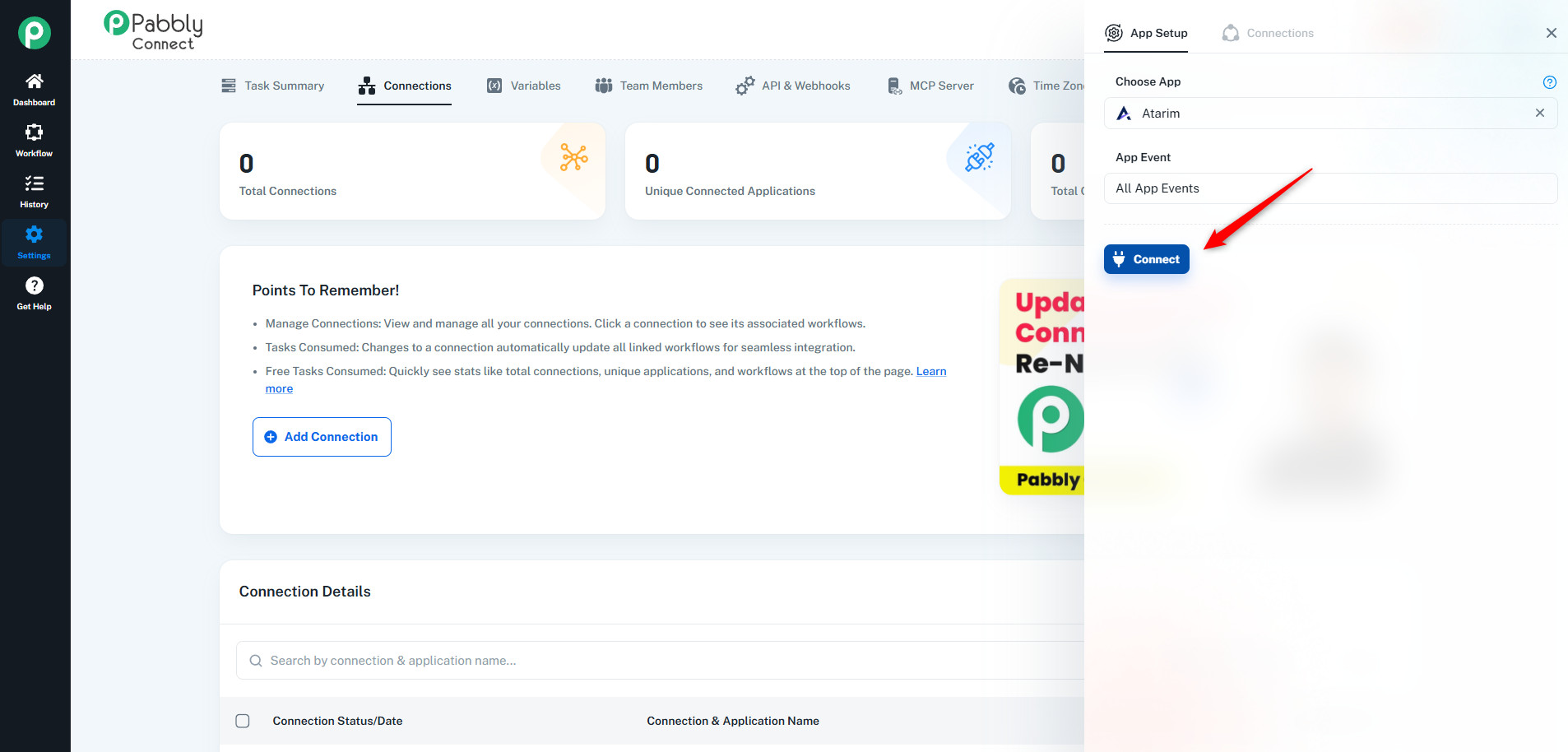
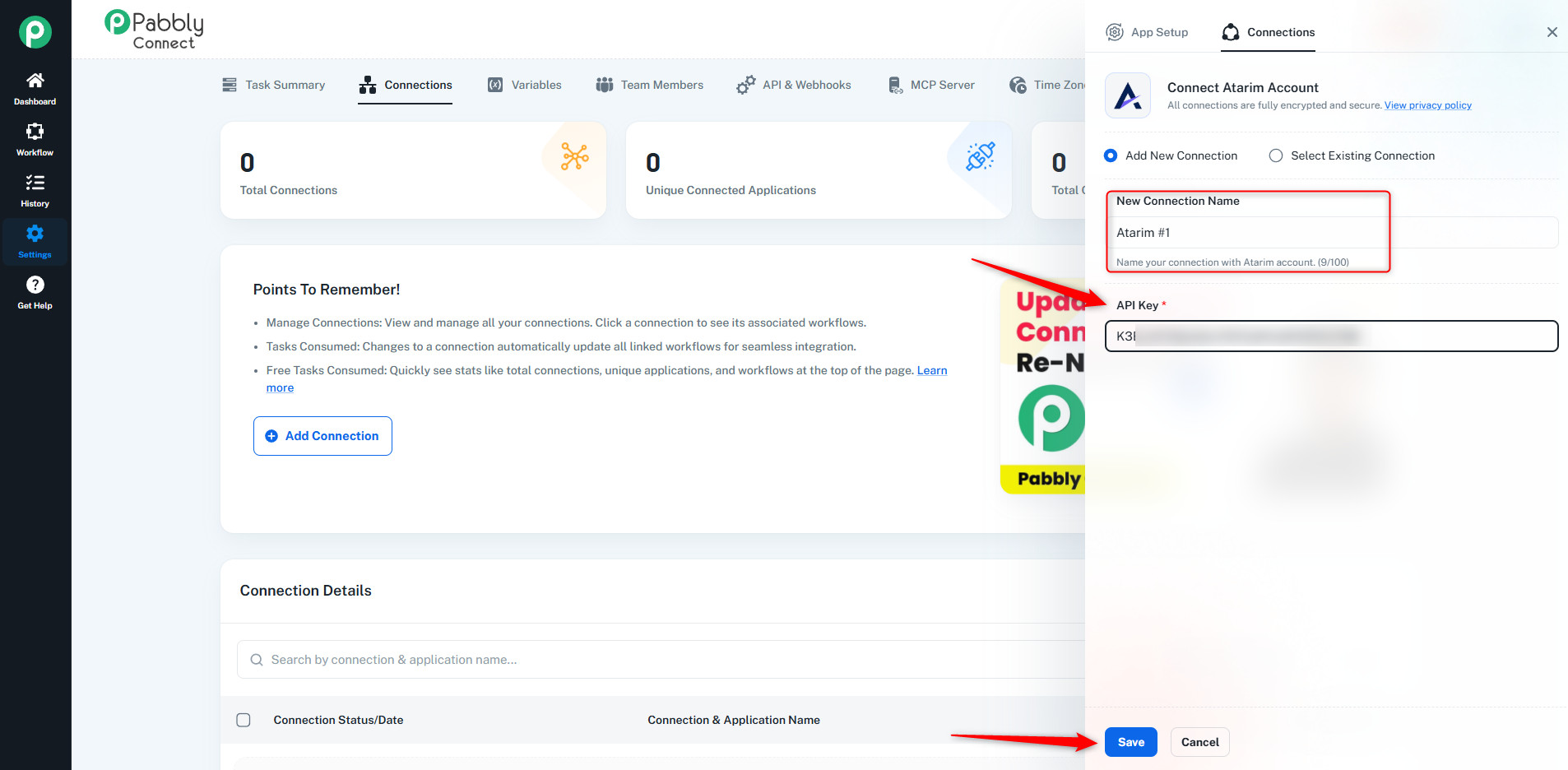
Add Atarim as a Connection in Pabbly
The API key establishes Pabbly’s connection to your Atarim account.
Instructions:
Set Atarim as the Trigger and Get the Webhook URL
Pabbly generates the URL here, but nothing will reach it until Atarim is told to post there in the next step.
Instructions:
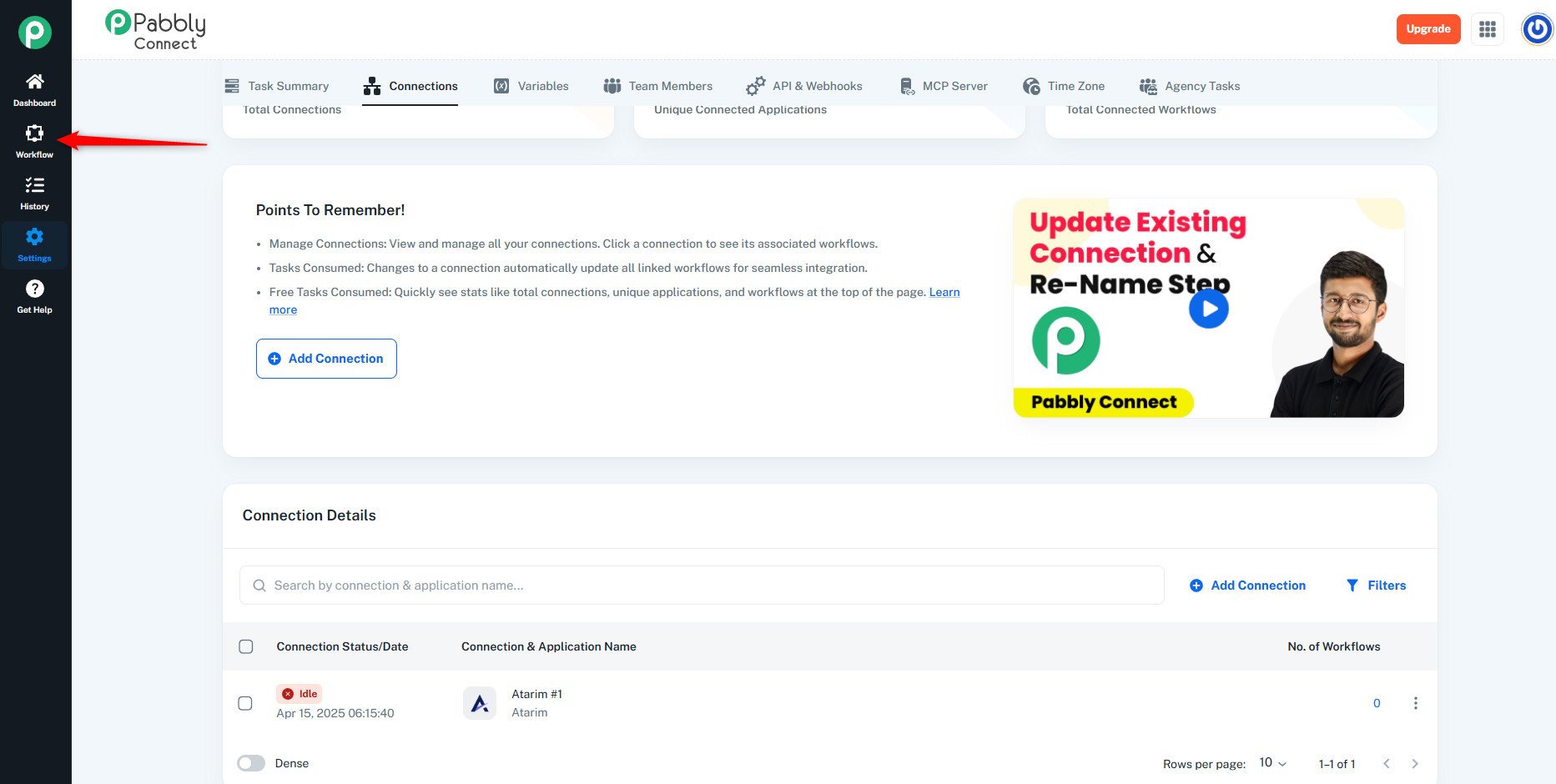


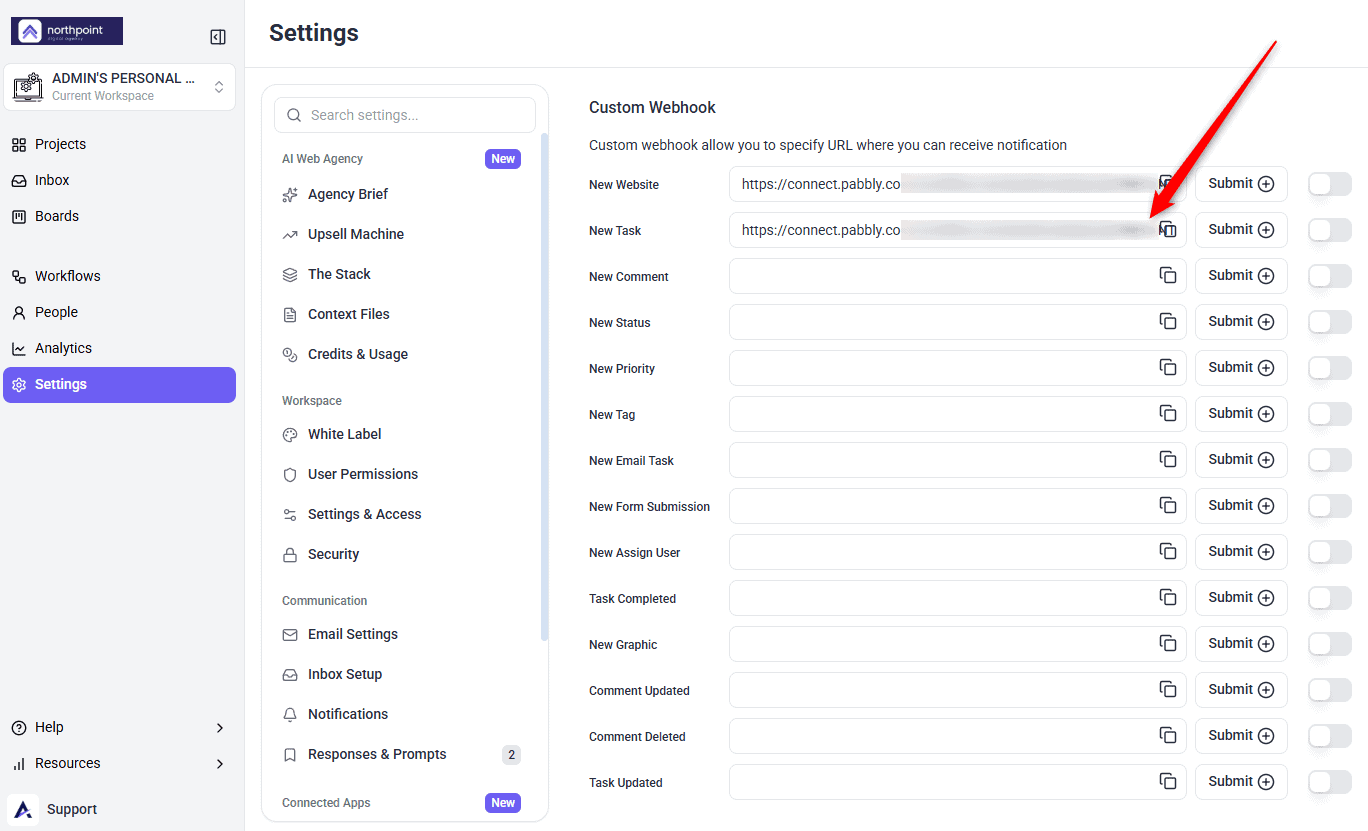
Add the Webhook to Atarim
This is the half that closes the loop — the webhook URL does nothing until Atarim is pointed at it.
Instructions:
Webhooks are covered in more depth separately. Explore Webhooks
Test the Workflow
Pabbly has to be listening before the task exists, so start the test request first and create the task second.
Instructions:

Add an Action

Benefits
| Benefit | In practice |
|---|---|
| Data moves both ways | Push task data out of Atarim, or pull data in from other tools. |
| No code required | Workflows are built visually, so this is not a developer task. |
| Thousands of destinations | If Pabbly supports the app, Atarim can feed it. |
| Verify once | The key is used to verify the connection, which Pabbly then reuses. |
| Nothing to install | The whole connection is a toggle and a copied key. |
Example Use Cases
| Situation | Workflow to build |
|---|---|
| A team that works in chat | Trigger on a new Atarim task, then post it to your channel. |
| Clients expecting acknowledgement | Trigger on a new task, then send a confirmation email. |
| Work tracked in another tool | Trigger on a new task, then create a matching item there. |
| Reporting outside Atarim | Append each new task to a spreadsheet as it arrives. |
| Feeding a CRM | Route client-raised requests into your CRM automatically. |
Known Limitations
FAQs
What does the Atarim–Pabbly integration do?
It lets you push data out of Atarim and pull data in, connecting Atarim to thousands of other apps through Pabbly Connect workflows.
Which plans support it?
It requires a plan that includes integration connectors. If the toggle is locked in your Integrations panel, it names the minimum plan needed.
Which API key does it use?
Your Atarim key, copied from the Pabbly row in Integrations and pasted into Pabbly when it asks you to verify.
Where do I find the API key again later?
In Settings → Connected Apps → Integrations, in the Pabbly row beneath its description.
Why do I need both an API key and a webhook?
They do different jobs. The key lets Pabbly connect to your Atarim account; the webhook tells Atarim where to send new tasks. Without the webhook, nothing is delivered.
How do I check it is working?
Use Save and Send Test Request in Pabbly, then create a task in Atarim. If no data arrives, check the webhook URL is saved against New Task in Atarim’s Custom Webhook section, and that the toggle on that row is switched on. A saved URL with its toggle off is skipped silently, with no error anywhere.
Why is my API key not working?
Re-copy it using the copy icon rather than selecting the text, in case a space was included. The key does not change on its own, so a key that has stopped working is almost always a copy-and-paste problem.
Can I use one connection for several workflows?
Yes. Once verified, Pabbly stores the connection for reuse.
What happens if I turn the integration off?
Workflows relying on that connection stop receiving data. Switch it back on and confirm the key in Pabbly still matches.
Common issues
- Integrations is not in your settings sidebar — your role does not have access. Ask an Administrator.
- The Pabbly toggle is locked — your plan does not include integration connectors. The lock names the minimum plan required.
- Pabbly rejects the API key — re-copy it with the copy icon rather than selecting the text, in case a space crept in.
- The trigger never fires — check the Pabbly webhook URL is saved in Atarim under Webhooks → Custom Webhook, against the New Task field. This is the usual cause.
- The connection verified but nothing arrives — the API key was accepted but no webhook is configured. Add the Pabbly webhook URL in Atarim.
- The workflow is on but silent — confirm the webhook URL went into the New Task field rather than another event.
- Fields arrive empty — a mapping problem. Re-run the test and check which field came through blank.
- The connection stopped working — the API key may have been regenerated. Re-verify Pabbly with the current key.
- You cannot find Atarim in Pabbly — use the link from the Pabbly row in Atarim, which goes to the Atarim integration page on Pabbly.
Conclusion
Pabbly is one of the lighter integrations to set up: toggle it on, copy the key, create a workflow with Atarim as the trigger, and verify. Everything after that happens in Pabbly.
The step worth not skipping is the webhook — without it the connection verifies and then sits silent. Build one step at a time and test with a real task before switching the workflow on.
Tips & best practices
- Use the link in the Pabbly row to reach the Atarim integration page directly.
- Map one or two fields first, then add more once data arrives correctly.
- Test with a real Atarim task rather than sample data.
- Confirm the workflow is switched on, not just saved.
- Keep the API key out of email and chat.
- Re-verify Pabbly if you regenerate the key.
- Apply filters in Pabbly so workflows only run for the tasks you care about.
- Watch your API and webhook usage if you run several workflows.
- Configure error handling in Pabbly so you are alerted when an automation fails.