Introduction to Atarim: Overview and Benefits
From visual feedback tool to AI-assisted web agency platform — what Atarim V5 does today, and who it's for.
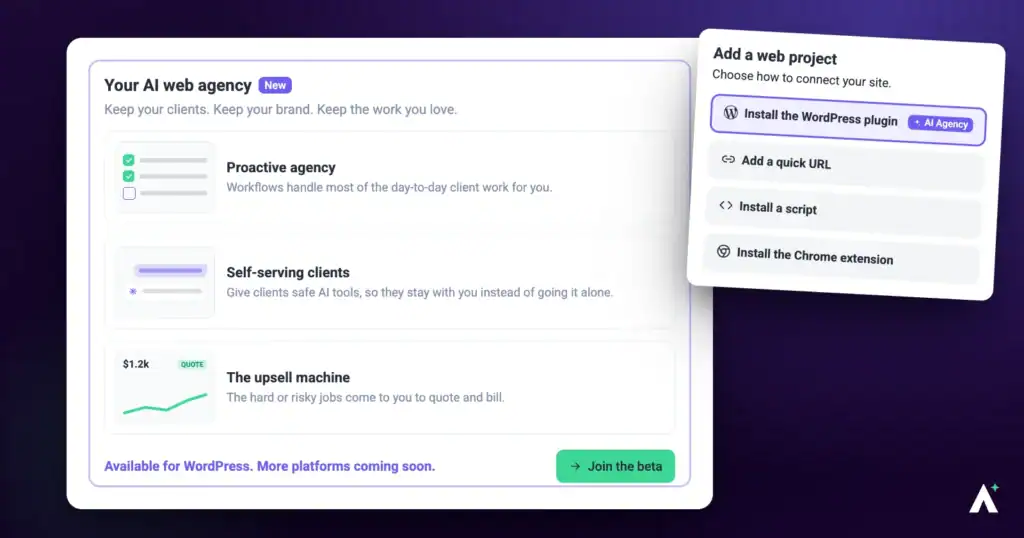
Atarim has grown from a visual feedback tool into a platform with an AI layer built on top of it. What you see depends on who you are: agencies get a full workspace with every client, project, and a workspace-scoped AI chat; Website Owners get a focused Client Dashboard scoped to their own site. This article covers the three pillars the platform is built on, and what's actually available in each one today.
The Three Pillars of Atarim V5
Everything in the platform serves three goals:
Meet Your AI Agents
Six named agents make up Atarim’s AI layer. Each one is scoped to a specific kind of review:
Claro doubles as your workspace chat assistant, so it’s active from the start. The other five are opt-in — enable the ones relevant to your sites from your AI settings before expecting proactive suggestions from them.
Findings from these agents are pinned as comments the same way a human comment would be, and become tasks through that same mechanism. On workspaces with Internal Tasks enabled (Business-tier and above), these are commonly kept marked internal until your team has reviewed them, rather than shown to the client immediately.
Visual Collaboration, Still at the Core
Atarim still does what it always did well: contextual feedback directly on live pages, designs, and images, attached to the exact element being discussed — so nothing gets lost in a long email thread or a vague “see the header” comment.
Instructions:


Your Dashboard, at a Glance
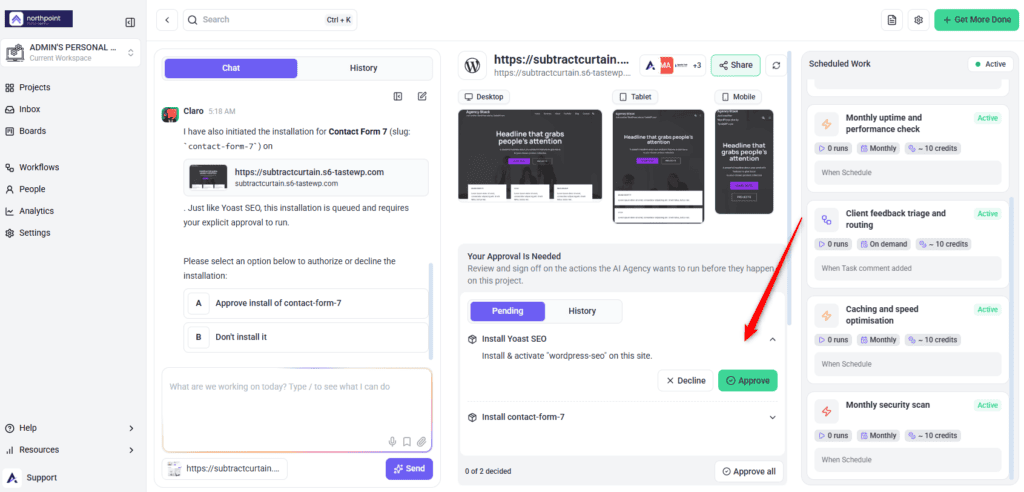
Every project you or a client owns has a Project Dashboard, laid out in three areas:
Agencies and Website Owners see the same layout, scoped to what they have access to.

Task Management
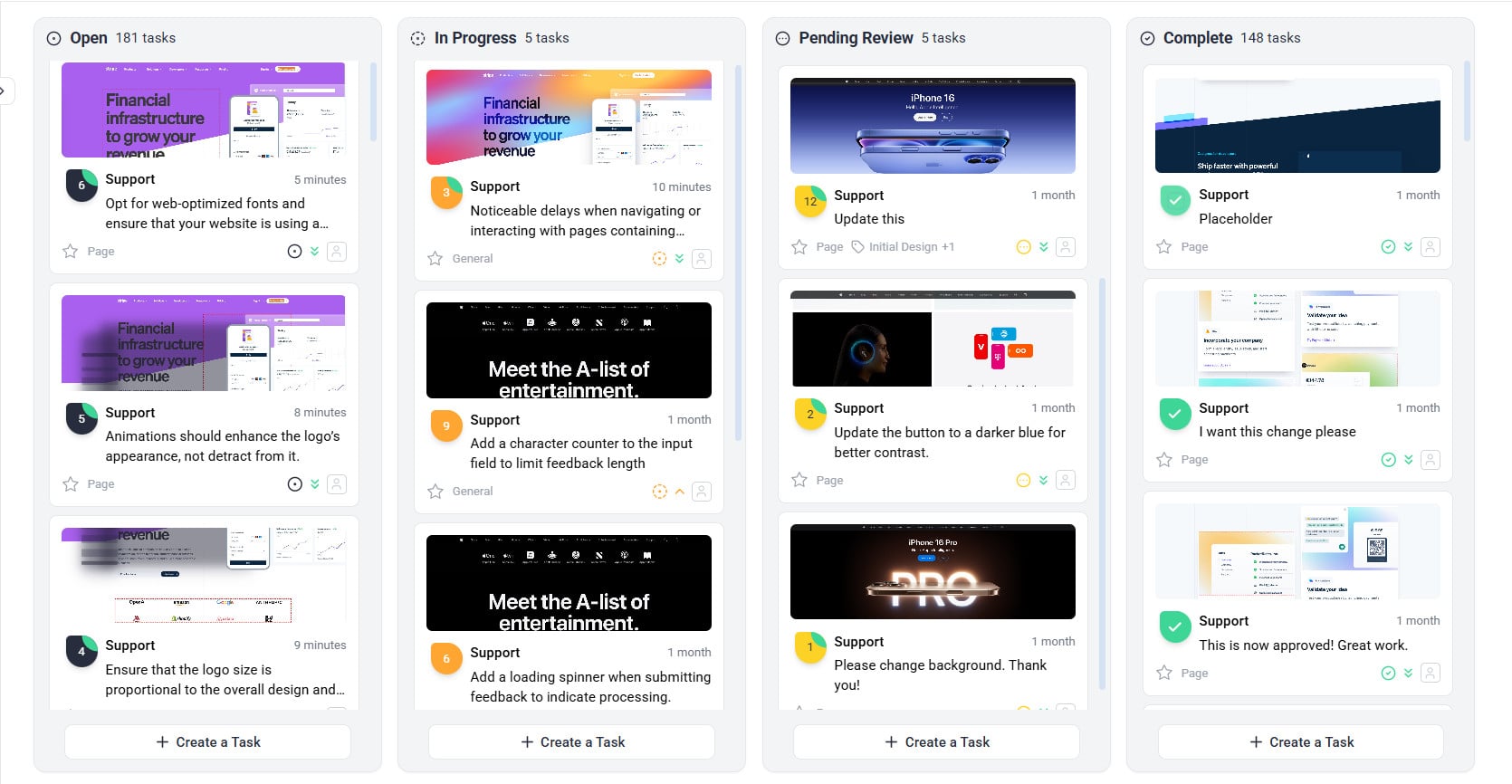
Atarim converts feedback into actionable tasks, gathering additional information automatically to provide more context for the tasks. This includes auto screenshot, browser type, screen resolution, and even the exact URL where the feedback was placed. These tasks can be tracked through the unified Inbox or Kanban boards, allowing teams to manage tasks easily, maintain full clarity on requirements, and monitor progress at a glance.
Instructions:
Client and Stakeholder Communication
Keep clients and stakeholders updated with automated notifications, ensuring they’re always aware of project progress without needing constant manual follow-ups.
Instructions:
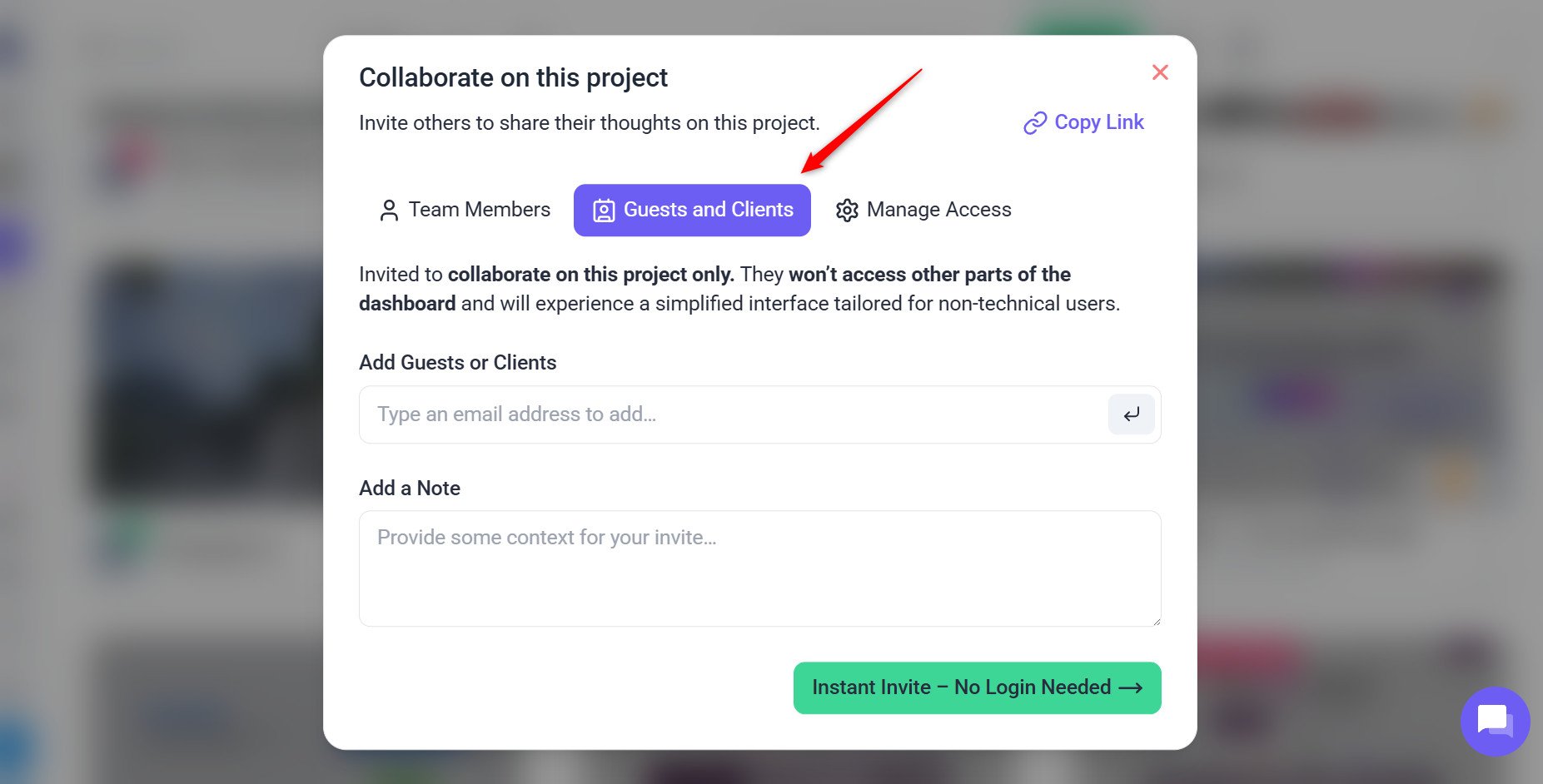
First-Time Guest Identification
The first time a guest leaves feedback on a project, they’re prompted for their name and email address. This lets Atarim identify who submitted the feedback and notify them when there’s a response. Once submitted, they can keep leaving feedback immediately — no account, no password.

No Autonomous Installs — Ever
When the AI needs a WordPress plugin that isn’t on the connected site yet, it never installs or activates it on its own. Every plugin install or activation — whether triggered by a scheduled workflow, an automated site scan, or a live chat with Claro — is held as a pending item in your Approval Queue until you explicitly approve it. Install and activate are treated as separate steps, so each one asks for its own approval. You can approve or decline from the Approval Queue (which has Pending and History tabs), or right inline in the chat where the request came up.
The same human-decision gate applies to high-risk updates, not just new installs. Routine security or minor/patch updates to well-behaved plugins are applied one at a time and verified. But a major-version update, an update to a page builder, WooCommerce, membership, or security plugin, or anything that alters the database is held for your approval first — and when the risk isn’t clear, it’s treated as gated rather than routine.
This isn’t a setting that can be turned off — there’s no path for the AI to install a plugin without a human decision first.
Every Workflow Run Leaves a Trace
Automated work isn’t a black box. The Workflows section has three tabs:
If a client asks “is this actually working?”, or a scheduled run silently stops producing output, open the Runs tab and drill into that run — you’ll see the same workflow diagram as the builder, with each step’s status overlaid in the order it actually ran, including the specific error if one occurred.

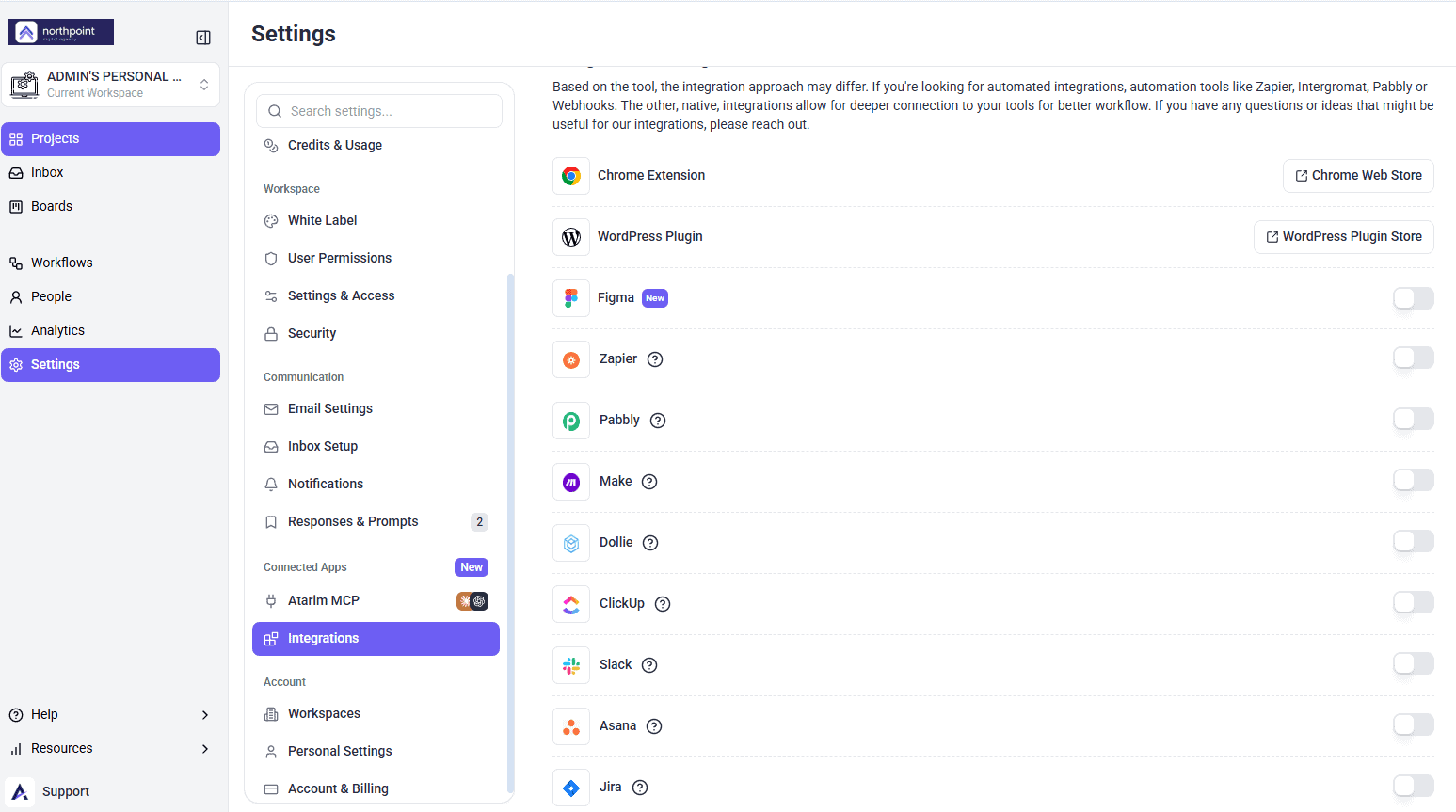
Integrations
Atarim integrates with many popular tools like Slack, Trello, and Jira, ensuring that teams can continue using their preferred tools while benefiting from Atarim’s visual collaboration features.
Instructions:
FAQs
How do I provide feedback on a design?
Click on the design element and leave a comment directly on the visual. It’s easy and intuitive.
Do I need to set anything up to start using the AI agents?
Claro is on by default and works as your workspace chat. The five review specialists — Pixel, Navi, Index, Lexi, and Glitch — are opt-in; enable the ones relevant to your sites from your AI settings before they’ll review proactively.
How does AI fit into collaboration in Atarim?
Human feedback leads. In the background, the review specialists can flag design, UX, SEO, content, and functionality issues on connected sites. On request, a Website Owner can also have the AI preview a change (“Show Me”) or apply it (“Do It”). Anything that changes a live site waits on your explicit approval first.
Will the AI change my client’s site without asking?
Not by default. AI review findings are treated as internal tasks and kept from clients until your team has reviewed them, on plans that include Internal Tasks.
If I turn the AI features off, does it delete what it already posted?
No. Turning the AI off stops new replies, but it doesn’t remove anything already posted — deleting is a separate action. Existing AI comments or threads stay until you remove them explicitly.
Can Website Owners use “Do It” on any website builder?
Today, Do It is a WordPress-only feature and is labelled Beta in the interface. Other platforms are shown as upcoming, not yet available.
Can I integrate Atarim with my current tools?
Yes — Atarim integrates with tools like Slack, Trello, and Jira. Set it up in Settings → Connected Apps → Integrations.
Conclusion
Atarim V5 is still built around clear, contextual feedback on real pages — with an AI layer on top that's live for chat, review, and WordPress edits today, and still expanding into automated request-routing.
Tips & best practices
- Enable the AI agents you actually want reviewing your sites — they're opt-in, not automatic.
- Fill in your Agency Profile now even though full automated routing isn't live yet — it already improves what the AI understands about your services.
- If Scheduled Work seems to be missing from a dashboard, check your browser window width before assuming something's broken.