How to Manage Tasks in Atarim
Everything a task holds, and how to move it from a comment on a page to a piece of finished work.
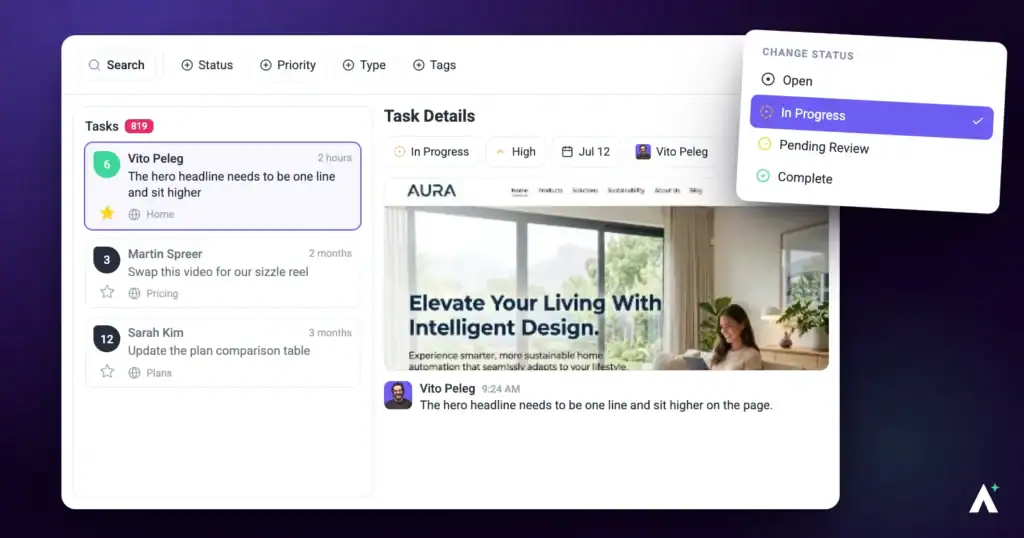
Everything in Atarim ends up as a task. A client selects a button and complains about the spacing, an AI review flags a contrast problem, an email arrives from a stakeholder — all of it lands in the same place, in the same shape.
That is the point. One kind of thing to manage, wherever it came from.
Three Places to Work with Tasks
The same tasks appear in three views. None of them owns the task — they are different shapes for different jobs, and a change in one shows immediately in the others.
| View | Best for |
|---|---|
| Inbox | Reading through detail and replying — a list you work down. |
| Boards | Seeing where everything stands and moving work along by dragging. |
| Collaborate | Working on a task in the place it was raised, on the page itself. |
What a Task Holds
A task is more than a line of text. Most of what it carries was captured automatically when the feedback was left.
| Field | What it is for |
|---|---|
| Screenshot | A snapshot of what was seen when the task was made, so the page can change without losing the context. |
| Status | Where the work has got to. |
| Priority | How urgent it is. |
| Assignee | The one person responsible for doing it. |
| Notified people | Anyone else who should hear about it. |
| Tags | Your own categories, for filtering and reporting. |
| Due date | When it is expected to be done. |
| Technical details | Element path, screen resolution, browser, and operating system — captured automatically. |
| Comments | The conversation, including internal notes and attachments. |
Moving a Task Through Its Statuses
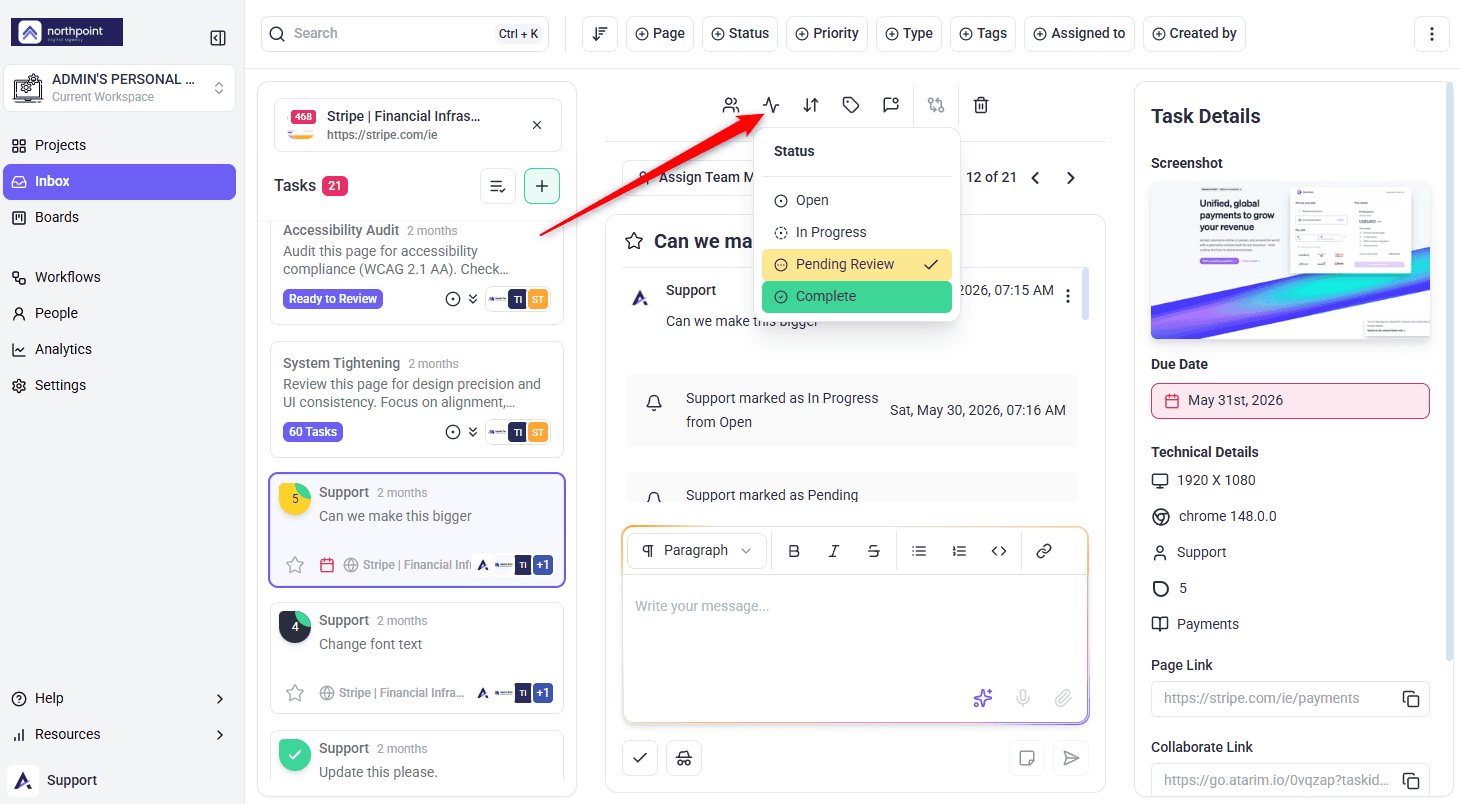
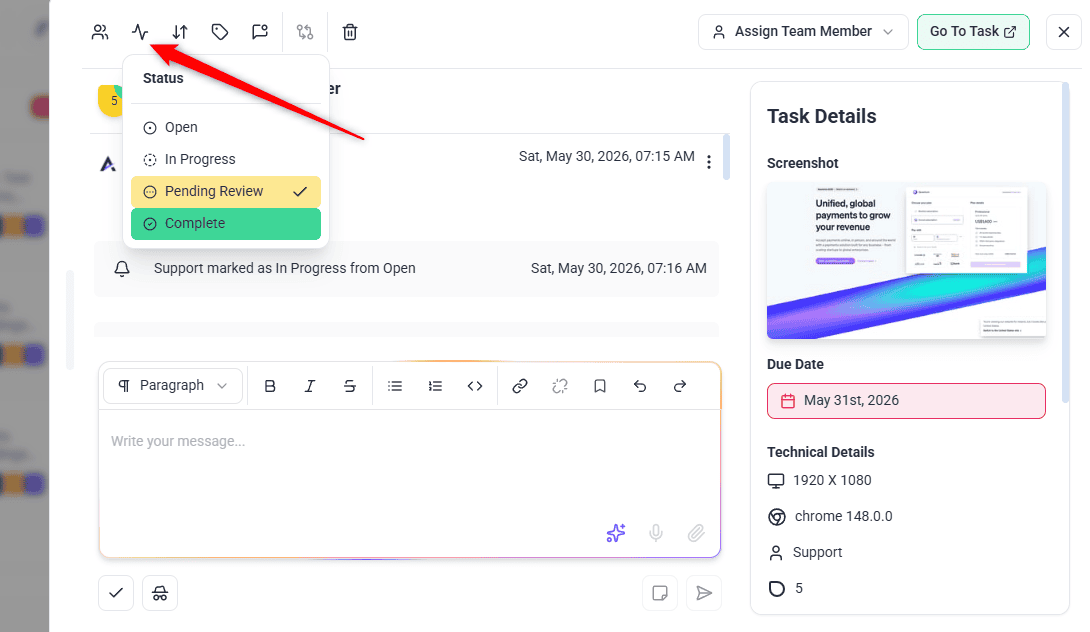
Four statuses, presented as a slider so the sequence is obvious rather than a list of unrelated options.
| Status | Means |
|---|---|
| Open | Raised, not started. |
| In Progress | Someone is working on it. |
| Review | Done, waiting on a check or client approval. |
| Complete | Finished and agreed. |
Status changes save the moment you make them — there is no separate confirm step to forget.
Instructions:

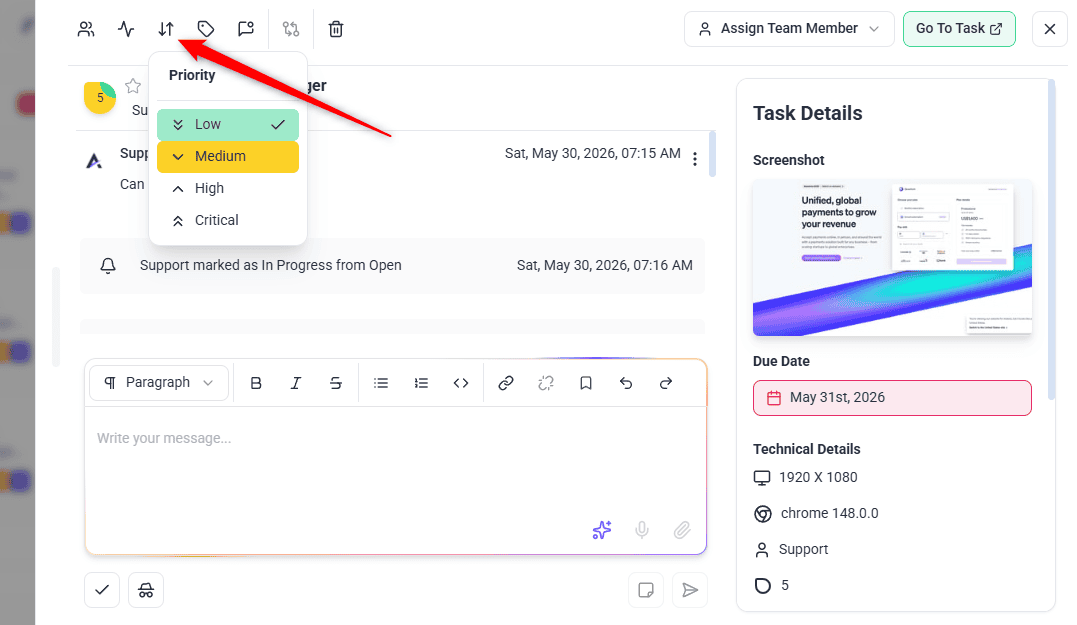
Priority
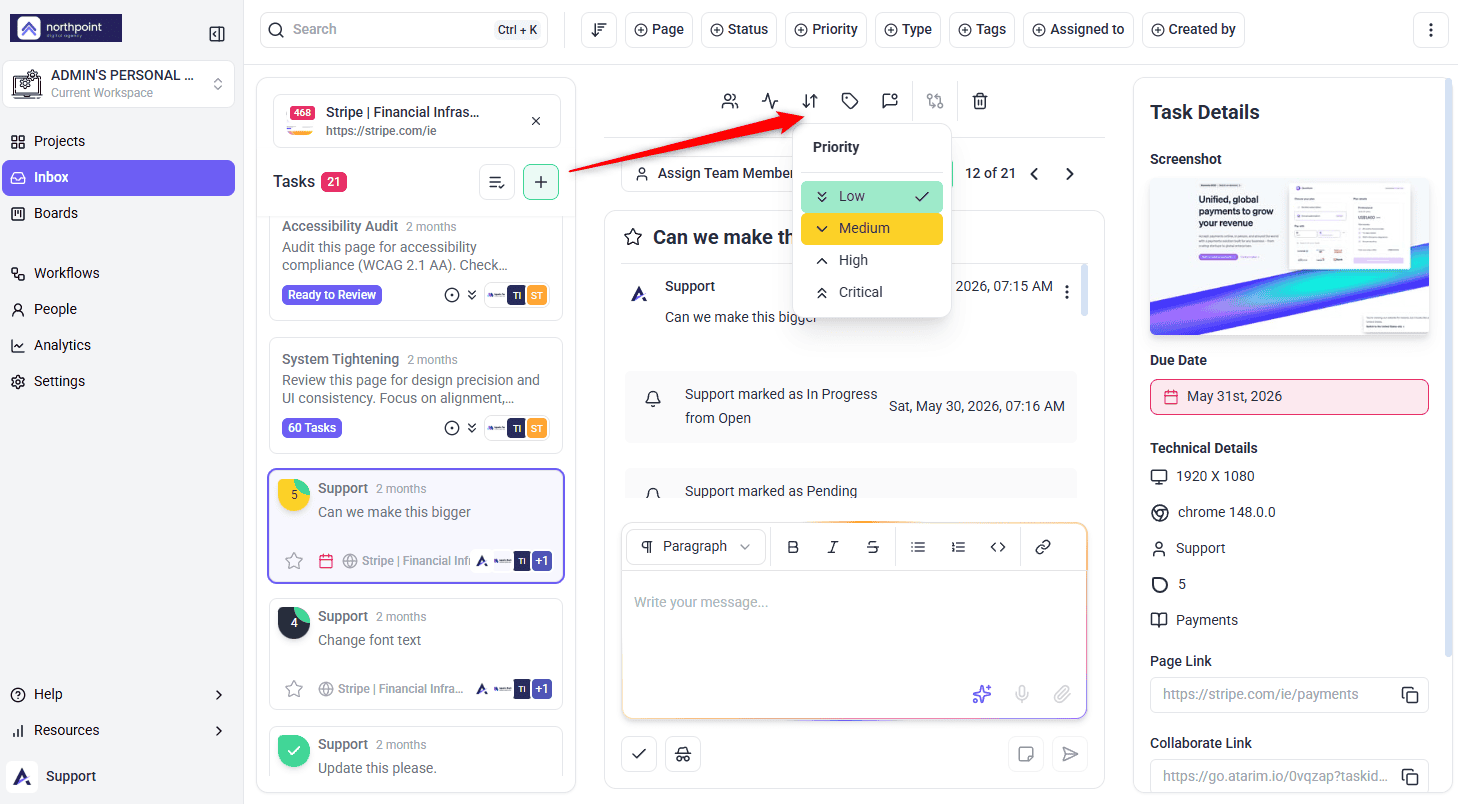
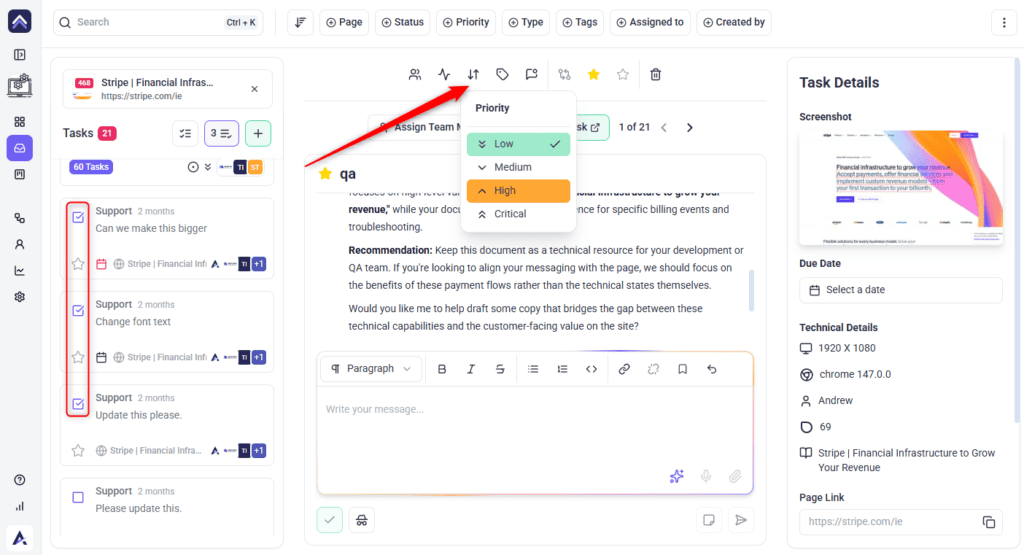
Four levels, set independently of status — a task can be Open and Critical, or In Progress and Low.
| Priority | Typically means |
|---|---|
| Low | Worth doing, no deadline pressure. |
| Medium | Normal work in the queue. |
| High | Needs attention this week. |
| Critical | Blocking something, or client-facing and broken. |
Assigning and Notifying
One person is responsible for a task. Everyone else who needs to know gets notified instead, which keeps the assignee field meaningful.
Instructions:
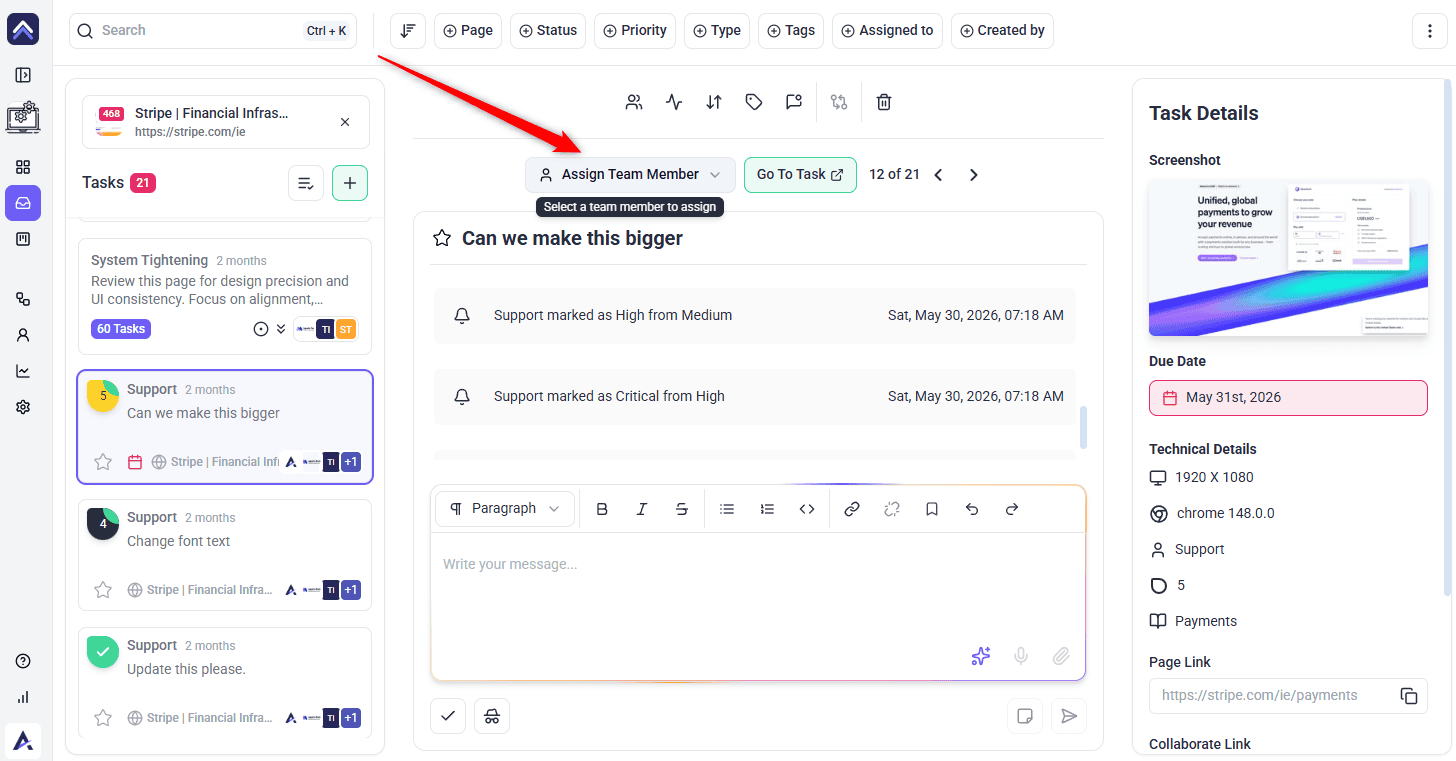
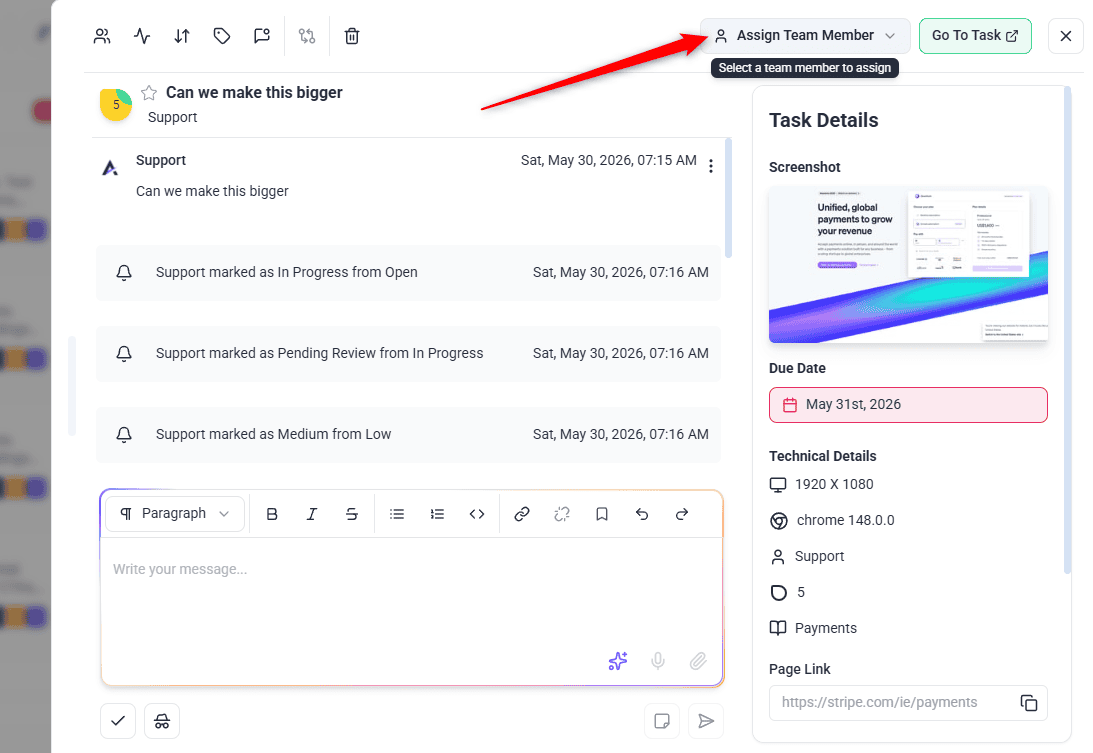
Assignment is covered in full separately. Discover Assigning Projects And Tasks
The Conversation on a Task
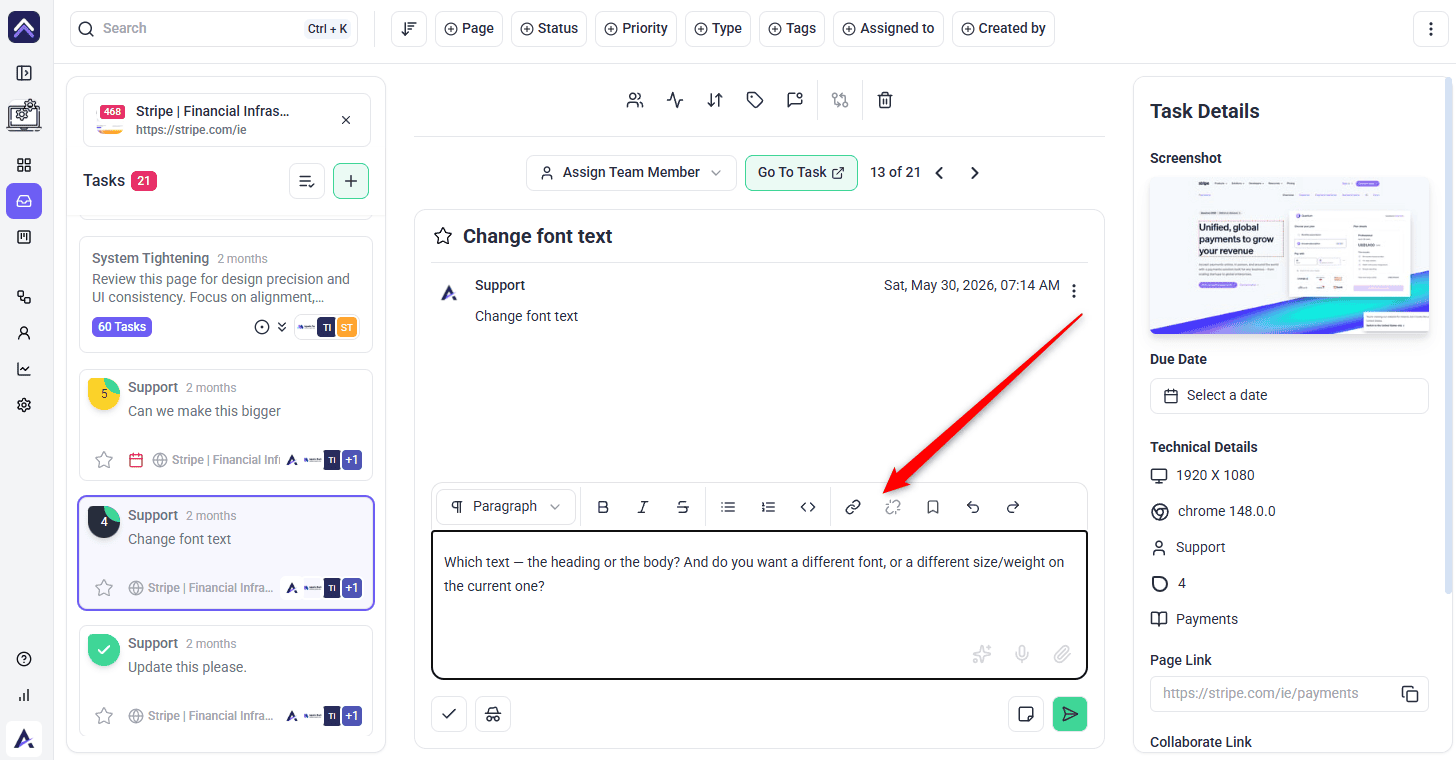
Comments are where most of the work happens. The comment box carries more than text.
| Control | What it does |
|---|---|
| Comment | Posts a reply everyone on the project can see. |
| Add internal note | Posts a comment only administrators and team members can see. |
| Attach | Adds a file to the conversation. |
| Annotate | Marks up a screenshot and attaches it as a comment. |
| Voice input | Dictates a comment instead of typing it. |
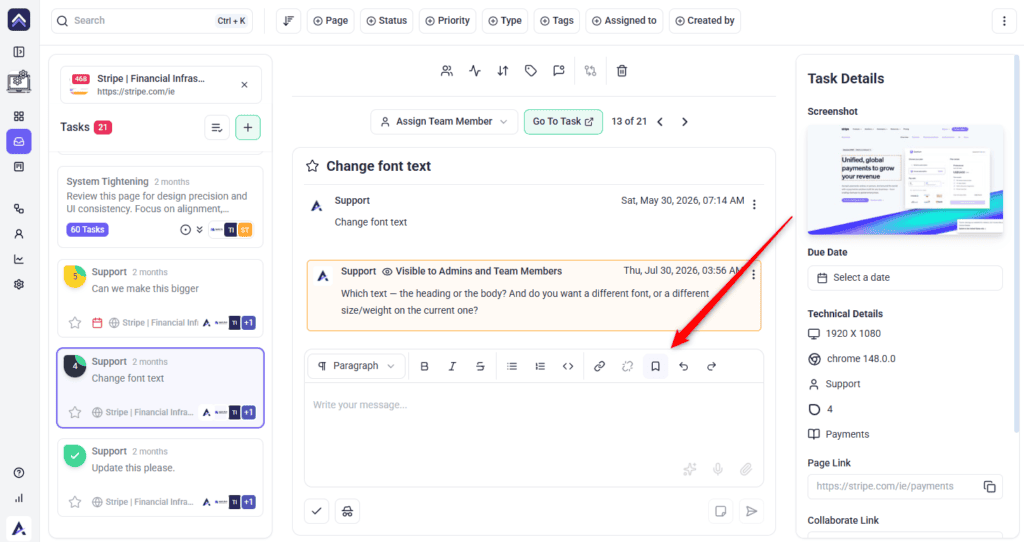
| Canned response | Inserts a saved reply from your templates. |
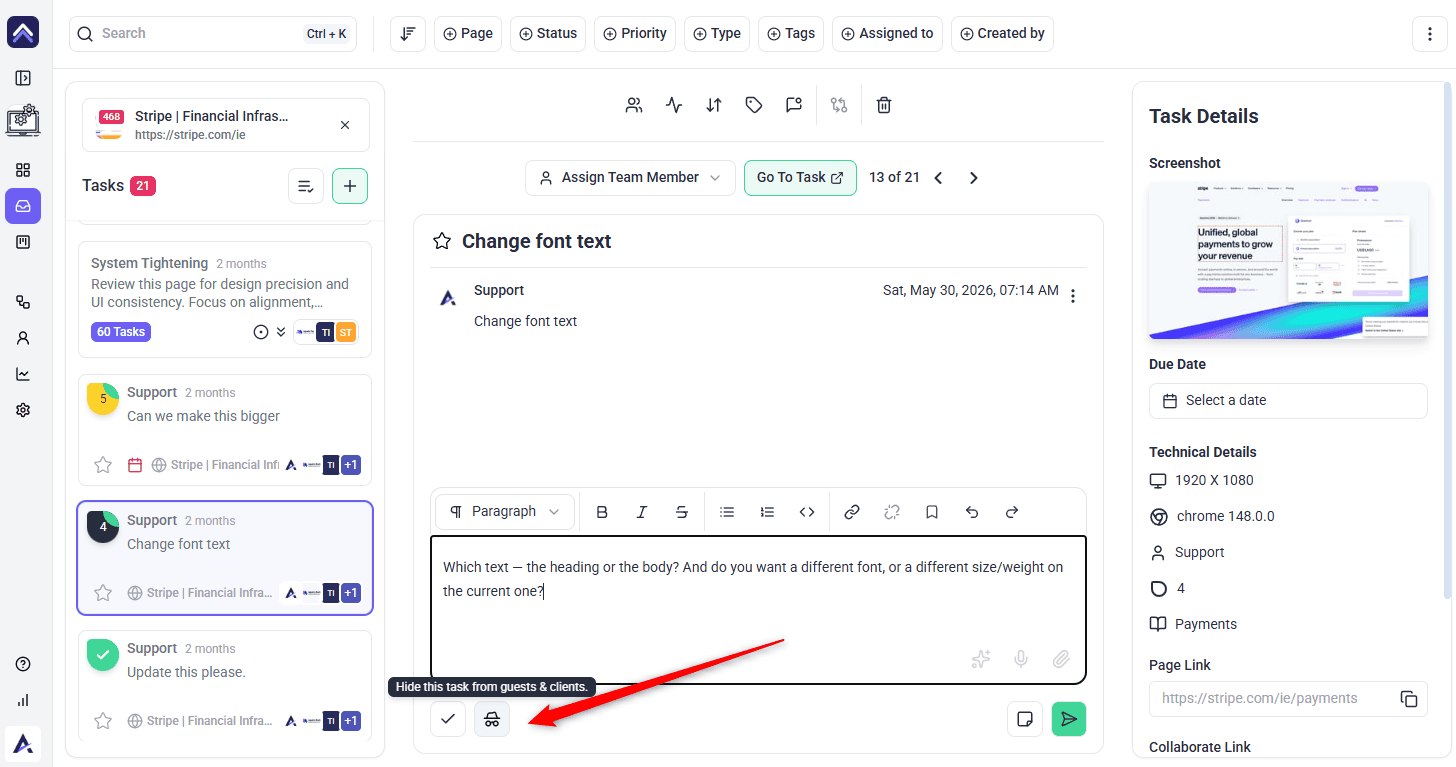
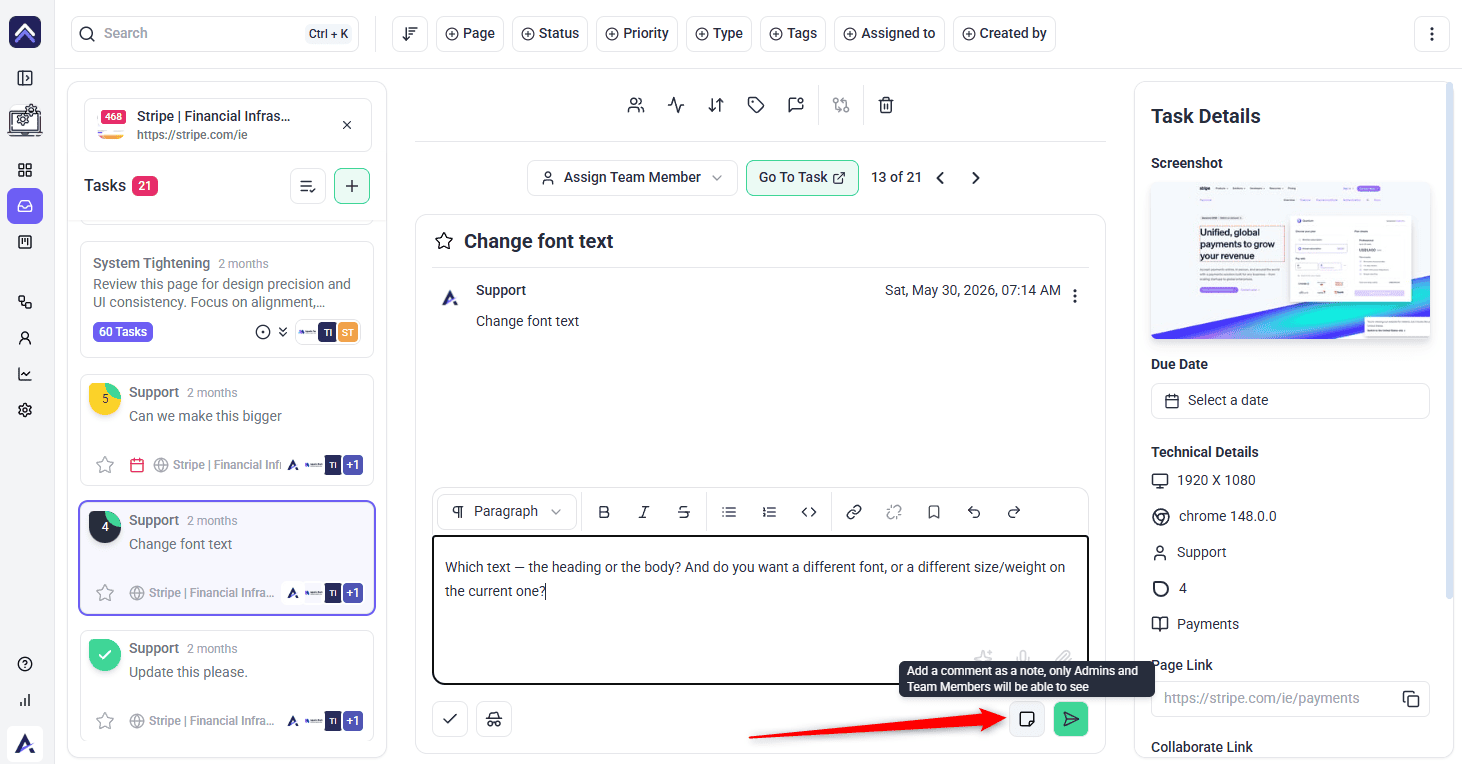
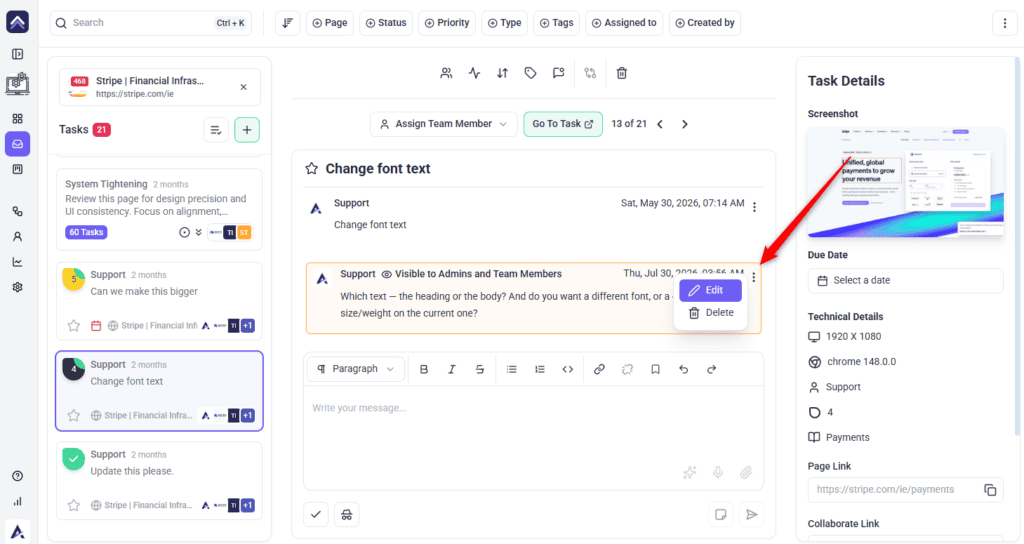
Editing and Deleting Comments
Edits are marked rather than hidden, so a thread stays readable after someone corrects themselves.
Instructions:
Canned Responses
If you find yourself typing the same reply repeatedly — “thanks, we’ll take a look”, “this is live now, can you confirm?” — save it once and insert it instead.
Instructions:
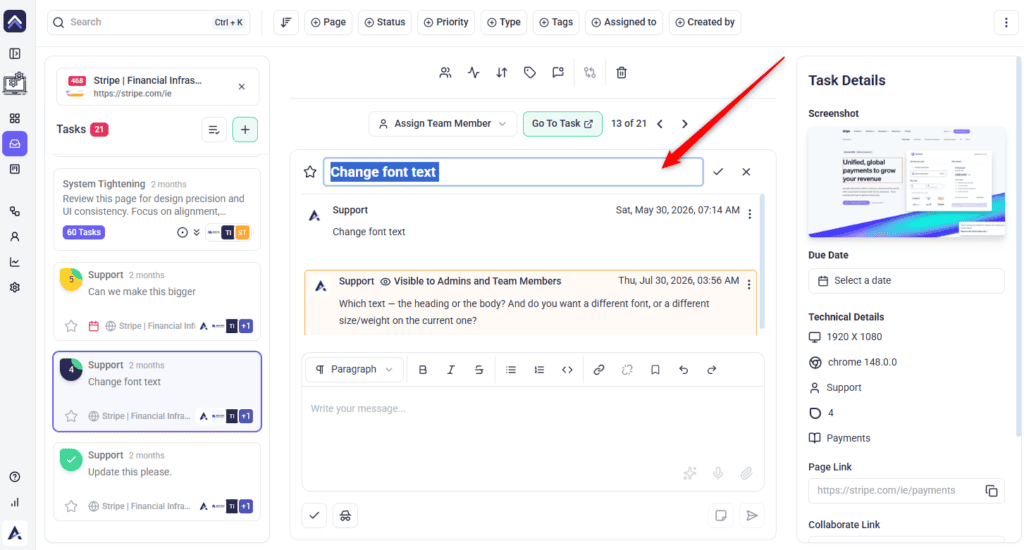
Renaming a Task
Tasks created from feedback take their title from what the person wrote, which is rarely a good task name. Renaming keeps a list scannable.
Instructions:
Tags and Pinning
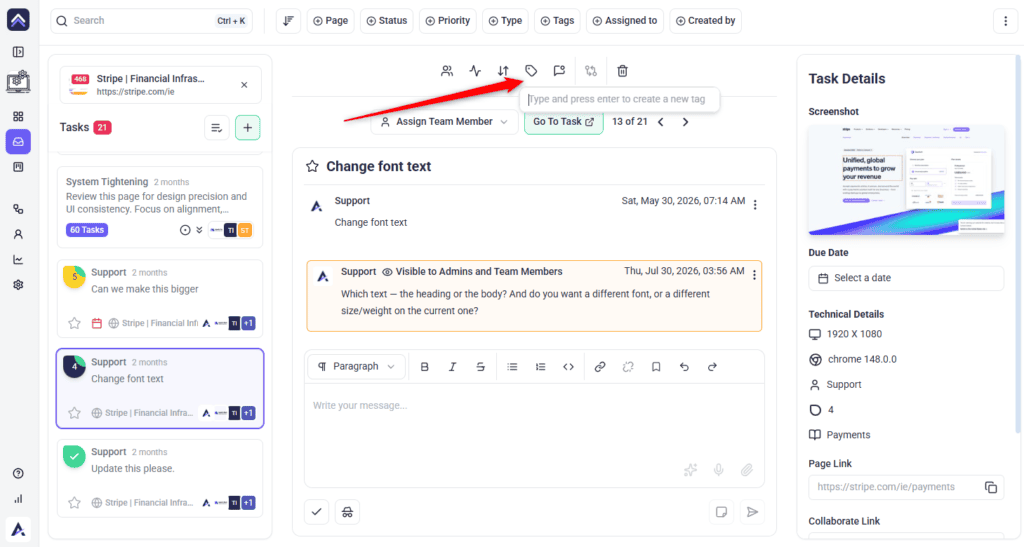
Tags are your own categories, and they are what makes filtering useful later. Type a new tag and press Enter to create it.
Instructions:
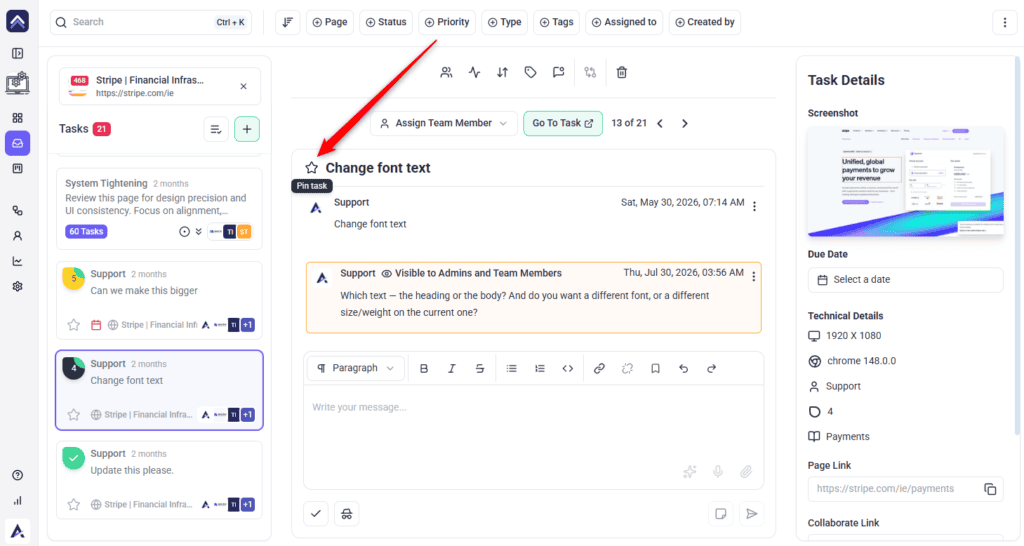
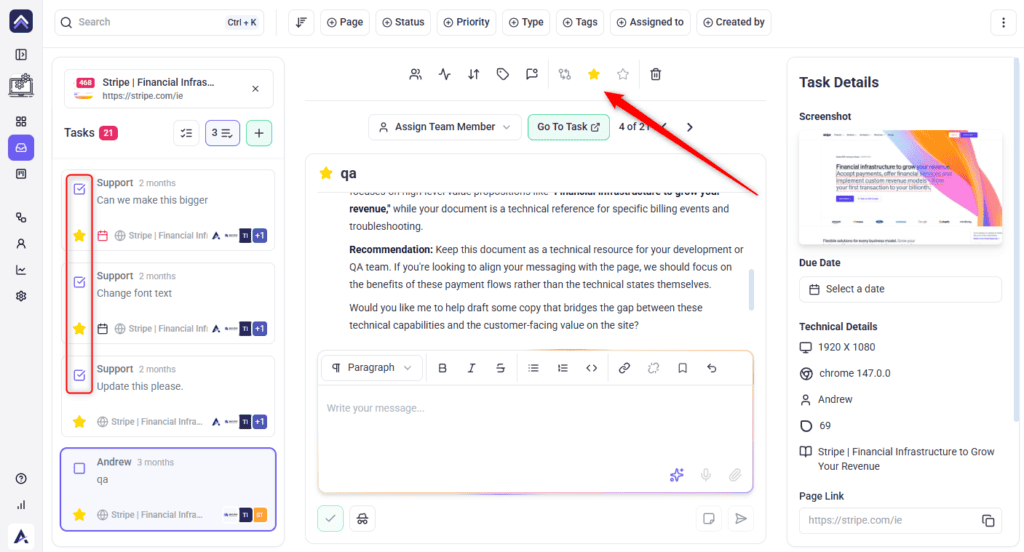
Pinning flags a task so you can find it again without searching. Select Pin Task on the task, or Pin selected tasks from the bulk toolbar to pin a batch. Unpin Task removes the flag.
Due Dates and What Their Colours Mean
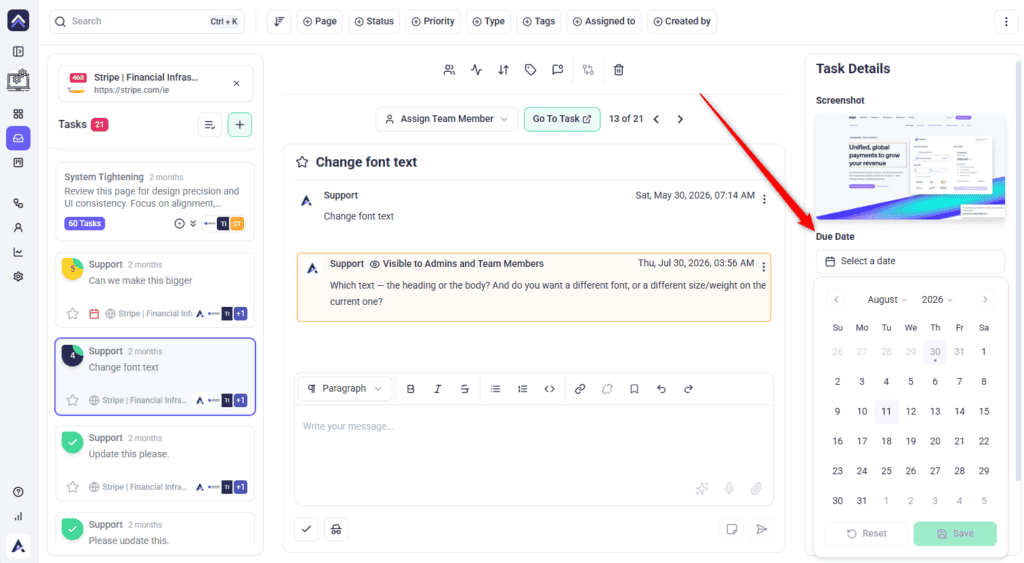
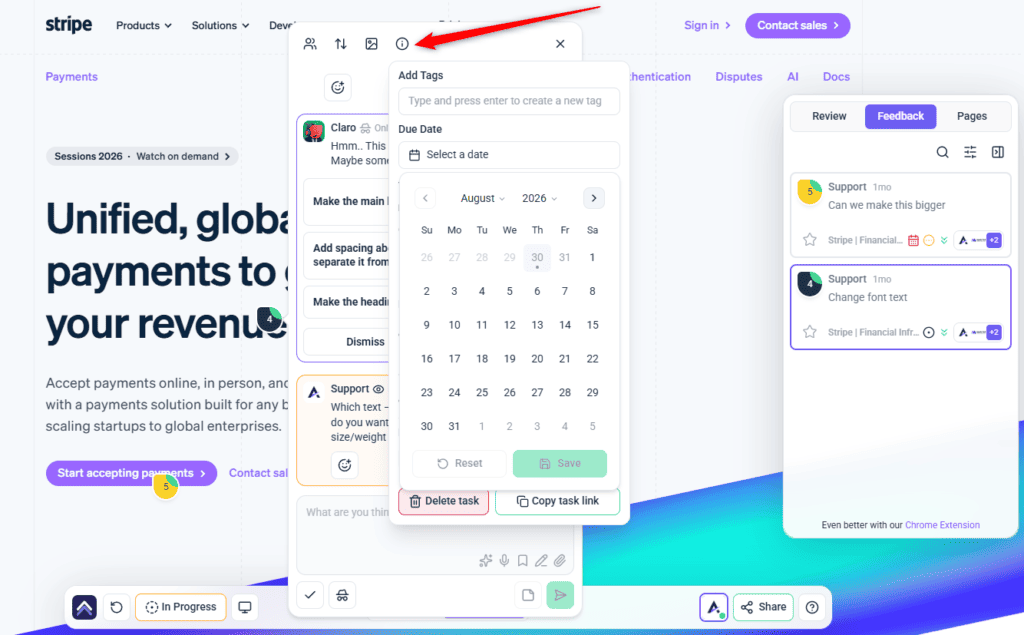
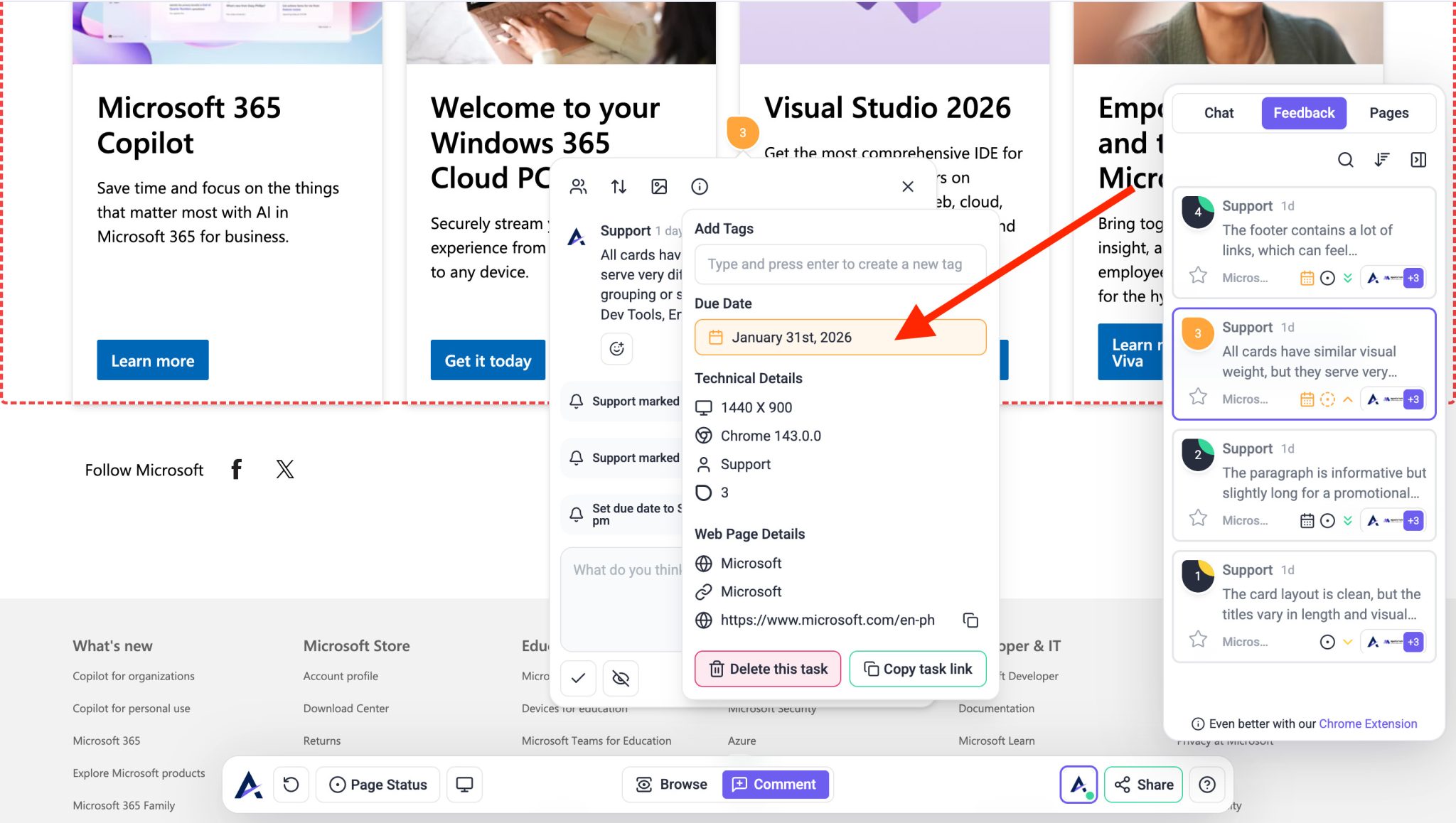
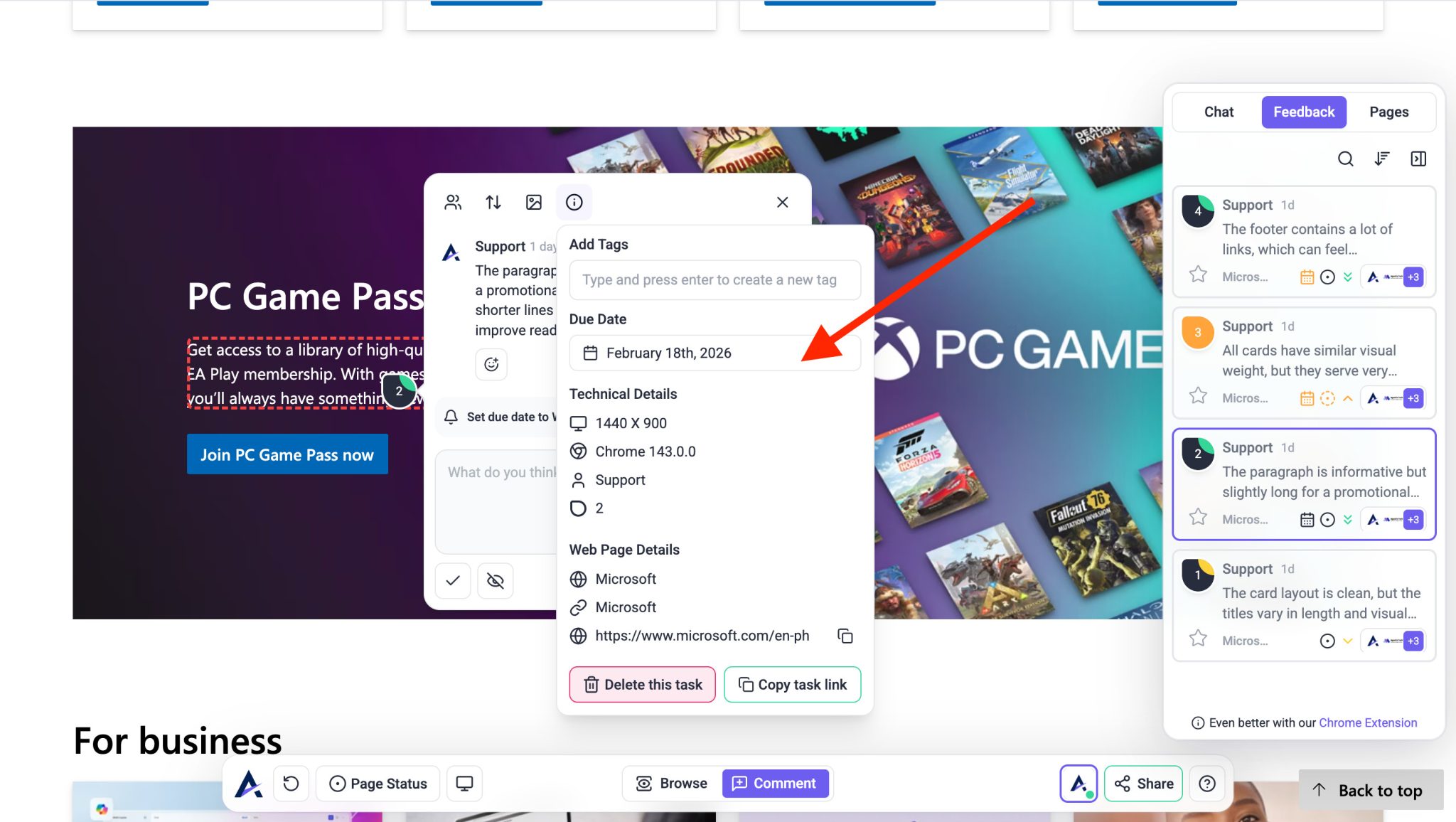
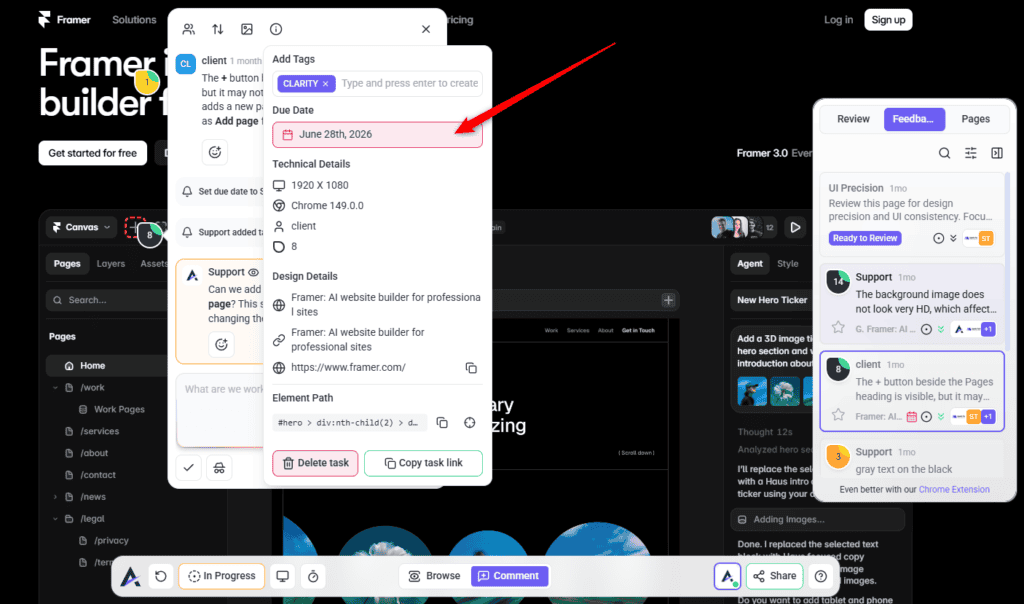
A due date is not just a field — the task’s date indicator changes colour as the deadline approaches, so an overdue task is visible without opening anything.
| Colour | Means | The tooltip shows |
|---|---|---|
| No colour | More than three days away, or no due date set. | — |
| Orange | Due within 72 hours. | How long is left. |
| Red | Overdue. | Exactly how late, such as Overdue by 3 days 4h. |
A due date is visible to everyone on the project, so it sets a shared expectation rather than just reminding you.
Instructions:
Getting Back to Where a Task Came From
A task tells you what somebody wanted changed. It does not always tell you what they were looking at, which is where the context controls come in.
Remapping a Task to a Different Element
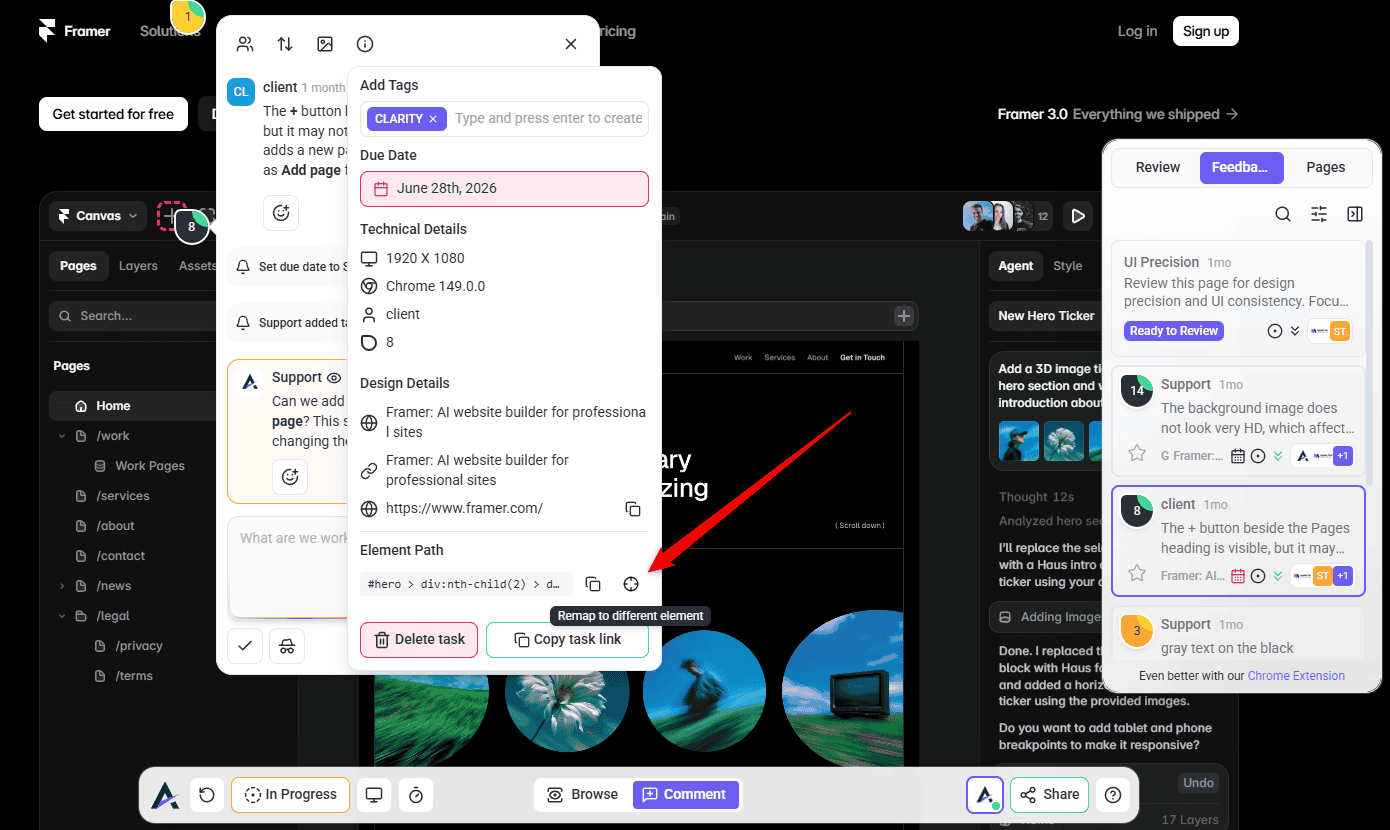
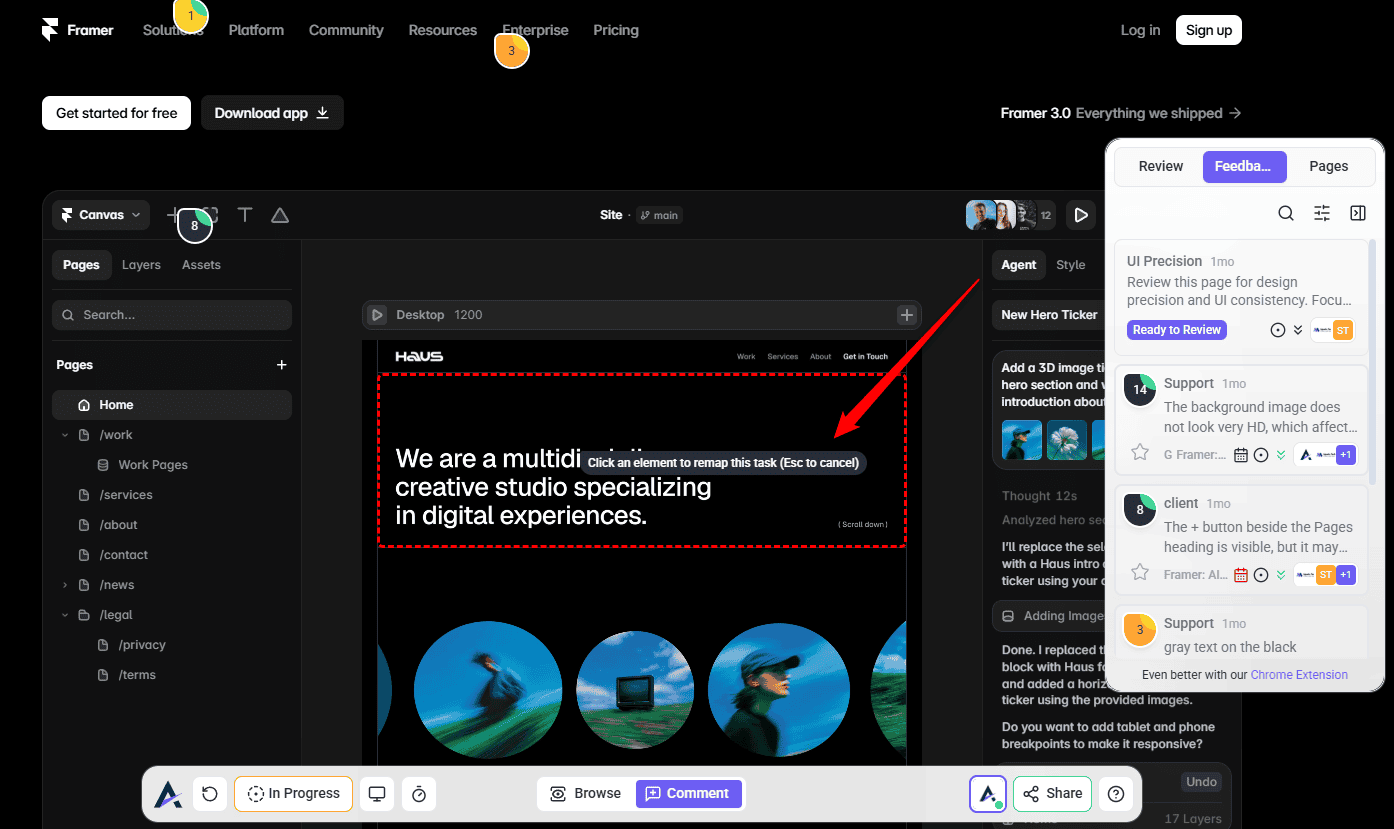
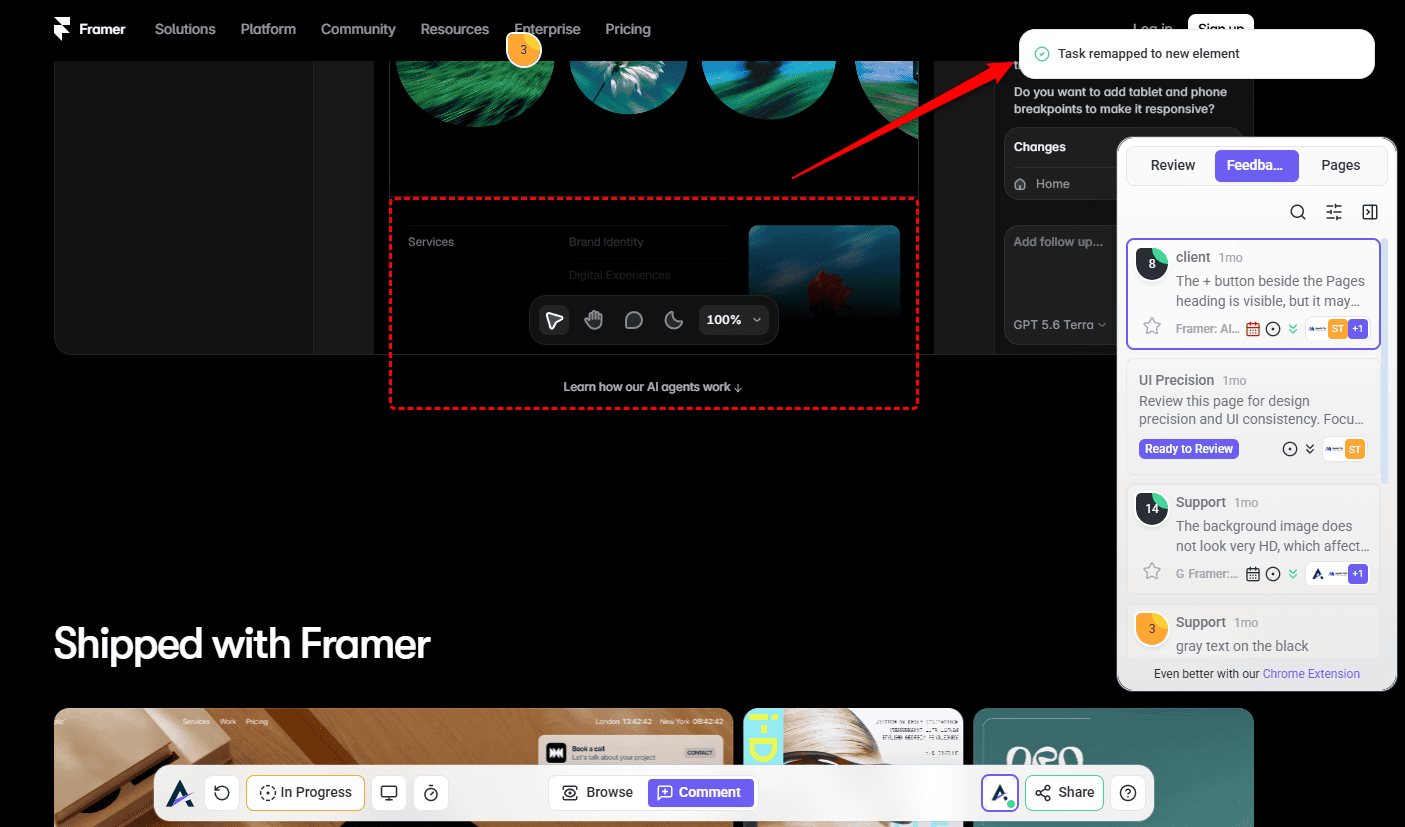
Tasks are anchored to a specific element on the page. If that element changes during development, the anchor stops matching — the task still exists, but Atarim can no longer point at the thing it was about. Remapping fixes it without losing anything.
Instructions:
Deleting a Task
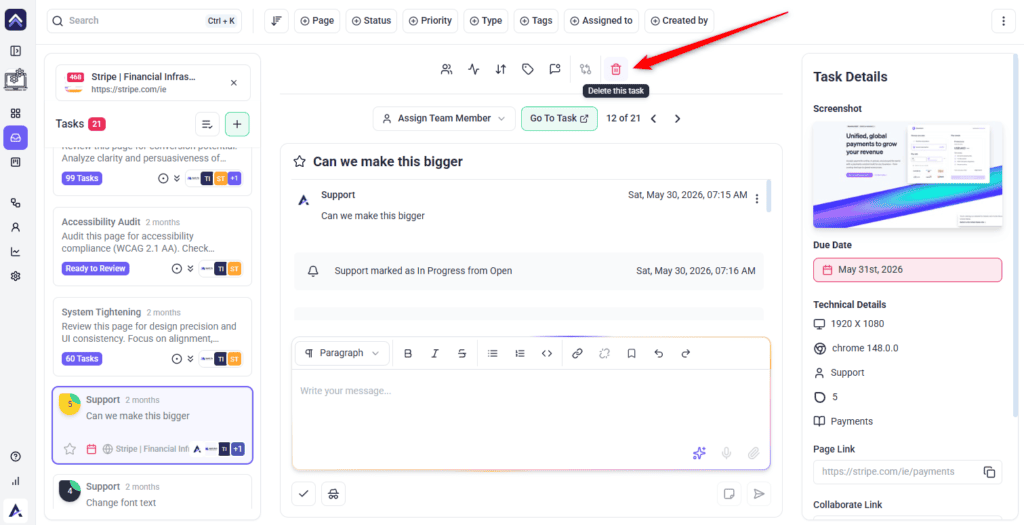
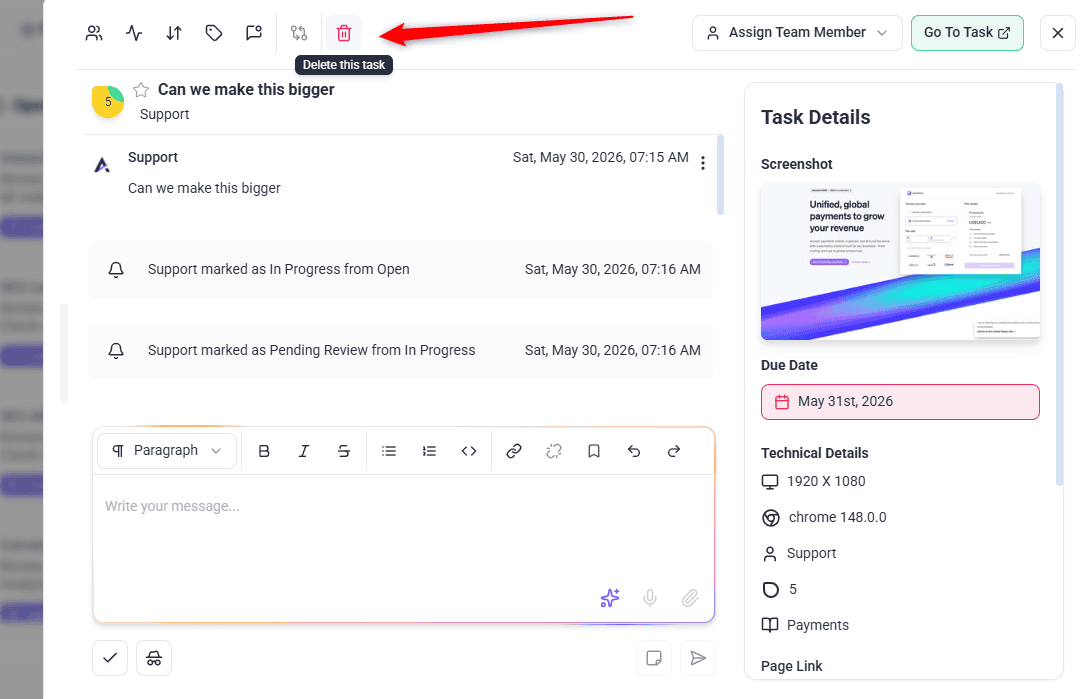
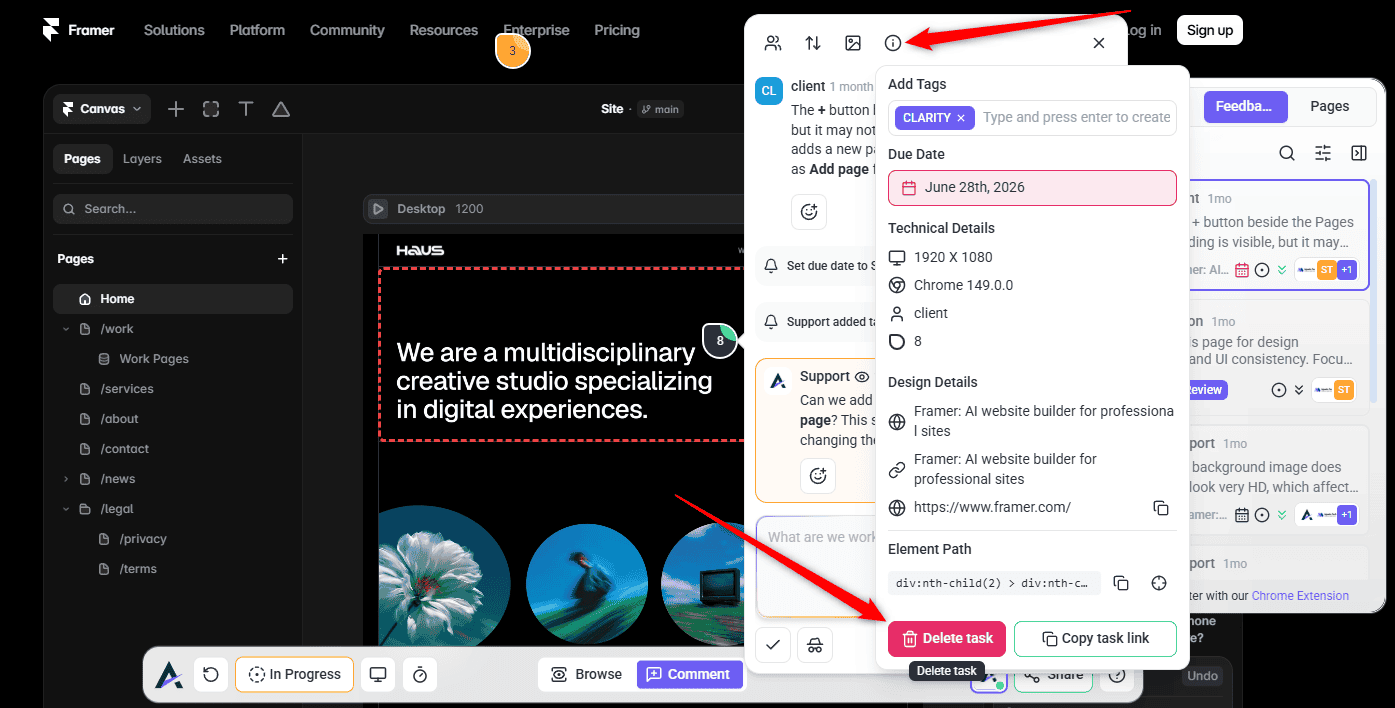
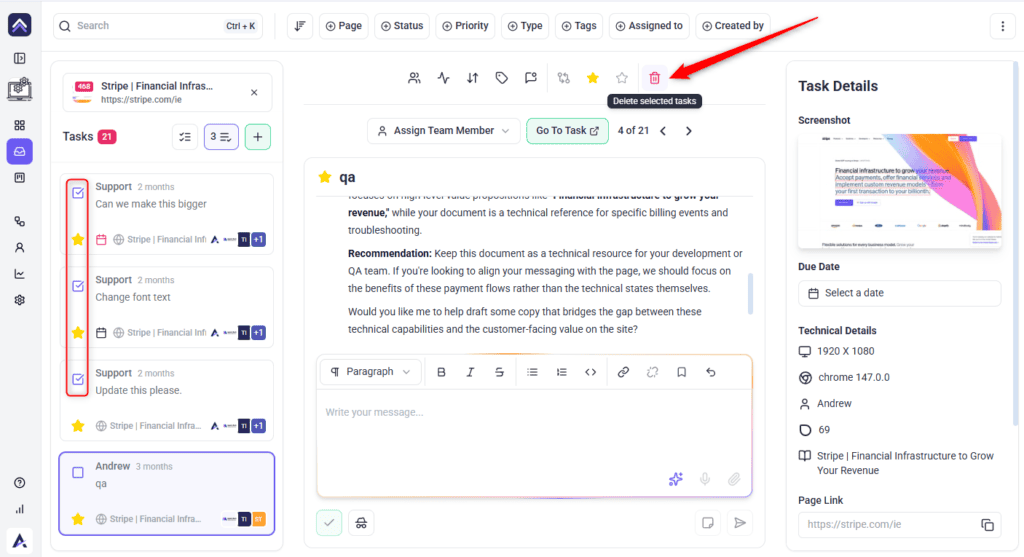
Tasks can be removed from any view, and it is worth knowing where the control sits in each because it is not in the same place.
Instructions:
Working Through Tasks in Bulk
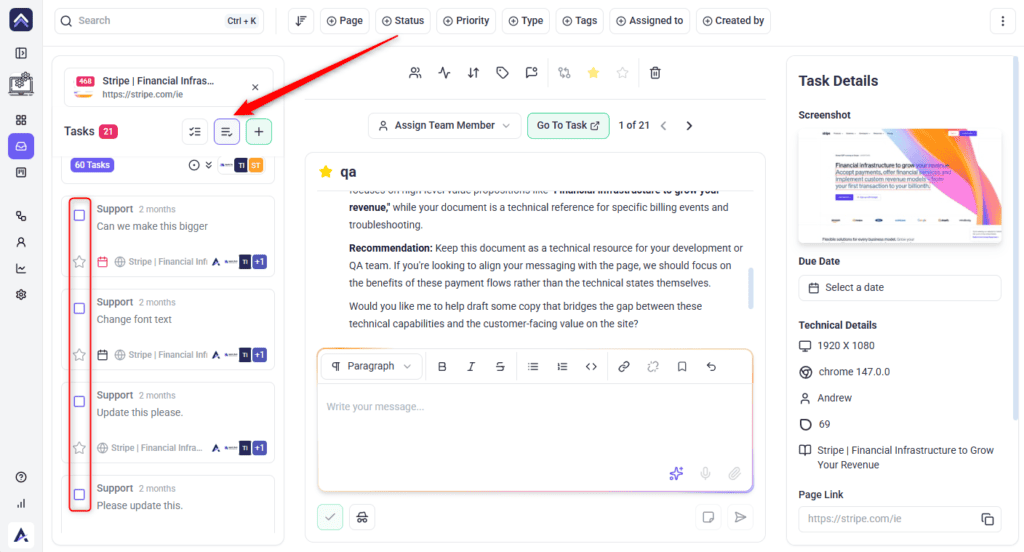
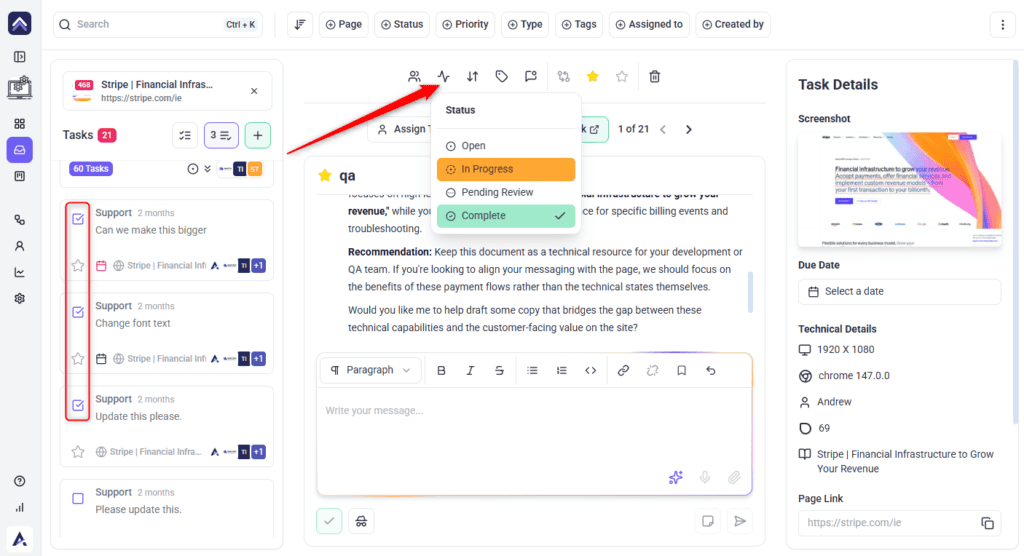
After a review round, handling tasks one at a time is the slow way. Selecting a batch first turns a morning into a few minutes.
Instructions:
Benefits of Managing Tasks This Way
| Benefit | In practice |
|---|---|
| Context arrives with the work | The screenshot, element, page, and browser are captured automatically, so nobody has to ask what was meant. |
| One place for everything | Client feedback, AI findings, and emails all become the same kind of task. |
| The conversation stays attached | Replies live on the task rather than scattering across email. |
| Nothing is unowned | One responsible person per task, with everyone else notified. |
| Volume is manageable | Bulk actions turn a forty-task review round into a few minutes of triage. |
| Deadlines are visible | The date indicator turns orange at 72 hours and red once overdue. |
| Clients see only their side | Internal notes keep your working out of their view without moving it elsewhere. |
Example Use Cases
| Situation | What to do |
|---|---|
| A client review lands forty tasks | Switch Boards to priority view, drag them into columns to triage, then assign the urgent ones. |
| A vague comment | Use Go To Task to see what they were looking at before asking them to clarify. |
| A developer cannot reproduce a bug | Check Technical Details — the screen resolution usually explains it. |
| The same reply, five times a week | Save it as a canned response and insert it instead. |
| Work needs quoting before you answer | Record the estimate as an internal note, then reply to the client with the decision. |
| Preparing for a client call | Pin the tasks you want to raise, then work from the pinned list during the call. |
| A board full of unreadable titles | Rename tasks as you triage, so the board can be scanned without opening cards. |
| Closing out a finished round | Filter to the client’s tag, select all visible, and set them Complete in one action. |
Known Limitations
FAQs
Where do tasks come from?
Client and team feedback in Collaborate, AI reviews, incoming emails, and workflows — all becoming the same kind of task.
Can I assign a task to more than one person?
No. One person is responsible; anyone else can be added to the notified people.
What is the difference between a comment and an internal note?
A comment is visible to everyone on the project. An internal note is visible only to administrators and team members.
Can I edit a comment after posting it?
Yes, from the comment’s Actions menu. It will be marked Edited.
How do I reuse a reply I send often?
Save it as a canned response and insert it from the comment box.
Why can I not see what the client was looking at?
Use Go To Task to open the page in context, and Technical Details for the screen size and browser.
A task says its element was not found. What now?
The page has changed since the feedback was left. Open the task in Collaborate, expand Technical Details, use the remap control, and select the element it should point at now.
Should I remap a task or recreate it?
Remap. Recreating loses the conversation and the client’s original wording; remapping keeps everything and just corrects the anchor.
Can I rename a task?
Yes. Select the title at the top of the task panel, type the new name, and press Enter.
How do I flag a task to come back to?
Use Pin Task. Pinned tasks can be filtered for later, and several can be pinned at once from the bulk toolbar.
Why has a task’s date turned orange or red?
Orange means it is due within 72 hours; red means it is overdue. The tooltip gives the exact amount.
Can I recover a deleted task?
No. There is no archive for tasks, so set finished work to Complete rather than deleting it.
Can I change several tasks at once?
Yes — select them and use the bulk toolbar for status, priority, tags, notifications, pinning, internal, or delete.
Common issues
- A control shows a lock — that feature is not on your plan. The panel names the minimum plan required.
- “Screenshot not available” — the capture did not complete. Use Go To Task to see the page as it is now.
- The screenshot looks inaccurate — install the Chrome extension for more accurate captures.
- You cannot assign someone — they are not assigned to the project. Add them to it, or to its folder.
- A task’s pin is in the wrong place — the page has changed. Expand Technical Details, use the remap control, then select the correct element.
- “Element not found on this page” — the element the task was anchored to no longer exists. Use Remap to element and select its replacement.
- “Failed to remap task element” — try again. If it persists, check you are on the right page and the site is still connected.
- “Actions are disabled for this site” — comment actions have been switched off for that project. An administrator can change it.
- A bulk change hit more tasks than expected — Select all visible tasks follows your filters. Narrow them first.
- A task’s date is orange or red — orange is due within 72 hours, red is overdue. Hover for the exact figure.
- You cannot find a bookmark control — the feature is called Pin Task. Pinned tasks can be filtered for afterwards.
- A comment says “Edited” — expected. Edited comments are marked so the history stays clear.
Conclusion
Tasks are the unit everything in Atarim reduces to. Learn what one carries — the screenshot, the element, the browser, the conversation — and most questions answer themselves without going back to the person who raised it.
Tips & best practices
- Use Pending Review rather than leaving finished work In Progress. It tells the client the next move is theirs.
- Reach for Go To Task before asking a client to clarify. Seeing the page usually answers it.
- Agree a small tag vocabulary as a team. Consistency matters more than coverage.
- Build canned responses together so client communication is consistent, not just quicker.
- Filter before using Select all visible tasks — the selection follows your filters.
- Remap a mispointed task rather than recreating it. Recreating loses the conversation.
- Rename vague tasks as you triage — a readable board saves opening every card.
- Act when a due date turns orange, not red. Seventy-two hours is enough warning to fix it honestly.
- Complete finished tasks rather than deleting them. There is no archive for tasks.