How to Improve Client Satisfaction Using Atarim
Five settings and habits that change how a client experiences working with you — each one a control you can go and change today.
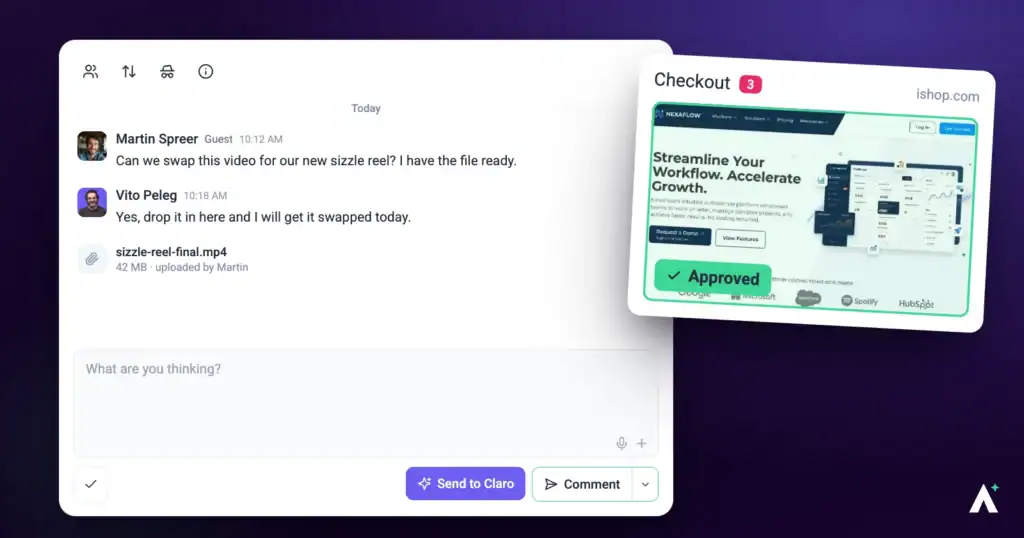
Each of the levers below maps to something you can actually configure or change how you use. This article goes through them in the order they tend to matter, and is honest about which ones depend on your plan or permissions.
Most client frustration comes from being asked to describe what they could just point at.
Client satisfaction is not a feature you switch on. In practice it comes down to a handful of specific things: whether the client can show you what they mean, whether they hear from you at the right frequency, how many rounds a change takes, and whether they ever have to guess what state the work is in. Each of those maps to something you can configure or change how you use.
| What clients complain about | The lever |
|---|---|
| “They didn’t understand what I asked for” | Located feedback with automatic screenshots and annotation. |
| “I never know what’s happening” | Notification settings, tuned rather than left at default. |
| “This is taking forever” | Fewer feedback rounds — Claro resolves unclear requests at the point they are written. |
| “This tool is confusing” | The guest interface, and keeping internal work out of their view. |
| “I thought we’d already agreed that” | An explicit, recorded sign-off. |
Let Clients Point Instead of Describe
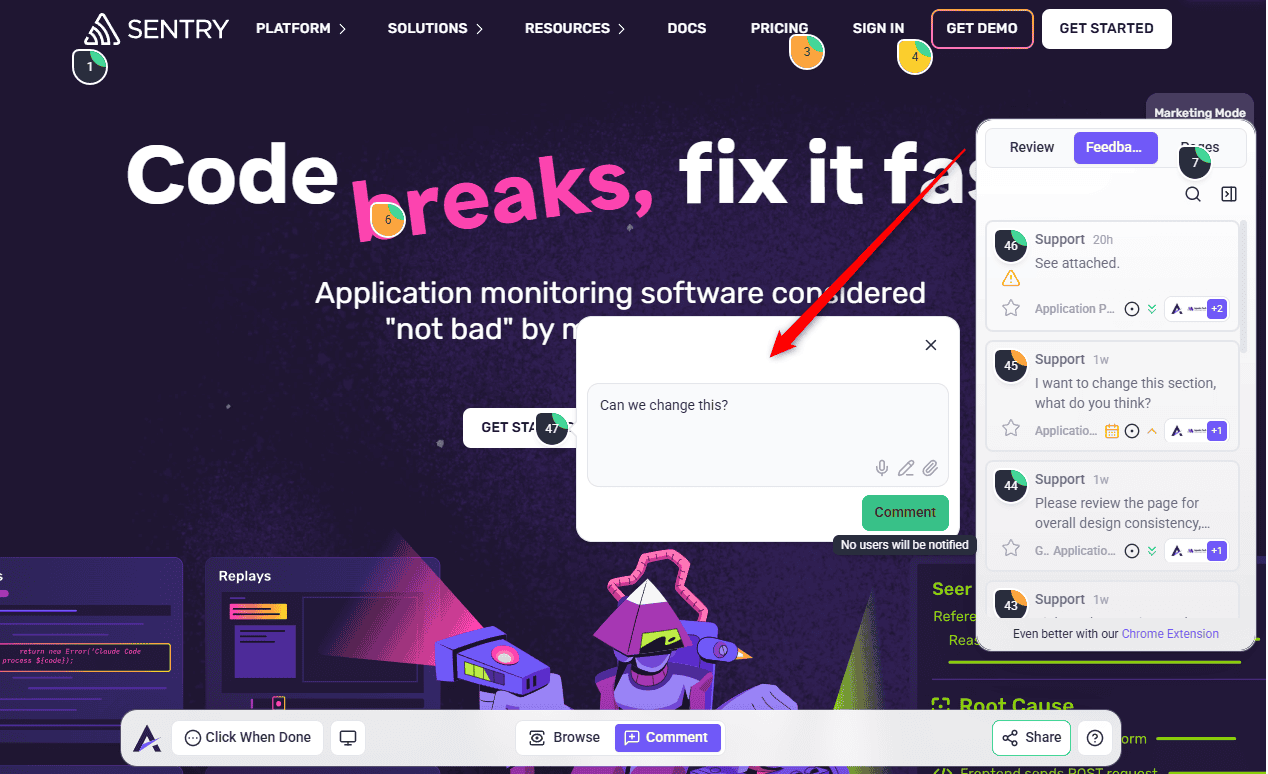
The single biggest source of client frustration is being asked to put a visual problem into words. Atarim removes that by attaching feedback to the place on the page it is about.
When a task is created in the collaborate view, Atarim captures a snapshot of what the person was looking at. Open the screenshot control on a task and its tooltip reads Snapshot of what was seen when the task was made. A task raised three weeks ago still carries the context it was raised in, even if the page has changed since.
Keep Clients Informed Without Burying Them
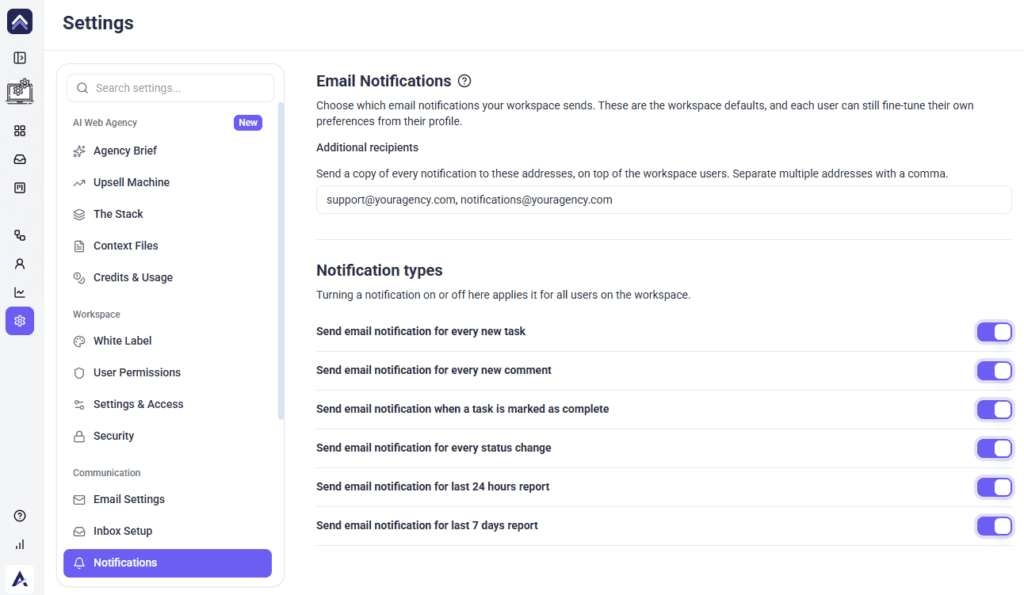
Notifications are where good intentions usually go wrong. Every notification type is on by default, which on a busy project means a client receives email for every new task, every comment, every status change, and every completion — plus daily and weekly digests. A client who gets forty emails a week stops reading all of them, including the two that mattered. Tuning this is the highest-leverage ten minutes in this article.
Instructions:
| Notification | Keep it on? |
|---|---|
| Every new comment | Yes. This is the one clients act on. |
| When a task is marked complete | Yes. It is the update they are waiting for. |
| Every new task | Usually — it confirms their request landed. |
| Every status change | Usually the first to switch off on a long project. |
| Last 24 hours report | Useful internally, rarely wanted by clients. |
| Last 7 days report | A good weekly digest where daily is too much. |
Cut the Number of Rounds, Not the Response Time
Clients judge speed by how many times they have to explain the same thing, not by how fast each reply arrives. Two habits do most of the work. First, answer where the client asked — if they commented on a task, reply on that task, because switching to email splits the history and the half you are not looking at gets forgotten. Second, when feedback is genuinely unclear, resolve it before starting work rather than building something and asking afterwards.
Let Claro Resolve Vague Feedback Before It Reaches You
This is the part of Atarim that most directly changes how a project feels to a client, and it is easy to miss because it happens without anyone asking for it.
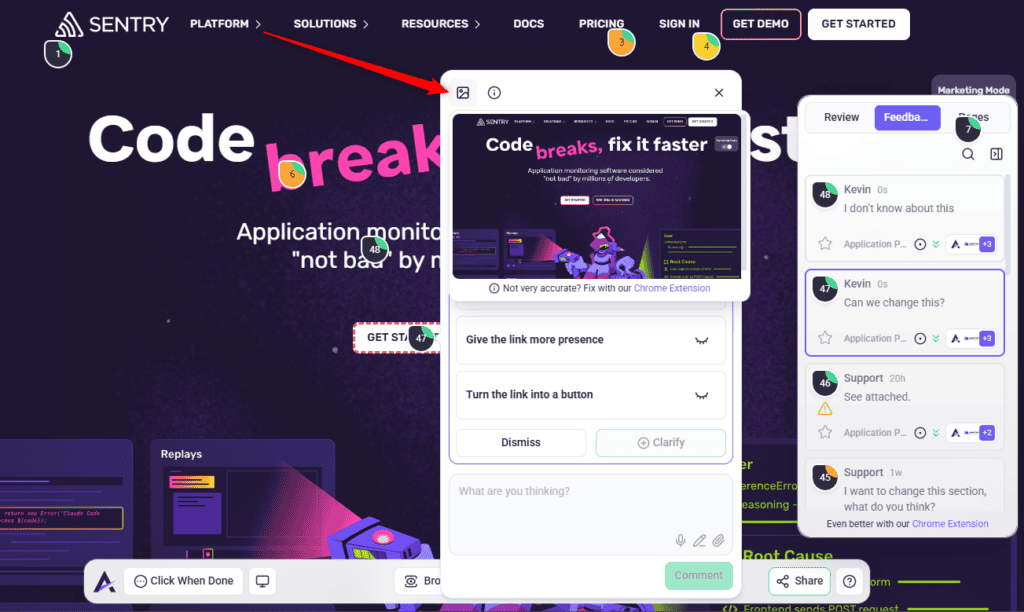
Claro, the InnerCircle’s feedback specialist, assesses every piece of feedback left on a page for how clear and actionable it is — whether it identifies the exact element, whether someone could act on it immediately, whether it makes sense without a follow-up question, and whether the change could be implemented or tested directly. Feedback that falls below the threshold gets a follow-up from Claro rather than landing in your queue as a mystery. While Claro is working, the client sees a Claro is checking indicator on the comment, so the pause is explained rather than looking like a glitch. Discover Claro
| Kind of feedback | How it is treated |
|---|---|
| “Fix this”, “broken”, “looks bad” | Extremely vague — triggers clarification. |
| Some context but a critical detail missing | Still below the bar — triggers clarification. |
| “Make this bigger”, “remove this” on a pointed element | Clear enough to act on, because the location is already known. |
| Quoted replacement text — change the title to “…” | Highly clear, even when the wording is subjective, because the exact replacement is given. |
| Technical specifics — hex colours, pixel values, CSS properties | Fully actionable. |
| “Same as task 4” | Understood — task IDs are visible, so cross-references are meaningful. |
What the Client Is Asked
When feedback is too vague, the client is not sent back to write a better comment. They are offered three specific options in plain language, each one something they can preview on the element in a single click.
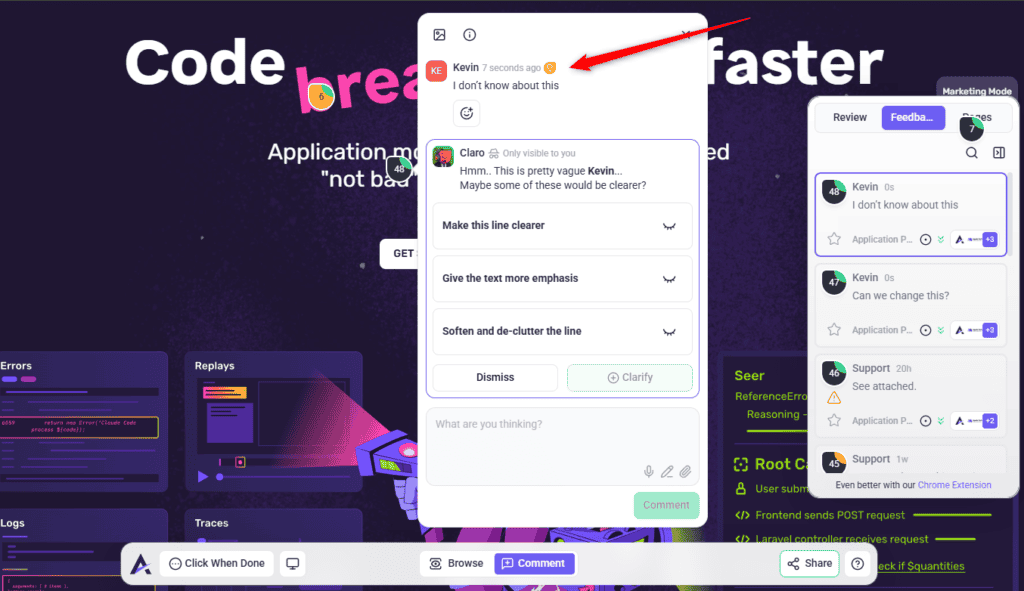
Who Gets Asked to Clarify
Clarification is always directed at the person who wrote the feedback. This catches teams out, so it is worth knowing before a client asks.
| Who is viewing the comment | What they see |
|---|---|
| The person who wrote the vague feedback | The three options, ready to preview and pick. |
| Anyone else on the project | A waiting state showing that Claro’s follow-up is pending with the author. |
The Six Specialists
| Specialist | Covers |
|---|---|
| Claro | General — detects and clarifies vague feedback |
| Pixel | UI & Design |
| Navi | UX & Accessibility |
| Index | SEO & Performance |
| Lexi | Content |
| Glitch | Functionality |
Give Clients a View That Fits Them
Clients do not want your dashboard. Inviting them as a guest gives them a deliberately reduced interface scoped to one project — no workspace, no settings, no sign-up.
| Do this | Why it helps |
|---|---|
| Invite clients from the Guests and Clients tab | They get project-scoped access and the simplified interface, with no account to create. |
| Write a note on the invite | An invite with no context reads like spam, and clients are the least forgiving audience for that. |
| Mark internal work internal before inviting | Internal tasks are hidden from guests entirely, so your QA notes do not sit alongside their feedback. |
| Use private notes for internal remarks | Notes are never visible to guests and never trigger notification email. |
| Turn on white label if your plan includes it | The experience carries your brand rather than someone else’s. |
Make the Sign-Off Explicit
Ambiguity about what has been agreed causes more friction late in a project than anything else. A page-level sign-off gives you a dated record with the approver’s name on it, and gives the client a clear moment to say “yes, that’s done”. Clients see a deliberately simple version of the control in the collaborate view: This is approved or I’m done. Tell them which one you need before you send the link — clients who are not told the difference tend to pick I’m done for both.
Keep Your Own Team Fast
Clients never see your integrations, but they feel them. Pushing tasks into the tools your team already lives in — Slack, Jira, Trello and others — means client requests get picked up in the place work actually gets scheduled, rather than waiting for someone to check a second system.
Benefits of Getting These Right
| Benefit | In practice |
|---|---|
| Fewer misunderstandings | Feedback arrives attached to the element it is about, with a snapshot of the moment. |
| Notifications keep meaning | Fewer, better-chosen emails stay opened in month six. |
| Shorter projects | Resolving unclear requests up front removes whole rounds of revision. |
| Clients feel competent | The guest view needs no training, so they participate instead of waiting for a call. |
| Agreements stay agreed | A dated sign-off ends the “I thought we’d decided” conversation. |
Example Use Cases
| Situation | What to change |
|---|---|
| A client says they are “getting too many emails” | Turn off status-change notification; keep comment and completion. |
| A client says nobody tells them anything | Check whether notifications were switched off workspace-wide, and whether they are attached to the project. |
| Requests keep needing two rounds | Push for clarity before starting, and save your standard clarifying questions as canned responses. |
| A client finds the tool confusing | Confirm they were invited as a guest rather than a team member. |
| A client reopens settled work | Move to explicit page sign-offs so there is a dated record. |
| Screenshots look wrong on your team’s tasks | Install the Chrome extension for the team. |
Known Limitations
FAQs
Are clients notified automatically about everything?
No. Notifications fire on task events — created, commented, status changed, completed — and each is subject to the workspace setting and the person’s own preferences. Project stage changes send nothing.
Can Atarim handle client approvals?
Yes. Clients sign off a page from the collaborate view using This is approved. It emails your team with a dated record naming the approver.
Do clients need an account?
No. Guests identify themselves once and are remembered on that browser for 90 days.
Does the client need the Chrome extension?
No. It improves screenshot accuracy for whoever installs it, so it is worth having on your team’s machines rather than asking clients to install anything.
What happens if my client leaves vague feedback?
Claro offers them three specific options in plain language, each previewable on the element in one click. They pick, and Claro posts a summary of the clarified direction to your team rather than leaving you the original vague comment.
Do I need to do anything to turn the clarification on?
No. Claro assesses feedback as it is left. Filling in the project’s brand kit makes its suggestions considerably more relevant, though.
Can I pick the clarification options for my client?
No. Only the person who wrote the comment can choose. Everyone else sees a waiting state, so if a client goes quiet you will need to nudge them.
Does the AI use up credits?
Yes. AI work is metered against your agency’s credit pool, so it is worth watching on high-volume projects.
Will my branding show in what the client sees?
Where white label is enabled for the project and included on your plan, yes.
How do I stop clients seeing internal work?
Mark those tasks internal, and use private notes rather than comments for internal remarks.
Common issues
- The client says they get no updates — confirm they are attached to the project and that the relevant notification has not been switched off for the workspace.
- The client says they get too many — review the six switches in Settings → Notifications. Status change is usually the culprit.
- Notifications arrive from an unfamiliar sender — your workspace mailbox is not verified yet, so mail falls back to a default address.
- A task shows Screenshot not available — capture did not complete, or the task came from somewhere that does not produce one.
- Screenshots do not match the real page — install the Chrome extension for your team. The product prompts for this on the screenshot panel.
- The client sees internal comments — they were posted as comments, not notes. Notes are never visible to guests.
- The client is overwhelmed by the interface — they were likely invited on the Team Members tab. Guests get the simplified view.
- You cannot choose the options on a client’s vague comment — expected. Only the comment’s author can. Ask the client to open their own comment and pick.
- A returning client is not offered options on their old comments — guests are matched by the name they gave. If they re-identified with a different name, they will not be recognised as the author.
- Nobody told the client the project moved on — stage changes send nothing. Post a comment or send a message yourself.
Conclusion
None of this is about being more responsive by force of will. It is about removing the specific frictions that make clients feel unheard: making it easy for them to show rather than tell, sending fewer and better notifications, resolving unclear requests before building, giving them an interface that does not need explaining, and ending each stretch of work with an explicit sign-off.
Start with the notification defaults and the project brand kit. The first takes ten minutes and is the change clients notice fastest; the second is what makes Claro’s suggestions actually sound like their business. Discover Best Practices For Client Communication
Tips & best practices
- Review the six notification switches at the start of every project rather than leaving the defaults.
- Verify your workspace mailbox before the first client email goes out.
- Install the Chrome extension for your team; do not ask clients to.
- Always invite clients from Guests and Clients, never Team Members.
- Mark internal work internal before you send the link.
- Reply on the channel the client used, so the history stays in one place.
- Tell the client which sign-off option you need before sharing the page.
- Fill in each project’s brand kit, so clarification suggestions fit that client’s business.
- Tell clients a reaction is enough — they do not have to write a specification.
- Run a page review before handing a page over, not after.
- Tell clients Claro may follow up on their own comment, and that the options are theirs to pick.
- Ask returning clients to use the same name each time they identify themselves.
- Announce stage changes yourself — nothing notifies on them.