How to Reset Your Atarim Account Password
Forgot your password? Resetting it takes a couple of minutes and needs nothing but your registered email address.
Whether you’ve forgotten your password or simply want to update it, the reset process is the same. It runs entirely from the login screen and your email, and the only two things that reliably go wrong are using a link a newer request has already replaced and not checking the spam folder.
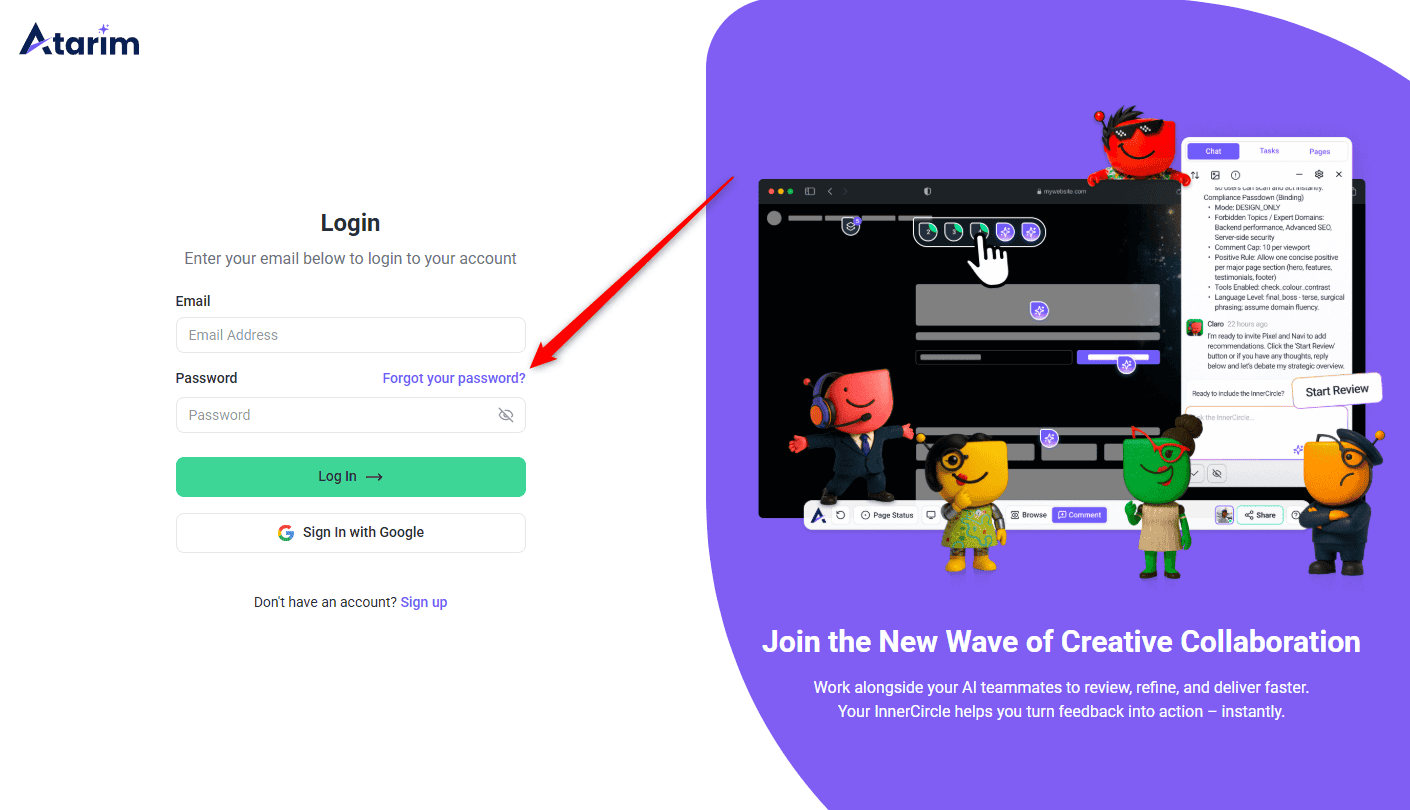
The reset starts from the login screen.
Whether you’ve forgotten your password or simply want to update it, the reset process is the same. It runs entirely from the login screen and your email.
Reset Your Password
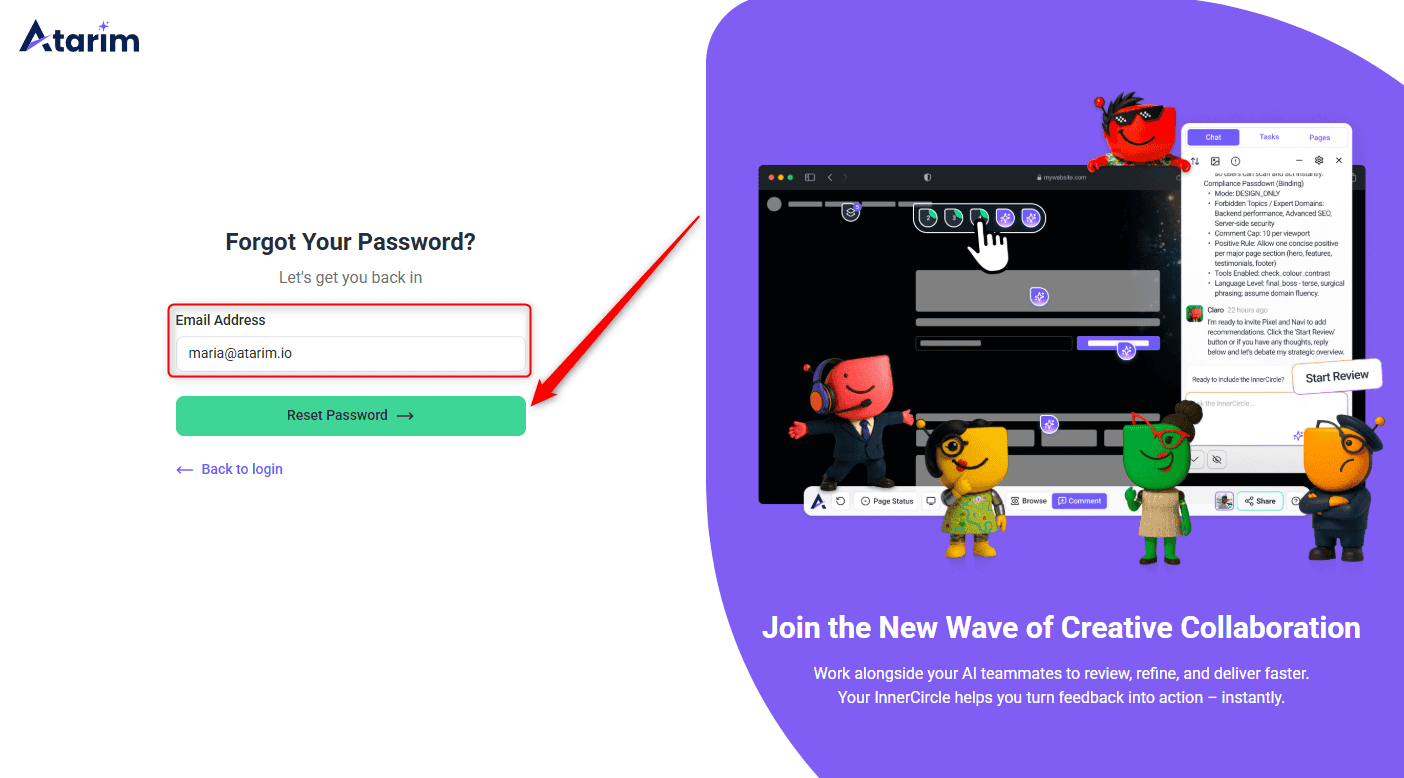
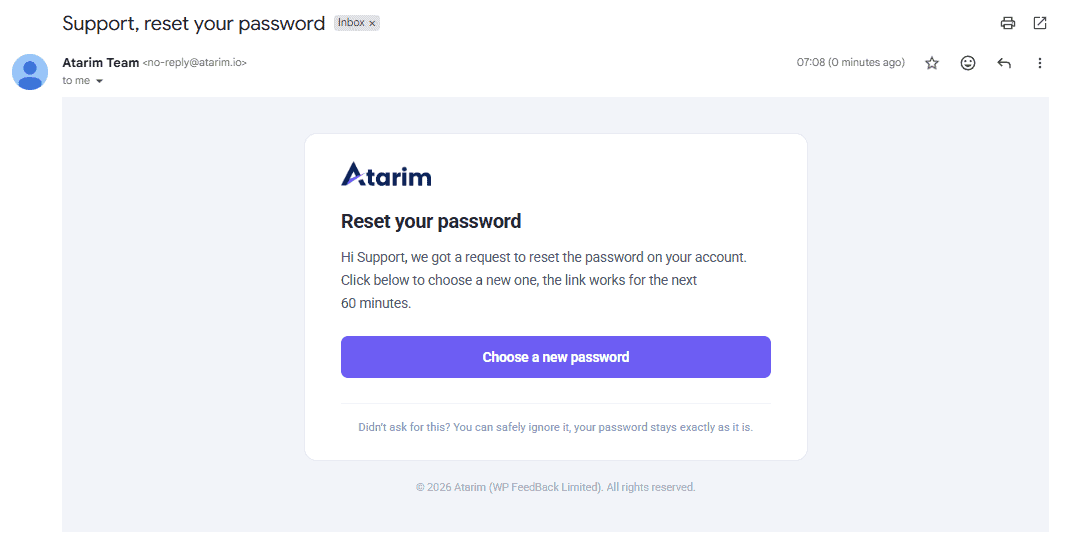
The reset runs entirely from the login screen and your inbox, so you never need to be signed in to do it.
Instructions:
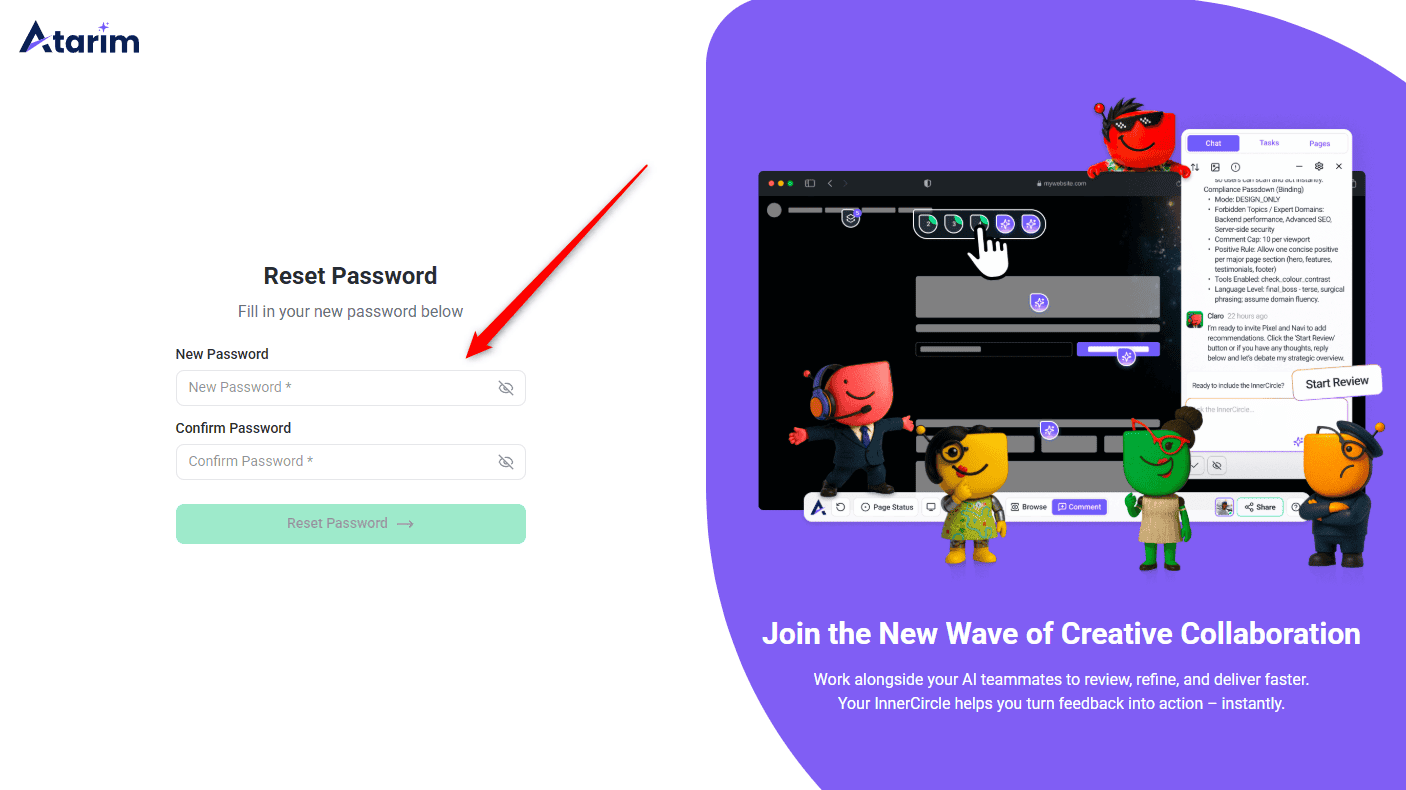
Choosing a New Password
Atarim asks for eight characters or more, including a number, a capital letter and a symbol. This isn’t an obstacle for its own sake — it’s what stops an account being taken over by someone guessing or reusing a leaked password.
If Two-Factor Authentication Is Enabled
Resetting your password doesn’t remove two-factor authentication. After signing in with your new password, you’ll still be asked for a verification code sent to your registered email.
FAQs
Where do I start a password reset?
On the Atarim login screen, using the Forgot Password? link beneath the login fields.
How long is the reset link valid?
Each link works once, and requesting a new reset cancels the one before it. If a link does not work, it is almost always because a newer request replaced it — open the most recent email.
Why was my new password rejected?
The new password needs eight characters or more, with a number, a capital letter and a symbol. The button stays disabled until all of those are met and both fields match.
Can I reuse an old password?
You shouldn’t. Reused passwords are the most common route to an account being compromised.
Does resetting my password disable two-factor authentication?
No. You’ll still be asked for a verification code when you sign in.
What if I’ve lost access to my registered email?
Contact support — both reset links and verification codes are sent there, so self-service won’t reach you.
Can I change my password without forgetting it first?
Yes. The same reset flow works whenever you want to update it for security.
I got the confirmation screen but no email arrived.
The confirmation appears whether or not that address has an Atarim account. That is deliberate: it stops the screen being used to work out which addresses are registered. So if nothing arrives, the likeliest reason is that the account is under a different address — check which one you registered with rather than requesting another reset.
Common issues
- The reset email hasn’t arrived — check spam or junk, and confirm you entered your registered address. The confirmation screen appears whether or not the address has an Atarim account, so its appearance is not proof that an email is on its way.
- The link does not work — almost always because a newer reset request replaced it. Open the most recent email, or start the process again.
- You requested several resets — use the most recent email. Earlier links stop working once a new one is issued.
- Your new password is rejected — it needs at least 8 characters including a capital letter, a number and a symbol.
- You’re still asked for a code after resetting — expected. Two-factor authentication is separate from your password.
- You’ve lost access to your registered email — neither the reset nor a verification code can reach you. Contact support directly.
- You can sign in but something is missing — that’s permissions rather than access. Ask your workspace administrator.
Conclusion
Resetting your Atarim password is quick and secure: request the reset from the login screen, open the most recent email, and set something strong.
The only two things that reliably go wrong are using a link a newer request has already replaced and not checking the spam folder — both easily avoided. Discover What To Do If You Can’t Access Atarim
Tips & best practices
- If you have asked more than once, use the newest email — the earlier link no longer works.
- Check your spam folder before requesting a second reset.
- Create something new rather than reusing an old password.
- Use a password manager to avoid typos and future resets.
- Bookmark app.atarim.io so you always sign in at the right address.
- Use a private browsing window if you’re resetting on a shared or public device.