Introducing the New Atarim WordPress Plugin: Everything You Need to Know
Install it, connect it, and control who collaborates — plus what version 5.1.3 lets Atarim's AI actually do on your site.
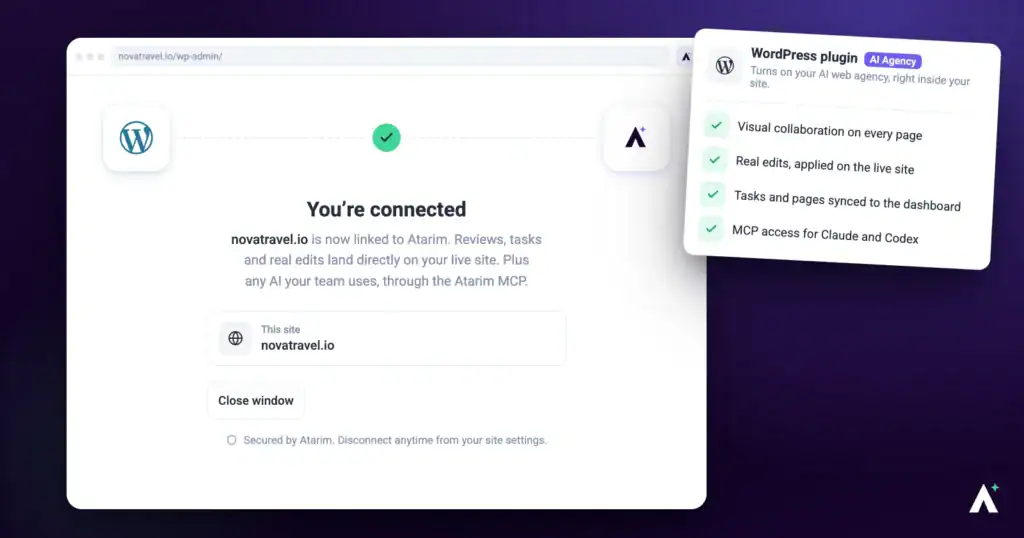
The Atarim WordPress plugin brings visual collaboration onto the site itself, rather than onto a fetched copy of it. That is what makes it the right choice for staging environments and any site that is not publicly reachable — and it gives Atarim’s AI a defined set of actions it can carry out on the site directly, on WordPress 6.9 or later.
Plugin settings live in WordPress admin, separate from your Atarim dashboard.
The plugin is listed in WordPress as Atarim – AI Agency for WordPress: Edit Pages, Fix Code, Update Plugins, SEO & Client Feedback, and the current release is version 5.1.4. It brings visual collaboration onto the site itself — which is what makes it the right choice for staging environments and any site that is not publicly accessible.
What the Plugin Enables
Installing the plugin changes where collaboration happens. Instead of reviewing a copy of the page, you and your team work on the site itself — which unlocks a set of things a shared link cannot do.
| What you get | Why it matters |
|---|---|
| Works on staging and protected sites | Because collaboration runs on the site, it reaches environments that are not publicly accessible. |
| Visual feedback on live pages | Comments attach to the element they are about, so nobody has to describe where they mean. |
| AI review of any page | Run a review to identify gaps before a client sees the page rather than after. |
| Internal tasks hidden from clients | Work you do not want reviewed sits in the same project without appearing in the client’s view. |
| Private internal notes | Team-only discussion lives on the task, invisible to clients and silent on notifications. |
| Client-friendly feedback | Mark review findings internal and clients see their own thread rather than your quality notes. |
| Clients need no WordPress account | Guest Mode or ?collab=true lets them ask questions in place. |
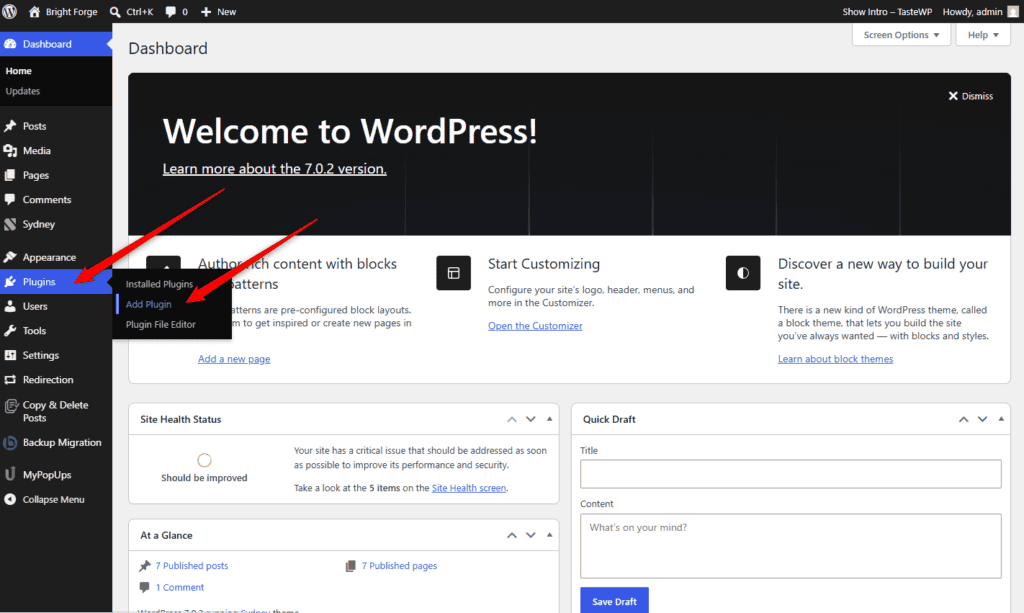
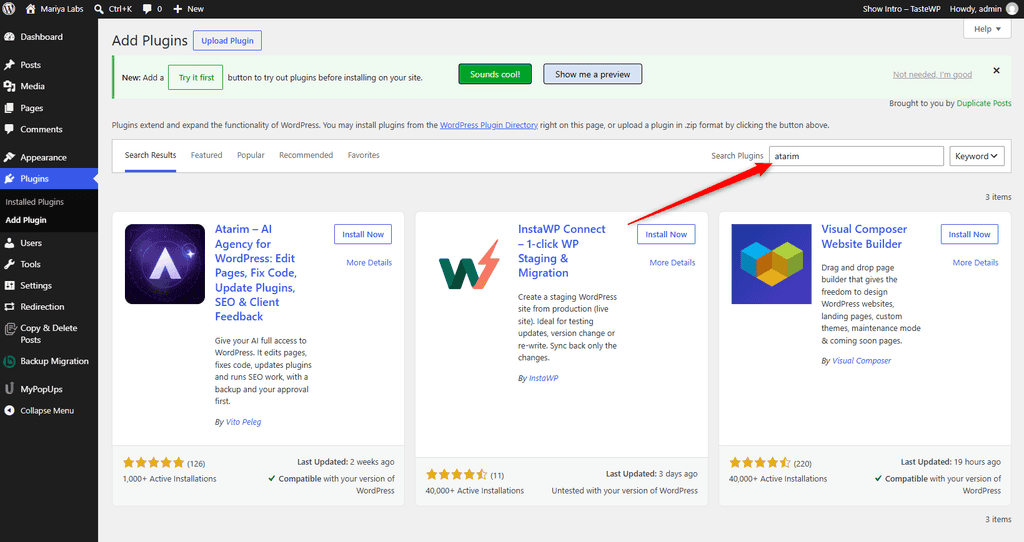
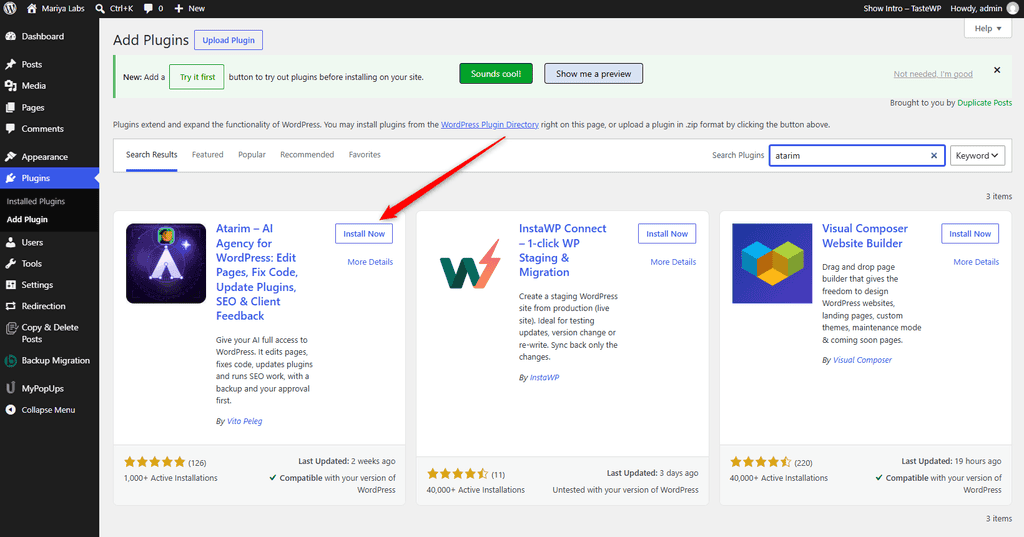
Install from the WordPress Plugin Repository
The fastest route if you have not downloaded the plugin from your Atarim dashboard.
Instructions:
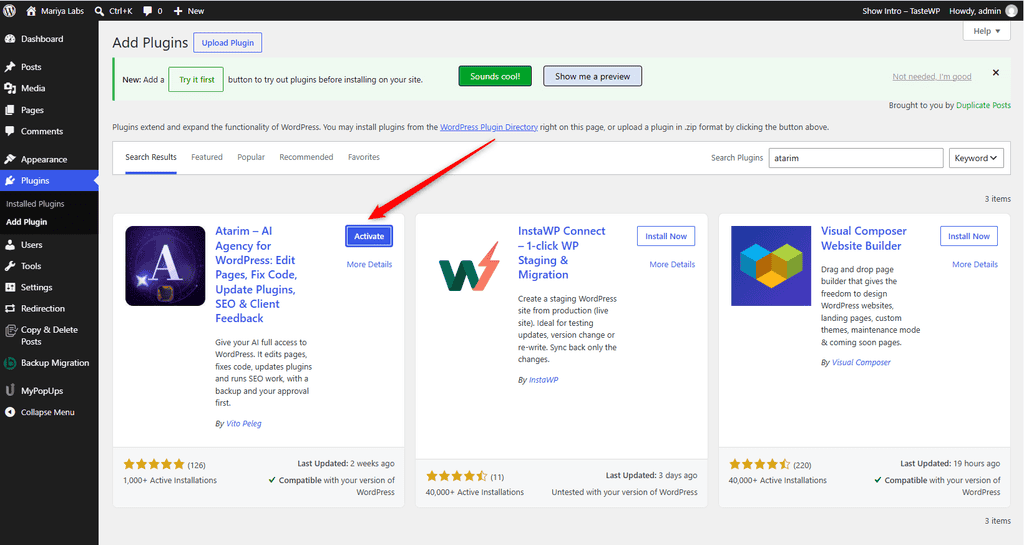
Or Download It from Your Atarim Dashboard
Take this route when the site cannot reach the WordPress repository, or when you want a specific build.
Instructions:
.zip file.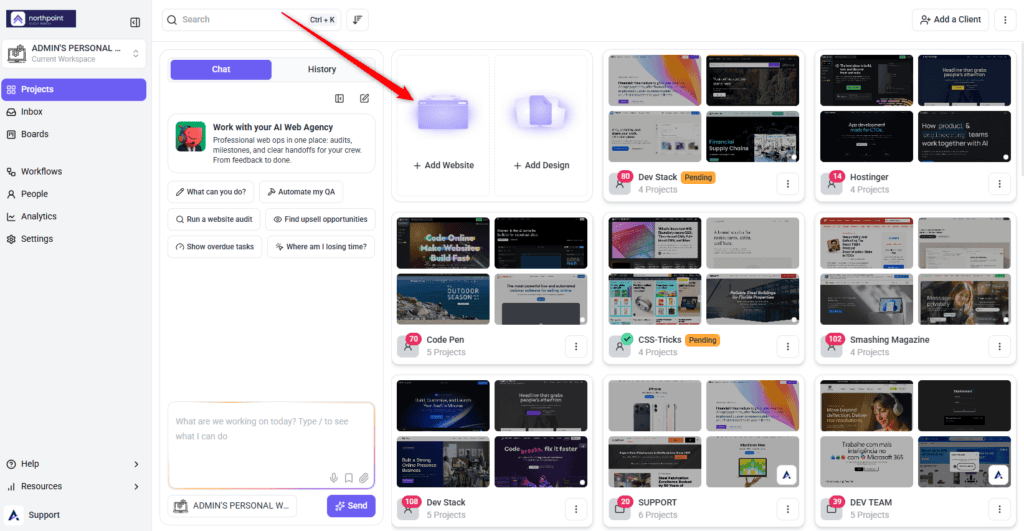
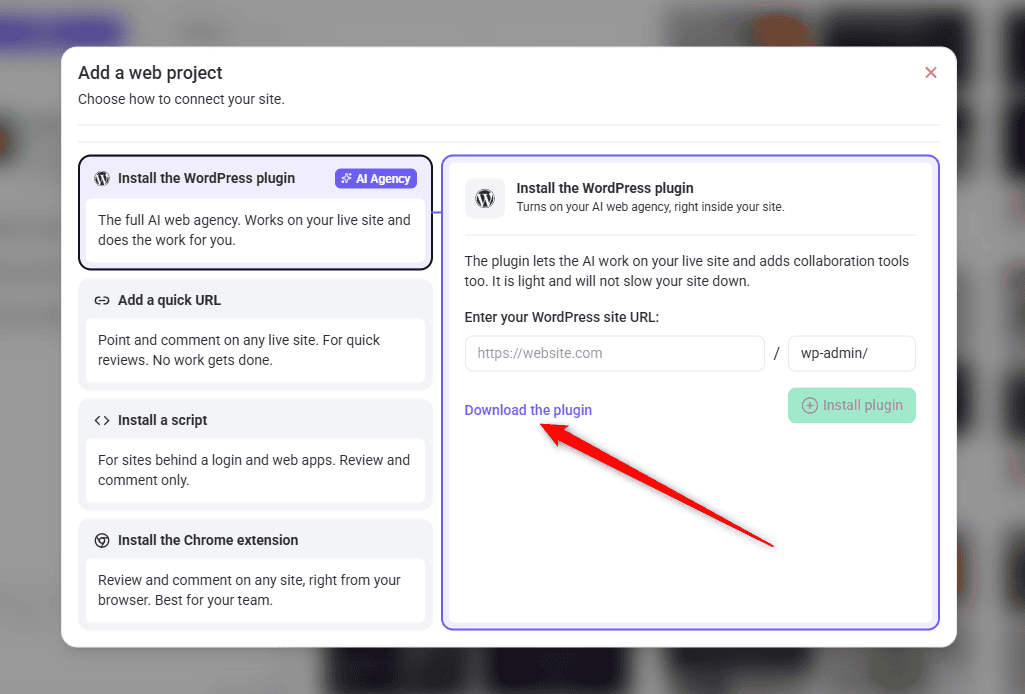
Installing the Downloaded File
Uploading a zip is the standard WordPress route, so nothing here is Atarim-specific until activation.
Instructions:
.zip file, and select Install Now.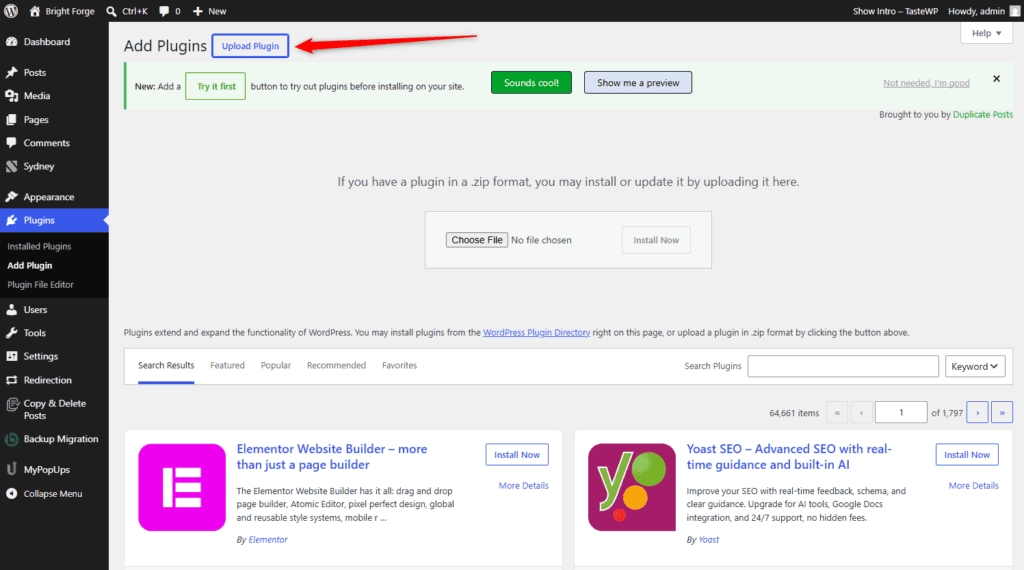
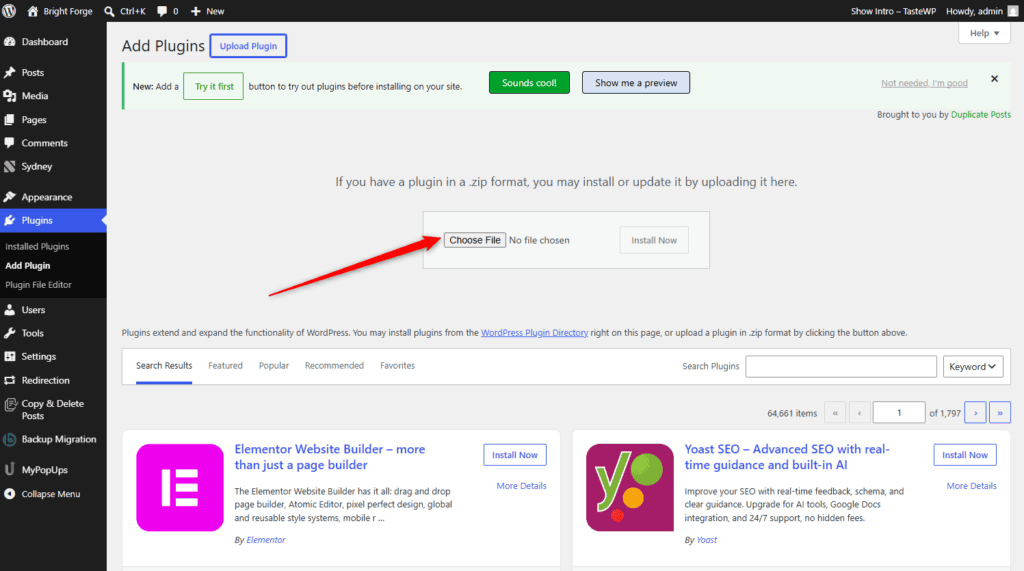
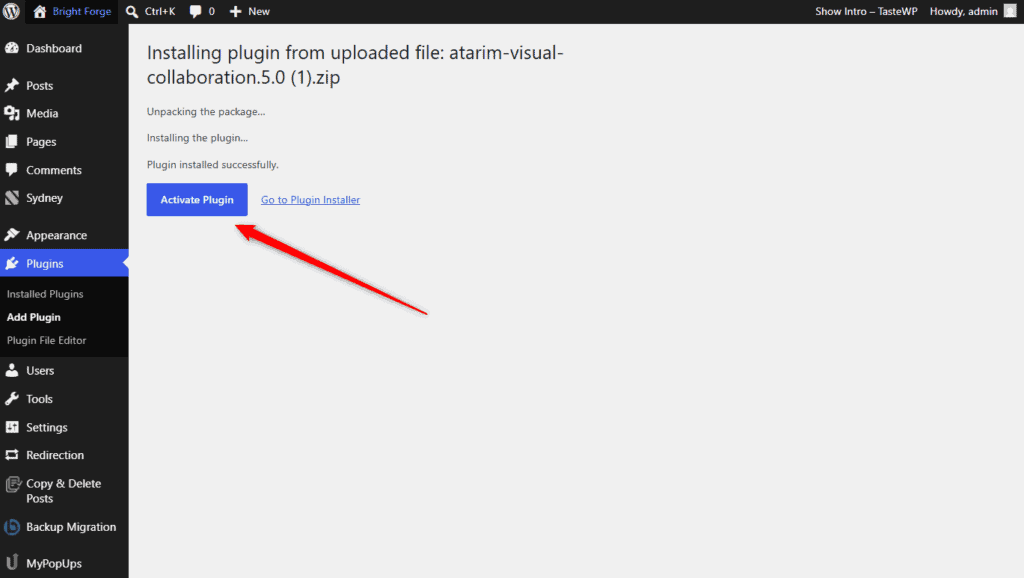
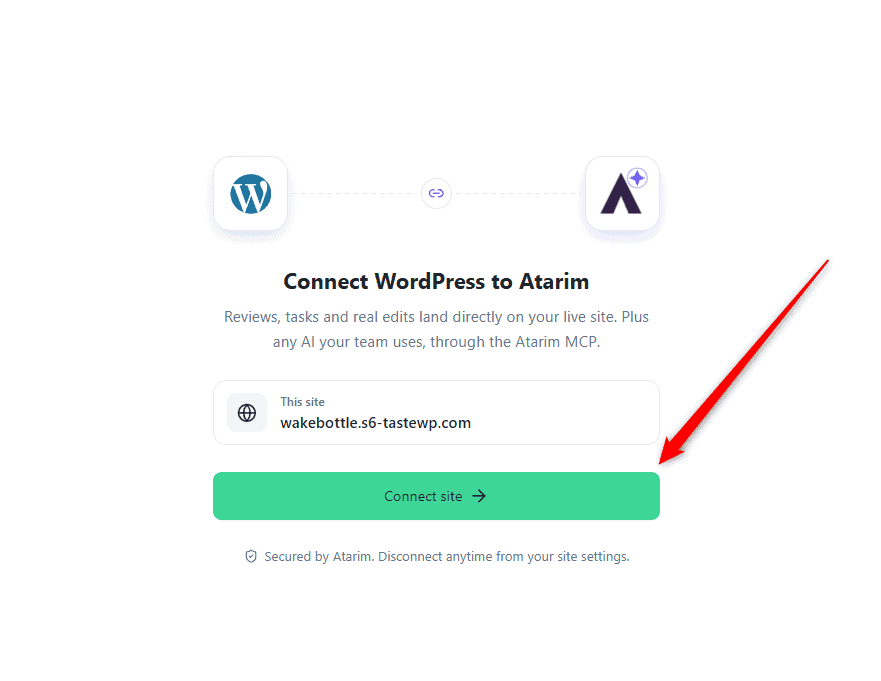
Connect the Plugin to Your Atarim Account
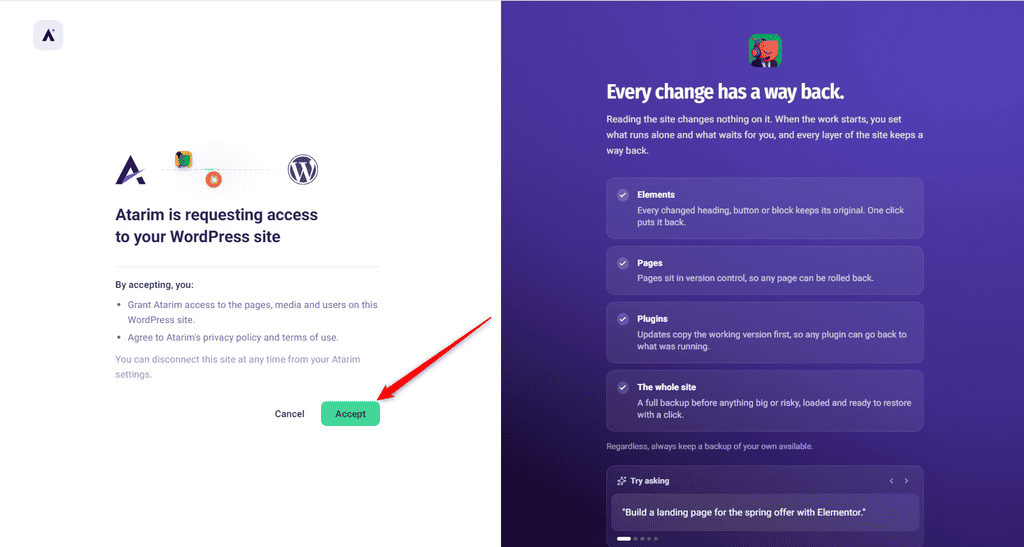
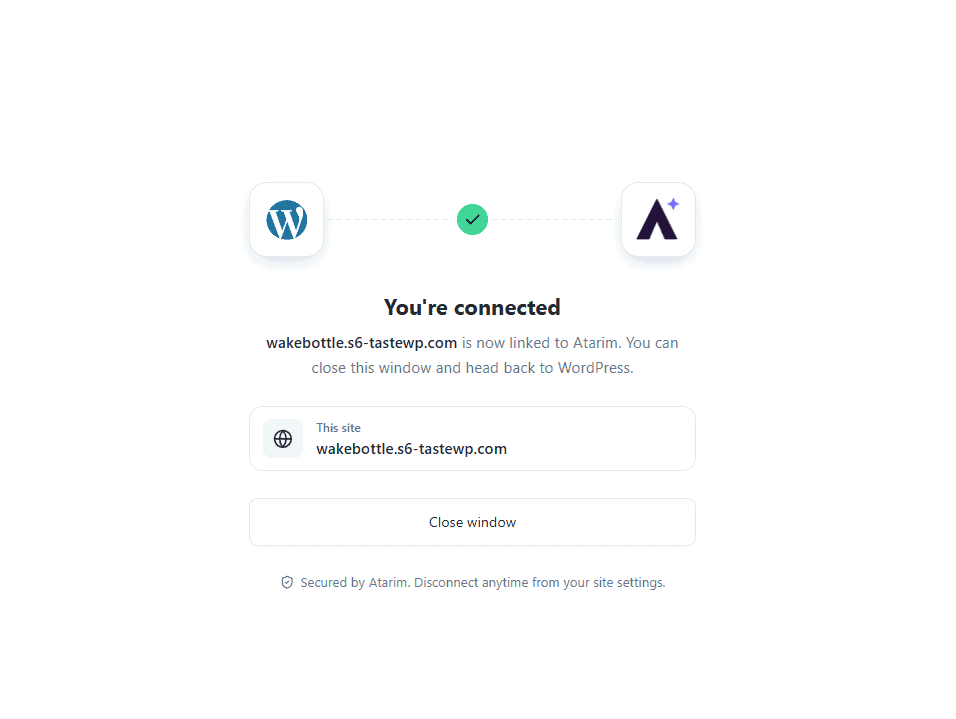
Until the plugin is connected, it is installed but inert — the connection is what pairs the site to your workspace.
Instructions:
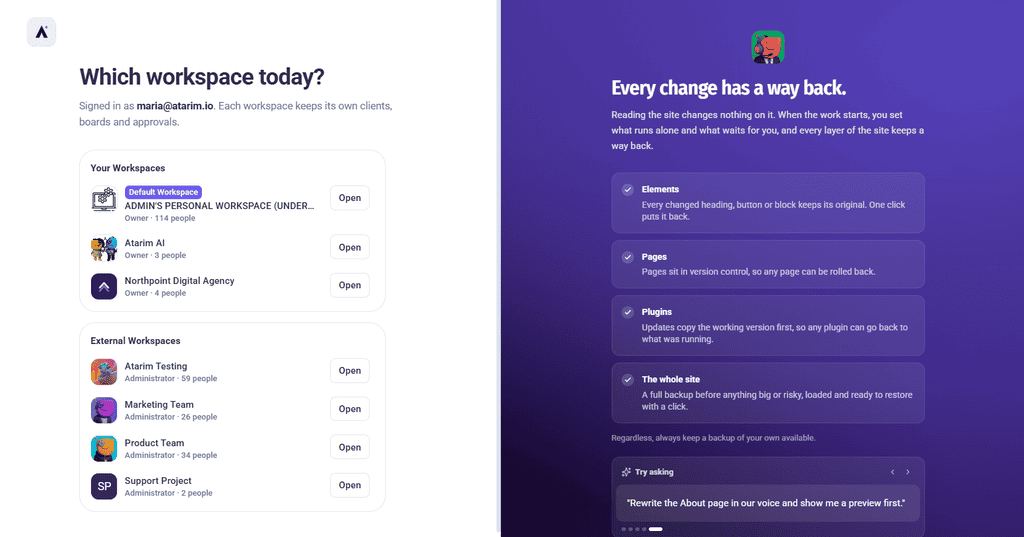
The Settings Screen
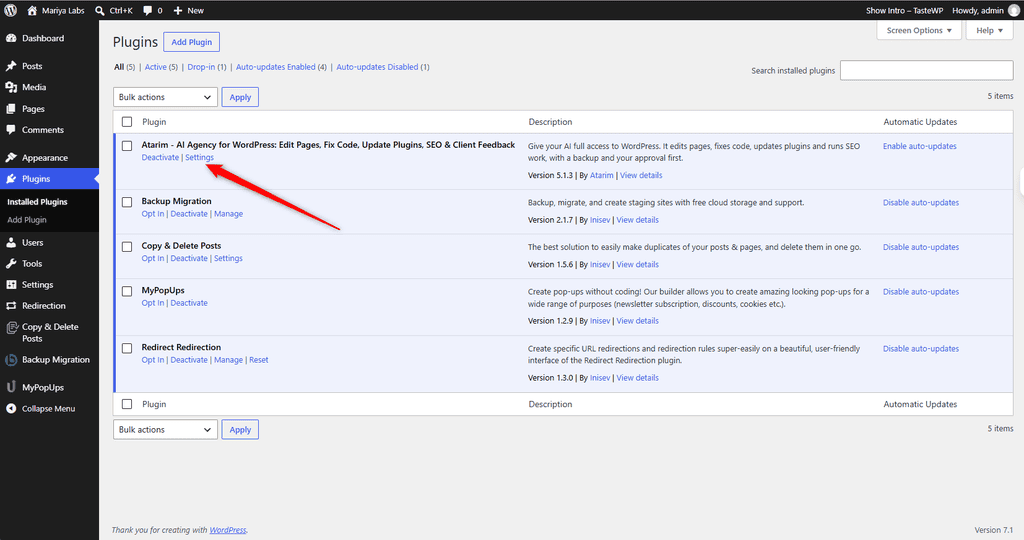
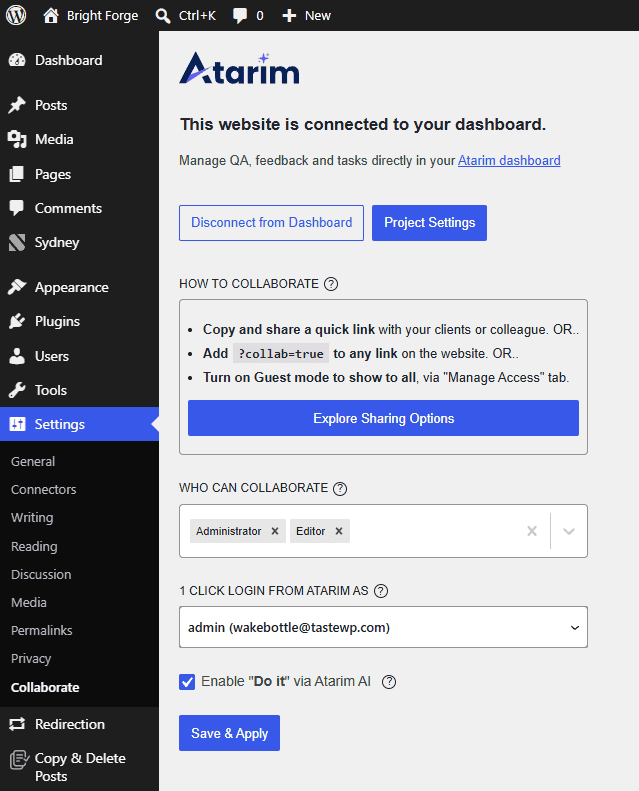
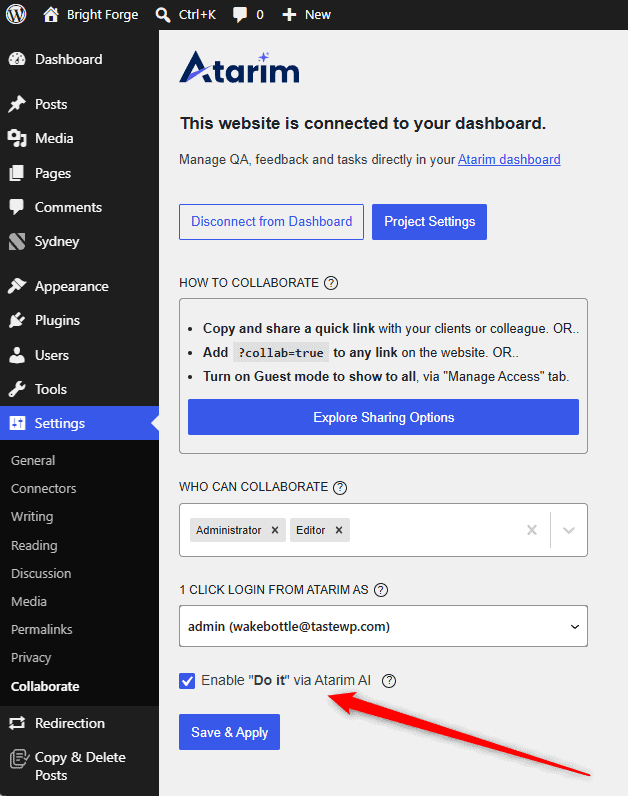
Plugin settings live in WordPress admin, under Plugins → Atarim → Settings or Settings → Collaborate
| Setting | What it does |
|---|---|
| Disconnect | Disconnects the site from your Atarim dashboard. This stops all collaboration features on the site and removes it from your workspace. |
| Project Settings | Opens project-level configuration without leaving WordPress. |
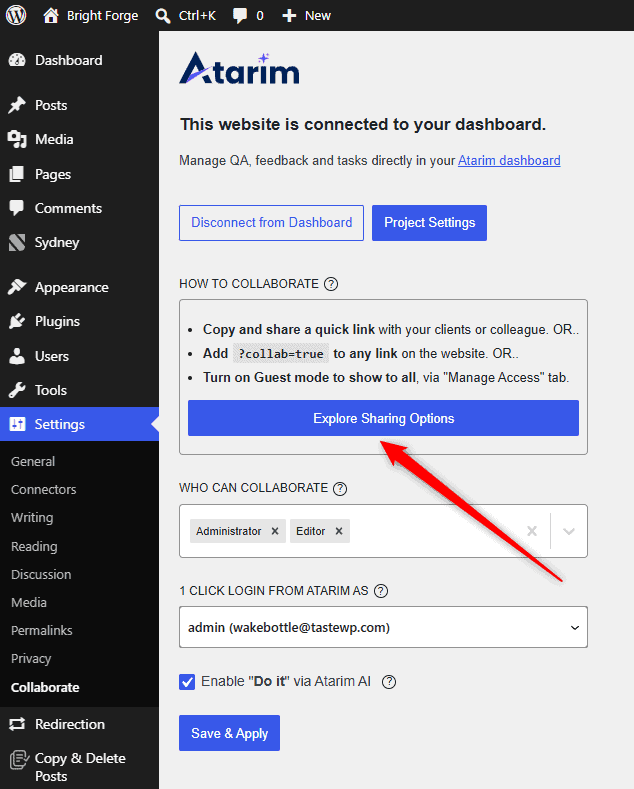
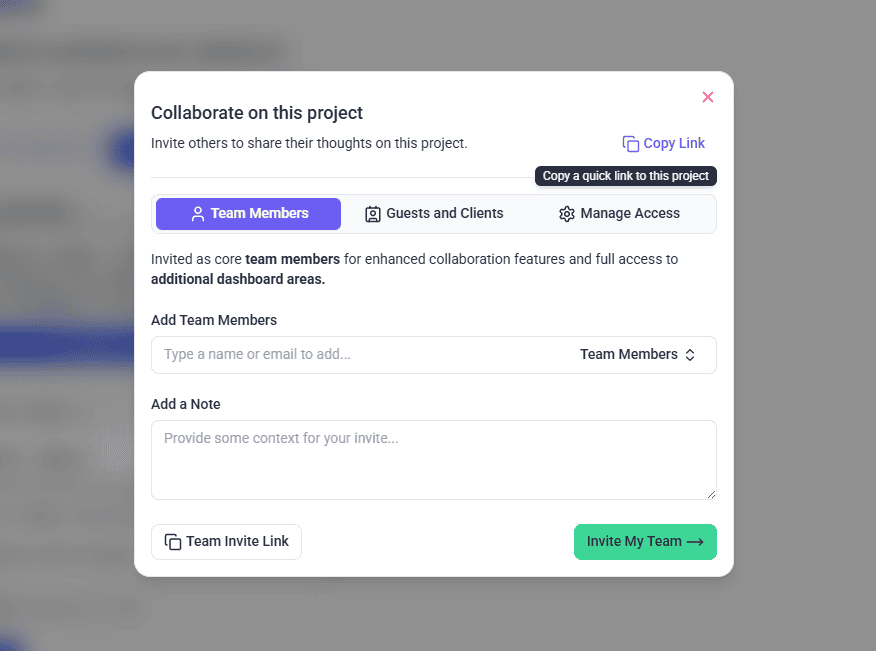
| Share | Copy the collaboration link, invite clients or team members, and manage access from the settings page. |
| Guest Mode | Lets people leave feedback without a WordPress account. You can also add ?collab=true to any URL to activate guest access on that page. |
| Who can collaborate | Selects which WordPress user roles see the collaboration interface when logged in. Only the selected roles see it unless Guest Mode is on. |
| AutoLogin | Nominates a WordPress user account for one-click access. When you select Collaborate in Atarim, that user is signed in automatically. |
| Save & Apply | Stores your changes. Nothing takes effect until you select it. |
?collab=true to a URL is the most useful sharing route day to day — it opens collaboration on one specific page without changing any settings or generating a new link. Explore URL Collaboration
Sharing from the Settings Screen
The Share control opens the same sharing options you would use in Atarim — copy the collaboration link, invite clients, or add team members — without leaving WordPress.
How WordPress Users Start Collaborating
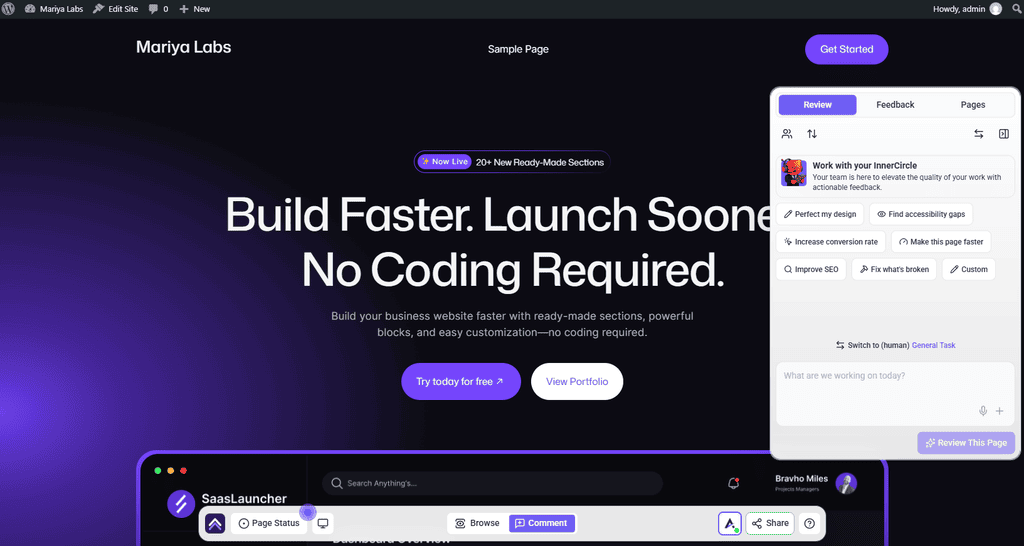
A WordPress user whose role is allowed in the settings sees a collaboration launcher in the WordPress sidebar.


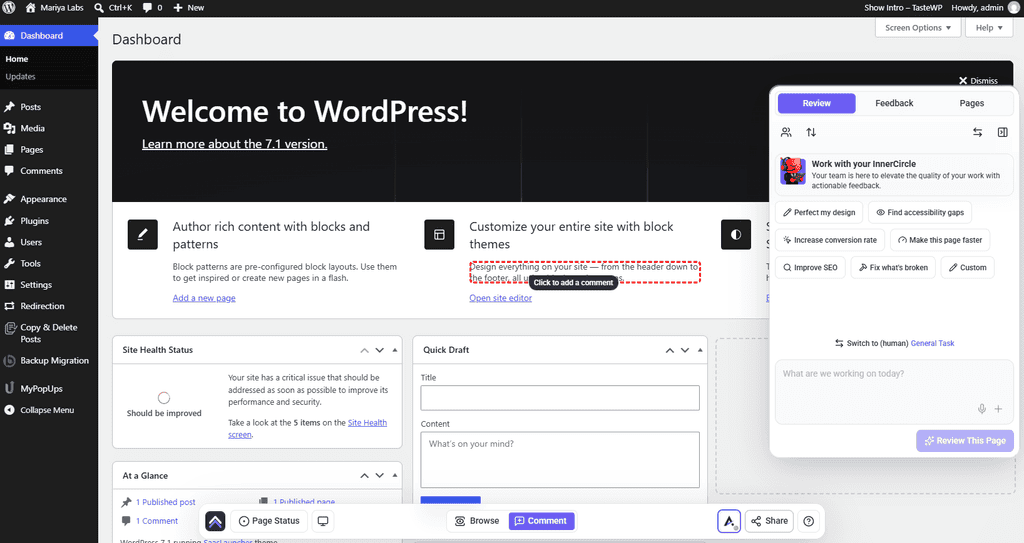
Collaborating with Your Team and AI on a Page
The collaboration panel on a page includes Chat for internal team members, so a team can work through a page together and bring AI into the same conversation. From there you can discuss page-level changes, run internal AI reviews, check the page across desktop, tablet and mobile, and leave feedback on a single element or the whole page. AI works with the full page context — layout, spacing, copy, visuals and structure.
Collaborating Inside WP Admin
Collaboration is not limited to front-end pages — it also works on WP Admin screens. That is useful for leaving internal reminders, flagging settings that should not be changed, and coordinating backend implementation work. Feedback left in WP Admin can be marked internal in the same way.
What “Do It” Can Do on the Site
Two things are easy to confuse here, so it is worth separating them before the capability list.
Show Me
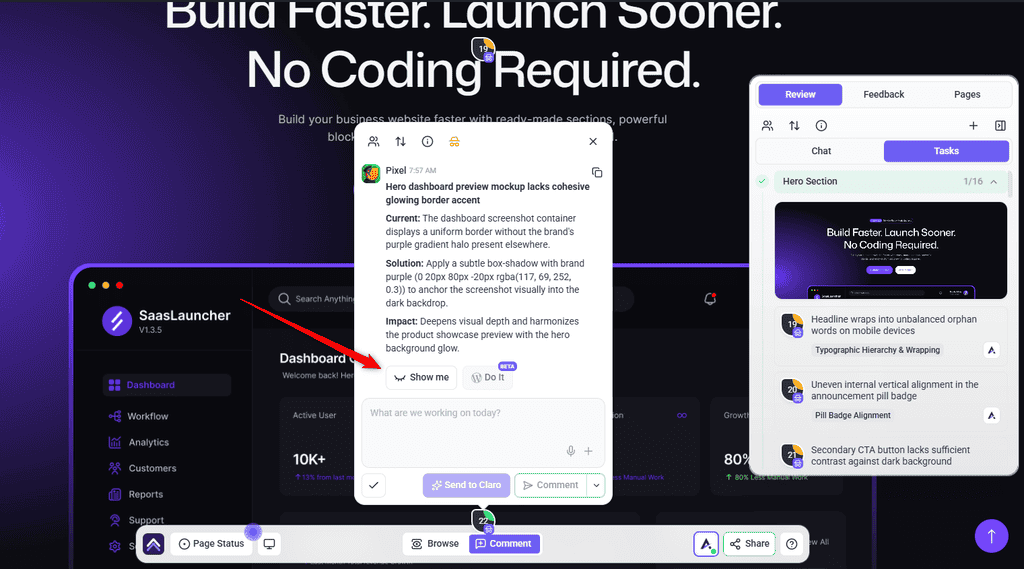
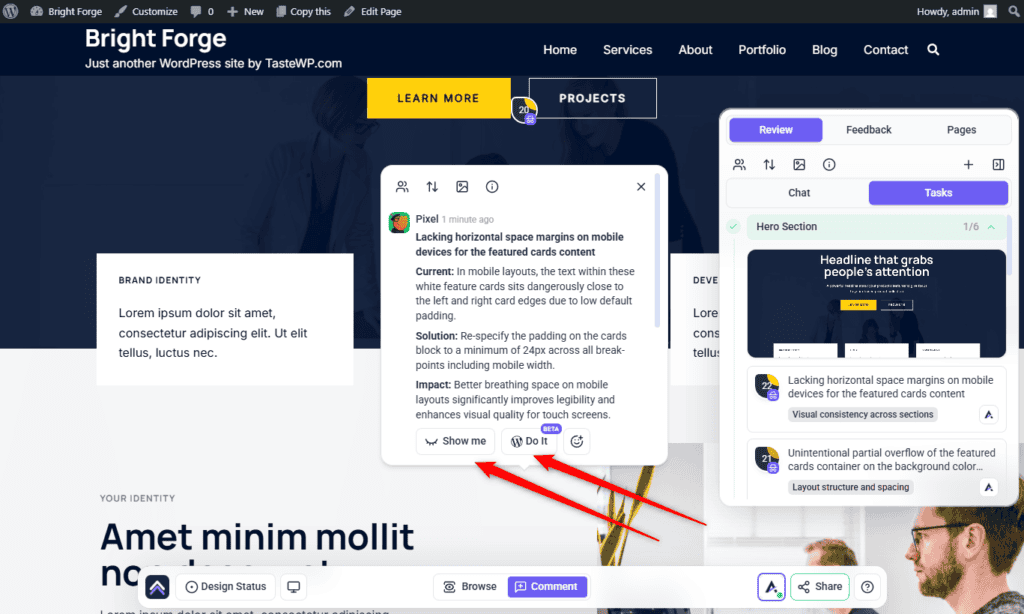
When an AI reply suggests a change to something on the page, it comes with a Show me button. Click it to see the change applied right on the page before anything is saved.
Show Me is only a preview. The change appears in your browser and nothing is saved to your site. If you reload the page, the preview is gone.
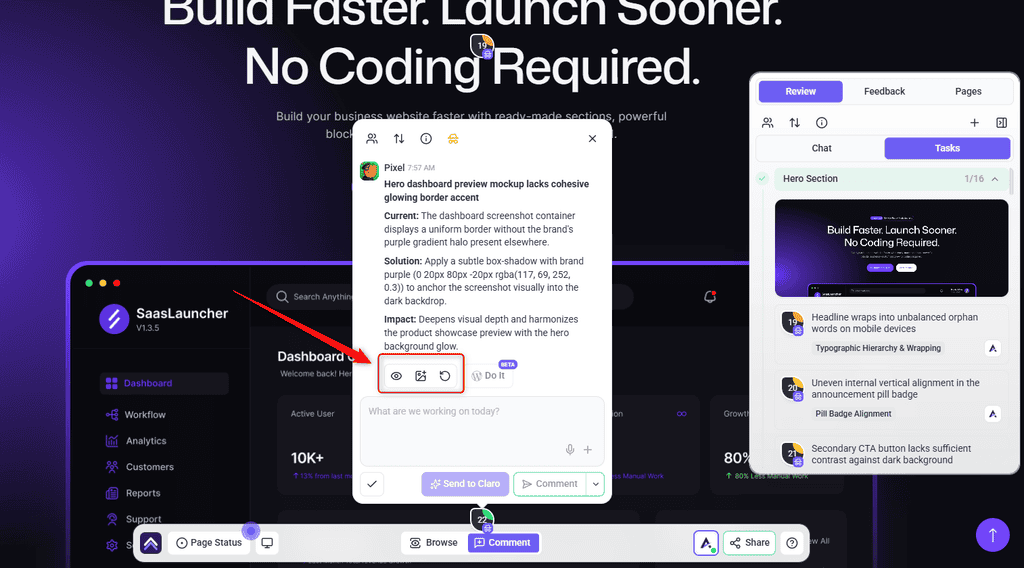
While the preview is showing, you’ll see three icons:
- Eye hides or shows the preview, so you can compare it with the original.
- Image takes a screenshot of the page with the preview and posts it in the task as a new comment. Everyone on the task can see it, which makes it handy for getting a client’s approval before publishing.
- Refresh asks the AI for a new version of the change if you don’t like the first one.
When you’re happy with it, click Do It to apply the exact version you previewed to your WordPress site.
“Do it” makes the change for real. It works through the capabilities below, writing to the actual WordPress site — content, media, themes, settings and the rest. It is authenticated by the site’s connection token and is not visible to clients or guests.
The plugin exposes a defined set of capabilities on the site, grouped by area. Knowing what is in scope tells you what to expect — and what to be careful about.
The specialist asks for the area it needs rather than the site’s whole list, and runs many operations in a single request instead of one call each. On a site with several plugins active that is the difference between fetching hundreds of operations for every task and fetching the handful the job actually uses, which means less waiting for you and fewer credits spent reaching the same result.
| Area | Covers |
|---|---|
| Content | Posts, pages and the content within them. |
| Gutenberg and blocks | Block editing and block navigation. |
| Patterns and templates | Reusable patterns and site templates. |
| Media | The media library. |
| Metadata and taxonomies | Post metadata, categories and tags. |
| Themes, theme files and global styles | Theme-level changes, including site-wide styling. |
| Plugins | Plugin-level operations on the site. Updating a plugin, singly or in bulk, leaves it active. |
| Users | WordPress user accounts. |
| Settings | WordPress site settings. |
| Cache | Clearing caches after a change. |
| Core updates | WordPress core version updates, alongside the existing plugin and theme updates, so a full update round runs in one go. |
| Backups | Taking a backup before risky work starts, and restoring a snapshot if a change needs undoing, on sites running JetBackup. Whether a fresh backup is worth the wait is judged per change — a recent snapshot often already covers a small edit. |
| Image optimization | Compressing a single image, or running a bulk pass, through the optimizer already installed on the site. Optimole is the exception: it optimises automatically through its own CDN, so there is nothing to trigger and only its status can be read. |
| Code | Running a PHP snippet when a fix needs code rather than a content change. Administrator only, refused on sites with file editing switched off, and every run is logged. |
| WP-CLI | Large or long-running jobs no other capability covers — a bulk search and replace, a database export, regenerating the media library. Runs in the background where it needs to. Administrator accounts only, refused for anyone else, and every run is recorded in the site’s log. |
| Security scan | Checking the plugins, themes and WordPress core installed on the site against published vulnerability advisories. Read-only. |
| Page builders | The in-browser Do it button recognises Elementor, Beaver Builder, SiteOrigin, Gutenberg blocks and the classic editor, so it can target an element inside any of them. Asking a specialist in a task or chat covers a different set — Elementor, Bricks, Divi, WPBakery, Breakdance, Etch and Mosaic — so a Beaver Builder or SiteOrigin layout is changed through the button rather than by asking in a conversation. Visual Composer and Brizy are recognised in order to refuse, rather than risk a bad edit. |
Page Builders It Can Edit
The plugin writes through the builder your page was actually built with, rather than editing the HTML underneath it. Which builder is in use is worked out per page.
| Builder | What Atarim can do |
|---|---|
| Gutenberg | Full block editing. The default when no other builder is detected on the page. |
| Elementor | Edit individual elements in place. |
| Beaver Builder | Edit individual modules in place. |
| SiteOrigin | Edit individual widgets in place. |
| Bricks, Divi, Breakdance, Mosaic, Etch, WPBakery | Element-level editing through each builder’s own structure. |
| Visual Composer, Brizy | Not edited. Atarim recognises these and declines rather than writing. |
Elementor edits are checked before they are saved. A value that Elementor’s own rules would reject, such as a heading tag outside h1 to h6, is refused up front and reported with the element and setting that failed, rather than saving quietly and then aborting the whole page the next time somebody presses Publish.
Undoing a Change
A content change the AI applies can be put back. How that works depends on what was edited.
- For Gutenberg and classic content, the edit is saved as a WordPress revision, and undo restores the revision that edit created.
- For builders that keep their layout separately, such as Beaver Builder and SiteOrigin, the previous state is captured before the write and undo puts that back.
The control sits on the comment the change came from, so undo is next to the request rather than in a separate history screen.
Image Optimization
Rather than adding another optimizer, Atarim drives whichever one is already installed on the site.
| Optimizer | What Atarim can do with it |
|---|---|
| ShortPixel | Optimize one image, run a bulk pass, check how far it has got. |
| EWWW | Optimize one image, run a bulk pass, check how far it has got. |
| Smush | Optimize one image, run a bulk pass, check how far it has got. |
| reSmush.it | Optimize one image, run a bulk pass, check how far it has got. |
| Optimole | Report its status only. Optimization happens on Optimole’s side rather than through Atarim. |
How the Connection Is Secured
When the site is connected, a secret token is generated and stored on it. Every request Atarim makes carries that token in a header, and the plugin checks it before acting.
Two consequences follow. The connection is tied to the token rather than to a WordPress user account, so it is not affected by someone’s WordPress login. And disconnecting and reconnecting establishes a new token, so anything relying on the old one stops working until the reconnection completes.
The capabilities described above are exposed through a server the plugin runs on your site, which Atarim calls to carry out an action. That server is what the token protects, and it is why the connection state matters as much as the plugin being active.
What Waits for Your Approval
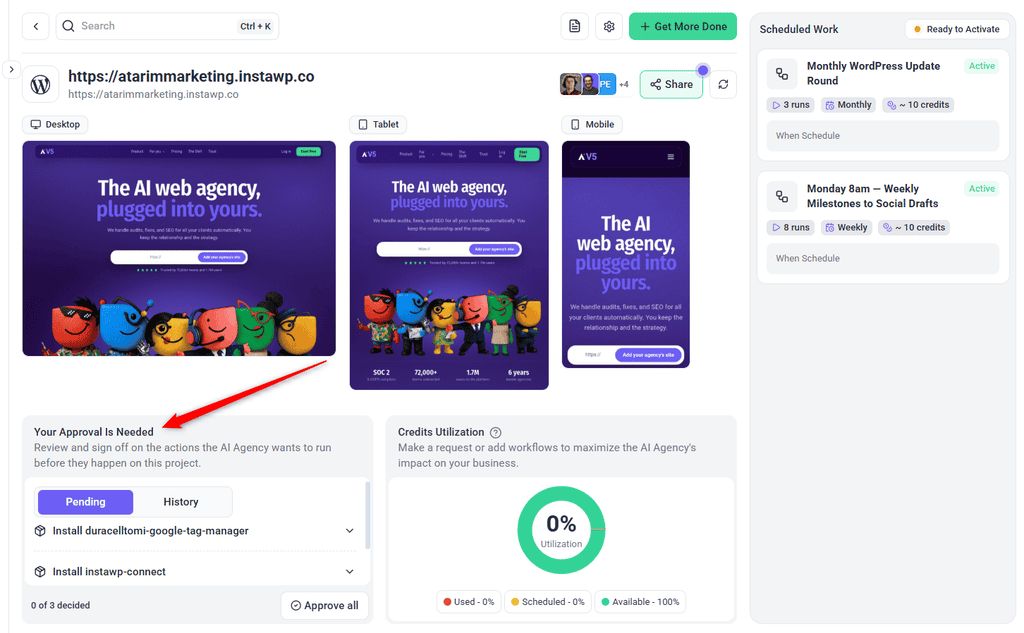
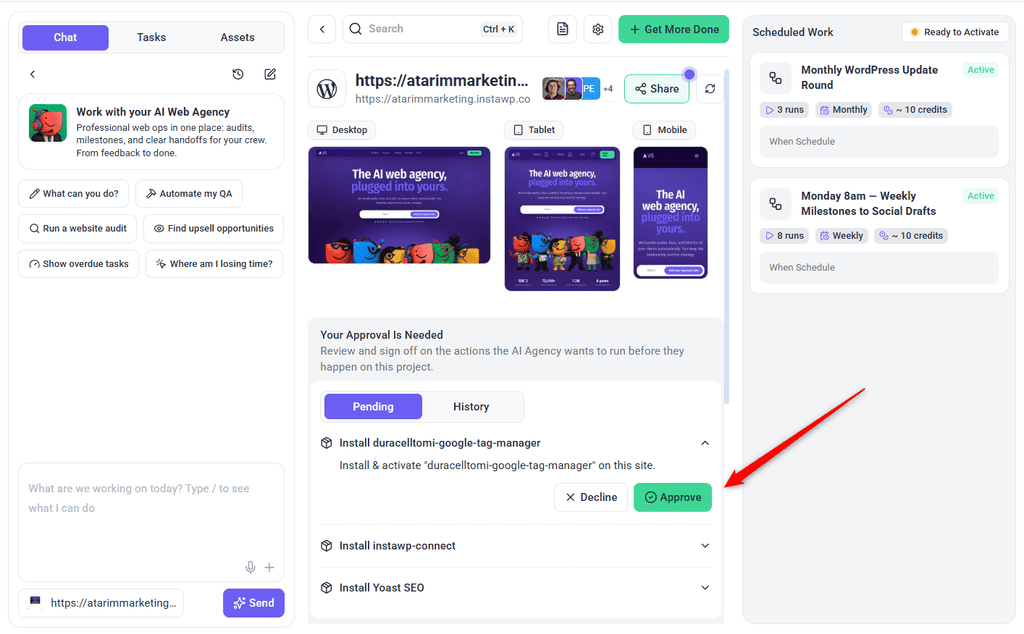
The set of actions is different on every site — only the ones your active plugins support are registered, so a plain WordPress site offers a fraction of what a site running WooCommerce and a page builder does. Whatever the set, each action declares at the point it is registered whether it is destructive, and Atarim reads that declaration back from your site before it runs anything.
| What the AI asks to do | What happens |
|---|---|
| Read something | Runs. Listing posts, checking which plugins are active, reading a page’s blocks, pulling a report — none of it changes the site. |
| Create or update something not marked destructive | Runs. Drafting a post, uploading a media file, setting a custom field. |
| Activate a theme, update WordPress core, change a user’s role | Runs. These are registered as non-destructive, so they are not held. Worth knowing before you hand core or theme work over. |
| Anything the plugin marks destructive | Held. The request goes to the project’s Approval Queue naming the exact action and the values it would run with. Nothing reaches your site until you approve it. |
| Install or activate a plugin | Held in the same queue, as an install request. |
| Run a WP-CLI command | Held. It is declared destructive whatever the command itself does, so even a read-only listing waits for approval rather than being judged on the command you can see. |
Destructive covers more than deletion. Removing content, terms, menus, media, users or a theme; merging terms; replacing or restoring a theme file; updating, deactivating or deleting a plugin; restoring a revision or a backup; changing global styles, a site template, a navigation menu or a widget area; deleting form entries or a form; removing a product, coupon or product attribute; deleting a custom field group; and editing or removing content in the block editor or in a supported page builder are all declared destructive, and all of them wait for you.
Not everything that changes a site is marked that way, and the exceptions are worth knowing before you hand one over. Activating a theme, updating or reinstalling WordPress core, installing a theme, editing a user or changing their role are all registered as non-destructive, so they run without waiting for you. Running a backup is treated the same way, on the grounds that it adds a snapshot rather than replacing anything — restoring one is held.
Some jobs are too large or too slow for an ordinary page action — replacing a domain across a large database, exporting the database, regenerating a whole media library. For those, Atarim can run a command through WordPress’s own command line on your server. You will not write these yourself: what reaches you is the finished command in the Approval Queue, exactly as it will run, and its output afterwards. Read it the way you would read a command before pasting it into a terminal on a client’s site, because it changes files and database content directly and there is no list of commands it is stopped from running. It is available on administrator accounts only, and every run is recorded in the site’s log.
Security Scan
A connected site can be scanned for known vulnerabilities in the plugins, themes and WordPress core it currently has installed. Where a component matches a published advisory, the scan reports the version sitting on the site alongside the version that fixes the problem — so the question becomes whether to update, rather than whether there is anything to update at all. It is reachable from the dashboard and from a connected assistant.
Reading is safe: the scan never installs, updates, activates or changes anything, and acting on a finding is an ordinary update that goes through the approval gate like any other. Two results are worth reading properly rather than at a glance. If the site’s installed inventory could not be read, nothing was assessed. And a component reported as untracked was never checked against the advisory data in the first place. Neither of those is a clean bill of health.
Backups and Restores
These capabilities only appear on sites running JetBackup for WordPress. Without it there is nothing here — there is no generic backup layer behind them.
| What you can ask for | What happens |
|---|---|
| Take a backup | Queues a run of one of your existing JetBackup jobs and reports progress. Nothing is overwritten, so it runs without approval. |
| Arm a restore point | Prepares a point to roll back to before risky work starts. It is not cover the moment you ask for it: readiness is tracked until the point actually reads as ready, so a point that has only just been requested is not yet protection. A snapshot taken in the last 24 hours is reused rather than run again. |
| Drive the backup queue | JetBackup relies on your server’s own scheduler to start a queued job. On hosts where that scheduler does not pick it up, Atarim drives the queue itself rather than leaving the job waiting. |
| Restore a snapshot by name | A snapshot can be identified by its name rather than its id, so a restore can be asked for in the words you would use yourself. |
| List and inspect backups | Read-only — which snapshots exist, when they ran, and their logs. |
| Restore a snapshot | Overwrites the live site with the snapshot’s contents. Held for approval, and it will not proceed without an explicit confirmation carried in the request. |
| Manage jobs, schedules and destinations | Where backups run, when, and where they are stored. Deleting any of these is held for approval. |
A restore is by snapshot, never by upload — you cannot hand it a backup file. Files and the database are handled separately, and each can be restored in full, limited to named folders or tables, or skipped altogether; the default is a full restore of both. Only account backups can be restored, and only WordPress administrators can reach any of this.
On a site running JetBackup, Atarim can also prepare a rollback before it starts something risky, rather than only taking a backup. A recent snapshot is reused where one exists, and a fresh backup runs first where it does not. A site holds one prepared rollback at a time, so preparing a new one replaces the previous, and while one is still being prepared the site is not yet covered by it.
Example Use Cases
| Situation | How the plugin helps |
|---|---|
| A staging site behind a password | Collaborate on the site directly, where a shared public link cannot reach. |
| A quality pass before a client review | Run an AI review, then mark the findings internal so the client sees only their own feedback. |
| A client who keeps emailing questions | Give them guest access so questions land on the page they are about. |
| Onboarding a new client to a project | Share the collaboration link from the settings screen without leaving WordPress. |
| A developer joining mid-project | Add their WordPress role to Who can collaborate so they see the interface when logged in. |
| Frequent trips into the dashboard | Open Project Settings from inside WordPress instead. |
| Repeated logins when collaborating | Nominate an AutoLogin user so Collaborate signs you straight in. |
Known Limitations
FAQs
What is the plugin called in WordPress?
Atarim – AI Agency for WordPress: Edit Pages, Fix Code, Update Plugins, SEO and Client Feedback. The current release is version 5.1.4.
What are the minimum requirements?
WordPress 6.0 or later and PHP 7.4 or later. The AI “Do It” action layer additionally requires WordPress 6.9 or later — the WordPress Abilities API, available in core from 6.9.
Can I collaborate on staging or protected sites?
Yes. Because the plugin runs on the site itself, it works where a publicly reachable link would not.
Can clients leave feedback without a WordPress account?
Yes, with Guest Mode enabled, or by adding ?collab=true to the page URL.
Can clients trigger AI actions?
No. “Do it” is not visible to clients and guests.
What happens if I disconnect the site?
Collaboration features stop on that site and it is removed from your Atarim workspace.
Will tasks created in WordPress appear in the Atarim dashboard?
Yes. The plugin is a way into the same project, so tasks created on the site show up in that project’s views in your dashboard.
Does the plugin replace the Atarim dashboard?
No. It brings collaboration onto the site and puts some project settings within reach, but the dashboard remains where projects, boards and workspace settings live.
What happens if I uninstall the plugin?
Collaboration features stop working on that site. Tasks already created stay in your Atarim project — removing the plugin does not delete feedback you have collected.
How does Atarim authenticate to my site?
Through a secret token established at connection, sent with every request and checked by the plugin.
Common issues
- The plugin will not install or activate — check the site runs PHP 7.4 or later and WordPress 6.0 or later.
- The AI actions are missing although the plugin works — the site is on WordPress 6.0 to 6.8. The action layer needs 6.9 or later; everything else keeps working.
- No collaboration interface after activation — confirm the site is connected, and that your WordPress role is selected under Who can collaborate.
- A colleague cannot see the launcher — their role is not selected in the settings, or Guest Mode is off and they are not logged in.
- Settings changes had no effect — select Save & Apply. The screen does not autosave.
- Someone joined as a collaborator instead of a team member — invite them to your Atarim account first, using the same email address as their WordPress account.
- AutoLogin signs in but nothing works — the nominated account lacks the permissions to collaborate. Choose an administrator or editor.
- Atarim cannot reach the site after reconnecting — a new token was issued. Complete the reconnection so both ends match.
- An AI action changed more than expected — restore from backup and run future actions on staging first.
- The site is behind a firewall and will not connect — whitelist Atarim at the host or WAF level. See the whitelisting guide.
Conclusion
Installation is straightforward: install from the repository or upload the file from your dashboard, connect, then set who can collaborate. The settings worth deliberate thought are the role picker and AutoLogin, because both decide who can act on the site.
The plugin also gives Atarim’s AI a defined set of actions it can perform — reaching content, media, themes, plugins, users and settings — on WordPress 6.9 or later. Set it up the way you would set up anything with that reach: backup first, staging before production.
Tips & best practices
- Confirm PHP 7.4 or later before installing.
- Use matching email addresses in WordPress and Atarim so consent recognises team members.
- Keep Who can collaborate limited to roles that should have it.
- Pick an AutoLogin user with enough permission to actually collaborate.
- Use
?collab=trueto open collaboration on one page without changing settings. - Back up before letting AI actions run on production, and try them on staging.
- Remember to select Save & Apply.