An Introduction To Your Atarim Dashboard for Website Owners
What's different about the dashboard once you're logged in as a Website Owner — not a repeat of the general project tour.
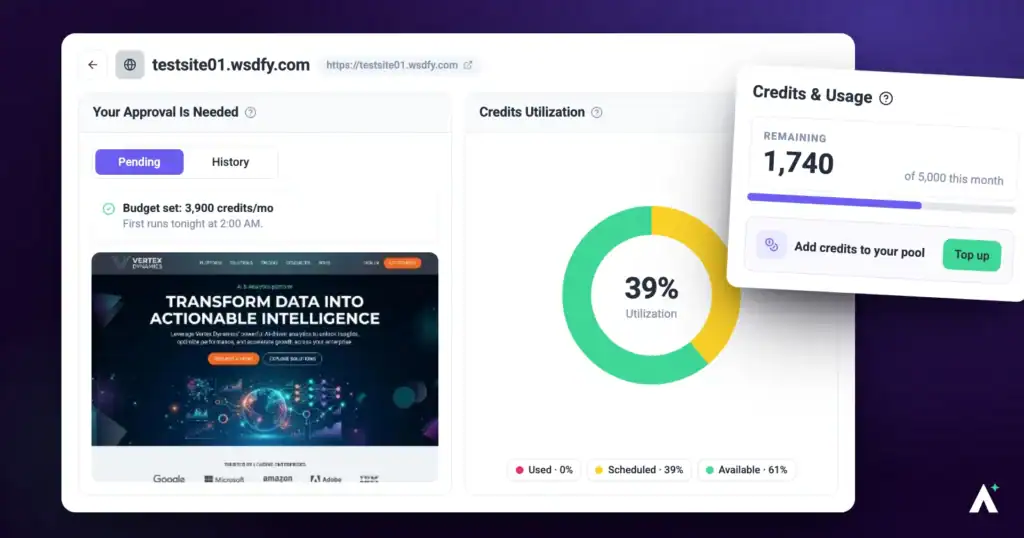
Most of the Atarim dashboard works the same whether you're an agency or a Website Owner. The chat panel, the screenshots, and your credits all behave identically — that general layout is covered in Introduction to Atarim.
This article covers what's actually different on your side: a smaller account with its own limits, a scoped view of only your own projects, and a couple of screens that behave differently depending on who's paying.
In this guide you'll learn how to log in, make your first request, and top up credits.
What’s Different on Your Side
A Website Owner account is a smaller, focused version of Atarim. It’s scoped to your own sites and your own small team, with agency-side tooling left out.
| What you get | Included? |
|---|---|
| Your own projects | Yes |
| Your own team members | Yes |
| AI chat with Claro | Yes |
| AI reviews | Yes |
| Chrome extension and WordPress plugin | Yes |
| Comments and image annotations | Yes |
| Task status and priority | No |
| Kanban boards | No |
| Shared email inbox | No |
| Analytics and reporting | No |
| Multiple workspaces | No |
Step-by-Step Guide
Step 1: Accepting Your Invite
Your agency sets everything up before you arrive. By the time the invite reaches you, your workspace already exists, usually with your site in it.
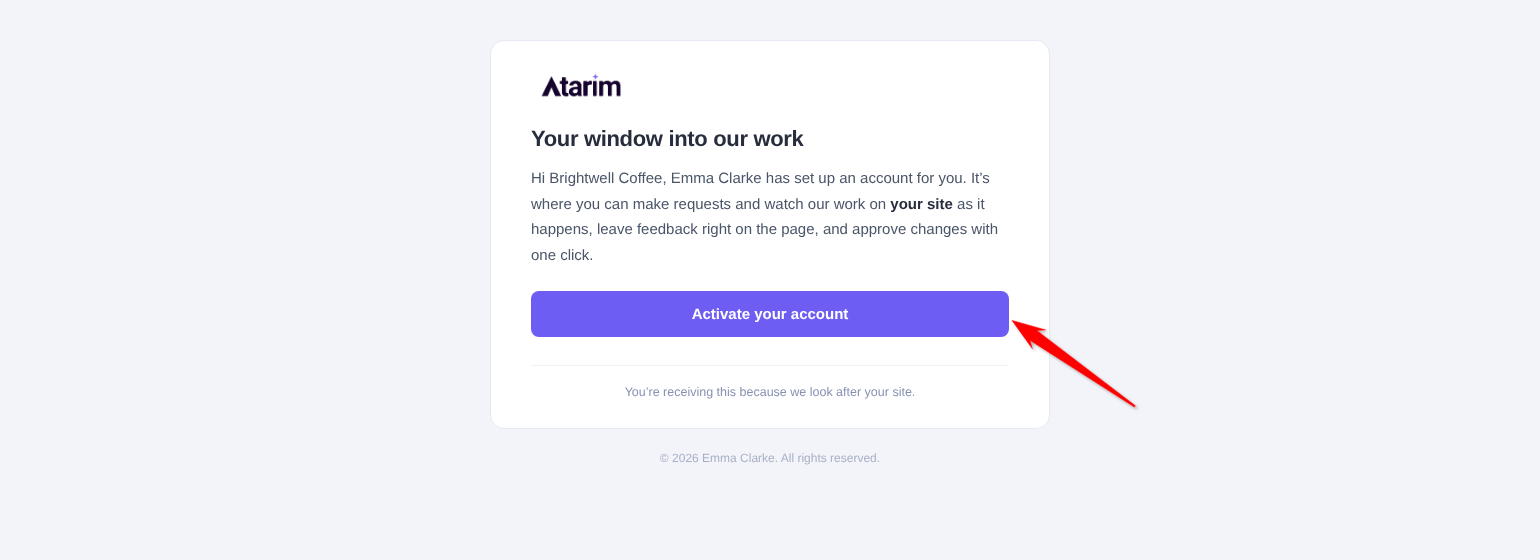
- Open the email from your agency headed Your window into our work and select Activate your account. Your agency may also send you the link directly.
- If you already have an Atarim account, sign in with the email address the invite was sent to. The invite is accepted for you. If you’re new, the Create your account page opens. Enter your Full name, your Work email address (the one the invite was sent to) and a Password. Check the box to agree to the terms, then select Create my account.
- You’re attached to the workspace your agency prepared, as its Website Owner.
- If you’re new, answer a few questions on the Tell us about you. screen, then select See my project. Your first project’s dashboard opens, with Claro’s chat beside it. If you already had an account, you land on the Projects screen.
Signing In Later
After your first visit, you sign in with the email address you registered with.
Instructions:
- Open a link your agency sent you, or go to app.atarim.io.
- Enter your Email and Password, then select Log In. If you registered with Google, select Sign In with Google instead.
- If you’ve forgotten your password, select Forgot your password? and follow the email.
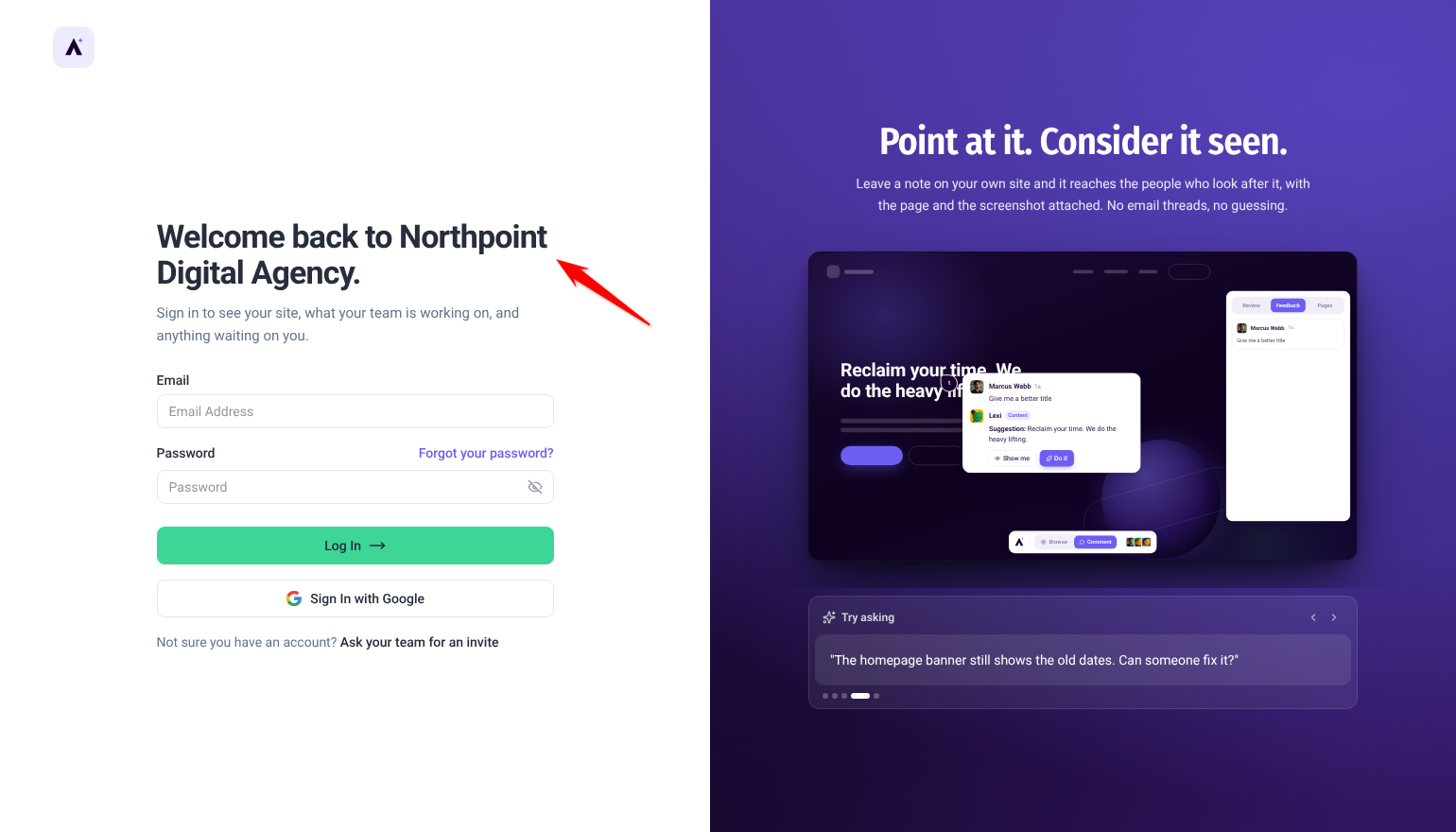
A link from your agency opens their own version of the sign-in page. It reads Welcome back to followed by your agency’s name, and if your agency uses White Label, it shows their logo and color too. Not sure you have an account? The page says Ask your team for an invite, so ask your agency.
Step 2: Finding Your Way Around
Your dashboard is a focused version of Atarim, scoped to your own sites. Most of the agency-side tooling isn’t part of your account, so it doesn’t appear at all.
Instructions:
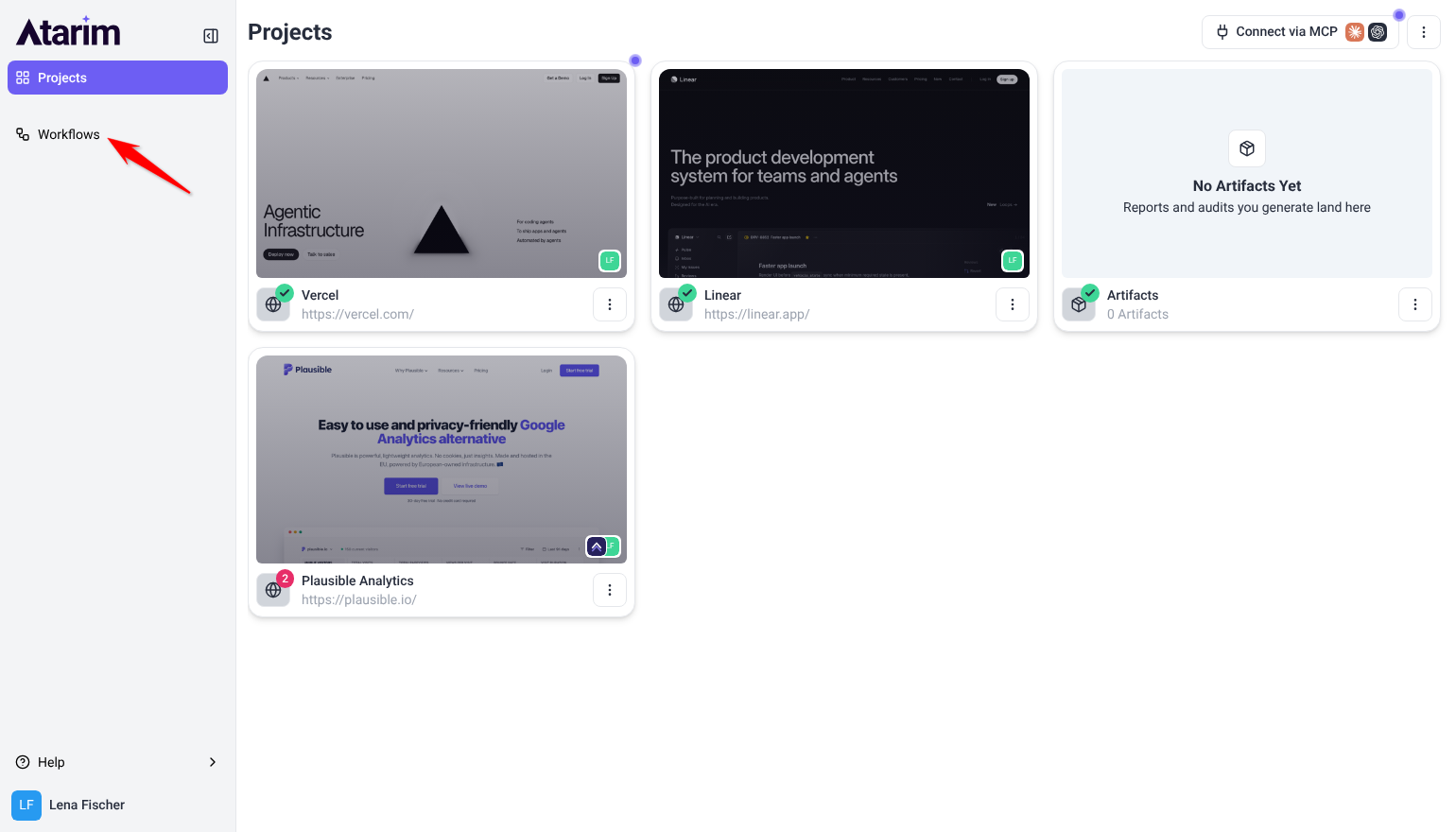
- Check the sidebar. It contains Projects and Workflows, with Help and your name at the bottom.
- Select Projects to see your site or sites as cards.
- Hover a project card and select Manage to open its dashboard, where the chat panel, screenshots, and credits all live. If the card shows no buttons, select the card itself.
Step 3: Making Your First Request
Everything starts with a conversation. You don’t need to know how Atarim will handle a request before you make it.
- Open your project to reach its dashboard.
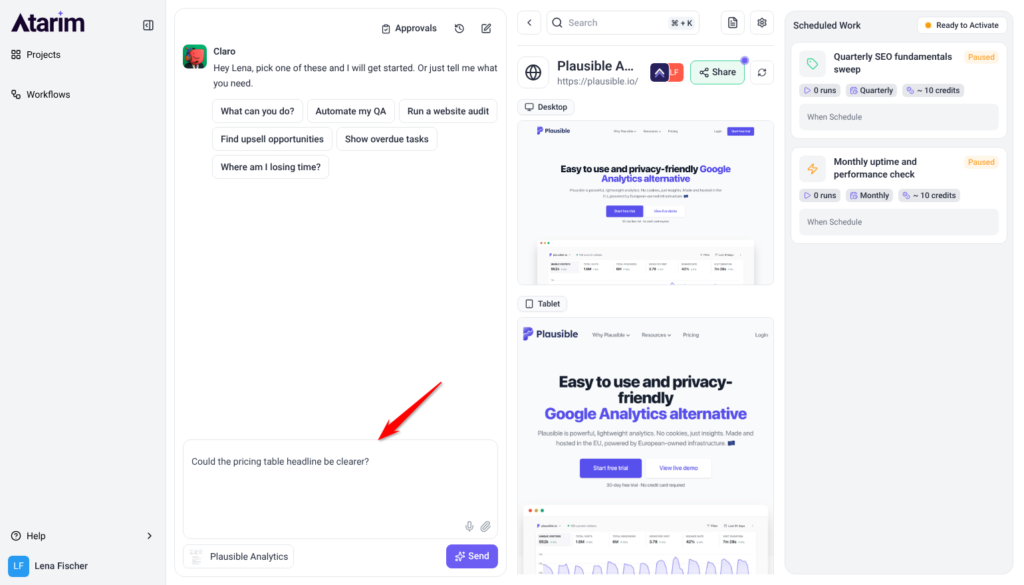
- Find the chat panel and describe what you want in plain language. There’s no syntax to learn.
- Or leave a comment directly on the live page, the same way anyone else on the project would.
- Watch for Claro’s response. Depending on what you asked, it will either show you how to do it or do it directly. For anything bigger, contact your agency.
Step 4: Approving Work
Your agency may ask you to approve a change before it goes live. If a request seems to have stalled, check with your agency.
Step 5: Watching Your Credits
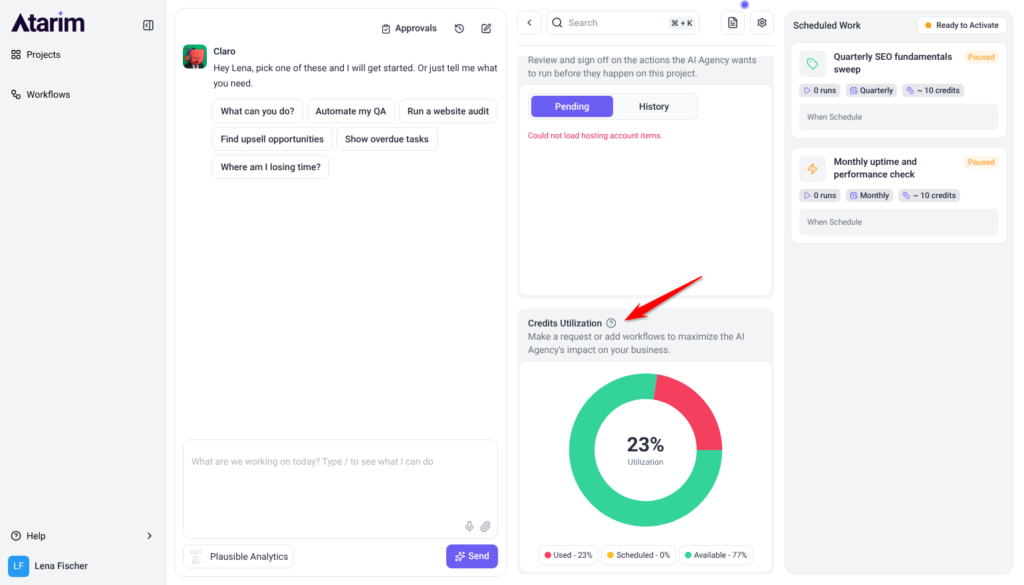
AI actions consume credits. Your project dashboard shows a Credits Utilization panel with how much you’ve used, how much is scheduled, and how much remains.
Instructions:
- Open your project dashboard.
- Find the Credits Utilization panel.
- Check the Used, Scheduled, and Available figures.
- If your agency pays for your account and you’re running low, ask them for more. They allocate credits to your account from their own pool.
- If you pay Atarim yourself, select Get More Done at the top of the dashboard. In Supercharge your month, choose a monthly amount and select Add credits.
FAQs
Why is my sidebar smaller than my agency’s?
Agency-side tools like Inbox, Boards, People, Settings, and Analytics aren’t part of a Website Owner account. Your view is scoped to your own projects.
Can I see my agency’s other clients?
No. Your account only ever shows your own projects and your own users.
How many sites and people can I have?
Your agency adds your projects for you. Ask them if you need another site added.
Why can’t I set a task’s status or priority?
Those are agency-side controls and aren’t included in a Website Owner account.
Does anything happen on my site without my approval?
Some actions run straight away, such as edits to draft pages. Plugin installs the AI asks for in chat, and changes it makes to published pages with Do It or a page builder, wait for sign-off first. Your agency may ask you to approve a change before it goes live.
Who do I ask if I’m not sure whether I’m self-paying or agency-billed?
Your agency. If they pay for your account, Get More Done doesn’t appear, and you ask them for more credits. If you pay yourself, Get More Done lets you add monthly credits.
Why does my dashboard carry my agency’s logo?
Your agency has set up White Label, which replaces Atarim’s branding with their own.
Why can’t Claro edit my site directly?
Direct editing needs a WordPress site connected through the Atarim plugin. If your site isn’t connected that way, Claro explains that it can’t make live changes and offers other options, such as having a specialist like Navi or Pixel propose the fix.
Conclusion
Most of your dashboard works exactly as it does for your agency. The differences that matter are the narrower sidebar, the smaller set of features on your plan, and how credits get topped up depending on who's paying.
Your agency may ask you to approve a change before it goes live, and a quick answer keeps the work moving.
Tips & best practices
- Ask your agency early who pays for your credits. If you pay, you top up with Get More Done. If they pay, you ask them for more.
- Describe what you want in plain language rather than trying to guess how Atarim will handle it
- Leave comments directly on the live page when the change is visual — it's faster than describing where something is
- When you first open your project, read what's already in the chat. It may hold your AI team's first look at your site.