Connecting and Working with Duda Sites in Atarim
Connect a Duda account once, point each project at its site, and let Atarim's AI work on it — with one important difference from WordPress.
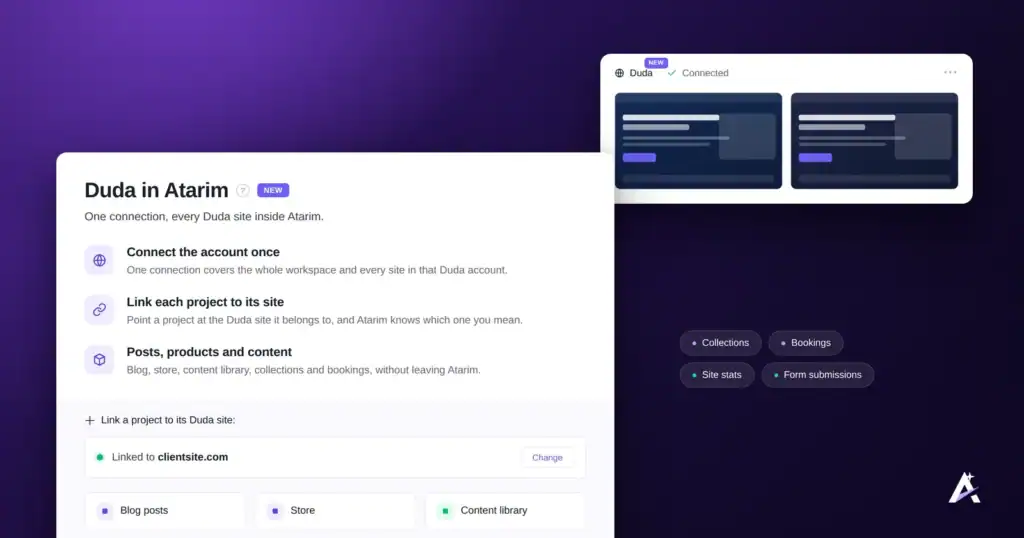
Atarim works on Duda sites as well as WordPress ones. The setup is two steps: connect your Duda account to the workspace, then tell each project which Duda site it belongs to. After that you can ask for blog posts, store updates and content changes in the same place you ask for everything else.
One thing works differently from WordPress, and it is worth knowing before you start rather than after: Duda changes are not held for your approval.
What This Actually Does
Atarim connects to your Duda account once, at workspace level. After that you tell each Atarim project which Duda site it belongs to, and the AI can work on that site directly — writing blog posts, managing store products, updating the content library, and reading the site’s stats and form submissions.
The link matters because Duda identifies a site by an opaque id rather than a domain. Once a project is linked, you can talk about “this project” and Atarim knows which Duda site you mean.
Connecting Duda to Your Workspace
One connection covers the whole workspace and every site in that Duda account. You only do this once.
Instructions:
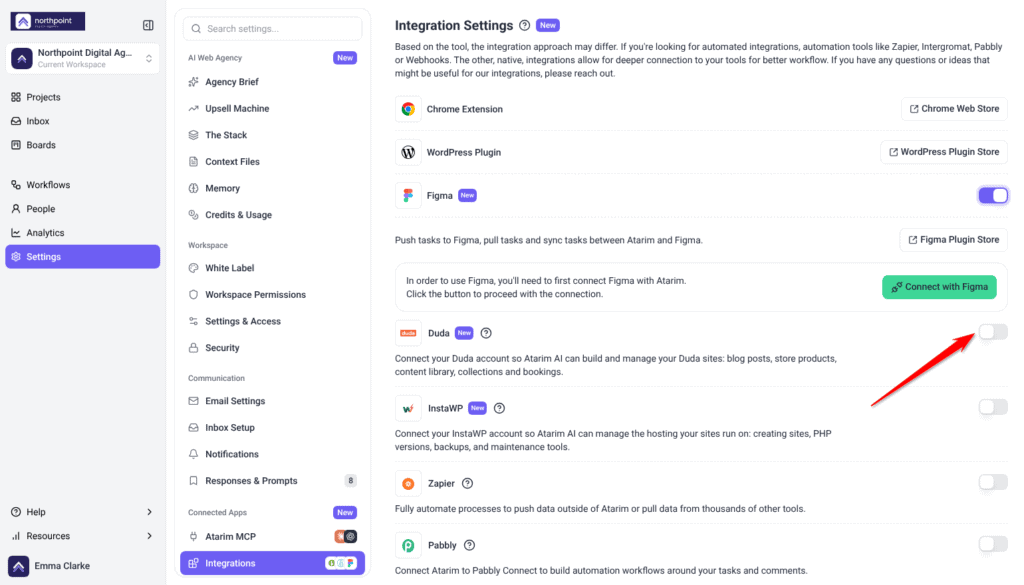
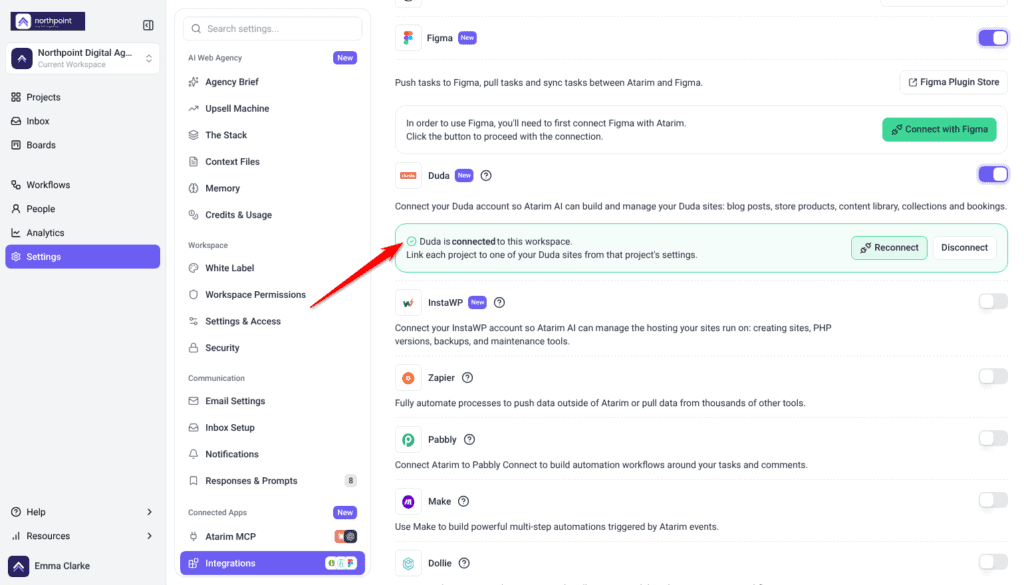
- Open Settings > Integrations, under Connected Apps.
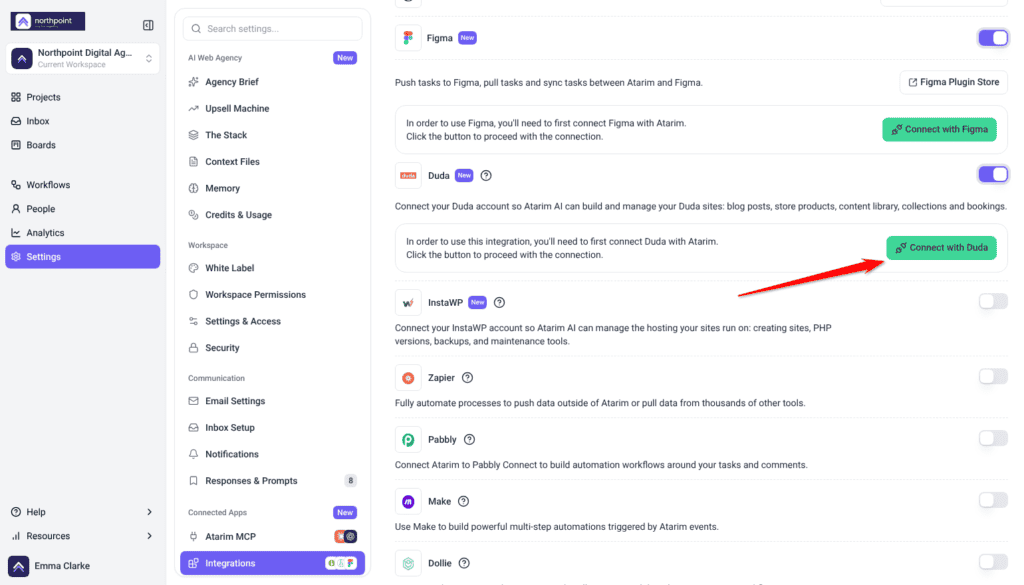
- Find the Duda card, switch it on, and select Connect with Duda.
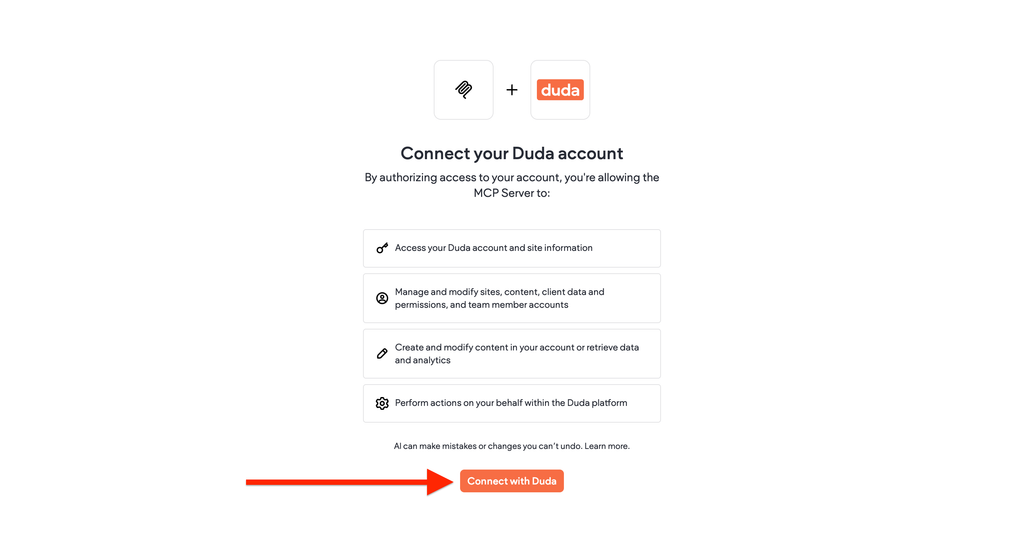
- You leave Atarim and land on Duda’s own sign-in and consent screen. Approve the connection there.
- Duda sends you back to the Integrations page. The card now reads Duda is connected to this workspace.
Linking a Project to a Duda Site
Connecting the account is not enough on its own. Each project has to be pointed at one Duda site before the AI will touch it.
Instructions:
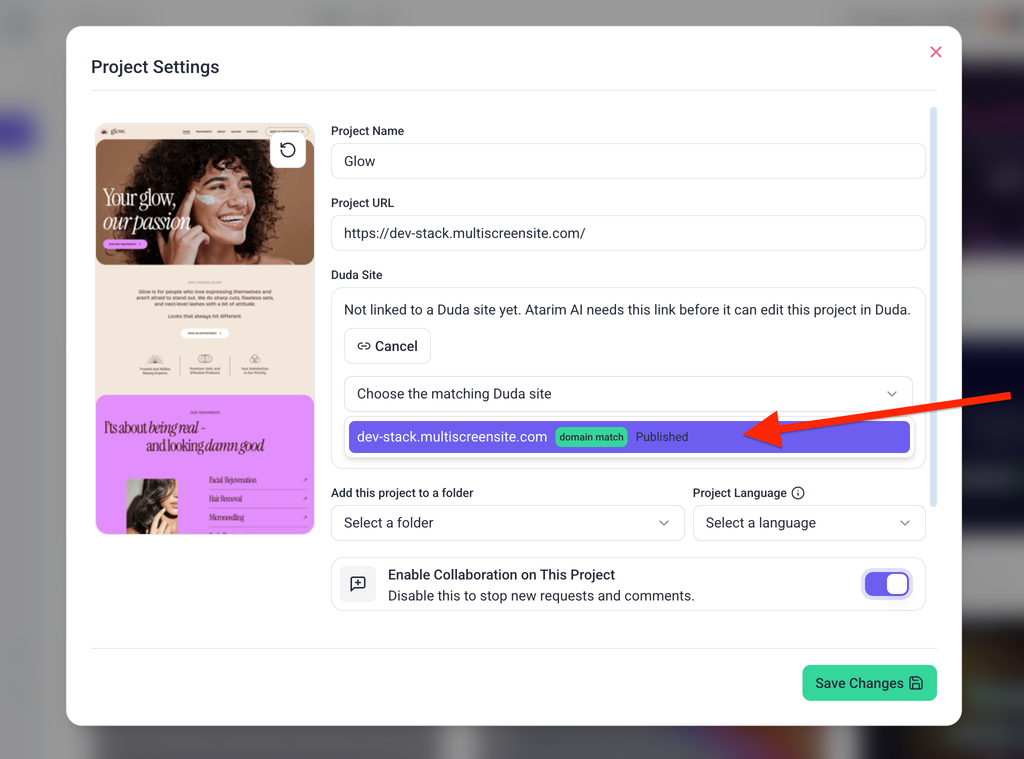
- Open the project and go to Project Settings.
- Find the Duda Site field and select Link a Duda site. The field only appears once the workspace has Duda connected.
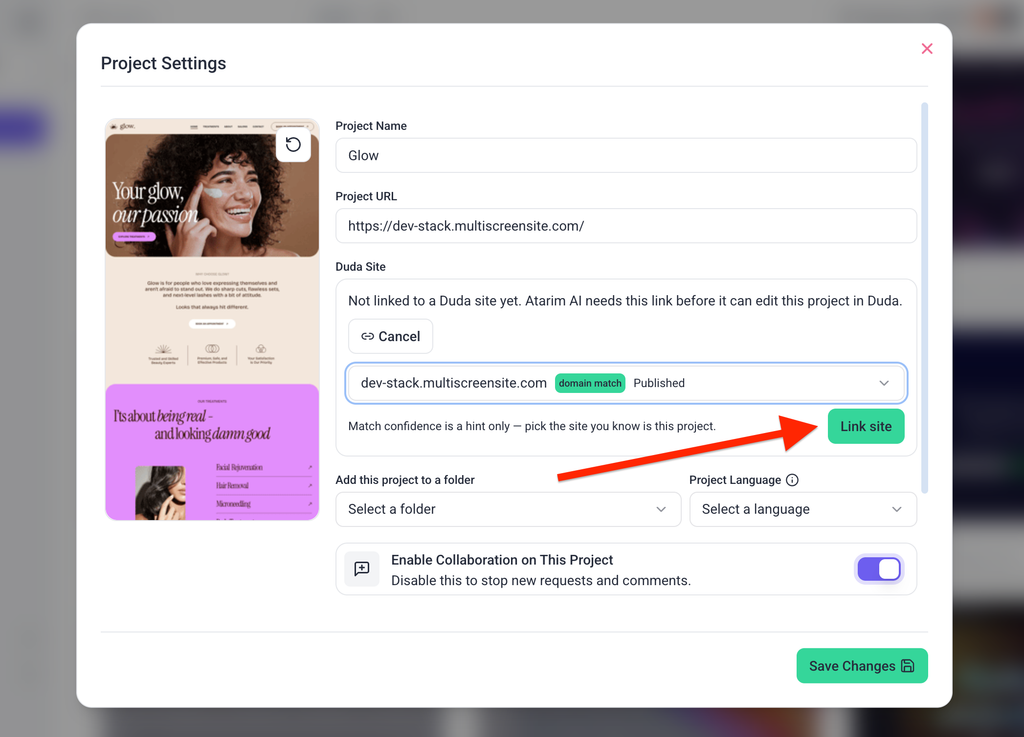
- Your Duda sites load with a confidence badge against each — either domain match or a percentage guess — and whether the site is Published or Not published.
- Choose the site you know is correct, then select Link site.
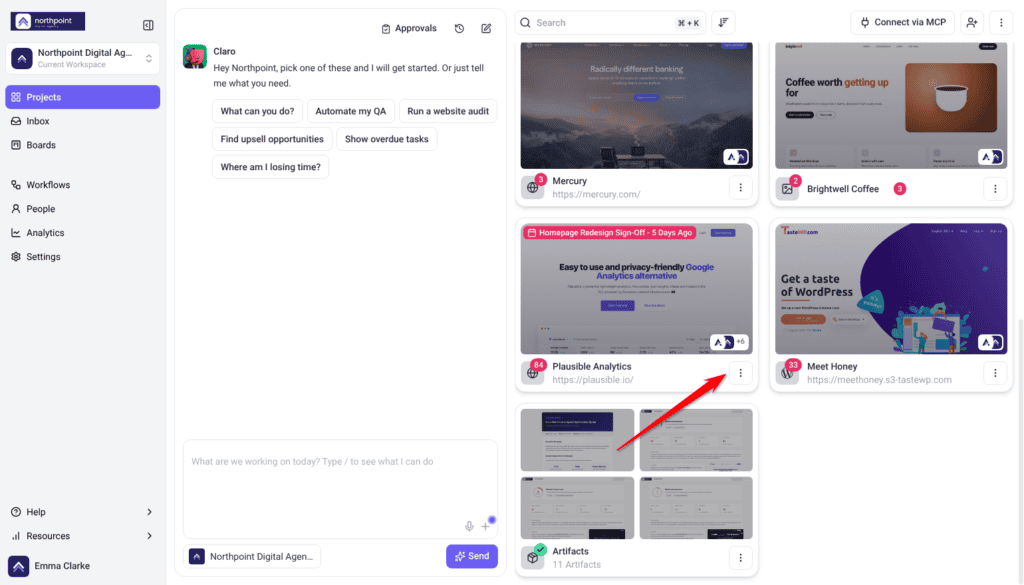
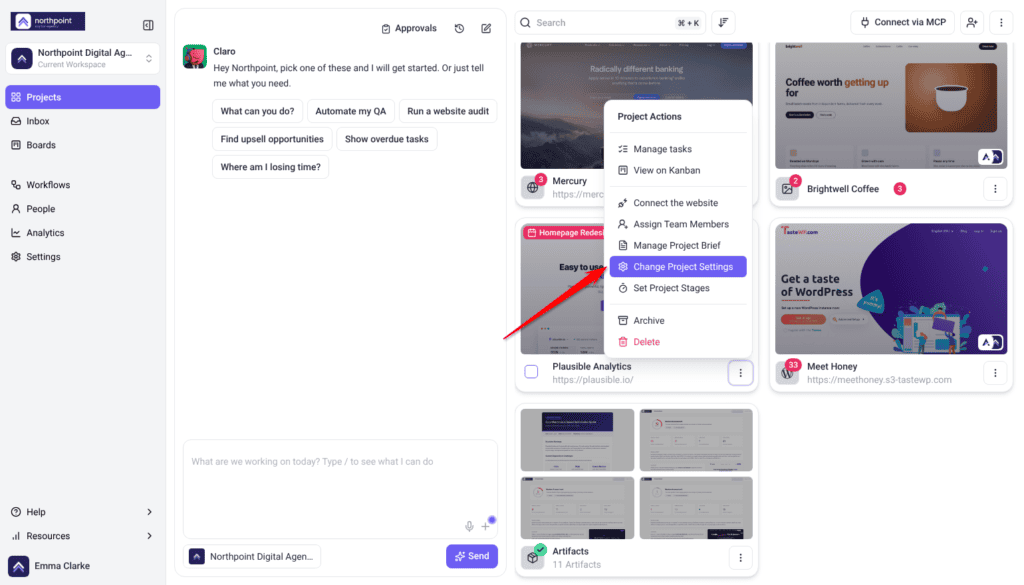
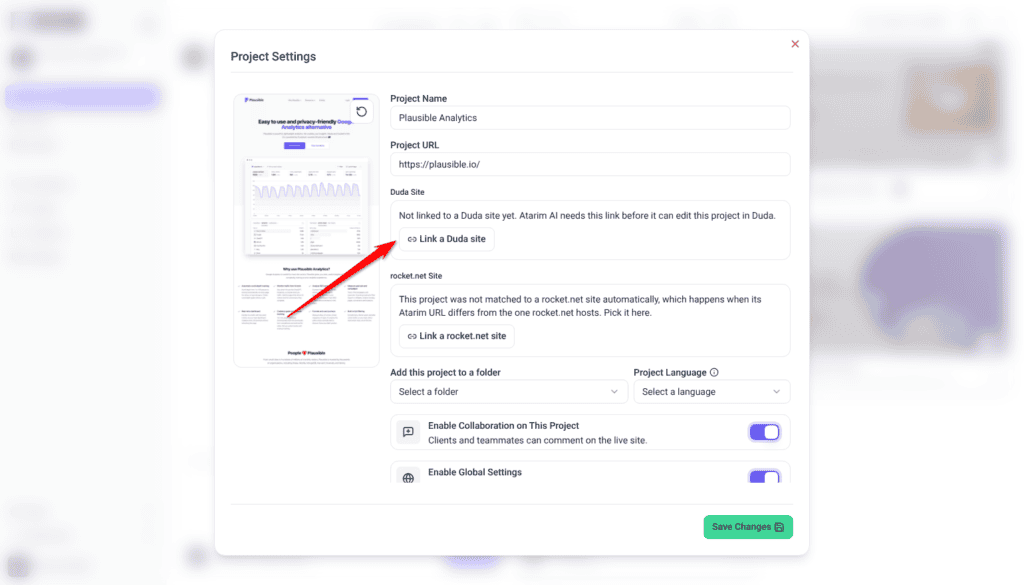
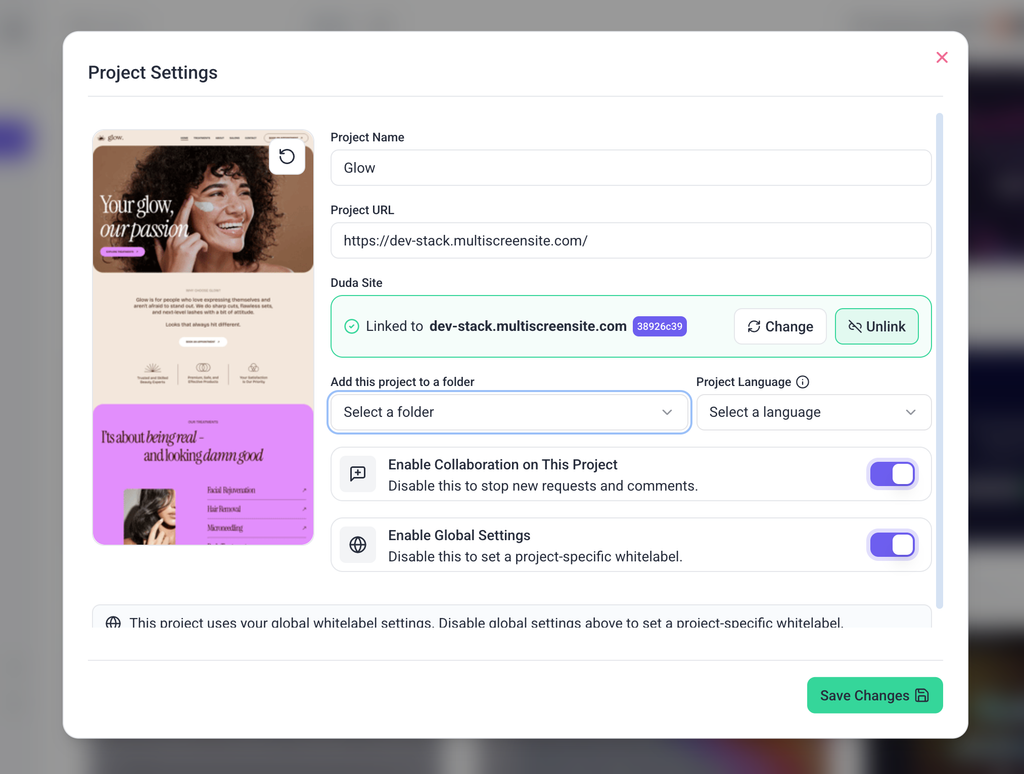
Once linked, the field reads Linked to with the site’s domain. Change swaps it for a different site and Unlink removes the link. You can also ask the AI to link a project. Where a candidate’s domain matches the project’s, it links straight through; below that it shows you the candidates and waits for you to choose. Linking this way needs workspace owner or administrator rights.
What Atarim Can Do on a Duda Site
| Area | What it covers |
|---|---|
| Blog posts | Writing and managing posts on the site’s blog. |
| Content library | The shared content the site draws on. |
| Store | Duda’s native eCommerce — products and the catalog behind them. |
| Collections | Structured content sets used across the site. |
| Bookings | The appointment side of a Duda site. |
| Site stats | Reading how the site is performing. |
| Form submissions | Reading what visitors have sent through the site’s forms. |
Who Can Do What
| Action | Who |
|---|---|
| Connect, reconnect or disconnect Duda | Workspace Owners and Administrators. |
| Link or unlink a project’s Duda site | Workspace Owners and Administrators. |
| Ask the AI to work on a Duda site | Workspace Owners and Administrators. |
Known Limitations
- One Duda account per workspace. If you manage sites across several Duda accounts, they need separate Atarim workspaces.
- One Duda site per project. Use Change to point a project somewhere else rather than linking twice.
- Duda changes are not held for approval. Unlike WordPress, nothing waits in the Approval Queue before it runs.
- Design and layout stay in Duda. The visual builder is not something Atarim drives.
FAQs
Do I need to connect Duda for every project?
No. One connection covers the whole workspace and every site in that Duda account. What you do per project is link it to the right site.
Why can I not find my site in the list?
The list comes from the connected Duda account, so a site built under a different account will not appear. Unpublished sites do appear, but under a generated address rather than the domain you expect, which is why they often show a low match score.
Does linking change anything on the Duda site?
No. Linking only records which Duda site this project means. Nothing is written to the site until you ask for something.
Do Duda changes wait for my approval like WordPress ones?
No, and this is the important difference. WordPress actions that would change a site are held in the Approval Queue until you decide. Duda actions run as soon as they are asked for. The AI is instructed to confirm before changing or deleting anything, but nothing stops it the way the Approval Queue does.
What happens if I disconnect Duda?
Atarim stops being able to reach any of those sites. Project links are left in place, so reconnecting the same account puts things back rather than making you link every project again.
Atarim says it cannot reach Duda. What now?
That normally means the stored connection has expired or been revoked at the Duda end. Open Settings > Integrations and select Reconnect on the Duda card.
Common issues
- The Duda Site field is not on the project — the workspace has not connected Duda yet. The field only appears once it has.
- Your site is not in the picker — it belongs to a different Duda account, or it is unpublished and listed under a generated address rather than its domain.
- Atarim says the project is not linked to a Duda site — connecting the account is not enough on its own. Link the project in Project Settings.
- Atarim cannot reach Duda any more — the connection has expired or been revoked at the Duda end. Select Reconnect on the Duda card in Settings > Integrations.
- Changes landed on the wrong site — the project was linked to the wrong Duda site. Use Change to correct it, and pick by recognition rather than by match score.
- Atarim says Duda is switched off for this workspace — turn the Duda switch on in Settings > Integrations.
Conclusion
Connect once at workspace level, then link each project to the Duda site it actually is. The linking step is the one worth slowing down for, because everything Atarim does afterwards depends on it pointing at the right place.
And remember the difference from WordPress: on Duda there is no Approval Queue standing between a request and the live site. Ask for changes on Duda the way you would make them yourself.