Account Holders and Administrators securing a workspace
Agencies handling client sites and credentials who need a second factor on every login
Team members wondering why they're suddenly being asked for a code
Required knowledge
None. Codes arrive by email — there's no authenticator app to install or backup codes to store.
Tools & resources needed
Settings > Workspace > Security
An administrator account on the workspace — Settings is admin-only
Access to the inbox for the email address on your account
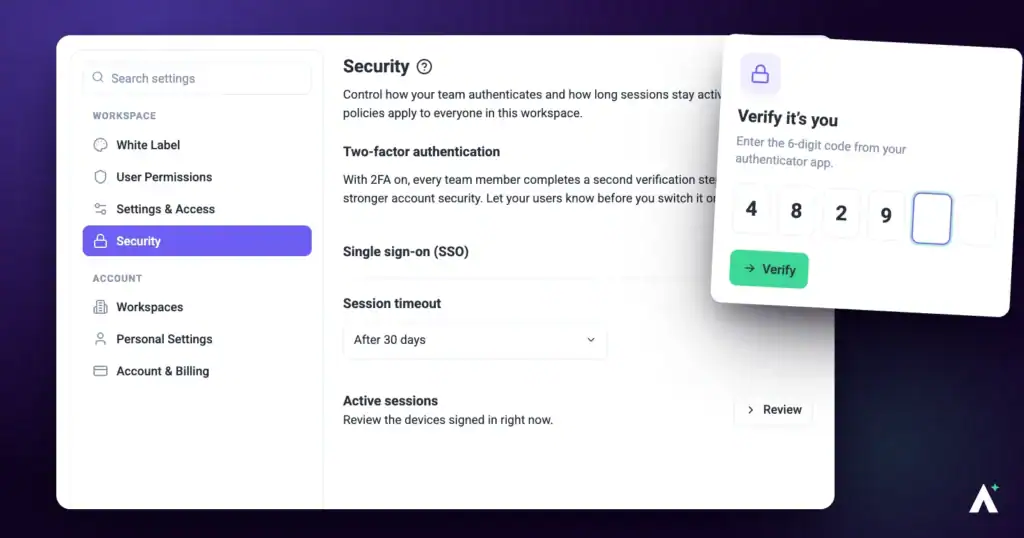
Two-factor authentication adds a second step to signing in. With it on, a password alone isn't enough — Atarim emails a six-digit code and holds the login until it's entered.
It's a workspace-wide setting rather than a personal one. Turn it on and it applies to everyone who signs into the workspace, which is the point: an agency's security is only as strong as its least careful team member.
Why an agency in particular
Your Atarim account reaches client sites, autologin, plugin installs, and everything your team has connected. A compromised login isn’t one account — it’s every client you serve. That’s the argument for turning this on before you need it.
How It Works
Codes come by email
There’s no authenticator app, no QR code, and no backup codes to print. Atarim sends a six-digit code to the email address on the account, and that’s the second factor.
It applies to the whole workspace
Enabling it commits everyone. Atarim states this plainly on the setting: every team member must complete a two-step verification process during login. Worth telling your team before you switch it on rather than after.
The login is held, not just flagged
When 2FA is on, signing in with a correct password doesn’t hand over access. Atarim sends the code and withholds the session until the code is verified, so an attacker with the password alone gets nowhere.
Turning it on requires verifying yourself first
The toggle doesn’t flip when you click it. Atarim emails you a code and only changes the setting once you’ve entered it — so nobody can enable or disable 2FA from a session they’ve walked away from.
Codes are single use
A code works once. Entering it correctly consumes it, and requesting a new one replaces the old rather than leaving two valid codes in your inbox. Always use the most recent email.
It rules out Sign in with Google
Atarim states this on the setting itself: with two-factor authentication enabled, single sign-on is not possible. If your team signs in with Google today, they’ll need a password on their Atarim account before you switch this on — otherwise they lose their route in.
Step-by-Step Guide
Opening the Security Settings
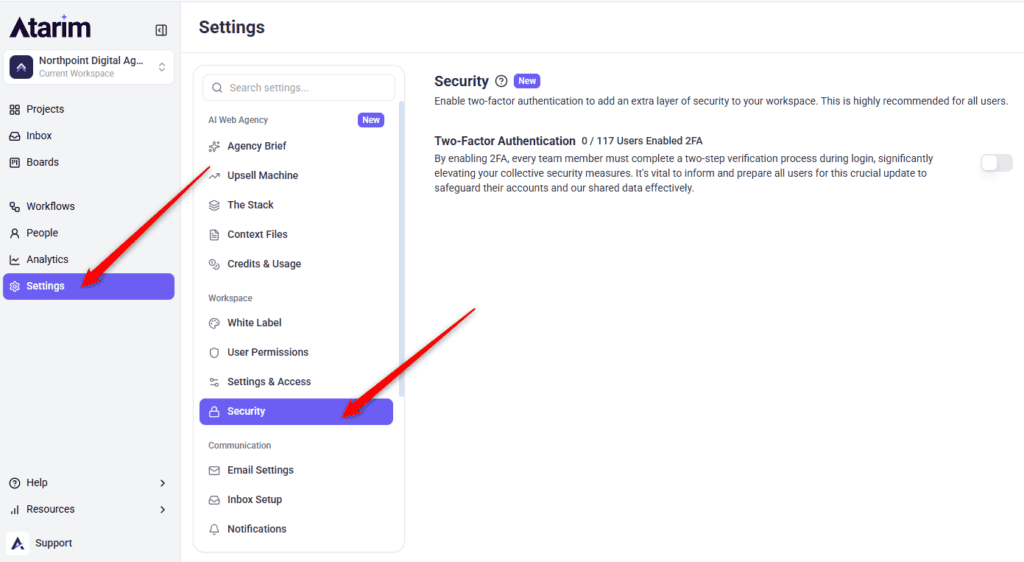
Two-factor authentication is a workspace setting, so it sits under Workspace rather than your personal profile.
In the menu on the left, under the Workspace heading, select Security.
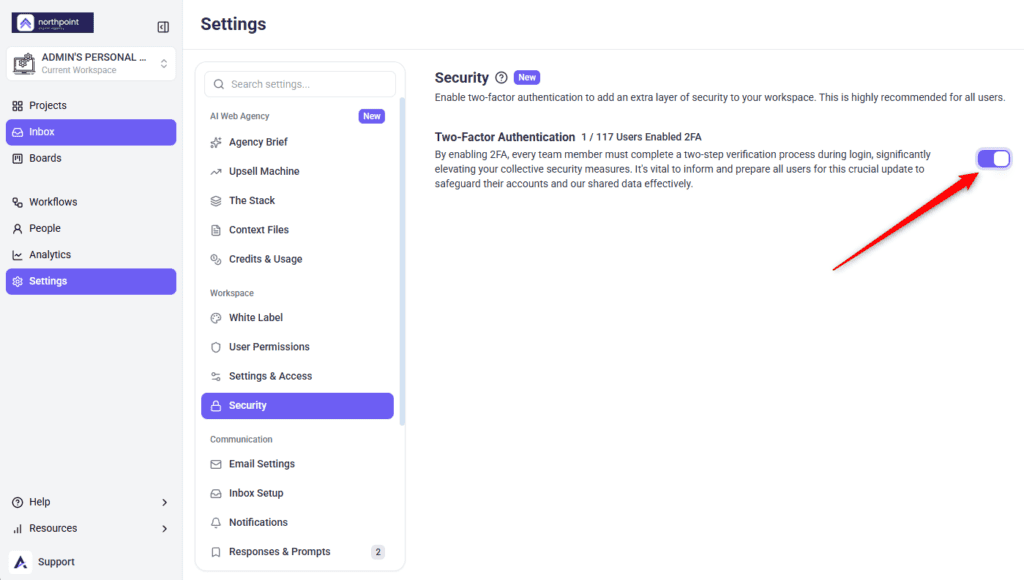
Read the panel description: enable two-factor authentication to add an extra layer of security to your workspace, recommended for all users.
Two-Factor Authentication Lives Under Workspace
Note
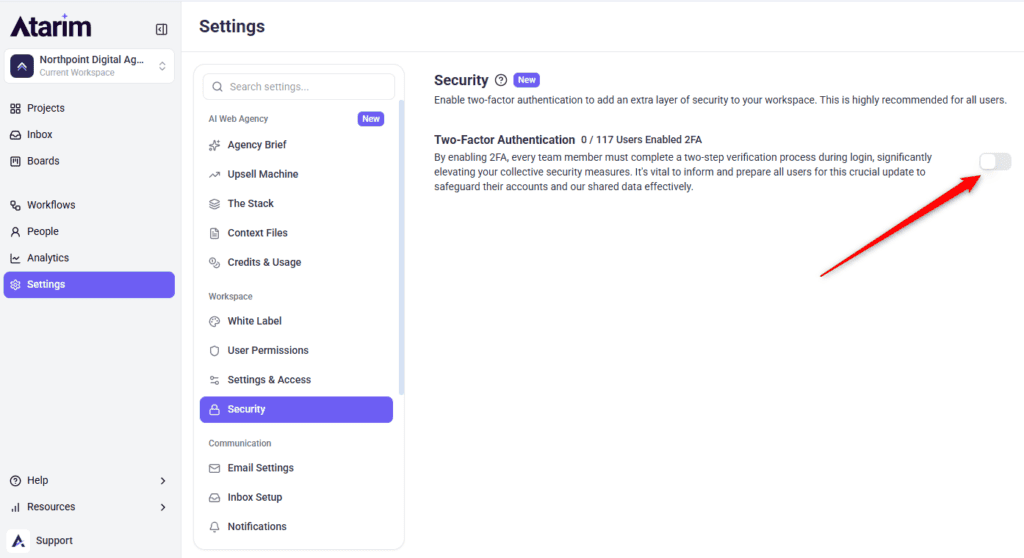
The setting row shows a count of how many users have completed 2FA. It’s a quick way to check adoption across a larger team without asking everyone individually.
Enabling Two-Factor Authentication
Codes go to the email address on your account, so make sure you can reach that inbox before starting.
Instructions:
Switch the two-factor authentication toggle on.
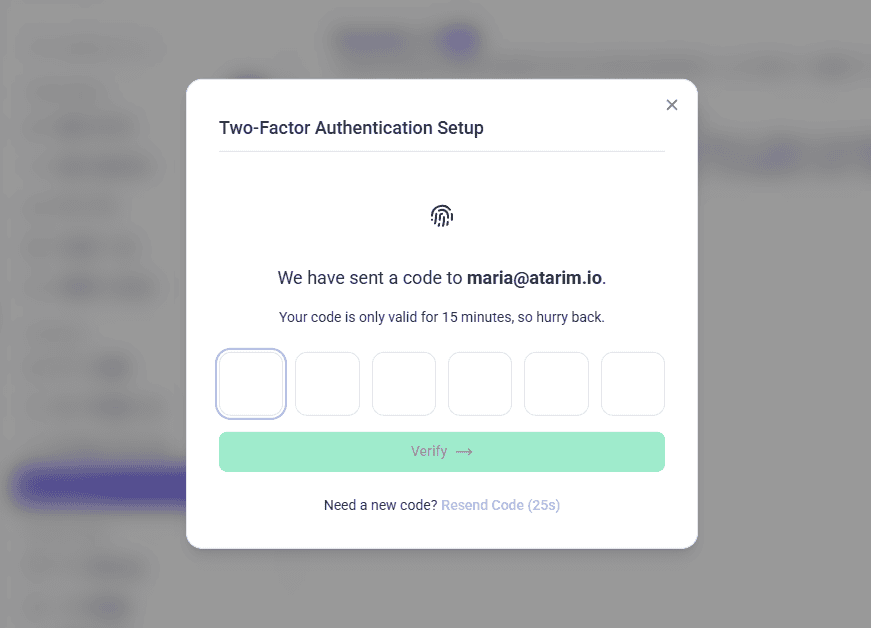
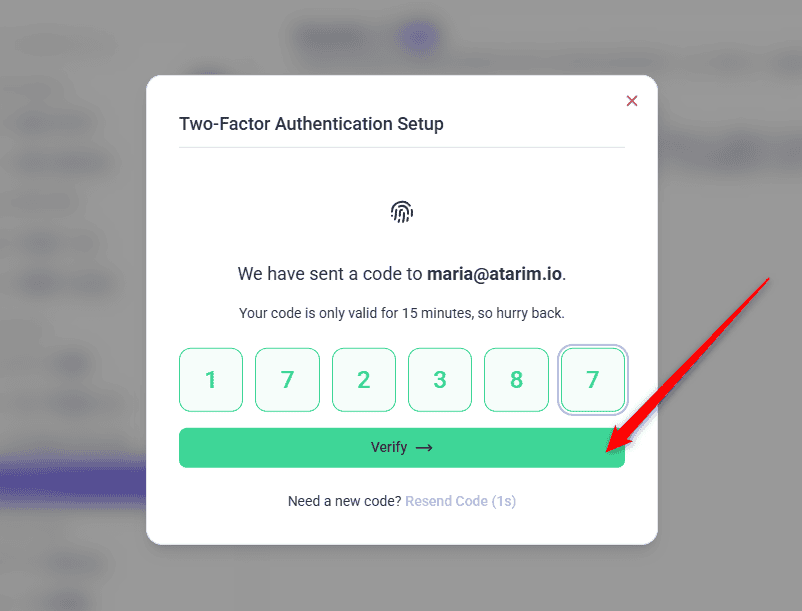
The Two-Factor Authentication Setup panel opens. It confirms a code has been sent to your email address and shows it back to you.
Open your inbox and find the six-digit code.
Enter it into the boxes. Each digit takes one box, and the cursor advances as you type. You can also paste the whole code at once.
Select Verify.
The panel closes and the toggle switches on. There’s no save button — the setting persists as soon as verification succeeds.
One Toggle, and the Count of Who’s Already Set Up
A Code Goes to the Email on Your Account
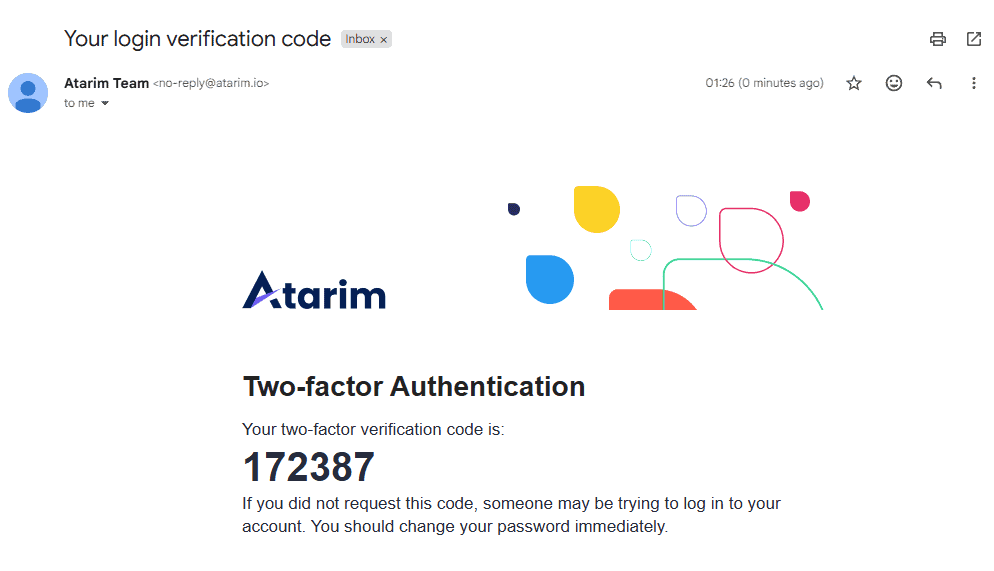
Code for Verification
Six Digits In, and Verify Comes Alive
The toggle lies until you verify
Closing the panel without entering a code leaves 2FA exactly as it was, even though you clicked the switch. If you’re not sure whether it took effect, reopen Security and check the toggle rather than assuming.
Tip
The code boxes accept a pasted six-digit code and fill themselves in. Copying it straight from the email is faster and avoids transposing digits.
Turning It On for Yourself Only
There’s a second, personal switch on your own user profile. Use it where you want a second factor on your own account without committing the whole team.
Instructions:
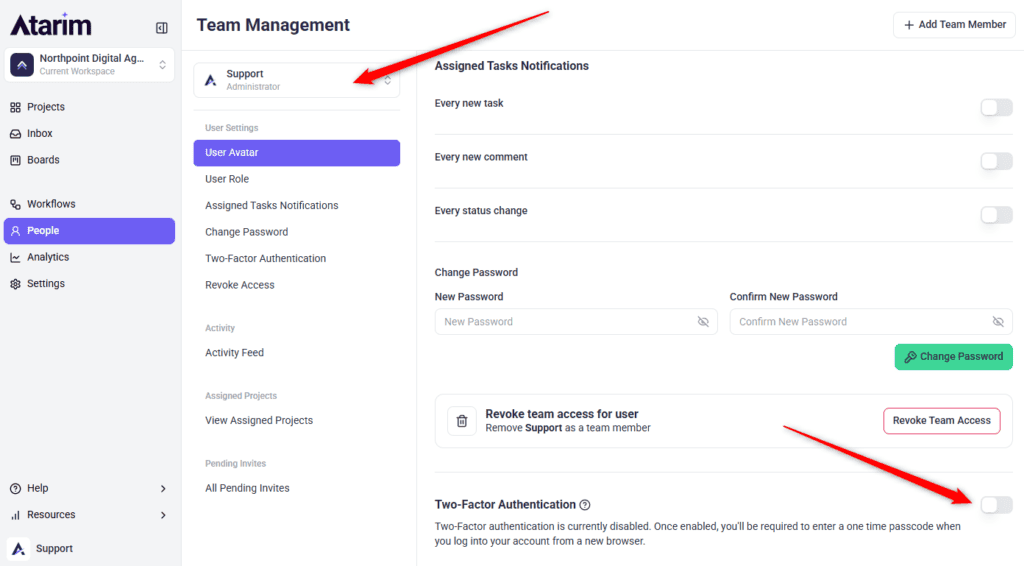
Select People in the sidebar.
Select your own name from the list. The toggle only appears on your own profile, not on anyone else’s.
Find the Two-Factor Authentication row. While it’s off, the description explains that once enabled you’ll be asked for a one-time passcode when you log in from a new browser.
Switch it on and verify with the emailed code, exactly as on the workspace setting.
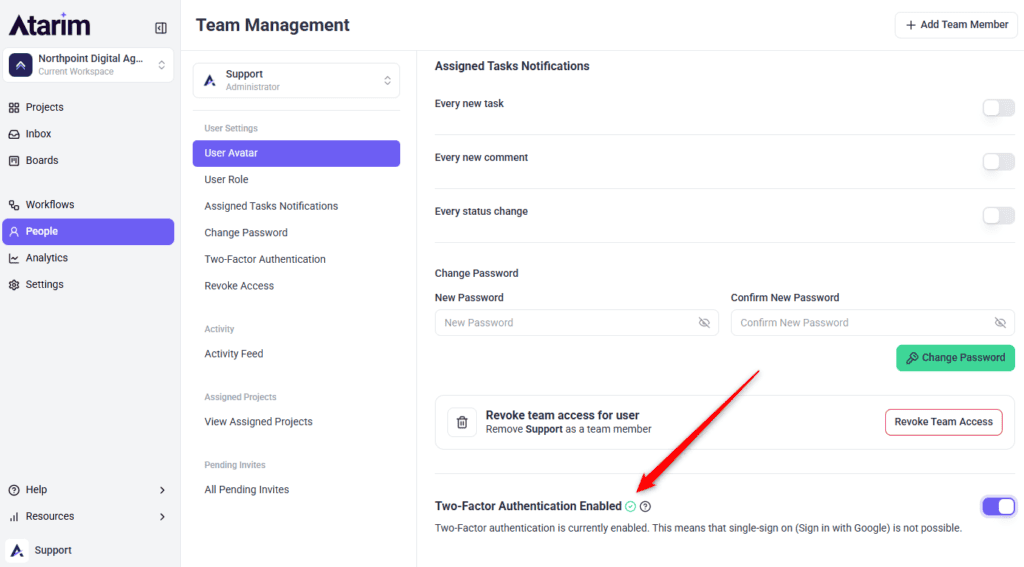
The heading changes to Two-Factor Authentication Enabled with a tick beside it.
Your Own Switch, Found Under People
Two-Factor Authentication is enabled, as indicated by the green checkmark.
Tip
The row is only rendered when you’re viewing your own profile. An administrator can require it for everyone through the workspace setting, but can’t switch it on for one individual from their profile.
The workspace setting overrides yours
Where an administrator has enabled 2FA for the workspace, your personal toggle shows as on and is greyed out. You can’t opt out of a workspace-wide requirement, and turning your own off isn’t possible while it stands.
If the Code Doesn’t Arrive
Requesting a new code invalidates the previous one, so always work from the most recent email.
Instructions:
Check your spam or junk folder first.
Confirm the address shown in the panel is the one you can actually read. It’s the address on your Atarim account, which isn’t always the one you check most.
Use the resend option. There’s a short cooldown of about thirty seconds between requests, so the link won’t respond immediately after a first attempt.
Enter the newest code. Requesting a fresh one replaces the previous code rather than adding a second valid one.
What to look for in your inbox
The email subject is Your login verification code. It comes from Atarim rather than from your own brand, so it won’t match your white-label settings — worth mentioning to a team who expect everything from Atarim to carry your logo.
Warning
A code is short-lived by design. If you step away mid-setup and come back to an expired code, you’ll be told it has expired and asked to request a new one. Retyping the old code won’t work — it’s already been replaced.
Signing In With Two-Factor Authentication On
Once it’s enabled, every sign-in takes one extra step.
Instructions:
Enter your email address and password as usual.
The Two-Factor Authentication Required screen appears instead of the dashboard.
Open your email and find the six-digit login code.
Enter or paste it, then confirm.
You’re signed in. Until the code is verified, no session is issued at all.
Need a new code?
The login screen carries its own resend option with the same short cooldown. If nothing arrives, the address on your account is the first thing to check — Atarim can only send to the one it has.
What the Messages Mean
Three responses come back from the code screen, and they mean different things.
Message
What to do
Your login verification code has been sent
Nothing — check your inbox. This confirms the request went through
Your login verification code did not match
Check you’re using the newest email. An earlier code will always fail once a new one has been requested
The 2FA code has expired. Please request a new code
Use the resend option rather than retyping. The code is past its window and can’t be revived
Two different failures, two different fixes
“Did not match” usually means an old code from an earlier email. “Expired” means the right code, too late. Knowing which you’re looking at saves guessing.
Turning It Off
Disabling is protected by the same code check as enabling, so it cannot be switched off from an unattended session.
Verify with a code exactly as you did when enabling it — disabling is protected the same way.
Select Confirm. The toggle switches off and the change saves immediately.
Switch off Two-Factor Authentication at the workspace level
Think before switching it off
Disabling removes the second step for everyone in the workspace at once, not just you. If one person is struggling with codes, fixing their email address is a better answer than lowering security for the whole team.
Who It Affects
Who
What changes for them
Account Holder and Administrators
Can turn the setting on or off, and must verify with a code to do either. Sees the count of users who have completed 2FA
Team Members
Enters a code when signing in. Can’t change the workspace setting, since Settings is admin-only, and their personal toggle is locked on while the workspace requires it
Collaborators and guests
Unaffected where they’re working through a share link rather than signing in to a workspace account
Anyone in more than one workspace
If any workspace they can access has 2FA on, they’ll be asked for a code — the strictest setting wins
One workspace can commit the rest
This is the part that surprises people. 2FA isn’t evaluated per workspace at sign-in — if any workspace on the account has it enabled, the code is required. Turning it off in one place won’t remove the prompt while another workspace still has it on.
FAQs
Can I enable it just for myself?
The setting lives at workspace level and applies to everyone who signs in. There’s no per-person switch on the Security panel.
Who can turn it on?
Administrators. Settings is admin-only, so Team Members and Collaborators can’t reach the Security panel — though they will be asked for codes once it’s on.
How long is a code valid?
Only a few minutes. Request a new one rather than reusing an old email if you’ve been away from the screen.
How many digits is the code?
Six. You can type it a digit at a time or paste the whole thing, and the boxes fill themselves in.
What happens if I lose access to my email?
You won’t be able to complete sign-in, because the code has nowhere to go. Keep the address on your account one you can reliably reach, and contact support if you’re locked out.
Does it apply to clients and guests?
Not to people working through a share link without a workspace account. It applies to anyone signing in to the workspace itself.
Can I see who has it set up?
Yes. The Security panel shows a count of users who have completed two-factor verification.
Can I still sign in with Google?
No. Atarim states this on the setting: with two-factor authentication enabled, single sign-on isn’t possible. Make sure everyone has a password before you switch it on.
Can I enable it for just my own account?
Yes, from your own profile under People. That’s separate from the workspace-wide setting, which an administrator controls. Where the workspace requires it, your personal toggle is locked on.
Can I turn it on for a specific team member?
No. The personal toggle only appears on your own profile. An administrator can require it for everyone through the workspace setting, but not for one person.
Can I reuse a code?
No. A code works once and is consumed when it verifies. Requesting a new one replaces the previous code rather than adding to it.
Does turning it off need a code too?
Yes. Disabling is protected exactly like enabling, so someone who finds an unattended session can’t quietly switch it off.
Conclusion
By enabling Two-Factor Authentication (2FA), you significantly improve your account security, ensuring that even if your password is compromised, unauthorized access is prevented.
Tips & best practices
Use a Secure Email: Ensure that your registered email has a strong password and, if possible, its own 2FA enabled.
Keep Backup Codes: Some platforms provide backup codes when enabling 2FA. If Atarim offers this, store them in a safe place.
Avoid Public Devices: Never enable 2FA or access Atarim from an untrusted device.
To provide the best experiences, we use technologies like cookies to store and/or access device information. Consenting to these technologies will allow us to process data such as browsing behavior or unique IDs on this site. Not consenting or withdrawing consent, may adversely affect certain features and functions.
Functional
Always active
The technical storage or access is strictly necessary for the legitimate purpose of enabling the use of a specific service explicitly requested by the subscriber or user, or for the sole purpose of carrying out the transmission of a communication over an electronic communications network.
Preferences
The technical storage or access is necessary for the legitimate purpose of storing preferences that are not requested by the subscriber or user.
Statistics
The technical storage or access that is used exclusively for statistical purposes.The technical storage or access that is used exclusively for anonymous statistical purposes. Without a subpoena, voluntary compliance on the part of your Internet Service Provider, or additional records from a third party, information stored or retrieved for this purpose alone cannot usually be used to identify you.
Marketing
The technical storage or access is required to create user profiles to send advertising, or to track the user on a website or across several websites for similar marketing purposes.