Tips for Faster Feedback Loops with Atarim
Six ways to shorten the gap between “here’s the work” and “that’s approved”.
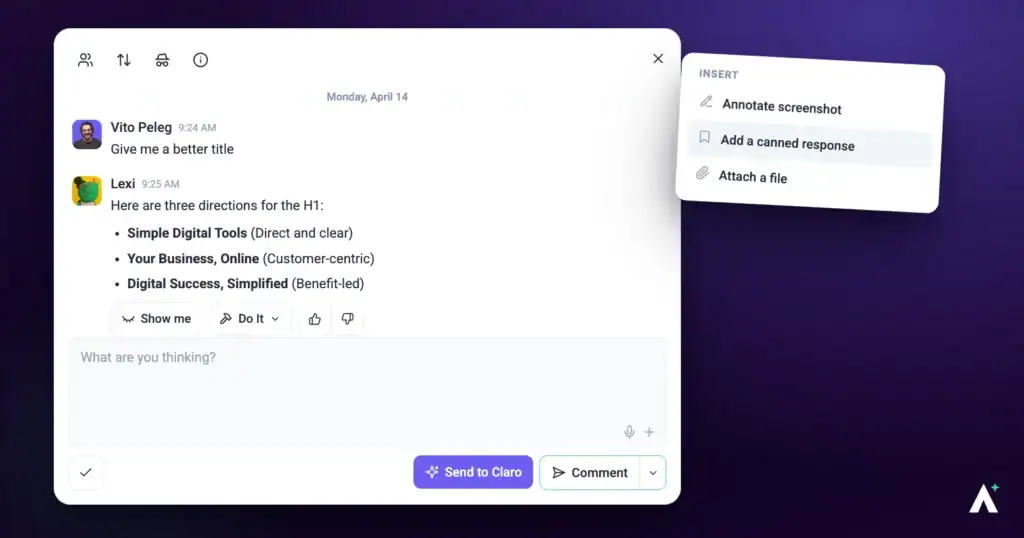
A slow feedback loop is rarely one big delay — it’s several small round trips. Clarifying what a comment meant, finding which page it was about, waiting for someone to notice it. Each of these removes one.
The goal is one round, not three.
A slow feedback loop is rarely one big delay — it’s several small round trips. Clarifying what a comment meant, finding which page it was about, waiting for someone to notice it. Each of these removes one.
1. Comment Directly on the Work
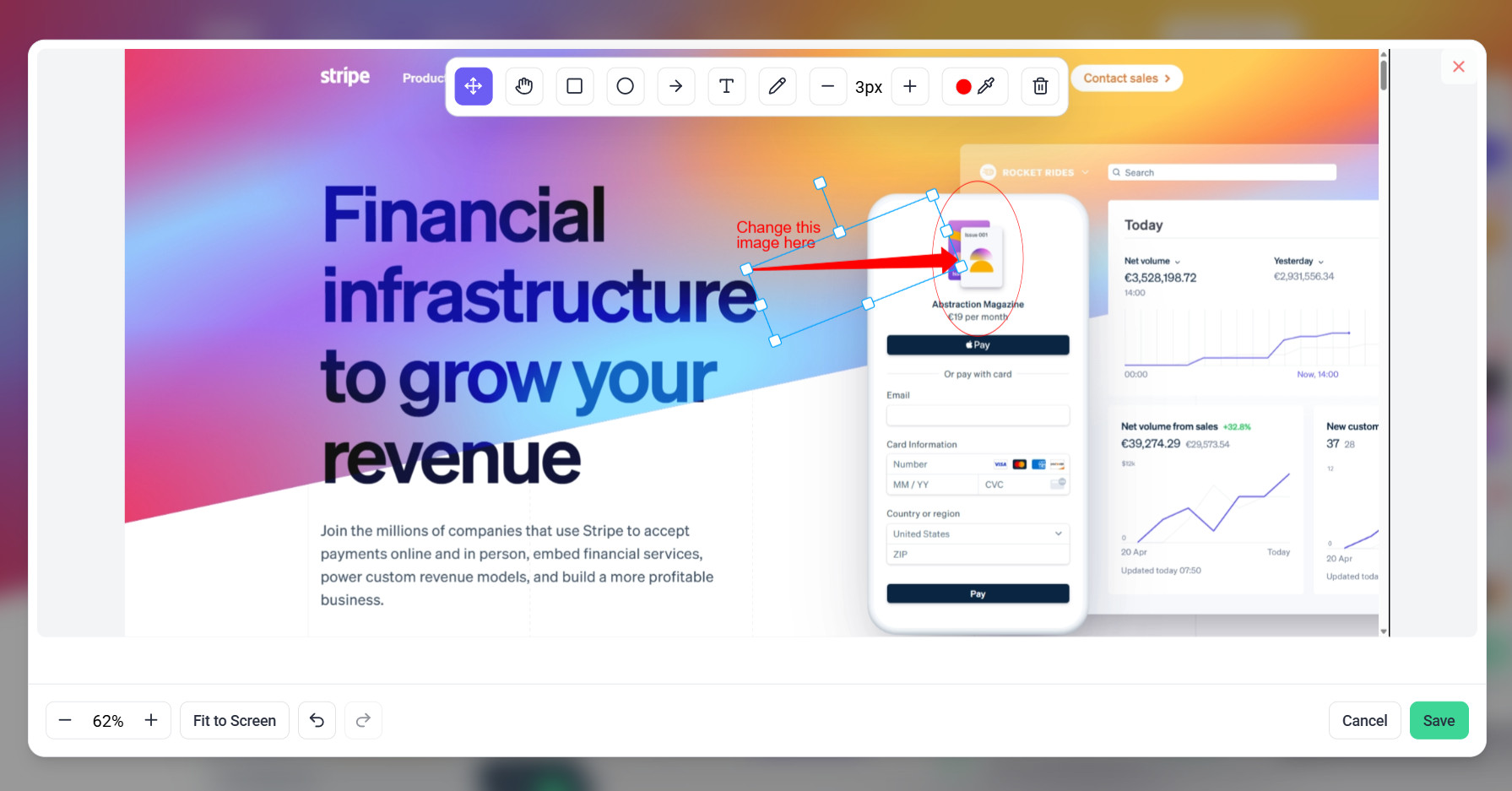
Feedback attached to the element it concerns removes the round trip of asking which part was meant.
Instructions:
2. Review with AI Before the Client Sees It
The fastest feedback round is the one that doesn’t happen. Running an AI review first catches the issues a client would otherwise spend a round reporting.
| Specialist | Catches |
|---|---|
| Pixel | Visual and design problems. |
| Navi | UX and accessibility issues. |
| Index | SEO and page structure. |
| Lexi | Copy that needs strengthening. |
| Glitch | Functional bugs. |
3. Organise with Folders and Filters
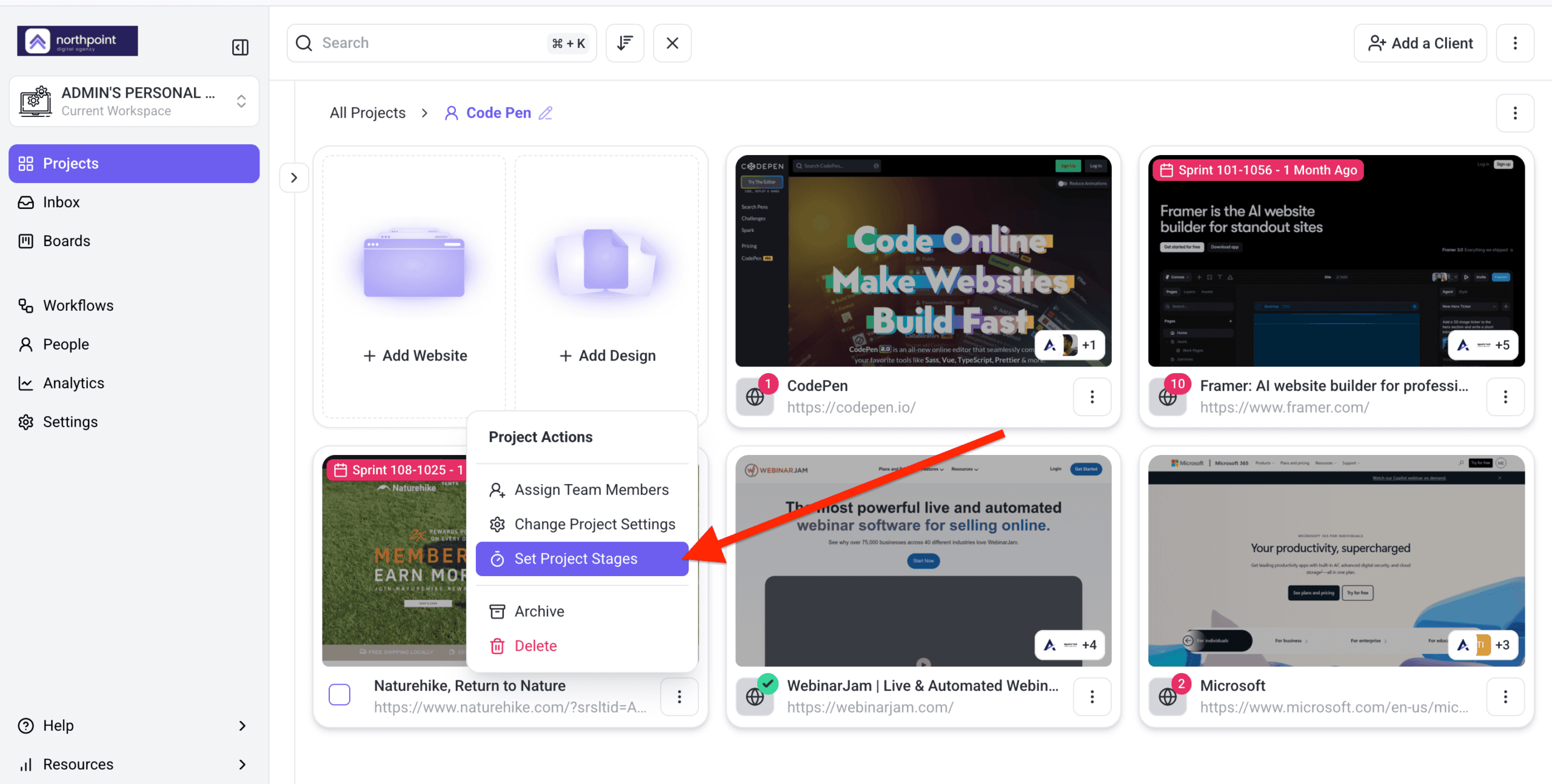
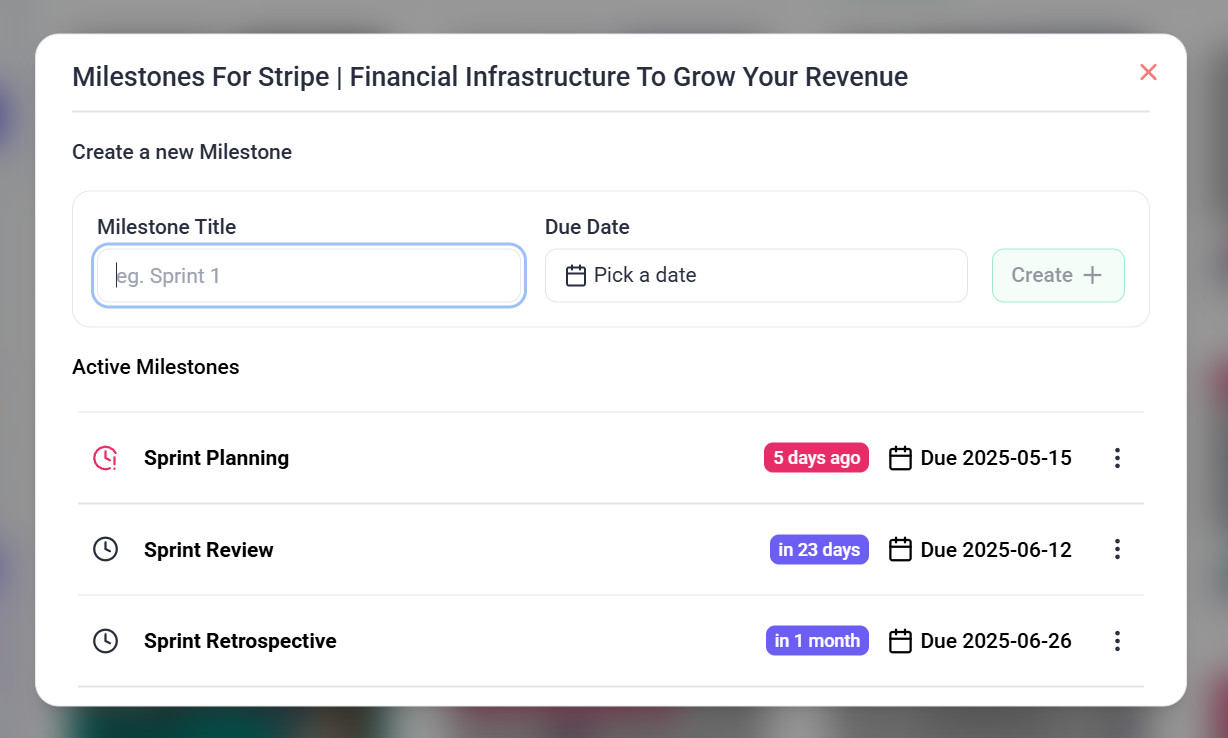
4. Set Project Stages for Accountability
Stages give the client somewhere to look instead of asking you where things stand.
Instructions:
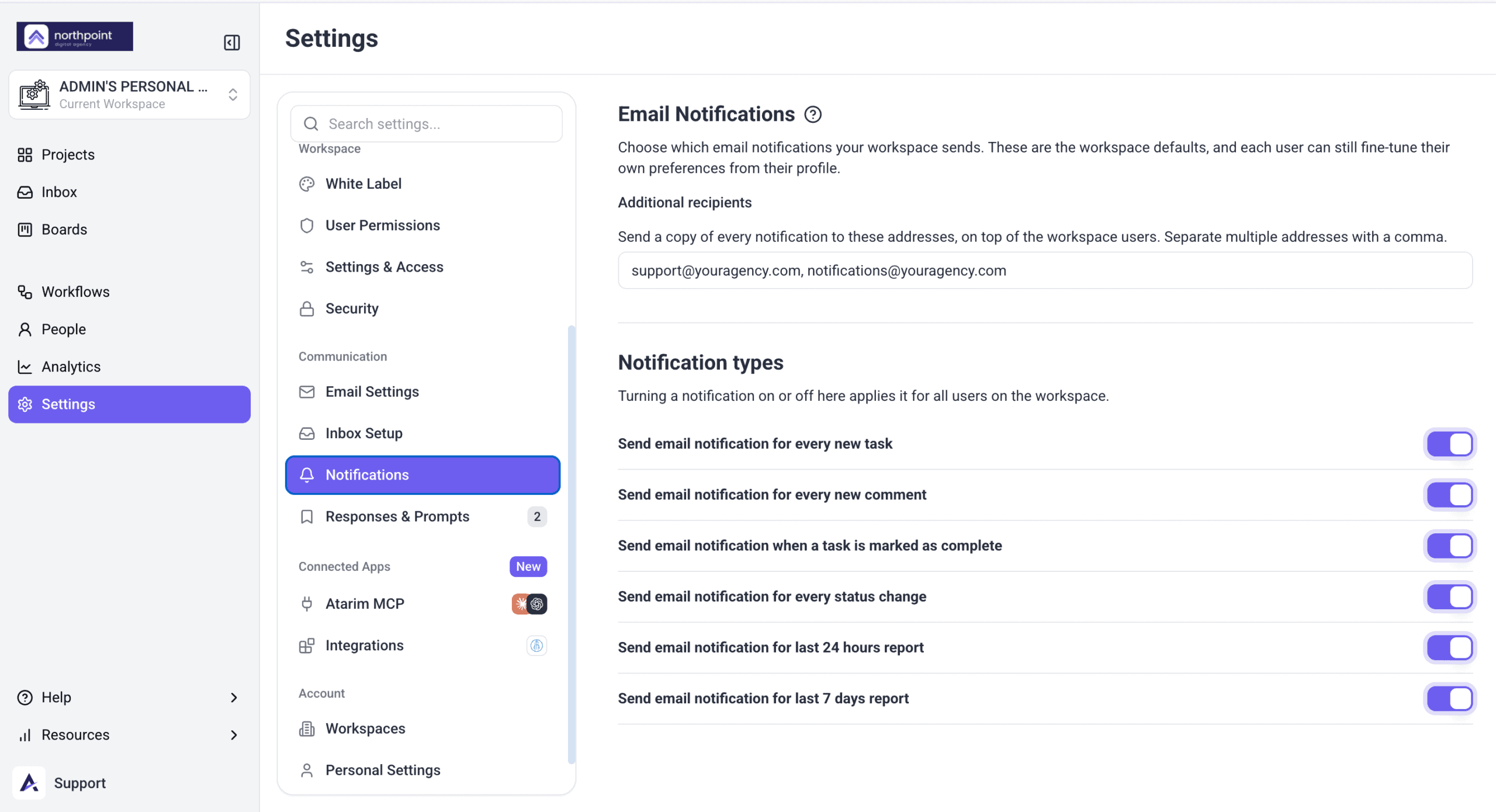
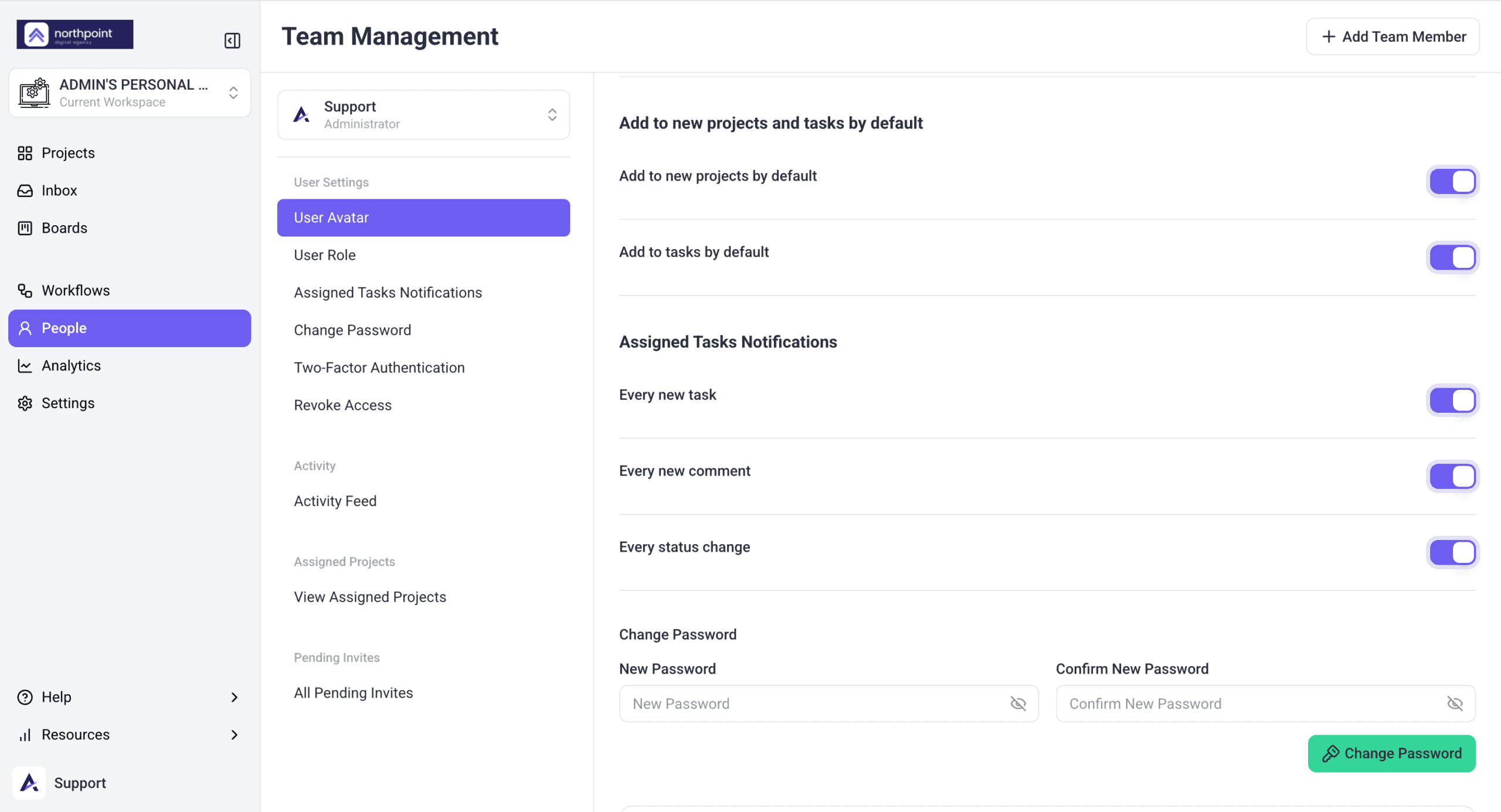
5. Get Notifications Right
Notifications only speed things up if they reach the person who has to act, so everyone needs their own set.
Instructions:
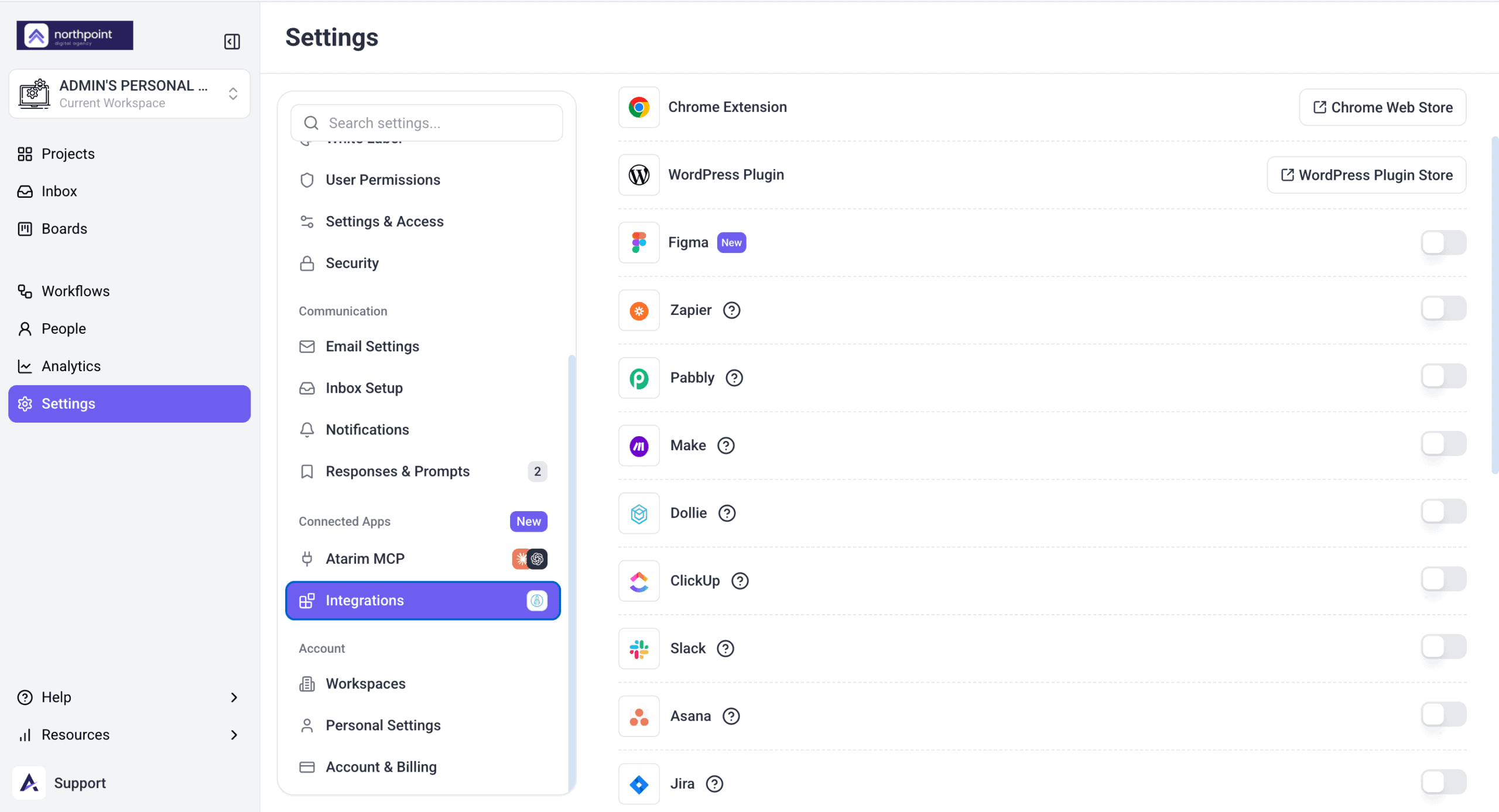
6. Connect the Tools Your Team Lives In
A task nobody sees is a task nobody does, so push them into the tools your team already has open.
Instructions:
FAQs
Can clients see internal tasks?
No. Internal tasks are visible to your team only, and they don’t send notification email.
Are team members notified immediately when feedback arrives?
No. Notifications go out a few minutes after collaboration activity stops, so a burst of comments arrives as one notification rather than many.
How do I keep feedback organised across projects?
Use workspaces, folders and boards so each project stays separate and prioritised.
What’s the fastest way to cut a review round?
Run an AI review before handover. Fixing the obvious issues privately means the client’s round is about the work itself.
Do reviewers need the Chrome extension?
No. It’s for your team, particularly on staging sites and pages behind a login.
Why didn’t a stage change notify the client?
A client who has an Atarim account and is on the project is emailed like anyone else assigned to it — creating or completing a stage sends an email, and so do the due-date reminders. A client reviewing through a share link without an account is not emailed at all, so tell them directly.
Common issues
- A reviewer says clicking does nothing — Comment mode isn’t on.
- Notifications feel delayed — expected. They’re batched a few minutes after activity stops.
- One person isn’t getting updates — preferences are per person. Check their own settings.
- Feedback keeps needing clarification — run an AI review before handover so the obvious issues are already fixed.
- Clients keep asking for status — share project stages, and tell them when one changes.
- An integration isn’t in the workflow list — connect it in Settings first.
Conclusion
Faster loops come from removing round trips: comment on the element rather than describing it, fix the obvious things before handover, and make sure the right people actually hear about what’s waiting on them.
The highest-leverage habit is running an AI review before the client sees the work. A round you never have to run is faster than any round you run well. Discover Reducing Feedback Cycles With Visual Collaboration
Tips & best practices
- Onboard new reviewers properly — start with Comment mode.
- Run an AI review before every client handover.
- Use tags for what priority and status can’t express.
- Watch boards for tasks that have stopped moving.
- Enable only the notifications people will act on.
- Keep internal discussion in internal tasks.