Familiarity with Atarim’s dashboard and collaboration tools.
Tools & resources needed
An active workspace with assigned projects.
Small teams get away with informal coordination because everyone sees everything. That stops working at scale, and the fix isn’t more communication — it’s structure that makes work findable and ownership obvious without anyone asking.
At scale, structure is what stops work getting lost.
Small teams get away with informal coordination because everyone sees everything. That stops working at scale, and the fix isn’t more communication — it’s structure that makes work findable and ownership obvious without anyone asking.
1. Organise with Workspaces and Folders
Assigning people at folder level saves granting access project by project as the team grows.
Instructions:
Open the Workspaces section on the dashboard.
Create a workspace named for its purpose — “Marketing Department” or “Client A”.
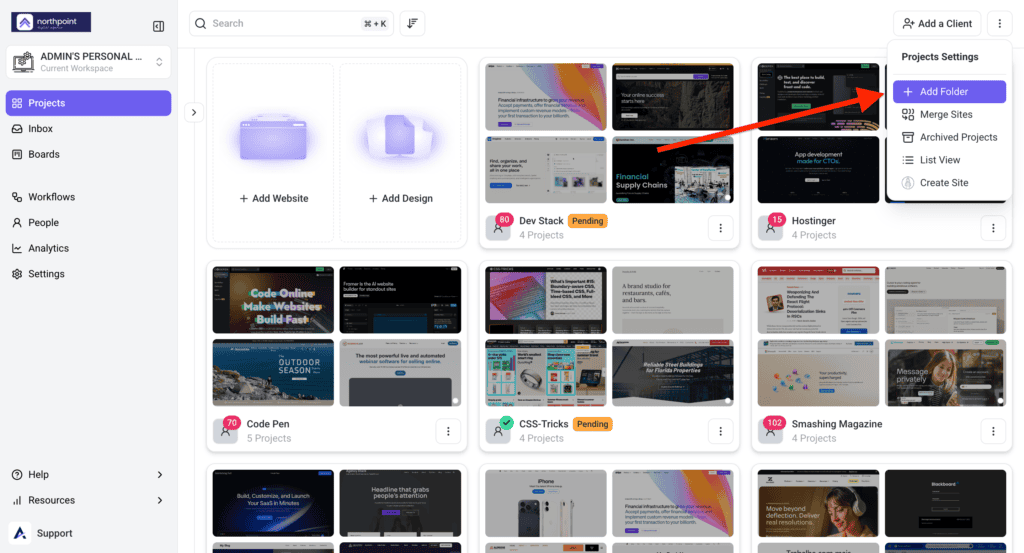
Create folders inside it to group related projects.
Assign team members to the folder. They get access to every project inside it at once.
Adding Folder
Think of workspaces as the broad categories and folders as the finer breakdown
Assigning access at folder level is what keeps this manageable at scale — per-project permissions across a large team drift out of date within weeks. Explore Adding And Managing Folders
2. Assign Tasks and Set Expectations
An assignee and a priority are what turn a note into work somebody owns.
Instructions:
Open the Inbox or a Board and find the task.
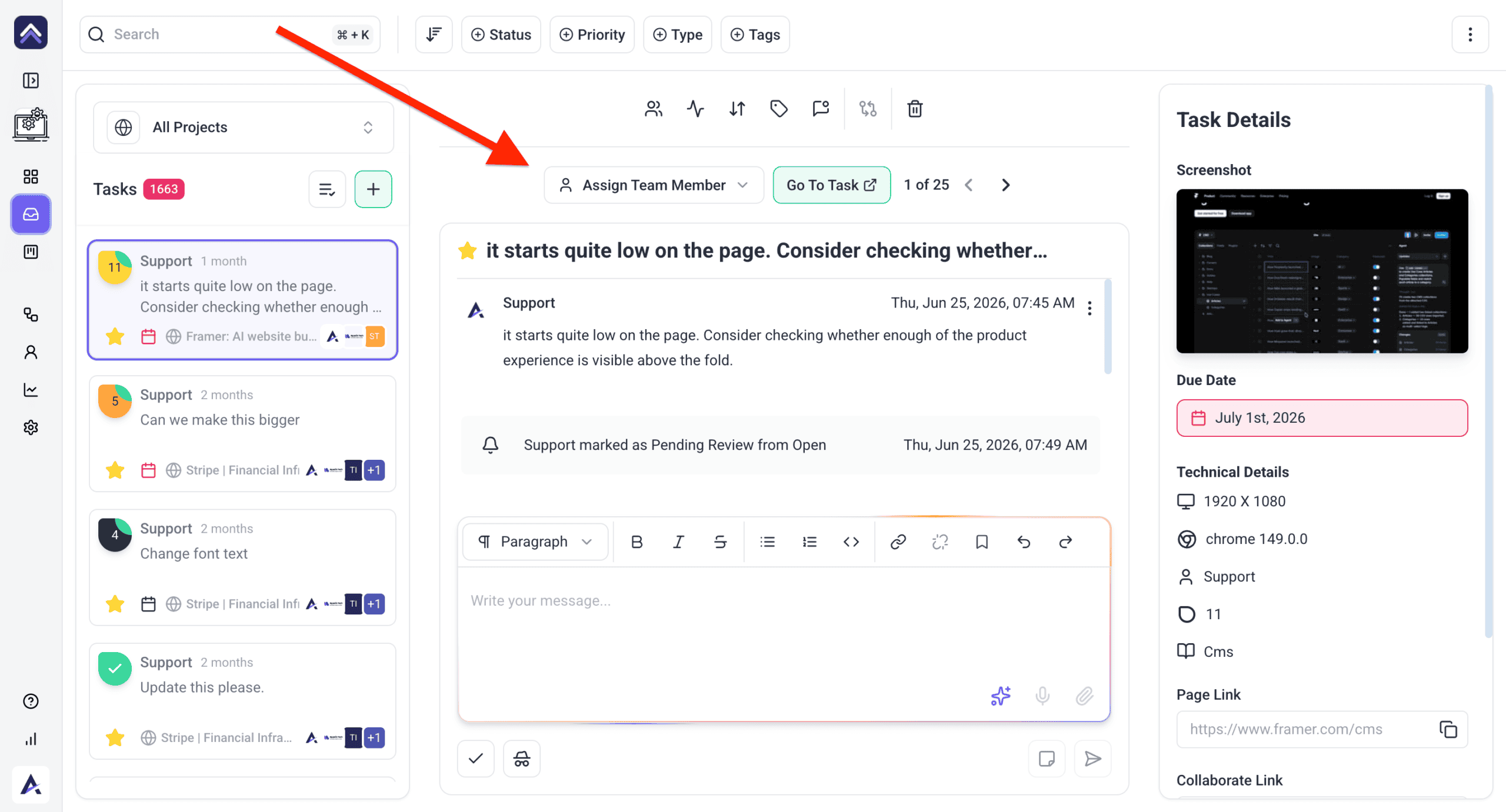
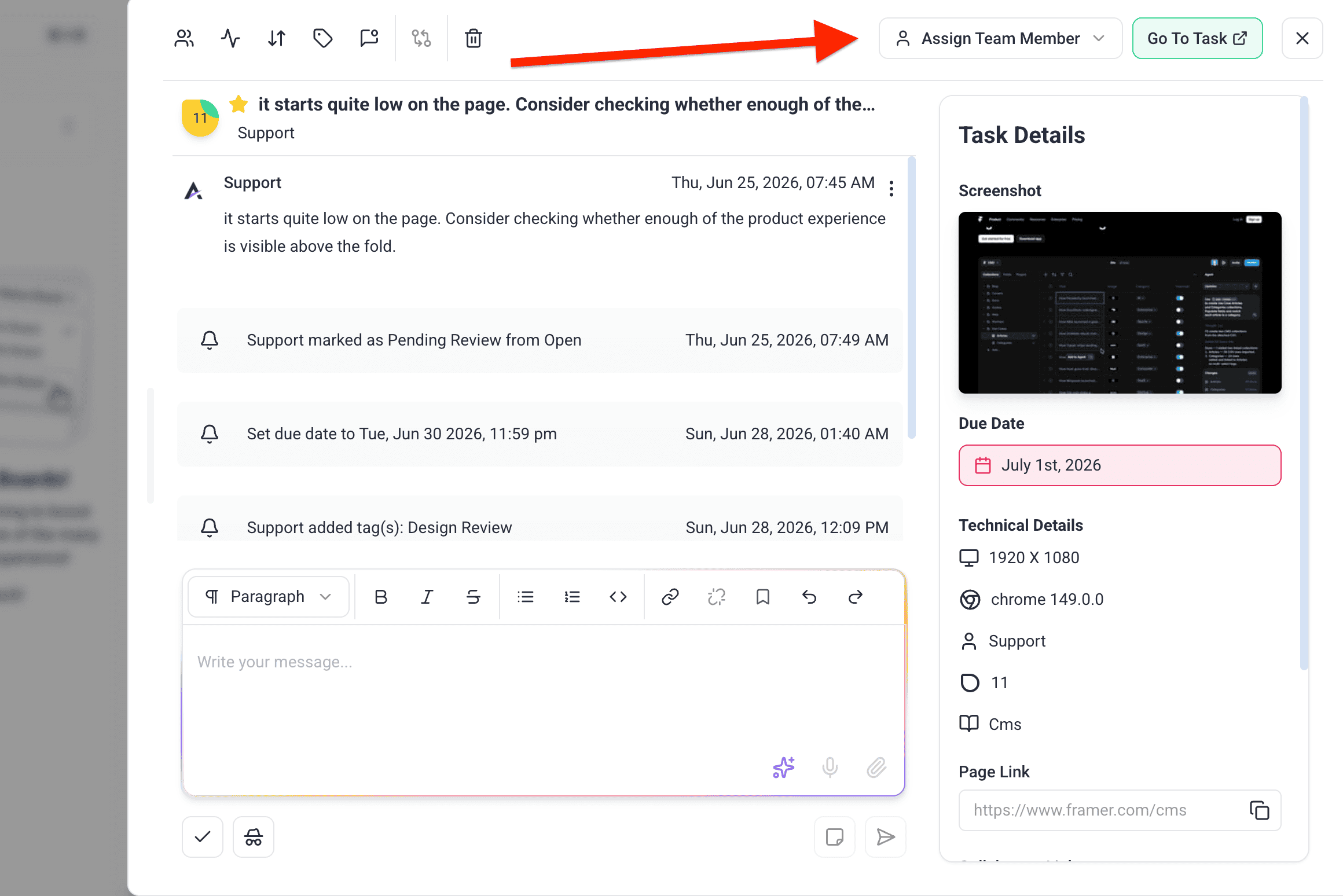
Select the assignee control on the task — a person icon with a chevron, tooltipped Select a team member to assign — and pick who is responsible. Once set it shows their avatar and reads Assigned to: their name, with an X to unassign. Only one person can be assigned: this is the responsible owner, not a list.
Set the priority and add detail in the description.
Add anyone else who needs to follow the task through the separate notify control, tooltipped Add users to notify about this task. Notifying someone does not assign them.
Status
What it signals
Open
Not started — and if it has no owner, nobody is going to.
In Progress
Someone is actively on it.
Pending Review
Waiting on someone else, often the client.
Complete
Done.
Assigning from the Inbox
Assigning from the board
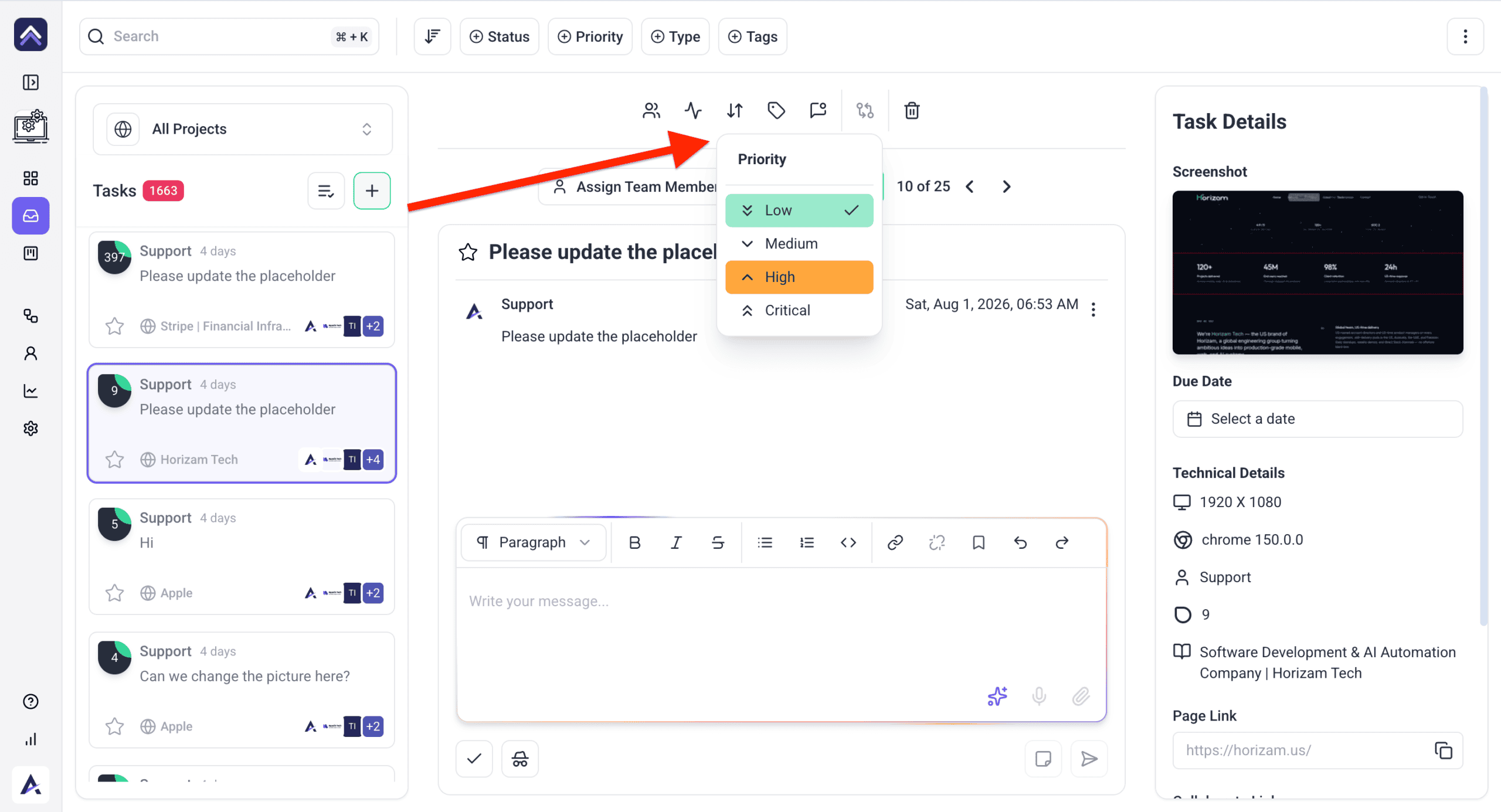
Setting priority from the Inbox
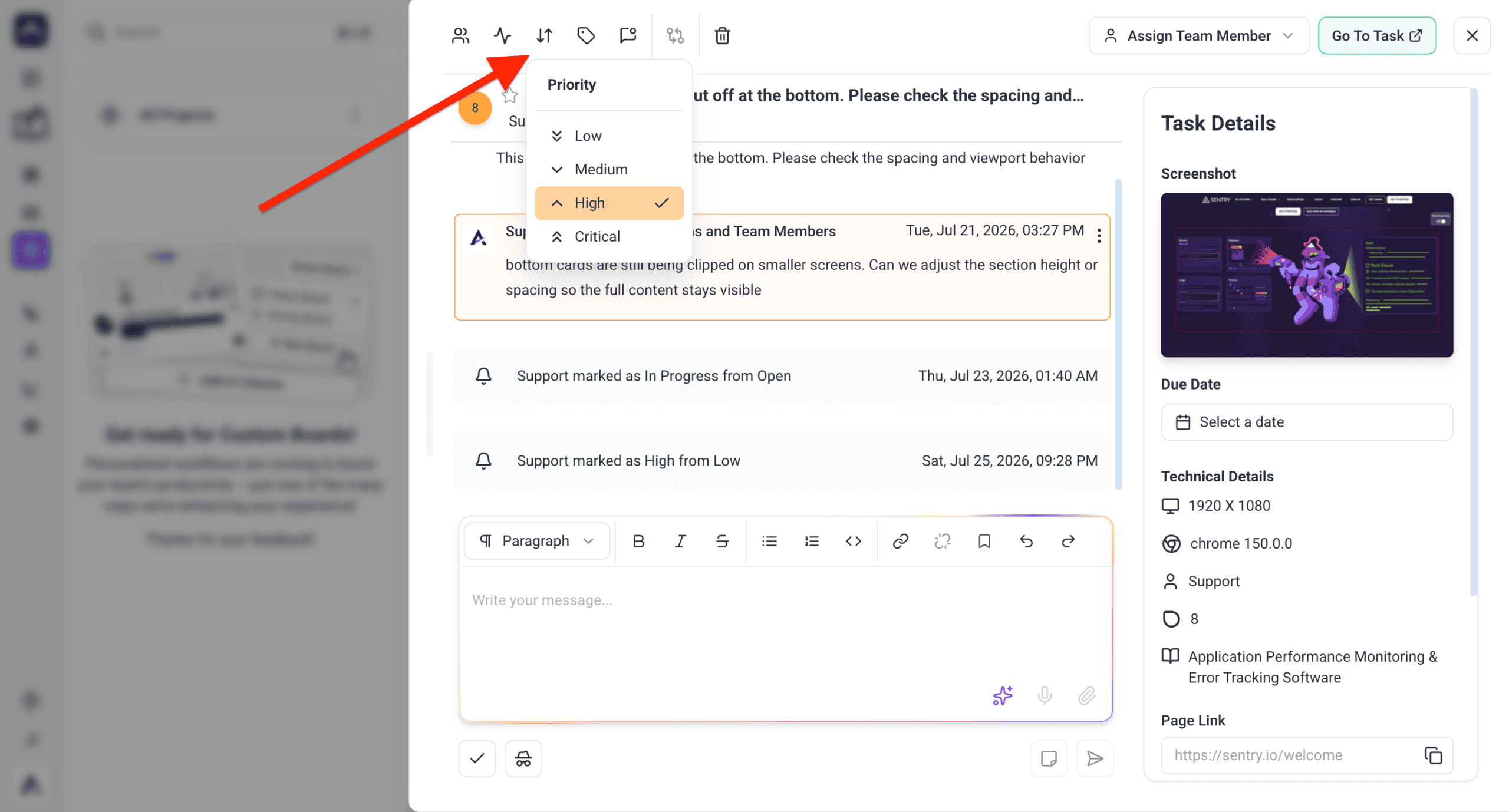
Setting priority from the board
Assign an owner at the moment a task is created, not in a weekly pass
On a large team an unassigned task is genuinely invisible — everyone assumes someone else has it, and it surfaces when a client asks.
Note
Notification preferences are per person, so a teammate not hearing about their assignments is usually their own settings rather than a workspace problem. Explore Email Notifications
3. Use Visual Collaboration
Pointing at the thing is faster than describing it, and it removes the round trip of asking which element was meant.
Instructions:
Open the project containing the website or design.
Select the visual collaboration option for that project.
Hover over the area you want to comment on, then select it.
Use the annotation tools to highlight, point or draw.
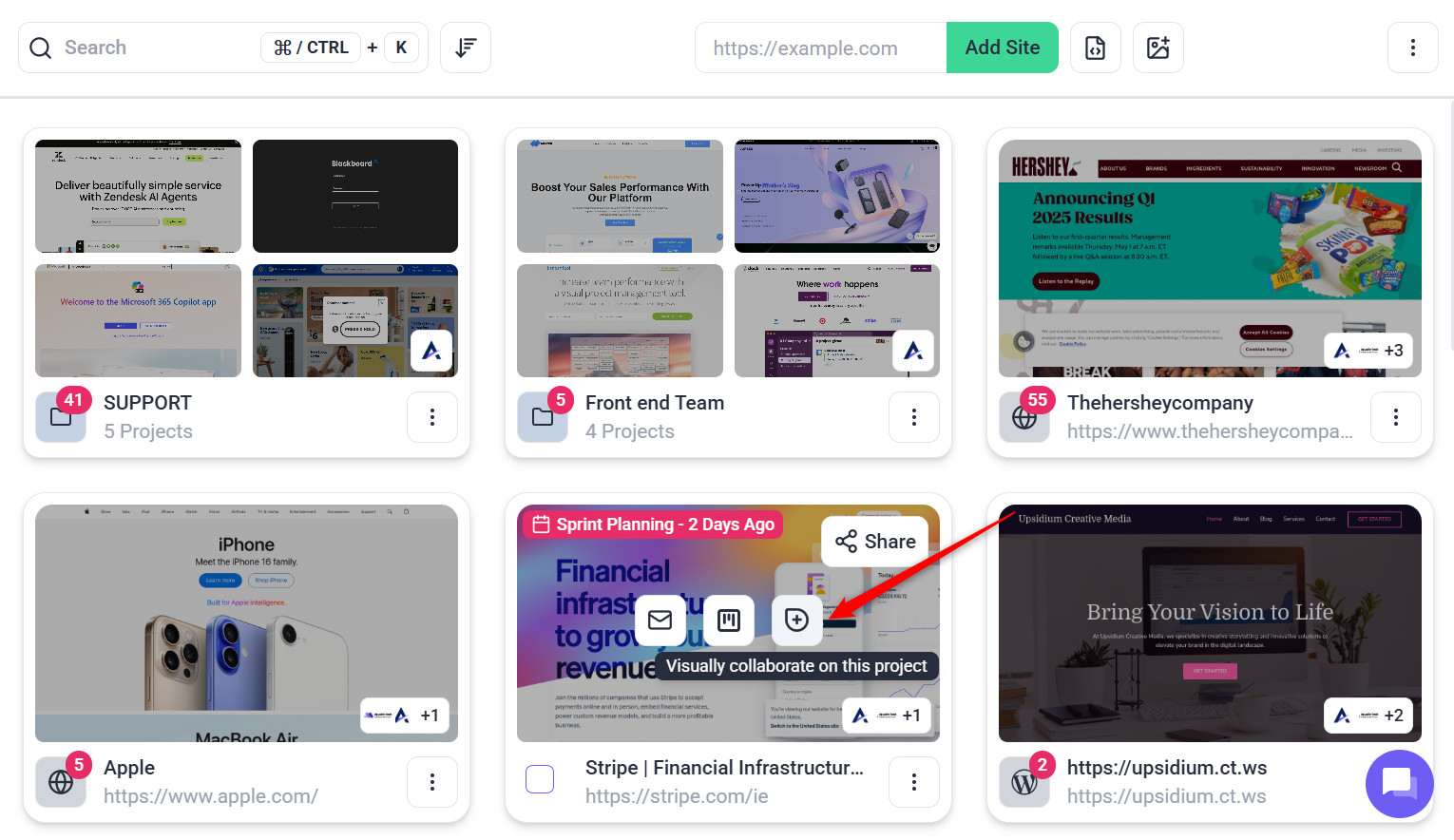
Opening visual collaboration
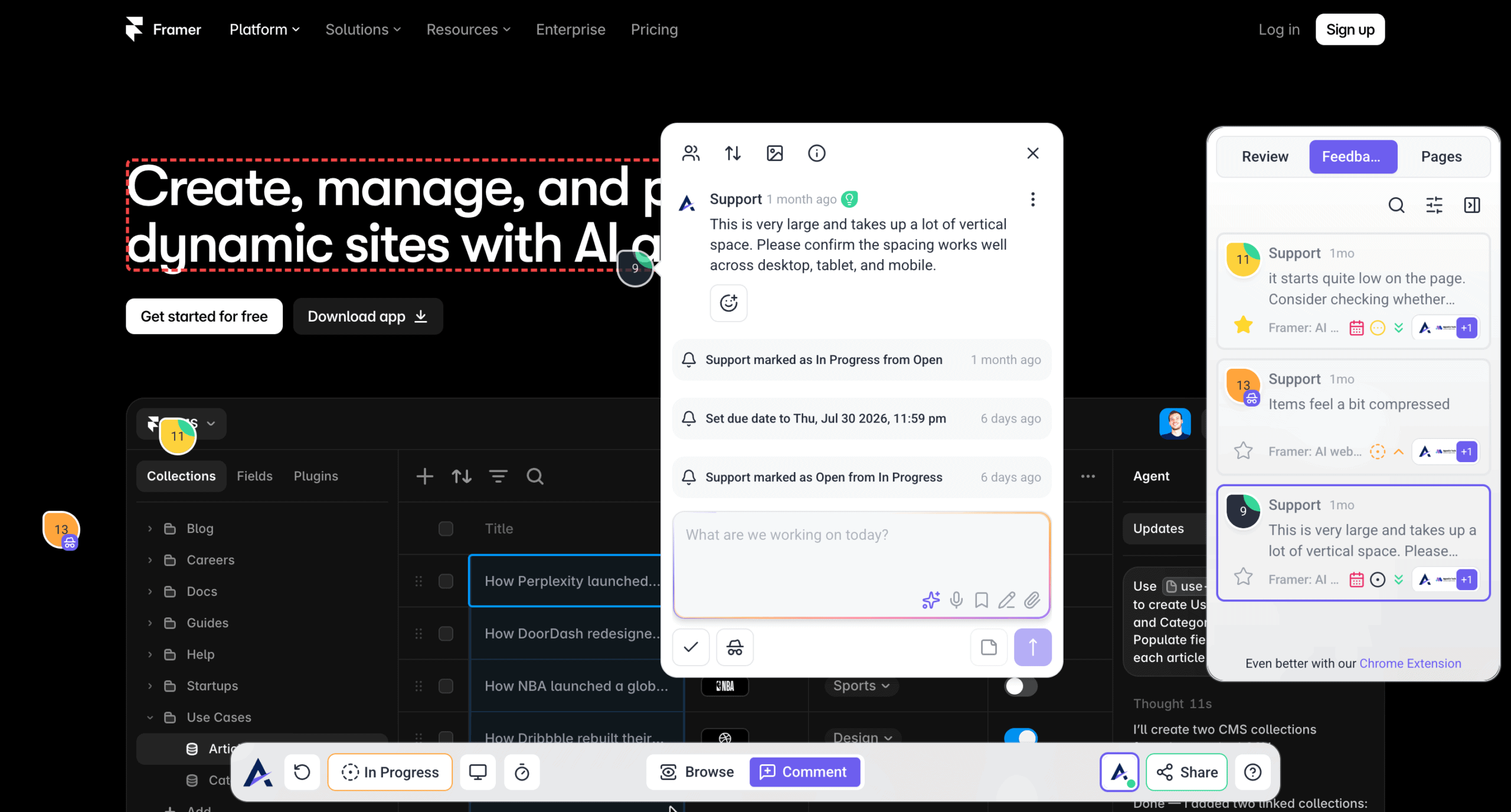
Creating a task by selecting the element
Note
This matters more as teams grow, not less. Written descriptions of visual problems get misread by someone who wasn’t in the original conversation — a pinned comment doesn’t. Discover Annotation Tools
4. Run the Board
Open the Boards view.
Move tasks between columns as their status changes.
Add tags and set priority to mark what matters.
Filter by assignee to see one person’s queue.
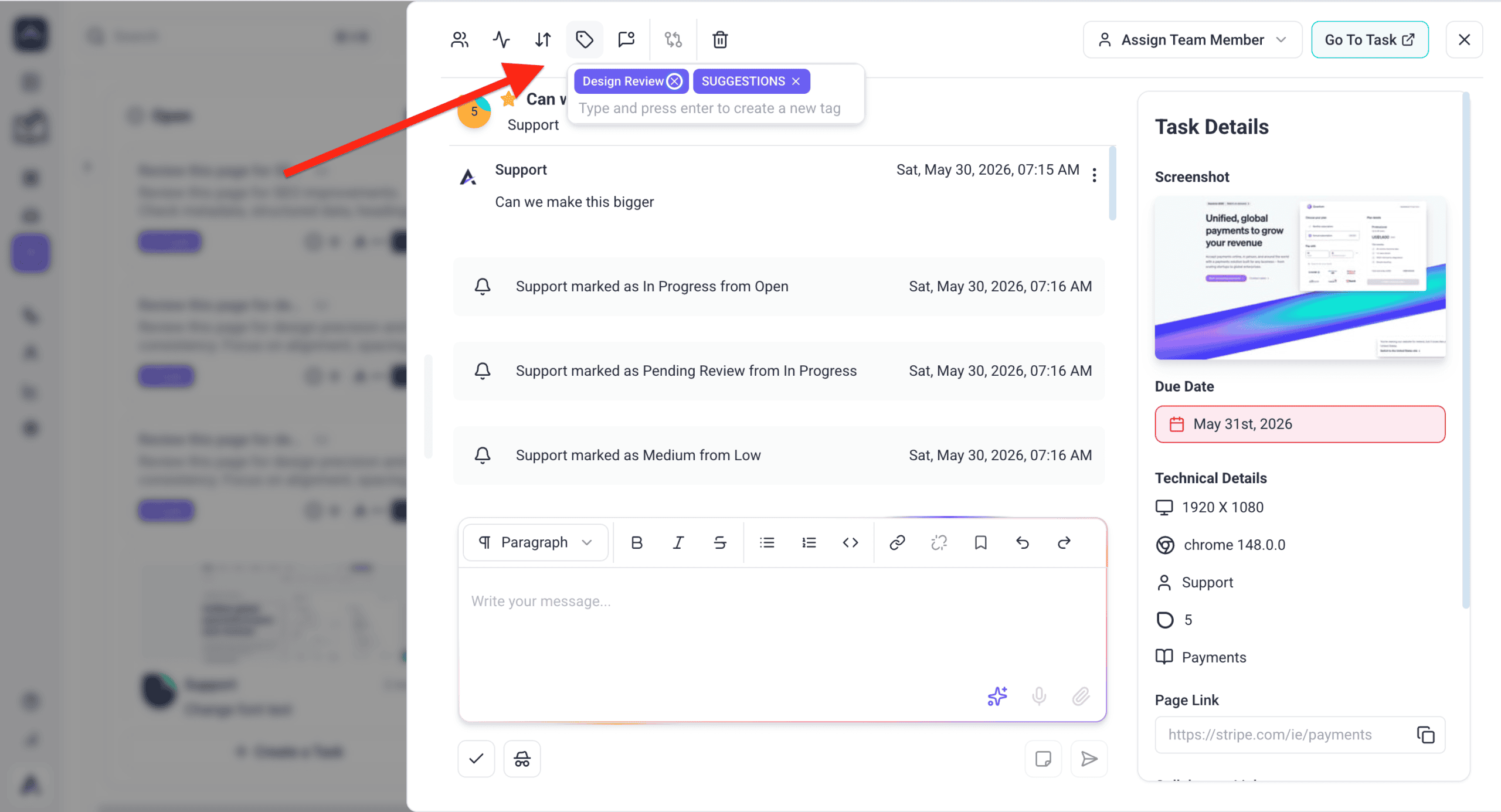
Moving tasks between columns
Adding a tag from the board
You can change a task’s status from the task itself as well as by dragging it
On a large board, opening the task and setting the value is often quicker and less fiddly than dragging across several columns. Explore Kanban Boards
5. Automate the Routine
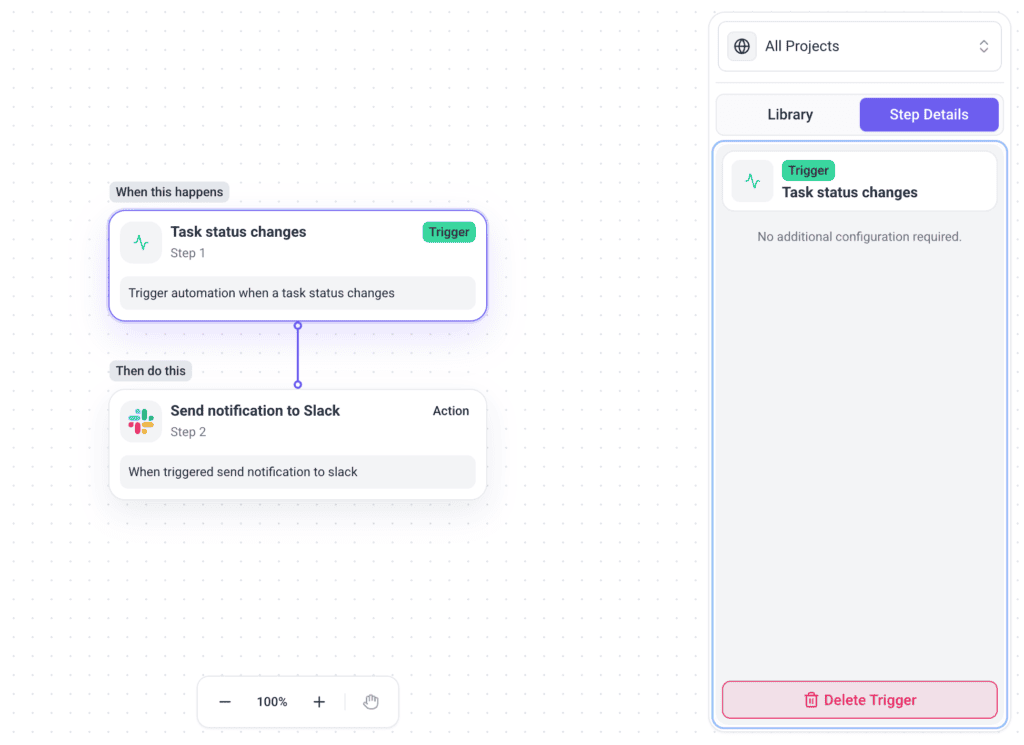
Open Workflows in your workspace.
Set a trigger — a task marked Critical, or a specific tag being applied.
Define the action, such as notifying the right people or pushing to a connected tool.
Test it with a real task before rolling it out.
Workflow
Review automations regularly so they keep pace with how the team actually works
A rule built around a process you’ve since changed keeps firing quietly, and stale notifications are how a useful channel becomes one people mute. Explore Workflows
6. Connect the Tools You Already Use
Bringing Atarim to the tools your team already lives in beats asking everyone to adopt another tab.
Instructions:
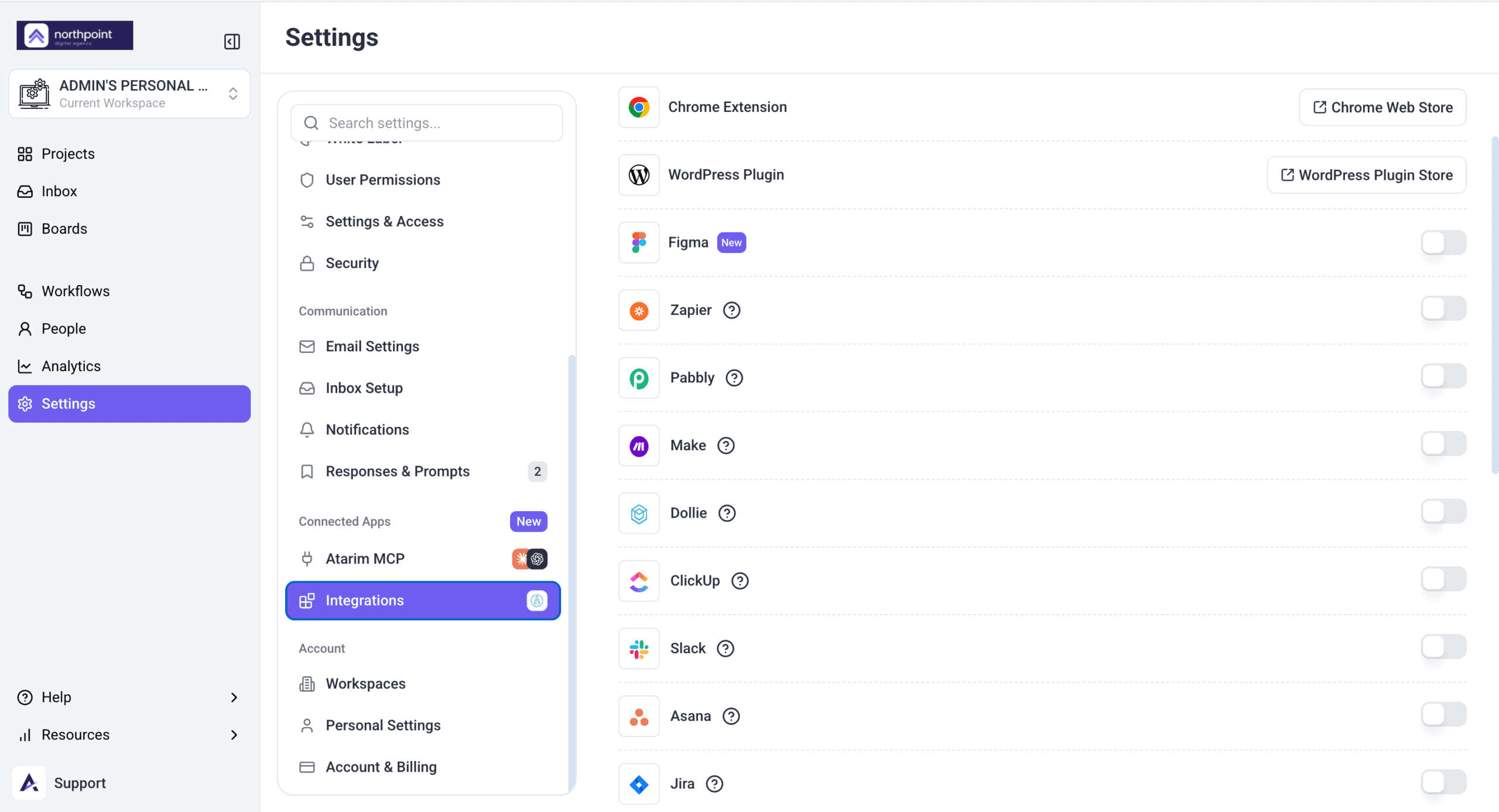
Go to Settings → Connected Apps → Integrations.
Connect the tools your team works in — Slack, Jira, Trello and others.
Use them to sync tasks and updates across platforms.
Connecting a third-party tool
Note
Integration actions appear in the workflow builder once that integration is connected, so connect first if something isn’t in the action list. See All Integrations
Slack is the highest-value connection for a large team
Because it puts updates where people already are. Be selective about which events you post though — a channel that fires on every status change gets muted, and then it’s worse than nothing. Explore The Slack Integration
FAQs
Can I assign a task to several people?
Tasks are assigned to one person to keep accountability clear. Others can still be notified.
Can I see what changed on a task?
Yes. Changes including status updates and assignments are logged on the task.
What are the task statuses?
Open, In Progress, Pending Review and Complete.
How do I give a new starter access to everything they need?
Assign them at folder level rather than project by project — they get everything inside automatically.
How do I see one person’s workload?
Filter the board by assignee, optionally combined with priority.
Which integration is most useful for a large team?
Usually Slack, because updates reach people where they already are. Choose which events post carefully.
Common issues
Work falls through the cracks — check for unassigned tasks. On a large team those are effectively invisible.
People can’t find their projects — review folder structure and assign access at folder level.
A teammate isn’t getting notifications — preferences are per person. Check their own settings.
A dragged task didn’t move — open the task and set its status directly instead.
An automation isn’t firing — check the trigger conditions still match how you work.
An integration isn’t in the workflow list — connect it in Settings first, then reopen the builder.
The board doesn’t reflect reality — statuses aren’t being updated. A weekly review keeps it honest.
Conclusion
Large teams need structure rather than more coordination. Workspaces and folders make work findable, assignment makes ownership explicit, boards make status visible, and automation removes the manual chasing.
The one habit that matters most is assigning an owner as tasks arrive. Everything else can be tidied later; an unassigned task on a large team simply disappears. Discover How To Handle Backlogs And Bottlenecks
Tips & best practices
Review workflows periodically to spot bottlenecks and stale automations.
Use tags and priority to mark what genuinely needs attention.
Encourage everyone to update statuses so the board stays trustworthy.
Assign access at folder level rather than per project.
To provide the best experiences, we use technologies like cookies to store and/or access device information. Consenting to these technologies will allow us to process data such as browsing behavior or unique IDs on this site. Not consenting or withdrawing consent, may adversely affect certain features and functions.
Functional
Always active
The technical storage or access is strictly necessary for the legitimate purpose of enabling the use of a specific service explicitly requested by the subscriber or user, or for the sole purpose of carrying out the transmission of a communication over an electronic communications network.
Preferences
The technical storage or access is necessary for the legitimate purpose of storing preferences that are not requested by the subscriber or user.
Statistics
The technical storage or access that is used exclusively for statistical purposes.The technical storage or access that is used exclusively for anonymous statistical purposes. Without a subpoena, voluntary compliance on the part of your Internet Service Provider, or additional records from a third party, information stored or retrieved for this purpose alone cannot usually be used to identify you.
Marketing
The technical storage or access is required to create user profiles to send advertising, or to track the user on a website or across several websites for similar marketing purposes.